







Imagine this scenario: Mark, a dedicated travel vlogger, just returned from a grueling ten-day trek through the misty mountains of Scotland. He captured breathtaking 4K footage of the sunrise over Old Man of Storr and intimate interviews with local highlanders. Back at his hotel, he slides the SD card into his laptop, eager to begin the editing process. However, instead of a list of video files, a terrifying system prompt appears: “The disk in drive D: is not formatted. Do you want to format it now?” Mark’s heart sinks. Hundreds of gigabytes of irreplaceable content seem to have vanished into a digital void. Like many people in this situation, his first instinct is panic. But before he gives up, he discovers the world of free sd memory card recovery. This article serves as a comprehensive roadmap for anyone facing a similar digital catastrophe, proving that “deleted” rarely means “gone forever.”
The Hidden Science: How Data Restoration Actually Works
To perform a successful free sd memory card recovery, you first need to understand what happens behind the scenes of your storage device. Think of your SD card as a massive local library.
The Library and the Index
In this library, your photos and videos are the books sitting on the shelves. To keep things organized, the library uses a “Card Catalog” (known in technical terms as the File Allocation Table or FAT). This catalog tells the computer exactly which shelf holds which book.
When you “delete” a file or format your card, the computer does not immediately send a shredder to the shelves. Instead, it simply takes an eraser to the Card Catalog. It marks the entry for that book as “Available” and the shelf space as “Empty.” The actual book—your data—remains on the shelf, silent and invisible to the operating system.
The Recovery Mission
A professional-grade free sd memory card recovery process ignores the broken catalog and walks straight into the aisles. It examines every inch of the “shelves” to see what is actually sitting there. As long as you have not brought in new books to occupy those specific shelves (a process called “overwriting”), the original data remains retrievable. This fundamental principle is why you should never lose hope when a card fails.
Critical Precautions: The “Do’s and Don’ts” of Data Loss
Before we explore the specific tools for free sd memory card recovery, you must follow these golden rules to protect the integrity of your lost files.
- Stop Using the Device Immediately: The moment you suspect data loss, pull the SD card out of your camera or phone. Any new photo you take could occupy the “shelf” where your deleted photo still resides.
- Avoid In-Place Installation: Never download or install free sd memory card recovery software directly onto the SD card you are trying to rescue. Always install tools on your computer’s internal C: or D: drive.
- The “Cancel” Rule: If Windows or macOS prompts you to “Format the drive to use it,” always click Cancel. Formatting creates a new file system that makes the recovery process significantly more difficult.
Practical Methods for Free SD Memory Card Recovery
We have categorized these methods from simple system fixes to advanced forensic analysis tools.
Method 1: Using Windows File Recovery (CMD Tool)
Microsoft provides its own specialized tool for free sd memory card recovery. While it lacks a colorful interface, it is highly effective for Windows 10 and 11 users.
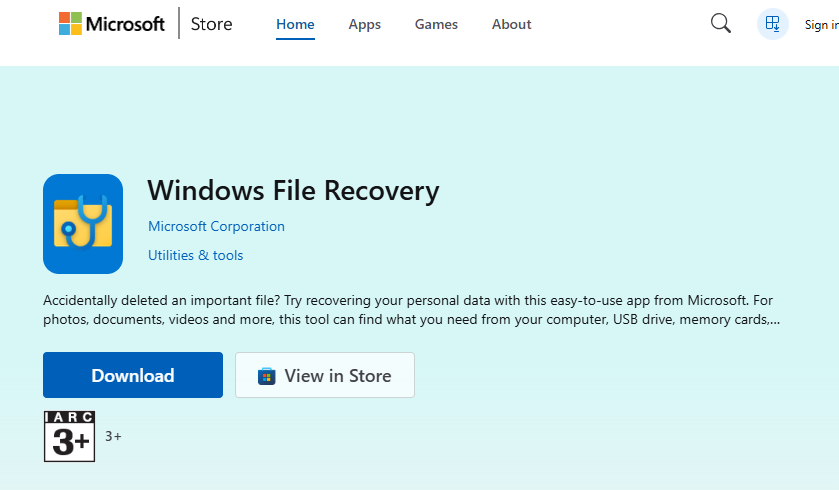
- Step 1: Download “Windows File Recovery” from the official Microsoft Store.
- Step 2: Launch the application. A Command Prompt window will open automatically.
- Step 3: Identify your SD card’s drive letter (e.g., E:). You must also choose a destination folder on a different drive (e.g., C:\RecoveredData).
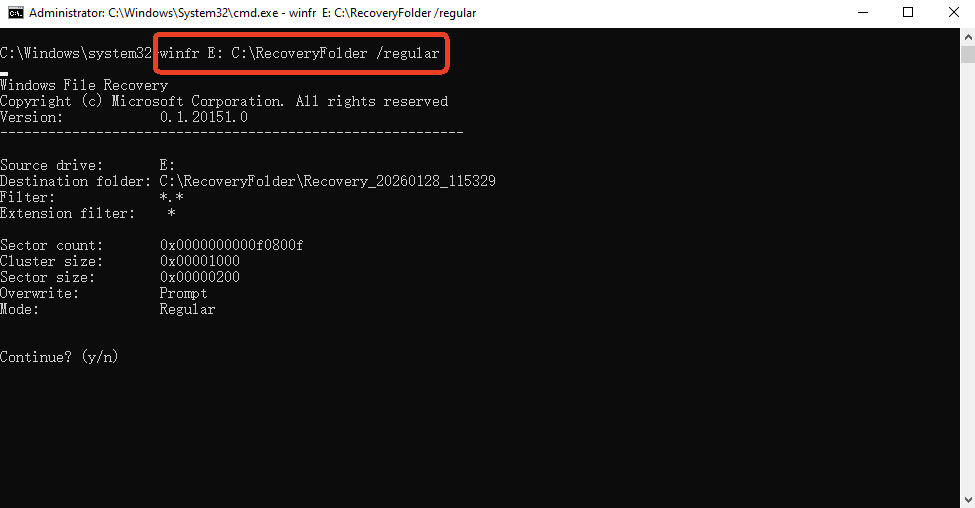
- Step 4: Type the following command for an SD card (which usually uses FAT32 or exFAT):
winfr E: C:\RecoveredData /extensive - Step 5: Press “Y” to start the scan. The tool will search for file signatures and reconstruct them in your destination folder.
Method 2: High-Efficiency Restoration with PandaOffice Drecov
When you face severe corruption or a “RAW” drive error, you need a more robust solution. PandaOffice Drecov has become a favorite in the free sd memory card recovery community because it combines professional-grade deep scanning with an incredibly simple interface. It allows users to scan and preview their files entirely for free before proceeding.
- Versatility: It recovers photos, videos, audio, compressed files (ZIP/RAR), and even system files like EXEs.
- Accidental deletion from your computer desktop.
- Files lost after emptying the Recycle Bin.
- Data loss from disk formatting.
- Accidental deletion or formatting of SD cards/U disks.
- Sync error occurring with deleted OneDrive files
- Restore deleted Chrome bookmarked
- Privacy First: All recovery happens locally on your machine, so you don’t have to worry about your private data leaking to the web.
Follow the Three-Step Operation below:
- Step 1: Select the Target DriveLaunch PandaOffice Drecov. The software will display all connected storage devices. Locate your SD card under the “External Devices” or “Removable Drives” section and click on it.

- Step 2: Initiate the Intelligent ScanClick the “Scan” button. The software utilizes a dual-engine algorithm. It first performs a “Quick Scan” to find recently deleted files, followed by an “Intelligent Deep Scan” that analyzes the raw sectors of the card. You can watch the files appear in real-time, categorized by type (JPG, MP4, DOCX, etc.).

- Step 3: Preview and RestoreOnce the scan finishes (or even while it is running), you can double-click on any image or video to open the Preview Window. This ensures the file is intact and not corrupted. Check the boxes next to the items you want and click the “Recover” button, saving them to your PC’s hard drive.
Technical Note: PandaOffice Drecov is particularly effective at handling high-capacity SDXC cards and recovering fragmented video files that other free sd memory card recovery tools often miss.
Method 3: Using PhotoRec (Open-Source Forensic Power)
For those who are comfortable with a text-based interface and need a completely open-source free sd memory card recovery option, PhotoRec is the industry standard for forensic analysis.
- Step 1: Download the TestDisk & PhotoRec package. Extract the folder and run
photorec_win.exe.
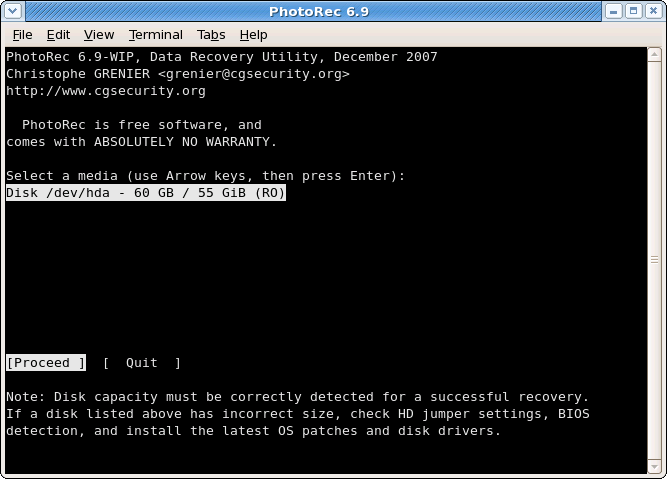
- Step 2: Use the arrow keys to select your SD card from the list of disks and press Enter.
- Step 3: Select the partition type (usually
[Whole Disk]) and the file system type (usually[Other]for FAT/exFAT).
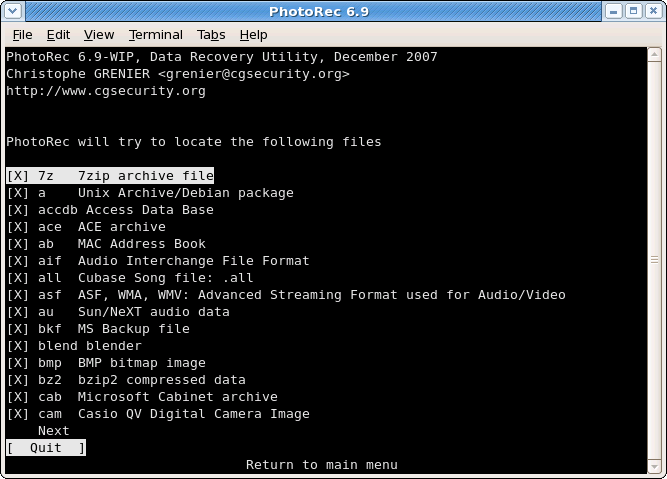
- Step 4: Choose a destination folder on your computer’s hard drive to store the recovered files.
- Step 5: Press “C” to begin the extraction. PhotoRec will dump every file it finds into folders named
recup_dir.1,recup_dir.2, and so on.
Method 4: Fixing Hidden Files via CMD (Attrib)
Sometimes your data isn’t deleted; it is simply hidden by a “shortcut virus” or a system glitch. In such cases, you don’t need a third-party free sd memory card recovery tool; you just need to change file attributes.
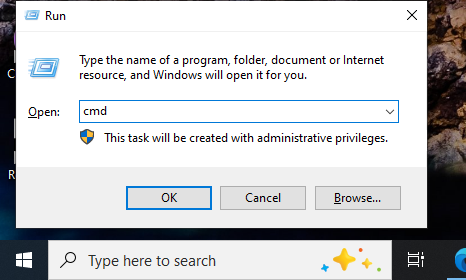
- Step 1: Press
Win + S, type “cmd,” and right-click to “Run as Administrator.”
- Step 2: Type the drive letter of your SD card (e.g.,
F:) and hit Enter.
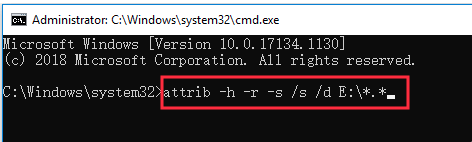
- Step 3: Type the following command:
attrib -h -r -s /s /d *.*and press Enter. - Step 4: Open your SD card in File Explorer. If your files were just hidden, they will now be visible in a nameless folder.
Comparison of Free SD Memory Card Recovery Solutions
Choosing the right free sd memory card recovery path depends on your specific problem. Use the table below to evaluate your options.
| Feature | Windows File Recovery | PandaOffice Drecov | PhotoRec | CMD Attrib |
| Best For | Casual deletions | Corrupted/RAW/Formatted Cards | Severe hardware failure | Virus-hidden files |
| Ease of Use | Moderate (CMD) | Very Easy (3-Step GUI) | Difficult (Text) | Easy (CMD) |
| Preview Ability | None | Full Visual Preview | None | N/A |
| Scanning Speed | Fast | Intelligent/Optimized | Slow (Deep Scan) | Instant |
| Success Rate | Medium | High | High | Low (Specific cases) |
Essential Preventative Measures for Data Safety
While knowing how to perform a free sd memory card recovery is vital, preventing the loss in the first place is the ultimate goal. Here is how you can shield your data.
1. The 3-2-1 Backup Strategy
This is the gold standard of data protection:
- Keep 3 copies of your data.
- Store them on 2 different types of media (e.g., SD card and External Hard Drive).
- Keep 1 copy off-site (Cloud storage like Google Drive or Dropbox).
2. Format in Camera, Not PC
Always format your SD card using the internal menu of your camera or drone. This ensures the file system structure perfectly matches the device’s hardware requirements, reducing the risk of a “RAW” drive error that necessitates free sd memory card recovery.
3. Safe Ejection Habits
Never pull an SD card out while the camera is still on or while the computer is accessing the files. This can cause “Bit Rot” or a corrupted File Allocation Table. Always use the “Safely Remove Hardware” option in your Windows taskbar.
4. Replace Cards Regularly
Flash memory has a limited number of “write cycles.” If you use your SD card daily for professional work, replace it every 18 to 24 months. A $30 investment in a new card is much cheaper than professional forensic data recovery services.
Frequently Asked Questions
1.Can I perform a free sd memory card recovery on a physically snapped card?
No. If the memory chip inside the card is physically cracked or broken, software cannot communicate with the data. In this rare case, you must contact a professional lab with “cleanroom” facilities to manually read the NAND flash chips.
2.Is it safe to use free sd memory card recovery tools on my card?
Yes, as long as the software is “read-only.” Tools like PandaOffice Drecov do not modify the original data on your card; they only read it and copy it to a new location.
3.Why do some recovered photos appear as gray boxes?
This usually happens due to “overwriting.” If new data was saved onto the card after the deletion, it might have overwritten the bottom half of your old photo. This is why immediate cessation of use is the most important rule.
4.Does free sd memory card recovery work on encrypted cards?
If the card was encrypted (e.g., by an Android phone or BitLocker), you will likely need the original password or recovery key. Without the key, the recovered data will remain an unreadable jumble of characters.
Conclusion
Data loss on an SD card can feel like losing a piece of your history, but as we have demonstrated, the right free sd memory card recovery approach can restore your peace of mind. By understanding the “library” logic of storage, you can approach the problem with a calm, technical mindset.
For most users, a modern and intuitive tool like PandaOffice Drecov offers the best balance of success and simplicity, especially with its free scan and preview features. However, for those comfortable with code, PhotoRec and Windows File Recovery remain powerful allies. Regardless of the tool you choose, the key to success is acting quickly and never writing new data to the card until your files are safe.






