







In the modern digital workspace, screen real estate is king. Whether you are a data analyst tracking complex spreadsheets or a creative professional editing high-resolution video, a single monitor rarely suffices. This is where a USB 3.0 to HDMI adapter becomes an essential tool. However, transitioning to Windows 11 often introduces compatibility hurdles. If you have struggled to install drivers for usb 3.0 to hdmi adapter windows 11, you are not alone.
This comprehensive guide will walk you through the technical nuances of setting up your display hardware and, more importantly, how to protect and recover your data if hardware malfunctions lead to file loss. We will also introduce the professional capabilities of PandaOffice Drecov for those critical moments when “plug and play” turns into “plug and pray.”
Understanding Why Your Video Adapter Requires Specific Drivers
Many users expect a USB 3.0 to HDMI converter to function like a standard cable. Unfortunately, these devices are actually external graphics cards. Because a standard USB port is designed for data, not native video signals (like DisplayPort or HDMI), the adapter uses a specialized chipset—often from manufacturers like DisplayLink or Silicon Motion—to compress and transmit video data.
Without the correct software interface, Windows 11 cannot communicate with this chipset. If the driver is missing or corrupted, your computer might misidentify the adapter as a generic “USB Mass Storage Device” or an “Unknown Device” in the Device Manager. Consequently, the monitor remains black, or worse, the system might crash due to driver conflicts.
Acquiring the Correct Display Expansion Software
Before you can enjoy an extended desktop, you must source the legitimate software tailored for your hardware. Using “driver booster” tools from third parties is risky; always prioritize the official manufacturer’s repository.
Step 1: Identify Your Chipset and Model
Flip the adapter over and look for a model number. Brands like StarTech, Gofanco, Cable Matters, or Simplecom usually provide dedicated support pages. If the brand is generic, you may need to look at the hardware ID in Device Manager to find the chipset provider.
Step 2: Visit the Official Support Portal
Navigate to the manufacturer’s website. For instance, if your adapter uses DisplayLink technology (very common for USB 3.0), you should visit the official DisplayLink downloads page.
Step 3: Download the Windows 11 Compatible Package
Ensure the version you download explicitly mentions Windows 11 support. While Windows 10 drivers often work, Windows 11 has stricter requirements for Driver Signature Enforcement. Save the file (usually an .exe or .zip) to your Downloads folder.
Executing the Setup: How to Install Drivers for USB 3.0 to HDMI Adapter Windows 11
Once you have the file, the installation process must be handled with precision to avoid registry errors.
Step 1: Prepare the Environment
Disconnect the adapter from your laptop or desktop first. Installing drivers while the device is plugged in can sometimes lead to a “half-installed” state where the driver is active but the hardware isn’t initialized.
Step 2: Run the Installer as Administrator
Locate your downloaded file. If it is a .zip file, right-click and select Extract All. Right-click the .exe installer and select Run as administrator. This ensures the software has the permissions to modify system folders and the Windows Registry.
Step 3: Progress Through the Installation Wizard
Follow the prompts. If a security warning appears asking if you trust the software from the publisher, click Install.
Step 4: The Critical System Reboot
Even if the installer doesn’t “force” a restart, you should manually reboot your PC. This clears the system cache and allows the Windows Kernel to load the new display driver stack.
Connecting and Configuring Your Secondary Display
With the software foundation laid, it is time to establish the physical connection.
- Step 1: Plug the USB 3.0 end into a blue-colored port on your PC. Avoid using USB 2.0 ports (black), as they lack the bandwidth for smooth video, resulting in lag or low resolution.
- Step 2: Connect the HDMI cable to the adapter and then to your monitor.
- Step 3: Use the hotkey Windows + P. This opens the “Project” menu. Select Extend to create a continuous workspace across both screens.
- Step 4: Fine-tune the resolution by going to Settings > System > Display. Ensure the refresh rate is set to at least 60Hz for a flicker-free experience.
Troubleshooting Persistence: Utilizing Windows Device Manager
If the screen remains dark after you install drivers for usb 3.0 to hdmi adapter windows 11, the hardware might be “stuck” in an error state.
- Press Windows + X and select Device Manager.
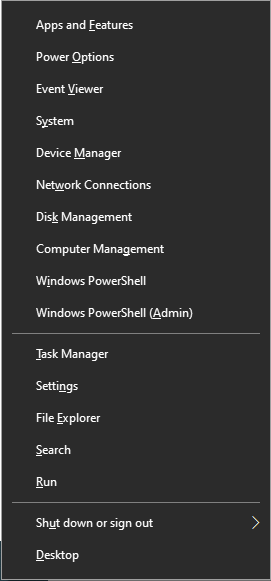
- Look for Display adapters or Other devices.
- If you see a yellow exclamation mark (!), right-click the entry and select Update driver.
- Choose Browse my computer for drivers and point the search to the folder where you extracted the manufacturer’s files.
- If this fails, select Uninstall device, unplug the adapter, and perform a “Scan for hardware changes” from the Action menu.
Data Recovery: Protecting Your Files During Hardware Upgrades
Installing new drivers and rearranging USB peripherals can occasionally cause system instability. In rare cases, a driver conflict or an abrupt power surge through a USB port can lead to partition corruption or accidental file deletion. If you find that your external drive or local files have vanished during your setup process, you need a professional-grade recovery solution.
Introducing PandaOffice Drecov
PandaOffice Drecov is a premier data recovery suite designed for Windows 11 users. It specializes in retrieving lost documents, photos, and system files from both internal SSDs and external USB-connected media. Whether your USB drive was formatted by mistake or became inaccessible due to a driver error, Drecov uses advanced deep-scanning algorithms to reconstruct the file tree.
⚠ Warning: Install it on a drive different from the one where your data was lost to prevent overwriting.
Step-by-Step Guide to Recovering Data with PandaOffice Drecov
Step 1: Select the Target Location
Upon opening, the dashboard will display all connected drives. If you lost files on a USB flash drive that was plugged in alongside your HDMI adapter, select the USB Drive icon. If the files were on your main desktop, select the C: Drive.

Step 2: Initiate the “Deep Scan”
Click the Scan button. PandaOffice Drecov will first perform a Quick Scan to find recently deleted items, followed automatically by a Deep Scan. This process looks for “file signatures” even if the file system is corrupted.

Step 3: Preview and Filter Results
One of the best features of Drecov is the Preview function. You can click on images or documents to verify they are intact before committing to the recovery. Use the filter sidebar to sort by file type (e.g., .jpg, .docx, .pdf).

Step 4: Recover and Export
Select the checkboxes next to the files you wish to save. Click Recover.
Key Operation Point: Always choose a recovery destination on an external hard drive or a different partition to ensure 100% data integrity.
Advanced Technical Tips for Windows 11 Display Stability
Beyond the initial effort to install drivers for usb 3.0 to hdmi adapter windows 11, maintaining a stable dual-monitor setup requires keeping your core system updated.
Update Your GPU Drivers
Your USB adapter relies on the primary graphics card (Intel UHD, NVIDIA RTX, or AMD Radeon) to do the heavy lifting of rendering. Visit the NVIDIA Driver Download or AMD Support sites to ensure your primary GPU isn’t bottlenecking the USB-based display.
Power Management Settings
Windows 11 often tries to save power by “suspending” USB ports. This can cause your HDMI adapter to disconnect randomly.
- Go to Control Panel > Power Options.
- Click Change plan settings next to your active plan.
- Select Change advanced power settings.
- Find USB settings > USB selective suspend setting and set it to Disabled.
Expanding Your Knowledge on USB Maintenance
Fixing a display adapter is often just the start of optimizing your USB ecosystem. To ensure you never lose data or functionality again, explore these expert resources:
- Diagnosis and Repair: If your computer stops recognizing devices entirely, learn how to diagnose and fix a USB drive that is not showing up like a professional technician.
- Peripheral Connectivity: Encountering issues with gaming hardware? Here is why your PS4 controller won’t connect to PS4 via USB and how to resolve it.
- Emergency Recovery: For urgent situations where a drive seems dead, follow these 5 easy ways to save your data from a broken USB flash memory.
- Drive Optimization: If you need to clear a drive for a fresh start, find out how to reformat a USB drive and still recover your important data.
Your Questions on How to Install Drivers for USB 3.0 to HDMI Adapter Windows 11
1. Why does my screen resolution drop to 800×600 after I install drivers for usb 3.0 to hdmi adapter windows 11?
This limitation usually occurs when the adapter is connected to a USB 2.0 port instead of a USB 3.0 (SuperSpeed) port. USB 2.0 lacks the bandwidth required for Full HD (1080p) video transmission, forcing the hardware to default to a lower resolution. To fix this, ensure the adapter is plugged into a blue-colored port or one labeled with the SS (SuperSpeed) icon.
2. Is it safe to use a USB 3.0 to HDMI adapter on a laptop that is already running two monitors?
Yes, but it depends on your CPU and RAM overhead. Since these adapters use a “virtual graphics card” technology (like DisplayLink), they consume a small percentage of your processor’s power to compress video data. If you are already running multiple high-resolution screens, ensure your system has at least 8GB of RAM and a modern processor to avoid lag or cursor latency on the USB-connected screen.
3. Can I install drivers for usb 3.0 to hdmi adapter windows 11 if my laptop is in “S Mode”?
Standard drivers cannot be installed in Windows 11 S Mode because it only allows apps from the Microsoft Store. To use most third-party USB-to-HDMI adapters, you must first “Switch out of S Mode” in your Windows Activation settings. Once you have transitioned to the standard Home or Pro version of Windows 11, you can run the manufacturer’s .exe installer without restriction.
4. What should I do if PandaOffice Drecov cannot see my USB drive after a driver crash?
If a driver conflict causes your USB port to become unresponsive, the recovery software may not detect the hardware. First, try plugging the USB drive into a different physical port on your PC. If it still doesn’t appear, open Disk Management to see if the drive is listed as “Not Initialized.” If the hardware is visible there, PandaOffice Drecov can usually perform a “Partition Recovery” to find and extract your lost files.
5. Does the adapter support audio transmission, or do I need a separate cable?
Most modern USB 3.0 to HDMI drivers include an integrated audio controller. After you install the driver, right-click the Sound icon in your taskbar and select “Sound settings.” Under the “Output” section, look for your monitor’s name or “USB Audio Device.” By selecting this, Windows 11 will send both video and audio through the HDMI cable to your monitor’s built-in speakers.
Conclusion
Learning to install drivers for usb 3.0 to hdmi adapter windows 11 is a vital skill for anyone looking to boost their productivity. By sourcing the correct drivers from manufacturers, using the Device Manager for troubleshooting, and keeping your system power settings optimized, you can enjoy a seamless multi-monitor experience.
However, technology is imperfect. When hardware conflicts lead to data loss, tools like PandaOffice Drecov act as your digital safety net. Always remember to back up your drivers and your data regularly to stay ahead of any technical glitches.






