







Imagine you are a digital researcher who has meticulously curated over five hundred specialized academic sources over the last year. You rely on these links daily to complete your doctoral thesis. One Tuesday afternoon, after a forced system update, you launch your browser only to find a sterile, empty toolbar. The panic is immediate. You frantically search online forums and ask the pivotal question: where are firefox bookmarks stored? This exact nightmare frequently haunts users on platforms like Reddit’s Firefox community, where lost data becomes a race against time.
Understanding the technical architecture of your browser is the first step toward digital sovereignty. Your bookmarks are not merely entries in a menu; they are physical bits of data residing on your hard drive. In this extensive guide, we will demystify the storage mechanics of the Firefox ecosystem, provide actionable steps to locate your files, and introduce professional recovery strategies to ensure your digital library remains eternal.
Part 1: Mapping the Territory—Where Are Firefox Bookmarks Stored?
Unlike older browsers that utilized simple, human-readable text files to save your favorite sites, modern versions of Firefox employ a sophisticated database system. This shift ensures that your browser remains fast even if you have thousands of entries. If you are wondering where are firefox bookmarks stored, the answer lies within your “Profile Folder.” Firefox segregates your personal data—passwords, history, and bookmarks—from the actual application files to ensure that when the software updates, your personal information stays untouched.
Method 1: The Troubleshooting Shortcut (The Non-Technical Path)
Firefox designers understood that users might need to access their data without navigating complex system directories. They built a “backdoor” into the interface that takes you exactly where you need to go.
- 1.Open Firefox: Launch the application as you normally would.
- 2.Access Troubleshooting Info: In the address bar, type
about:supportand press Enter. This page is the “engine room” of your browser. - 3.Identify the Profile Folder: Scroll down to the “Application Basics” section. Locate the row labeled Profile Folder (on Windows) or Profile Directory (on macOS).
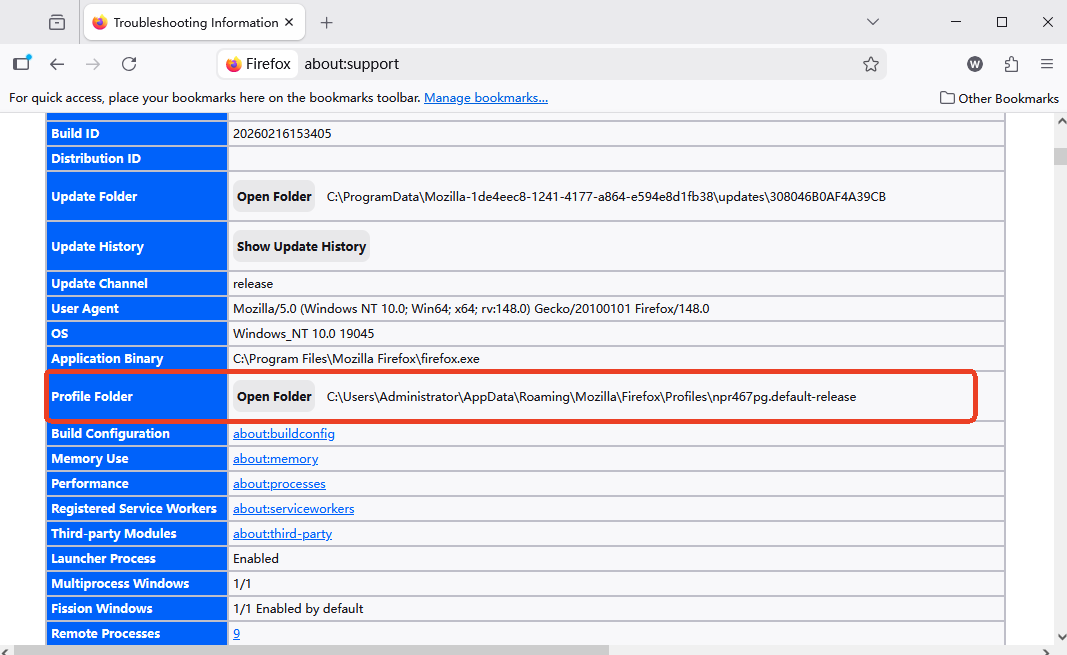
- 4.Open the Source: Click the Open Folder button. A window will immediately pop up showing your raw data files.
- 5.Locate the Database: Look for a file named
places.sqlite. This single file is the definitive answer to where are firefox bookmarks stored in real-time.
Sometimes, a software conflict prevents the browser from launching. In such cases, you must manually hunt for the path. Ensure you have enabled “Show hidden files” in your system settings before proceeding.
- On Windows 10/11: Navigate to
C:\Users\[YourUsername]\AppData\Roaming\Mozilla\Firefox\Profiles\. - On macOS: Go to
~/Library/Application Support/Firefox/Profiles/. - On Linux: Check
~/.mozilla/firefox/.
Once you navigate inside these directories, you will encounter a folder typically labeled with a cryptic name like xxxxxxx.default-release. In essence, this folder serves as your personal digital vault. Furthermore, tucked safely within this directory, the bookmarkbackups subdirectory preserves historical snapshots of your links—an asset that proves absolutely vital for any successful recovery mission.
Part 2: The Art of Restoration—Recovering Lost Firefox Data
Even when you know where are firefox bookmarks stored, you might find that the folder is empty or the places.sqlite file is corrupted. This is where most users lose hope, but data recovery is more intuitive than it seems.
The “Invisible Ink” Metaphor: Why Recovery Works
Think of your hard drive as a massive whiteboard. When you delete a file, the computer doesn’t actually erase the drawing. Instead, it simply removes the “Post-it note” that tells the system where the drawing is located. The drawing remains on the board in “invisible ink” until another file (a new drawing) is written directly over it. As long as you don’t save new, heavy files onto the drive, professional tools can make that invisible ink visible again.
Advanced Recovery with PandaOffice Drecov
When standard “Undo” commands fail and your manual search for where are firefox bookmarks stored yields nothing, you need a specialized forensic tool. PandaOffice Drecov is a high-performance data recovery suite designed to scan the deep sectors of your drive to find fragmented database files.
Crucial Warning: Do not install the software on the drive where the data was lost. If your bookmarks were on the C: drive, install the recovery tool on a USB drive or a secondary D: partition to prevent overwriting the “invisible ink.”
- Step 1: Selecting the Target Volume
Launch PandaOffice Drecov and select the drive that previously housed your Firefox profile. Click “Scan” to begin a comprehensive analysis of the disk’s surface.

- Step 2: Filtering for Firefox Files
Instead of browsing through thousands of recovered photos or documents, use the search filter. Type places.sqlite or .jsonlz4 into the search bar. These are the specific formats that answer the technical question of where are firefox bookmarks stored.

- Step 3: Preview and Validate
Drecov allows you to see the file size and modification date. Select the version of places.sqlite that matches the time before your data disappeared.

- Step 4: Execution of Recovery
Click “Recover” and save the file to a safe, external location. For more detailed strategies on this process, you can explore proven methods to retrieve lost bookmarks.
- Step 5: Reinsertion
Copy the recovered places.sqlite file and paste it back into your Firefox profile folder (the one you located in Part 1). When the system asks if you want to replace the existing file, click “Yes.” Restart Firefox, and your links will reappear.
Part 3: Fortifying Your Digital Library—Preventive Measures
Knowing where are firefox bookmarks stored is a great defensive skill, but proactive protection is better. Follow these steps to ensure you never have to use recovery software again:
- Enable Firefox Sync: Create a Mozilla account. This encrypts your bookmarks and mirrors them on Mozilla’s secure servers. If your computer explodes, your bookmarks remain safe in the cloud.
- Manual HTML Exports: Once a month, press
Ctrl+Shift+O, click “Import and Backup,” and select “Export Bookmarks to HTML.” Save this file to a cloud drive like Google Drive or Dropbox. - Profile Mirroring: Periodically copy your entire
Profilesfolder to an external hard drive. This captures not just bookmarks, but your entire browsing environment.
Where Are Firefox Bookmarks Stored FAQs
Q1: Is it possible to change the default location where Firefox bookmarks are stored?
Yes. You can use the Profile Manager (type firefox.exe -P in the Windows Run box) to create a new profile and choose a custom folder on a different drive or a synced partition.
Q2: Can I read the places.sqlite file with a text editor like Notepad?
No. Because Firefox uses a database format for speed, the file looks like gibberish in Notepad. You would need a “SQLite Viewer” to read the raw data inside.
Q3: Does Firefox store my bookmarks in the Windows Registry?
Many people assume browser settings are in the Registry, but that is not where are firefox bookmarks stored. The Registry only holds installation paths and file associations; your actual bookmarks stay within the profile folder on your disk.
Q4: I found a folder called ‘bookmarkbackups’—what are these files?
These are compressed daily snapshots of your bookmarks in .jsonlz4 format. Firefox keeps about 15 of these automatically. They are your first line of defense if your main database gets corrupted.
Q5: Will uninstalling Firefox delete my bookmarks?
Usually, the uninstaller asks if you want to “Remove my Firefox personal data and customizations.” If you leave that box unchecked, your profile folder remains on the drive even after the program is gone.
Q6: Can I use PandaOffice Drecov to find bookmarks from a formatted drive?
Yes. As long as you perform a “Deep Scan,” the software can often find the hexadecimal signatures of the places.sqlite file even if the partition table was wiped. You can find more expert methods for bookmark recovery here.
Conclusion
Mastering the knowledge of where are firefox bookmarks stored transforms you from a passive user into an empowered digital administrator. By locating the places.sqlite database and understanding the bookmarkbackups folder, you gain the ability to migrate, backup, and troubleshoot your data at will. Remember that while accidents happen, tools like PandaOffice Drecov and built-in features like Firefox Sync provide a robust safety net. Treat your bookmarks with the same care you would treat physical documents—backup often, know your file paths, and your digital map will always be there to guide you.






