







Imagine you are a meticulous digital archivist who has spent years curating a specialized library of web resources for a high-stakes corporate project. One morning, you launch your browser only to find that your entire navigational history—hundreds of carefully tagged folders and links—has vanished into the digital ether. The sudden realization of such a loss is paralyzing. This exact predicament was voiced by a distressed user on Reddit, who urgently inquired: “Where does Firefox store bookmark info?“ Understanding the firefox bookmarks location is not merely a technical triviality; it is a fundamental pillar of digital literacy that ensures your intellectual assets remain shielded from system volatility. In this exhaustive exploration, we will demystify the browser’s clandestine storage architecture and provide professional-grade strategies to safeguard your data.
Unlike contemporary browsers that may utilize rudimentary flat files, Firefox employs a sophisticated relational database engine to manage your metadata. Consequently, you will never find a simple file titled “bookmarks.txt” within the installation directory. Instead, the firefox bookmarks location is sequestered within a unique “Profile” folder, isolated from the core application files to protect user-specific settings during software updates.
Method 1: The Troubleshooting Portal (Universal Efficiency)
For those seeking the path of least resistance, Firefox provides an internal gateway that bypasses manual directory navigation.
- 1.Launch your Firefox browser and navigate to the address bar.
- 2.Input
about:supportand strike Enter to access the Troubleshooting Information dashboard. - 3.Locate the Application Basics grid and identify the Profile Folder (Windows) or Profile Directory (macOS/Linux) entry.
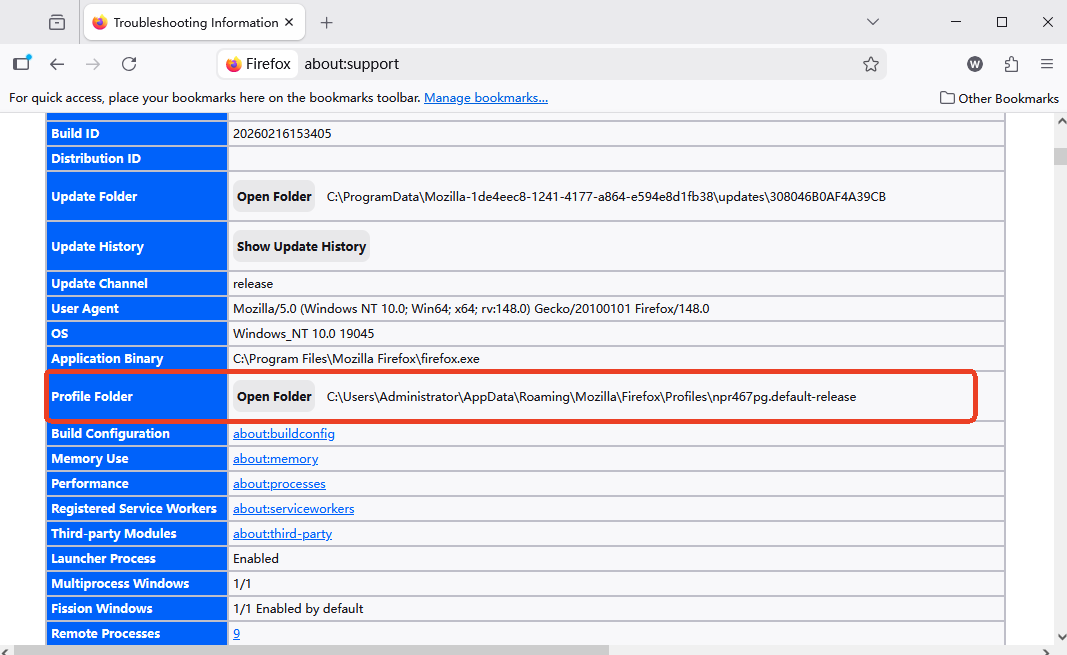
- 4.Click the Open Folder (or Show in Finder) toggle.
- 5.This action instantly transports you to the firefox bookmarks location.
- Primary Database: Seek the
places.sqlitefile; this is the heart of your bookmarks and history. - Snapshot Repository: The
bookmarkbackupsdirectory archives several historical iterations of your data.
Method 2: Manual Path Identification (For System Administrators)
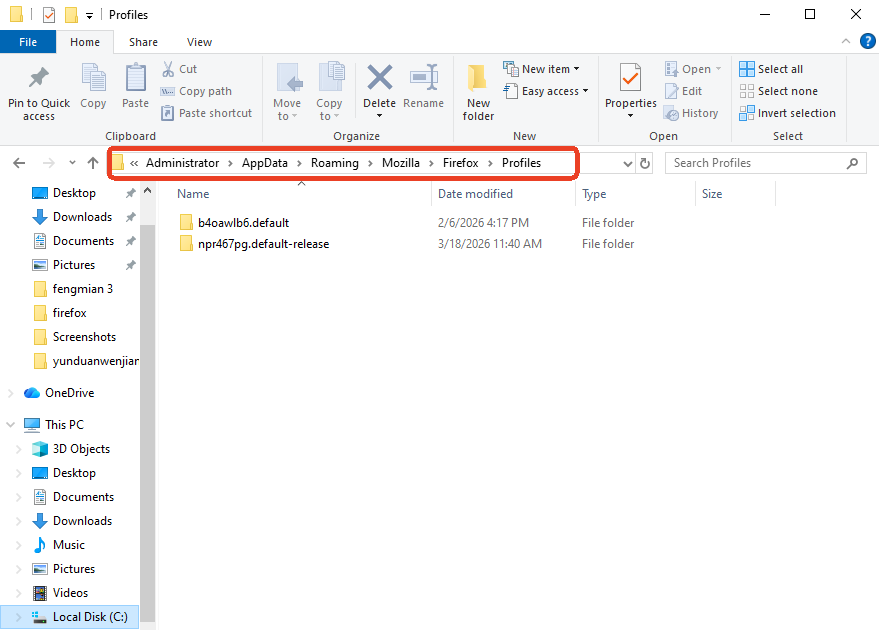
When a software malfunction renders the browser inaccessible, you must manually traverse the OS file system to reach the firefox bookmarks location. Ensure you substitute [YourUsername] with your specific administrative credentials.
- Windows 10/11 Deployment:
C:\Users\[YourUsername]\AppData\Roaming\Mozilla\Firefox\Profiles\(Ensure “Hidden items” are toggled to visible in your File Explorer settings.)
- macOS Architecture:
~/Library/Application Support/Firefox/Profiles/ - Linux Environment:
~/.mozilla/firefox/
Within these directories, you will encounter a folder characterized by a cryptic alphanumeric prefix (e.g., a1b2c3d4.default-release). This specific subdirectory functions as the definitive firefox bookmarks location for your active browsing session.
Part 2: Resurrecting Lost Data—From Catastrophe to Restoration
Identifying the firefox bookmarks location constitutes the initial phase of data management, but what protocol should you follow when those files suffer corruption or accidental erasure?
The “Library Index” Analogy: Why Recovery is Possible
Visualize your computer’s storage medium as a colossal library. When the system “deletes” a file, it does not instantly incinerate the manuscript. Rather, the librarian (the Operating System) simply erases the entry from the master index and designates that shelf space as “reusable.” As long as subsequent data hasn’t occupied that specific physical sector, professional tools can reconstruct the original content. This is why immediate cessation of disk activity is paramount when you realize the firefox bookmarks location is compromised.
Advanced Recovery via PandaOffice Drecov
When internal browser safeguards fail, industry-leading software like PandaOffice Drecov becomes indispensable. This suite transcends basic undelete functions by performing deep-sector forensic analysis to retrieve fragmented SQLite databases.
Key Capabilities of PandaOffice Drecov:
Beyond mere retrieval, Drecov excels at identifying specific file headers associated with the firefox bookmarks location. It can successfully reconstruct .jsonlz4 compressed backups and places.sqlite databases even after a partition format. Furthermore, the utility streamlines complex workflows, such as helping users migrate Firefox bookmarks to a new PC with high velocity.
Critical Warning: Never install the recovery software on the C: drive if that is the original firefox bookmarks location, as this may overwrite the very data you aim to salvage.
Step-by-Step Restoration Protocol:
- Step 1: Volume Analysis. Execute the application and select the logic drive where the Firefox Profile resided. Initiate a “Deep Scan” to scrutinize the raw disk sectors.

- Step 2: Precision Filtering. Once the scan concludes, utilize the advanced filter to isolate
.sqliteand.jsonlz4extensions. This narrows the results specifically to the firefox bookmarks location artifacts.

- Step 3: Integrity Verification. Preview the metadata of the discovered files. Drecov allows you to evaluate the file size and modification timestamps to ensure you recover the most recent version.

- Step 4: Secure Exportation. Direct the recovered files to a secure cloud folder or a USB device.
- Step 5: Reintegration. Move the restored
places.sqliteback into your active profile folder.
If you encounter difficulties, consult these expert methods for bookmark recovery or follow a structured maintenance routine to prevent future data loss. A healthy browser environment is the first line of defense against file corruption.
- Secure Your Data: Before making major system changes, learn how to export and import Firefox bookmarks to create a manual safety net for your most important links.
- Maintain System Speed: Overloaded temporary files can lead to browser instability. Regularly clear your Firefox cache on both desktop and mobile to keep the interface responsive.
- Privacy & Stability: Periodically deleting Firefox cookies can resolve persistent login glitches and tracking issues that might interfere with sync services.
- Stay Current: To ensure your recovery tools and browser features work in harmony, always update your Firefox browser to the latest version for the most recent security patches and database optimizations.
By combining Drecov’s deep-scanning power with these proactive browser management habits, you ensure that your digital library remains both accessible and secure.
Part 3: Proactive Fortification of Your Digital Assets
Strategic prevention is infinitely superior to reactive restoration. To ensure the permanence of your firefox bookmarks location, implement these defensive measures:
- Synchronized Redundancy: Activate Firefox Sync. This encrypts your data and replicates it across Mozilla’s global server infrastructure.
- Periodic HTML Serialization: On a monthly cadence, utilize the “Export Bookmarks to HTML” feature within the Library organizer.
- Automated Profile Mirroring: Include the
%AppData%\Mozilla\Firefox\directory in your routine system image backups to ensure the entire firefox bookmarks location environment is version-controlled.
Deciphering the Firefox Bookmarks Location FAQs
Q1: Is it possible to relocate the firefox bookmarks location to a non-system drive?
Precisely. By invoking the Profile Manager (firefox.exe -P), you can establish a new user profile and designate an alternative path, such as a secondary SSD or a localized cloud-sync folder.
Q2: Why does the firefox bookmarks location contain so many .jsonlz4 files?
These are incremental snapshots. Firefox proactively maintains approximately 15 historical backups within the bookmarkbackups folder to facilitate effortless rollback in the event of user error.
Q3: Does upgrading the browser alter the firefox bookmarks location?
Negative. Firefox maintains a strict demarcation between application binaries and user data. An update refreshes the executable files but leaves the firefox bookmarks location in the AppData directory untouched.
Q4: Can I recover bookmarks if I formatted my drive without a backup?
While challenging, it is not impossible. Using PandaOffice Drecov’s raw scanning mode, you can often find remnants of the places.sqlite database by searching for specific hexadecimal signatures on the drive.
Conclusion
Mastering the nuances of the firefox bookmarks location grants you absolute sovereignty over your digital trajectory. Whether you are conducting a manual migration to upgraded hardware or deploying PandaOffice Drecov to counteract a catastrophic system failure, understanding the topography of your profile data is essential. By integrating consistent backup habits with professional recovery tools, you transform your browser from a volatile window into a fortified vault for your online wisdom.






