






Fix.Video software is relevant when a video file still exists but will not play, ends early, or was left incomplete by an interrupted recording. It is not the first answer when the original clip has disappeared from a camera card or Windows drive. Preserve the file you have, check for a second intact copy, and decide whether you need file repair or file recovery before uploading anything. No repair service can recreate video data that was never recorded or has been overwritten.
Identify which problem you actually have
Start in the folder where the recording should be. Is there a video file with a plausible size? Does it play in another trustworthy player? Does a different copy from the same camera open normally? A file that is present but unreadable may have a damaged container, an incomplete recording, an unsupported codec, or missing content. A file that is absent is a different recovery task. The service’s repair workflow needs an existing file to examine.
Do not edit or repeatedly export your only damaged copy. Make a byte-for-byte copy to another healthy location and keep the original untouched. If the file sits on a storage device that disconnects or reports severe read errors, first protect the source; do not upload straight from the unstable device. A successful copy tells you the file can be read from storage, not that its video stream is complete. Compare size and creation date with nearby recordings to spot an obvious zero-byte or truncated item.
If the original was accidentally deleted and only a thumbnail or short proxy remains, repairing that substitute will not recreate the full recording. Check the camera’s other card, a cloud backup, the editor’s media folder, and previous exports. The video recovery overview covers missing local clips. Keep repair and recovery separate until you know which source still exists.
What Fix.Video currently offers, according to its own site
The Fix.Video website presents an online upload-and-preview route for damaged or unplayable video files. It also lists a downloadable Video Repair Tool for local use. The site’s current page names formats such as MP4 and MOV and describes a browser-based path that may analyze part of a file before offering a repair. Those are the provider’s documented options, not the result of an independent test on your recording.
Read the current interface before submitting a private clip. The site may offer different paths depending on file type and condition, including an upload or local processing route. Its descriptions of supported cameras and formats are not a guarantee that a particular file will become playable. A video that never received its final frames cannot always be reconstructed by changing headers or indexes. Treat preview availability and any purchase screen as information to verify for your specific file, not as a promise of complete recovery.
The downloadable tool and the online service are not interchangeable in every case. Check the current platform requirements and the exact operation offered before downloading a program or sending a file. Obtain the tool only from the provider’s official site. If the clip contains private people, medical details, a confidential meeting, or client material, review the provider’s terms and privacy policy and ask whether upload is allowed under your own obligations.
Use a copy and a clear privacy decision before uploading
Prepare a working copy on a healthy computer drive. Do not select the original directly from a card or failing USB device. Label the copy so you can tell a repair output from the unmodified source. If the clip belongs to a customer or colleague, check permission to use a third-party service. The provider’s privacy statements describe its own handling of uploaded files; they do not replace your contractual or legal duties. If you cannot upload the video, consider an offline option or a specialist who can work under your required conditions.
Before you proceed, note what an acceptable result would look like. Do you need the whole event, synchronized sound, a specific missing minute, or merely a short viewable excerpt? A preview can look promising while the later timeline remains absent or corrupt. Some services present a preview before asking for payment or a plan. Assess the actual preview for the section you need and inspect the current terms; do not assume a price, free allowance, or outcome from an old review.
A repair attempt can be worth trying when the existing file is substantial, the source was copied safely, and another player also fails. If the file is zero bytes, the recorded content may not be inside it. If the video is simply encoded in a format your player does not support, installing a compatible player or codec may be the appropriate route instead of paying for a repair. These are different failure modes even if each produces a black screen.
When the original clip is missing, recover it before repairing a proxy
Drecov is Windows data-recovery software for files that have been deleted or become inaccessible on suitable storage. On a stable, recognized PC drive, USB device, or memory card, it can scan the original location in read-only recovery mode. Quick Scan, Deep Scan when needed, filtering, preview, and recovery to another healthy device help you look for the actual original recording. Lost Partition Recovery is available if partition information disappeared, but Drecov does not repair an existing video’s internal structure or a physically failing device.
Search existing copies and backups first. Stop writing to the source that held the full clip. Prepare a separate healthy drive with enough room for the video, and do not install recovery software on the source partition. If the camera card or drive repeatedly disconnects, makes unusual sounds, or reports severe read errors, stop direct scans and consider imaging or professional recovery. The file recovery guidance explains why recovering the original file is different from repairing an already present copy.
⚠ Warning: Install it on a drive different from the one where your data was lost to prevent overwriting.
Step 1: Select the original loss location
Open Drecov and select the drive, card, or original partition that held the recording. Match its expected identity and capacity. Do not choose the folder holding your damaged proxy merely because it is convenient if the intact file was last stored elsewhere.
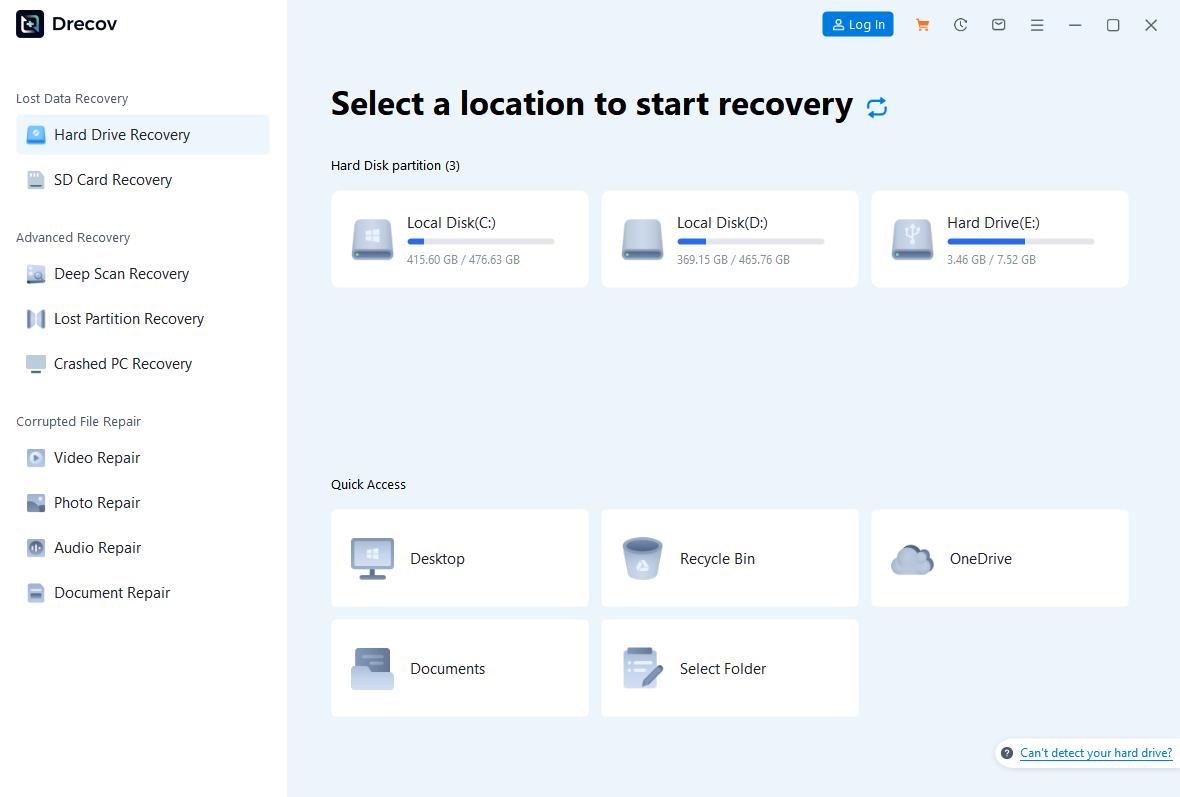
Step 2: Run Quick Scan first
Start Quick Scan and look for the camera’s folder, date range, video type, and likely filename. If a plausible full-size file appears, inspect it before scanning again. Result counts are not a measure of video quality.
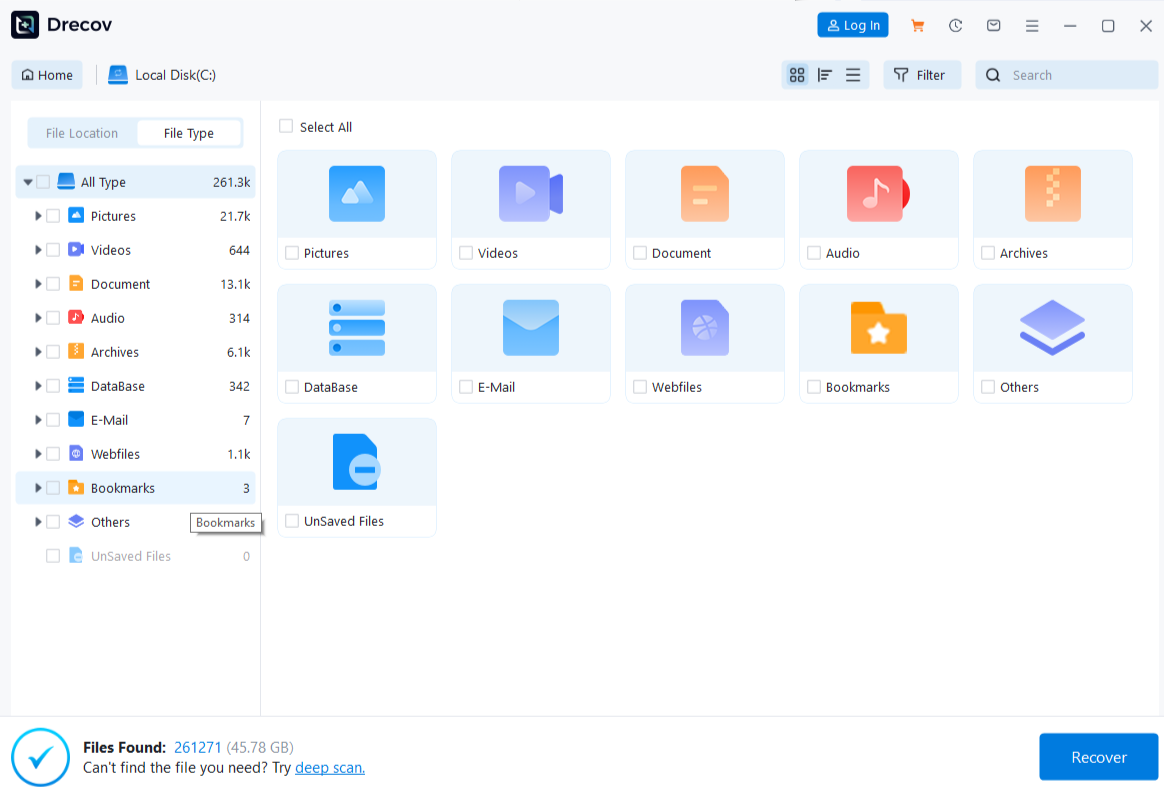
Step 3: Use Deep Scan only on a stable source
If Quick Scan misses the original and the device remains steady, run Deep Scan. Stop if the source starts disconnecting or reading poorly. Repeated scans cannot reconstruct a file that later recording or transfers have overwritten.
Step 4: Filter and preview candidates
Filter by type, former path, or name when available. Preview several candidate clips, especially the part of the event that matters. A short preview cannot certify every frame or audio segment, so keep more than one plausible candidate when needed.
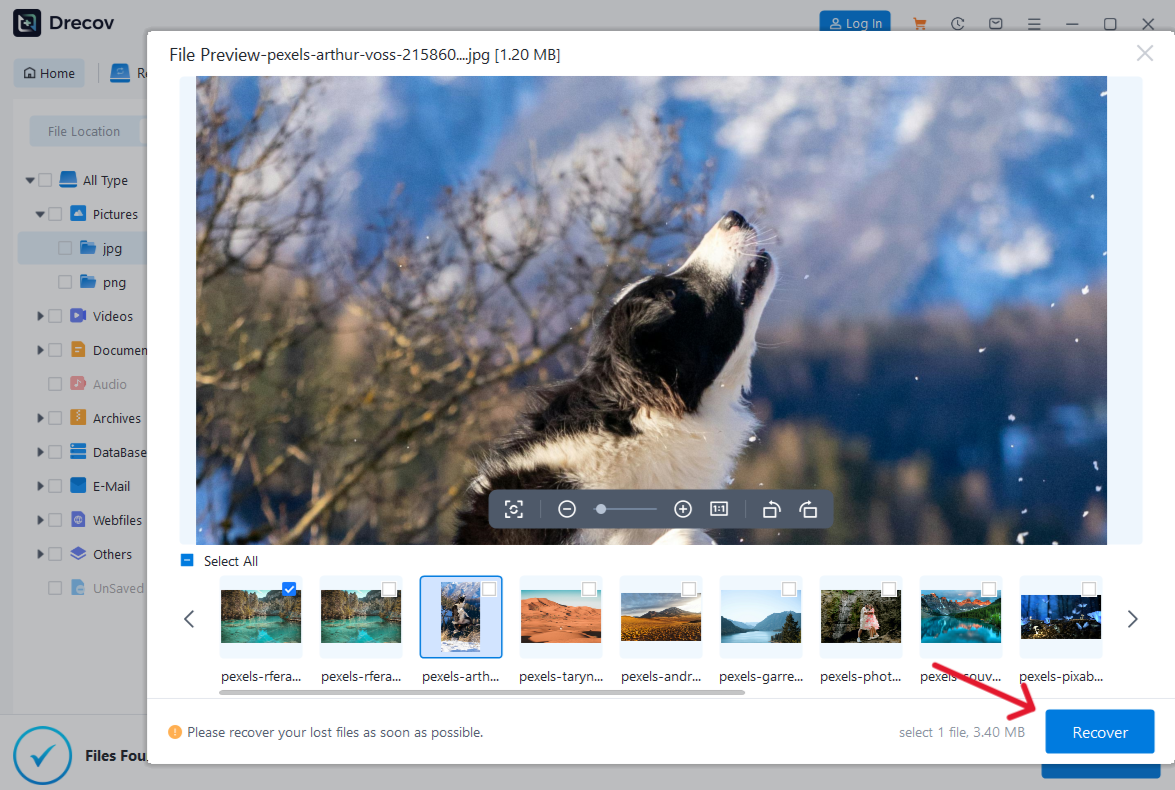
Step 5: Recover elsewhere
Save selected files to the separate healthy destination, never the source card or drive. If the output is not where you expected, check the Drecov Folder or Recovery Folder before launching another scan.
Step 6: Verify the full recording
Open recovered files and inspect the start, middle, and end with sound. Compare duration and content with what you expected. If the best recovered copy is present but damaged, then a repair tool such as Fix.Video may be a separate next step on a copy, not on the original source.
⚠ Warning: Install it on a drive different from the one where your data was lost to prevent overwriting.
Judge a repair result by the footage you need
After a service produces a preview or output, play it in at least one ordinary video player. Check more than the first frame. Seek near the point where the old file failed, inspect motion rather than a still image, listen for audio, and compare the duration with another recording of the same event if available. A repaired container can make a file open without restoring missing frames. The practical question is whether the needed content is usable, not whether a website says “repair complete.”
Keep the damaged original, the working copy, and the repaired output separately until you have checked them. Do not overwrite the original with the new file. If an editor can import the output, make a short test export and replay it. If audio drifts or the video stops at the same point, record the exact timestamp and revisit backups or an alternate original. Do not pay for repeated attempts based solely on a thumbnail if the portion you need is still absent.
There is no single winner for every broken video. A local player is enough for a codec mismatch. File recovery fits a missing original. When the file exists but its structure is damaged, a specialized repair service may help. The online video repair considerations offer a broader comparison of when an upload is sensible. Match the method to the evidence you can observe.
Frequently asked questions
Is Fix.Video software the same as recovering a deleted video?
No. Its repair path examines an existing damaged file. If the original was deleted, look for backups or recover the original from suitable storage first. Repairing a small proxy or thumbnail does not recreate the missing full clip.
Do I have to upload the whole video?
The provider describes more than one route, and the route shown can depend on the file. Check the current interface and privacy terms for your specific case. Do not assume a partial-upload path is available for every format or damage pattern.
Does a successful preview guarantee the full video?
No. Inspect the duration, sound, and the segment you actually need. A short preview cannot establish that every frame, later scene, or audio track survived.
What if the file is zero bytes?
A zero-byte file contains no video payload for a repair tool to work with. Look for an intact copy on the original storage, in a camera backup, or in another export. Avoid saving new data over the source while searching.
Can Drecov repair a corrupt MP4?
Drecov searches for lost or inaccessible files and saves recovered copies elsewhere. It is not an in-place MP4 structure repair tool. If it finds a better original, verify that file before considering a separate repair service.
Conclusion
Fix.Video software belongs in the damaged-file branch: a video exists, but it will not play correctly. Preserve the source, decide whether uploading is acceptable, and judge any preview by the portion of footage you actually need. If the full original is missing, do not start with repair. Check backups and use Drecov on stable Windows-recognized storage to search the original location, recover candidates to another drive, and verify the complete recording. Neither route can guarantee content that was never recorded or has been overwritten.
⚠ Warning: Install it on a drive different from the one where your data was lost to prevent overwriting.