



Common Causes of
USB Drive Data Loss
After Formatting
Understand the reasons behind USB formatting to better prevent and fix data loss
Accidental Formatting
Mistakenly clicking “Format” while using your computer, or selecting “Format” in a pop-up prompt—wiping USB data clean.

System Prompt to Format
When inserting your USB, your computer says “Disk not formatted. Do you want to format it?” Unable to open the USB normally, you’re forced to format, leading to data loss.

Virus-Attack Induced Formatting
USB infected with viruses or malware gets automatically formatted or encrypted, making important files inaccessible or lost.
What to Do
After Formatting Don’t Panic

Avoid Writing
New data can permanently overwrite lost files

Use Recovery Tools
Professional software boosts data recovery success

Don’t Panic
Data may still be recoverable if you act fast
PandaOffice Drecov –
Flash Drive Format
Recovery Solution
Professional tech, simple operation—effortlessly retrieve important files lost to Flash Drive formatting.
Why Choose PandaOffice Drecov for USB Drive Data Recovery?

Deep scan technology finds more formatted file fragments, boasting a recovery rate of over 98%.
Supports recovery of multiple file types: photos, videos, documents, etc.
Guided interface—no professional skills needed. Complete recovery in 3 steps.
File preview function: Check content before recovery to save time and space.
Read-only scan mode: No modifications or secondary damage to original data.

Wide Compatibility
Supported Storage Devices
Supported File Types











3 Steps
to Recover Formatted Flash Drive Data
PandaOffice Drecov simplifies the recovery process—get back lost files in just 3 steps
setp 1
Download, Install & Connect USB
Download and install PandaOffice Drecov. Connect the USB drive to recover to your computer, then launch the software.
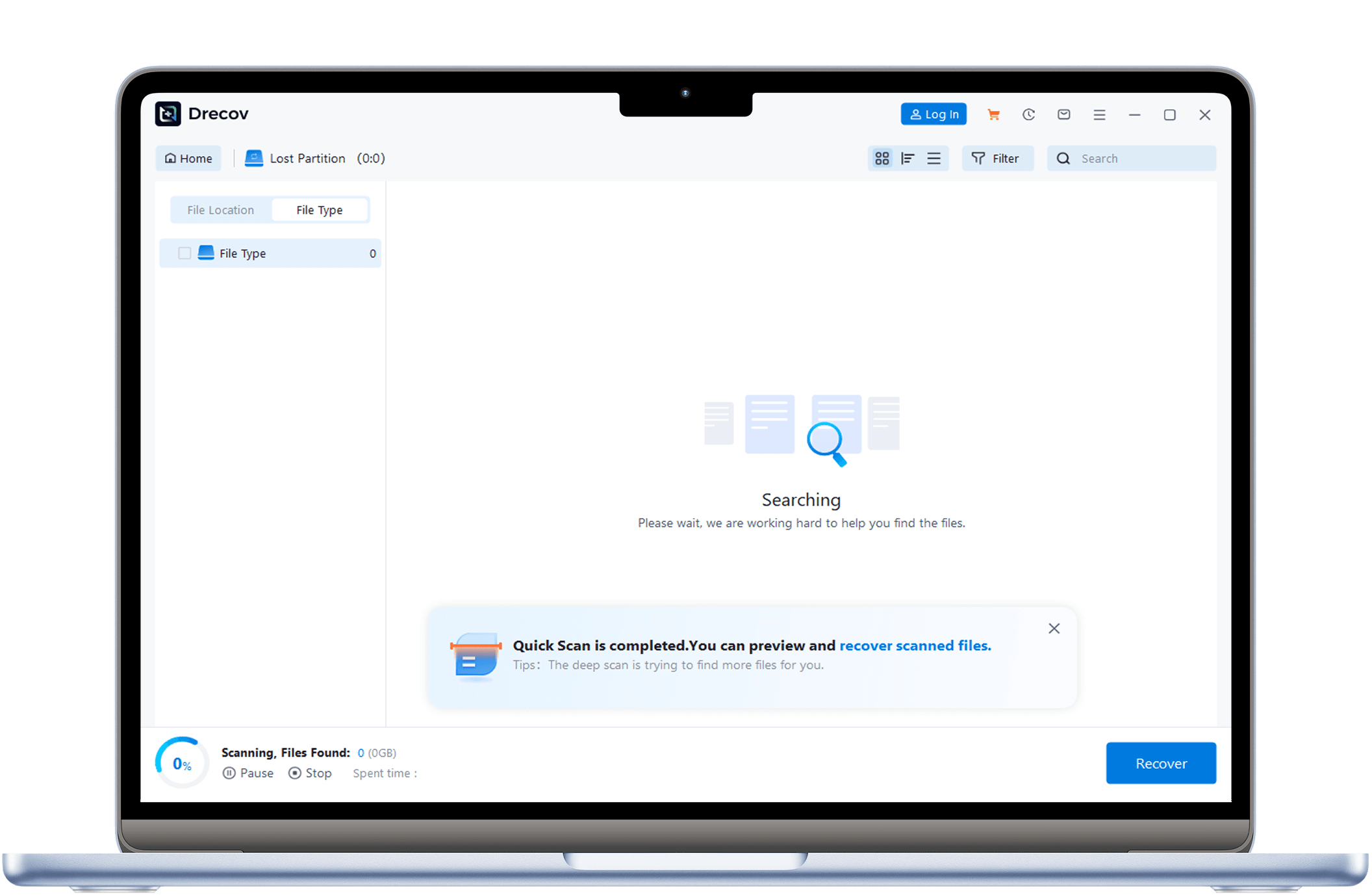
Step 2
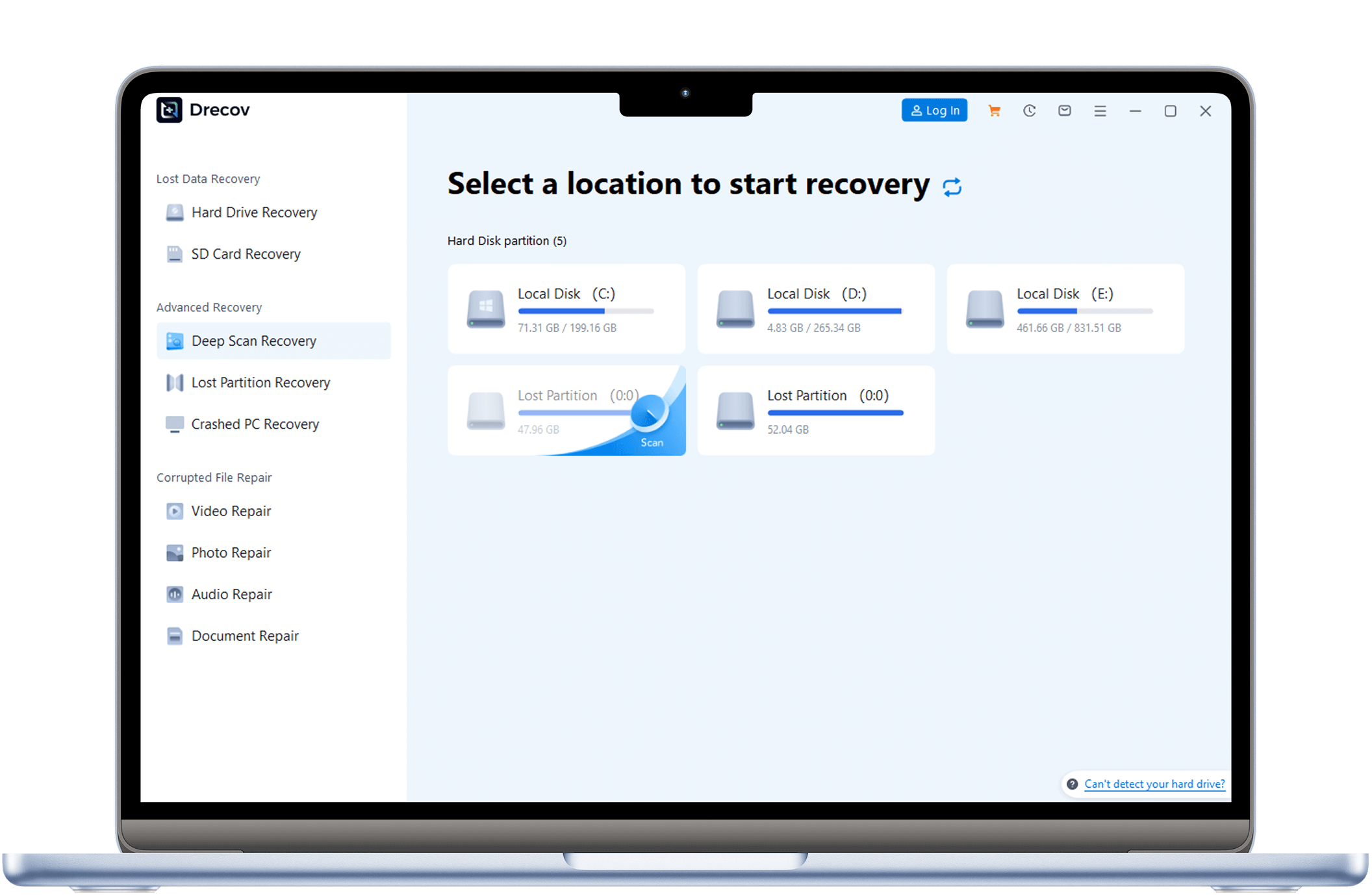
Scan for Lost USB Files
In the software, select the USB partition to recover, click “Start Scan”. The software will deep-scan the USB.
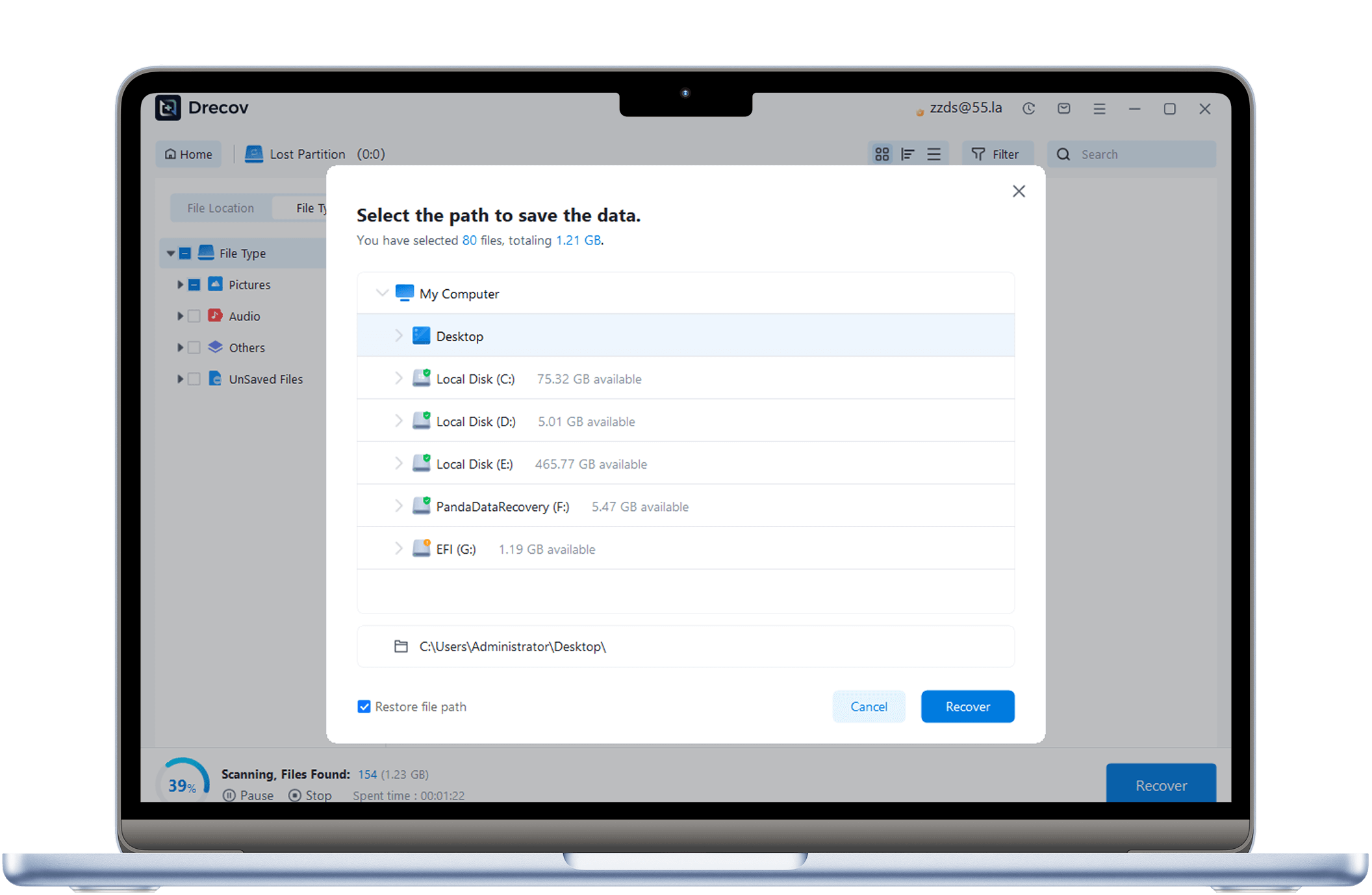
Step 3
Preview & Recover Files
After scanning, preview the files you found, select the ones you want to recover, click ‘Recover,’ and save them to a different location.

Alex Carter
Designer

“I accidentally formatted my USB with critical design work—including drafts for several clients. A friend recommended PandaOffice Drecov. I downloaded it on a whim, and it recovered most files—especially the unbacked-up designs! Super easy to use, done in minutes.”
Recovery Scenario: Accidentally Formatted USB
Recovered: Design Files, Image Materials

Lily Thompson
College Student
“My USB got a virus and prompted formatting—it had my long-prepared graduation thesis and materials. PandaOffice Drecov scanned and retrieved all documents! Such a surprise. Clean interface, fast scanning—highly recommend to fellow students.”
Recovery Scenario: Virus-Induced Formatting
Recovered: Word Docs, PDF Files

Mia Wilson
Marketing Specialist
“Before a meeting, my suddenly said it needed formatting—it had important presentation PPTs and client data. A colleague recommended PandaOffice Drecov. I followed the prompts, and recovered all files in under 20 minutes—no meeting delays! 5 stars for sure.”
Recovery Scenario: USB Error Needing Formatting
Recovered: PPTs, Excel Sheets