
Professional Data Recovery Solution
PandaOffice Drecov – Effortlessly Retrieve Lost Files

10,000+Users

98.7% Success Rate

10 MinAvg. Time
4.9/5
Rating
Trusted By The World Over 21+ Years

Scenarios
Common
Common Data Loss Scenarios
No matter what data loss issue you face, PandaOffice Drecov delivers a professional fix:




Lost Partitions:
Hard drive partitions missing or unrecognizable

Virus Attacks:
Files corrupted or lost due to computer viruses
Features
Core Features of PandaOffice Drecov for Word Recovery
Professional tech, simple operation – make file data recovery easy:

Deep Scan Technology
Full-range scan for lost data; no recoverable file goes unnoticed

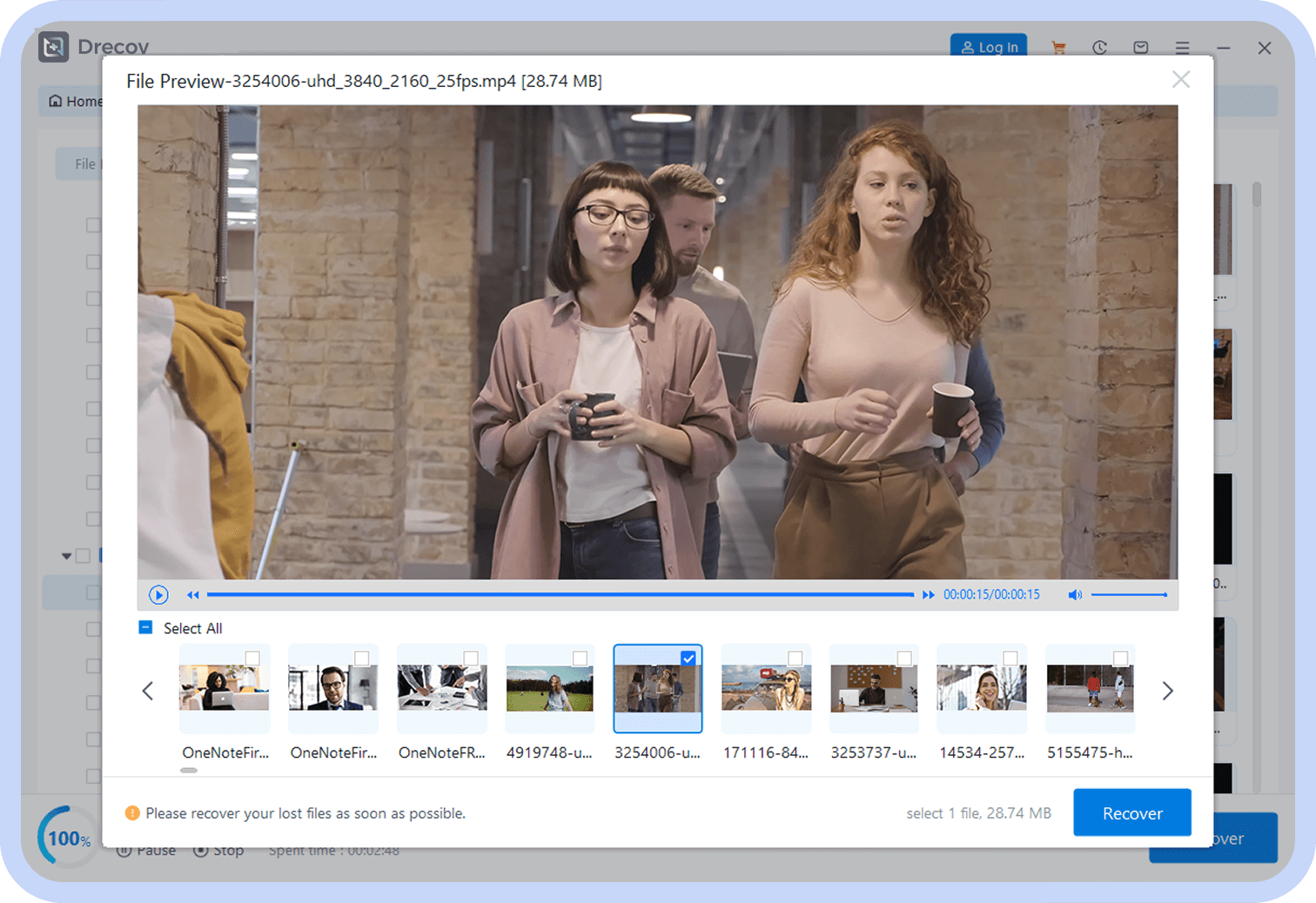
File Preview Function
Preview file content before recovery to confirm needed data

Safe & Lossless Recovery
Read-only mode operation; no secondary damage to original data

Fast Recovery Engine
Optimized recovery algorithm – 30% faster than similar software
Devices
Supports Multiple Devices & File Types
PandaOffice Drecov Data Recovery works with various storage devices and almost all common file types: l storage devices, whether it’s Windows computer internal hard drives or external storage media
Supported File Types
Supported Devices









Steps
3 Simple Steps Recover Word Documents
No professional skills needed – anyone can master the process quickly.
1
1
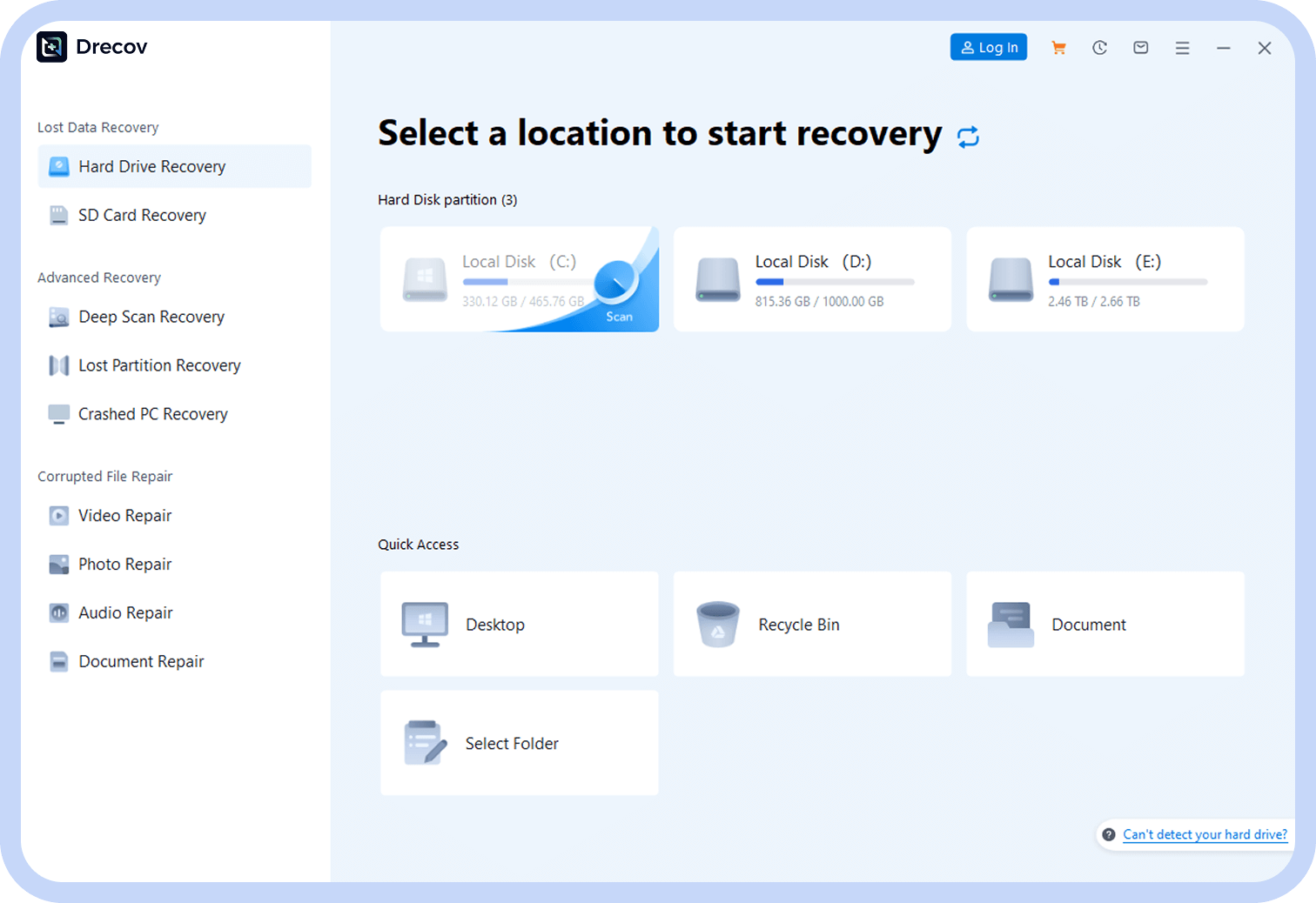
Select Scan Location
Launch the software, then choose the location/device where files were lost.
2
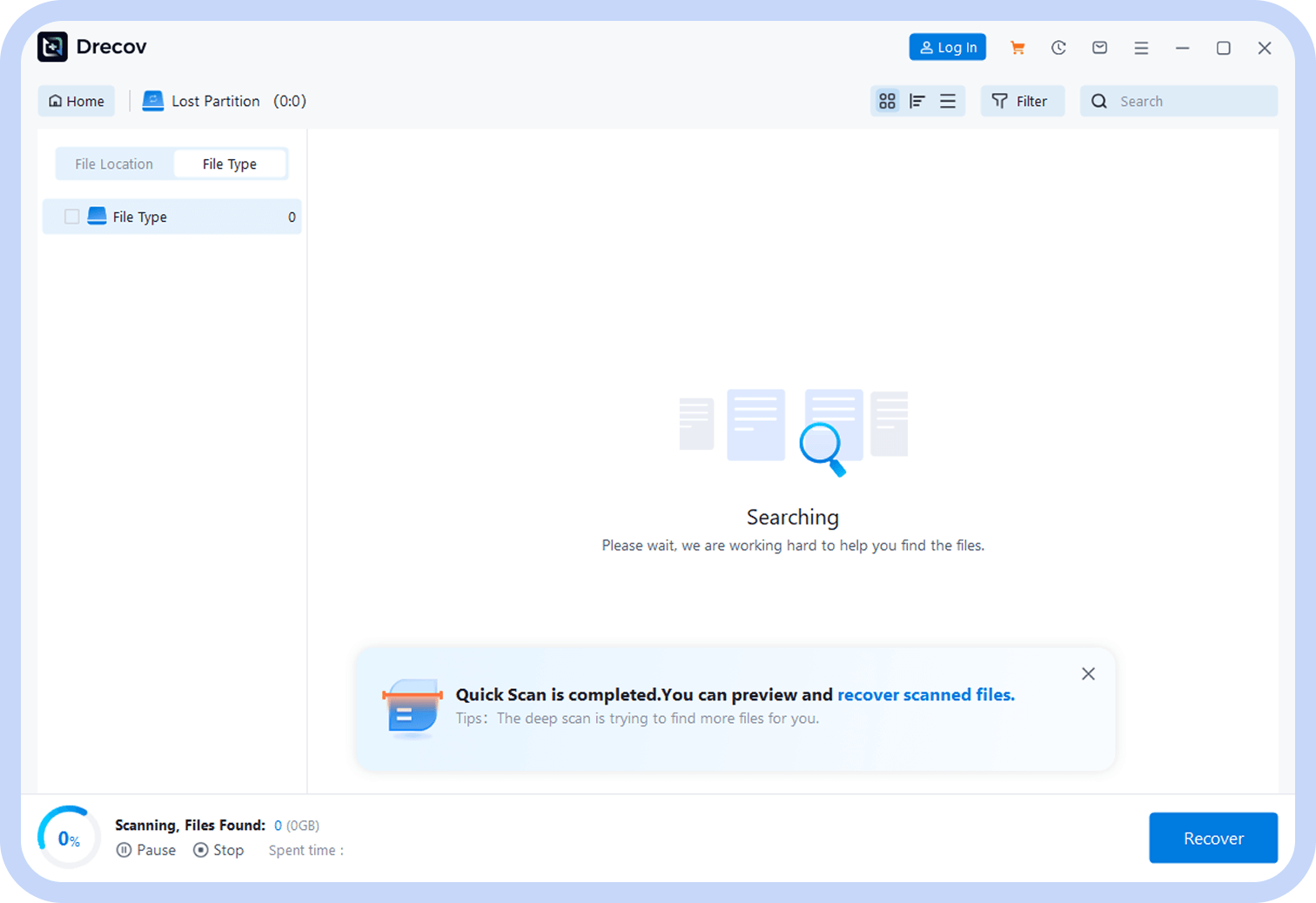
Deep Scan for Files
Click “Deep Scan” – the software automatically searches for recoverable files.
2
3
3
Preview & Recover
Preview found files, select the data to recover, and save it.
Reviews
Real User Reviews
See how they retrieved important data with PandaOffice Drecov:

Emma Liu

Photography Enthusiast (Los Angeles)
“Accidentally formatted my memory card with 6 months of photography work. Gave this a shot, and it recovered all of it! Super easy to use, fast recovery – highly recommend!”


Mark Chen
Business User (New York)
“Our company computer crashed suddenly, and it had critical project files. Tried multiple recovery tools with no luck – but PandaOffice Drecov scanned all files and restored everything perfectly. Thank you so much!”

Emma Liu
Photography Enthusiast (Los Angeles)
“Deleted my graduation thesis by mistake and emptied the Recycle Bin – I was panicking. A classmate recommended PandaOffice Drecov. Followed the steps, and got the file back in under 20 minutes. Lifesaver!”
Data Recovery
File Data Recovery Articles & Tutorials
We’ve got full guides to help you master document recovery and avoid future loss:





Free Scan
Fully scan for recoverable files

File Preview
Check content before recovery

Tech Support
Professional team online guidance