






To open a flash drive on a Windows PC, plug it in, open File Explorer, select This PC, and double-click the removable drive that matches your USB device. Check the drive name and capacity before opening or copying anything. If no drive appears, do not format it just to make it visible. The next step depends on whether Windows can still detect the device.
Start with the ordinary File Explorer path
Insert the flash drive directly into a working USB port. Give Windows a moment to recognize it, then press Windows + E to open File Explorer. Select This PC in the left sidebar. Under Devices and drives, look for a removable drive or a name you recognize. Its letter may be E:, F:, or another letter; there is no fixed USB letter. Double-click it to see the folders.
Do not assume the first new-looking letter is your stick. If you have another external drive attached, compare the displayed capacity with the capacity printed on the USB device. You can also unplug only the stick you just inserted, watch which entry disappears, and reconnect it once. Avoid repeated connection tests if the drive clicks, disconnects on its own, or becomes very hot.
When the drive opens, use the address bar to note its location. Open a representative document or photo before starting a large transfer. A folder listing proves that Windows can read directory information, not that every file is healthy. If only a shortcut appears where your folders should be, do not run an unfamiliar shortcut. Inspect the drive with trusted security tools and look for your original folders without changing the source.
Visible drive, but the files are hard to find
A flash drive may open to a nearly empty window even though space is still used. First make sure you opened the correct drive and Windows account. In File Explorer, switch to View and show hidden items if you intentionally stored hidden files there. Use the search box inside that drive for a known filename or extension, such as .pdf. Search can take time on a large or slow USB device; do not keep launching the same search if it stops responding.
Check the drive’s used space in This PC. Used space with no visible personal files can mean hidden folders, a different folder path, file-system damage, or content that another application created. It does not prove that recovery software will find the missing item. If your files were recently deleted, look in the original PC’s Recycle Bin and any backup before scanning. The file recovery overview explains the separate case in which the source files are genuinely gone.
Do not move or rename folders merely to make the window look familiar. Preserve the original arrangement while you work out what changed. A known copy on another PC or cloud account may be faster and safer than modifying a USB device whose contents no longer match your expectations.
Nothing appears in This PC: check what Windows actually sees
Right-click Start and open Disk Management. This built-in view lists disks and volumes even when File Explorer has no letter to display. Microsoft’s Disk Management instructions describe how to open it and what storage actions it supports. Use the view to identify the USB device by approximate capacity. Do not select a disk by number alone, because disk numbers can change between sessions.
A healthy volume without a drive letter
If the USB appears at the expected capacity and shows an existing healthy volume with no letter, a missing letter may explain why it is absent from File Explorer. If the files matter, first check whether another computer can read them or whether a backup exists. Only then consider assigning an unused letter through the volume’s Change Drive Letter and Paths menu. This changes how Windows addresses the volume; it does not reconstruct missing files. Note the old state before making the change, then reopen File Explorer and confirm the file list.
RAW, unallocated, wrong size, or absent
These states need different responses. A RAW volume suggests Windows cannot read its current file system. Unallocated space may indicate missing partition information. A wildly incorrect capacity, repeated disappearance, or no detection on a known-good port raises concern about the device or its controller. Do not click Initialize, New Simple Volume, or Format when you still need files from that stick. Those operations write storage metadata and can make later recovery harder.
One known-good port and, if practical, one other trusted PC are enough for a basic connection check. A device that repeatedly drops offline or reports severe read errors is not a good candidate for repeated do-it-yourself scans. Stop and consider a specialist or a controlled image of the device instead. The USB data recovery page covers stable-storage loss; it is not a fix for a failed connector.
If Windows asks you to format the stick
The format prompt means Windows cannot currently present a readable file system through that volume. It does not tell you whether your documents still exist underneath. Click Cancel if you need any files that have not been copied elsewhere. A quick format writes a new file-system structure, while later transfers can overwrite portions of the old data. Neither is a diagnostic first step for a drive with important contents.
Think back to the last time the stick opened. Was it used in a camera, TV, printer, or another operating system? Was it unplugged during a transfer? Did Windows previously show the correct capacity? Those details help distinguish a compatibility issue from corruption or hardware instability. If the files are not needed and you deliberately want a blank drive, formatting may be reasonable after confirming the exact device. That is a separate task from opening and protecting existing files.
Keep the drive connected only as long as needed to establish its state. Continued writes, repair commands, and trial-and-error partition changes are poor substitutes for a verified backup. If the source is stable and the missing files are important, recover them to another device first; test the recovered copies before attempting any repair.
When the USB opens but a needed file is missing
Opening the drive and recovering a lost file are different jobs. Start with the least invasive places: the folder where you last saved the file, a second computer that used the stick, cloud storage, and an independent backup. If the file was deleted on the PC rather than the USB stick, check its Recycle Bin; Recycle Bin recovery is a separate route. If the file was moved, its original PC may still hold it. Check those locations before adding new data to the USB stick.
Drecov is Windows data-recovery software for local storage, including a USB flash drive that remains stable and recognizable. Its read-only recovery workflow can scan the original location, narrow the results, preview supported files, and save selected copies to another healthy device. That is useful when the file itself is missing or a readable partition was lost. It does not repair a broken USB port, rebuild damaged photo contents, or guarantee recovery after overwriting. Lost Partition Recovery addresses files from a lost partition; it is not a promise to fix the partition table.
Before starting, stop writing to the stick and prepare a second healthy drive with enough free space. Install the software somewhere other than the affected USB device. If the stick heats up, disconnects repeatedly, makes unusual noises, or shows the wrong capacity, stop direct scanning. An image made by a qualified technician or professional recovery may be safer than another full read attempt.
⚠ Warning: Install it on a drive different from the one where your data was lost to prevent overwriting.
Step 1: Choose the original USB location
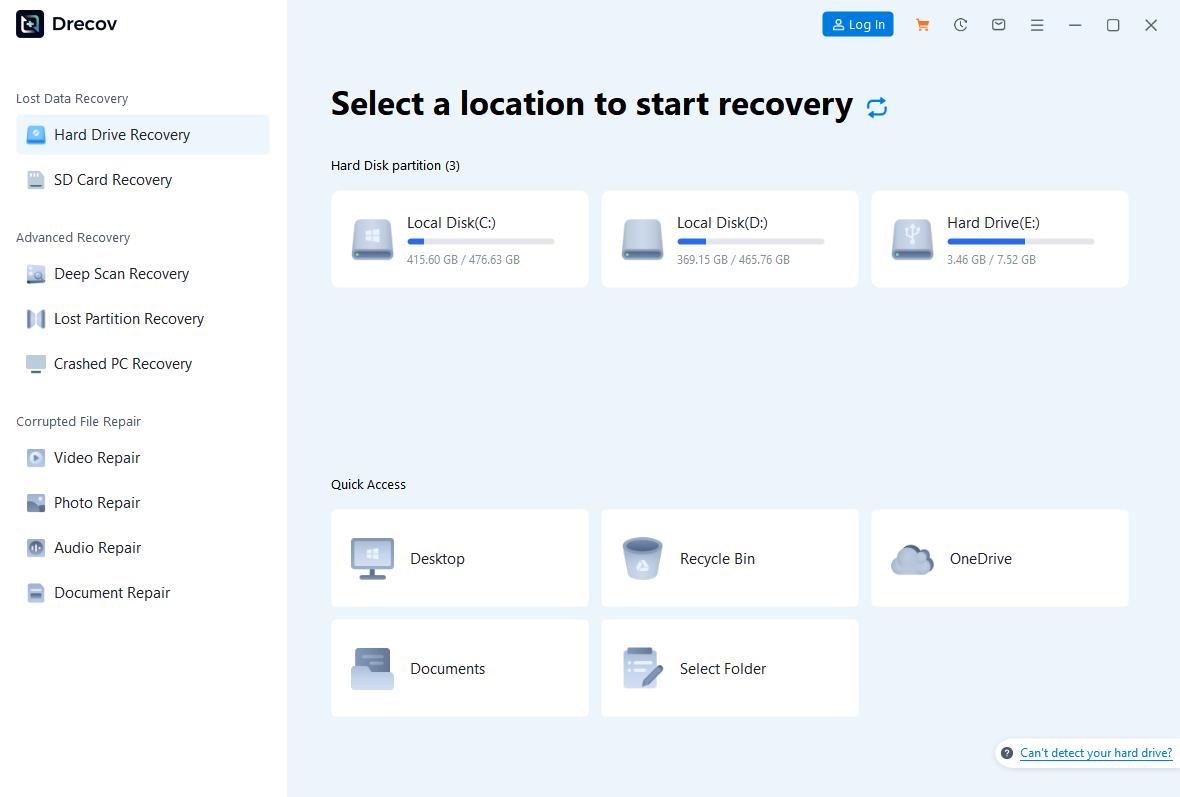
Open Drecov on the Windows PC and identify the flash drive where the file last existed. Confirm its capacity rather than relying only on its letter. Select that original location or the relevant lost-partition mode if the partition itself disappeared.
Step 2: Check the Quick Scan results
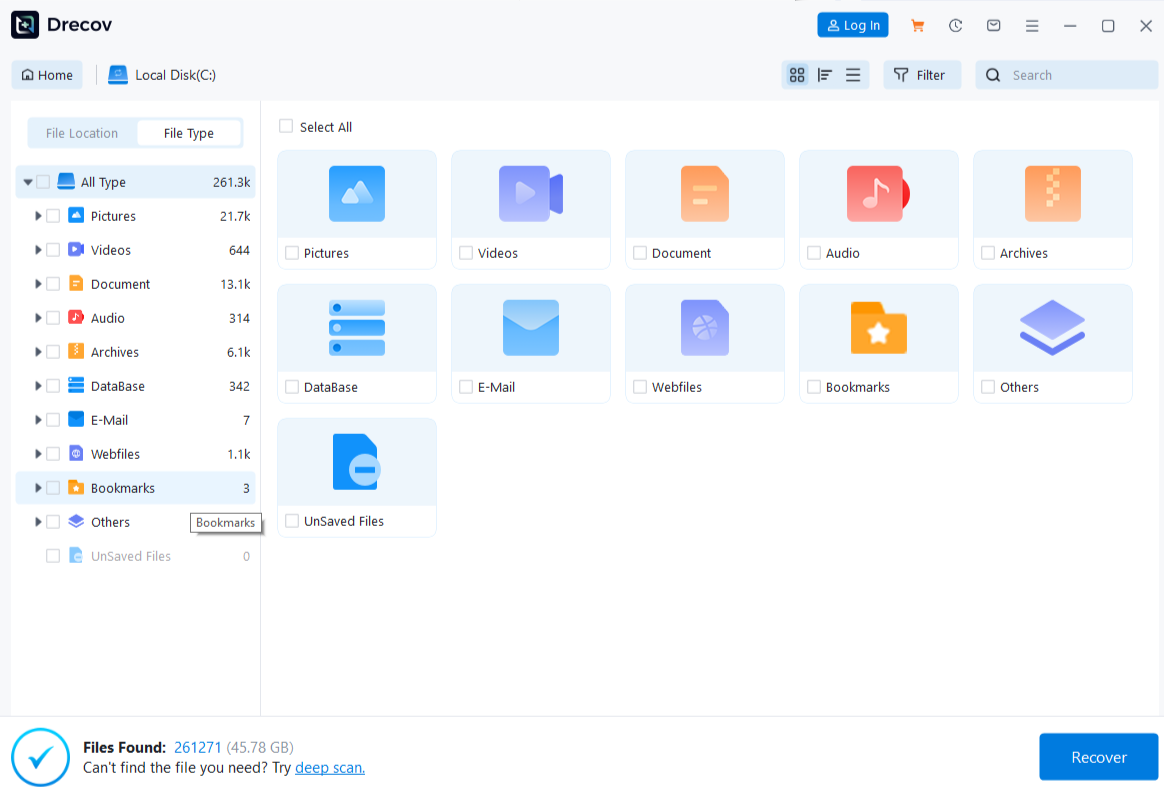
Run Quick Scan first. Look for the expected folder, filename, and file type. Do not conclude that a similarly named thumbnail or shortcut is the original document. Make a short list of plausible candidates before selecting anything to restore.
Step 3: Deep Scan only if the source stays stable
If Quick Scan misses the target and the USB remains consistently recognized, try Deep Scan. A longer scan is not a remedy for a failing connector. If the drive starts dropping offline, stop instead of repeating the operation.
Step 4: Locate and preview representative files
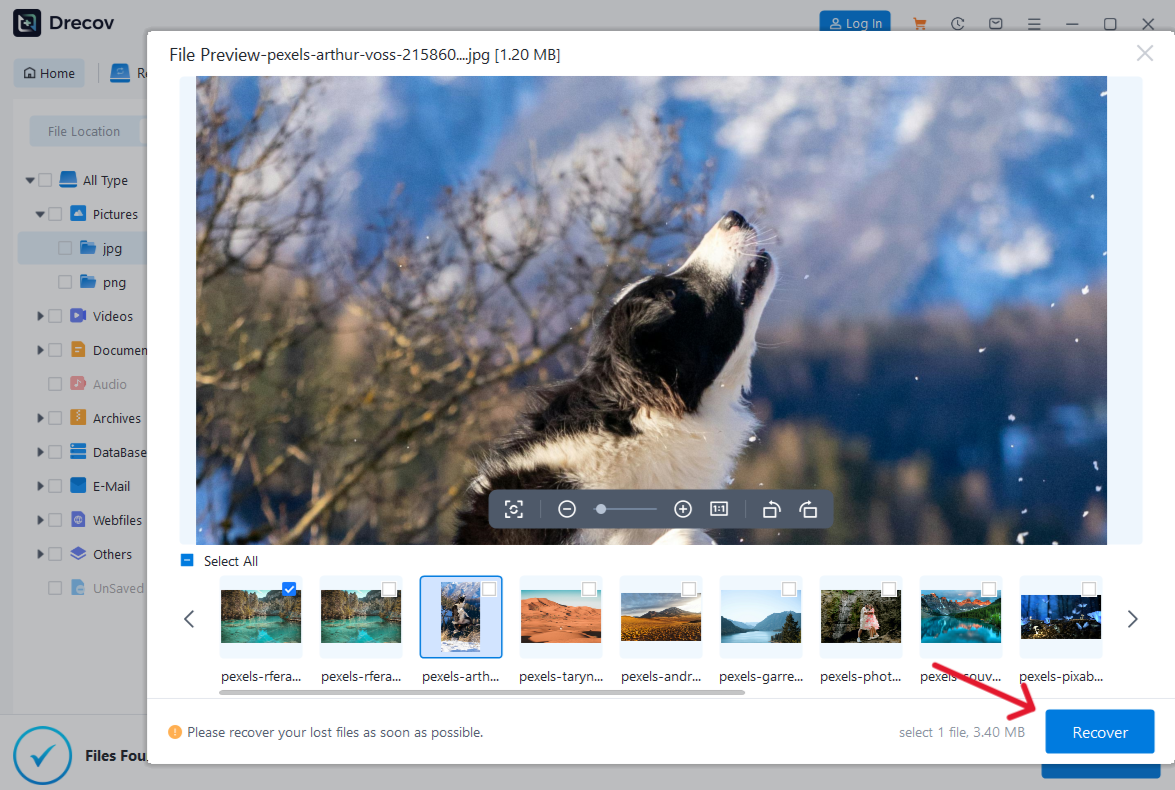
Use available file-type, name, or path filters to narrow the results. Preview a few supported candidates, especially one that should contain recognizable content. A successful preview is useful evidence, but it cannot certify every page or byte of a file.
Step 5: Save to a different healthy device
Recover the selected files to the prepared drive or another healthy location, never back onto the affected flash drive. If the output is not where you expected, check the Drecov Folder or Recovery Folder associated with the chosen destination before running the scan again.
Step 6: Open and verify what you recovered
Open several recovered files in their normal applications. Check a document’s pages, a photo at full size, or a video’s middle and end rather than trusting a filename alone. Keep the original USB unchanged until you have confirmed the important copies. The Drecov homepage identifies the current Windows product and its recovery options.
⚠ Warning: Install it on a drive different from the one where your data was lost to prevent overwriting.
Frequently asked questions
Why does my USB show a letter but say access is denied?
That message is different from a missing drive. It may involve permissions, encryption, security software, or file-system trouble. Record the exact message and check whether the stick opens under the account that created the files. Do not respond by formatting it. If BitLocker is involved, locate the legitimate recovery key before making storage changes.
Can I open a flash drive on any Windows computer?
Most ordinary USB storage devices can be inspected through File Explorer, but a work-managed, encrypted, or specialized device may need its approved credentials or software. Use a trusted PC. A public computer is a poor place to open sensitive files or install recovery software.
What if I see the drive only in Device Manager?
Device Manager confirms that Windows noticed some USB hardware; it does not establish that a readable storage volume exists. Check Disk Management next. If no stable disk with the expected capacity appears there, changing a drive letter is not available, and software recovery should not be forced.
Should I run CHKDSK before trying to open it again?
Not when you still need unprotected files. CHKDSK can modify file-system structures. First secure an existing copy or recover important files from stable media to another device. Consider repair only after checking those copies and understanding what state the USB device is in.
Conclusion
Start with File Explorer, then use Disk Management only to understand why a flash drive is missing. A healthy volume without a letter, a RAW partition, and a device that never stays connected require different choices. Protect important files before formatting or changing partitions. When a stable USB stick opens but files are gone, Drecov can scan their original location and save recoverable copies elsewhere; verify those copies before you repair or reuse the stick.
⚠ Warning: Install it on a drive different from the one where your data was lost to prevent overwriting.