







Imagine this: You’ve spent months, perhaps years, curating a digital library within your browser. You have folders for work projects, gift ideas for the holidays, and those “read later” articles that you actually intend to read. Then, in a split second of distraction or a clumsy mouse click, a major folder vanishes. You check the Bookmark Manager, but it’s empty.
Panic sets in. You might think those links—the backbone of your productivity—are gone forever. Whether it was an accidental sync error across your devices or a manual deletion you immediately regretted, the frustration is real. But here is the good news: recovering deleted Chrome bookmarks is not only possible; it is often quite simple if you act fast.
In this guide, we will dive deep into the “why” and “how” of data retrieval, ensuring you have the tools to rescue your digital life from the brink of extinction.
The Science of “Invisible” Data: Why Recovery is Possible
Before we jump into the “how,” let’s demystify the “why.” Why is recovering deleted Chrome bookmarks even possible after you’ve hit that “delete” button?
1. Logical Deletion vs. Physical Deletion
When you delete a bookmark in Chrome, the operating system does not immediately go to the hard drive and physically wipe the electrons representing that data. Instead, it performs a logical deletion. It simply marks the space occupied by those bookmarks as “available” or “empty.”
Think of your hard drive like a massive library. When you “delete” a book, the librarian doesn’t burn it. They simply remove the entry from the card catalog and tell people they can store a new book on that shelf. Until a new book is actually placed there, the old book is still sitting on the shelf, waiting to be found.
2. The Danger of Overwriting
The most critical concept in recovering deleted Chrome bookmarks is the “overwrite” factor. Because the system views that space as empty, any new action—downloading a photo, installing a game, or even browsing the web (which creates temporary cache files)—could potentially write new data over your old bookmarks.
Key Rule: Once you realize data is missing, stop using the computer for heavy tasks immediately. The less you write to the disk, the higher your chances of a 100% recovery.
Critical Precautions Before You Start
Before attempting any recovery method, keep these three points in mind:
- Do Not Close Chrome Yet: If you just deleted the bookmark, Chrome might still have the session data in its active memory or temporary backup files.
- Disable Sync: If you use Google Sync, turn it off on your other devices (phones, tablets) immediately. If one device deletes a bookmark, it may tell the others to do the same.
- Backup Current Files: Before trying to restore old data, copy your current
Bookmarksfile (found in the User Data folder) to a USB drive as a safety net.
Method 1: The “Undo” Shortcut (The Instant Fix)
If you deleted the bookmark only seconds ago and haven’t closed the Bookmark Manager tab, you might be in luck.
- Step 1: While in the Chrome Bookmark Manager (
Ctrl+Shift+O), stay on the page.
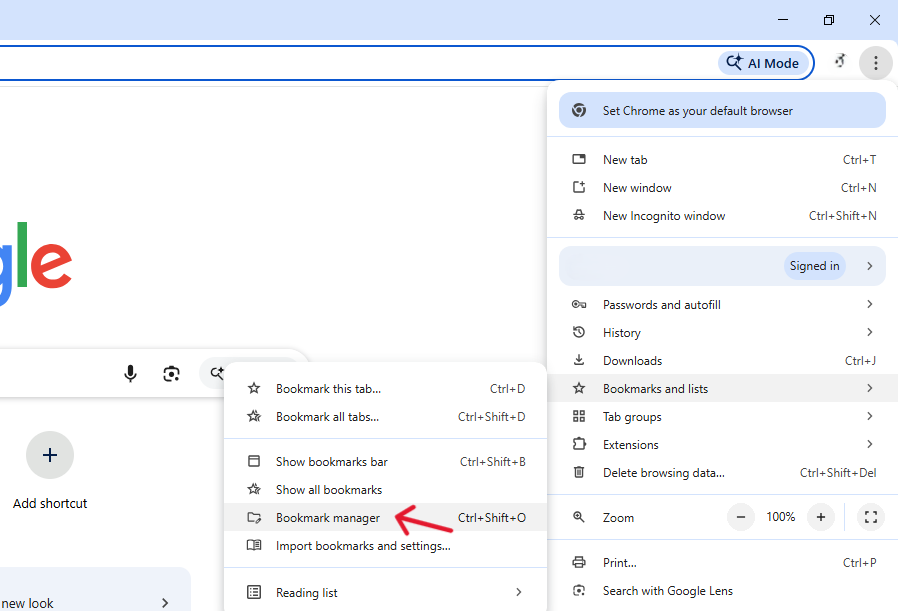
- Step 2: Press Ctrl + Z (Windows) or Command + Z (Mac) on your keyboard.
- Step 3: Check if the deleted folder or link reappears. This works for simple accidental deletions within the active session.
Method 2: Professional Recovery with PandaOffice Drecov (The Most Reliable Way)
When the “Undo” trick fails and the local backup files are missing, you need a professional-grade tool. PandaOffice Drecov is specifically engineered to scan the deep sectors of your drive to find the specific JSON files Chrome uses to store your bookmarks.
Why use PandaOffice Drecov?
Unlike manual methods, Drecov can find fragments of files that the Windows file explorer can no longer see. It treats your data with a “Read-Only” protocol, ensuring that the recovery process itself doesn’t overwrite your lost links.
- Versatility: It recovers photos, videos, audio, compressed files (ZIP/RAR), and even system files like EXEs.
- Accidental deletion from your computer desktop.
- Files lost after emptying the Recycle Bin.
- Data loss from disk formatting.
- Accidental deletion or formatting of SD cards/U disks.
- Sync error occurring with deleted OneDrive files
- Privacy First: All recovery happens locally on your machine, so you don’t have to worry about your private data leaking to the web.
Warning: Do not install it on the drive where Chrome is located (usually the C: drive). Use a USB drive or a secondary partition to keep the data safe.
Step-by-Step Instructions:
- Step 1: Launch and Select. Open the software and select the drive where your User Profile is stored (typically Local Disk C:).
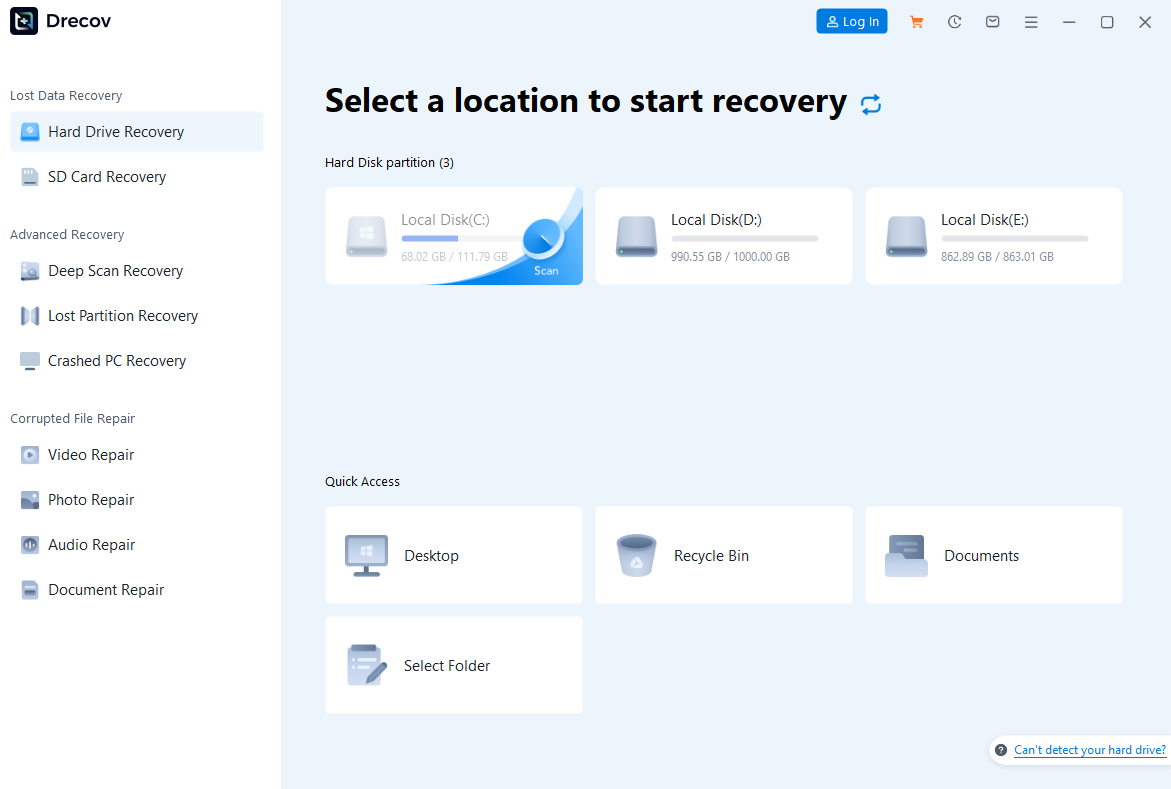
- Step 2: Deep Scan for Chrome Files. Click “Scan.” Drecov will perform a high-speed initial scan followed by a “Deep Scan.” While it runs, use the search bar in the top right. Type
Bookmarksinto the search box.

- Step 3: Filter and Preview. Drecov will list all files named “Bookmarks.” Look for the ones located in the
AppData\Local\Google\Chrome\User Data\Defaultpath. You can check the “Date Modified” to find the version from before the deletion.

- Step 4: Recover to a Safe Spot. Select the correct
BookmarksandBookmarks.bakfiles. Click Recover and choose a destination different from the original location (like your Desktop or a USB). - Step 5: Restore to Chrome. Rename the recovered file to just
Bookmarks(remove any extensions Drecov might have added) and drop it back into your Chrome User Data folder.
Method 3: Using the Chrome Backup File (.bak)
Chrome is actually quite smart—it keeps a single backup of your bookmarks file every time you launch the browser.
- Step 1: Press Windows Key + R and type
%LocalAppData%\Google\Chrome\User Data\Default(or “Profile 1” if you have multiple profiles).
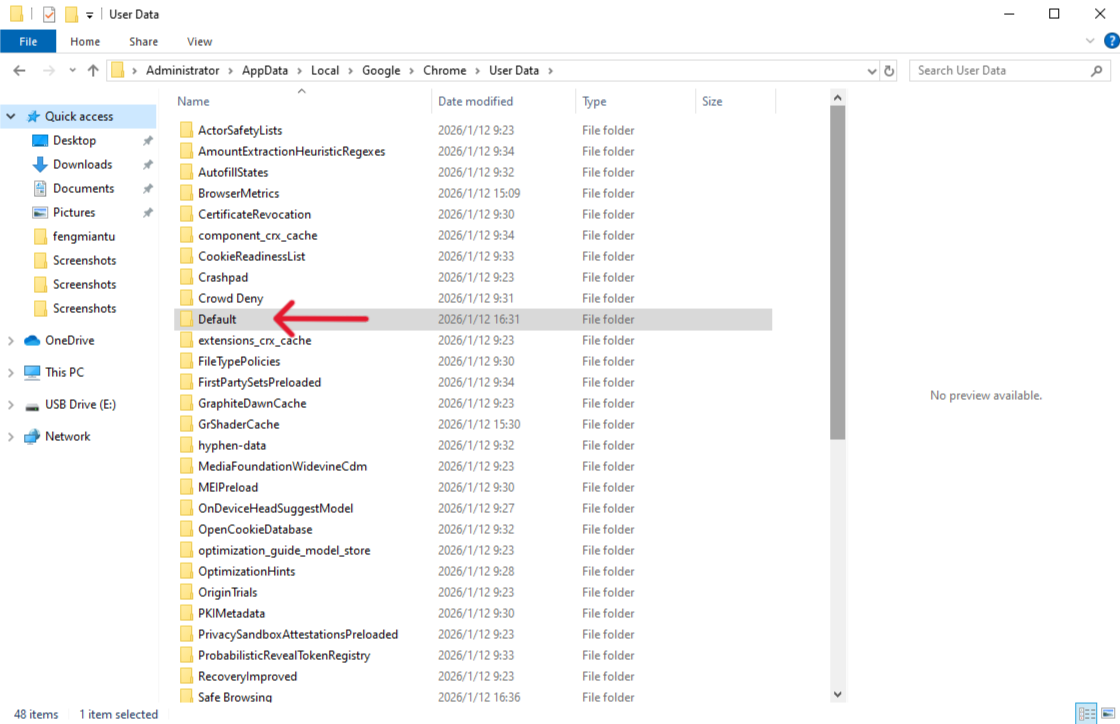
- Step 2: Search for two files:
BookmarksandBookmarks.bak.
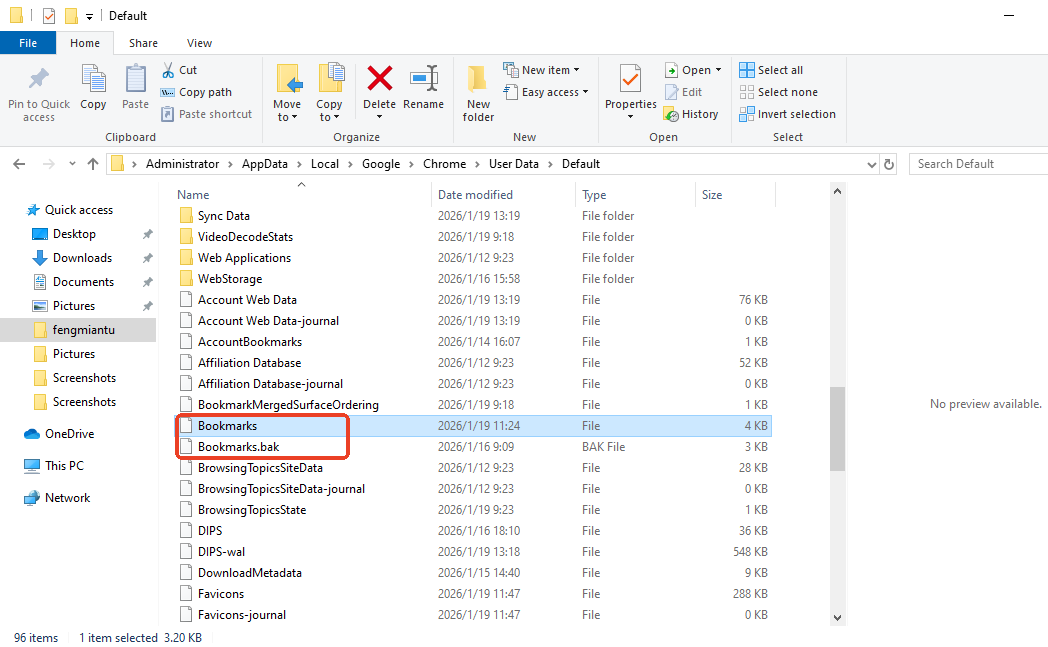
- Step 3: The
Bookmarks.bakis your “Previous Version.” Copy both files to your desktop as a backup. - Step 4: Close all instances of Chrome completely.
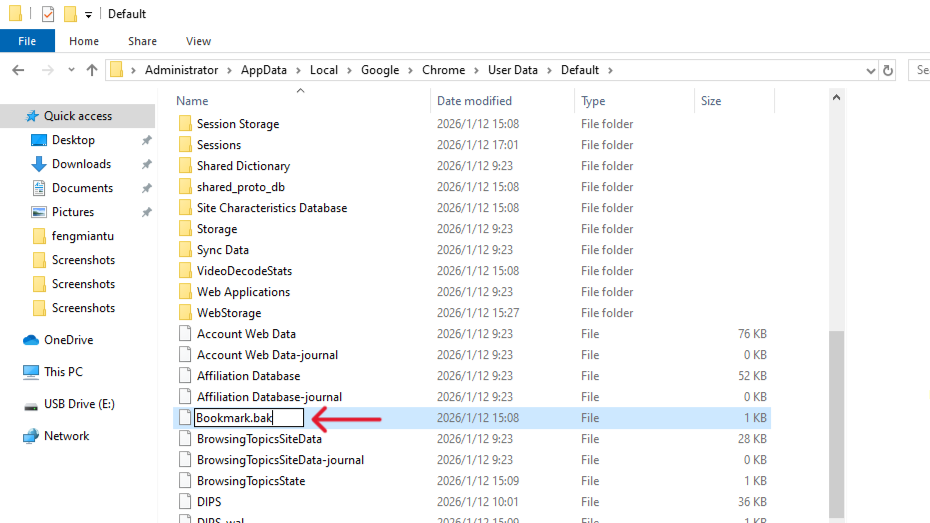
- Step 5: Delete the file named
Bookmarksin the original folder. RenameBookmarks.bakto simplyBookmarks. - Step 6: Reopen Chrome. Your deleted bookmarks should now be back.
Method 4: Windows “Previous Versions” (System Protection)
If you have “System Protection” turned on, Windows might have taken a snapshot of your folder.
- Step 1: Navigate to the Chrome User Data folder mentioned in Method 3.
- Step 2: Right-click the Default folder (or the folder containing your bookmarks).
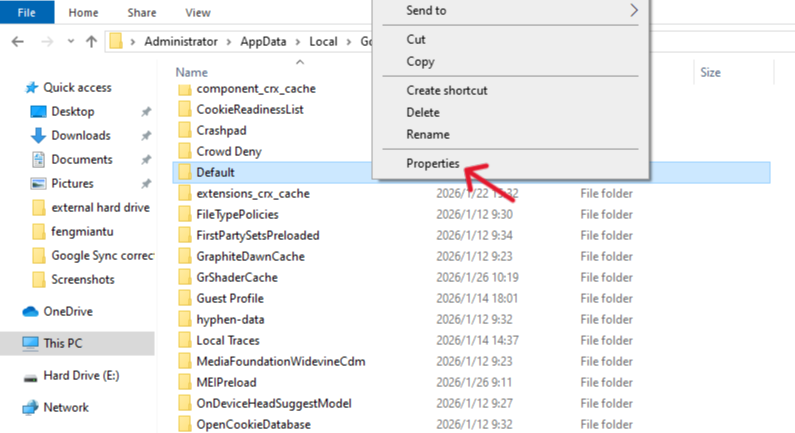
- Step 3: Select Properties and then click the Previous Versions tab.
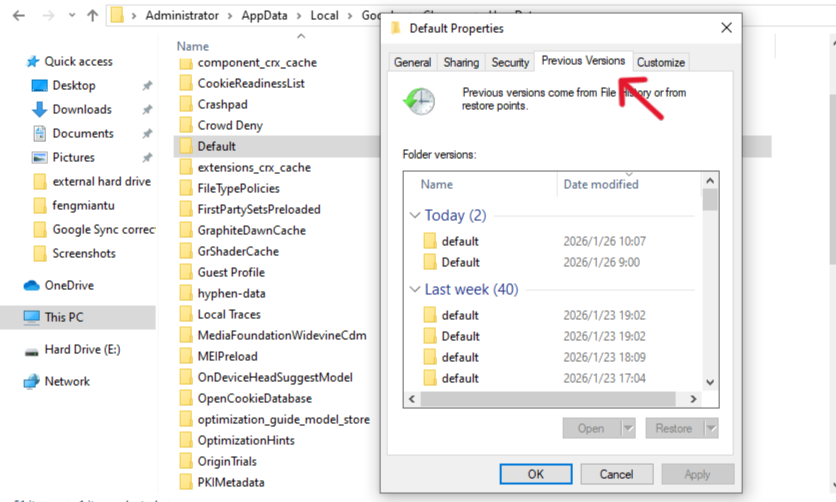
- Step 4: Select a version from a date before the deletion occurred.
- Step 5: Click Restore.
Method 5: Using Google History (The Manual Reconstruction)
If all file-based methods fail, you can still find your lost links through your browsing history.
- Step 1: Press Ctrl + H in Chrome.
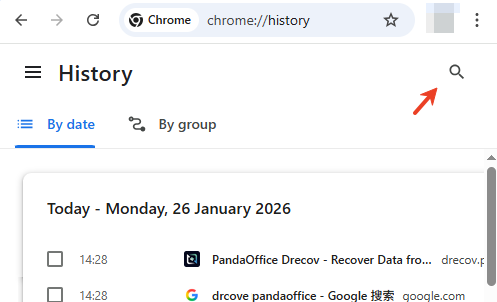
- Step 2: Use the search bar to look for keywords related to your deleted bookmarks.
- Step 3: While this doesn’t “restore” the bookmark structure, it allows you to find the URLs and re-bookmark them manually.
Preventive Checklist to Avoid Losing Chrome Bookmarks
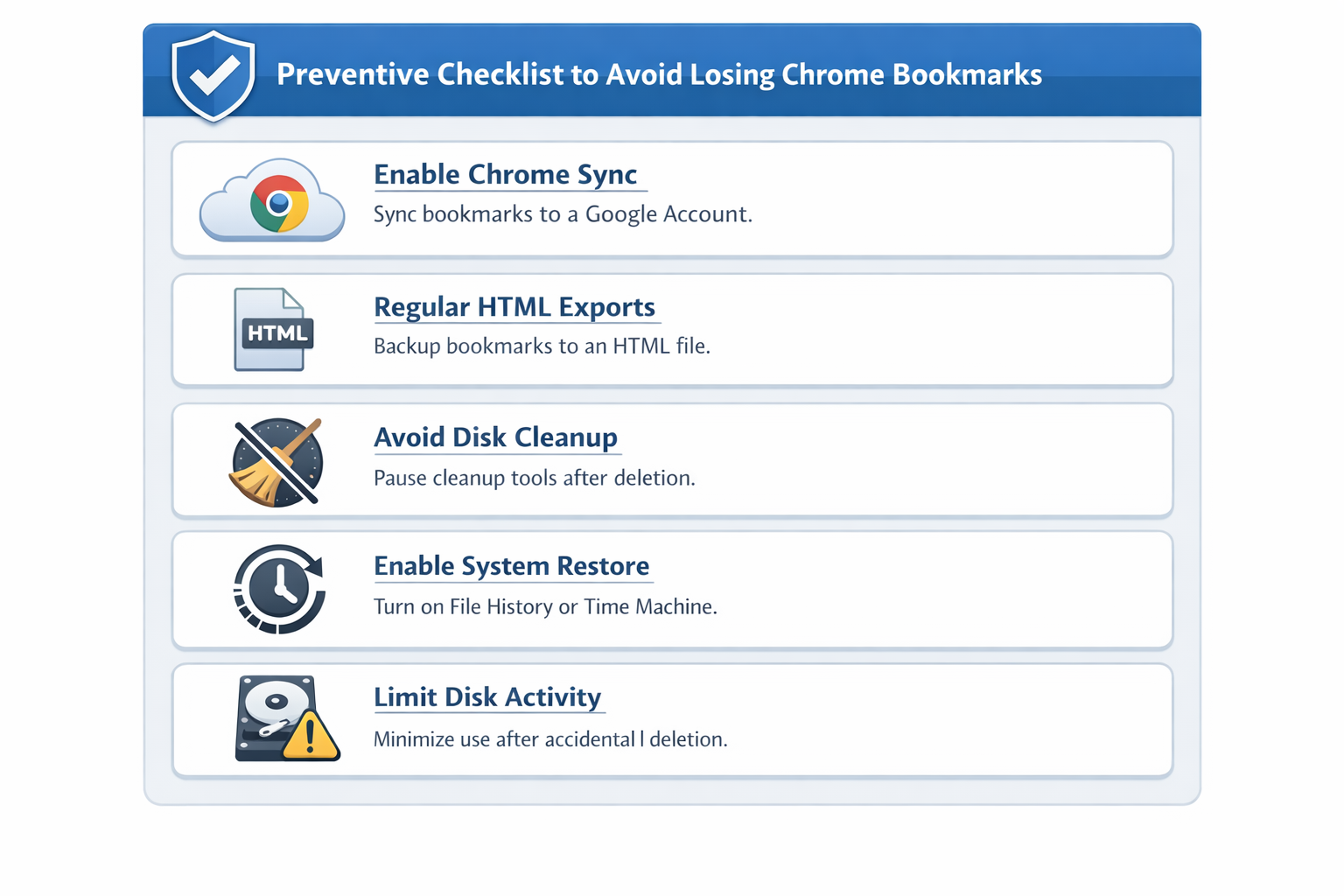
✅ Enable Chrome Sync – Make sure your bookmarks are synced to a stable Google account for cloud-level backup.
✅ Regular HTML Exports – Export bookmarks periodically and save to an external drive or cloud storage.
✅ Avoid Disk Cleanup Immediately After Deletion – Refrain from using cleanup tools or reinstalling Chrome to prevent overwriting recoverable data.
✅ Enable System Restore or File History – Activate Windows File History or macOS Time Machine to add an extra recovery layer.
✅ Cautious Post-Deletion Behavior – Stop heavy disk activity after accidental deletion to maximize recovery chances.
Recovering Deleted Chrome Bookmarks FAQs
1. Can I recover bookmarks if I don’t have a Google Account?
Yes. Chrome stores bookmarks locally on your hard drive. Using a tool like PandaOffice Drecov allows you to find these local files even if you never signed in to sync.
2. Does “Clearing Browsing Data” delete my bookmarks?
Normally, no. Selecting “History,” “Cookies,” or “Cache” does not affect your bookmarks. However, if you manually deleted them in the Bookmark Manager, they are removed.
3. Why did my bookmarks disappear on my phone after I deleted them on my PC?
This is due to “Google Sync.” It keeps all devices identical. To prevent this in the future, sign out of sync before performing mass deletions.
4. Can I recover bookmarks deleted months ago?
It is much harder. Over time, new data likely overwrote those disk sectors. However, it is always worth running a Deep Scan with PandaOffice Drecov just in case the sector remained untouched.
5. Is there a way to auto-backup Chrome bookmarks?
While Chrome doesn’t have a built-in “history of backups,” you can use Drecov to create a disk image or manually export your bookmarks to an HTML file once a month.
Conclusion
Recovering deleted Chrome bookmarks doesn’t have to be a tech-heavy nightmare. By understanding that your files remain on the disk until overwritten, you gain the power to rescue them. Whether you use the simple .bak rename method or the advanced scanning power of PandaOffice Drecov, the key is to act quickly and avoid writing new data to your drive.
For the best results, always keep a manual HTML export of your bookmarks in a cloud drive like Google Drive or Dropbox. But for those times when life happens and backups fail, PandaOffice Drecov is your most reliable second chance.






