








Identify Which Kind of Notepad++ Work Is Missing
A missing Notepad++ tab can represent several different problems. You may have lost unsaved text, opened a different session, overwritten a saved document, or switched to another installation. Each case leaves different evidence. A session list records which documents to open, while a periodic backup may contain unsaved content. Neither automatically guarantees a permanent history of everything you typed.
Start by describing the missing work precisely. Was the tab named new 3, or did it already have a complete file path? Did you close just that tab, exit normally, or lose power? Does the saved document still exist with older text? These details help you choose between recovering a buffer, finding a backup, and locating the correct file instead of performing unnecessary disk scans.
Save Surviving Buffers before Investigating
If any part of the missing work still appears in an open tab, save it immediately under a separate filename on a healthy destination. Include related tabs that contain useful fragments. Avoid closing the application simply to see whether it restores the session. A restart can change working files and remove an opportunity to preserve content that currently exists only in memory.
Next, record the active installation and account. A portable copy and an installed copy can use different settings locations. An administrator launch can also lead you to inspect the wrong user context. Note the Notepad++ version and the visible backup preferences without changing them yet. That small record helps distinguish an empty new configuration from actual loss of the old session data.
Understand Session Snapshots and Periodic Backups
When enabled, the session snapshot and periodic backup feature can retain changed buffer contents between sessions. Its purpose differs from ordinary file saving. The periodic copy is a working recovery mechanism, and it may disappear after a manual save or after you close a document. Therefore, the existence of this feature does not mean every old tab remains recoverable indefinitely.
Inspect Settings, Preferences, and the Backup section in your installed version. Record whether the feature was enabled and which directory it used. Do not assume the default location if you configured a custom path. Copy the current backup directory and relevant session configuration before testing changes. Work from those preserved copies rather than repeatedly launching different installations against the same recovery data.
Distinguish Save-Time Backups from Periodic Copies
Notepad++ also offers backup behavior associated with saving existing documents. Simple and verbose backup modes have different retention implications. A save-time backup can help with an overwritten file, while a periodic buffer copy may help with unsaved changes. Identify which mechanism produced a candidate before deciding what its date and filename mean. Mixing the two can lead you to reject useful older content.
For example, an earlier saved configuration file may contain the correct server names but lack the final comments you typed before a crash. A periodic candidate may contain those comments but come from a different editing moment. Preserve both and compare the meaningful text. Your recovery goal may require a careful merge rather than choosing one file and discarding every other surviving version.
Free Method 1: Recover Text from Open Tabs
Check all application windows and tab groups before searching the disk. A document may be hidden in another view, another window, or a different desktop. Use the tab list and full path information to identify it. If you find the right text, save a recovery copy rather than immediately replacing an existing file whose current contents may also matter.
When only a fragment survives, copy that fragment into a clearly named recovery document. Keep its original order and note the surrounding context. Do not run broad replacements or automatic formatting until you have preserved the text as found. This is especially useful for configuration files and source code, where a seemingly minor punctuation change can alter behavior even though the document remains readable.
- Inspect every open Notepad++ window and both views for the missing document.
- Confirm the full path or unnamed-tab identity before saving anything over an existing file.
- Save surviving content under a separate recovery name with the intended encoding.
- Compare the copy with the current saved file before deciding how to combine them.
Use Undo Only While the Editing Context Survives
If an accidental deletion happened moments ago and the document remains open, the Undo history may offer the simplest route. First preserve the current buffer so that newer useful edits have a copy. Then examine undo results carefully. A sequence of undo operations can remove later work along with the mistake, so retain the material you want before continuing backward.
Undo history is not a general substitute for saved revisions. After closing or restarting, you should not assume that the same editing history remains available. If Undo no longer reaches the needed state, stop repeating it and move to preserved backups. The right question is whether a real earlier copy exists, rather than whether enough keyboard shortcuts can recreate text that was never retained.
Free Method 2: Inspect Existing Periodic Backup Files
Open the preserved copy of the backup directory shown in your preferences. Look for filenames and timestamps that fit the missing tab, including names associated with unnamed documents. Copy plausible candidates to a separate inspection folder before opening them. Keep the originals unchanged so that their names and modification times remain available for mapping them back to the session.
Inspect candidate contents in a way that does not overwrite them. Search for a distinctive phrase, function name, or configuration key you remember. This is more reliable than relying only on a generic tab name. If several candidates contain related text, retain all plausible versions until you have compared the exact missing section. A candidate’s latest timestamp may represent an unwanted edit rather than the best recovery point.
Preserve Session Mapping Alongside Content
The session configuration can help associate backup files with original document paths and tab names. Preserve it with the backup directory, but do not treat it as the document itself. A session entry pointing to a missing backup does not contain the absent prose. Likewise, a useful backup can still be valuable even if the normal session no longer lists it.
Avoid editing the live session configuration as your first recovery step. A syntax mistake can make restoration more confusing, and a running application may overwrite your changes. Extract useful content into ordinary separate documents first. Once the text is safe, you can rebuild your preferred working session through the interface. Recovering the material matters more than reproducing the exact previous tab arrangement.
Free Method 3: Compare Existing Save-Time Backups
For an overwritten named document, examine the backup location configured for save-time copies. Depending on your settings, these may be beside the document or in a chosen folder. Preserve candidates before opening them. Compare the current file with the older copy using a suitable text comparison workflow, focusing on the exact block that disappeared rather than replacing the entire document automatically.
A backup made before the latest save can preserve content that the current file no longer contains. However, a simple rolling backup may have already been replaced by another save. Check what actually exists instead of assuming an unlimited history. If you used timestamped or verbose backups, build a short timeline and test the versions around the incident. Keep the current file in that comparison too.
Merge Text with Deliberate Boundaries
Suppose yesterday’s backup contains the correct application settings, but today’s document includes a new path that must remain. Copy only the missing settings after you understand their relationship. Do not replace the whole file simply because an older version contains one desired line. A selective merge can recover the lost section while preserving valid changes made after the backup.
For source code, inspect imports, braces, and nearby variable names when you restore a function. With structured data, check separators and quoting. For prose, check whether the restored paragraph duplicates another section. These checks turn a successful text copy into a usable document. They also reveal situations where two versions cannot be combined safely without reviewing the broader context.
Search the Correct Installation and User Profile
If the expected backup directory is empty, determine whether you are looking at the same installation that held the missing tabs. Check whether you used a portable copy, a different Windows account, or a custom settings location. Preserve old application folders before reinstalling or cleaning them. A new installation can work perfectly while pointing to none of the old session data.
Search likely old locations using distinctive content and recent dates, but avoid changing file associations or launching every discovered executable. The goal is to find existing text candidates, not create more sessions. If an earlier portable folder contains both configuration and backup data, copy the complete folder for inspection. Keep its relationship intact while you extract the individual documents you need.
Distinguish a Missing Shortcut from Missing Data
A changed shortcut may launch a different copy of Notepad++ and make all tabs seem to have vanished. Compare the executable path and the configuration behavior before concluding that the content was deleted. If the old folder still exists, inspect its backup data directly. You may be dealing with a changed entry point rather than a storage recovery problem.
On the other hand, finding an old shortcut does not prove its documents survive. Follow the evidence to actual files or buffer copies. Record whether each recovered item came from a saved document, a periodic backup, or a save-time version. That source information helps you judge completeness and prevents a partially recovered tab from being mistaken for the latest authoritative configuration.
Check Encoding before Calling a Candidate Corrupt
Text can appear damaged when you interpret it with the wrong encoding. If a candidate contains recognizable structure mixed with unreadable characters, preserve the original bytes before trying another interpretation. Use the editor’s encoding controls carefully and distinguish viewing an encoding from converting and saving it. Saving after the wrong conversion can make recovery harder by changing the underlying data.
Compare a known good document from the same project. It may reveal the intended character set, byte-order mark, or line-ending convention. Check non-English names, symbols, and punctuation as well as ordinary letters. A document that looks acceptable in its first few lines can still contain broken characters later, especially when it combines comments, user-facing messages, and copied material from several sources.
Protect Structured Text During Validation
For JSON, XML, scripts, and configuration files, readable words are only the beginning. Check whether the document ends cleanly and whether delimiters remain balanced. A truncated backup can contain the missing opening sections while lacking its final closing structure. Keep that partial content, but do not label it complete or deploy it directly to a working system.
Validate a recovered configuration in an isolated copy of the relevant application when possible. Do not test a recovered script against production data simply because it opens in Notepad++. Review commands and destination paths first. Text recovery can restore dangerous or obsolete instructions just as faithfully as useful ones, so successful recovery and safe execution are separate decisions.
Recover a Session without Overwriting Good Documents
If many tabs disappeared, create a recovery inventory before reopening them all. List each candidate’s original name, likely path, source, and completeness. Group unnamed notes separately from named project files. This makes it easier to detect duplicates and prevents a broad Save All action from overwriting current documents with older backup text. Save recovered items into a dedicated folder first.
Then restore the most valuable documents individually. Check content before assigning their final filenames. An old session can refer to paths that now contain newer files, so treat those paths as historical clues rather than automatic destinations. After comparison, merge the accepted material into your current project deliberately. Keep the recovery folder until the project has passed its normal checks and you have made a separate backup.
Handle Partial Recovery Honestly
An unnamed tab that never reached a periodic backup may have no disk copy. A tab deliberately closed with discarded changes may also have lost its temporary recovery material. Explain those limits in your own recovery notes. Searching additional folders can be sensible when you have evidence of another installation, but repeated restarts do not create content that was never retained.
If you recover only part of a document, mark the missing ranges and preserve the fragment as a partial result. You can sometimes reconstruct the rest from emails, committed source, application logs, or existing exported text, but that is reconstruction from separate evidence. Keep recovered original text distinct from newly written replacements, especially for legal wording, operational procedures, or configuration values whose accuracy matters.
Recover a Configuration Change with Context
A recovered configuration line needs the surrounding section and intended environment. Suppose an older backup contains a timeout value you need, but the current file uses a new section name. Copying the value into the wrong place can leave the application ignoring it silently. Compare the relevant block, comments, and format before merging. Preserve both source versions and test the accepted configuration in an appropriate trial environment rather than assuming readable text means correct behavior.
For lists and tables, inspect headers and delimiters as well as the missing rows. A recovered fragment may use a different separator or field order. Keep the raw candidate unchanged and create a separate normalized copy only after you understand that structure. If the file feeds another program, validate a small representative sample first. This catches errors that a visual review in a text editor can miss, such as an extra field or a quoted separator.
Account for Line Endings and Final Newlines
Line-ending differences can create a noisy comparison even when the meaningful text is unchanged. Identify the convention used by the project before converting a recovered candidate. Preserve its original bytes, then compare content with a tool or view that makes the differences clear. Do not normalize every candidate immediately, because the original structure may help identify which application or platform produced a particular version.
Check the final line too. Some configuration formats or scripts have practical expectations about termination, and a truncated candidate can end in the middle of a value. A missing final newline alone does not prove corruption, but an unfinished statement deserves attention. Compare the intended closing section with a known valid version. Label any reconstructed ending explicitly so you can distinguish original recovered text from a repair you wrote afterward.
Handle Large Files without Losing the Evidence
For a large log or data file, avoid repeated edits to the only recovered candidate. Copy it and inspect targeted ranges around distinctive markers. Check the beginning, several middle sections, and the end to identify truncation or repeated blocks. A file can have a plausible size while containing duplicated or missing segments. Keep your observations in a separate note so that opening and searching do not become accidental content changes.
If a large document contains only one valuable configuration fragment, extract that fragment into a separate working file and retain the full raw candidate. Record its original position and surrounding identifiers. This gives you useful material without pretending that the entire large file is intact. It also makes later comparison easier if another candidate supplies a more complete version or reveals that the fragment came from a different project context.
Review Sensitive Text before Sharing Recovery Results
Recovered notes can include passwords, tokens, private paths, or copied personal data. Keep raw recovery material private and share only the reviewed content needed for the task. If you produce a troubleshooting example, replace sensitive values in a separate sanitized copy rather than editing the evidence. This preserves the original for local comparison while preventing an otherwise successful recovery from creating an unrelated disclosure.
Finally, decide which recovered files should return to normal use and which should remain archived as candidates. Give the accepted documents clear names and keep a short source note. Do not leave several uncertain versions scattered beside an application’s active configuration. A clean accepted file plus a separate recovery archive makes future edits easier and reduces the chance that someone later opens an older candidate and mistakes it for the current authoritative document.
When Deleted-File Recovery Is Worth Trying
PandaOffice Drecov may be relevant if a previously saved document or actual backup file was deleted from readable storage. It is a separate route from Notepad++ session recovery. Before scanning, stop creating new files on the affected volume and preserve any accessible backup directory. File recovery cannot guarantee restoration of text that existed only in memory and never reached storage.
Choose the scan scope according to where the missing file lived. A named project document and an application backup may occupy different volumes or directories. Keep recovered outputs on another healthy destination. If the affected storage shows repeated read failures or disconnects, do not keep experimenting as though it were a healthy disk. The priority is preserving readable data, not forcing the editor to open a failing source.
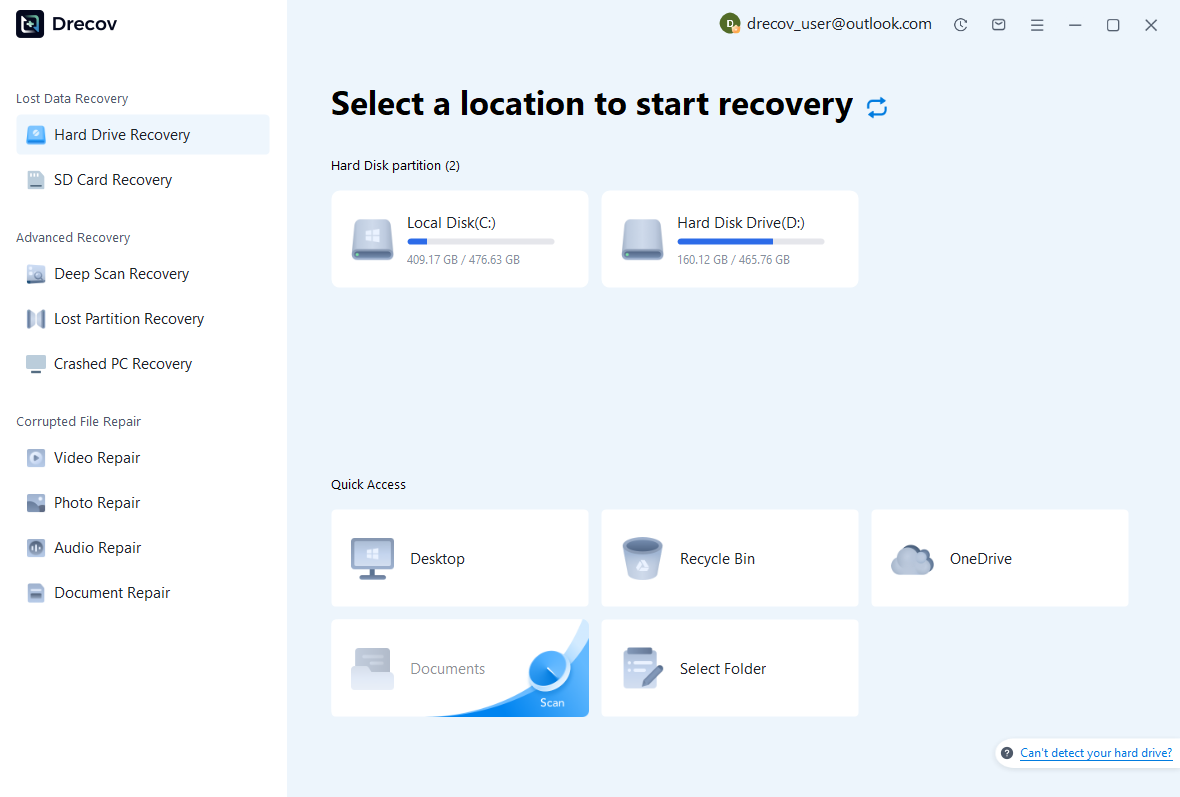
Step 1: Select the Volume with the Missing Text
Use the source-selection interface to choose the storage that held the saved document or backup. Confirm the drive by its role and capacity rather than assuming the first listed item is correct. If you moved the project recently, note both the old and new locations. Keep scan notes separate from the affected drive, and reserve another healthy destination for any recovered candidates.
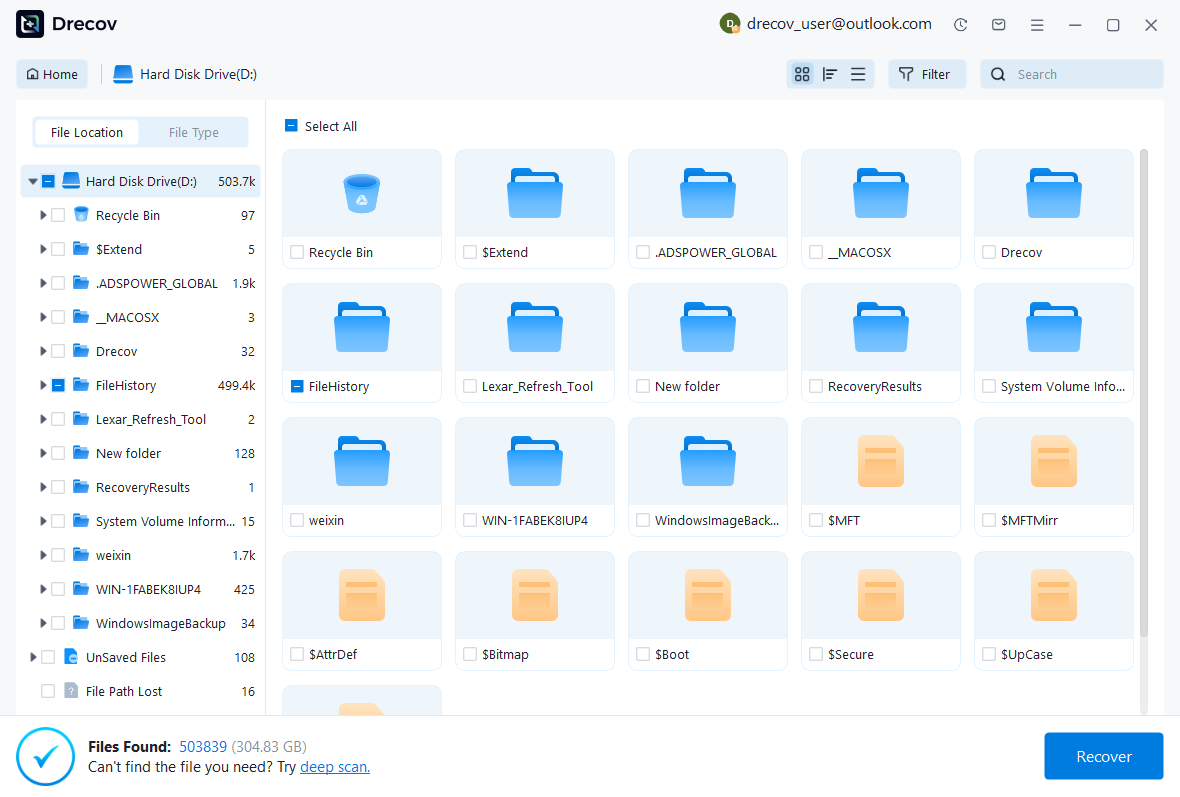
Step 2: Inspect Content and Competing Versions
Review available paths, names, sizes, dates, and supported previews. Search for distinctive text when the interface permits it, because generic names such as new 1 provide little assurance. Preserve several plausible versions if they differ around the missing section. An empty-looking or binary candidate may require a different encoding, but do not assume every unreadable file contains the original text.
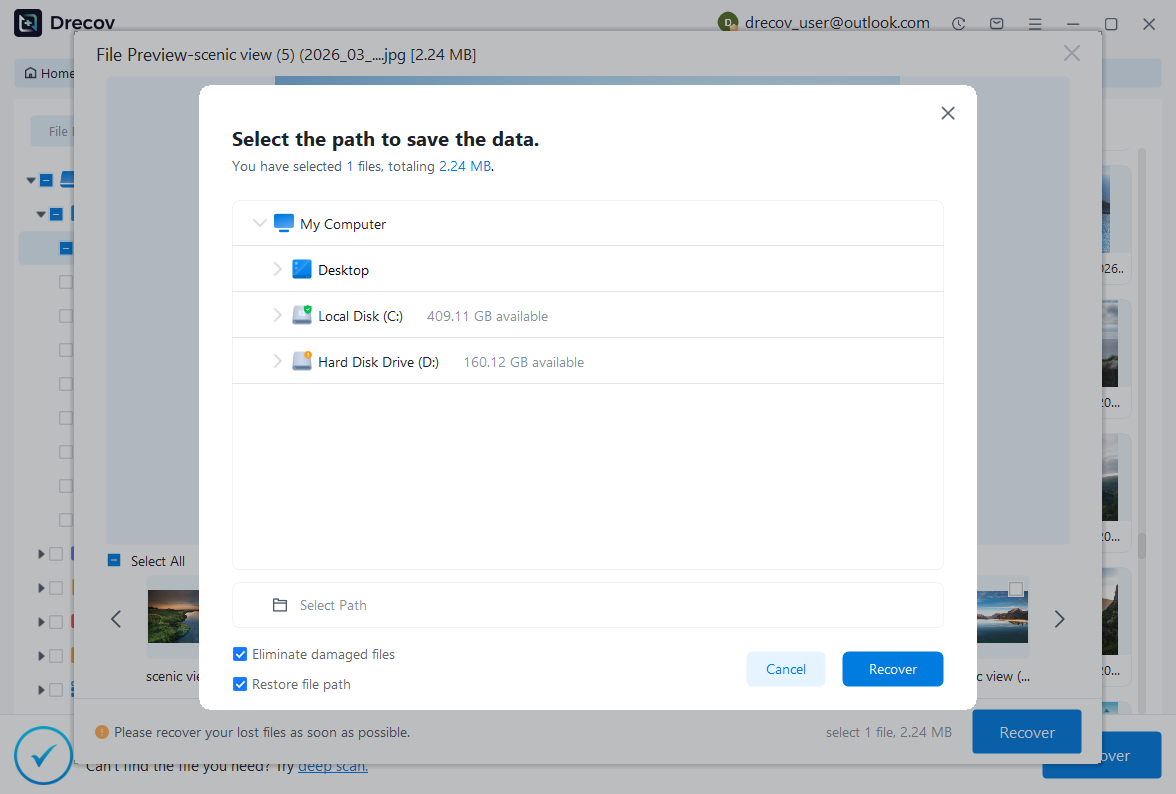
Step 3: Save Elsewhere and Validate the Document
Recover selected files to the separate destination, then inspect copies in Notepad++. Verify the beginning, the missing section, and the end of each document. Check encoding and line endings before saving a final version. For code or structured configuration, perform the appropriate syntax check in a controlled environment. A recovered filename and a nonzero size do not prove that the document is complete.
Finish with a Repeatable Protection Routine
After accepting recovered text, save important documents as named files rather than leaving them indefinitely as unnamed tabs. Use a real project folder and an appropriate versioning or backup process. Session snapshots can reduce disruption, but they remain a convenience feature with cleanup behavior. A deliberate saved copy gives you a clearer recovery target and makes later comparisons much easier.
- Confirm the accepted document’s identity and complete text, including its final lines.
- Verify encoding, line endings, and any required syntax or application behavior.
- Preserve the recovery copies until the current project passes its normal checks.
- Test your backup routine by reopening a separate saved copy of one important document.
Keep Session Convenience Separate from Long-Term History
If you rely on periodic backups, check their configured location and retention behavior before you need them again. Avoid using the backup directory as your normal document folder. Its cleanup rules serve application recovery rather than permanent storage. Keep long-term notes and configuration versions in a location whose backup policy you control, and make sure that policy includes the actual files rather than only a session list.
Finally, practice recovering one disposable test document through your chosen workflow. Confirm which files survive a save, a normal exit, and an intentionally closed tab without risking valuable work. That small experiment makes the feature’s limits concrete. You can then use Notepad++ comfortably while knowing which protection comes from the editor and which comes from your own saved, verified copies.
Related Recovery Resources
Explore the relevant recovery options: Hard drive recovery, External hard drive recovery.
For another recovery case and its practical checks, read the related recovery guide.
Check the vendor guidance for the installed version: official recovery documentation 1, official recovery documentation 2, official recovery documentation 3.