







In the modern digital landscape, the ability to download video from browser Firefox has transitioned from a niche technical skill to an essential daily convenience. Whether you are a student archiving a critical research lecture, a professional saving a software tutorial for offline reference, or a traveler preparing for a long flight without Wi-Fi, having your media stored locally is invaluable.
Firefox remains a premier choice for these tasks due to its robust privacy protections and its expansive, open-source extension ecosystem. Unlike other browsers that may restrict certain downloading capabilities to protect proprietary ad models, Firefox empowers users with tools that can intercept media streams and convert them into permanent files. In this comprehensive guide, we will explore the most effective strategies to download videos in Firefox, troubleshoot common playback issues like Firefox not playing videos, and even touch upon advanced data recovery methods using PandaOffice Drecov should your saved files ever go missing.
Understanding Video Downloads in Firefox
Why People Download Videos from Browsers
The motivation to download video from browser Firefox usually stems from a need for reliability. Online streaming, while convenient, is tethered to the quality of your internet connection. Buffering icons are the enemy of productivity. By saving a video directly to your hard drive, you eliminate the dependency on high-speed data.
Furthermore, digital content is often ephemeral. Creators may delete their channels, websites may go offline, or licensing agreements might expire, causing valuable content to vanish. Archives created through a browser video downloader Firefox extension ensure that you retain access to the information you value most.
How Firefox Handles Online Video Streaming
To master the art of the download, one must understand how Firefox “sees” a video. Most modern platforms no longer serve a single, static file like “video.mp4.” Instead, they utilize Adaptive Bitrate Streaming protocols such as HLS (HTTP Live Streaming) or MPEG-DASH.
When you watch a video, Firefox is actually downloading hundreds of tiny “segments” of video data and stitching them together in real-time. This is why a simple “Right-Click > Save As” often fails. To successfully download videos in Firefox, you need a tool capable of identifying these segments and reassembling them into a cohesive container.
Methods to Download Videos Using Firefox
Method 1: Using Browser Video Downloader Firefox Extensions
The most user-friendly approach is employing a dedicated browser video downloader Firefox. These extensions live in your toolbar and act as a specialized “sniffer” that detects media requests as they happen.
- Step 1: Install a Trusted Extension. Visit the Firefox Add-ons store and search for a reputable downloader (e.g., Video DownloadHelper or Video Downloader Professional). Click Add to Firefox.
- Step 2: Navigate to the Video Page. Open the website containing the video you want to save. You will notice the extension icon in your toolbar (usually a small arrow or film icon) change color or show a number, indicating it has detected media.
- Step 3: Play the Video. Press Play on the video player. This “wakes up” the extension and forces the browser to request the high-quality video stream.
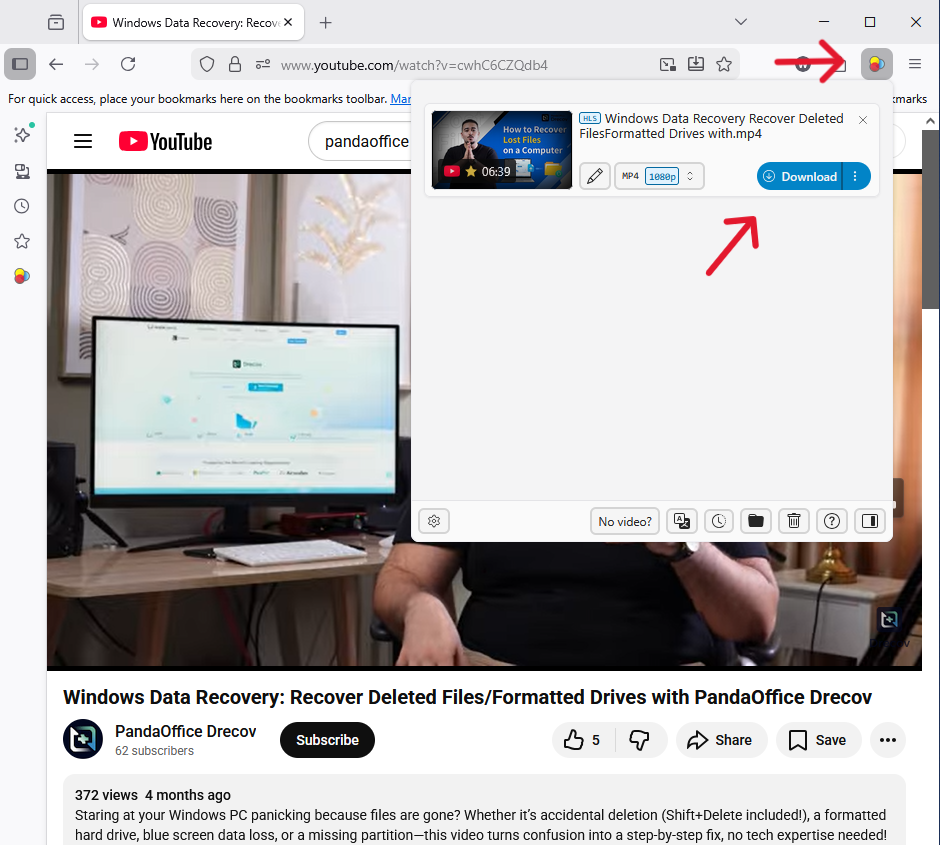
- Step 4: Select Format and Quality. Click the extension icon. A dropdown menu will appear listing available files. Look for the one with the highest resolution (e.g., 1080p) and your preferred format (e.g., MP4).
- Step 5: Download the File. Click the Download button next to your chosen file. Firefox will prompt you to select a saving location on your hard drive.
Method 2: Download Videos Using Page Source (Network Monitor)
For those who prefer not to clutter their browser with add-ons, you can manually download video from browser Firefox by inspecting the “Network” tab in the Developer Tools (F12).
- Step 1: Open Developer Tools. Right-click anywhere on the page and select Inspect, or simply press F12.
- Step 2: Access the Network Tab. In the panel that opens, click the Network tab at the top. This monitors all data flowing between the website and your browser.
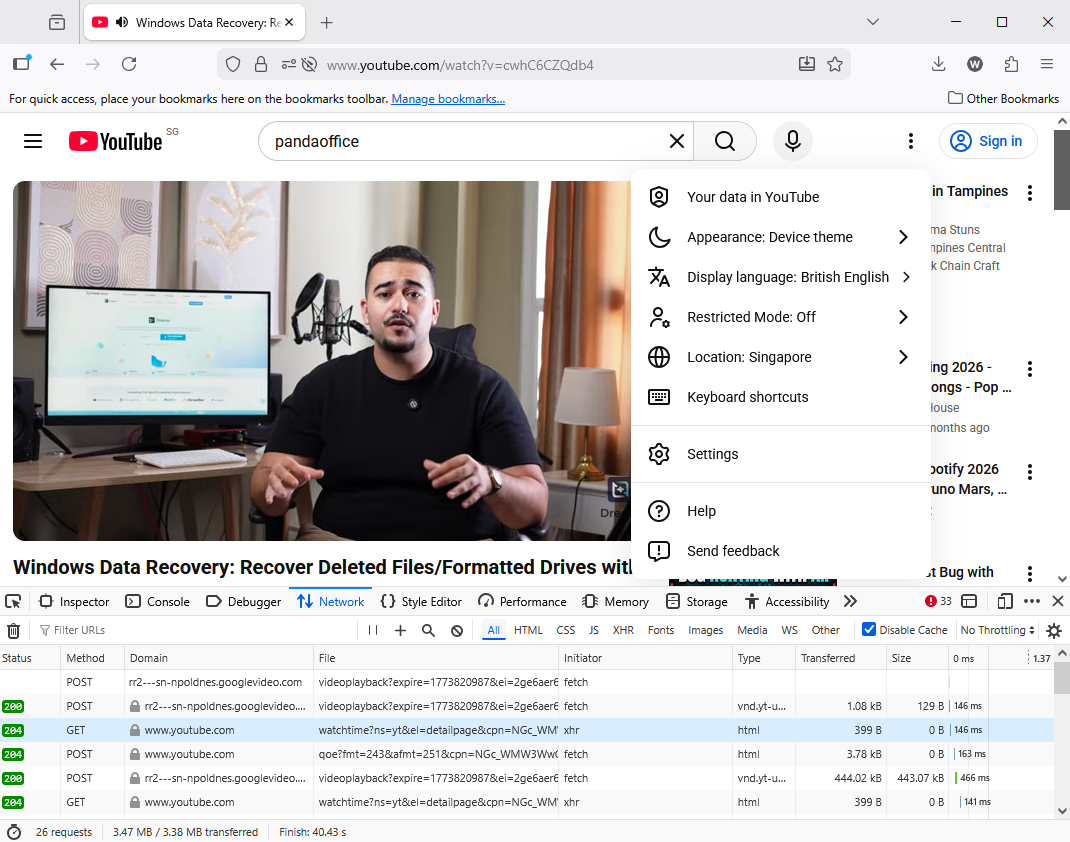
- Step 3: Filter for Media. To filter out images and text, click the Media sub-tab within the Network panel. This narrows the list down to actual video and audio files.
- Step 4: Refresh and Play. Refresh the page (F5) and click Play on the video. If the list is empty, ensure the Disable Cache checkbox in the Network tab is checked to force a fresh request.
- Step 5: Copy and Save. Look for a file with a large “Size” or an extension like
.mp4or.webm. Right-click the file name, select Copy > Copy URL, paste it into a new Firefox tab, and press Enter. Once the video opens alone, right-click it and choose Save Video As….
Method 3: Using Online Video Download Websites
If an extension fails, third-party web services can act as a proxy. You simply paste the URL of the Firefox tab into the service, and it handles the server-side extraction.
- Step 1: Copy the Page URL. Highlight the full address in your Firefox address bar (e.g.,
https://www.youtube.com/watch?...) and press Ctrl + C. - Step 2: Choose a Reputable Service. Navigate to a trusted online downloader site (e.g., SaveFrom.net, Y2Mate, or KeepVid).
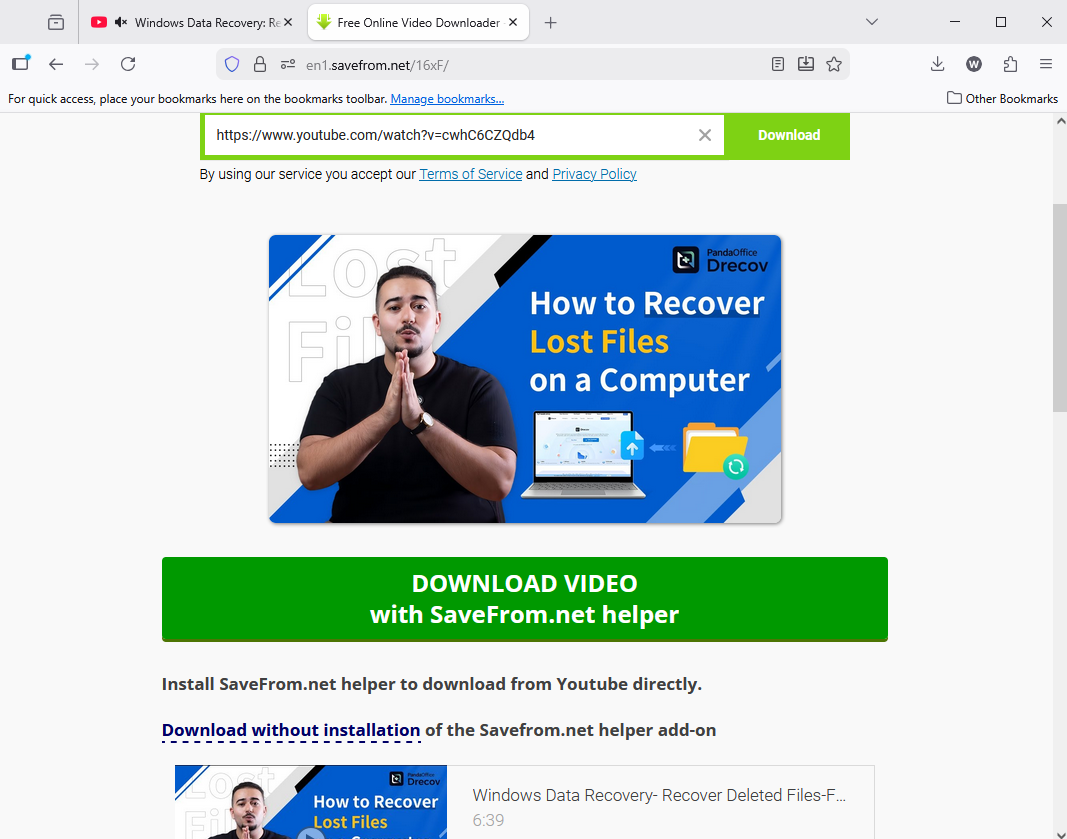
Tip: Use a private window or an ad-blocker to minimize intrusive pop-ups.
- Step 3: Paste and Analyze. Paste your URL into the input field on the site and click Start or Analyze. The service will scan the link to find the direct video source.
- Step 4: Choose Quality and Download. A list of download options will appear. Select your desired quality (e.g., 720p or 1080p) and click the Download button.
- Step 5: Confirm the Save. A download dialogue will appear in Firefox. Select Save File and click OK to begin the transfer.
Step-by-Step Guide to Download Videos with Firefox Extensions
If you are encountering issues where Firefox not playing videos correctly or you simply want to save them, follow these steps to set up a professional-grade downloader.
Installing a Video Downloader Extension
- Step 1: Open Firefox and click the three horizontal lines (hamburger menu) in the top-right corner.
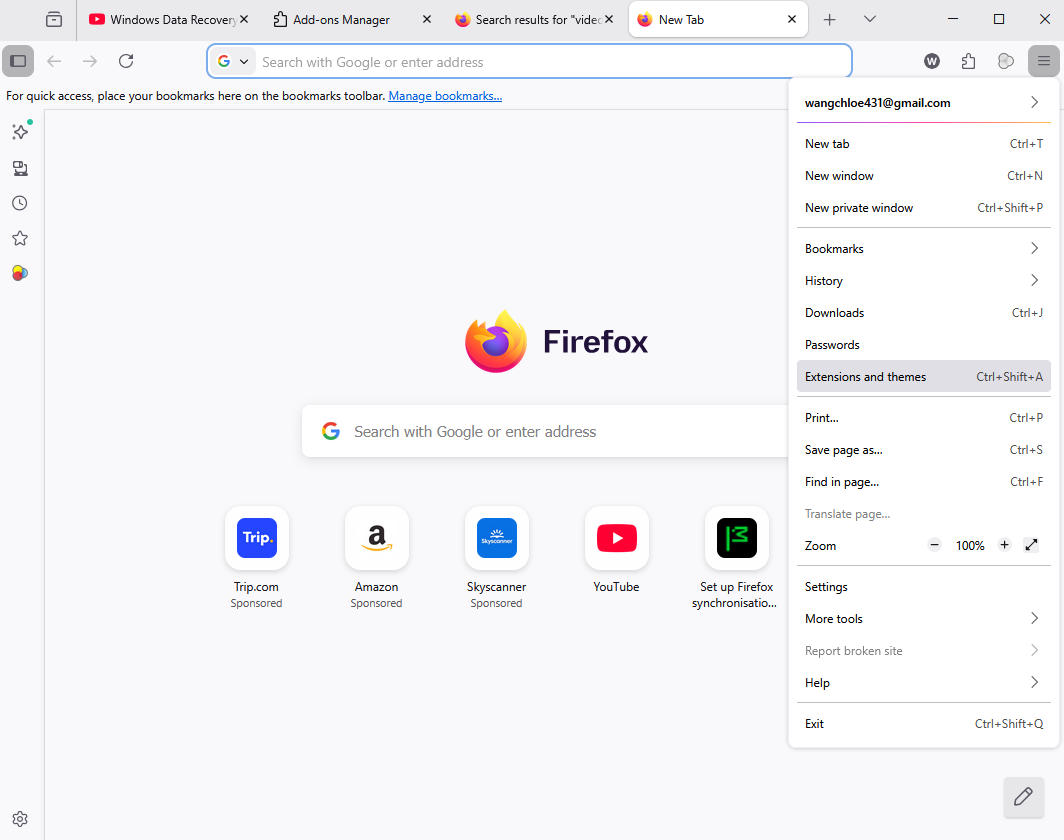
- Step 2: Select “Add-ons and themes” (or press
Ctrl+Shift+A). - Step 3: In the search bar, type a keyword like “browser video downloader firefox”.
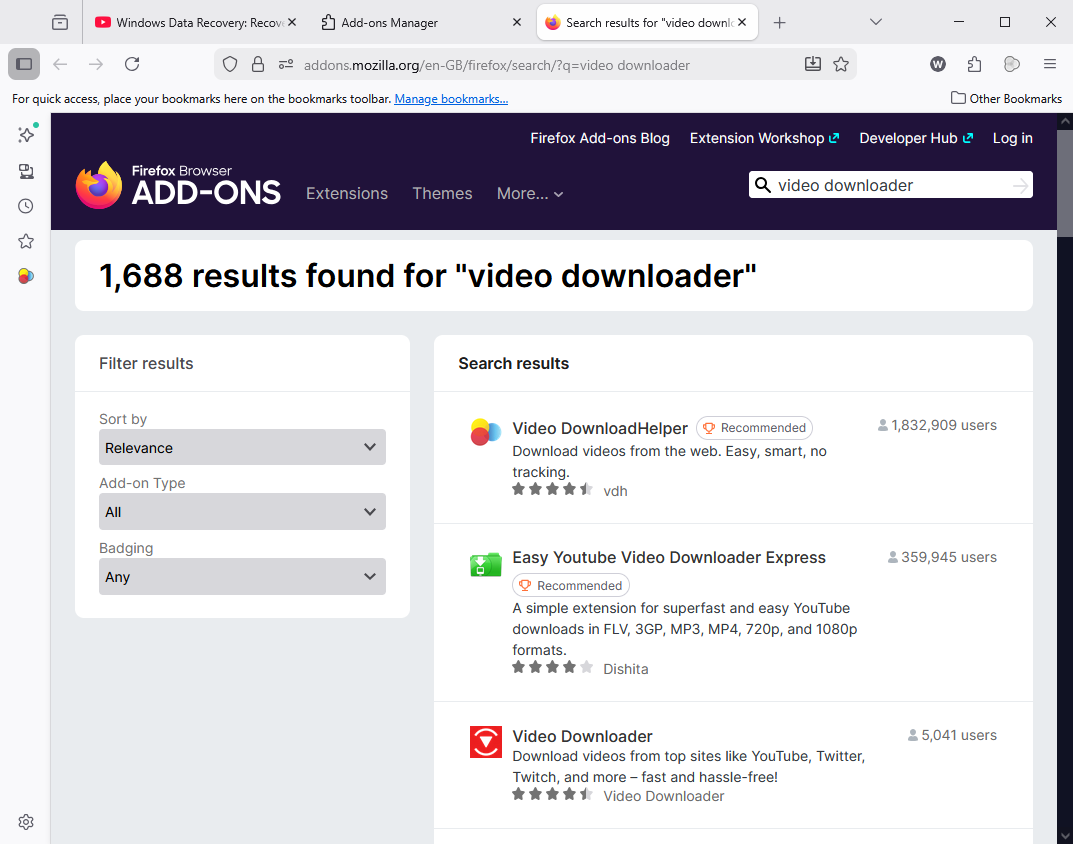
- Step 4: Click on a highly-rated option (e.g., Video DownloadHelper) and select “Add to Firefox”.
- Step 5: Confirm the permissions pop-up to finalize the installation.
These extensions live in your toolbar and act as a specialized “sniffer” that detects media requests as they happen.
- Efficiency: They work in the background with zero impact on speed.
- Versatility: Most support multiple formats (MP4, MKV, WebM).
- Automation: They can often detect the highest available resolution automatically.
Best Firefox Extensions for Downloading Videos
| Extension Name | Primary Strength | Best For |
| Video DownloadHelper | HLS/DASH support | Complex streaming sites |
| Video Downloader Pro | One-click simplicity | Social media clips |
| Easy Video Downloader | Clean Interface | Minimalist users |
Video DownloadHelper
This is the gold standard for anyone looking to download video from browser Firefox. It is uniquely capable of handling fragmented streams that other tools ignore. It occasionally requires a “Companion App” for complex file joining, which is a safe, external bridge for your operating system.
Video Downloader Professional
If your goal is simply to download videos in Firefox from sites like Vimeo or educational blogs, this tool offers a very “clean” experience. It filters out ad-tracking scripts and focuses purely on the MP4 source.
How to Recover Lost Downloaded Videos with PandaOffice Drecov
Sometimes, despite our best efforts, a downloaded video can be accidentally deleted, or a drive failure can wipe your media library. This is where professional data recovery tools like PandaOffice Drecov become essential. If you’ve spent hours using a browser video downloader Firefox to build a library, don’t let a technical glitch destroy it.
Free Download Free Download⚠ Warning: Install it on a drive different from the one where your data was lost to prevent overwriting.
Step-by-Step Recovery with PandaOffice Drecov
- Step 1: Select the Target Location
Identify the drive or specific folder where your Firefox downloads were originally stored. Usually, this is the C:\Users\[Username]\Downloads path.

- Step 2: Deep Scan for Video Formats
Initiate the “Deep Scan” mode. PandaOffice Drecov uses advanced algorithms to look for file signatures specific to video containers like .mp4, .mkv, and .mov.

Warning: To increase recovery chances, do not save any new files to the drive while the scan is running. Writing new data can overwrite the “deleted” video fragments.
- Step 3: Preview and Filter
One of the best features of PandaOffice Drecov is the preview window. You can actually watch a few seconds of the recovered video to ensure the file is intact before committing to the recovery.
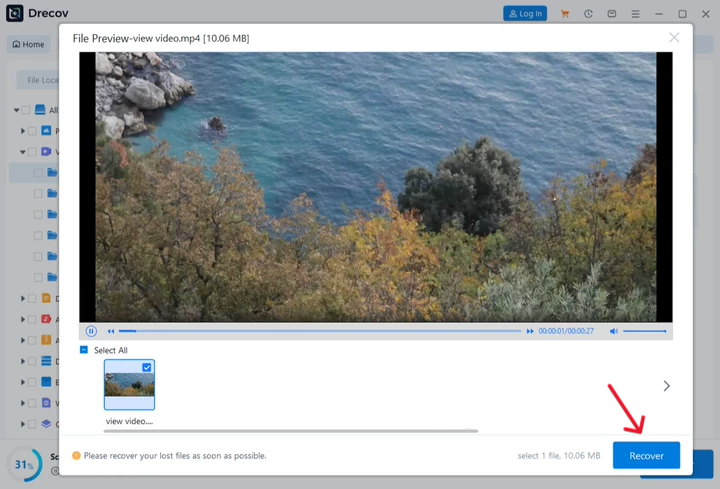
- Step 4: Secure Restoration
Select the files you wish to bring back and click “Recover”. Always save the recovered videos to a different drive (e.g., an external USB) to prevent data corruption.
Troubleshooting Firefox Video Download Problems
Why Some Videos Cannot Be Downloaded
The most common obstacle is DRM (Digital Rights Management). Platforms like Netflix or Amazon Prime encrypt their streams. No legitimate browser video downloader Firefox can bypass this encryption, as it is protected by international copyright laws and browser-level security modules. Therefore, if you find that you cannot download video from browser Firefox on these specific platforms, it is likely due to a built-in restriction rather than a software bug.
Fixing Extension Detection Issues
If you find Firefox not playing videos or the downloader icon remains greyed out, try the following technical fixes:
- Check Hardware Acceleration: Sometimes GPU rendering hides the video stream from extensions. You can learn how to disable hardware acceleration in Firefox to see if it restores detection.
- Clear Cache and Audit Data: A bloated cache can prevent the extension from seeing “new” media requests. While clearing your cache, it is also a good time to ensure your profile data is secure; if you aren’t sure where your profile is, you can locate your Firefox bookmarks on your PC to understand the folder structure.
- Manage Browser Memory: Firefox is powerful but can be resource-heavy. If your browser is lagging, it might fail to trigger the downloader. Stop the Firefox memory leak with our 2026 guide to keep your system responsive.
- Verify Profile Integrity: If the downloader fails due to a corrupted browser profile, you may need to find your Firefox bookmarks location to back up your data before performing a browser refresh.
Recovering Data After a Browser Reset
In some cases, fixing a persistent video download error requires a “Refresh” or reinstallation of Firefox. If this process leads to accidental data loss:
- If you find that you need to delete and then recover bookmarks from Firefox, follow our 5-minute guide to manage your library safely.
- For more severe data loss during a browser fix, refer to these 5 proven methods for Firefox bookmarks recovery to get your lost information back instantly.
Safety and Legal Tips
- Avoid Malicious Add-ons: Only download extensions from the official Mozilla Add-ons Store. Third-party “.xpi” files from unknown sites often contain malware.
- Respect Copyright: Use your browser video downloader Firefox for personal use only. Distributing copyrighted content without permission is illegal.
- Check Permissions: If an extension asks for permission to “Access data for all websites,” ensure it is a reputable tool with millions of users.
Download Videos in Firefox FAQs
1. Is it legal to download videos in Firefox?
It depends on the content and the site’s Terms of Service. Downloading for personal, educational, or transformative use is generally considered “Fair Use,” but always check the specific website policies.
2. Why is my browser video downloader Firefox so slow?
Download speed is usually limited by the website’s server or your own ISP. If the video is being “re-encoded” during the download, your computer’s CPU speed also plays a role.
3. What should I do if Firefox is not playing videos after I download them?
Ensure you have a modern media player like VLC. If the file is corrupted, use PandaOffice Drecov to scan for a healthy version of the file.
4. Can I download 4K videos using Firefox extensions?
Yes, but ensure your extension supports High-Definition streams. Some “free” versions of extensions limit downloads to 720p or 1080p.
5. How do I stop a video download if it gets stuck?
You can manage active downloads via the Firefox Download Manager (Ctrl+J) or directly within the extension’s interface.
Conclusion
Learning to download video from browser Firefox is a liberating skill that puts the user back in control of their media consumption. By choosing the right extensions, understanding the underlying streaming technology, and keeping a recovery tool like PandaOffice Drecov in your digital toolkit, you can ensure that your favorite content is always just a click away—even when you’re offline.






