In an AC3 vs AAC vs EAC3 decision, start with where the sound must play. AAC often fits everyday video sharing; AC3 remains relevant to compatible home-theater equipment; EAC3 serves supported Dolby Digital Plus workflows. None is the best choice for every device, and changing the codec cannot restore detail already lost from a recording.
The important question is not which abbreviation looks newest. You need the selected audio track to survive the whole route: file, application, operating system, connection, and speaker or receiver. A format supported at one point can still fail elsewhere.
Identify the destination before choosing an audio label
Check the receiving application’s accepted export formats and the devices your audience uses. A conventional AAC track in a supported video container is often a practical starting point, but the profile and channel configuration still matter. Test a short sample in the actual application rather than assuming every AAC file behaves identically.
For a family video, intelligible dialogue on ordinary phones may matter more than carrying a surround mix. Keep the original recording so you can produce a different delivery copy later. An export made for sharing should not become the only surviving version of the project.
A television, soundbar, or receiver
Read the supported audio formats for the exact playback route. A television’s USB player, streaming application, and HDMI input can have different capabilities. Passthrough sends an encoded stream onward for another device to decode; local decoding turns it into audio before that stage. These are not interchangeable promises.
Check the connection as well as the product logos. Support for Dolby Digital does not automatically establish support for every Dolby Digital Plus stream through every output. If the chain cannot carry the selected track, try a supported alternative rather than repeatedly renaming the file.
Understand what the three names describe
AC3 refers to Dolby Digital
AC-3, commonly written AC3 in filenames, is associated with Dolby Digital. It is familiar in established surround playback systems and supports configurations including 5.1. That does not mean every AC3 track contains surround audio: a particular file can hold fewer channels.
Use the track’s actual metadata and listening result to determine what you have. A filename ending in “5.1” is not independent verification. When dealing with older equipment, compare its documented support with the exact stream and connection rather than treating age as a guarantee of compatibility.
EAC3 refers to Dolby Digital Plus
E-AC-3, often shortened to EAC3, is Dolby Digital Plus. Dolby describes its Digital Plus technology as supporting multichannel delivery, including up to 7.1 discrete channels. A supported multichannel workflow is a capability, not proof of what any particular download contains.
Do not equate every EAC3 track with Dolby Atmos. The file and receiving system must support the actual presentation involved. A stereo source converted to EAC3 does not acquire a genuine original surround mix simply because a different codec label appears.
AAC is an audio coding family, not a synonym for stereo
AAC appears widely in digital media delivery. Its common stereo use does not mean that the format is inherently limited to two channels. Device support depends on the specific profile, container, and configuration, so a broad “AAC supported” claim still needs context.
Keep the distinction between codec and container clear. MP4 and MKV describe ways to package tracks and related information. They do not, by themselves, identify the audio codec. A player may recognize the container and show the video while being unable to decode or forward its sound.
If the original recording is missing, recover before comparing exports
Skip this section when you still have all source files. When an original disappeared, check an independent backup and the Recycle Bin before converting the remaining copy. A highly compressed delivery track is not equivalent to the source recording you intended to edit.
Drecov is Windows data recovery software for missing local files, including audio and video. Its read-only recovery mode, Quick Scan, Deep Scan, filtering, and supported previews help locate candidates. Lost Partition Recovery addresses data on a lost partition. None of these functions restores quality discarded during audio encoding or fixes incompatible playback hardware.
Prepare the original storage and another destination
Stop new writes to the location that held the source recording. Prepare a different healthy device and do not install the software on the affected partition. Repeated disconnects or severe read errors require imaging advice or specialist help rather than more scans. Overwriting and SSD TRIM may limit recovery.
⚠ Warning: Install it on a drive different from the one where your data was lost to prevent overwriting.
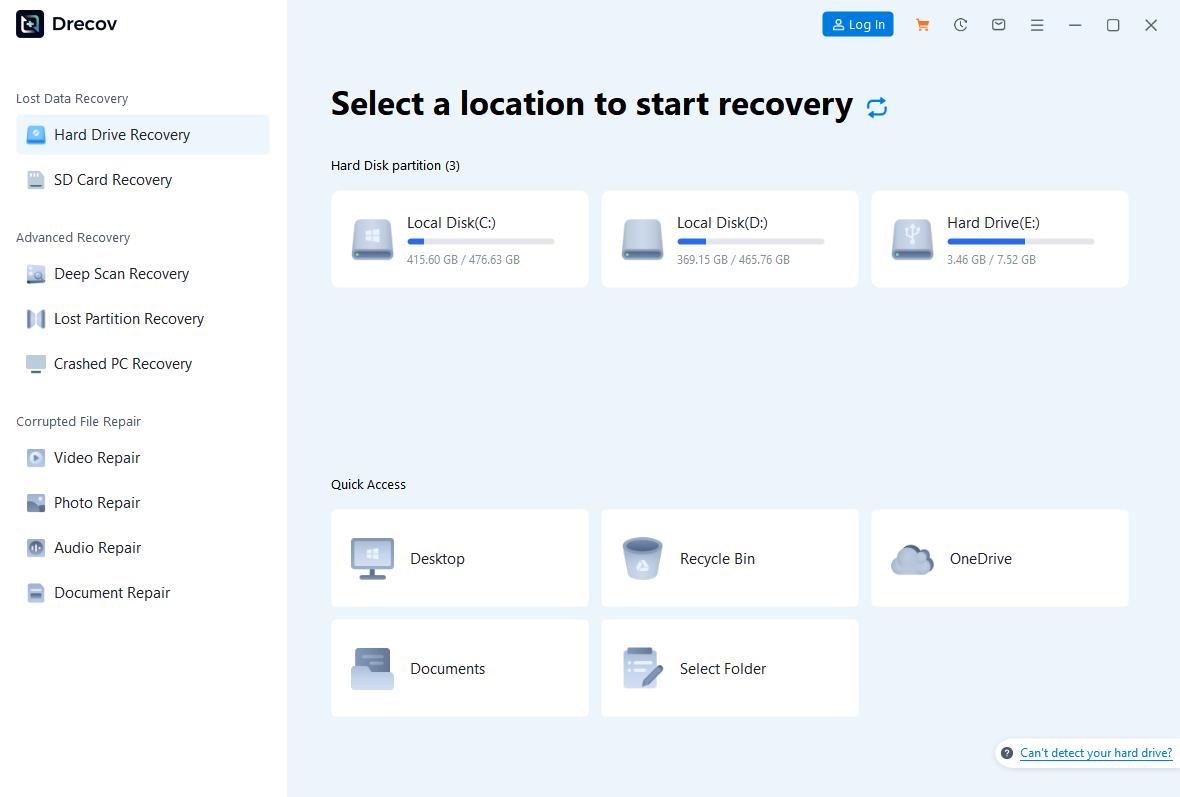
Step 1: Open Drecov and select the source-media location
Choose the stable Windows volume or original folder containing the recording or project media. Look for the actual source, not merely a later compressed export. If the entire original partition disappeared, use the applicable Lost Partition Recovery mode rather than creating a replacement partition before recovery.
Step 2: Run Quick Scan and recognize the project assets
Compare names, file types, paths, and dates where available. A project may require a separate microphone recording as well as video. Keep plausible takes and alternate recordings until you can listen to them; the newest name does not always identify the correct performance.
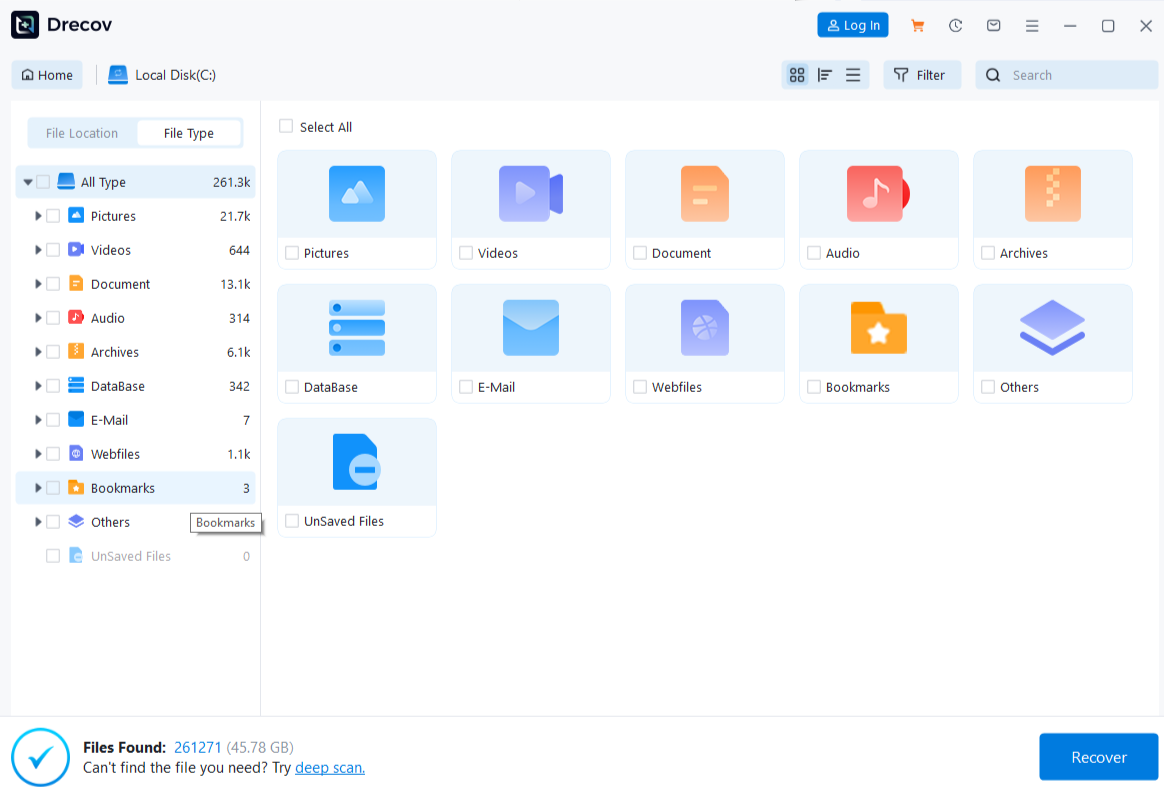
Step 3: Use Deep Scan only when needed
Continue if Quick Scan does not find the desired source and the device remains stable. Stop if reading deteriorates. The file recovery page covers the broader missing-file process. A deeper scan cannot promise a complete recording or recover fully overwritten sound.
Step 4: Locate and preview supported results
Use the available filters and file information to separate source takes from delivery copies. Preview representative supported files when possible. Lack of a preview for a specific format does not by itself prove that the candidate is unusable. A short working segment also cannot certify the full duration.
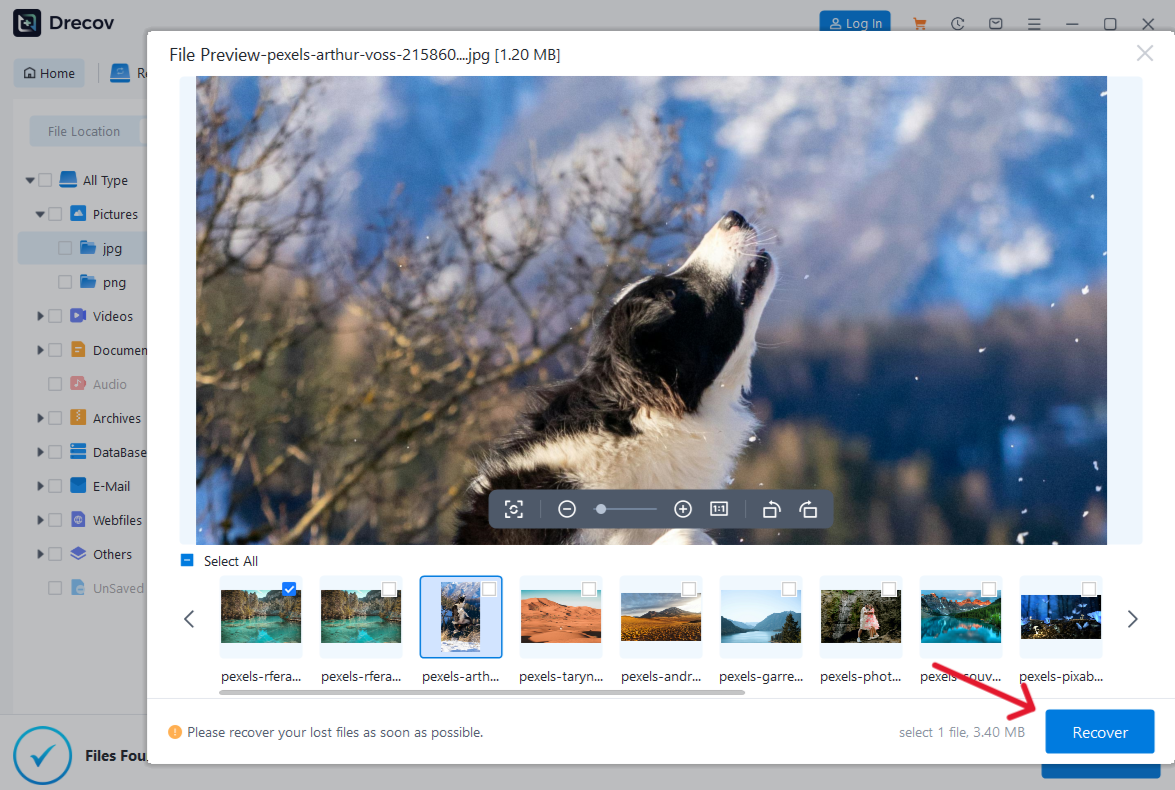
Step 5: Save elsewhere and check the recording
Recover to the other healthy device, never the source. Check Drecov Folder or Recovery Folder if the output is unexpected. Listen at several positions, confirm duration and dialogue, and inspect channel behavior in the intended application. For combined projects, verify associated clips through the video recovery workflow before deleting anything else.
⚠ Warning: Install it on a drive different from the one where your data was lost to prevent overwriting.
Choose by the problem you are actually trying to solve
You want a reliable sharing copy
Use the destination application’s documented recommendation and make a short test export. Check playback on the least capable device your audience needs. A file that works on your editing PC can still fail after transfer to a television or messaging application.
Choose sensible channel handling. If the audience uses stereo speakers, verify that dialogue remains clear in the stereo result. Simply selecting the greatest available channel count does not improve a recording made with a single microphone.
You want to preserve a home-theater track
Keep the original compatible track whenever the target workflow allows it. Confirm that the receiver receives the expected format and channel arrangement. A display saying “PCM” can indicate that decoding happened upstream; it does not alone establish that the original codec was absent or damaged.
When an older chain supports AC3 but not the particular EAC3 route, a compatible delivery track may solve playback. Preserve the source and label the converted copy clearly. Do not delete the original after hearing only the opening seconds of a successful conversion.
You are comparing perceived quality
Compare the same source at matched listening levels through the same playback path. Bitrate, encoder settings, channel layout, and source quality all affect the result. A higher number or newer codec name alone cannot justify a universal quality ranking.
These are commonly used as lossy delivery formats. Re-encoding an already compressed track can introduce further loss; it cannot restore information discarded earlier. For ongoing editing, keep the highest-quality available source and produce delivery versions from that source rather than repeatedly converting exports.
Check the finished file before replacing a working copy
Inspect the exported file’s actual audio track, not just its extension. Verify language, duration, channel count, and the intended codec using the application’s media information where available. A video can contain multiple tracks, and the player may automatically choose one you did not expect.
Listen for task-specific failures
Test quiet dialogue, a loud section, and a point near the end. Check synchronization with visible speech and confirm that left and right channels behave sensibly. Surround projects need appropriate channel verification on a capable system, not just a laptop-speaker listen.
Transfer the sample through the real sharing route. An application may alter uploaded media, so the file received at the other end is the meaningful test. Retain the source and the known-good version until you have checked that delivered result.
Separate compatibility trouble from missing content
Sound that plays in one application but not another suggests a playback-path question. A source recording absent from all expected folders is a data-location question. Distorted audio already present in every copy may be a recording issue. Choosing a different abbreviation does not automatically solve any of these.
AC3 vs AAC vs EAC3 FAQs
Is EAC3 always better than AC3?
No universal ranking fits every source and device. EAC3 offers different capabilities, but the actual encoding and supported playback route determine usefulness.
Does AAC mean stereo only?
No. AAC supports configurations beyond stereo. Check the specific track and the receiving device rather than judging from common stereo examples.
Can renaming an extension change the audio codec?
Renaming changes a label, not the encoded stream. Use a supported remux or conversion workflow when an actual format change is necessary.
Does every Dolby Digital Plus track contain Atmos?
No. Dolby Digital Plus and Atmos are not interchangeable descriptions of every file. Confirm the actual track and the system’s supported presentation.
Can recovery software improve compressed audio quality?
It may locate a missing higher-quality source if recoverable data remains. Detail already discarded by a lossy encoder cannot be recreated from the surviving file.
Conclusion
Choose AC3, AAC, or EAC3 for a verified playback destination, then test the full delivery chain. Preserve the source rather than repeatedly converting compressed copies. Drecov is relevant only if original local recordings are missing: recover them to another device and verify the audio before making new format decisions.
⚠ Warning: Install it on a drive different from the one where your data was lost to prevent overwriting.