






Bring Your Lost PDFs Back to Life with PandaOffice Drecov


Common Causes of PDF File Loss
Understand the most common causes of PDF file loss, from accidental deletion to system crashes.




Formatting Errors
Storage devices are formatted without proper backup, leading to data loss.

Software or Update Issues
Application errors or failed updates may overwrite or remove PDF files.
Reason
Why
Choose Us?
Why PandaOffice Drecov is the trusted choice for fast, secure, and hassle-free PDF file recovery.


Professional Data Recovery Support
Reliable recovery service designed to handle various PDF loss scenarios.

Quick Response & Efficient Recovery
Save time with fast scanning and streamlined recovery processes.

User-Centered Experience
Clean, intuitive workflow that makes PDF recovery simple for everyone.

Secure & Privacy-Focused Service
Your files are recovered safely with strict data protection throughout the process.
Powerful Features That Make PDF Recovery with PandaOffice Drecov
Explore the smart tools and functionalities of PandaOffice Drecov that help you restore lost or corrupted PDFs with confidence.

High Recovery Success Rate
Advanced scanning technology helps recover PDFs even after deletion, formatting, or corruption.

Fast & Easy to Use
Simple interface lets you recover files in just a few clicks, no technical skills needed.

Preview Before Recovery
View recoverable PDF files in advance to ensure you restore exactly what you need.

Batch Recovery Support
Recover multiple PDF files at once to boost efficiency.
3 Simple Steps
to Retrieve Lost PDFs
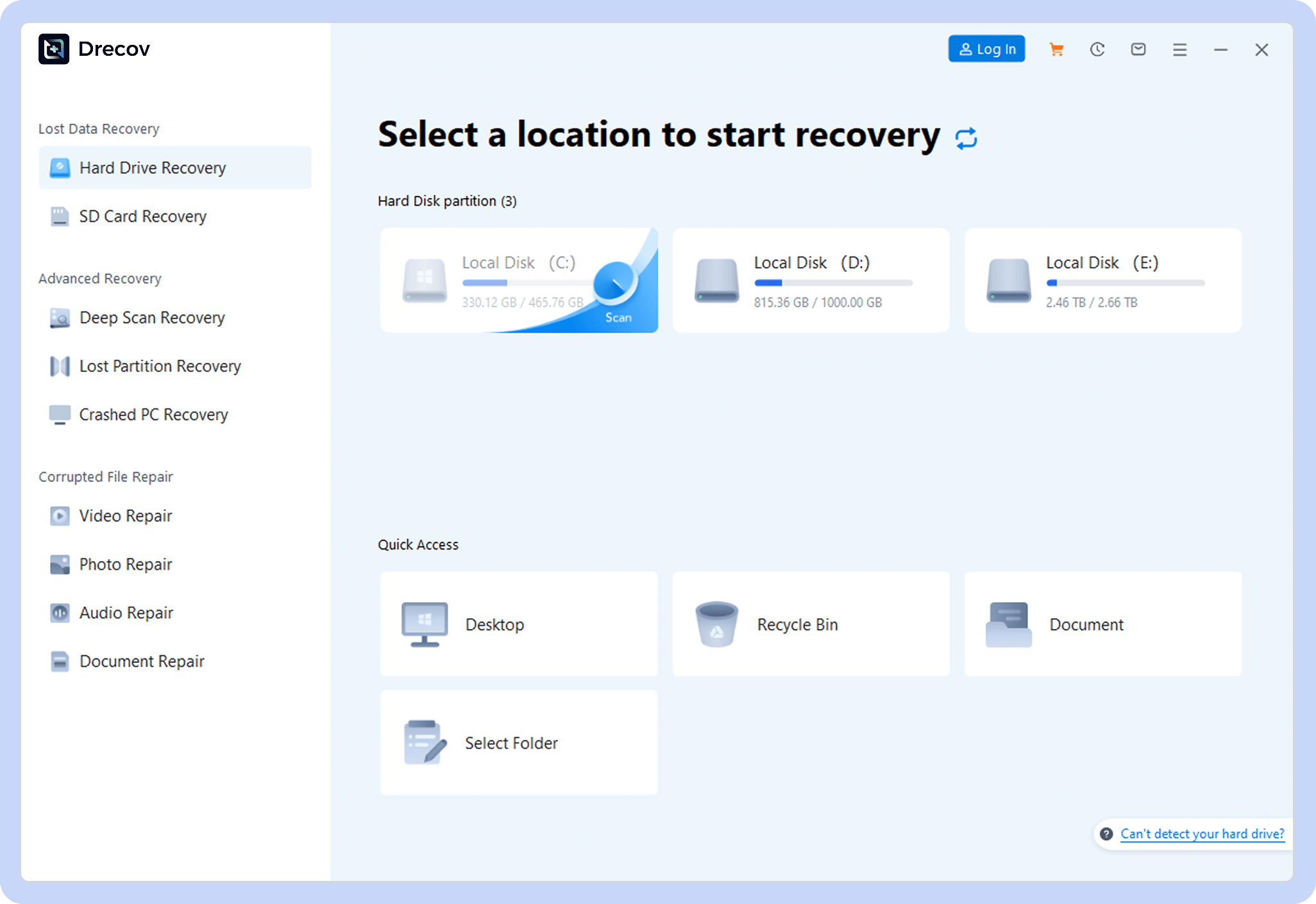
Step 1
Choose a Location
Open Drecov and select where to scan.
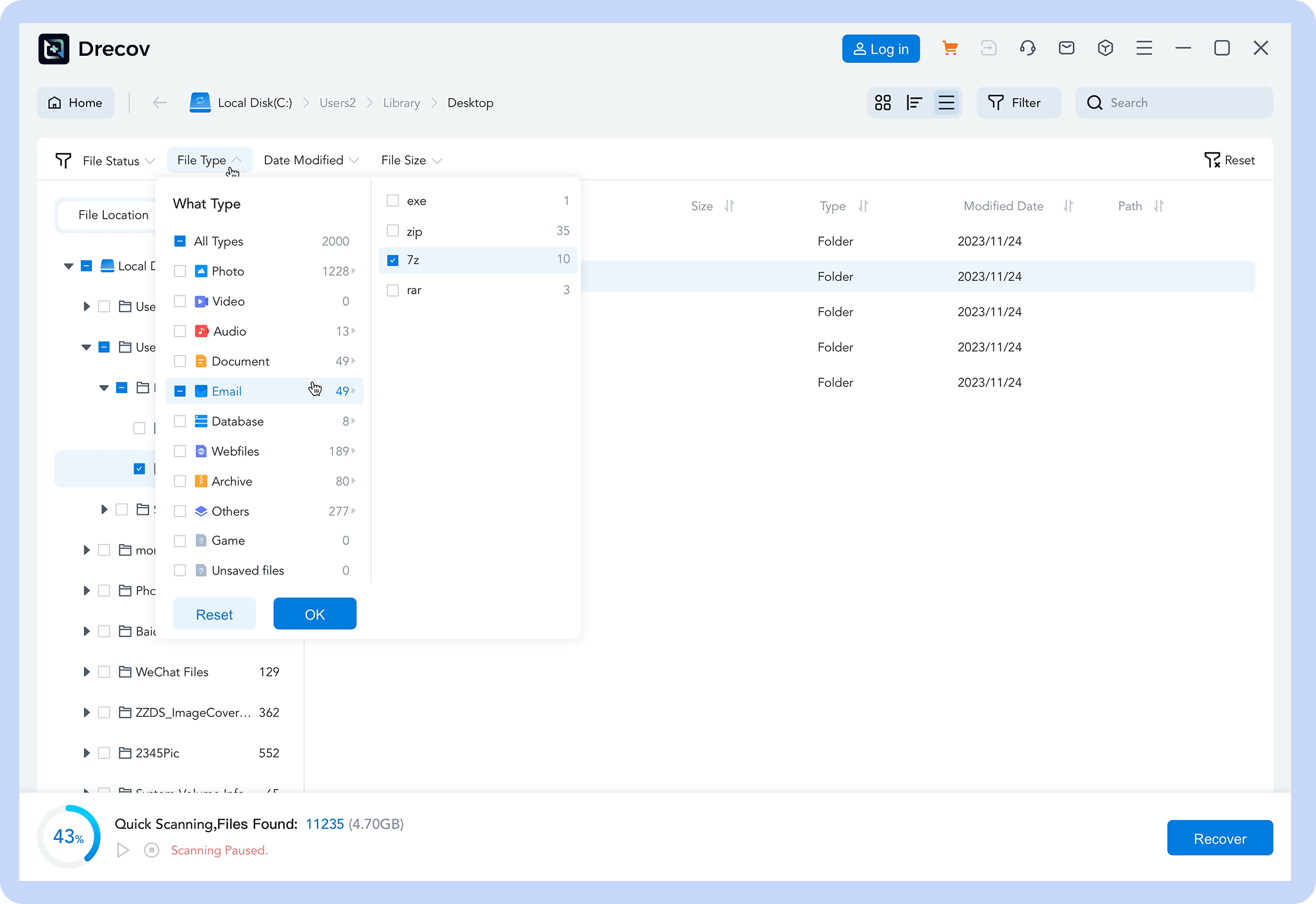
Step 2
Scan for Files
Let the software find lost or deleted data.
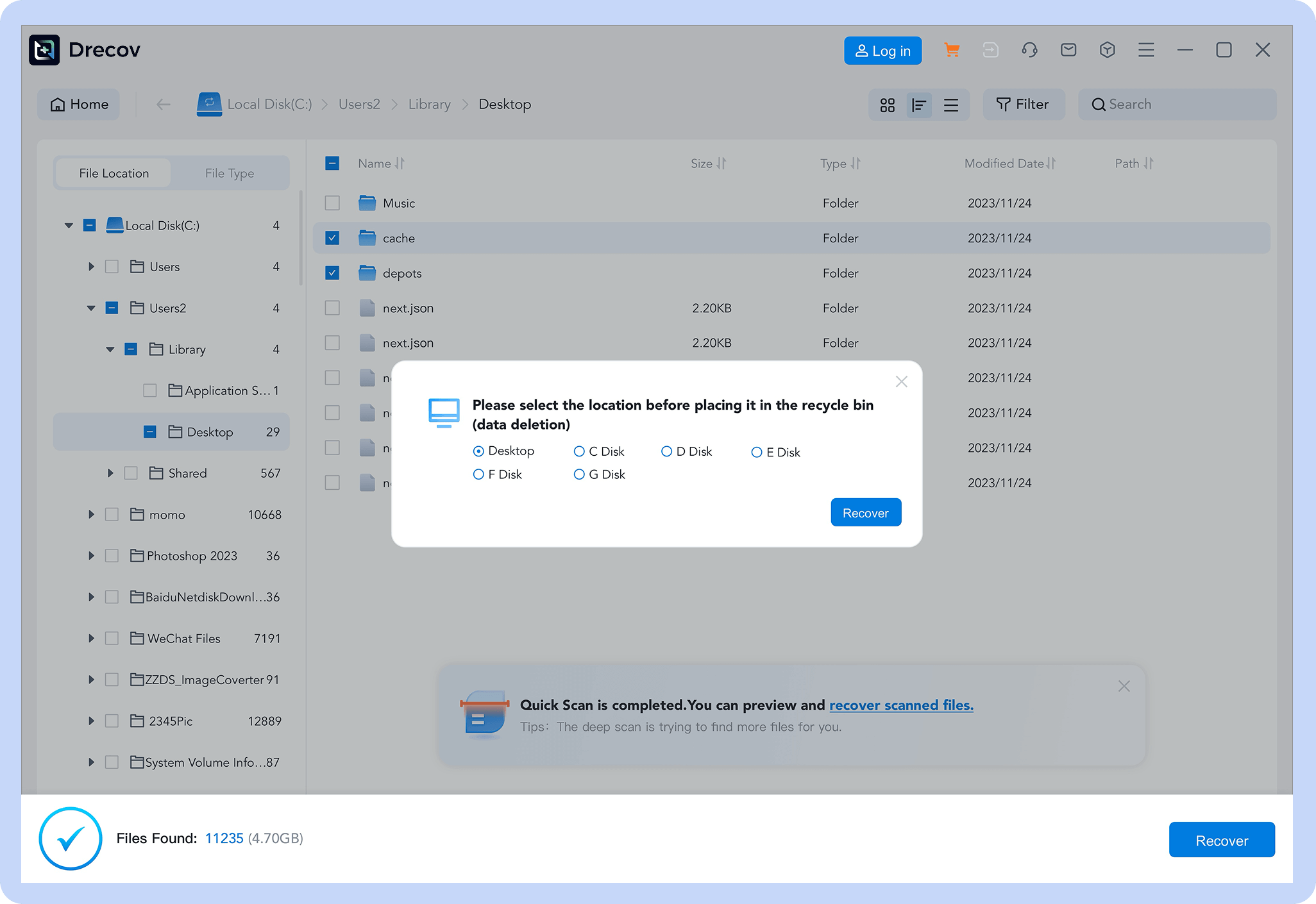
Step 3
Recover Data
Preview and restore your files with one click.
What Our Customer Says

Michael
Accountant
“PandaOffice Drecov saved me when I accidentally deleted an important client report. The recovery process was fast and easy—I got everything back within minutes!”


David
Graphic Designer
“I often work with large PDF portfolios, and losing files used to be a nightmare. Now, batch recovery makes everything so much simpler and stress-free.”

James
University Professor
“As an academic, losing research papers can be devastating. PandaOffice Drecov’s preview feature is a lifesaver—I can select exactly what I need without guessing.”

Emily
Marketing Manager
“I’m impressed with how intuitive the software is. Even someone who isn’t tech-savvy can recover PDFs quickly and safely.”

Sophia
Freelance Writer
“The security and privacy features made me trust PandaOffice Drecov immediately. My sensitive documents were never at risk during recovery.”

Olivia
Lawyer
“Recovering multiple client contracts at once used to take hours. With batch recovery, PandaOffice Drecov cut the time drastically and made my workflow much smoother.”
Membership Plan
Choose Your Membership Plan
Select the perfect plan for your data recovery needs with flexible pricing options.
1 Month License
Files Recovery for 2 PCs
$39.99
/Month

Lost Data Recovery
Recover 3000+ file formats
Support 2000+ device recovery
Unlimited data recovery
Unsaved file recovery
USB & SD Card recovery

Advanced Recovery
Deep scan algorithm
Lost partition recovery
Recover from crashed PC

File Repair
Repair damaged videos
Repair damaged images
Repair damaged audio
Repair damaged documents
No Auto-Renewal
1 Year License
Files Recovery for 3 PCs
$59.99
/Year
Lost Data Recovery
Recover 3000+ file formats
Support 2000+ device recovery
Unlimited data recovery
Unsaved file recovery
USB & SD Card recovery
Advanced Recovery
Deep scan algorithm
Lost partition recovery
Recover from crashed PC
File Repair
Repair damaged videos
Repair damaged images
Repair damaged audio
Repair damaged documents
No Auto-Renewal
Lifetime License
Files Recovery for 5 PCs
$79.99
/Lifetime License
Lost Data Recovery
Recover 3000+ file formats
Support 2000+ device recovery
Unlimited data recovery
Unsaved file recovery
USB & SD Card recovery
Advanced Recovery
Deep scan algorithm
Lost partition recovery
Recover from crashed PC
File Repair
Repair damaged videos
Repair damaged images
Repair damaged audio
Repair damaged documents
No Auto-Renewal
Common Problem
PDFs File Recovery
Articles & Tutorials
Watch articles and tutorials to visually understand the entire PDFs File Recovery process.

01
Comprehensive Guide to PDF File Recovery

Alan Chan
Technical Director

02
Recycle Bin Recovery Program: Pick the Right Starting Point

Chloe Wong
Technical Director


03
How to Open and Recovery Corrupted PDF File: Complete Guide
Alan Chan
Technical Director

PDF Recovery FAQs
Find the right next step for a deleted, unsaved, or unreadable PDF.
Yes. First check File History, cloud storage and other backups. If no copy exists, stop writing to the original drive. You can then scan that drive for the deleted PDF and save any recovered file to a different device. See the Recycle Bin recovery guide.
Make a copy of the file first. Try another PDF reader and check for an earlier or cloud version. If a different copy opens, use that copy. A file recovery scan cannot reliably repair the contents of an existing damaged PDF.
Check the PDF editor’s recovery prompt, temporary files and version history first. A storage scan may find a file that was previously written to disk, but it cannot recreate edits that were never saved anywhere.
Sometimes, if recoverable data remains. Stop using the USB drive and do not format it again. Check for another copy, then scan the original USB drive and save recovered PDFs to a different device.
A filename does not prove the whole document survived. Its contents may be incomplete, overwritten or damaged. Preview the result when available, test the saved copy and look for another version or backup. The PDF recovery guide covers other recovery routes.