






What are the common causes of USB data loss?
Understanding these causes helps prevent future incidents and ensures appropriate recovery actions:

Accidental Deletion
Deleting files directly from the USB drive or emptying the Recycle Bin after removal are the most frequent causes of data loss.

RAW File System Error
When the drive becomes RAW and displays “Needs formatting,” normal file access is blocked.

Virus/Malware Infection
Malware can hide, encrypt, or delete files, rendering them inaccessible.

Accidental Formatting
Mistakenly formatting the drive or following system prompts like “Disk not formatted” can erase all data permanently.

Sudden Disconnection
Unplugging the USB drive during transfers or power outages risks file corruption and directory errors.

Physical Damage
Water exposure, drops, or port damage may prevent the drive from being recognized or read by the computer.
3-Step USB Data Recovery Process
Our software simplifies recovery with a straightforward workflow

Connect & Select Recovery Mode
Plug in the affected drive, install PandaOffice Drecov, and choose the appropriate recovery mode (e.g., “Accidental Deletion,” “Format Recovery,” or “RAW Drive Recovery”).
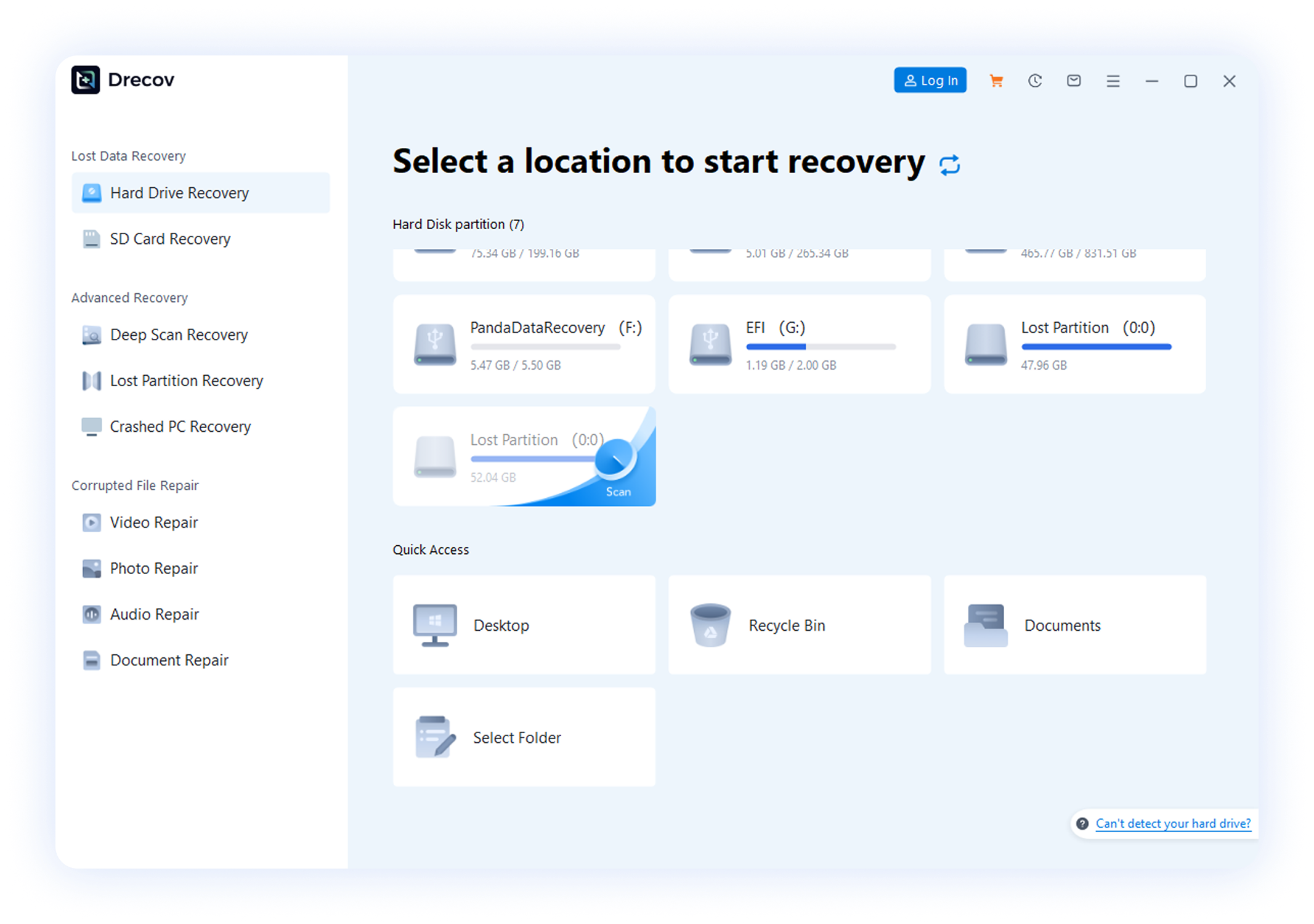

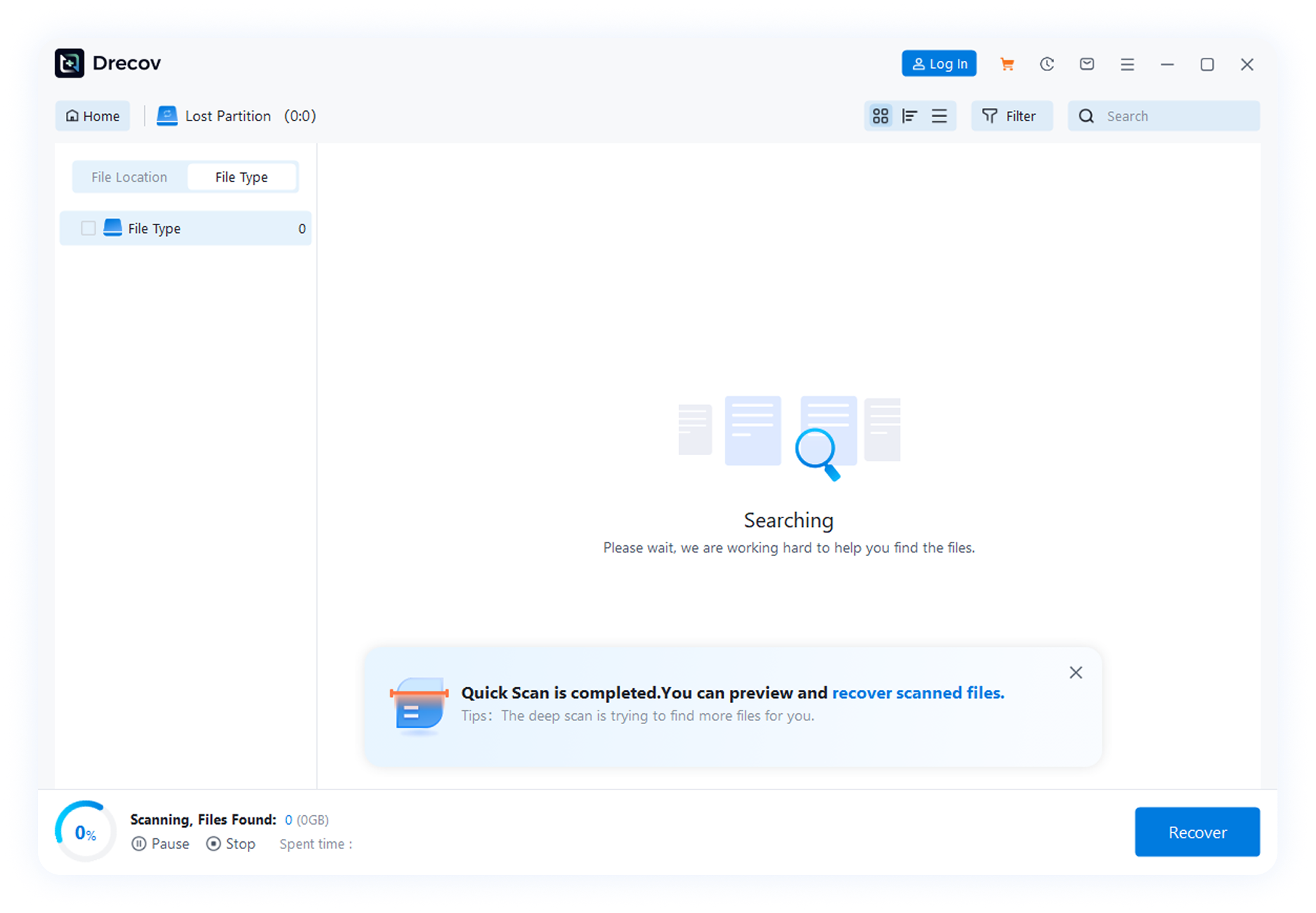
Scan for Lost Files
Select the target partition and initiate a scan. The deep scan option locates more files but takes longer.

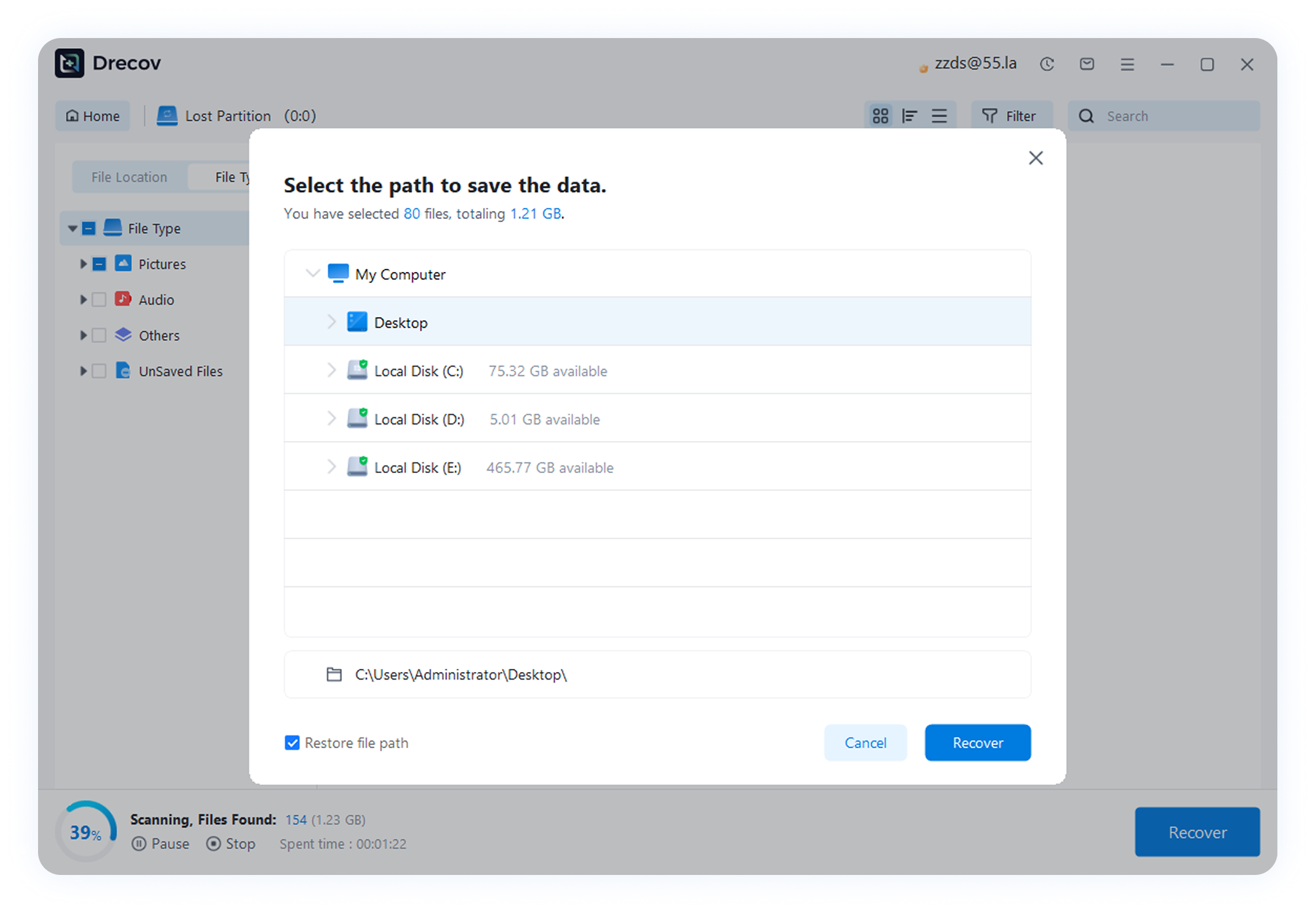
Preview and Recover Files
Preview recoverable files, choose a destination folder outside the source drive, and click “Recover.” Wait for the process to complete.
Supported Recovery Types
Our solution supports recovery of multiple USB drive types and file formats to meet your various needs

















USB Data Recovery Articles
Read detailed articles to easily master USB data recovery methods.
How to Recover Data from USB Drive: 5 Proven Methods (2025)
This 2025 guide addresses a common issue: USB drive data loss from accidental deletion, formatting, viruses, or damage.

How to Choose the Best USB Disk Data Recovery Software
Key factors: Windows/Mac compatibility, 85%+ recovery success, 1,000+ format support, user-friendliness, and security.
How to Recover Data from a Corrupted/RAW USB Drive
This article explains causes and recovery methods for corrupted/RAW USB drives and helps quickly get back photos, documents, etc.
Common USB Problem Guide
ALL Questions
ALL Questions
Formatting
Accidental Deletion
Other Issues
Damage
Prioritize support for USB drives and multiple file systems (NTFS/exFAT/FAT32), deep scan capabilities, corrupted file repair, and file preview (to avoid recovering useless data).
It has a slight learning curve—you need to enter specific commands (e.g., “winfr [Source Drive] [Target Folder] /y:[File Type]”). Follow the tool’s help documentation, or choose software with a graphical interface for ease of use.
Common reasons include overwritten data, severe hardware damage, corrupted file systems, or incompatible file types. Try a different recovery tool with deep scan functionality.
The files may be incomplete or damaged. Try the “repair” feature in your recovery software. Also, ensure you’re using the correct program to open the files (e.g., use Adobe Reader for PDFs).
Scan all recovered files with reputable antivirus software first. Check file extensions for anomalies before opening—avoid unknown file formats to prevent device infection.
This usually stems from file system corruption, virus infection, or compatibility issues between devices. Never format it right away—stop writing new data to the USB and use data recovery software to extract important files first, then format if needed.
In most cases, yes—provided it wasn’t a “full format” (which overwrites data). Use professional data recovery tools to scan the drive as soon as possible; writing new data will drastically lower recovery chances.
Regularly back up critical files on your USB with tools like AOMEI Backupper. Avoid frequent use across different operating systems to reduce file system conflicts.
It does slightly. FAT32 and exFAT have higher recovery success rates, while NTFS is a bit harder to recover from due to its file indexing method. Pick a format compatible with your devices.
This is likely a hardware issue (e.g., faulty flash chip) or failed file system repair. Try fixing disk errors with the command “chkdsk.exe /f [Drive Letter]”—if that doesn’t work, the USB may be physically damaged.
Stop using the USB immediately to avoid data overwriting. Use Windows File Recovery (Microsoft’s free tool) or third-party recovery software, and follow the prompts to scan for and recover deleted files.
Yes—this shortcut only removes file indexes, not the actual data. Most files can be retrieved with the deep scan feature in data recovery software; act quickly for the best results.
It depends on whether the new files overwrote the original data’s storage space. If the overwrite is minimal, some files may still be recoverable; extensive overwriting makes recovery very difficult.
Yes—Windows File Recovery supports recovering deleted files (photos, videos, documents, etc.) from USB drives and memory cards. Note that it requires command-line operation.
Mostly. You can either connect the USB to a computer and use recovery software, or use a compatible mobile recovery app directly on your phone via the OTG connection.
You can try. This issue is often caused by file system corruption. First use data recovery software to extract data, then attempt to repair the USB with disk repair tools—if that fails, it may be a hardware problem.
First check if the USB has a physical lock switch. If not, remove read-only attributes with the command “attrib –h –r –s /s /d [Drive Letter]:.” or use disk management tools to disable write protection.
Try a different USB port or another computer. If it’s still unrecognized, use professional data recovery services—technicians can read data directly from the flash chip with specialized equipment.
This is data corruption, usually from viruses or abrupt disconnection. Scan the USB with antivirus software first, then use the “file repair” feature in data recovery tools to restore original files.
First try repairing it with disk tools. If that doesn’t work, the USB controller may be faulty. Prioritize extracting data with recovery software—if the chip can’t be detected, contact a professional service.
In most cases, yes. For mild oxidation, clean the contacts with an eraser and reconnect. For loose ports or hardware failures, professional data recovery services can read data directly from the flash chip.
Disconnect power immediately to avoid short-circuiting the chip. Let a wet USB dry naturally (don’t use high heat), and check for loose ports after a fall. Never plug it in repeatedly—this may worsen the damage.
Data loss is possible—overheating often indicates an internal short circuit or aging chip. Stop using it immediately, let it cool down, and try to extract data as soon as possible to avoid total hardware failure.
Operate in a stable computer environment and transfer small batches of files at a time to avoid interruptions. If you get an error message, stop transferring and back up all data with recovery software before replacing the USB.
Software works for logical issues (e.g., accidental deletion, formatting). Professional services handle physical damage—technicians disassemble the device and read data from the chip directly, with higher success rates but higher costs.
User Testimonials
See real experiences from other users who recovered their USB data with our solution

Kaia
Recovered accidentally deleted family photos
My child accidentally deleted family trip photos from the USB drive, and I thought they were lost forever. A friend recommended this software, and following the steps, I recovered all of them! The software is very easy to use, thank you very much!


Adam
Recovered work documents from a formatted USB drive
I accidentally formatted my USB drive with important work documents. After scanning with this software, I recovered all my files – it’s amazing! The operation was simple and completed in less than 10 minutes.

Calliope
Recovered photos from a RAW format USB drive
My USB drive suddenly became RAW format and prompted me to format it, containing my child’s growth photos. I tried this software with little hope, but it actually recovered all the photos. The customer service was also very patient and guided me through the entire process.

David Clark
Recovered videos damaged by accidental removal
I accidentally pulled out my USB drive while transferring important videos, causing the video files to become corrupted and unopenable. Using Drecov deep scan function, I successfully recovered the complete video files. Thank you so much!

Michael Brown
Backed up data from a poorly connected USB drive
My USB drive had poor contact and was often not recognized by the computer. PandaOffice Drecov successfully read and backed up all my data, avoiding the risk of data loss. Although the scanning speed wasn’t the fastest, I’m very satisfied with the results.

Emma Davis
Recovered documents from a virus-infected USB drive
My USB drive was infected with a virus, and my graduation thesis documents disappeared. I tried several software without success, but finally used this software’s virus recovery function to successfully retrieve all documents. The interface is clean, the operation is simple, highly recommended!
Download USB Data Recovery Software
Download professional USB data recovery software now to easily recover your lost important files
Compatible with Windows
Download Windows VersionSupports Windows 11, 10, 8.1, 8, 7, Vista, XP (32-bit & 64-bit)
Users worldwide
Trusted by professionals



