







A cluttered workspace can significantly hinder your productivity and focus. For many users, achieving a minimalist desktop environment is a top priority. Consequently, learning how to remove the recycle bin from desktop screens becomes an essential customization step. While Windows makes it easy to hide most shortcuts, the Recycle Bin requires a slightly different approach.
However, hiding this icon introduces a hidden risk. Once it disappears from view, you might accidentally empty it via automated cleanup tools or forget what files are sitting inside. If you inadvertently lose important data during your desktop reorganization, you will need a reliable solution. This is where PandaOffice Drecov data recovery software comes into play, ensuring that your files remain safe even when your desktop is completely clear.
Understanding the Basics of How to Remove the Recycle Bin from Desktop
The Recycle Bin is a core system folder in Windows. Unlike standard application shortcuts, you cannot simply click it and press the delete key. Therefore, understanding how to remove the recycle bin from desktop layouts requires navigating into the native system settings of your OS.
Common Desktop Clutter Issues
- Visual Distraction: A crowded desktop scatters your focus.
- Accidental Trashing: Dragging items into the wrong corner can lead to unintended file deletion.
- Aesthetic Limitations: Custom desktop themes look much cleaner without default system icons.
When you hide the icon, you lose a direct visual gateway to your deleted items. Meanwhile, files continue to accumulate in the background. If you accidentally permanently delete an item without looking, you might wonder: how can you retrieve deleted files from the recycle bin when it is no longer visible?
The Ultimate Safety Net: PandaOffice Drecov
To mitigate the risks of operating a hidden Recycle Bin, deploying a professional utility is highly recommended. PandaOffice Drecov data recovery software provides an advanced algorithm capable of scanning deep system blocks to pull back lost information. Whether you accidentally bypassed the bin using formatting hotkeys or emptied it blindly, this tool restores your data seamlessly.
You can use this software across a multitude of everyday technical scenarios, including:
- Recovering items after a sudden Windows update or system crash.
- Restoring documents lost during file structure transfers. For instance, if you are organizing external media or learning how to download video from browser Firefox 2026 guide, temporary cache losses can be instantly reversed.
- recently deleted recover files all devices.
⚠ Warning: Install it on a drive different from the one where your data was lost to prevent overwriting.
How to Remove the Recycle Bin from Desktop and Retrieve Deleted Files
Method 1: Windows Settings
This is the safest and most straightforward way to execute how to remove the recycle bin from desktop environments on Windows 10 and Windows 11.
- Step 1: Right-click on an empty space on your desktop and select Personalize from the context menu.
- Step 2: In the settings window that appears, navigate to the Themes tab located on the left sidebar or main panel.
- Step 3: Scroll down to the related settings section and click on Desktop icon settings.
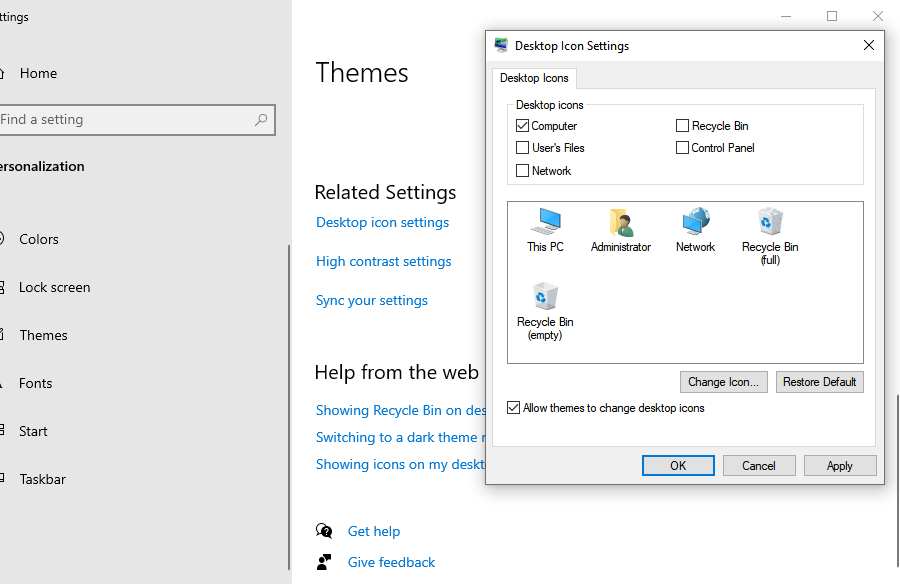
- Step 4: A small dialog box will open. Uncheck the box right next to Recycle Bin.
- Step 5: Click Apply and then click OK to save your changes.
Method 2: The Recovery Method Using PandaOffice Drecov
If you successfully hid your icon but realized you mistakenly purged critical files, you must act fast. Do not save new files to your hard drive, as this might overwrite the deleted data. Follow these steps to find out how can you retrieve deleted files from the recycle bin using professional software:
⚠ Warning: Install it on a drive different from the one where your data was lost to prevent overwriting.
- Step 1: Launch the application. On the main dashboard, select the local disk partition or specifically target the system Recycle Bin location.

- Step 2: Click the Scan button. The software will perform a Quick Scan followed by a Deep Scan to piece together fragmented file headers.

- Step 3: Browse through the real-time preview window to locate your missing files.

- Step 4: Select the files you need, click Recover, and save them safely to a secure external storage drive or an alternative partition.
Method 3: The Intermediate Local Group Policy Method
For users running Windows Pro, Enterprise, or Education editions, you can remove the icon system-wide using the Group Policy Editor.
- Step 1: Press the hotkey Windows Key + R to open the Run dialog box.
- Step 2: Type
gpedit.mscinto the field and press Enter. - Step 3: In the Left panel, navigate through this exact path:
User Configuration>Administrative Templates>Desktop. - Step 4: Look to the right panel and double-click the policy titled Remove Recycle Bin icon from desktop.
- Step 5: Change the configuration setting from Not Configured to Enabled.
- Step 6: Click Apply, click OK, and then restart your computer or refresh your desktop to apply the changes.
Method 4: The Advanced Windows Registry Method
If you are running Windows Home edition and cannot access Group Policy, modifying the registry is your ultimate alternative for how to remove the recycle bin from desktop visibility.
Warning: Modifying the system registry incorrectly can cause OS instability. Please follow these steps exactly as written, or back up your registry before proceeding.
- Step 1: Press the hotkey Windows Key + R, type
regeditinto the box, and press Enter to open the Registry Editor. - Step 2: Navigate precisely to the following registry path:
HKEY_LOCAL_MACHINE\SOFTWARE\Microsoft\Windows\CurrentVersion\Explorer\Desktop\NameSpace - Step 3: Search for the specific registry key folder named
{645FF040-5081-101B-9F08-00AA002F954E}. This string represents the global unique identifier for the Recycle Bin. - Step 4: Right-click the key folder and select Delete.
- Step 5: Close the Registry Editor and reboot your system to see your clean desktop.
Alternative or Complementary Methods
If you wish to manage system clutter beyond just the desktop icons, you can look into manual file organization paths. For example, clearing out cloud sync application icons can streamline your navigation panels. You can easily learn how to remove onedrive from file explorer step by step guide to complement your clean desktop layout.
| Optimization Method | Target Location | Difficulty Level | Risk of Data Loss |
| Windows Settings | Desktop view configuration | Beginner | None |
| Group Policy Edit | Administrative Templates | Intermediate | Low |
| Registry Deletion | System Root NameSpace | Advanced | High |
| PandaOffice Drecov | Storage Sector Block | Beginner | None (Restores Data) |
Furthermore, utilizing third-party desktop organization docks can visually mask system icons without altering your system registry. However, software tools like PandaOffice Drecov data recovery software remain the most practical complementary asset, as they protect the underlying files regardless of how heavily you alter the interface.
Tips & Best Practices
Managing a minimalist desktop environment requires a strict approach to data hygiene. Keep these vital rules in mind to maintain high data integrity:
- Avoid Shift + Delete Excess: It is tempting to bypass the trash entirely using the Shift + Delete hotkey combination. However, this action permanently deletes files and leaves no room for basic user error.
- Configure Space Allocation: Right-click your Recycle Bin before hiding it, select Properties, and set a conservative maximum size limit. Consequently, this prevents hidden files from consuming your entire solid-state drive (SSD).
- Pause Automatic Disk Cleanup: Windows Storage Sense can automatically wipe your deleted items every 30 days. If your icon is hidden, turn this feature off so you don’t lose files before verifying them.
- Utilize Reliable Verification Tools: Before running deep formatting commands, double-check your storage health using official operating system assessment tools like Microsoft Learn Windows Storage Diagnostics.
How to remove the recycle bin from desktop FAQs
You can easily access it by typing shell:RecycleBinFolder in the File Explorer address bar. Furthermore, if the bin was emptied while hidden, installing PandaOffice Drecov data recovery software will allow you to scan the drive architecture and safely extract the deleted data blocks.
Will learning how to remove the recycle bin from desktop delete my files?
No, hiding the desktop shortcut merely alters your visual layout interface. Consequently, your data remains safely stored within the hidden system folder until it is manually or automatically purged.
What should I do if the Registry method breaks my desktop view?
Simply open the Registry Editor again, navigate back to the NameSpace path, and re-create the key named {645FF040-5081-101B-9F08-00AA002F954E} to immediately restore standard behavior.
Can PandaOffice Drecov recover files deleted via Shift + Delete?
Yes, PandaOffice Drecov data recovery software specializes in bypassing standard OS limitations to retrieve files that completely bypassed the system storage bin.
Conclusion
Mastering how to remove the recycle bin from desktop spaces is an exceptional way to streamline your digital workspace. Whether you choose to toggle basic Windows personalization settings, alter administrative Group Policies, or edit the system registry, achieving a clean interface is highly attainable.
If you ever realize you accidentally purged critical documents while your trash shortcut was missing, remember how can you retrieve deleted files from the recycle bin using a dependable utility. By deploying PandaOffice Drecov data recovery software, you get the perfect balance of a pristine, distraction-free desktop along with a powerful, proactive safety net for all your valuable digital files.






