To recover data from a formatted drive, stop writing to it and check whether you already have an independent backup. A stable device may still contain recoverable files, but the result depends on the format, later activity and storage behavior. Do not format again to put the old file system back. That creates another change without restoring the missing documents, photographs or folders.
Save any information you already know about the mistake: which device you selected, the tool you used and what happened afterward. You do not need a forensic report. A short account helps separate a single accidental format from an installation or copy operation that also wrote substantial new data.
What happened after the format matters as much as the format itself
A quick format is not the same as an untouched drive
Microsoft’s format documentation explains that quick format removes file-table and root-directory information. Think of the lost directory as part of the information used to locate and name files. Some file content may survive, yet recognizable names and folder relationships can disappear. Recovery can therefore produce useful documents without reproducing the former folder tree.
New downloads, installers and copied folders change the chances
If you copied movies onto the newly formatted device, those writes may have replaced older content. An operating-system installation can create another substantial set of changes. Stop the current work when it is safe to do so, and do not test recovery by saving a few fresh files onto the source. Their small size does not make that experiment harmless.
SSD TRIM and other storage behavior can further limit recovery. A program cannot recreate fully overwritten data simply by running a longer scan. When the files are irreplaceable, consider specialist assessment before additional attempts rather than using trial and error to learn what the device will tolerate.
A format does not explain physical instability
Repeated disconnects, severe read errors or unusual hardware symptoms require a different response from an otherwise stable empty volume. Stop repeated direct scans and seek advice about imaging or professional recovery. Avoid CHKDSK, initialization and partition creation while the needed data remains unprotected. Those operations are not substitutes for retrieving the files.
Drecov searches for files; it does not reverse every change
Drecov is Windows data recovery software that can examine a stable accessible source after file loss. Its read-only recovery mode, Quick Scan, Deep Scan, filters and supported previews help you locate surviving content. You choose what to save to another healthy device, then open the saved copies to judge their usefulness.
Lost Partition Recovery is available when the original partition has disappeared. It is a data-recovery mode, not a promise to rewrite the old partition table or restore every folder name. Drecov also does not repair physical damage or guarantee results after complete overwriting. For a formatted memory stick, the USB recovery page provides related context without changing those limits.
⚠ Warning: Install it on a drive different from the one where your data was lost to prevent overwriting.
Check existing copies before scanning the formatted source
Inspect the backup, not just its folder name
Connect the independent device where you kept backups and browse for the missing project or date range. Open several examples directly from that backup. A folder called Backup is not proof that it contains last week’s changes. Compare the latest document text, important photo dates or the final scene of a recording before deciding the backup is sufficient.
Use previous versions only when protection existed beforehand
If File History covered the original folder, inspect its saved versions through the File History restoration interface. Choose a date before the format and restore to another healthy location. The folder’s Previous Versions tab may also show existing versions, depending on prior protection. Enabling backup now cannot create a missing historical copy.
Ask whether the files also existed on another computer, a camera or a collaborator’s storage. Previously shared PDFs can preserve information even if they cannot replace editable documents. Keep track of that distinction so a usable export does not lead you to discard the search for the original project.
A recovery sequence that leaves the source alone
Prepare the installation and output locations
Check source stability and stop new writes before starting. Install Drecov outside the formatted partition and prepare another healthy physical device for the output. Confirm that it has enough free space for selected files. If the source becomes unstable, stop and obtain imaging or specialist advice instead of trying to finish an increasingly unreliable scan.
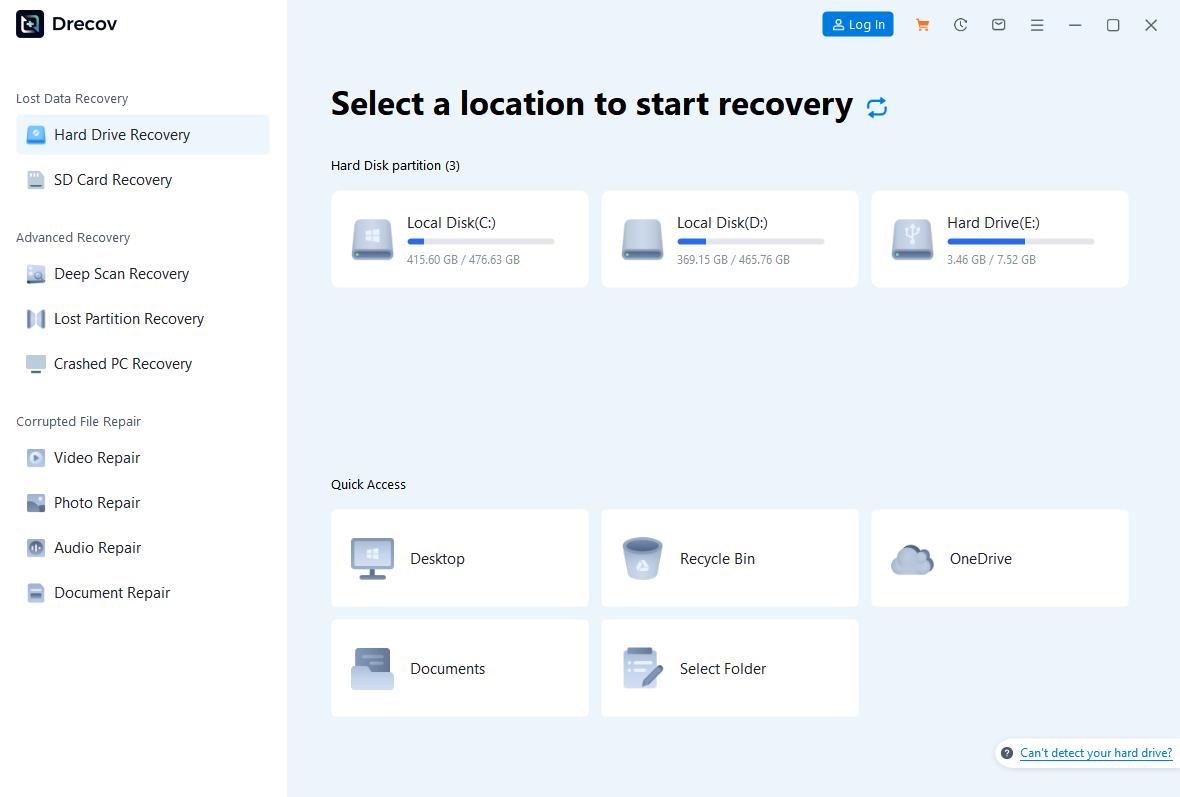
Step 1: Open Drecov and identify the formatted location
Select the original device or volume by its current identity and capacity. A new label or drive letter does not identify the old contents by itself. Choose the applicable Lost Partition Recovery mode if the original partition is missing. Do not create a new partition merely to recreate the old letter before recovering files.
Step 2: Run Quick Scan and inspect recognizable results
Look for familiar folders, document names and expected file types. Compare any available dates with your work history. A few identifiable files can help confirm that you selected the right source. Newly created files from after the format may appear too, so separate those from the older data you actually need.
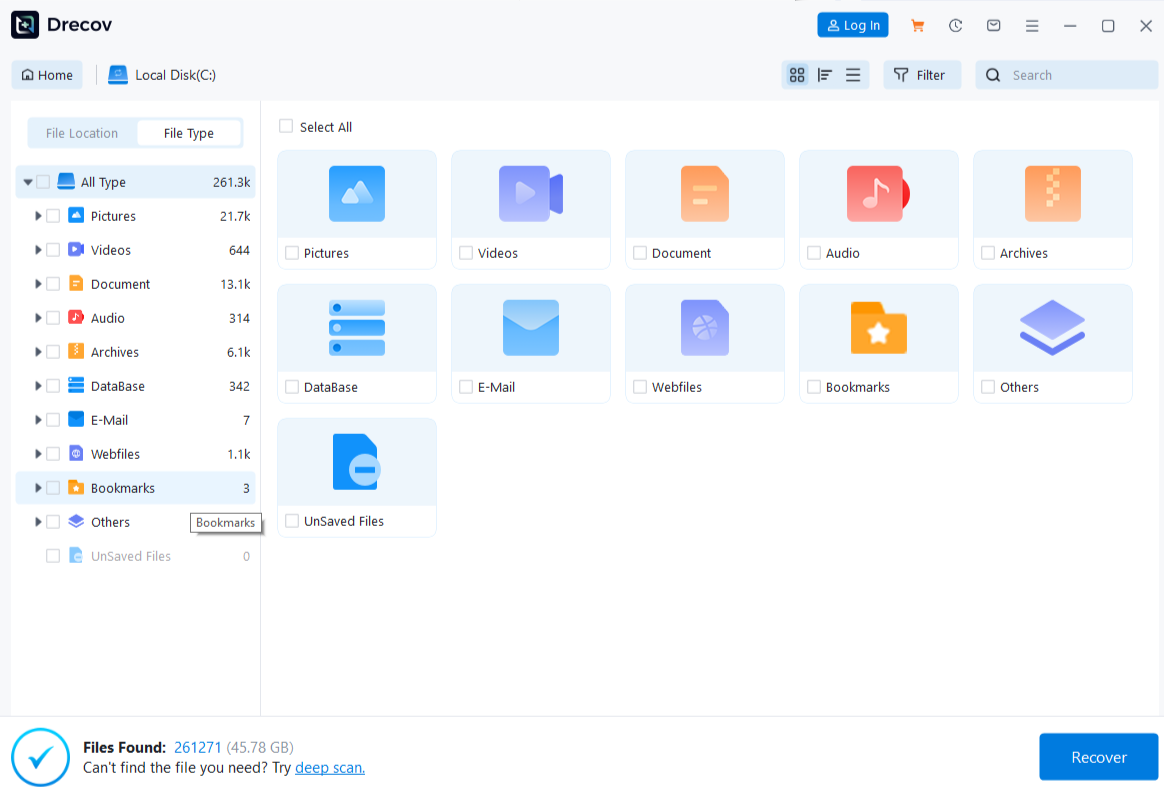
Step 3: Use Deep Scan if needed on a stable source
Continue when Quick Scan does not find the required files and reads remain reliable. Stop at worsening errors or repeated disconnects. Deeper scanning can locate additional surviving content, but it cannot guarantee complete files or original names. Reformatting between searches would only introduce another change to the evidence.
Step 4: Locate files by more than their names
Use available type, path, date and name filters. Preview supported files and inspect recognizable content. When folder information has disappeared, search by file category and open plausible examples after recovery. For photo recovery, distinguish a full-size image from a small cached thumbnail even when both show the same person.
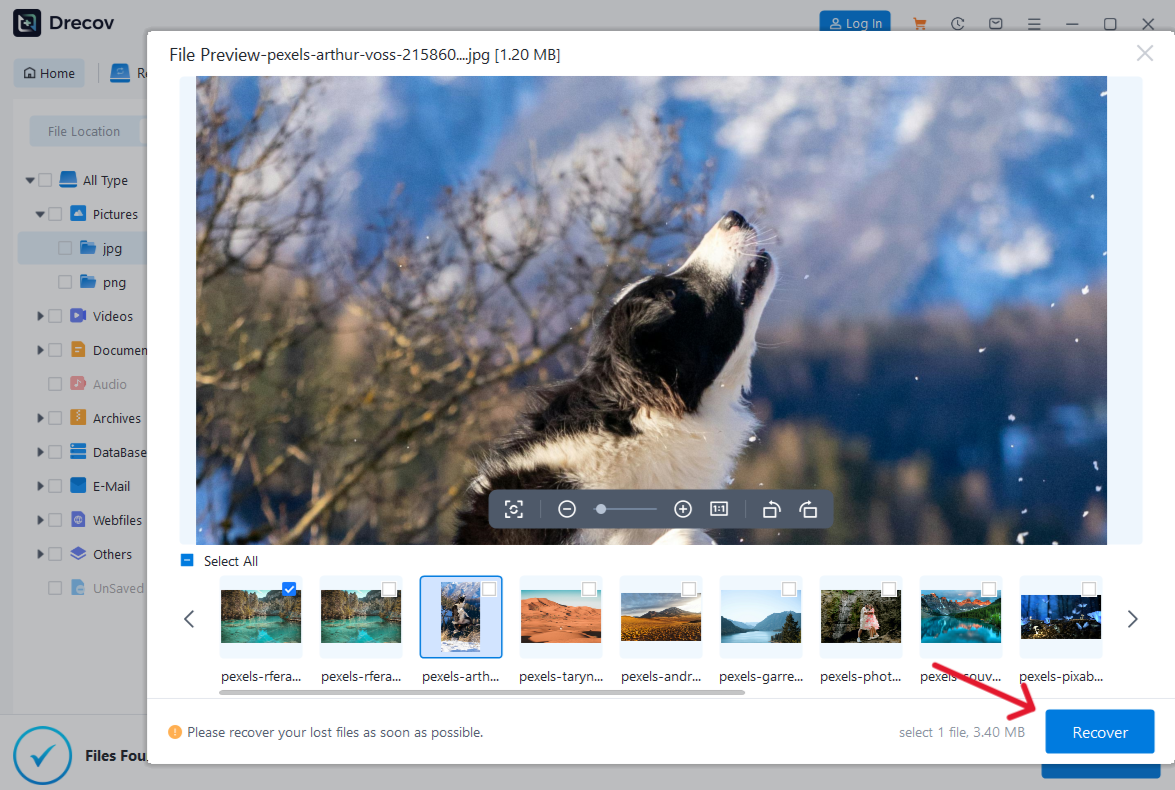
Step 5: Recover elsewhere, then open the saved output
Save selected results to the healthy destination, never the formatted source. Look in Drecov Folder or Recovery Folder if files are not in the expected place. Open documents, test archives and inspect multiple points in longer recordings. Complete these checks before repair, initialization, another format or reinstallation. A usable file recovery result is more important than a tidy-looking source volume.
⚠ Warning: Install it on a drive different from the one where your data was lost to prevent overwriting.
How to identify recovered files without original names
Preserve the recovered set before renaming anything
Keep an untouched copy of the saved results and organize a second working copy. Record each recovered filename alongside any new descriptive name you assign. That mapping lets you revisit the original result if two documents look alike. Do not run bulk renaming on the only copy immediately after recovery.
Use content and metadata as clues, not proof
In File Explorer, inspect Properties and any available Details information. A document may contain its title inside the text; a photograph may retain a capture date or dimensions. Recovery and copying can affect some timestamps, so compare several clues. Open the relevant content before deciding that the newest displayed date means the newest version.
For a large collection, sort a small representative group first. Create folders for verified documents, photographs and recordings, then a separate group for items that need review. Keep ambiguous versions rather than deleting them to reduce clutter. A short document with the final figures can matter more than a larger draft.
Do not promise yourself that another scan will restore every name
Names and folder structure depend on information that may no longer survive. A content-based result can therefore be useful even when its name is generic. Check old backups, email attachments or project lists for clues to the former organization. If the content itself is incomplete, preserve it separately and look for another copy instead of disguising the problem with a familiar name.
FAQs
Can I recover data from a formatted drive after using it again?
Possibly, but later writes may have replaced some old files. Stop using the source and describe what you copied or installed. Existing independent backups become especially valuable.
Will formatting back to the old file system restore my folders?
No. Creating that file system again does not recreate its old file records. Recover and verify what remains before changing the source layout.
Why do recovered files have numbers instead of names?
The recovery may have located file content without the original naming information. Inspect working copies and keep a mapping of new names to the recovered results.
Is a recovered photo thumbnail enough?
Not if you need the original photograph. Check dimensions and visible detail after saving. A recognizable miniature does not confirm the resolution needed for printing or editing.
Can Drecov repair a failing drive?
No. It searches readable storage for lost files. Physical instability requires a suitable hardware-aware recovery plan, not repeated direct scans.
Conclusion
Recovering data from a formatted drive starts with protecting the remaining content, not formatting again. Check independent copies and use Drecov on a stable accessible source when file recovery is appropriate. Save to another device and verify the important content before repairs. When names are missing, preserve the recovered set and organize working copies using evidence inside the files rather than assumptions about their labels.
⚠ Warning: Install it on a drive different from the one where your data was lost to prevent overwriting.