







When dealing with external storage, the file system you choose determines how compatible your device will be across different platforms. Many users find that they can’t format usb to fat32 using standard methods when the drive capacity is high. According to the official Microsoft documentation on file systems, FAT32 remains a legacy standard that offers the widest range of compatibility for cross-platform use, even as newer systems like NTFS and exFAT gain popularity.
This guide explores the best ways to manage your usb in fat32 and ensures your data remains safe using Pandaoffice drecov.
Understanding the FAT32 File System Limits
The File Allocation Table 32 (FAT32) is one of the most versatile file systems available today. Whether you are using a game console, an old car stereo, or switching between a Mac and a PC, having a usb stick fat32 formatteren setup is often mandatory. However, Windows has an artificial limitation where it refuses to format drives larger than 32GB into this format through the standard interface. This is why many people search for how to format a usb to fat32 when they encounter errors with 64GB or 128GB sticks.
Warning: Formatting any drive will permanently erase all data currently stored on it. Always verify you have a backup before starting the process.
Why Choose FAT32 for Your Portable Media
The primary reason to keep your usb in fat32 is universal compatibility. While NTFS is great for Windows-only environments and exFAT is better for large files, FAT32 remains the only format that works on almost every hardware device made in the last two decades. If you are a technician or a student, knowing how to format a usb to fat32 is a vital skill. If you accidentally lose data during this transition, Pandaoffice drecov can help you retrieve those lost files with ease.
The Challenges of Modern Large Drives
As flash drives grow to 256GB and beyond, the native Windows “Format” tool becomes less helpful. You might see the option missing from the dropdown menu, leading to the frustration that you can’t format usb to fat32. This isn’t a hardware failure; it is simply a software restriction. To overcome this, we must look at alternative methods like the command line or specialized disk management utilities to ensure the usb stick fat32 formatteren process is successful.
Method 1: Utilizing Windows File Explorer for Small Drives
For users with a standard 32GB drive or smaller, the process of getting your usb in fat32 is quite simple. This is the most common way to handle the task without downloading extra software.
- Step 1: Insert your flash drive into an open USB port on your desktop or laptop. Wait for the system to recognize the hardware.
- Step 2: Open the File Explorer by clicking the folder icon or pressing “Windows + E.” Navigate to “This PC” to see your connected devices.
- Step 3: Locate your specific drive. Right-click on the icon and choose the “Format” option from the contextual menu.
- Step 4: In the “File System” dropdown, select “FAT32.” If you can’t format usb to fat32 here because the option is missing, your drive is likely too large for this method.
- Step 5: Leave the allocation unit size at default. Ensure “Quick Format” is checked to save time.
- Step 6: Click “Start.” A final confirmation will appear; click “OK” to begin the usb stick fat32 formatteren procedure.
Warning: Never unplug the drive while the formatting progress bar is moving, as this can lead to partition corruption.
Method 2: Leveraging Windows Disk Management
If the basic explorer method fails, Disk Management provides a more robust way to see how the drive is partitioned. This is often the second step for those wondering how to format a usb to fat32 when the drive letter isn’t appearing correctly.
- Step 1: Right-click the Start button and select “Disk Management” from the list of administrative tools.
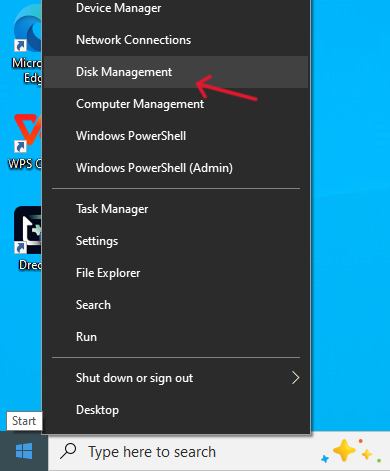
- Step 2: Locate your USB drive in the bottom visual pane. It is usually labeled as “Removable” and will show its total storage capacity.
- Step 3: If the drive has an existing partition, right-click the block and select “Format.”
- Step 4: Choose “FAT32” from the file system options. Again, if the drive is over 32GB, Windows may hide this option.
- Step 5: If you need to wipe the drive entirely, you can right-click the partition and select “Delete Volume” to create “Unallocated Space.”
- Step 6: Right-click the unallocated space, choose “New Simple Volume,” and follow the wizard to set your usb in fat32.
Ensuring Data Safety with Pandaoffice drecov
During these disk operations, it is easy to select the wrong partition. If you format the wrong drive by mistake, don’t panic. Pandaoffice drecov is designed to scan formatted partitions and reconstruct the file headers. It is a reliable partner when the usb stick fat32 formatteren process goes wrong. By using Pandaoffice drecov, you can often get back 100% of your photos and documents even after a full format.
Method 3: Using Command Prompt (CMD)
The Command Prompt is a powerful way to force a usb in fat32 configuration regardless of some software bugs. This method is preferred by power users who find they can’t format usb to fat32 through the graphical interface.
- Step 1: Click the Start menu, type “cmd,” and select “Run as Administrator.”

- Step 2: Type
diskpartand press Enter to launch the partitioning utility. - Step 3: Type
list diskto identify which disk number corresponds to your USB stick. - Step 4: Type
select disk X(replace X with your actual disk number, such as disk 1). - Step 5: Type
cleanto remove all existing partitions and data from the drive. - Step 6: Type
create partition primaryfollowed byformat fs=fat32 quickto finish how to format a usb to fat32.
Method 4: Utilizing Windows PowerShell
PowerShell is the modern successor to the Command Prompt and offers a specific syntax for those who can’t format usb to fat32 using older tools. This is particularly useful for larger drives where the standard “format” command might hang.
- Step 1: Open the Power User menu by pressing “Windows + X” and select “Windows PowerShell (Admin).”
- Step 2: Identify your drive letter in File Explorer (e.g., Drive E:).
- Step 3: Enter the following command:
format /FS:FAT32 E:(replace E with your actual drive letter). - Step 4: Press Enter. The system will ask for a volume label; you can type a name or leave it blank and press Enter again.
- Step 5: The process for a usb stick fat32 formatteren via PowerShell can be slow for large drives, so do not close the window.
- Step 6: Once the percentage reaches 100%, your usb in fat32 is ready for use.
Warning: Ensure you have the correct drive letter. Formatting the wrong partition via PowerShell can result in the loss of your entire operating system.
The Power of Pandaoffice drecov for Recovery
Whether you have a corrupted partition or a drive that won’t mount, Pandaoffice drecov provides a deep-scan algorithm that finds remnants of files that other tools miss. If you successfully figured out how to format a usb to fat32 but realized later that you forgot to save a folder, Pandaoffice drecov can scan the sectors and recover that information. It supports a wide range of file types, making it the perfect companion for your usb in fat32 management.
Step-by-Step Data Recovery with Pandaoffice drecov
If the worst happens during your attempt to format usb to fat32, follow these steps to get your files back using our recommended tool.
- Step 1: Download and install Pandaoffice drecov on your computer. Do not install it on the USB drive you are trying to recover.
- Step 2: Launch the application and select the “External Devices” recovery mode.

- Step 3: Select the USB drive that you recently performed a usb stick fat32 formatteren on.
- Step 4: Click “Scan.” The software will perform a quick scan followed by a deep scan to find every bit of recoverable data.

- Step 5: Preview the found files. Pandaoffice drecov allows you to see images and documents before you decide to restore them.

- Step 6: Click “Recover” and choose a safe location on your main hard drive to save the files.
Warning: Do not save recovered files back onto the same USB drive immediately, as this can overwrite other data you are trying to save.
Comprehensive USB Support with Pandaoffice Drecov
Beyond simple formatting errors, USB drives are prone to a variety of technical failures. Pandaoffice Drecov is a robust solution designed to tackle even the most complex scenarios. For instance, many users find their USB files missing but space still used, which often indicates a directory error that this software can repair. It also serves as a specialized toolkit when you need to recover data from RAW USB drives that the operating system no longer recognizes.
In addition to handling file system errors, the software is highly effective at digital forensics. If you have accidentally used permanent deletion shortcuts, you can restore Shift-Deleted items within minutes. It is also a powerful ally against malware, helping users to reclaim files from USB viruses that hide or encrypt data. For hardware-related issues where the USB won’t show up despite the light being on, Drecov provides advanced scanning to mount the volume virtually. Even if you have already wiped the drive, it is possible to recover data from formatted USBs by scanning the deep sectors for original file signatures.
Conclusion
Managing a usb in fat32 requires a bit of technical knowledge, especially as drive sizes continue to increase. While Windows makes it difficult for large drives, the methods outlined above—ranging from Disk Management to PowerShell—provide clear paths for anyone asking how to format a usb to fat32.
Always remember that the file system has a 4GB individual file size limit. If you try to copy a high-definition movie and fail, it isn’t because you can’t format usb to fat32 correctly; it is simply a limitation of the format itself. For everything else, the usb stick fat32 formatteren process is the best way to ensure your data is readable everywhere. And for those moments when things go wrong, Pandaoffice drecov is the most reliable safety net for your digital life. Keep your drives healthy, your backups current, and your recovery tools ready.






