Accidentally Deleted Photos?
PandaOffice Drecov Helps You Get Them Back Effortlessly
Available on:

4.9/5
Rating
100% Safe



100% Safe

24/7 Support

Money-Back Guarantee

Scenarios
Common Photo
Loss Scenarios
Choose the situation that matches your photo loss. Stop using the affected device before trying recovery to reduce the risk of overwriting files.
Accidental

Accidental Deletion
Mistakenly hitting the delete button, emptying the Recycle Bin, or accidentally deleting entire photo folders.
Partitions

Lost or Damaged Partitions
Inaccessible photos due to hard drive partition loss, RAW-format partitions, or corrupted partition tables.
Formatting

Storage Device Formatting
Accidental formatting of USB drives, SD cards, external hard drives, or camera memory cards leading to photo loss.
Virus

Virus Attacks or Corruption
Malware may hide photos or make a drive inaccessible. Remove the infection first, then scan the storage device for recoverable files.
Photo Loss

Camera Photo Loss
Deleted photos from a camera or its SD card? Remove the card, avoid taking new pictures, and scan it with a card reader.
Disconnection

Unexpected Power Loss or Disconnection
Unexpected interruptions can cause serious issues with your files. Photos may become damaged or lost due to sudden power cuts during transfer or unsafe device removal.
Reason
Why
Choose Us?
Comprehensive photo recovery solutions for different devices and scenarios


Multi-Device Support
Scan photos stored on Windows computers, SD cards, USB drives, and external hard drives.

Wide Image Format Compatibility
Supports recovery of nearly all common image formats, including JPG, PNG, GIF, RAW, TIFF, and PSD.

Deep Scan Technology
Scan supported storage devices for deleted photos and preview the files found.

Safe & Risk-Free
Read-only mode scanning—no secondary damage to original data, ensuring data security.
Types
Supported
Device Types
Drecov supports recovery for various devices and file types to meet your diverse needs.

Computers

Phones

Cameras

USB Drives

SD Cards

External Hard Drives
100% Safe
24/7 Support
Money-Back Guarantee
No Data Loss Risk
High Success Rate
Steps
3 Simple Steps
to Retrieve Lost Photos
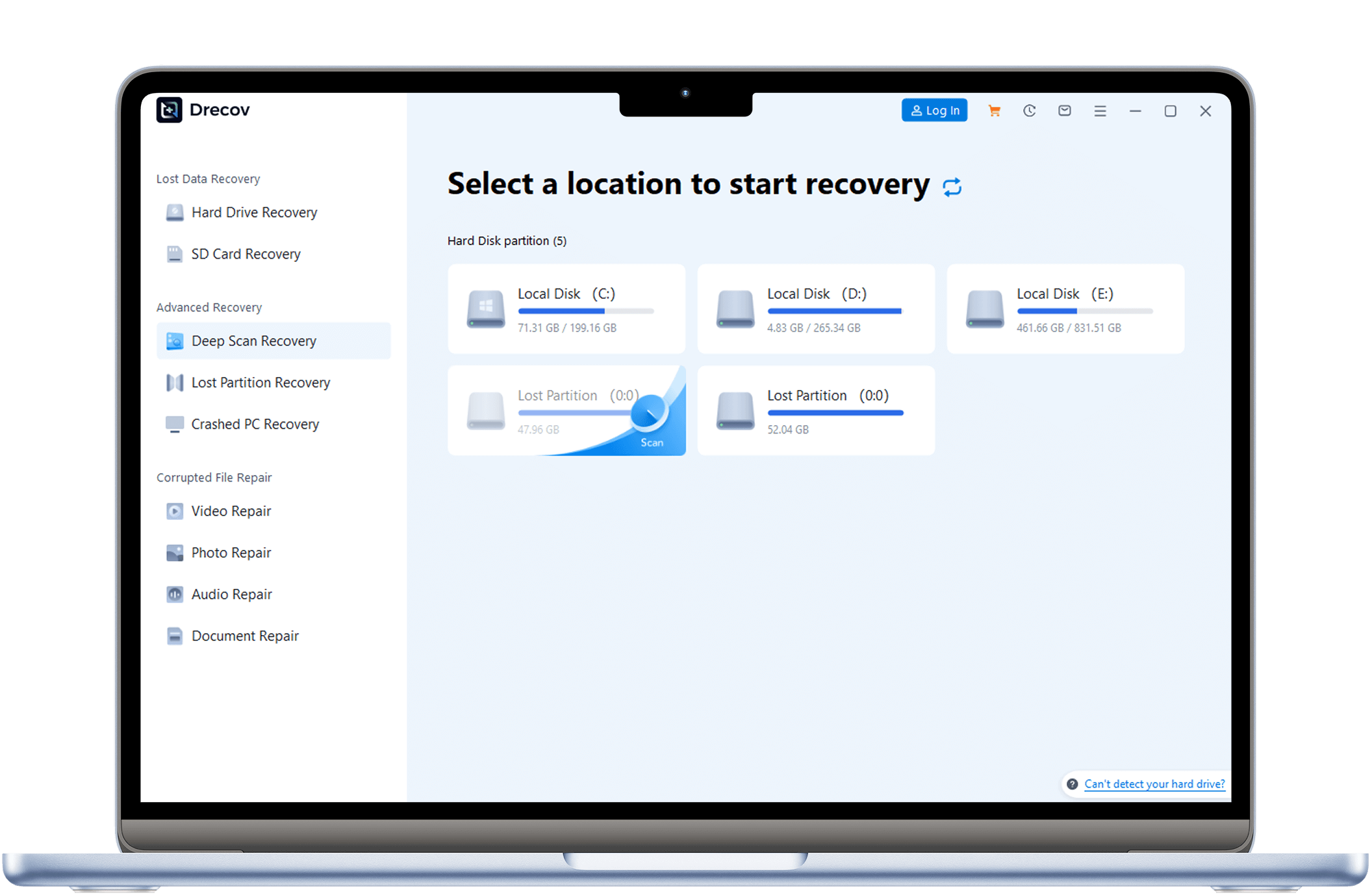
PandaOffice Drecov photo recovery software is easy to use—no professional knowledge required, anyone can master it
step 1
Download & Install
Download and install PandaOffice Drecov on your computer. Launch the program and select the “SD Card Recovery” feature.
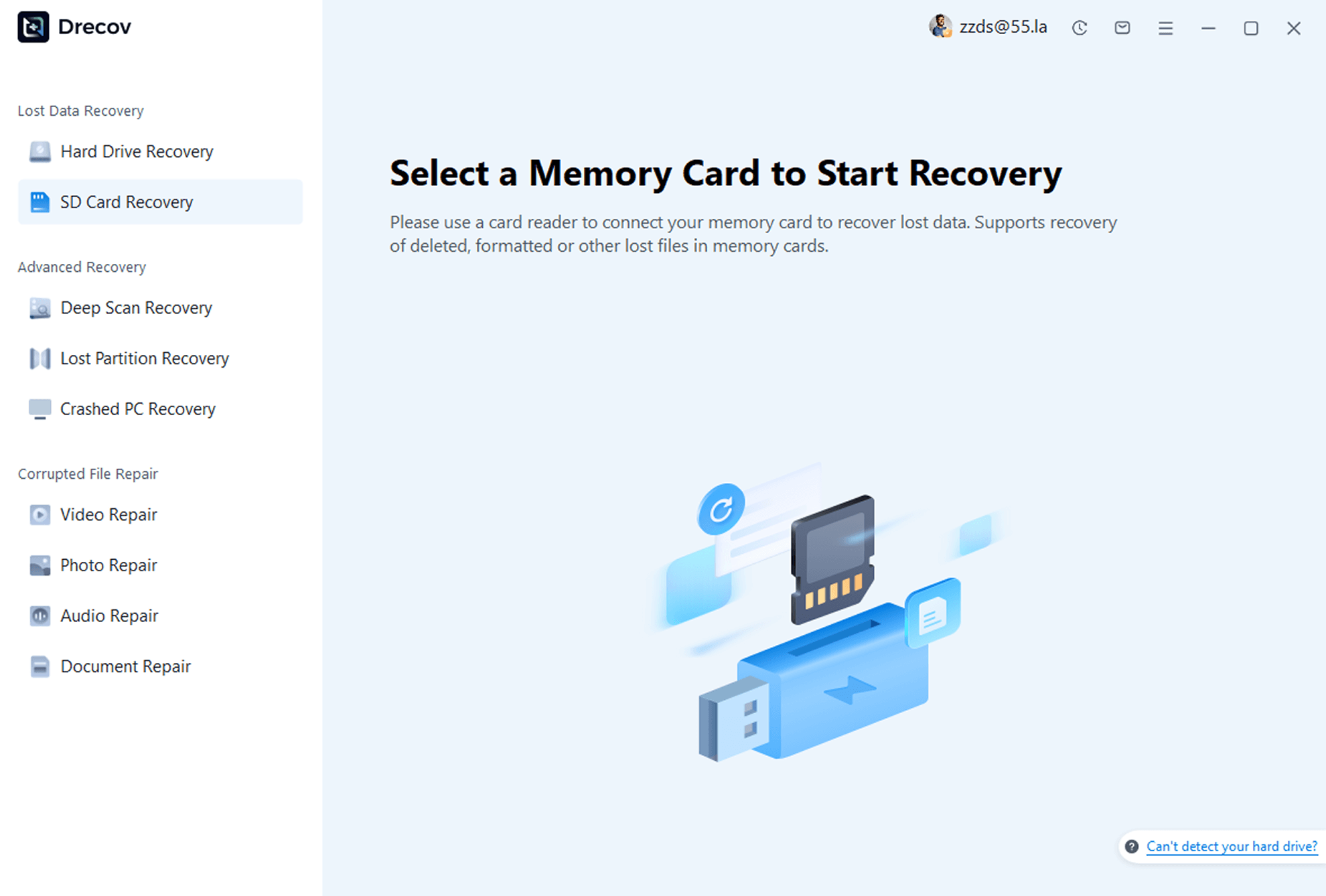
step 2
Select Device & Scan
Choose the storage device where photos were lost, start the scan, and the software will automatically scan for recoverable photos.
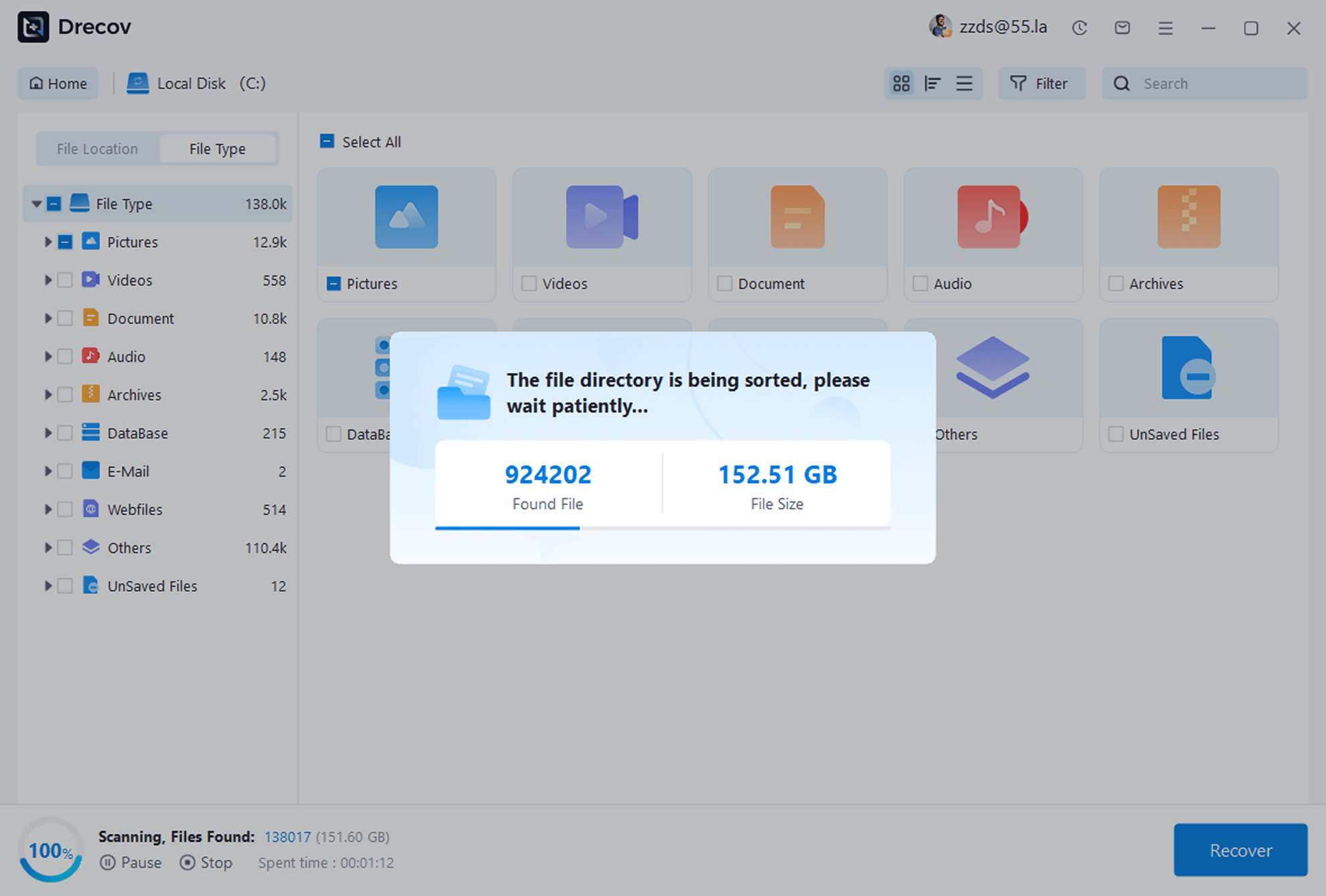
step 3
Preview & Recover
After scanning, preview the found photos, check the ones you need to recover, and click the “Recover” button to save them to a safe location.
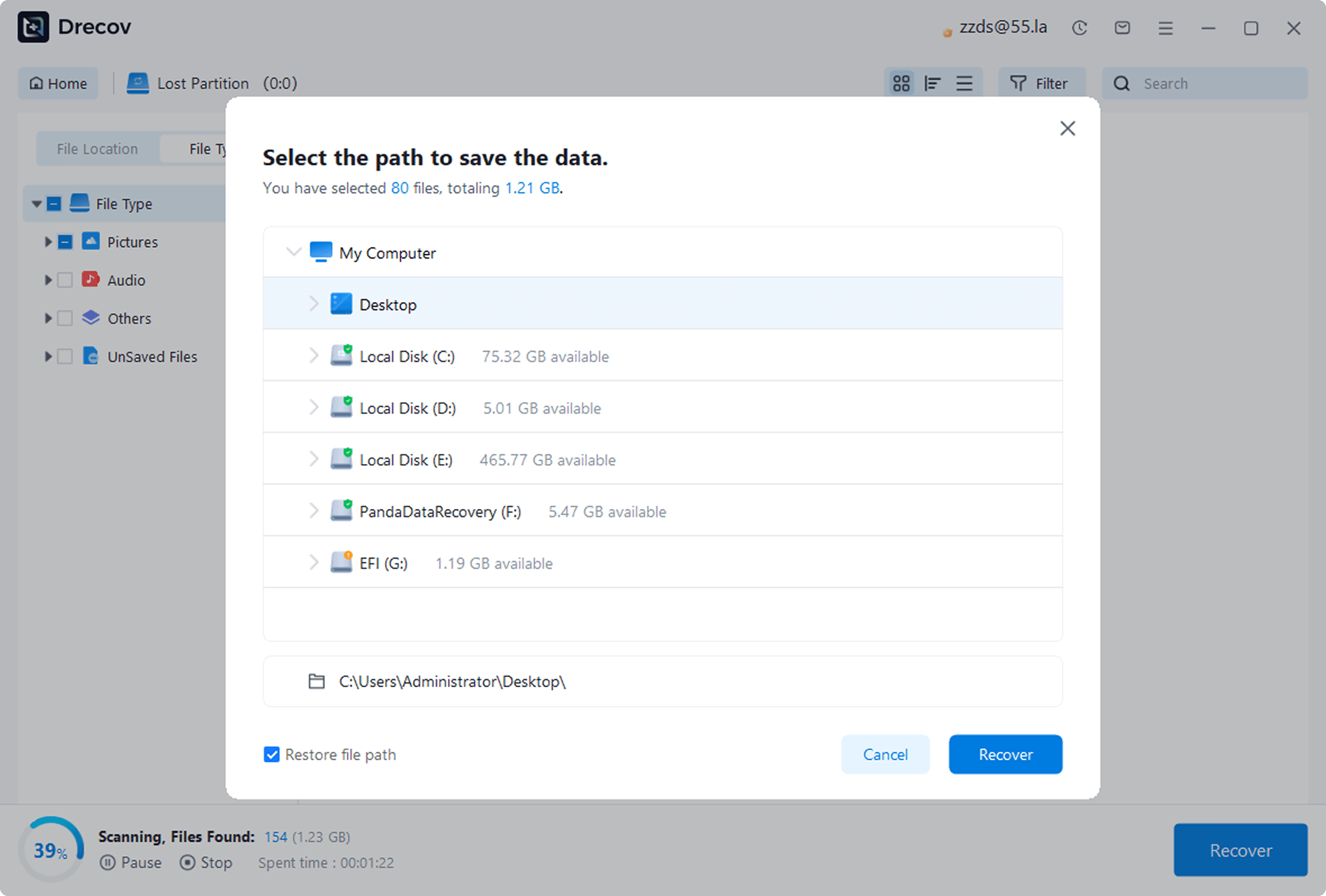
Reviews
Real
Reviews User
See how other users retrieved their precious photos with PandaOffice Drecov
98
%
Success Rate
100K
+
Happy Users
5M
+
Photos Recovered
24
/
7
Expert Support

“I accidentally deleted my kid’s growth photos and panicked. A friend recommended PandaOffice Drecov, and it actually got back hundreds of photos! Super easy to use—thank you so much!”

Lisa Martinez
Parent
“My camera’s SD card suddenly corrupted, and it had important work photos. PandaOffice Drecov scanned and found most of them. It wasn’t 100% recovery, but I’m still satisfied—it saved me from a big loss!”

Mark Wilson
Freelance Photographer
“After resetting my camera to factory settings, all photos were gone. I tried this photo recovery software on a whim, and it brought back three years of photos! The interface is simple, and it’s foolproof to use—highly recommend!”

Sarah Thompson
Travel Enthusiast
Articles
Photo Deletion Recovery
Articles & Tutorials
Learn detailed photo recovery methods for different devices and scenarios to easily solve photo loss issues


Photos Gone from Recently Deleted?
Already emptied Recently Deleted? Check your backups and other saved copies first, then learn what to do before new data reduces your recovery options.


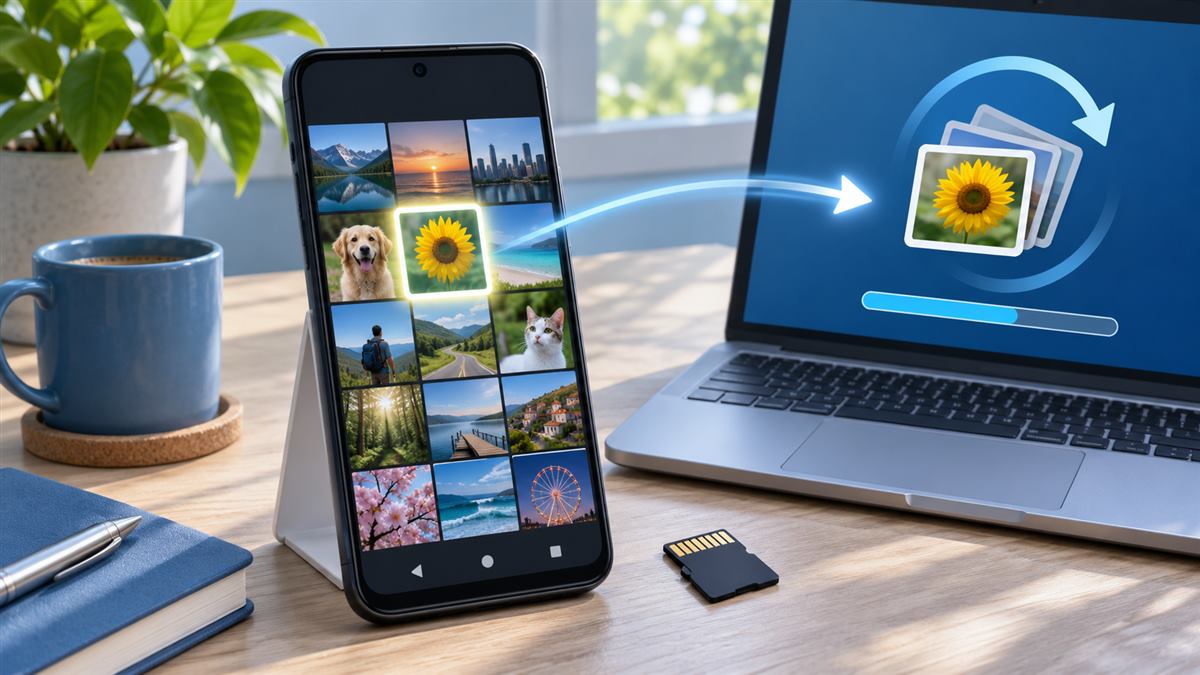
Recover Deleted Photos from Android
Lost a photo or an entire album on Android? Start with Gallery Trash and Google Photos, then check whether the images were saved to a removable SD card.

Find Photos Missing from iCloud
A meaningful photo is missing from iCloud? Check Recently Deleted and independent copies before considering a device backup or giving up on the original.


Recover Deleted Google Photos
Can’t find a photo in Google Photos? Follow the checks for Trash, the correct account, and copies saved on your device or elsewhere.

Get Back Deleted Instagram Photos
Deleted a post you wish you had kept? Check Instagram’s recovery options and look for the original image in your phone gallery or backups.


Find Your Old MySpace Photos
Looking for photos from years ago? Trace surviving account albums, old downloads, and saved copies to see which memories you can still retrieve.
Photo Recovery FAQs
Stop using the affected device, then scan it for recoverable files. Recovery depends on whether the photo data has been overwritten.
A scan may find photos after formatting, especially if you have not saved new files to the card. For detailed steps, see recover photos after formatting.
Stop taking pictures, remove the card, and connect it to your computer with a card reader. Scan the card, preview the results, and save recovered photos elsewhere. See the SD card photo guide.
Save them to a different drive or storage device. Writing them to the source device may overwrite photos that have not yet been recovered.
Check whether the preview opens and whether the recovered file has a plausible size. Finding a filename does not guarantee that its image data is intact; a damaged photo may need a separate repair process.