








Recover MATLAB Code, Saved Data, and Session Evidence Separately
To recover MATLAB files, identify whether you lost source code, workspace variables, a project configuration, or the result of a computation. An editor backup can preserve code changes without preserving the workspace. A MAT file can preserve selected variables without the script that created them. Command History can support reconstruction of commands, but it is not a complete recording of every editor action.
Record the MATLAB release, current project folder, expected script or live script, and a distinctive calculation or variable. Also identify the last useful save. These details distinguish a path problem from lost content. A familiar plot or variable name alone does not prove that you opened the correct source revision or data milestone.
Preserve an Open Session before Restarting
If MATLAB remains open with useful work, save the relevant source and trusted data to separate recovery files before closing it. Record which variables you intentionally preserve. A workspace save is different from saving the editor document. Keep both when the task depends on code and data, rather than assuming one operation protects the entire computational session.
The native routes below use an existing legitimate MATLAB environment and its supported features without purchasing a separate recovery utility. MATLAB itself is commercial software. Use the installed release’s documentation, especially for Editor and Live Editor backup behavior, instead of assuming every release uses the same temporary filename and retention rules.
Native Route 1: Inspect an Existing Editor Backup
- Locate the backup associated with the affected source through the configured editor settings.
- Preserve the original backup and open a working copy in the appropriate editor.
- Compare the distinctive code change without executing the recovered file.
- Save the accepted source under a new appropriate filename.
For supported editor files, an existing ASV backup can preserve unsaved changes. Availability depends on the settings and what actually reached disk. Enabling backup after the incident cannot recreate yesterday’s edits. Also distinguish ordinary M-file backups from the release-specific behavior of live scripts; do not rename an arbitrary backup into another format and assume conversion occurred.
Compare the Actual Algorithm Change
Check the line or section that changed near the incident, then inspect its surrounding inputs and assumptions. A recovered function can contain the expected name while lacking a recent correction. Preserve both the saved source and backup until you understand their differences. A readable source file is evidence of recovered text, not proof that its computation is correct.
After saving a working source separately, reopen it and compare the same section. Then review it before running anything. A recovered command can overwrite outputs or depend on a different path. Keep code recovery and execution as separate decisions so a useful source candidate does not accidentally replace data during its first inspection.
Native Route 2: Reconstruct from Retained Command History
- Inspect Command History in the intended MATLAB environment.
- Identify commands associated with the relevant session and calculation.
- Copy only reviewed commands into a separate reconstruction script.
- Restore required trusted inputs and verify a controlled result.
Command History can preserve commands entered during interactive work, but it does not automatically recreate every editor change, variable value, or file input. Use it as session evidence. A command may refer to data that later changed, and repeating it can produce another result. Preserve the original history and input sources before attempting reconstruction.
Review Commands before Replaying Them
A session can contain exploratory calculations, failed attempts, output overwrites, and cleanup operations. Do not execute the entire history indiscriminately. Identify the sequence that supports the intended computation and review its effects. Record any command you adapt for the new recovery location so the reconstructed script remains understandable.
Also compare the original working directory and search path assumptions. A command that calls a function by name can resolve to a different file in another environment. Identify the intended source and its version before accepting the reconstruction. This preserves the difference between recovering a command sequence and reproducing its original computational meaning.
Native Route 3: Load an Existing Trusted MAT Milestone
- Locate a MAT file you legitimately created or otherwise trust for the project.
- Preserve the original and inspect the expected variable information on a working copy.
- Load the necessary data in a controlled context through MATLAB’s supported workflow.
- Compare variable names, dimensions, types, and incident-specific values.
A MAT file preserves the variables actually saved into it at that milestone. It is not an automatic copy of every variable that once existed in memory. Compare its scope and date with the missing work. A file containing the expected variable name can still hold an earlier dataset or a different processed state.
Keep Loaded Data Separate Initially
Where appropriate, load trusted data into a separate structure rather than immediately replacing an active workspace full of useful variables. Then inspect the intended values. This makes candidate comparison clearer and reduces confusion between current data and recovered data. Keep the original file unchanged until you accept the milestone.
Treat unknown or untrusted serialized objects cautiously and do not run recovered code merely to discover what it does. The purpose of this workflow is to recover your legitimate computational work, not execute arbitrary files. Use trusted project sources and the relevant release’s documentation when data contains custom classes or other dependencies.
Native Route 4: Restore a Coherent Project Source Revision
- Preserve the current project directory, including uncommitted local work.
- Locate an existing complete source archive or repository revision.
- Restore it into a separate recovery location with required trusted inputs.
- Compare scripts, functions, project settings, and a controlled reference calculation.
An existing source revision can recover code that was actually archived or committed. It cannot supply an uncommitted function that never survived elsewhere. Restore related functions together when their interfaces changed. A single recovered script can be readable while depending on another missing function or a different data schema.
Separate Source and Generated Output
A project directory can contain scripts, raw inputs, processed data, figures, and temporary output. Record which categories the recovery candidate includes. A source-only repository may omit large input files, while a result archive may omit the generating code. Keep those sources distinct until you know what a complete useful reconstruction requires.
If a project opens in another MATLAB release, preserve the original candidate before changing it. Release differences can affect functions, formats, and dependencies. Record the environment used for the accepted test so a later reader can distinguish a recovered historical result from a recalculation performed under changed software conditions.
Diagnose a Missing Function before Rebuilding It
Check the actual project folder and intended source location. A function can survive on disk while MATLAB’s current context resolves another file or cannot find it. Inspect the correct source path and compare a distinctive function section. A path repair can restore access without recovering deleted bytes or rewriting the algorithm.
Verify the Dependency You Actually Call
When several files share a function name, identify the one used by the intended workflow. Compare its content and associated project revision. A successful call can use an older or unrelated implementation and still return plausible values. The acceptance check should establish the intended dependency, not merely the absence of an error message.
If the function genuinely is missing, inspect an existing editor backup, project archive, or legitimate collaborator source. Preserve each candidate with its context. Rebuilding a function from output alone is a new implementation task. Record assumptions and tests rather than describing a newly written algorithm as direct restoration of the lost file.
Distinguish Workspace Recovery from Recalculation
A saved MAT file can restore available data values. Running a script can recompute values only when the necessary code, inputs, parameters, and environment survive. Those routes are different. A successful recalculation may produce a useful result while differing from the exact workspace state that existed before the interruption.
Record Inputs and Randomness
For computations that depend on randomness, external data, or changing files, preserve the relevant state and source versions when available. A repeated command does not automatically reproduce the earlier result. Compare a known invariant or reference output and record any missing context instead of forcing a result to resemble an old figure by changing parameters without evidence.
If a result cannot be reproduced exactly, state the available recovery outcome clearly: restored source, recovered saved dataset, or reconstructed analysis. This allows continued work with a known scope. It also prevents an approximate recalculation from silently replacing the only surviving historical output needed for comparison.
Inspect Live Scripts in Their Native Context
A live script can combine code, formatted text, equations, and output. Compare those components separately in a supported MATLAB release. A recovered text extract may preserve some code while omitting narrative structure or embedded results. Keep the native candidate intact and do not assume a simple extension change recreates a live document.
Compare Narrative and Executable Content
Choose a section where the explanation and calculation depend on each other. Confirm that the code uses the parameters described in the text and that the displayed output belongs to the intended milestone. A live document can look polished while retaining stale output from an earlier execution. Recovery should preserve or clearly identify that distinction.
If you reconstruct a live script from an ordinary script and reference output, record the new assembly. It can be useful for continued research or teaching while still lacking the original live editing state. Preserve the sources used so another reviewer can assess which parts were recovered directly and which you rebuilt.
Use Figures as Evidence with Appropriate Limits
A surviving figure or image can show a useful result and help identify the intended analysis. It does not automatically provide every raw input, transformation, or source line that produced it. Preserve the original output and compare its milestone. A familiar curve alone is insufficient proof that a recovered dataset and script represent the same computation.
Check Labels, Units, and Data Context
Compare the axes, units, sample count, and distinctive result against trusted project evidence. A graph with the same shape can represent another scaling or dataset. If you reconstruct information from a rendered image, mark that approximation. Keep it separate from directly recovered numerical data and avoid inventing precision the image cannot support.
Work through a Lost Script Edit
Suppose MATLAB closes after you correct a filtering function but before saving the editor document. Preserve the saved file and any existing ASV candidate. Open the backup as source, compare the correction and surrounding dependencies, and save the accepted version separately. Do not run it until you review its input paths and output behavior.
Test a Small Trusted Calculation
Use a controlled input and a specific expected property to check the recovered correction. Then compare an important unaffected function or result. This establishes more than successful execution: it connects the recovered source to the intended computation while helping reveal an accidental dependency mismatch introduced during recovery.
Classify MATLAB Recovery Sources by What They Preserve
Create a small inventory of editor backups, saved scripts, live documents, MAT files, project archives, command history, and figures. Beside each, record the milestone and verified contents. This prevents one source from receiving credit for information it does not contain. A saved dataset can support a result while leaving the generating algorithm unavailable.
Define the Computational Acceptance Goal
Decide whether you need the lost code text, the exact saved data, a reproducible calculation, or a readable historical result. Those goals require different evidence. A new computation can be useful without reproducing the earlier workspace exactly. A recovered plot can preserve the historical output while offering little information about the complete input and source pipeline.
Choose a distinctive function section, variable, and reference result as the sample. Include a feature that changed near the incident rather than only a familiar file name. This makes the recovery comparison concrete and gives you a repeatable test after copying the accepted project to another location.
Compare Editor Backups without Executing Them
Open an existing backup as source in the appropriate editor and inspect its actual text. Check the recent correction and the surrounding dependencies. A file with the expected function name can still represent an older implementation. Keep the saved file and backup separately until you know which source preserves the change you need.
Preserve File-Type Boundaries
Use the installed release’s documented backup behavior for ordinary scripts and live documents. A filename extension does not make two formats interchangeable. If a backup requires a supported save or conversion workflow, perform it on a copy and compare the result. Do not claim a native live script returned merely because you extracted readable code text.
Also inspect the encoding and special characters relevant to the source. A comment may remain readable while a string or symbol changes meaning. Preserve the original candidate before resaving it, and compare a distinctive line afterward. This separates text recovery from any subsequent adaptation needed for the intended MATLAB environment.
Reconstruct Command History as a Reviewed Procedure
Identify the commands belonging to the useful session and preserve the original history. Build a separate script containing only the reviewed sequence. Exploratory sessions often contain failed attempts, alternate parameters, and file-writing operations. Repeating all of them indiscriminately does not reproduce a clean analysis and can overwrite information you still need for comparison.
Record the Original Input Milestone
A history command can refer to a file that later changed. Preserve the actual input revision when available and compare its relevant characteristics. A repeated command name does not establish the same data or assumptions. If the historical input is unavailable, record that gap instead of presenting the new calculation as an exact reconstruction of the old session.
Also identify the intended source for called functions. Another folder can contain a different implementation with the same name. Compare that dependency before accepting results. A command sequence that runs without errors can still use the wrong function or data revision and produce plausible values unrelated to the original analysis.
Inspect MAT Contents before Replacing Workspace Variables
For trusted project data, compare the expected variable names, dimensions, types, and a distinctive value range. A MAT file can preserve only the selected variables saved at its milestone. Its presence does not imply a complete workspace snapshot. Keep loaded candidates distinct from current useful variables until you understand their scope.
Use a Separate Structure Where Appropriate
Loading trusted data into a separate structure can make candidate comparison clearer than replacing names in an active workspace. Then inspect the required variable explicitly. Preserve the original MAT file and record which milestone supplied it. This helps avoid confusing current results with values recovered from an earlier analysis.
If data depends on custom classes or unfamiliar serialized content, use legitimate trusted sources and the appropriate release guidance. Do not turn recovery into execution of unknown code. A variable list or recognizable name is a starting point for assessment, not proof that every object is safe, complete, or compatible with the current project.
Check Dimensions and Units Together
Two variables can share a name while representing different shapes, scaling, or units. Compare a known sample and the code that interprets it. A vector with the expected length can still correspond to another time range, channel, or coordinate convention. The acceptance test should establish meaning, not merely matching array size.
Compare a Small Known Calculation
Use a controlled trusted input and a specific expected property to test the recovered source and data relationship. This can reveal an incorrect revision or path without rerunning a large workflow immediately. Keep generated test output separate from historical output so the source of each result remains clear.
If exact reproduction is unavailable, preserve the useful partial result and describe it precisely. Restored source text, recovered saved variables, and a reconstructed calculation are legitimate but different outcomes. A clear scope is more useful than labeling everything complete because one test returned a familiar-looking number.
Preserve Reproducibility Context Beyond the Script
A calculation can depend on random state, configuration, external data, toolboxes, and the software release. Record the parts that actually matter to the incident. A source file alone may be insufficient to reproduce a historical result. Keep available configuration and legitimate dependency information with the accepted project rather than relying on memory.
Treat Changed Inputs as a New Computation
If a service response or data file changed after the original run, a repeated command can produce a newer result. That may be useful, but it is not recovery of the old values. Preserve the historical output and identify the new run separately. Do not adjust parameters solely to make the result resemble a reference without documenting the decision.
For stochastic work, compare the relevant saved context when it survives. If it does not, use appropriate acceptance properties rather than claiming exact historical equality. The recovery record should explain the basis of the comparison and which uncertainties remain, especially when the next person needs to assess how the result was produced.
Evaluate Figures as Evidence Rather Than Complete Sources
A figure can help identify the intended result, but it rarely proves the full pipeline. Compare axes, units, labels, sample context, and the actual saved milestone. An image that looks similar can represent another transformation or dataset. Preserve the original figure or image before making display changes that obscure its historical role.
Keep Extracted or Estimated Data Distinct
If you reconstruct values from a rendered image, record the approximation and its resolution limits. It can support comparison without supplying the precision of original numerical data. Do not present those estimates as directly restored workspace variables. Keep the reference and method with the reconstruction so another reviewer can assess its usefulness.
Similarly, rebuilding a plotting script from an image is new source work. Save it separately from any directly recovered code and describe the assumptions. A useful recreated chart can meet a presentation need while leaving the original analysis algorithm unavailable.
Compare a Project Archive as a Coherent Revision
Open the copied archive or repository milestone in a separate location and inspect its scripts, functions, data references, and project configuration. Related functions may need compatible revisions. Restoring one corrected script into an unrelated older project can introduce another dependency error even when the recovered text itself is intact.
Preserve Local-Only Work before Checkout
A repository contains what was actually committed, not every local file that once existed. Preserve uncommitted source, ignored data, and available backups before switching revisions. Compare those sources separately. This prevents an otherwise useful version-control recovery from discarding the only surviving copy of a recent editor change.
After combining verified differences, record the source revision for important files and run the controlled acceptance calculation. A clear change record makes the resulting project assessable and helps identify whether a later discrepancy comes from the original incident or a decision made during reconstruction.
Test the Accepted Computational Project Independently
Open a copied project from the planned location with trusted inputs and the documented environment. Inspect the recovered source and data, then run only the reviewed acceptance procedure. Confirm that temporary recovery paths are unnecessary. This provides evidence of practical continued use rather than merely showing that one file can open in the editor.
Keep the Recovery Record with the Milestone
Record source revisions, saved-data scope, reconstructed commands, environment differences, and unresolved variables. Preserve the trusted historical reference separately from new test output. Another researcher can then distinguish restored evidence from recomputation and continue from a clear baseline without assuming the lost session returned in every detail.
When Storage Recovery Can Help MATLAB Work
PandaOffice Drecov may help retrieve deleted local source files, existing ASV backups, MAT data, project archives, or reference outputs from readable storage. It cannot recreate unsaved workspace variables that no source preserved or infer a complete algorithm from one plot. Prefer surviving editor and data milestones first, and reduce writes where deleted candidates may remain.
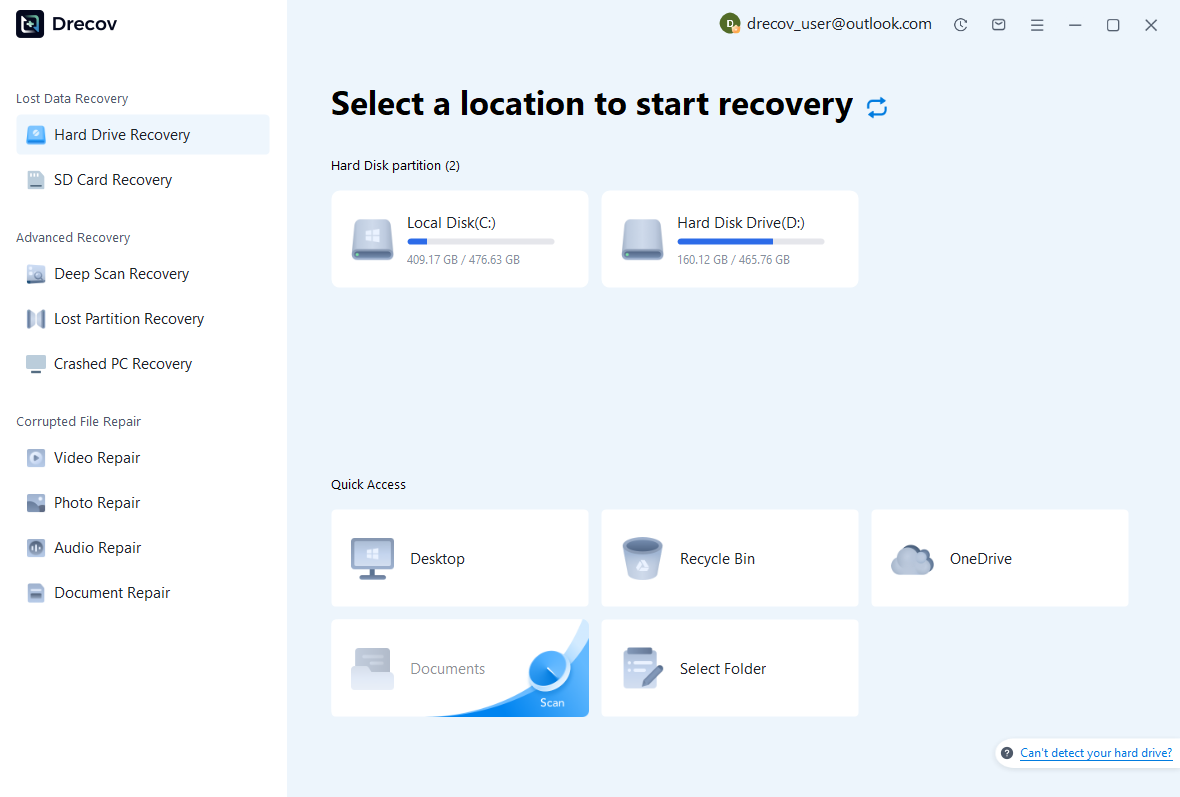
Step 1: Identify Source and Data Storage
Select the drive or partition that held the project, configured editor backups, trusted MAT files, or original inputs. Record which component each search targets. Keep recovered output on separate healthy storage. Assess repeated disconnections or hardware read failures before continuing with a routine software recovery scan.
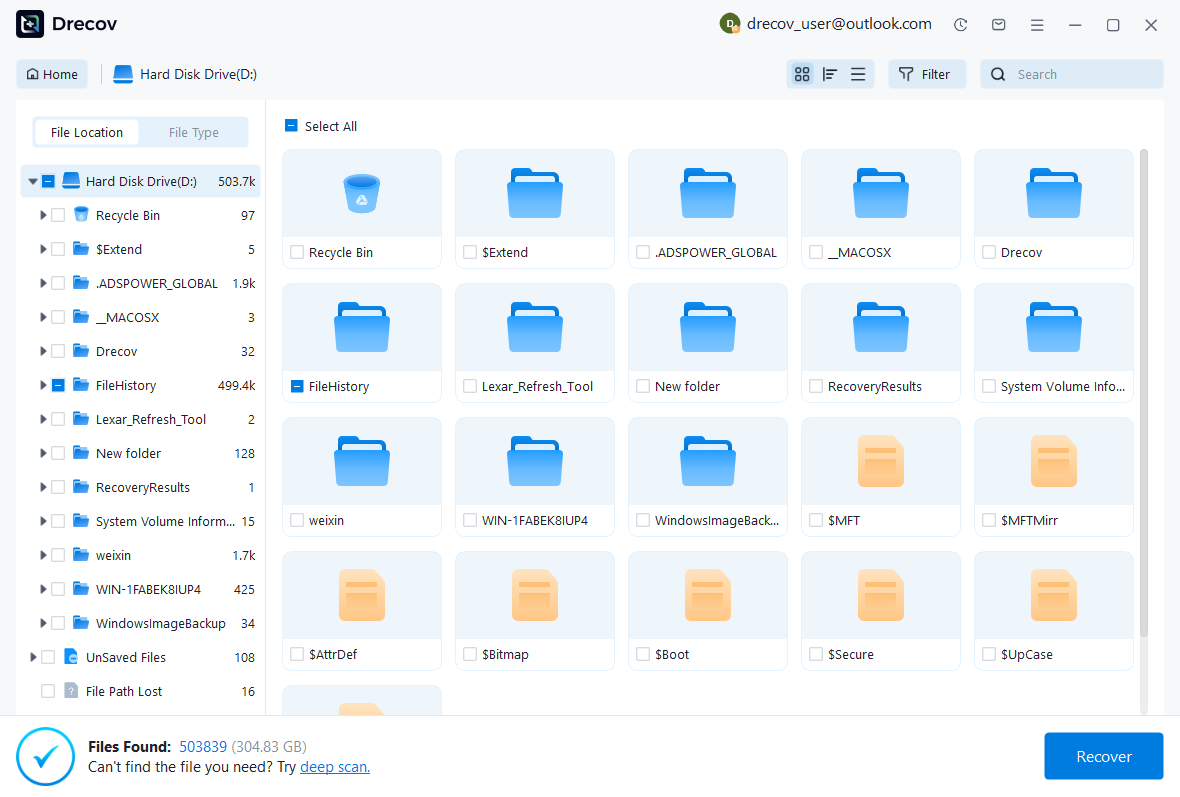
Step 2: Compare Code and Data Candidates
Review available paths, names, sizes, dates, and supported previews. Preserve coherent source revisions and data milestones separately without mixing unrelated sessions. Recognizable code does not prove its input data survived, while a MAT filename does not establish its variable scope. Keep alternatives until MATLAB can assess the working candidate in context.
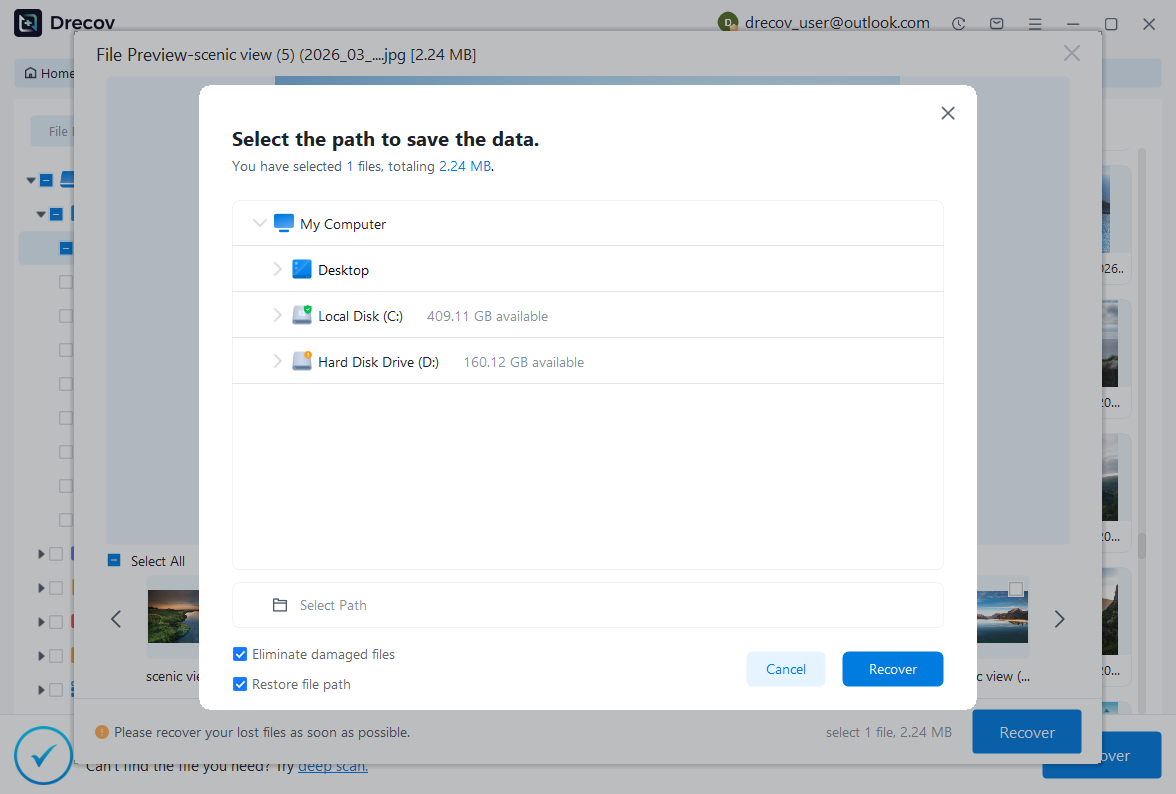
Step 3: Restore Elsewhere and Verify a Controlled Result
Recover selected files to a separate destination and retain untouched originals. Inspect recovered source before execution, assess trusted data through the supported workflow, and compare a controlled calculation. Record the source revision, input milestone, environment, and reconstructed steps. Keep unavailable variables or dependencies explicit before returning to ordinary work.
Preserve a Reproducible Computational Milestone
Keep the accepted source, trusted inputs, required saved data, and a short recovery record. Test a copied project with a specific calculation and reference result. This provides a practical route back to useful work while preserving the distinction between recovering code, restoring data, and reproducing an earlier computation.
Related Recovery Resources
Explore the relevant recovery options: Hard drive recovery, External hard drive recovery.
For another recovery case and its practical checks, read the related recovery guide.
Check the vendor guidance for the installed version: official recovery documentation 1, official recovery documentation 2, official recovery documentation 3, official recovery documentation 4.