







Cloud storage serves as a reliable bridge between your local devices and online accessibility, but users still frequently need to Recover Deleted OneDrive Files due to persistent data loss challenges. Whether you face an accidental deletion on your desktop, a synchronized “empty recycle bin” command, or an expired cloud retention period, losing access to your data can be disruptive.
If you are currently searching for how to recover deleted OneDrive files, this guide provides a clear, professional roadmap. We will walk you through the built-in cloud safety nets and introduce high-performance local recovery solutions.
Initial Steps: Using OneDrive’s Internal Safeguards
Before you deploy external software, you should first check the internal trash systems that Microsoft provides. OneDrive operates its own recycling infrastructure that exists independently of your computer’s local Recycle Bin.
Step-by-Step Cloud Restoration:
- Sign In: Access the OneDrive web portal and log in with your Microsoft credentials.
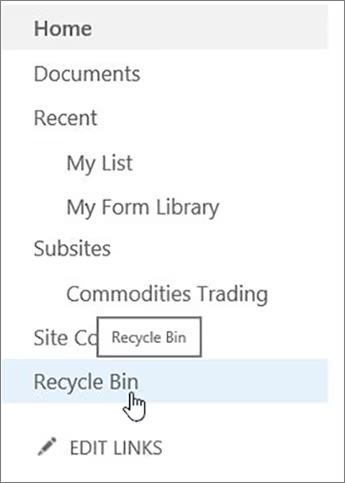
- Locate the Bin: Select the Recycle Bin icon in the left-hand navigation pane.
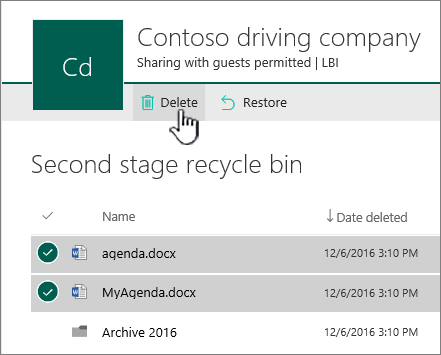
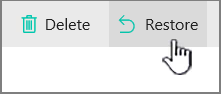
- Restore Items: Browse the list for your missing data. Once you find the files, click Restore at the top of the interface.
🔍 Pro Tip: Personal accounts generally retain files for 30 days, while business or school accounts may extend this period to 93 days.
Advanced Cloud Recovery: The Second-Stage Recycle Bin
If you have already emptied your primary online bin, your data might still reside in a secondary archive. Microsoft hides this feature at the bottom of the interface to prevent permanent data loss.
- Navigate to the bottom of the primary Recycle Bin page.

- Select the link for the “Second-stage recycle bin.”
- Look for your files here; if they appear, you can move them back to your main directory instantly.
Local Solutions: How to Recover Deleted OneDrive Files with PandaOffice Drecov
When the cloud retention period expires or a synchronization error wipes your local folder, you need a more powerful tool. Since OneDrive mirrors a physical folder on your hard drive, the deleted data often still exists in the disk sectors.
For these critical moments, PandaOffice Drecov Data Recovery Software offers a professional-grade solution. This software excels where cloud backups fail, specifically when dealing with emptied bins or formatted partitions.
Why Users Choose PandaOffice Drecov?
PandaOffice Drecov stands as a leading choice in the industry, maintaining active partnerships with reputable entities like Trustpilot, Microsoft Store, TechBullion, and Sourceforge. Its core advantages include:
- Versatile Scenario Support: It successfully recovers data from emptied recycle bins, formatted disks, and even “RAW” partitions.
- High Compatibility: The tool works seamlessly with Windows and supports hundreds of formats, including photos, videos, audio, ZIP archives, and EXE files.
- Deep Content Repair: Unlike basic tools, it can fix garbled or unopenable files during the recovery process.
- Privacy and Security: All operations occur locally on your PC, so you never have to worry about data leaks.
The Simple Three-Step Recovery Process:
Step 1: Select the Location
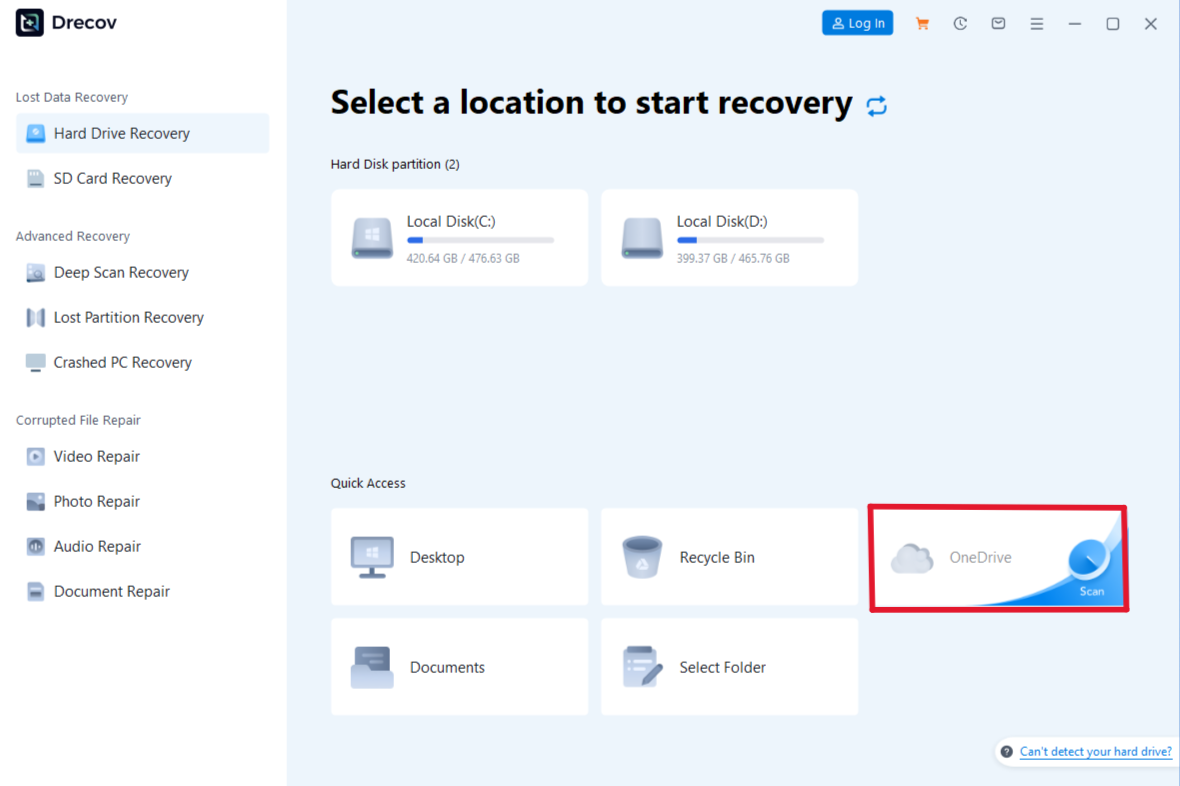
Open the software and choose the drive where your OneDrive folder was located.
Step 2: Scan and Preview
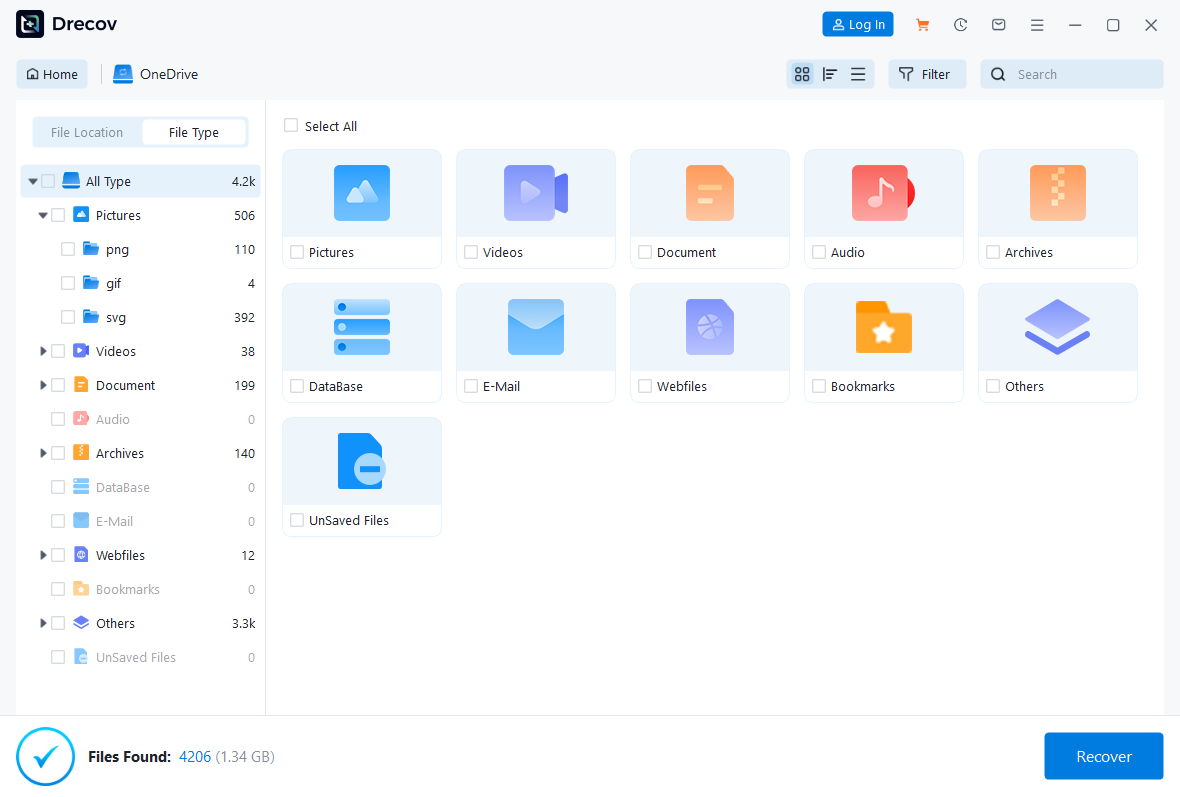
The engine will perform a thorough scan of the disk. You can use the preview function to check images or documents in real-time. This ensures that the files are intact before you commit to the restoration.
Step 3: Recover and Save
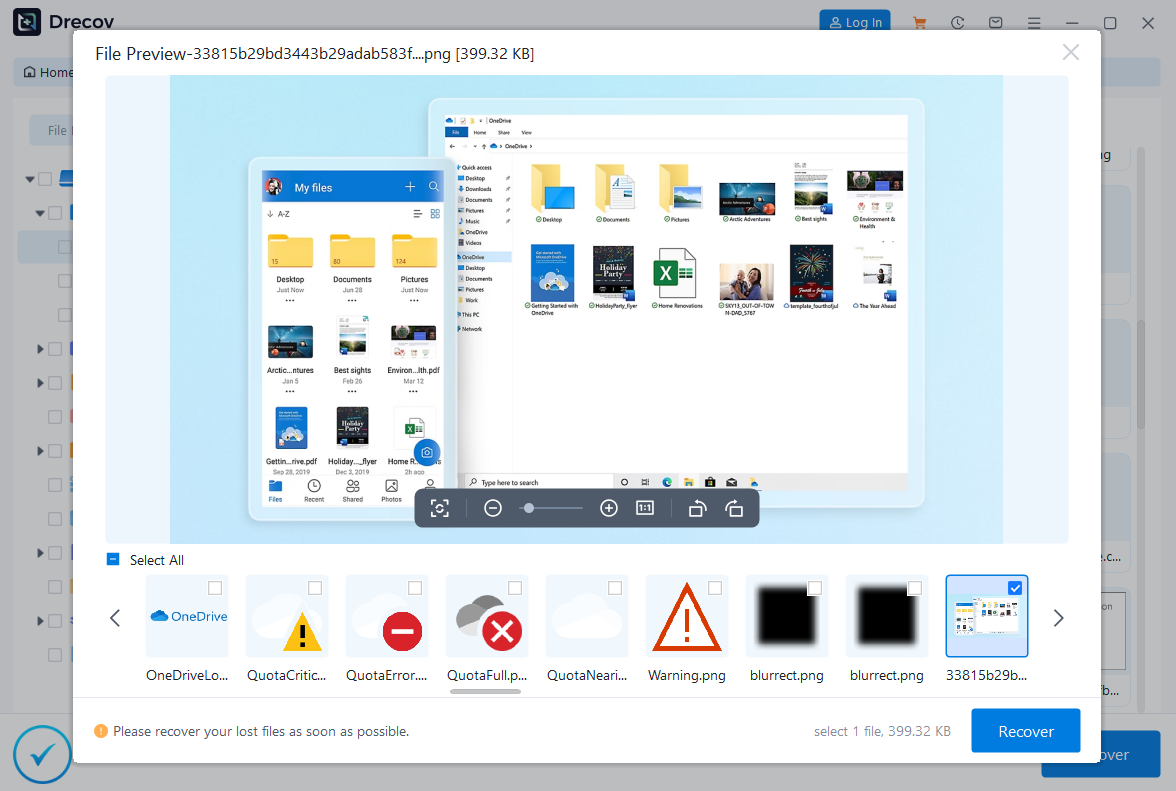
Select your files and click Recover.
⚠️ URGENT REMINDER: To avoid overwriting your data, never save recovered files back to the original OneDrive folder or the same partition. Always export them to a different drive or an external USB.
The “Time Machine” Method: Restore Your Entire OneDrive
If your account was hit by ransomware or a mass-deletion event, you can “roll back” your entire library to a previous state.
- Step 1: Click the Settings ⚙ (Gear icon) in the OneDrive web interface.
- Step 2: Choose Options and click Restore your OneDrive.
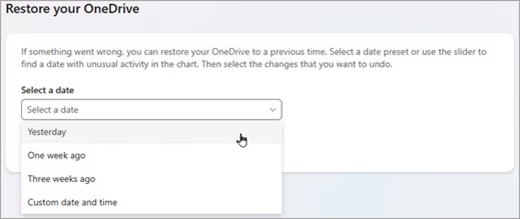
- Step 3: Select a date (e.g., “Yesterday” or “Custom date”).
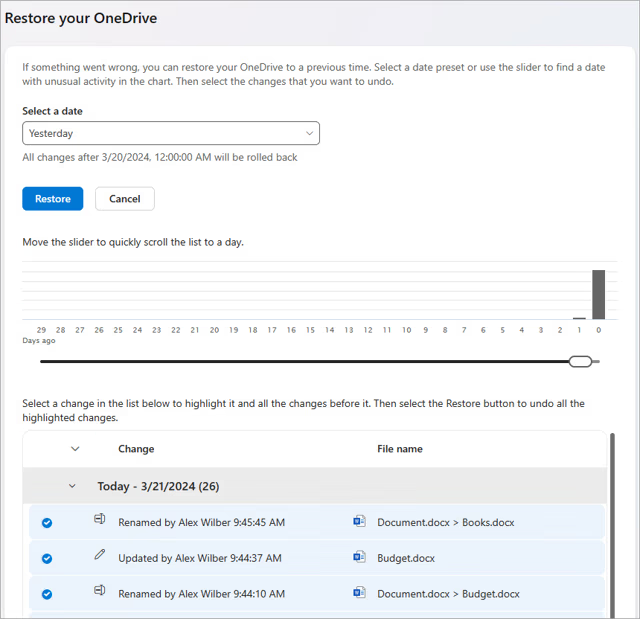
- Step 4: Use the activity chart to find the moment before the disaster happened and click Restore.
If you selected Custom date and time, select the earliest activity that you want to undo. When you select an activity, all other activities that occurred after that are selected automatically.
Identifying OneDrive Error Codes and Recovery Paths
While learning how to recover deleted OneDrive files, identifying specific error codes can help you pinpoint the root cause of your data loss. Below are the most frequent glitches and professional recommendations for handling them:
1. Error Code: 0x80049d61 (Sync Connection Issue)
- Description: This error typically occurs due to account authentication failures or unstable network environments. It prevents local modifications from uploading and stops cloud updates from reaching your computer.
- Solution: Check your internet connection first, then try signing out and logging back into your OneDrive account.
- Warning: If you force-delete local files during this state, the cloud might lose that data permanently due to synchronization lags. We recommend using PandaOffice Drecov to scan your local cache partition first to ensure you have a solid backup before attempting a fix.
2. Error Code: 0x8007016a (Cloud File Provider is Not Running)
- Description: This particularly frustrating error prevents you from opening, copying, or moving files within your OneDrive folders.
- Solution: Toggle the “Files On-Demand” feature off and on again within Windows Settings. If your files still show as 0-byte placeholders and remain unreadable, your local index is likely corrupted. Since standard copying will fail here, you should use PandaOffice Drecov’s “Formatted Disk Recovery” mode. This allows you to perform a low-level scan for files that have become “invisible” due to system logic errors.
3. Error Code: 0x8004def7 (Storage Limit Exceeded)
- Description: When your OneDrive hits its storage ceiling or Microsoft freezes your account, synchronization stops entirely. This puts your files at risk of automated system cleanup.
- Solution: Immediately remove redundant cloud files or upgrade your storage plan.
- Critical Point: If the system deletes vital data during a cleanup, the Recycle Bin might not catch it if space is tight. Stop using your computer immediately and perform the three-step recovery with PandaOffice Drecov. This prevents new temporary files from overwriting the sectors where your deleted data still resides.
4. Error Code: 6 (Timeout Error)
- Description: This error means the system timed out while trying to read your data, which often points to physical bad sectors on your hard drive or a damaged file system.
- Solution: Restart your device and run a disk check utility. If your files appear as gibberish (mojibake) or simply refuse to open, take advantage of PandaOffice Drecov’s high compatibility. It can automatically repair damaged file headers, successfully reconstructing the original content of your images, videos, and office documents.
Proactive Strategies for Data Safety
While knowing how to recover deleted OneDrive files is essential, preventing loss is even better. You can protect your data by following these professional habits:
- Monitor Sync Icons: Always check the blue cloud icon in your taskbar. A red “X” means your latest work is not safe in the cloud.
- Avoid Mass Deletion: If you need to clear space, move files to an external drive instead of deleting them.
- Keep Recovery Tools Ready: Having PandaOffice Drecov installed allows you to act the moment a sync error occurs, which dramatically increases your recovery success rate.
Conclusion
Recovering OneDrive files is a manageable task when you use the right combination of cloud settings and local software. While Microsoft’s bins are helpful for simple mistakes, PandaOffice Drecov Data Recovery Software provides the heavy-duty power needed for formatted drives and expired cloud backups. Its simple “three-step” logic makes professional data recovery accessible even for absolute beginners.






