







If a PC stops with “USB Device Over Current Status Detected,” turn it off and disconnect external USB devices before trying again. The warning points to a power problem on a USB connection, not to a file-system error. A short isolation check can identify a removable accessory. Repeatedly forcing the computer to boot, resetting storage, or scanning a flash drive will not make an unsafe port electrically sound.
Read the warning before touching the computer
Note the exact words on the screen and whether they appear before Windows starts. The startup warning differs from a Windows notification that says Power surge on the USB port. They can reflect related USB power concerns, but the available menus and next steps differ. If Windows has already loaded, follow the separate USB port power-surge checks. Photograph the boot screen with a phone if you need to show a technician. Do not keep restarting merely to see whether the message goes away; the same warning after several attempts is information, not progress.
Shut the PC down and remove the power cord if you need to inspect connectors. On a laptop, follow the maker’s safe shutdown instructions; do not open its case to disconnect an internal battery unless you are qualified to do so. Look for an obviously bent USB plug, damaged cable, liquid exposure, or debris. Do not insert metal objects into a port or try to straighten pins while power is connected. Heat, smoke, a burning smell, or visible damage calls for immediate stop and professional service.
The message does not by itself prove that your photos or documents were erased. It tells you the computer is refusing normal operation around a USB power fault. Preserve data by avoiding risky hardware experiments, then determine whether the computer and any attached storage device still work safely once the electrical issue has been addressed.
Isolate external accessories with the power off
Disconnect removable USB accessories: flash drives, external storage, printers, webcams, game controllers, docking stations, and hubs. Leave the PC powered off while removing them. If your desktop requires a USB keyboard to interact with setup, use a known-good keyboard only after you have completed the all-accessories test and the machine starts safely. Avoid plugging the suspect device into every port in quick succession.
Start the computer once with the external USB items removed. If the warning disappears, shut down again and reconnect one known-good item at a time. Restart only as needed to find which item triggers the warning. This is an isolation test, not permission to keep using a damaged accessory. The device, its cable, a hub, or a particular port may be involved. A bus-powered drive attached through an unpowered hub is not the same test as a drive connected directly to a suitable port.
ASUS’s motherboard support instructions describe this unplug-and-retest approach for the exact boot warning, then recommend service if the warning continues without external USB devices. The details of a specific motherboard are not universal. If your manufacturer offers model-specific guidance, follow that documentation and warranty route rather than changing BIOS settings from a generic internet checklist.
Warning remains with every external USB item removed
Stop the accessory test when the warning persists with no external USB device connected. The problem may involve a port, internal front-panel wiring, or another hardware component. The screen alone cannot identify which one. A desktop’s front USB connector can be wired to the motherboard internally, so “nothing plugged in” does not necessarily mean the entire USB path is healthy. Identifying that circuit requires model-specific service work, not a general storage command.
Do not bypass the boot warning just to reach Windows, and do not turn it off in firmware to hide the symptom. A successful boot after suppressing an alert would not demonstrate that the electrical fault is gone. Avoid opening the case if it would violate your warranty or you are not comfortable handling powered hardware. Tell the repair provider whether the warning appeared after a new USB accessory, a spill, moving the desktop, or a front-port impact.
If important files are on the computer’s internal drive, ask the service provider about preserving that drive before any reset, reinstall, or board replacement. Removing a healthy internal drive for data access can be possible in some systems, but encryption, proprietary hardware, and warranty terms vary. Have the device model and any BitLocker recovery information ready. This is a data-protection conversation, not a reason to attempt risky DIY disassembly.
When one accessory triggers the message
Keep the suspected accessory disconnected. Examine its connector and cable under good light, without scraping the contacts. If it is a printer or another device with its own power adapter, use only its approved adapter; a mismatched supply can introduce a separate hazard. If the warning occurs only through a USB hub, the hub or its power arrangement deserves attention. Do not assume the flash drive’s files are corrupt because its connection tripped a power warning.
On a different known-good computer, a qualified user may make one cautious check of an apparently undamaged USB storage device. Stop if that computer also reports a power fault, the device heats up, or it disconnects. Do not use a different machine as a sacrificial test bench for a visibly broken connector. A hardware specialist can assess the USB device and port without risking additional PCs.
If the device works normally on a safe computer, copy irreplaceable files to another healthy location before doing anything else. Open a few copied files and verify they are usable. A flash drive that connected once after a warning is not yet a trustworthy only copy. The USB data recovery topic applies only if files are actually missing from a stable, readable storage device.
Where file recovery fits—and where it does not
Drecov is Windows data-recovery software, not a USB electrical diagnostic or port repair tool. It can be relevant only after a USB storage device remains stably recognized on a safe Windows system and files are missing or inaccessible. Its read-only recovery workflow offers Quick Scan, optional Deep Scan, file locating and preview, and recovery to another healthy destination. Lost Partition Recovery can locate files from a lost partition; it does not mend a shorted connector or reconstruct a damaged controller.
First check existing backups and other copies. If the only copy is on a device that still triggers over-current alerts, stop and consult a specialist. Repeated scanning repeatedly powers and reads that device, which is unsuitable when it cannot remain electrically stable. Do not format, initialize, or run CHKDSK to address the boot warning. Those are storage changes, not fixes for the electrical cause, and they may affect data that has not been protected.
⚠ Warning: Install it on a drive different from the one where your data was lost to prevent overwriting.
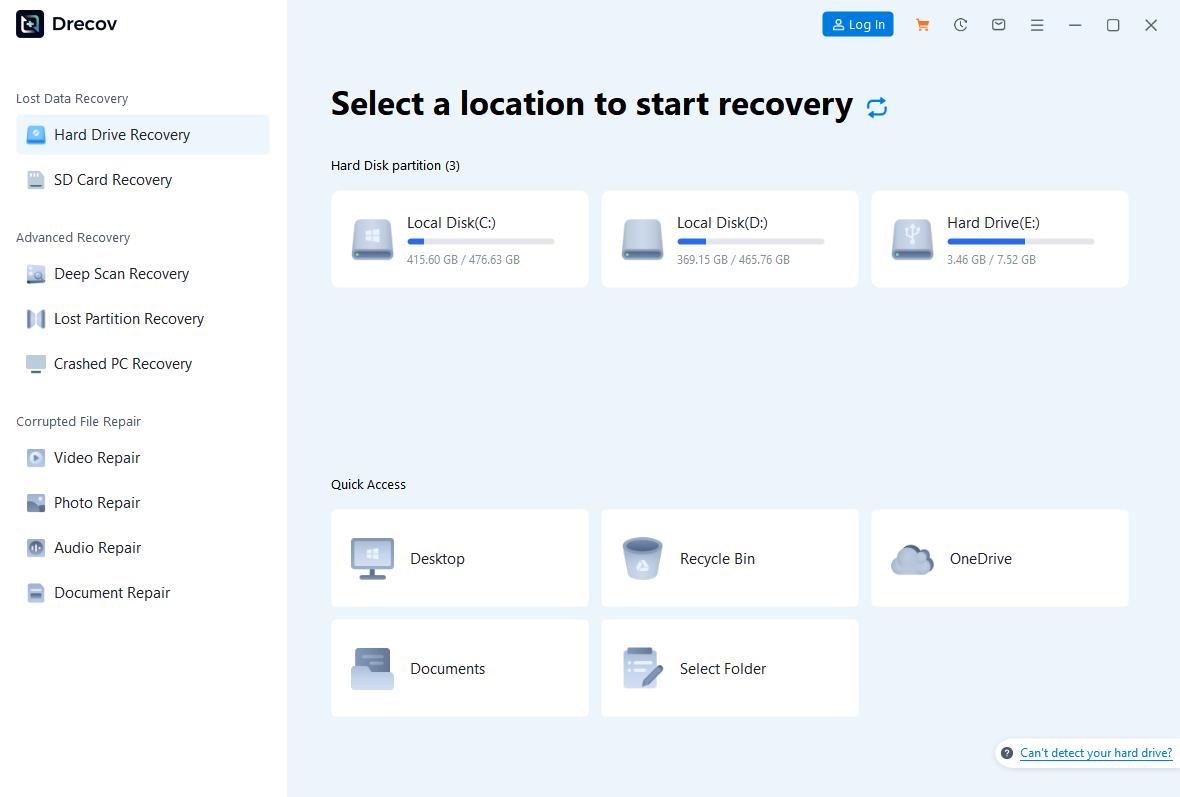
Step 1: Select the original stable storage location
After the hardware issue is resolved, open Drecov on a safe Windows PC. Identify the original USB storage device by capacity and context, then select it or the relevant lost-partition mode. Install the program elsewhere, not on the device holding the lost files.
Step 2: Review Quick Scan
Run Quick Scan first. Look for the folder, name, and file types you expect. A similar filename is not enough to establish that a photo, video, or document is intact.
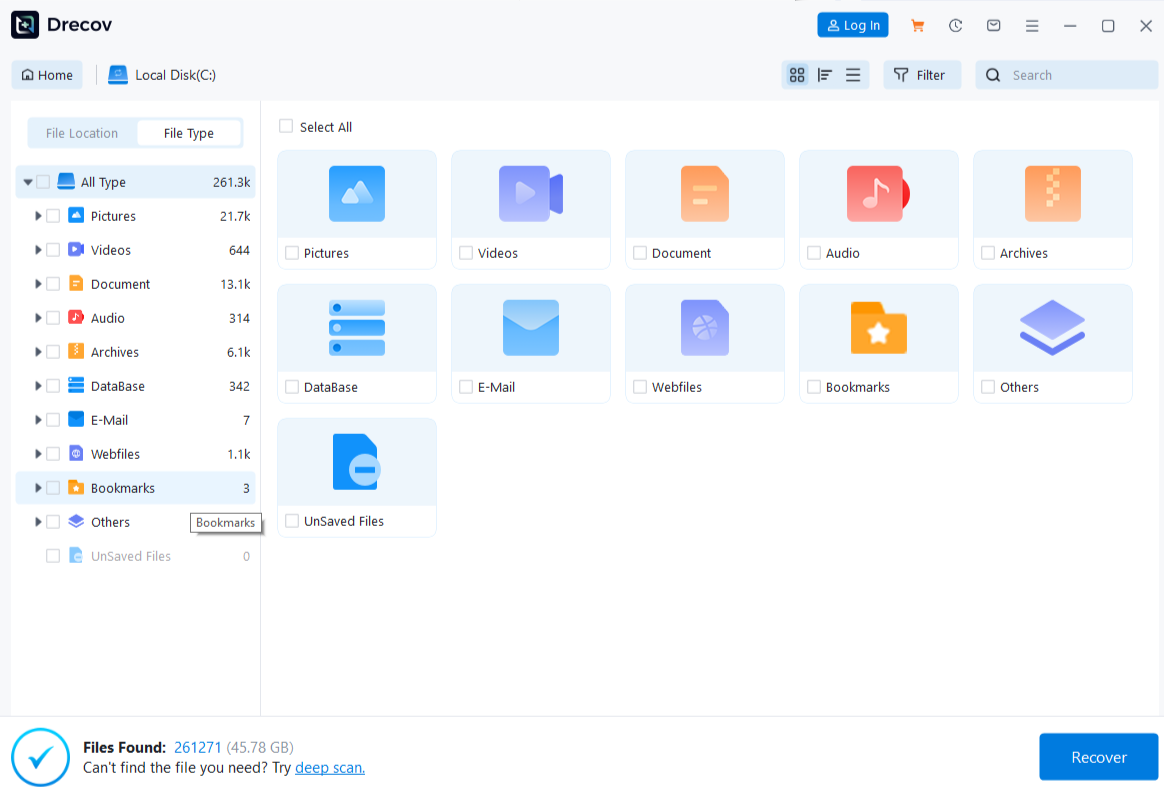
Step 3: Consider Deep Scan only while stable
If the first scan misses the target and the USB remains recognized without warnings or drops, try Deep Scan. Stop immediately if the device becomes unstable. A longer scan cannot repair an electrical fault.
Step 4: Filter and preview candidates
Narrow results by type, name, or former path where available. Preview representative supported files before selecting the full set. A readable preview is useful, but it cannot certify every part of a large file.
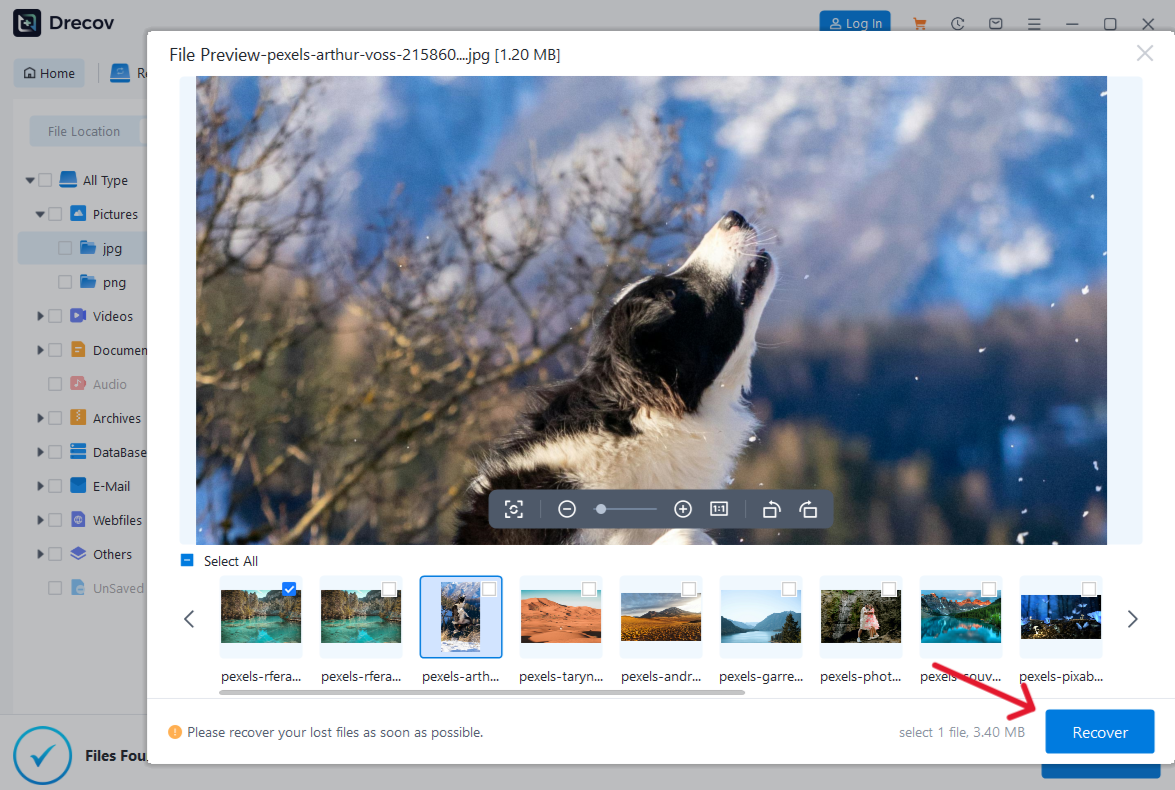
Step 5: Recover away from the suspect USB
Save chosen results to a different healthy device. Never put recovered files back on the affected USB source. If an output seems missing, check the Drecov Folder or Recovery Folder at the selected destination.
Step 6: Verify before reuse
Open several recovered files and check their contents. Keep the suspect USB disconnected until a hardware professional has assessed it. Drecov’s Windows recovery options help with logical file loss on stable media; they do not make a faulty device safe to reuse.
⚠ Warning: Install it on a drive different from the one where your data was lost to prevent overwriting.
Frequently asked questions
Can a USB flash drive cause this warning?
It can be one possible trigger, but the screen does not identify the faulty component. A cable, hub, port, or internal connection may also be involved. Test with power off and external accessories removed, then follow your computer maker’s instructions. Stop if the alert persists without external USB items.
Is this the same as “USB device not recognized”?
No. A recognition message says the computer cannot use a connected USB device normally. An over-current warning raises a power-safety concern and deserves a shutdown and isolation check first. The file recovery overview is relevant later only if stored files have truly disappeared.
Will resetting BIOS settings remove the danger?
Do not assume so. A settings change cannot repair damaged connectors or wiring. Model-specific firmware advice belongs with the computer manufacturer. Preserve the exact warning and report what happened when all external accessories were removed.
Are my files lost if the PC does not boot?
Not necessarily. The boot warning prevents normal startup; it does not confirm that the internal drive has been erased. Ask for data-preserving service before any reinstall or drive replacement, and locate your backup and encryption recovery details. Avoid repeated unsafe power tests merely to reach the desktop.
Conclusion
Power off, disconnect external USB devices, and make one careful minimal-setup test. A warning that remains without them needs hardware service; a single accessory that triggers it should stay disconnected. Protect important files before any reset or repair. Once a storage device is electrically stable and recognized but files are missing, Drecov can scan that original location and recover candidates to another healthy drive. It cannot solve the over-current fault itself.
⚠ Warning: Install it on a drive different from the one where your data was lost to prevent overwriting.