






Lost a File from Your Recycle Bin?
We’ve Got You Covered
Accidentally deleted a crucial file? Emptied your Recycle Bin without thinking? It happens to the best of us. But don’t panic. PandaOffice Drecov can quickly and safely recovery recycle bin file, from precious photos to essential documents. With just a few clicks, you can get your valuable files back.





Why Trust Us?

Secure & Reliable

98% Success Rate

1M+ Users Trust Us
Why Did My Data Disappear? Common Reasons for File Loss
Whether you’re a home user or a business professional, data loss can be a major headache. Understanding why it happens is the first step to preventing it. Here are some of the most common culprits.
“Shift + Delete”

The “Shift + Delete” Mistake
We’ve all been there. You hit Shift + Delete to permanently remove a file, bypassing the Recycle Bin entirely. It’s a quick way to clean up, but one misstep can mean a file is gone for good.
‘Empty Recycle Bin’
Unintentionally Emptying the Recycle Bin
Sometimes the simplest actions cause the biggest problems. Maybe you were clearing out junk files and accidentally hit ‘Empty Recycle Bin’ without checking what was inside.Other times, the Recycle Bin simply fills up, automatically deleting the oldest files to make room for new ones.

External Drive

Deleting from an External Drive
Files deleted from a USB drive, external hard drive, or network drive don’t go to your computer’s Recycle Bin. They are permanently deleted with no warning.
deleting important files

Third-Party Software at Fault
System cleaners like CCleaner, disk optimizers, or other cleanup utilities can be a bit too efficient, potentially deleting important files without confirmation.
Disk Errors
Disk Errors or System Crashes
Hard drive failures, file system corruption (like a damaged NTFS structure), or a sudden power outage can lead to data chain corruption. In these scenarios, files might not be properly marked for deletion in the Recycle Bin—they just become lost or inaccessible.

Malware Attack

Virus or Malware Attack
Viruses and other malicious software can intentionally delete or hide your files to cause damage or for ransom. They often bypass the normal deletion process, directly corrupting data and making files disappear from both their original location and the Recycle Bin.
Why Choose PandaOffice Drecov?
Virus-Free
High Recovery Success Rate
30-Day Money-Back Guarantee
No Bundled Software
Our recycle bin file recovery software scans deep into your hard drive to find files that have been deleted, even those that are long gone from the Recycle Bin. PandaOffice Drecov is simple to use and has an exceptionally high recovery rate, making it the best choice for protecting your data.

Industry-Leading Success Rate

Completely Safe & Risk-Free

Fast Scanning & Recovery

Supports All Major File Types

Preview Before You Recover
Simple 3-Step Recovery Process
No technical expertise required. Just follow these simple steps to recovery recycle bin file back quickly and easily.
Step 1.Select Mode
Step 2.Start Scan
Step 3.Recover Data
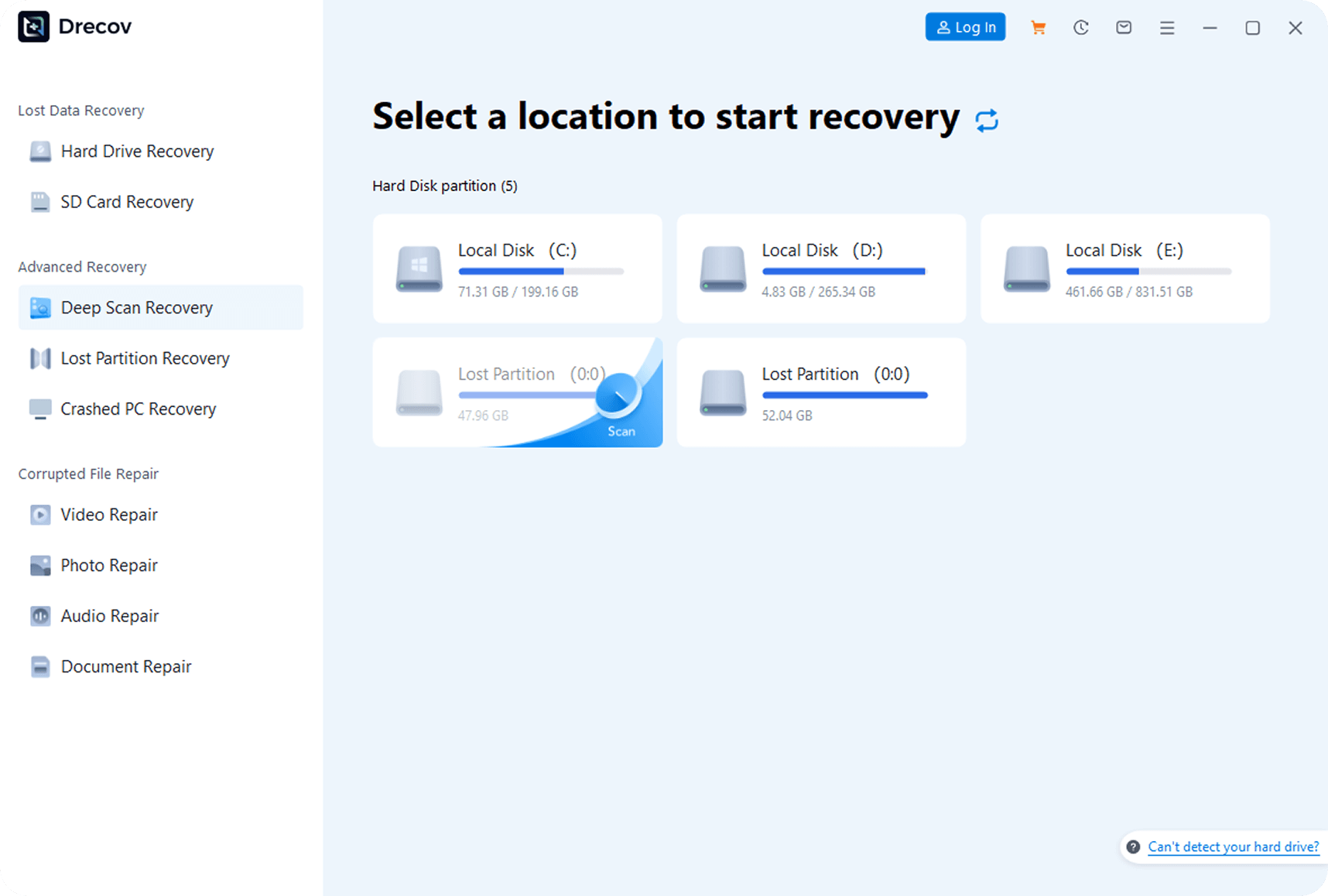
Step 1.Select Mode
After launching the software, choose ‘Quick Scan’ or ‘Deep Scan’ mode, and specify the original storage location (e.g., hard drive partition, USB drive).
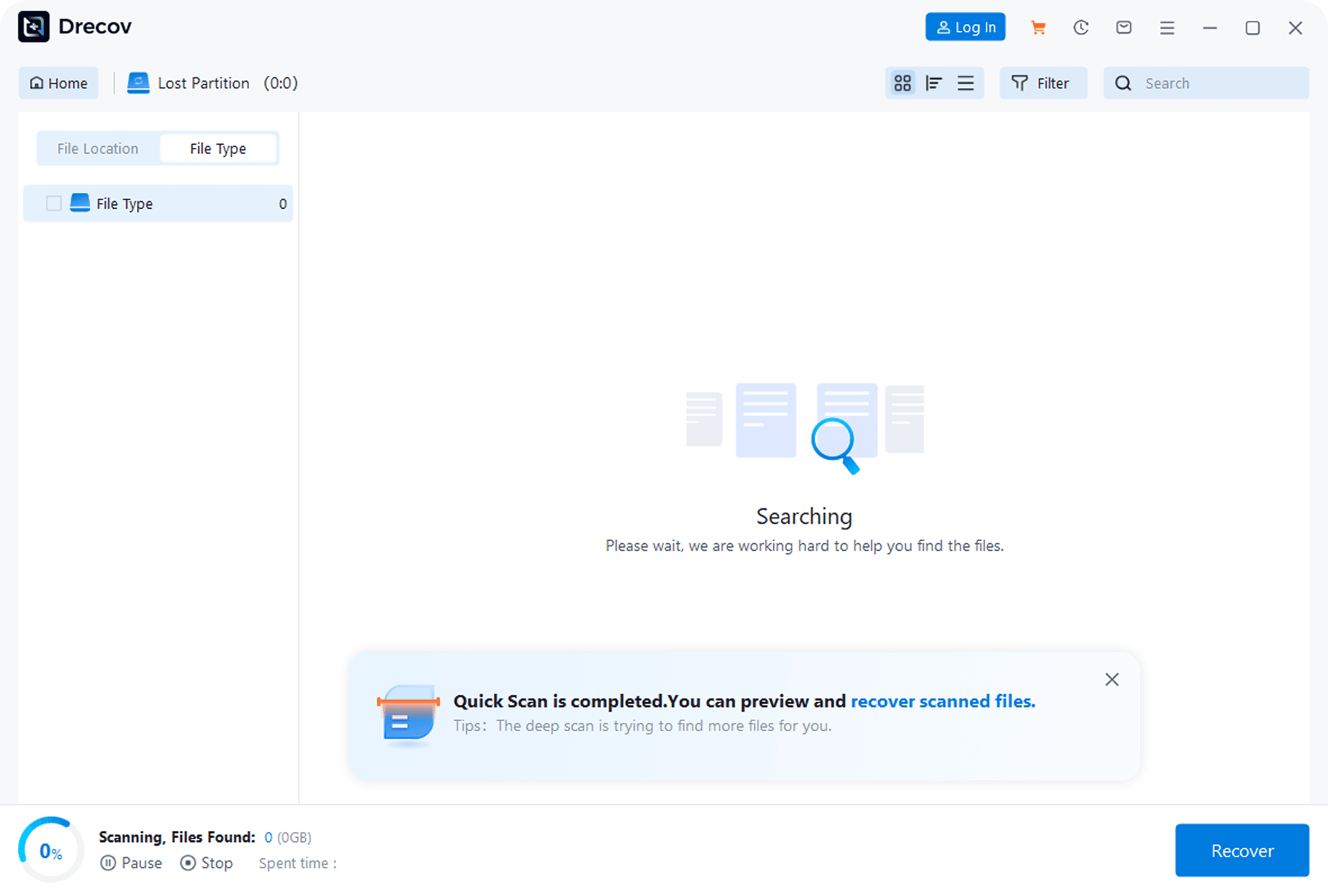
Step 2.Start Scan
Click the ‘Start Scan’ button to fully search for recoverable files in the selected location.
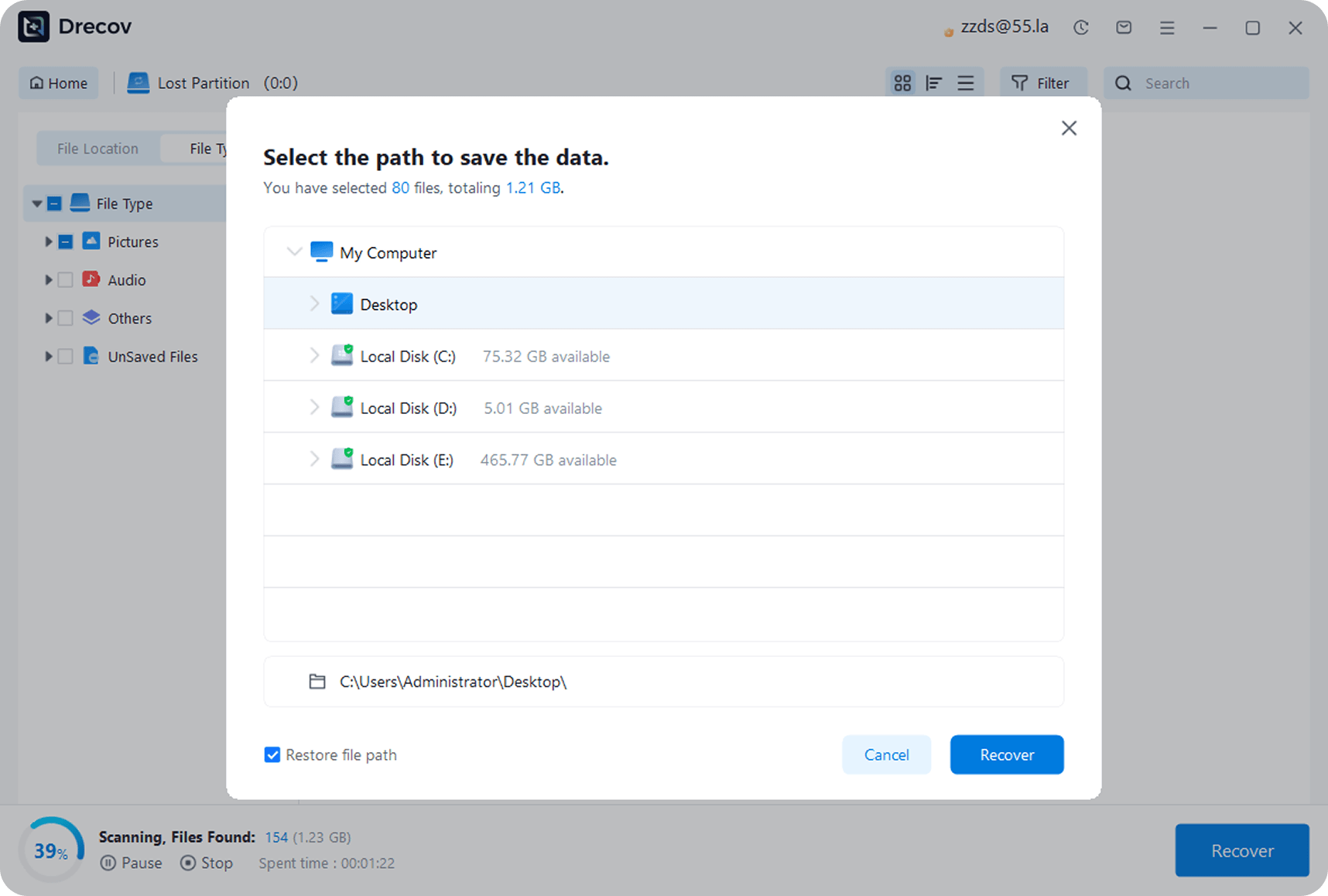
Step 3.Recover Data
After scanning, preview the files, select the needed ones, click ‘Recover,’ and save them to a safe location different from the original (to avoid overwriting).
Common Recovery Scenarios
No matter how you lost your data, PandaOffice Drecov has the solution for you.
Accidental Deletion
Recover files that were mistakenly deleted from the Recycle Bin.
Formatted Hard Drive
Restore data from a formatted hard drive.
System Crashes
Recover important data after a system crash.
Lost Partitions
Find and recover data from lost or deleted partitions.
Corrupted Files
Repair and recover damaged or corrupted files.
Virus Infection
Recover data from a system that has been infected by a virus.
Supported Storage Devices
PandaOffice Drecov works with all major storage devices to recover your lost data.
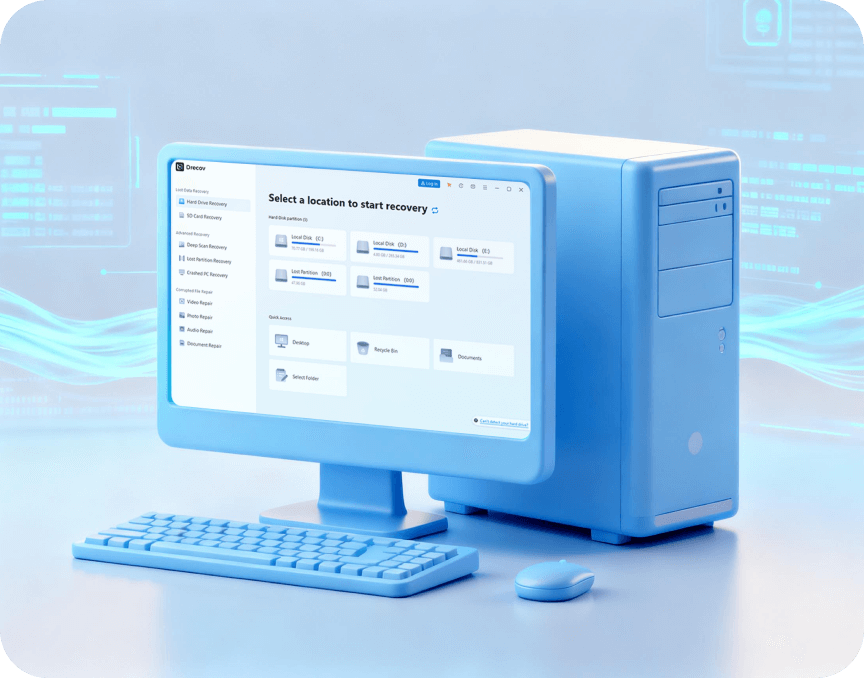
Desktop Computers

Laptops

External Hard Drives

SSD Drives
Hear from Our Users
Users from all walks of life have chosen PandaOffice Drecov and successfully recovered their valuable data. Read their stories.

John Doe
Financial Manager
“I accidentally emptied the Recycle Bin containing important financial data. PandaOffice Drecov helped me get all my Excel spreadsheets back and saved me from a major disaster.”


Jane Smith
Photographer
“I mistakenly deleted a client’s photo folder. PandaOffice Drecov not only recovered all the photos but also kept their original quality, and my client was incredibly happy.”

Alex Williams
Graduate Student
“My thesis draft was accidentally deleted. PandaOffice Drecov found every version of the document, which allowed me to complete my final defense on time.”
Explore Our Data Recovery Guides
Browse our expertly written tutorials and guides to learn how to effectively prevent data loss and efficiently recover your important files when you need to.

How Can You Recover Deleted Files from Recycle Bin
7 Ways to Recover Deleted Files from the Recycle Bin – Quickly Retrieve Accidentally Deleted Data and Avoid Losses.

How to Recover a File from the Recycle Bin:A Complete Guide
Need to recover a file from the recycle bin? This user guide offers quick solutions, including software and backups.

How to Recover Deleted Files Not in Recycle Bin | Complete Guide
eed to recover files not in Recycle Bin? This guide covers Windows File Recovery, software & professional solutions.

How to Recover Deleted Files from Recycle Bin [2025 Guide]
Accidentally lost files to/from Recycle Bin? This guide covers 3 recovery scenarios.

How to Recover Files Deleted from the Recycle Bin
Files deleted from Recycle Bin? This guide shares 3 quick methods—direct restore, PandaOffice Drecov, and system backup.

How to Recover Files from Emptied Recycle Bin: Expert Tips
Accidentally emptied Recycle Bin? This guide shares 3 proven ways to recover files. Fast, safe, no tech skills needed.
Download Now and Get Your Files Back
Don’t wait. Download PandaOffice Drecov now and start getting your lost files back. Our free scan feature allows you to see what’s recoverable before you decide to buy the full version.



