







Yes, recover deleted browser history can help when the missing data was stored locally, the source is still readable, and you stop using the affected storage before new data overwrites it. Start with built-in restore paths and backups. Use recovery software only after you know the source, the likely time of loss, and the safest destination.
This guide covers cleared browser history, missing downloads, or a deleted browser profile. It separates cloud, account, backup, phone, browser, email, and local-drive situations so you do not scan the wrong place. PandaOffice Drecov is included as a practical option for readable local storage, not as a password bypass tool or cloud-server recovery shortcut.
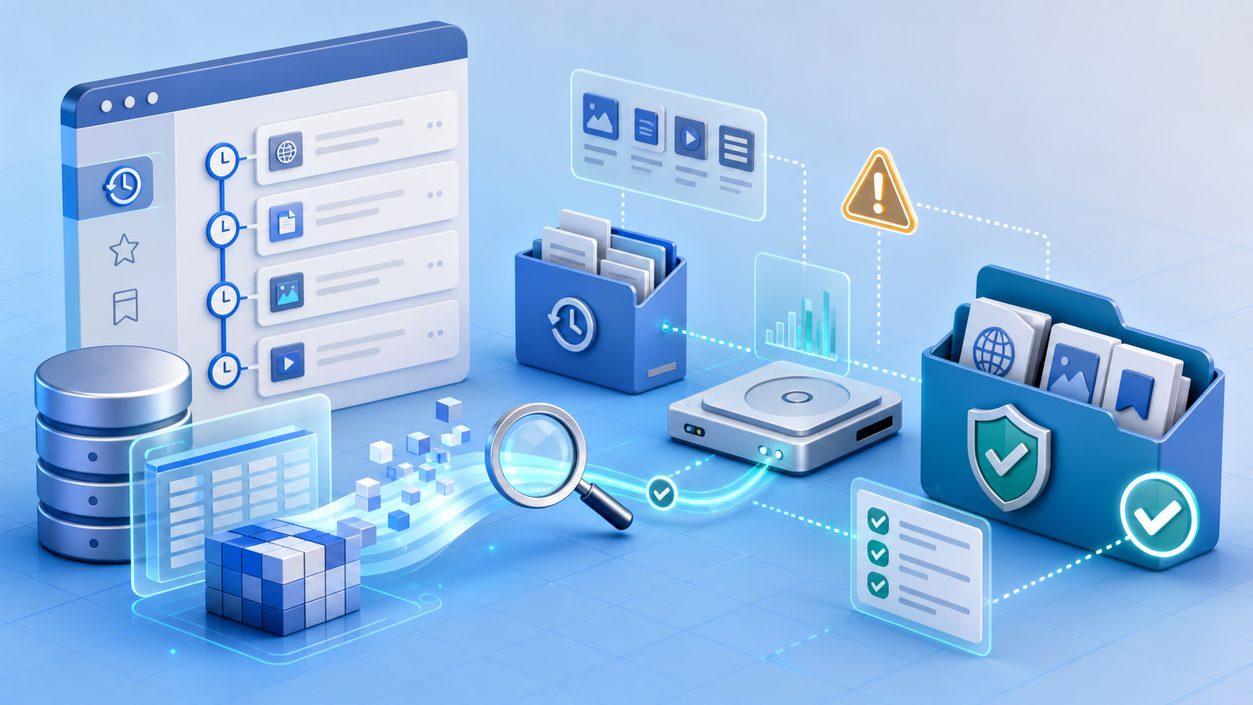
Recover Deleted Browser History: Quick Answer And Limits
The first safe action is to keep the browser profile folder or readable system drive quiet. Downloads, sync updates, browser cache, mail indexing, phone exports, and repair commands can all create new writes. Those writes may replace file records that recovery tools still need. A few quiet minutes at the start can matter more than a long scan later.
The second action is to choose the correct recovery path. Account trash restores server-side files. Backup history restores known copies. Application recovery restores unsaved work. Local file recovery scans readable storage. Mixing these paths creates noise, and noise leads to bad decisions.
| Case | Best First Move | Risk To Avoid |
|---|---|---|
| Cloud-only item | Check account trash and version history | Do not scan a drive that never stored the file |
| Synced local copy | Pause sync and inspect the local folder | Do not let sync repeat the deletion |
| Computer deletion | Check Recycle Bin, File History, and backups | Do not install tools on the affected drive |
| Readable local media | Scan to another healthy destination | Do not recover back to the same source |
Use this table before trying recover deleted browser history. It keeps the case grounded in evidence. If a clean copy exists in trash, backup, export, or version history, recover that copy first. If no clean copy exists and the browser profile folder or readable system drive remains readable, a careful scan becomes reasonable.
Diagnose The Loss Before You Scan
Record The Original Source
Write down where browser profile databases, cache files, downloads, bookmarks, and local account folders last existed. Include the device, account, folder, file extension, application, approximate deletion time, and recent actions. This step feels basic, but it prevents a broad scan from turning into a long list of unrelated fragments.
A phone backup, browser profile, email archive, cloud folder, and local disk each require a different first move. For example, an email that never existed in a local mail file cannot be recovered by disk software. A downloaded attachment, however, may leave a local copy in Downloads or a temporary folder.
Check Cleaner Sources First
Check account trash, application recovery panels, File History, Previous Versions, OneDrive or cloud versions, exported ZIP files, and external backups before using deep scan. If a Windows change caused the loss, compare the situation with restore a computer to an earlier date on Windows before assuming the file itself was deleted.
When external storage behaves oddly, read symptoms before repairing it. The guide to fix a LaCie hard drive that is not showing up on Mac is useful when a drive is not showing correctly. Repair commands may help an operating system, but they can also change metadata that recovery software would have inspected.
Separate Local Recovery From Account Recovery
Account recovery restores access or server-side retention. Local recovery scans a device that actually stored the content. The difference matters for messaging apps, cloud folders, and email. If the provider still holds a copy, use the provider path first. If the provider copy is gone but a local export exists, protect the local storage and scan that source.
For creative files, projects, media, and app exports, file type behavior can change the plan. The guide to recover Illustrator project files explains why original paths and application-specific backups matter. Similar logic applies to spreadsheets, mail archives, chat media, browser profiles, and downloaded videos like recover deleted or draft TikTok videos.
Choose The Safest Recovery Method
Use Built-In Restore When It Exists
Built-in restore is usually cleaner than a raw scan. It preserves names, folders, dates, versions, and ownership context. Look for trash, archive, undo, version history, recently deleted folders, backup snapshots, and device backups. Open restored files in a separate folder before replacing current work.
Do not overwrite a newer file while testing an older backup. Restore the copy to a review folder, compare dates, inspect content, and keep both until the owner confirms the correct version. Many recovery mistakes happen after files are found, not before.
Use Local Scans For Readable Storage
A local scan is useful when browser profile databases, cache files, downloads, bookmarks, and local account folders were stored on a readable disk, card, computer, export folder, or mail archive. The scan should not write to the source. It should allow preview, filtering, and recovery to another destination. Without those controls, the result is harder to trust.
Free tools can still help, especially for a quick preview. The safer question is not whether a tool is free. The safer question is whether it shows evidence before recovery, avoids source writes, explains limits, and lets you choose a healthy destination.
Stop When Hardware Or Access Limits Appear
Stop DIY work if the device clicks, disconnects, freezes, changes capacity, or reports repeated I/O errors. Continued scans can make a fragile case worse. Save visible files, document symptoms, and avoid formatting or repair commands until a safer plan exists.
Also stop if the problem is password access, account ownership, or encryption without a legitimate key. Recovery software cannot lawfully bypass strong account or encryption controls. Use owner-approved account recovery, administrator recovery, or official provider support first.
Use PandaOffice Drecov For Readable Local Storage
PandaOffice Drecov is appropriate when browser profile databases, cache files, downloads, bookmarks, and local account folders were stored locally and the browser profile folder or readable system drive can still be read. It can scan for deleted documents, images, videos, archives, downloaded files, mail exports, spreadsheets, and files lost after formatting or file-system damage.
Risk level: medium for normal deletion, higher after formatting, and high for unstable devices. Install and run the software from a healthy location when possible. Recover results to another healthy drive, not to the browser profile folder or readable system drive.
Steps
- Connect or mount the readable source and stop other writes.
- Open PandaOffice Drecov and choose the affected device, folder, card, or drive.
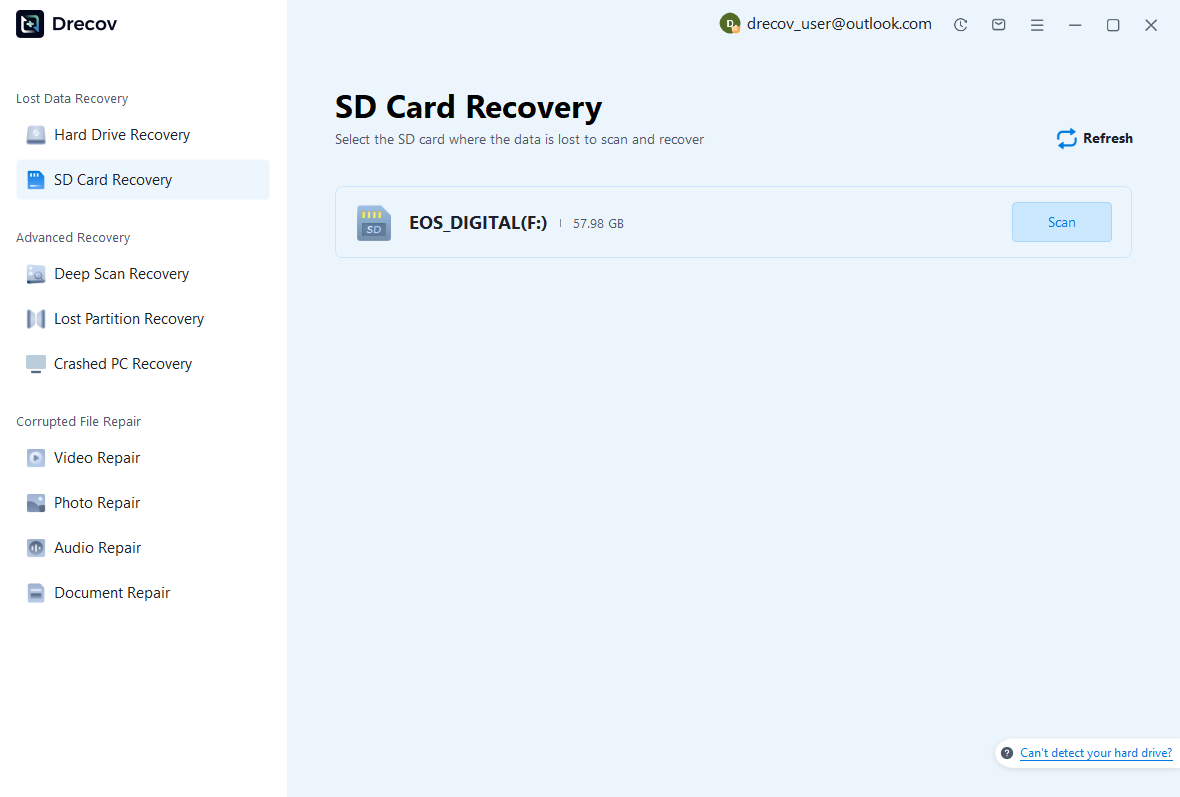
- Start the scan and wait for quick scan and deep scan results.
- Filter by file type, path, size, date, or name to reduce noise.

- Preview important files before saving them.
- Recover selected files to a different healthy drive and verify samples.

Review Results Without Creating New Problems
Preview Before A Full Save
A good-looking file name is not enough. Preview the file, check the size, inspect the original path, and compare the date range. Photos should open at full size. Documents should open beyond the first page. Videos should play at several points. Spreadsheets should show sheets, formulas, and linked data.
For recover deleted browser history, expect duplicates and fragments. Results can include thumbnails, cache copies, old backups, temporary files, and partial records. Recover the most important candidates first, verify them, then expand to less important groups. This keeps the destination organized.
Keep The Source Untouched
Do not clean the disk, empty more trash, reinstall apps, rebuild mail profiles, re-sync cloud folders, or move recovered files back to the source during review. A quiet source keeps the option for a second scan. If the first tool gives poor results, you still have a stable starting point.
Create folders named verified, needs review, duplicates, and fragments on the destination. Add a short note with the source, scan date, scan mode, and examples that opened. These small details make later review faster and safer.
Validate The Final Set
Recovery is complete only when the important files open and the recovered set has a backup. Do not delete old copies just because the folder looks complete. Keep original storage aside until the owner confirms that the recovered work, messages, media, or records are usable.
When several versions exist, compare content rather than trusting the newest date. A slightly older version that opens may be more useful than a newer broken copy. Keep multiple candidates until a clear choice exists.
Scenario Notes And FAQ
Can Recovery Software Restore Cloud Files?
Only if a local copy, sync folder, download, cache, export, or archive existed on the computer. Cloud-only data depends on the provider retention window. Start inside the account, then scan local storage only when there is evidence that the content touched local media.
What If The File Was Overwritten?
Overwritten content may no longer exist in the same storage blocks. Search backups, versions, autosaves, temporary files, exports, attachments, and older devices. Recovery software may find related copies, but it cannot recreate data that the storage no longer contains.
Should I Try Several Tools?
Compare tools carefully, but do not install them on the affected source or run repair actions between scans. If a scan is weak, narrow the location, change filters, scan a disk image, or stop when hardware symptoms appear. Random repetition rarely improves a serious case.
How Do I Prevent The Same Loss?
Turn the case into a backup rule. Enable version history for active folders, export important account data, keep a separate external backup for archives, and test restores before an emergency. Sync is convenient, but sync is not the same as backup.
Map The Evidence Before Recovery
Create a short evidence map for recover deleted browser history. The map can be simple: source, account, app, folder, time range, file type, and last known good copy. This prevents the recovery from drifting into guesswork. It also helps you explain why one method was chosen before another.
Evidence matters because many losses look similar at first. A missing email may be server-side. A missing attachment may be a downloaded file. A deleted chat image may live in a phone gallery, cloud backup, or SD card. A workbook may have an AutoRecover copy, a temporary copy, and a deleted original.
When the source is a shared computer, record the Windows user profile as well. Different user folders can contain different Downloads, Desktop files, browser profiles, mail archives, and app caches. Scanning the wrong profile wastes time and may make the right result look absent.
Use Time Windows Instead Of Guessing
A time window reduces noise. Note when the file last opened, when deletion likely happened, when sync ran, when the device was repaired, and when you first noticed the loss. These times help you filter scan results and choose between several versions.
Do not rely only on modified date. Some restored files keep original dates, some keep recovery dates, and some cloud exports use download dates. Compare file content, folder context, size, and preview. The correct file may not be the newest file in the list.
For browser, email, phone, and cloud cases, time windows are even more important. Retention windows may expire. Local cache may rotate. Phone backups may overwrite older snapshots. A calm search in the right time range is faster than a broad scan of everything.
Prepare The Destination Before Saving
A safe destination should have enough free space, stable power, and a clear folder structure. Create one folder for the case, then subfolders for verified, needs review, duplicates, fragments, and notes. This keeps the first recovery set from turning into another mess.
Use a different physical drive when possible. If the source is a system drive, recover to an external drive. If the source is an SD card, recover to the computer or an external disk. If the source is an external disk, recover to another disk. The destination should never compete with the source.
After saving a small test batch, open the files from the destination. If the destination is slow, full, or unstable, fix that before recovering more. A weak destination can corrupt or confuse a recovery that otherwise worked.
Handle Duplicate Results Deliberately
Duplicate results are not automatically bad. They can represent a current copy, a deleted copy, a cached copy, an autosave, a synced copy, or an older version. Do not delete duplicates during the first pass. Mark them and compare later.
The best duplicate is the one that opens and contains the needed content. A file with the original name but broken content is less useful than a renamed copy that opens. Preview and sample testing should decide the winner.
For documents and spreadsheets, compare several pages or sheets. For photos, zoom in. For videos, test several points. For mail archives, open several messages and attachments. For call logs or exports, check headers and row counts.
Watch For Hidden Write Sources
Some writes are obvious, such as downloading a tool to the affected drive. Others are hidden. Browsers write cache. Email clients index mail. Cloud tools sync changes. Operating systems create thumbnails and logs. Antivirus tools may quarantine files. These background writes can matter.
If possible, pause sync clients, close mail apps, stop large downloads, and avoid normal browsing on the affected system. When the source is a removable card or external disk, remove it after noting symptoms and scan it from a controlled computer.
This caution does not mean every case is fragile. It means you should not create unnecessary writes before you know the cause. Once verified recovery and backup are complete, normal use can resume.
Know What PandaOffice Drecov Cannot Do
PandaOffice Drecov can scan readable storage for recoverable local file records and file signatures. It cannot recover cloud-only data from a provider server, bypass a locked account, decrypt strong encryption without a key, repair physically failing media, or guarantee overwritten content.
That limitation is useful. It keeps the workflow honest. If the data never existed on local storage, use account or provider recovery. If the data was encrypted, use the correct key or administrator recovery path. If the device is physically unstable, reduce DIY scans.
For recover deleted browser history, the strongest result comes from matching the tool to the evidence. Use PandaOffice Drecov when the evidence points to readable local storage. Use other official paths when the evidence points elsewhere.
Make The Review Repeatable
A repeatable review helps if someone else joins the case. Write the source, scan type, destination, key filters, recovered folders, and sample files that opened. Save this note with the recovered files. It prevents another person from repeating risky steps.
If the case belongs to a client, team, or family member, record owner approval and the reason for recovery. The note does not need legal wording. It simply makes clear that the work is owner-authorized file recovery, not access bypass.
When results are incomplete, the note helps you decide the next move. You can rescan a narrower folder, check another backup, inspect a different account, or stop because the device shows hardware symptoms. Without notes, every next move feels like starting over.
Create A Post-Recovery Safety Plan
The final recovery step is prevention. Turn on version history for active work folders. Export account data that matters. Keep important phone media in more than one place. Store mail archives and spreadsheets in named folders instead of relying on temporary locations.
Use a practical 3-2-1 pattern when the files matter: three copies, two storage types, and one copy away from the main computer. For many users, that means the working device, an external drive, and a trusted cloud or offsite backup.
After cleared browser history, missing downloads, or a deleted browser profile, write down what protected the data and what failed. That note turns this recovery into a better routine. The next loss should begin with a checklist, not panic.
Final Quality Pass
Before closing the case, run one more quality pass. Open a sample from every recovered folder, not only the first folder that looks correct. Check small files, large files, recently edited files, and older files. This catches cases where one file type recovered well while another file type remained damaged.
Keep the recovery destination read-only for a short review period if the files are important. During that period, the owner can confirm whether rare folders, old attachments, or seldom-used project files are still missing. A short review period is safer than cleaning the source too quickly.
This last pass makes recover deleted browser history practical rather than rushed. It connects the scan result to real use: files that open, folders that make sense, notes that explain the process, and backups that protect the verified set.
If the recovered set supports work, school, taxes, legal records, or client delivery, schedule a second review after normal use resumes. People often notice a missing template, attachment, export, or older version only when they return to the real workflow. Keeping the source protected during that period gives you one more chance to search safely.
When the second review finds nothing missing, label the recovery as complete and back up the verified folder. At that point, remove temporary installers, keep notes, and store the recovered files in the normal long-term location. A clean finish prevents future confusion.
Final Checklist And Conclusion
Before using recover deleted browser history, confirm where the data lived, stop new writes, check built-in restore paths, choose a safe destination, and preview important files. The goal is not simply to run software. The goal is to restore the correct data while preserving the source.
- Protect the original source before scanning.
- Use account trash, backup, or version history when available.
- Scan only readable local storage.
- Recover to another healthy drive.
- Verify important files before deleting old copies.
Recover Deleted Browser History: Realistic Browser And Local File Methods comes down to sequence. The safest recovery starts with evidence, not panic. Built-in restore is best when it works. PandaOffice Drecov helps when local readable storage still holds recoverable records. Slow down, protect the source, and save verified files to a safe place.






