







SD cards serve as a primary storage solution for a wide range of devices, from professional cameras and drones to smartphones and gaming consoles. While convenient, they are not immune to technical issues; encountering a “Blank SD Card” notification or a “disk is corrupted” prompt is a common frustration for many users. When files become inaccessible, navigating the variety of available data recovery tools for sd card is the most practical step toward retrieval.
This guide provides a technical overview of why SD card failures occur and offers a series of manual troubleshooting methods to resolve mounting issues. Additionally, we will examine the role of professional recovery software, such as PandaOffice Drecov, in restoring data when standard system repairs are insufficient.
Why Do SD Cards Fail?
Before you reach for data recovery tools for sd card, you must identify why the device is failing. A “blank” SD card rarely means the data is physically gone; instead, it usually indicates that the operating system can no longer read the “map” of the data.
Common Failure Scenarios:
- File System Corruption: This is the most frequent culprit. If the File Allocation Table (FAT) or exFAT structure suffers damage due to a power surge or improper ejection, the computer sees the card as “Raw” or empty.
- Logical Partition Errors: Sometimes, the partition table itself becomes unreadable. In these cases, standard file explorers will report 0 bytes of used space.
- Virus or Malware Attacks: Malicious scripts often hide files by changing their attributes or encrypting the directory index, making the card appear blank.
- Driver Incompatibility: Outdated card reader drivers on your PC can prevent the system from mounting the SD card correctly, leading to false “unsupported” errors.
Manual Troubleshooting: First Steps Before Using Recovery Software
You should always attempt non-invasive fixes before deploying heavy-duty data recovery tools for sd card. These methods can often resolve minor connectivity or mounting issues.
Method A: The CHKDSK Command (Windows)
The Check Disk utility is a built-in Windows tool designed to repair file system errors.
- Connect your SD card to the PC.
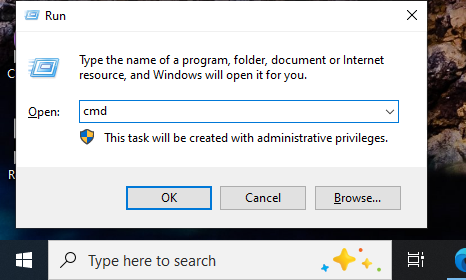
- Open the Command Prompt as an Administrator.
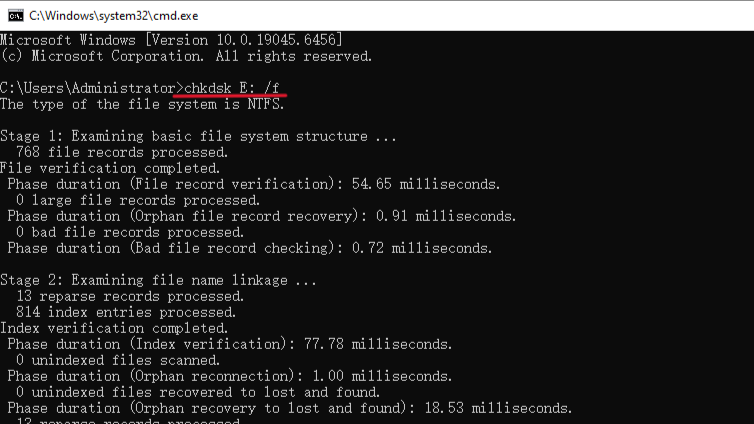
- Type chkdsk X: /f (Replace ‘X’ with your SD card’s drive letter) and hit Enter.
🚨Note: While effective, CHKDSK can sometimes fail on severely corrupted cards, making professional software a safer bet.
Method B: Assigning a New Drive Letter
Sometimes Windows fails to assign a path to the card, causing it to remain “invisible” or blank.
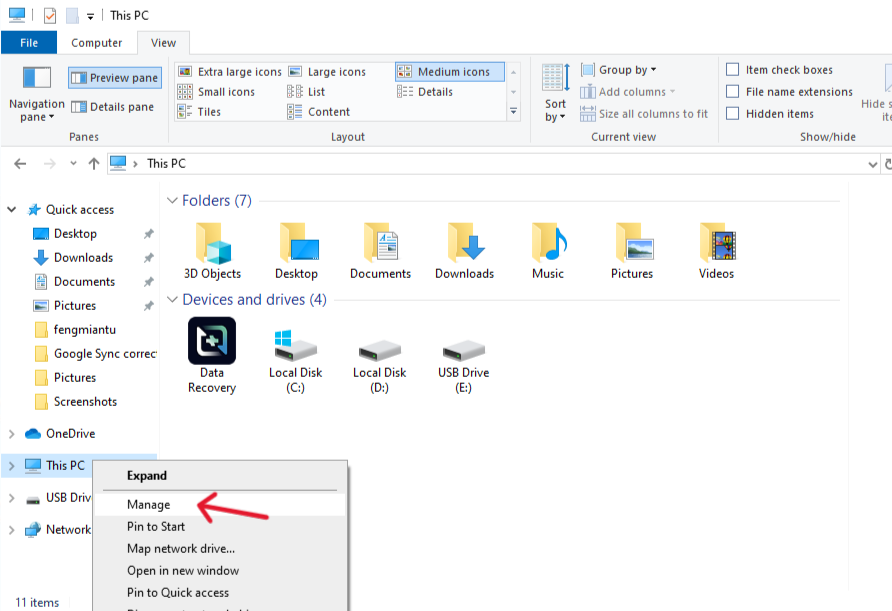
- Right-click “This PC” and select Manage > Disk Management.
- Locate your SD card, right-click it, and select Change Drive Letter and Paths.
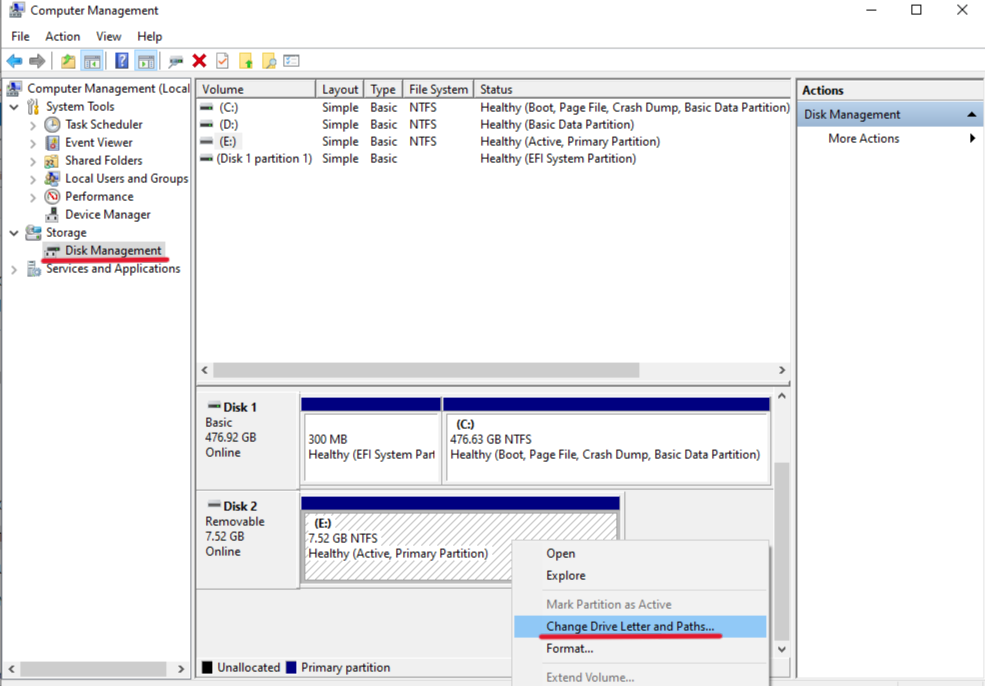
- Assign a new letter (e.g., from E: to M:) and see if the files reappear.
Deep Dive: Why PandaOffice Drecov is the Preferred Data Recovery Tool for SD Card
When manual fixes fail, you need a specialized engine that can bypass the operating system’s limitations. PandaOffice Drecov has earned its reputation as one of the most reliable data recovery tools for sd card by focusing on three core pillars: Precision, Safety, and Speed.
Advanced Signature Scanning
Unlike generic utilities that only look for file headers, PandaOffice Drecov utilizes Deep Signature Scanning. This technology identifies files based on their unique binary patterns. Even if the entire file system is wiped, Drecov can reconstruct JPG, MP4, and RAW files by recognizing their internal data structures.
The “ReadOnly” Guarantee
Safety is paramount during data rescue. Many low-quality data recovery tools for sd card attempt to “fix” the card while scanning, which can accidentally overwrite the very data you are trying to save. PandaOffice Drecov operates in a strict read-only mode, ensuring that the original bits on your SD card remain untouched.
High-Speed Multi-Threaded Engine
Time is often of the essence. Drecov’s architecture leverages multi-core processors to scan high-capacity 512GB or 1TB SD cards significantly faster than traditional tools. This efficiency makes it the go-to data recovery tools for sd card for professional photographers who need to recover a full day’s shoot instantly.
Step-by-Step Guide: Recovering Data from a Blank SD Card
Using professional data recovery tools for sd card does not require a degree in computer science. Follow these streamlined steps to restore your files using PandaOffice Drecov:
Step 1: Connect and Identify
Insert your SD card into a reliable card reader. Launch PandaOffice Drecov and select the drive corresponding to your SD card under the “External Devices” section.

Step 2: Comprehensive Scan
Click “Scan” to initiate the process. The software will first perform a Quick Scan for recently deleted files, followed by a Deep Scan to uncover data from formatted or corrupted sectors. You can monitor the progress in real-time as the data recovery tools for sd card populate the file list.
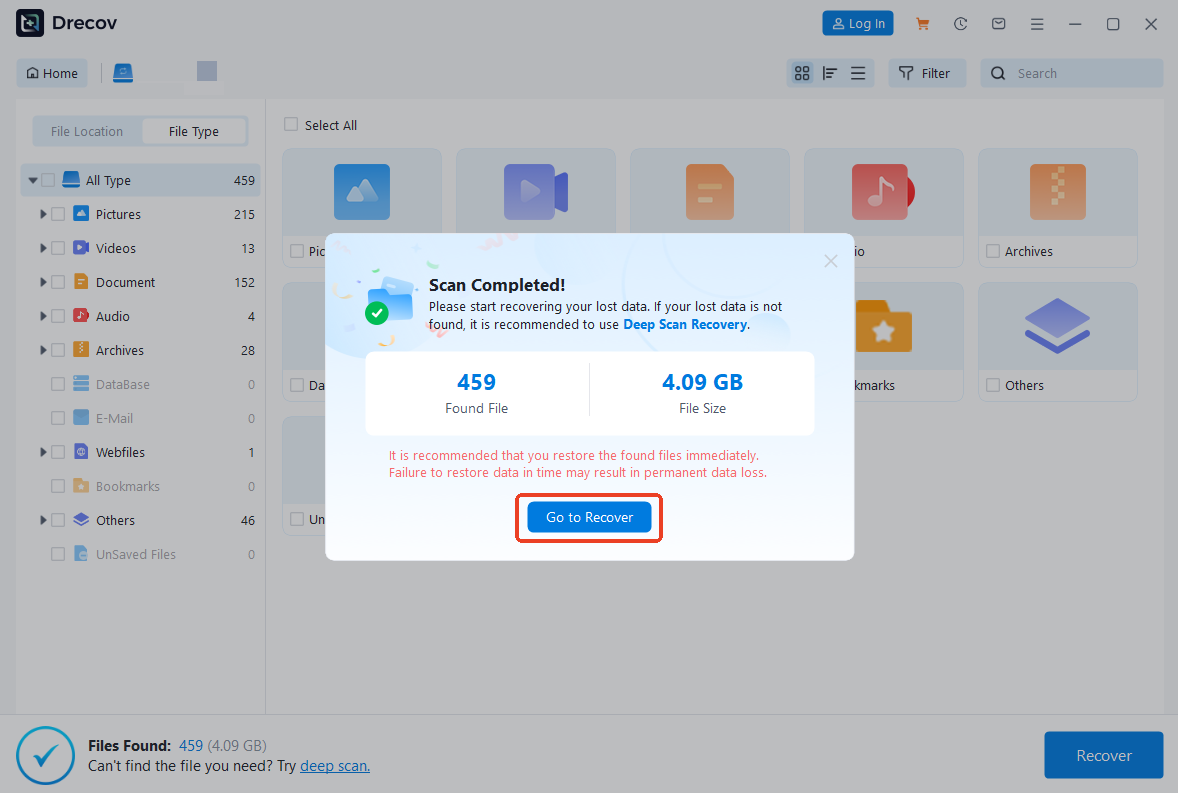
Step 3: Preview and Filter
One of the standout features of Drecov is the Live Preview. You can click on images or play video snippets before the recovery is complete. This ensures you are recovering the correct files and verifies their integrity.

Step 4: Secure Export
Select the files you wish to keep and click “Recover.”
🚨 Crucial Tip: Always save your recovered data to your computer’s internal hard drive or a different USB drive—never save it back to the problematic SD card.
Comparative Analysis: Choosing the Right Data Recovery Tools for SD Card
The market is flooded with options, but not all data recovery tools for sd card are created equal. Below is a comparison of how PandaOffice Drecov stacks up against common alternatives:
| Feature | Freeware (e.g., Recuva) | PandaOffice Drecov |
| Recovery Logic | Simple directory scanning | Advanced Binary Reconstruction |
| RAW File Support | Limited | Comprehensive (Canon, Nikon, Sony, etc.) |
| Success Rate | Moderate (40-50%) | Industry-Leading (Up to 98%) |
| Video Repair | None | Built-in Video Fragment Merging |
| User Interface | Basic/Dated | Modern and Intuitive |
While free data recovery tools for sd card might work for a simple accidental deletion, they often struggle with the “Blank SD Card” error where the file system itself is compromised. Investing in a professional tool like Drecov significantly increases the likelihood of a 100% recovery.
Proactive Protection
While professional data recovery tools for sd card like PandaOffice Drecov offer a reliable safety net, the ultimate goal is to minimize the need for recovery. Implementing a rigorous maintenance routine can extend the lifespan of your flash memory and protect your digital assets.
1.The “Format, Don’t Delete” Rule
One of the most common mistakes is deleting files one by one while the card is still inside your camera or connected to a PC. This process leaves “fragments” in the File Allocation Table. Instead, once you have safely transferred your photos to your computer, use the “Format” function within your camera’s menu. Formatting refreshes the entire file structure and ensures the card remains optimized for the specific hardware you are using.
2.Implement the 3-2-1 Backup Strategy
You should never treat an SD card as a long-term storage solution. These devices use NAND flash memory, which can degrade over time or lose data if left unpowered for years. Follow the 3-2-1 rule:
- Keep 3 copies of your data.
- Store them on 2 different types of media (e.g., one on your internal SSD and one on an external HDD).
- Keep 1 copy offsite, such as in a secure cloud storage service.
3.Environmental and Physical Shielding
SD cards are sensitive to static electricity and physical stress.
- Use Protective Cases: When not in use, always store your cards in a hard plastic case to prevent the gold contact pins from scratching or accumulating oils from your skin.
- Avoid Extreme Temperatures: High heat (such as a car dashboard in summer) can warp the casing and damage the internal controller, leading to errors that even the best data recovery tools for sd card may struggle to bypass.
4.Monitor Card Health with S.M.A.R.T. Attributes
Modern high-performance SD cards often support health monitoring. You can use utility software to check the “wear leveling count.” If a card shows signs of aging or high bad sector counts, retire it immediately. It is far more cost-effective to replace a $40 card than to risk a $4,000 project.
5.Quality Control: Avoid “Counterfeit” Traps
The market is flooded with “high-capacity” cards at suspiciously low prices. These cards often use hacked controllers that report a fake storage capacity (e.g., a 64GB card appearing as 512GB). Once you exceed the real capacity, the card begins overwriting old data, making it unrecoverable even by advanced data recovery tools for sd card. Always purchase from authorized retailers and use tools like H2testw to verify the true capacity of a new card.
Conclusion
A blank or corrupted SD card is not a death sentence for your data. By understanding the underlying causes and utilizing the right data recovery tools for sd card, you can navigate these digital crises with confidence. PandaOffice Drecov stands out as a robust, user-friendly, and highly effective solution designed to handle the toughest recovery scenarios.
Don’t let a technical glitch erase your hard work or cherished memories. Download the trial version of PandaOffice Drecov today and experience why it is considered one of the most trusted data recovery tools for sd card on the market.






