







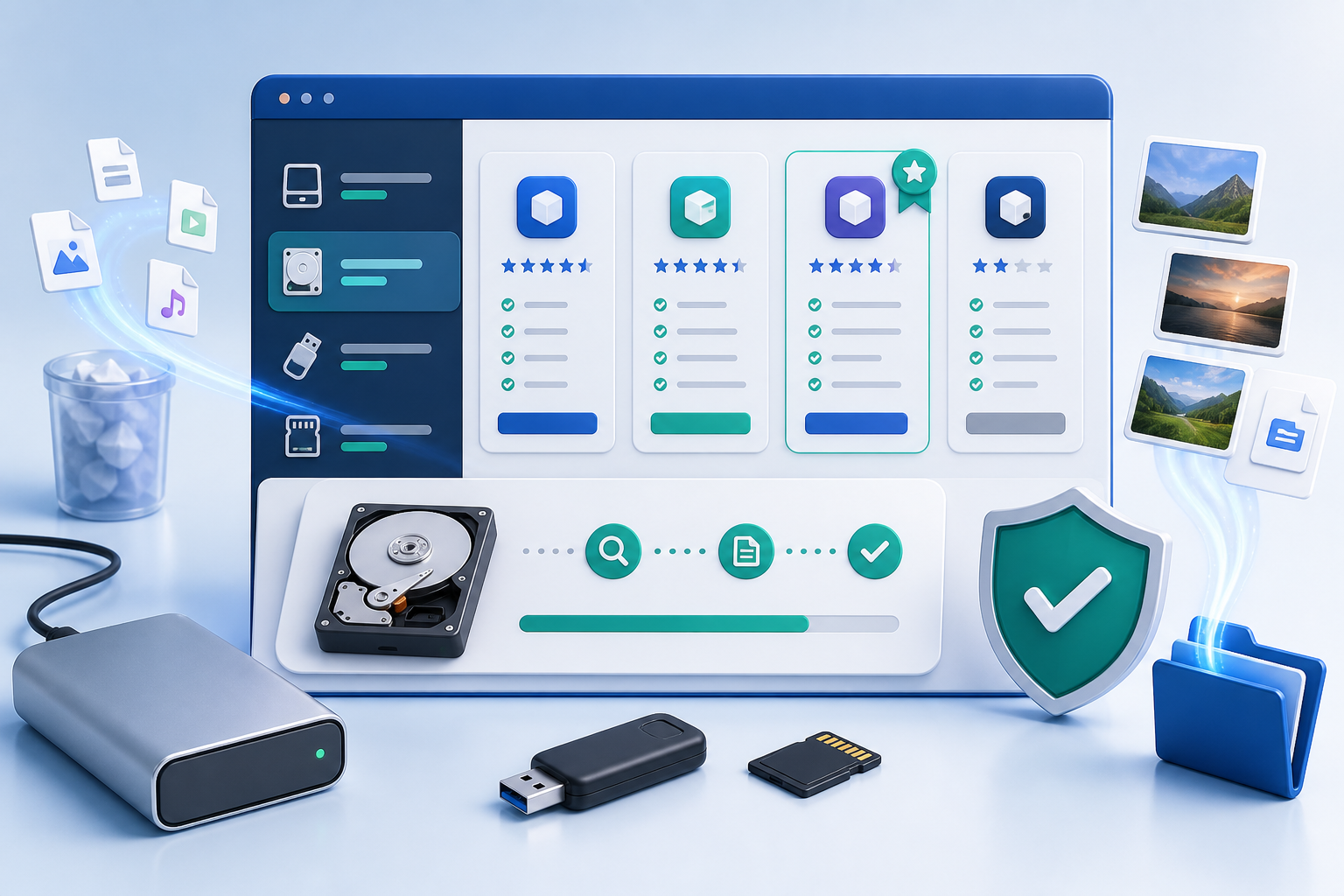
Choosing data recovery software is easier when the options are grouped by real data loss situations. This review hub explains the most common recovery tools, when each one makes sense, and where PandaOffice Drecov fits for local file recovery. If you need to recover deleted files from a computer, SD card, USB drive, external hard drive, or readable local folder, start with a tool that lets you scan safely, preview files, and save recovered data to another drive.
Short answer: PandaOffice Drecov is a practical choice for owner-authorized local storage recovery, especially when files were deleted, a card or USB drive was formatted, or an external drive is still readable. It should not be used for unsupported NAS recovery, account-only cloud recovery, password bypass, phone lock bypass, or encrypted drive unlocking without a valid key. For advanced RAID repair, forensic workflows, or command-line partition repair, specialist tools may be a better fit.
This page follows a review-hub format. It gives an editor-style overview, compares popular tools, explains alternatives, and points readers toward the right recovery category without pretending that one program solves every storage problem.
Best Data Recovery Software – Editor’s Pick
For most everyday recovery cases, the best first choice is software that balances safety, preview, ease of use, and local storage support. A user who just deleted files or formatted a USB drive usually does not need a forensic workstation. They need a clear scan path, visible results, file filters, and a safe recovery destination.
That is why this review hub treats PandaOffice Drecov as an editor’s pick for common local recovery jobs rather than a universal answer for every storage failure. The recommendation is strongest when the lost files were on a readable computer drive, USB drive, memory card, or external disk. It becomes weaker when the storage device is physically failing, managed by a RAID controller, locked behind encryption, or available only through a cloud account.
The best recovery software should also reduce panic. A clean interface, previewable results, and plain language can help users avoid risky actions such as formatting the source drive, saving recovered files back to the same disk, or trying random repair commands before a scan. Those practical details matter more than a long feature list.
Readers should also judge a recovery tool by the decision it helps them make before scanning. Good software makes the source drive clear, warns users to save recovered files somewhere else, and lets them inspect results before paying or exporting. Poor software may show a large number of files without enough context, which can make the user recover duplicates, damaged fragments, or files from the wrong location.
| Feature | PandaOffice Drecov | Disk Drill | Stellar Data Recovery | Recuva |
|---|---|---|---|---|
| Best for | Local file recovery from readable drives, SD cards, USB drives, and folders | Fast beginner-friendly recovery and clean interface | Business and advanced recovery workflows | Simple free undelete cases |
| Ease of use | Simple scan, preview, and recover workflow | Very beginner-friendly | Feature-rich but can feel heavier | Lightweight and basic |
| Preview before recovery | Recommended for checking important files before saving | Strong visual preview flow | Useful preview options | Limited by file type and case |
| Advanced cases | Good for supported local storage cases | Better for common consumer recovery than technical repair | Better for complex business environments | Not ideal for severe formatting or corrupted storage |
| Not suitable for | NAS, account-only recovery, password bypass, failing hardware | Severe hardware damage or unsupported account recovery | Casual users who want the fastest simple path | Deep, complex, or badly damaged recovery cases |
PandaOffice Drecov is the editor’s practical pick for users who want a focused recovery workflow on supported local storage. It is not positioned as a universal repair lab. That limit is important because the safest recovery advice often starts with choosing the right category, not the loudest tool.
Data Recovery Software Reviews | Complete List
The tools below cover different recovery styles. Some are built for everyday users. Others are stronger for technicians, partition repair, file carving, or business storage. Use this list to choose a tool by problem type instead of picking only by brand name.
A complete list should not pretend every program serves the same reader. Some people need a fast free undelete tool for a small mistake. Others need a paid product with preview support, guided scanning, and better handling of formatted drives. A technician may prefer advanced tools that expose file systems, signatures, and partitions, while a home user may simply need to find missing photos without learning storage terms.
| Software | Review Summary | Best Fit |
|---|---|---|
| PandaOffice Drecov | A local data recovery tool for readable drives, external storage, USB drives, SD cards, and common deleted-file cases. It keeps the workflow direct: choose source, scan, preview, and recover to another drive. | Home and office users who need supported local file recovery |
| EaseUS Data Recovery Wizard | A mainstream recovery product with a broad consumer focus and many tutorial-style resources. It is often compared with Disk Drill, Recuva, Stellar, and R-Studio. | Users who want a familiar commercial recovery suite |
| Disk Drill | A polished recovery tool with a clean interface and fast navigation. It is often appreciated by casual users who want a simple visual workflow. | Recent deletion and beginner-friendly recovery |
| Stellar Data Recovery | A more feature-heavy recovery option that often appeals to business users and advanced recovery needs. | Business recovery, organized scans, and broader editions |
| R-Studio | A technical recovery environment with deeper control over file systems and recovery parameters. | Technicians and advanced users |
| Recuva | A lightweight free undelete tool that can help with simple deleted-file cases on healthy storage. | Basic free recovery attempts |
| PhotoRec | An open-source file carving tool that can recover many file types by signature, often without original names or folder paths. | Technical users who accept raw file carving |
| TestDisk | A command-line tool focused on partition table and boot-related repair rather than simple file preview recovery. | Partition repair and advanced diagnostics |
| Data Rescue | A commercial recovery tool known for a clean interface and media-oriented recovery workflows. | Photo and video recovery comparisons |
This list should not be read as a single ranking for every user. A simple Word document recovery case is different from a RAW partition, a formatted SD card, a damaged external drive, or a missing Outlook archive. The best tool is the one that matches the source and risk level.
PandaOffice Drecov Vs Competitors: Head-To-Head Comparisons
Software comparisons are useful when they explain tradeoffs. A faster tool is not always better if it misses folder paths. A technical tool is not always better if the user cannot operate it safely. The comparisons below focus on practical recovery differences, not marketing claims.
Use these comparisons as a starting point, not as a final verdict for every device. The right choice depends on the file system, the type of loss, the condition of the storage device, and whether the user can preview the exact files they need. When a drive makes unusual noises, disconnects often, or shows serious hardware errors, no consumer recovery app should be the first move.
PandaOffice Drecov Vs Disk Drill
PandaOffice Drecov and Disk Drill both target users who want a visual recovery workflow. Disk Drill is known for a polished interface and quick navigation. Drecov should be positioned around a straightforward local recovery process for supported devices such as SD cards, USB drives, external disks, and computer folders.
Choose Drecov when the priority is a simple scan-preview-recover path on supported local storage. Choose Disk Drill when a user wants a broad commercial recovery interface with many consumer-facing extras. In both cases, recover files to a different healthy drive.
PandaOffice Drecov Vs Stellar Data Recovery
Stellar often appeals to users who want more editions and advanced business-facing options. Drecov is a better fit for a focused recovery guide where the user needs to recover files from a readable device without navigating too many technical panels.
For normal deletion, formatted USB drives, SD card photo recovery, and external drive file recovery, Drecov can be presented as a practical option. For enterprise workflows, heavy corruption, or advanced storage environments outside Drecov support scope, Stellar or professional service routes may be more appropriate.
PandaOffice Drecov Vs R-Studio
R-Studio gives advanced users more control, but that control also creates more room for mistakes. It suits technicians who understand file systems, partitions, and imaging. Drecov is easier to explain to a general reader because the steps are simpler.
Use Drecov for supported local file recovery where the source is readable. Use R-Studio when the case needs deeper technical analysis and the operator knows how to avoid writing to the source. If a drive is physically unstable, neither tool should be used casually.
PandaOffice Drecov Vs Recuva
Recuva is attractive because it is lightweight and free for basic cases. It can be useful after a recent deletion on a healthy drive. Drecov is better suited to a guided recovery article because it supports a fuller scan-preview-recover workflow and can be framed for SD cards, USB drives, and external storage cases.
Recuva can be a first experiment for low-risk deleted files. Drecov is the better recommendation when the user wants a clearer path for supported local storage and needs to preview important files before saving.
PandaOffice Drecov Vs PhotoRec And TestDisk
PhotoRec and TestDisk are valuable open-source tools, but they are not simple replacements for a visual recovery app. PhotoRec can recover files by signatures, yet names and folders may be missing. TestDisk can repair partitions, but it is command-line based and not built around previewing individual files.
Drecov is more suitable for users who need a clear interface and selective recovery. PhotoRec and TestDisk are useful when a technical user understands the tradeoff and accepts a more manual workflow.
Alternative Data Recovery Programs For Popular Choices
Alternatives matter because recovery cases vary. A user may start with one tool, then realize the case is outside that tool’s scope. The safest recommendation is to switch categories early rather than force the wrong software into the wrong problem.
This is also where honest product boundaries help SEO and user trust. PandaOffice Drecov can be recommended for supported local recovery work, but the article should point readers elsewhere for NAS recovery, enterprise RAID repair, forgotten password bypass, or cloud-only account recovery. A review hub becomes more credible when it says what not to do.
| User Need | Suggested Direction | Why |
|---|---|---|
| Recover deleted files from a readable computer drive | PandaOffice Drecov, Disk Drill, Recuva | The source is local and readable, so visual file recovery can work |
| Recover photos from SD card | PandaOffice Drecov, PhotoRec, Data Rescue | Preview and file type filters matter for images and videos |
| Recover Office documents | PandaOffice Drecov, Word/Excel AutoRecover, File History | Built-in versions may preserve context better than raw scans |
| Repair lost partition table | TestDisk or technician workflow | This is partition repair, not normal file preview recovery |
| Advanced technical recovery | R-Studio or professional service | Deep control may be needed for complex structures |
| NAS recovery | Vendor support or professional service | Drecov should not be positioned as a NAS recovery tool |
When writing supporting articles, connect each tool to a real use case. For example, a Windows restore problem can link to How To Restore Computer To An Earlier Date On Windows, while a Mac external drive issue can link to How To Fix Lacie Hard Drive Not Showing Up On Mac Complete Guide. These links help readers continue through the right recovery path.
Top-Rated Recovery Software Guides For Data Loss Issues
Most readers do not search for a brand first. They search for a lost file type, a device problem, or a sudden error message. A review hub should send those readers to the right guide quickly.
For that reason, the hub should connect review intent with problem-solving intent. Someone who searches for a data recovery software review may later need a guide for SD card detection, Excel AutoRecover, temporary Word files, or an external drive that will not mount. Internal links should feel like the next helpful step, not a forced SEO block.
| Data Loss Issue | Recommended Starting Point | Related Guide Idea |
|---|---|---|
| Deleted files on PC | Check Recycle Bin, File History, Previous Versions, then scan local storage | Deleted file recovery software guide |
| SD card not detected | Fix connection and detection before scanning | SD Card Not Detected Fix Micro SD Card Not Detected On PC Easily |
| Unsaved Excel file | Check AutoRecover and temporary folders before raw recovery | How To Recover An Unsaved Excel File Complete Guide |
| Temporary Word file missing | Search Word recovery folders and local temp paths | How To Find And Recover Temporary Word Files Easily |
| Broken phone photos | Use account backups, SD card access, and local exports where available | Recover Broken Phone Pictures From Android Safely |
| External hard drive not showing | Diagnose connection and file system before recovery | How To Fix Lacie Hard Drive Not Showing Up On Mac Complete Guide |
This section can grow into a strong internal-link hub. Keep every link natural. Do not add unrelated links just to increase link count. The link should help the reader move from software choice to the actual recovery task. PandaOffice develops and sells Drecov. This review hub may recommend Drecov where it fits the recovery scenario, but it also lists cases where other tools or professional services are more appropriate.
How We Review These Data Recovery Tools
A review hub can use qualitative summaries without publishing every benchmark number, but it should still explain the review method. Readers need to know what the article considers before making recommendations.
This page follows the same practical approach. It does not invent recovery percentages or claim that one tool can reverse every data loss case. Instead, it reviews software through user-facing criteria: supported storage sources, scan clarity, preview experience, recovery destination safety, file type handling, interface difficulty, and when the user should stop and seek professional help.
When a future test lab becomes available, this hub can add measured timing, found-file counts, preview success, and export checks. Until then, the article should stay transparent. It can compare product fit, workflow design, and safe recovery behavior without pretending that every case has been tested under identical lab conditions.
Some recommendations are based on hands-on checks, while others are based on product documentation, supported features, public limitations, and editorial comparison. We do not label a result as tested unless the method was checked in a defined environment.
Recovery Scenarios
- Accidental deletion: files removed from a local folder, desktop, USB drive, or SD card.
- Formatted storage: quick format on a readable USB drive, SD card, or external drive.
- Lost folder or path: files missing after move, transfer, cleanup, or sync conflict.
- RAW or unreadable prompt: storage asks for formatting but still appears in the system.
- Document and photo recovery: Word, Excel, PowerPoint, JPG, PNG, RAW photo, and video cases.
Review Criteria
| Criteria | What It Means |
|---|---|
| Compatibility | Whether the tool supports the operating system, source device, and file system |
| Ease of use | Whether a normal user can choose a source, scan, preview, and recover safely |
| Preview support | Whether important files can be checked before saving |
| Recovery safety | Whether the tool encourages saving to a different healthy destination |
| File organization | Whether names, folders, filters, and types help the user sort results |
| Scope honesty | Whether the tool avoids unsupported promises such as NAS recovery or password bypass |
This method keeps the page honest without requiring every paragraph to include benchmark numbers. It also leaves room to add detailed tests later if the review hub becomes a full benchmark page.
When To Use PandaOffice Drecov
Use PandaOffice Drecov when the lost files were stored on a supported local source and that source is still readable enough to scan. Good examples include a deleted folder on a Windows computer, a formatted USB drive, missing photos from an SD card, and files lost from an external hard drive that still appears in the system.
The safe workflow is simple: stop writing to the source, install software away from the affected drive when possible, scan the correct device, preview files, and recover selected items to another healthy drive.
Good Drecov Fit
- Deleted files from a computer drive or local folder.
- Formatted SD card or USB drive that is still readable.
- External hard drive file recovery when the drive appears in Windows.
- Photo, video, document, archive, and common file recovery.
- Cases where the user can save recovered files to another healthy drive.
Poor Drecov Fit
- NAS recovery, RAID reconstruction, or shared storage repair.
- Phone lock bypass, account unlock, or password cracking.
- Cloud-only files that never synced or downloaded locally.
- Physically failing drives with clicking, disconnecting, or severe I/O errors.
- Encrypted drives without a valid recovery key or authorized access.
FAQ
Is PandaOffice Drecov the best data recovery software?
It can be a strong choice for supported local recovery cases, especially when users need a straightforward scan and preview workflow. It should not be described as best for every situation because advanced storage repair, NAS recovery, and physically failing drives need different tools or professional help.
Should I try free recovery software first?
Free tools can be useful for simple, low-risk deleted-file cases. The important rule is to avoid writing to the affected source. If a free tool lacks preview, clear filters, or safe destination control, a more guided tool may be safer.
Can data recovery software recover overwritten files?
Usually no. Once the original data blocks are overwritten, software cannot recreate the exact original content. Look for backups, versions, exports, or older copies instead.
Can Drecov recover data from NAS?
No. Drecov should not be positioned as a NAS recovery product. For NAS loss, use vendor support, snapshots, backups, or professional recovery services.
What should I do before running any recovery software?
Stop using the source. Do not install tools on the affected drive. Check Recycle Bin, backups, File History, cloud versions, and app recovery folders first. Then scan only the source that actually stored the missing files.
Conclusion
A useful data recovery software review hub should help readers choose the right recovery path, not push every case toward one tool. PandaOffice Drecov is a practical recommendation for supported local storage recovery. Disk Drill, Stellar, R-Studio, Recuva, PhotoRec, TestDisk, and Data Rescue each have their own place depending on the case.
For deleted files, formatted USB drives, SD cards, and readable external drives, Drecov gives users a simple scan-preview-recover workflow. For NAS, password bypass, cloud-only recovery, or failing hardware, readers should use the correct specialist route. That honest boundary makes the review more useful and more trustworthy.
Trust Resources
– How We Create and Review Content
– How We Test and Review Data Recovery Software






