







Sometimes, your Windows PC may start experiencing problems such as software crashes, corrupted files, or slow performance after installing updates or new programs. One of the most effective ways to fix these issues is restoring computer to earlier date. This method allows Windows to revert system files, settings, and configurations to a previous point in time, without affecting your personal documents.
Whether you want to restore earlier date Windows 10 or troubleshoot issues in Windows 11, system restore provides a safe and reliable option. It’s especially useful when new updates or software installations cause conflicts or unwanted changes to your system environment. While performing system restore, it’s important to understand the process fully to avoid data loss and ensure a successful rollback. Additionally, tools like Pandaoffice Drecov can be used to recover critical files that might be at risk before performing a system restore.
How can I reset my computer to an earlier date—from Microsoft Store
Why Use System Restore?
System restore is a built-in Windows feature that allows users to revert their operating system to a previous point in time. This can resolve issues caused by problematic updates, driver conflicts, or accidental system misconfigurations. For instance, if a recently installed program causes instability, performing a restore Windows 10 to previous date can revert your system settings to a stable state.
Using system restore does not delete personal files such as photos, documents, or videos. Instead, it focuses on system files, registry settings, and installed programs. In some cases, it can also help uninstall Windows update Windows 11 that may be causing performance issues or errors. For critical files that may be lost during troubleshooting or rollback, it is recommended to use recovery solutions like Pandaoffice Drecov, which can scan your drive and recover deleted or inaccessible data effectively.
⚠️Warning: Avoid turning off your computer during the restore process, as this may corrupt system files and prevent a successful rollback.
Fix 1: Using System Restore in Windows 10
One of the simplest ways to restore Windows previous date is by using the built-in System Restore feature in Windows 10.
Steps to restore:
- Open the Start menu and type “Create a restore point”, then press “Next“.
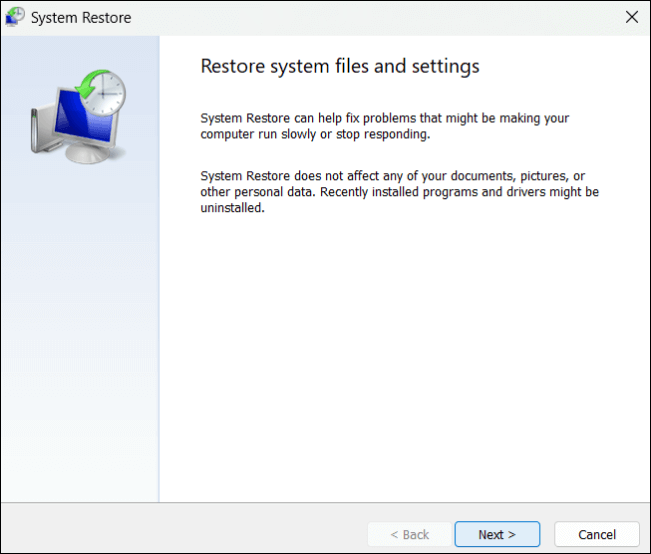
- In the System Properties window, click Next.
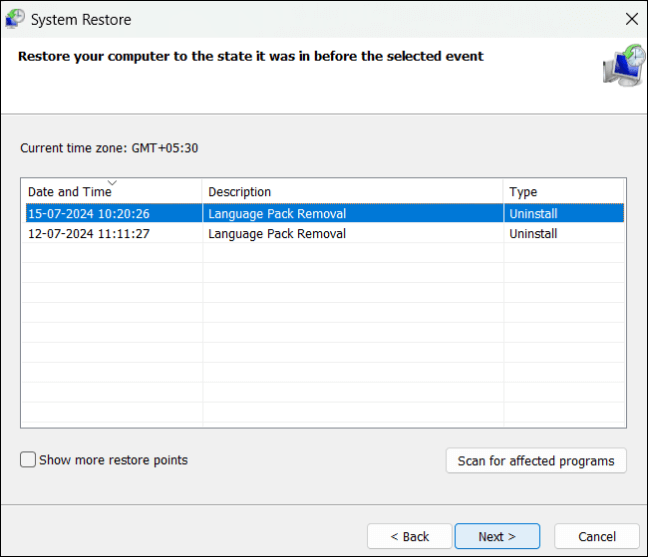
- Confirm your restore point that predates the issues causing your system instability. Check the details and click Finish to start the restoration process.
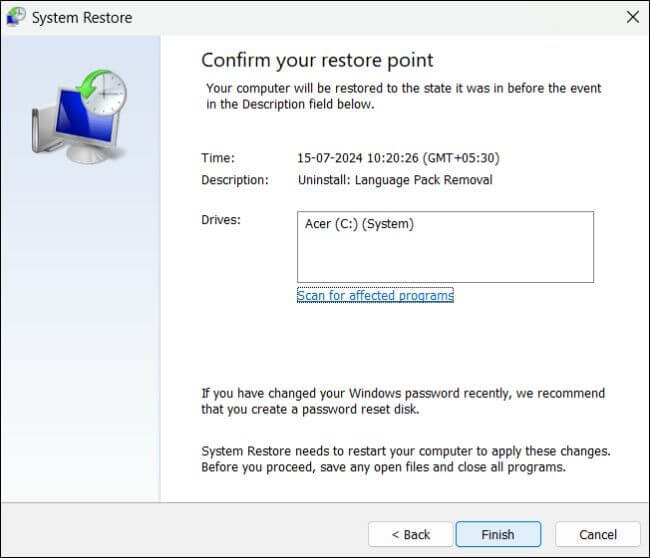
- Your PC will restart and apply the system restore, returning Windows 10 to the selected previous date.
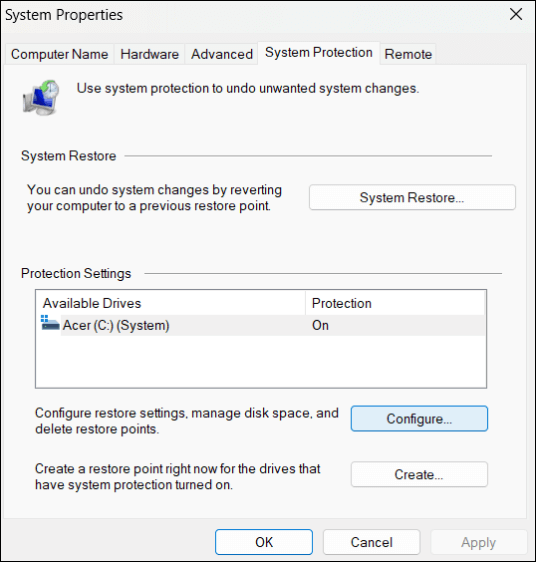
This method is particularly effective for minor system errors and problems caused by software conflicts. While performing the restore, Windows will automatically create a log of changes, allowing you to track what was reverted.
⚠️Warning: Ensure all unsaved work is backed up before initiating system restore, as your computer will restart automatically during the process.
Fix 2: Restore Windows 10 to Previous Date via Control Panel
Another way to restore computer to earlier date Windows 10 is through the Control Panel. This provides access to more advanced recovery options.
Steps:
- Open Control Panel and navigate to System and Security → System.
- Click System Protection in the left sidebar.
- Under the System Protection tab, click System Restore.
- Choose a restore point from the list of available dates.
- Confirm your choice and wait for the restoration process to complete.
This method provides more flexibility in selecting specific restore points, which is useful if multiple system changes have occurred. Using this approach, users can restore Windows 10 system restore to earlier date without affecting personal files, while rolling back problematic updates or drivers.
⚠️Warning: Do not interrupt the process once it has started, as this can result in incomplete restoration and potential system errors.
Fix 3: Restoring Computer to Earlier Date on Windows 11
Windows 11 introduces new settings, but the restoring computer to earlier date procedure remains similar.
Steps:
- Press Win + S and search for Recovery options.
- Click Open System Restore under Advanced Recovery.
- Select a suitable restore point that precedes any issues, such as software crashes or update failures.
- Follow on-screen instructions to complete the restore.
This method is particularly helpful if you need to restore PC to previous date Windows 11 after experiencing problems caused by automatic updates or incompatible applications. System restore in Windows 11 works alongside recovery tools like Pandaoffice Drecov, which can be used to recover any critical files that may be at risk during troubleshooting.
⚠️Warning: Ensure the device remains powered on during the process to avoid system corruption.
Fix 4: Using Safe Mode for System Restore
If your PC cannot boot normally due to critical errors, you can perform system restore Windows 10 system restore to earlier date in Safe Mode. Safe Mode loads Windows with minimal drivers and services, allowing you to troubleshoot system issues safely.
Steps:
- Restart the PC and press F8 or Shift + Restart to enter Advanced Startup Options.
- Navigate to Troubleshoot → Advanced Options → System Restore.
- Choose the desired restore point and follow prompts to restore your system.
- After completion, Windows will boot normally with the system rolled back to the selected date.
Safe Mode ensures that problematic programs or drivers do not interfere with the restoration process, making it effective when normal booting fails.
⚠️Warning: Always create a backup of important files before performing system restore in Safe Mode, as unexpected issues may arise.
Fix 5: Uninstall Problematic Windows Updates on Windows 11
Sometimes, recent Windows updates may cause instability, slow performance, or unexpected errors. One way to resolve this is by uninstalling Windows update Windows 11 that could be affecting system stability.
Steps:
- Open Settings → Windows Update → Update History.
- Scroll to Uninstall Updates and select it.
- Choose the most recent update installed before the issues began.
- Click Uninstall and allow Windows to remove the update.
- After removal, restart your computer and check if performance improves.
This approach can be combined with restoring computer to earlier date Windows 10 to resolve persistent issues caused by updates. After uninstalling, you can also run a system scan or backup important files using Pandaoffice Drecov, ensuring no data is lost during troubleshooting.
Fix 6: Use Command Prompt for Advanced Restore
For advanced users, the Command Prompt provides an alternative way of restoring Windows previous date. This is particularly useful if standard GUI options fail or Windows cannot boot normally.
Steps:
- Open Advanced Startup Options → Troubleshoot → Command Prompt.
- Type
rstrui.exeand press Enter to launch the System Restore interface. - Select the appropriate restore point corresponding to the desired previous date.
- Follow the on-screen instructions to complete the restoration process.
This method provides direct access to the restoration process and can help restore Windows 10 system restore to earlier date in cases where Safe Mode or Settings options are unavailable. It is also compatible with scenarios where multiple recent updates or installations caused system instability.
Fix 7: Restore Using Windows Recovery Drive
Creating a Windows recovery drive allows users to restore the system even when normal boot fails.
Steps:
- Prepare a USB drive with at least 16GB and create a recovery drive using Create a recovery drive in Windows.
- Insert the recovery drive and boot your computer from it.
- Navigate to Troubleshoot → Advanced Options → System Restore.
- Select a restore point corresponding to the stable previous date.
- Follow instructions to complete the restore.
Using a recovery drive ensures that even critical system errors or corrupted startup files do not prevent you from restoring Windows 10 to previous date. This approach works in tandem with data recovery solutions like Pandaoffice Drecov, allowing users to safeguard important files before attempting system restoration.
Fix 8: Restore Registry Settings to a Previous Point
If specific software issues or driver problems are preventing normal operation, restoring registry settings can help.
Steps:
- Open Registry Editor (type
regeditin the Start menu). - Navigate to File → Import.
- Select a previously exported registry file that corresponds to a stable point.
- Import the registry settings and restart your computer.
Restoring registry settings complements restoring Windows previous date by reverting system configurations that may not be fully covered by standard System Restore. It is particularly useful for resolving software-related issues or driver conflicts without affecting personal files.
Fix 9: Restore Specific System Files Only
Sometimes, it’s unnecessary to perform a full system restore. You can selectively restore critical system files to their previous versions while keeping newer settings intact.
Steps:
- Navigate to the folder containing the affected system files.
- Right-click the file or folder and select Properties → Previous Versions.
- Choose a restore point date and click Restore.
- Verify functionality after restoration.
This method allows more precise control over restoring computer to earlier date for specific components, making it suitable for situations where only certain programs or system files are affected. Pandaoffice Drecov can complement this by recovering any accidentally deleted files during manual operations.
Fix 10: Use Third-Party Recovery for Critical Files
Before performing aggressive system restore or update uninstallations, ensure important files are backed up. Pandaoffice Drecov can recover lost or inaccessible files safely:
- Scan drives for deleted documents, photos, videos, and other data.
- Recover data from inaccessible or corrupted partitions.
- Export recovered files to a safe location before performing system operations.



Why Choose Pandaoffice Drecov?
When it comes to reliable data recovery, choosing the right tool can make the difference between permanent loss and successful restoration. Pandaoffice Drecov is designed with advanced scanning algorithms and user-friendly workflows to help individuals and professionals recover lost files quickly and safely across multiple storage scenarios. Whether you accidentally deleted important security footage or lost precious photos, the software provides comprehensive support for different devices and file systems.
For example, if you need to recover deleted Blink videos, Drecov can scan storage locations and retrieve video files even after accidental removal or formatting. Photographers and everyday users also benefit from its powerful usb photo recovery capabilities, allowing restoration of images from USB flash drives, memory sticks, and other portable devices without complicated steps.
In addition, the software excels at deleted sd card photo recovery, making it ideal for recovering lost pictures from cameras, drones, or mobile devices. Even when files seem permanently erased, deep scanning technology increases the chances of successful recovery. For larger storage failures, Drecov also supports recover external hard drive scenarios, including corrupted partitions, inaccessible drives, or accidental formatting.
Beyond its technical capabilities, Pandaoffice Drecov prioritizes safety and simplicity. The read-only recovery process ensures no further damage is done to your data, while the intuitive interface allows users of all experience levels to complete recovery in just a few clicks. With broad device compatibility, fast scanning performance, and dependable results, Pandaoffice Drecov is a trusted solution for anyone facing unexpected data loss.
Professional recovery tools significantly increase success rates compared to manual attempts.
By using Pandaoffice Drecov alongside Windows system restore, users can restore the system confidently, knowing critical data remains secure. This combination maximizes the success of restoring computer to earlier date Windows 10 or rolling back problematic changes in Windows 11.
Frequently Asked Questions (FAQ)
Q1: Can I restore Windows 11 to a previous date without losing personal files?
Yes, system restore focuses on system files and settings. Personal files remain unaffected, though it’s always recommended to back up critical data with Pandaoffice Drecov.
Q2: How do I know which restore point to choose?
Select a restore point dated before the appearance of issues. Windows usually labels points after updates or software installations, helping identify the correct date.
Q3: What if system restore fails?
If standard restore fails, try Safe Mode, Command Prompt, or recovery drive methods. For critical file safety, use Pandaoffice Drecov to recover data before retrying.
Q4: Can I undo a system restore?
Yes, Windows provides an option to undo the last system restore, reverting the system to the state prior to restoration.
Conclusion
Restoring your PC to an earlier date is an effective way to fix problems caused by updates, driver conflicts, or software errors. Methods range from standard restore earlier date Windows 10 and Safe Mode restore to advanced approaches like Command Prompt and recovery drives. For protecting important data during the process, Pandaoffice Drecov ensures all files are safely backed up and recoverable.
By following these steps, users can restore Windows 10 to previous date, restore PC to previous date Windows 11, or uninstall Windows update Windows 11 while minimizing data loss and ensuring a stable system environment.






