Drecov 2.1.2.0 adds support for scanning HFS, HFSX, and APFS files and improves the way lost files are located and reviewed. This release brings improvements to in-depth video and photo scanning, smoother video previews, faster overall scanning speeds, and updates to FAT, NTFS, XML, and ZIP scanning.
Whether you are looking for missing footage, family photos, documents or archived files, the update focuses on two practical needs: locating recoverable data and making scan results easier to evaluate. It also fixes inaccurate file counts displayed for some folders, helping you navigate the results with clearer information.
What’s New in Drecov 2.1.2.0?
PandaOffice Drecov is data recovery software for Windows that helps you find and recover lost photos, videos, documents, emails, audio files and archives. It works with supported internal and external hard drives, SSDs, USB drives, SD cards and other memory cards. You can use it to search for files after accidental deletion, drive formatting or partition loss, provided recoverable data remains on the storage device.
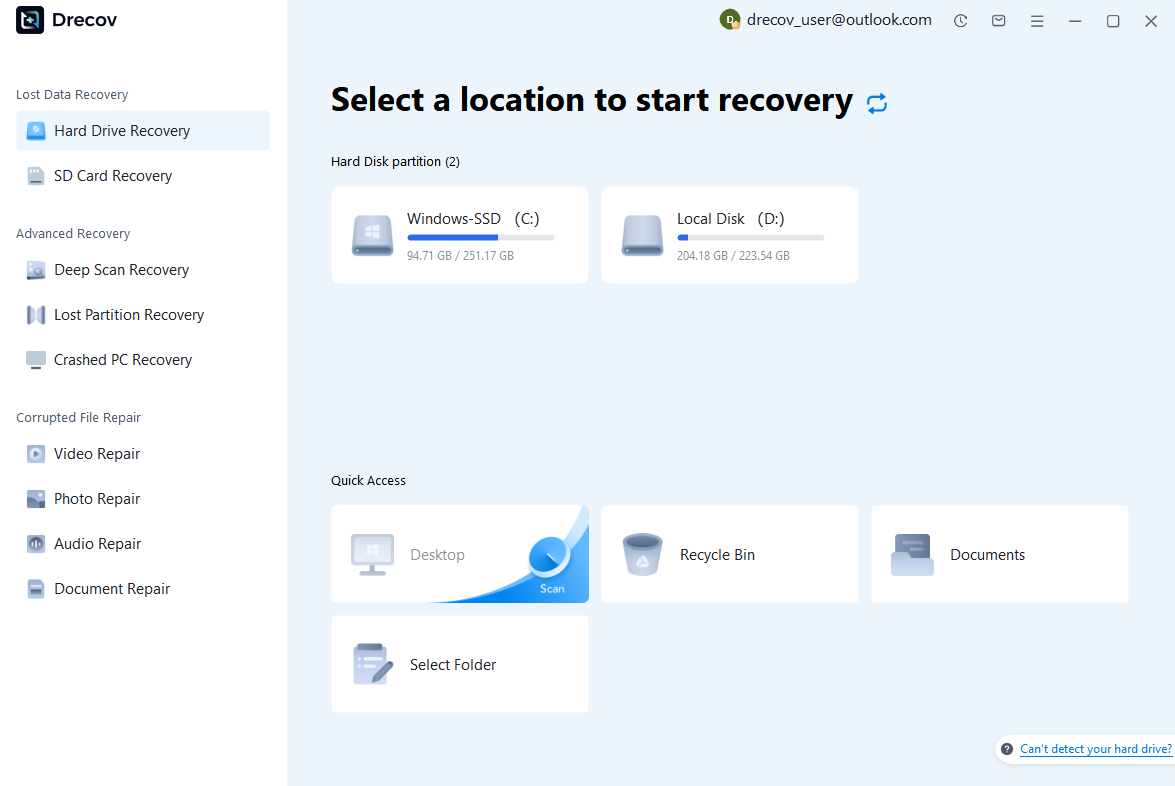
Drecov combines Quick Scan and Deep Scan with file search, filtering and preview features. You can start by checking the original location, use a deeper search when needed, and inspect supported files before choosing what to save. Recovery modes include Hard Drive Recovery, SD Card Recovery, Lost Partition Recovery and Crashed PC Recovery, helping you choose a starting point suited to your situation.
⚠ Warning: Install it on a drive different from the one where your data was lost to prevent overwriting.
Version 2.1.2.0 expands file-system scanning coverage and improves several parts of that workflow. Here is the complete update at a glance:
- New file-system support: Added scanning support for HFS, HFSX and APFS.
- Smoother video previews: Optimized preview playback to reduce stuttering.
- Improved media deep scanning: Enhanced video and image scanning, including MOV and MP4 recognition and extraction of available JPG modification times and video duration.
- Faster overall scanning: Improved scanning performance to reduce waiting time.
- Improved FAT scanning: Optimized file detection in supported FAT recovery scenarios.
- Better XML and ZIP scanning: Improved recognition and recovery handling for these formats.
- Enhanced NTFS support: Optimized scanning support for NTFS file systems.
- Corrected folder file counts: Fixed inaccurate file-count displays affecting some folders in scan results.
New HFS, HFSX and APFS Scanning Support
The main addition in this release is scanning support for HFS, HFSX and APFS file systems. A file system determines how a volume organizes files and records their locations. The added support broadens the range of file systems Drecov can scan when searching for recoverable data.
To begin, check whether the relevant source appears in Drecov and can be selected for scanning. If it does, scan the source and review the available results. Avoid formatting or initializing storage simply to make it appear as a usable drive.
This update is available in Drecov for Windows. Scanning results will vary with the condition of the device and the data remaining on it. After a scan, inspect the files that Drecov actually finds and preview supported items before choosing what to recover. File-system support alone does not guarantee that every missing file will be available or intact.
Improved Deep Scan for Videos and Photos
A large set of media scan results can be difficult to review, especially when several clips look similar or filenames provide little context. Drecov 2.1.2.0 improves deep scanning for video and image files, including recognition of MOV and MP4 videos. It can also extract available information such as JPG modification times and video duration to help you identify the files you need.
Improved MOV and MP4 Recognition
MOV and MP4 are among the video formats covered by the media scanning improvements. If you are searching for missing clips, the updated recognition can help Drecov identify supported video files during deep scanning. This is relevant when a quick scan has not located the footage you are looking for.
Recognition is one part of recovery. A detected video may still contain missing or damaged data, so check its contents rather than relying on the extension alone. For more information about supported media workflows, visit the Drecov video recovery page.
More Context from JPG Modification Times and Video Duration
When available, JPG modification times provide an additional clue for finding a particular image among many results. For example, a remembered editing period may help you narrow your review to a smaller set of candidate photos. A modification time should be treated as a reference point, rather than assumed to be the date the photo was taken.
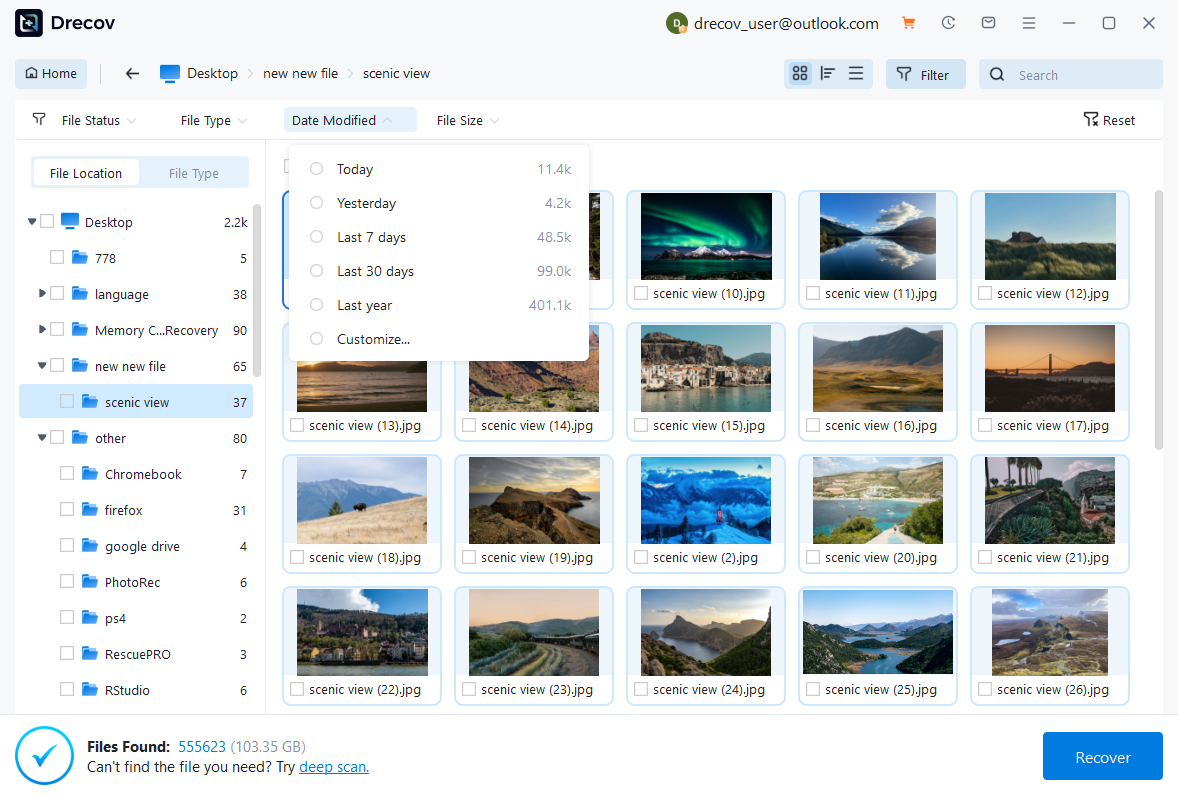
Video duration offers another useful clue. If you remember that the missing file was a short clip, its duration can help distinguish it from longer recordings. Use these details alongside names, file types and previews. Their availability depends on the information Drecov can read during scanning.
For image recovery, use the available details together with a visual preview to confirm the subject and image condition. The Drecov photo recovery page explains the broader photo recovery workflow.
Smoother Video Previews Before Recovery
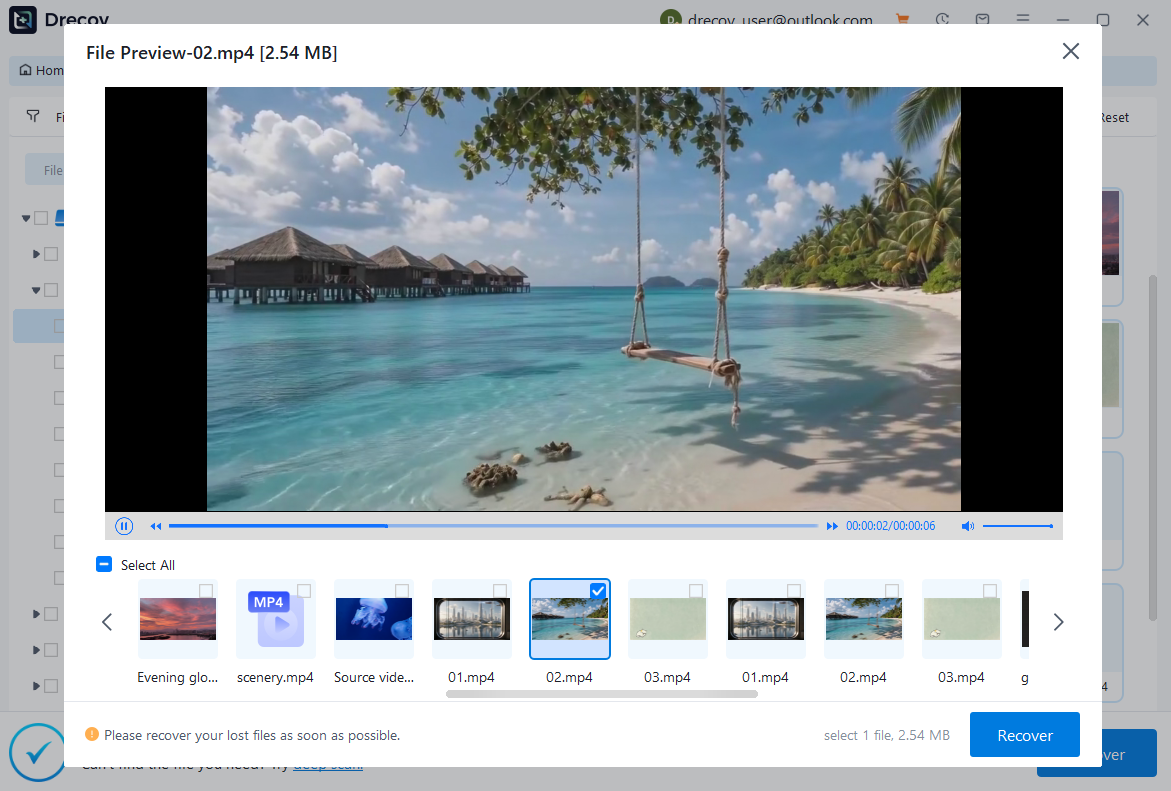
Drecov 2.1.2.0 optimizes video preview playback to reduce stuttering and make supported previews smoother. This makes it easier to review footage while deciding which files to recover, particularly when you need to compare several similar clips.
Use the preview to check whether the video contains the scene you need and whether the visible portion plays as expected. Preview performance and file integrity are separate considerations: smoother playback improves the review experience, while the condition of the recovered video depends on the source data. After saving a video, open it in your usual player and check the full recording.
Faster Scanning and Broader File Recognition
The release also improves overall scanning speed, helping reduce the time spent waiting for file searches. Actual scan time depends on factors such as storage capacity, connection speed, device condition and the scan being performed. A deep scan may still take time, particularly on large storage devices.
Optimized FAT File-System Scanning
FAT scanning has been optimized to improve file detection in supported recovery situations. For users looking for files on FAT-formatted storage, this update addresses the scanning stage where Drecov searches for recoverable items. The number of files found will still depend on what remains on the device.
Improved XML and ZIP Scanning
Scanning improvements also cover XML and ZIP files, enhancing file recognition and recovery handling for these formats. This extends the benefits of the release beyond photos and videos to users searching for structured files and archives.
Once recovered, verify these files in an appropriate application. Open XML files with the software that uses them, and check whether a ZIP archive opens and its contents extract correctly. The Drecov ZIP recovery provides additional information about recovering lost archives.
Enhanced NTFS Scanning Support
Drecov 2.1.2.0 optimizes scanning support for NTFS file systems. If you are searching for lost files on an NTFS volume, this update improves the scanning process used to look for recoverable data.
Scan the original loss location, review the results and preview supported files before recovery. The files available to recover still depend on the condition of the source storage and the data that remains.
More Accurate File Counts in Scan Results
This update fixes an issue where the number of files shown for some folders in scan results could be inaccurate. Correct folder counts make it easier to understand the results, compare folders and decide where to look next.
How to Update and Use Drecov 2.1.2.0
Before starting recovery, stop saving new data to the affected device and check existing backups. If the device is physically damaged, repeatedly disconnects or produces severe read errors, stop software scans and seek professional recovery assistance. Software cannot recover data that has been fully overwritten.
Existing users can download the installer from the official website and follow the installation prompts to update Drecov. Existing licenses remain valid after upgrading to version 2.1.2.0. Before installing, choose a location away from the drive where data was lost, and prepare another healthy storage device for recovered files.
If you are using Drecov for the first time, the recovery process follows the same basic sequence: select the source, scan, review and save. The following steps explain how to apply the updated scanning and preview features.
Step 1: Open Drecov and Select the Original Location
Launch Drecov and select the drive or relevant recovery mode for the location where the files were stored. Confirm that you have chosen the correct source before scanning. If a connected device prompts you to format or initialize it, do not accept that prompt while you still need to recover its data.
Step 2: Run Quick Scan, Then Deep Scan If Needed
Start with Quick Scan and check whether it finds the files you need. If the expected items are missing and the device remains stable, use Deep Scan for a more thorough search. The media scanning improvements in this release are particularly relevant when looking for supported videos and images through deep scanning.

Step 3: Review File Details and Preview Your Selection
Search, filter or browse the results to locate likely matches. Use available details, including JPG modification times and video duration, to focus your review. Preview supported files to confirm their contents, and check relevant folders rather than selecting everything solely from its name or file count.
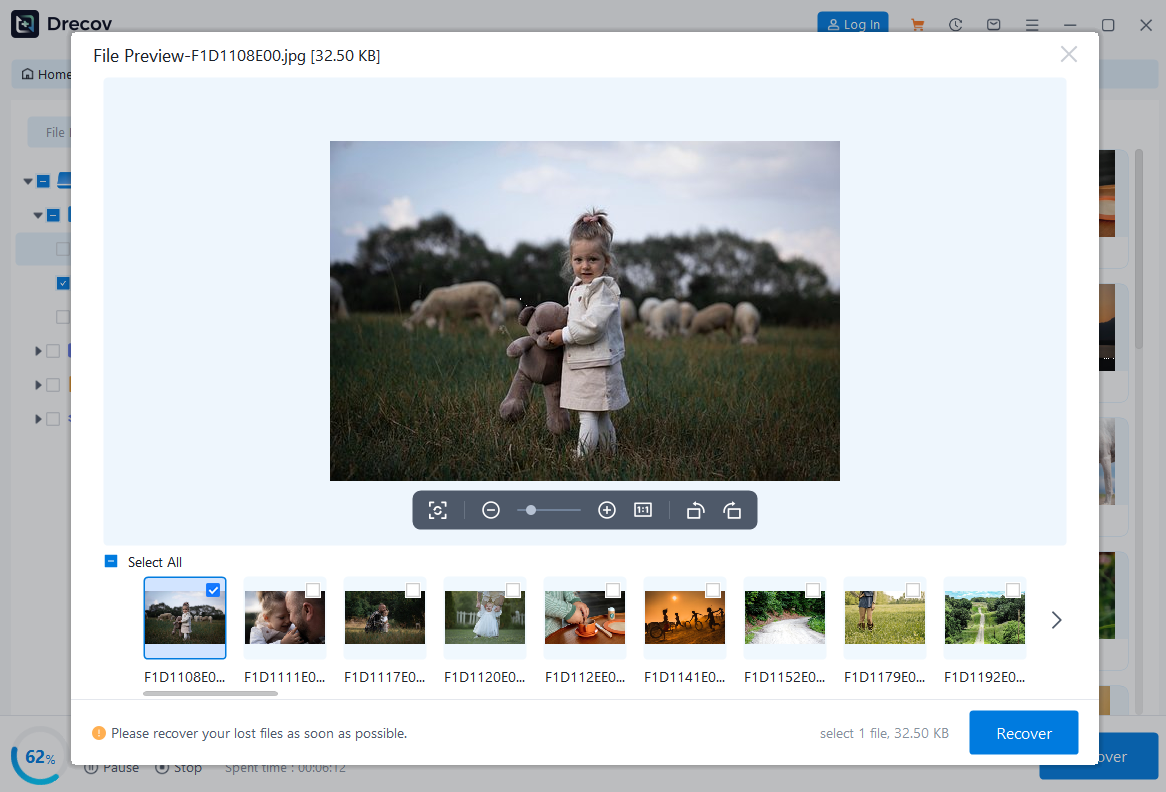
Step 4: Recover to Another Healthy Device and Verify
Select the files you need, choose Recover and save them to another healthy storage device. Never recover files to the source device, where new writes could overwrite data you are still trying to retrieve. Check that the destination has enough free space before proceeding.
Open the saved files in your usual applications and verify their contents. Review complete videos, inspect photos and test recovered archives. If the output is not where you expected, check the selected destination and any Drecov folder or Recovery folder created there. For additional help, consult the Drecov user guide.
Get Drecov 2.1.2.0 right now
The Drecov 2.1.2.0 update expands filesystem scanning and improves the search and review experience for media, archives and other supported files. Existing users can upgrade with their current license, while new users can start by scanning their storage and reviewing the available results. Install it away from the affected drive, scan the original loss location, and preview supported files before recovering your selection to a separate healthy device.