






Yes, a PDF can be malicious. It may contain a dangerous attachment or link, or exploit a flaw in an outdated reader. That does not mean every unexpected PDF is infected. Unsure where an attachment came from? Do not open it just to find out. Confirm the sender separately. Update your PDF reader and Windows security tools before inspecting or sharing the file. If you already opened it, the next step depends on your actions and what the computer did.
How a normal-looking PDF becomes a risk
A PDF is a document container, not merely a picture of a page. It can contain links, forms, embedded files, and other interactive elements. A malicious document may ask you to open an attached program or visit a fake sign-in page. Software vulnerabilities are another route, which is why current reader updates matter. Adobe’s Acrobat security guidance warns that PDF attachments can contain harmful content or launch other applications.
These risks have different consequences. A fake login page can steal a password even if the PDF itself never installs software. An executable hidden as an attachment needs another action before it runs. A reader vulnerability depends on the affected software and patch state. You cannot tell which situation applies from the document’s name alone. Treat an invoice named “final.pdf” and a file with a familiar company logo as unverified until you confirm where they came from.
Do not confuse the question “can a PDF have a virus?” with “why won’t my PDF open?” A broken viewer or incomplete download is common and not proof of malware. For ordinary opening failures, the separate PDF opening checks focus on the viewer, file, and storage. Here, the priority is deciding whether the document deserves your trust before you interact with it.
Check the source without opening the attachment
Confirm the person and the expected transaction
Ask whether you were expecting this exact document from this exact person. An email address that looks familiar can be forged, and a real account can be compromised. Contact the sender using a number or conversation you already know, not a phone number supplied inside the suspicious message. If the document claims to be a bill, sign in to the vendor’s site through your normal bookmark and look for the bill there. Do not use the PDF’s own link as the verification route.
Look at the file itself, not just its icon
In Windows File Explorer, enable file-name extensions under View. Check that the name really ends in .pdf, rather than a second executable extension hidden behind an icon or a long name. Review the download location and whether the file appeared at the same time as the message. These are clues, not a security verdict: a genuine PDF can still be unsafe, and a harmless file can have an unusual name.
Keep the attachment out of shared folders while you check it. A sync client could upload it to other devices, and forwarding it asks someone else to take the same risk. If your organization has an IT team, report the message through its normal channel. For a personal PC, use an up-to-date security scanner on the downloaded file without opening it first. A clean scan lowers concern but cannot certify that every link or social-engineering trick inside the PDF is safe.
If you already opened it, separate viewing from further actions
Pause before clicking anything else. Did you only view pages, or did you follow a link? Did you type a password, download another file, open an attachment, or approve a prompt? Write down those actions. They guide the response better than saying only, “the PDF had a virus.” Close the document. Disconnect from the network if you saw a suspicious download, unexpected program launch, or remote-control request. Contact an administrator if the PC belongs to an employer or school.
Entered a password on a site reached from the PDF? Change it from a trusted device using the service’s address you type yourself. Review recent sign-ins and enable multifactor authentication where available. Do not enter the new password in a window that the PDF opened. If you only viewed pages, update the reader and run a security scan. Then watch for new software, unexplained browser settings, or account alerts. A quiet PC is not absolute proof, but it does not justify wiping the system immediately.
When security software reports a detection, read the exact name and the action it took. Quarantine is different from deleting a document, and detection in a browser cache is different from a confirmed running program. Keep the alert details for a professional if symptoms persist. Avoid turning off protection just to inspect the suspicious file again. If you need the document’s information, request a fresh copy through a verified channel or use a trusted source record instead.
Protect your documents before cleanup or a reset
Security work and data protection can pull in opposite directions. You may need a clean backup. Copying unknown programs or the suspicious PDF into it, however, can preserve the problem. First identify personal documents and photos you cannot replace. Check the backup’s date and look for clean versions from before the event. Keep the suspicious file separate. Follow your security team’s instructions if a business account or network may be affected.
Do not format a drive or reset Windows merely because a PDF looked odd. Those actions may erase your only work copy without addressing a stolen password. Nor should you restore an old system image over a PC you have not assessed. It may replace newer data and reintroduce unwanted files. A clean reinstall may eventually be appropriate after confirmed compromise. Decide on it after protecting necessary files and locating trustworthy copies.
For files that appear to have vanished during quarantine or cleanup, first inspect your security product’s event history and your backups. The PDF recovery options are relevant when a previously clean local document is missing, not as a way to make a suspicious PDF safe. Keep a second healthy storage destination ready before attempting any file recovery.
When Drecov helps—and when it does not
Drecov is Windows data-recovery software. It can search stable PC or USB storage for a local PDF that was deleted or became inaccessible. Quick Scan, Deep Scan, file locating, and preview help you find an earlier clean copy. Save it to a different healthy destination. Lost Partition Recovery is available when a partition itself disappeared, but it does not rebuild the partition table. Drecov does not identify malware, remove an infection, repair PDF content, or guarantee recovery of overwritten data.
Use this route only after you know which local file you lost. A document that existed solely in an email account, cloud service, or shared server needs that service’s version history or administrator first. If the storage device disconnects repeatedly, reports serious read errors, or has physical damage, stop direct scans and seek imaging or professional help. Do not install recovery software onto the partition that held the missing file, and do not restore files back to that source.
⚠ Warning: Install it on a drive different from the one where your data was lost to prevent overwriting.
Step 1: Select the original Windows location
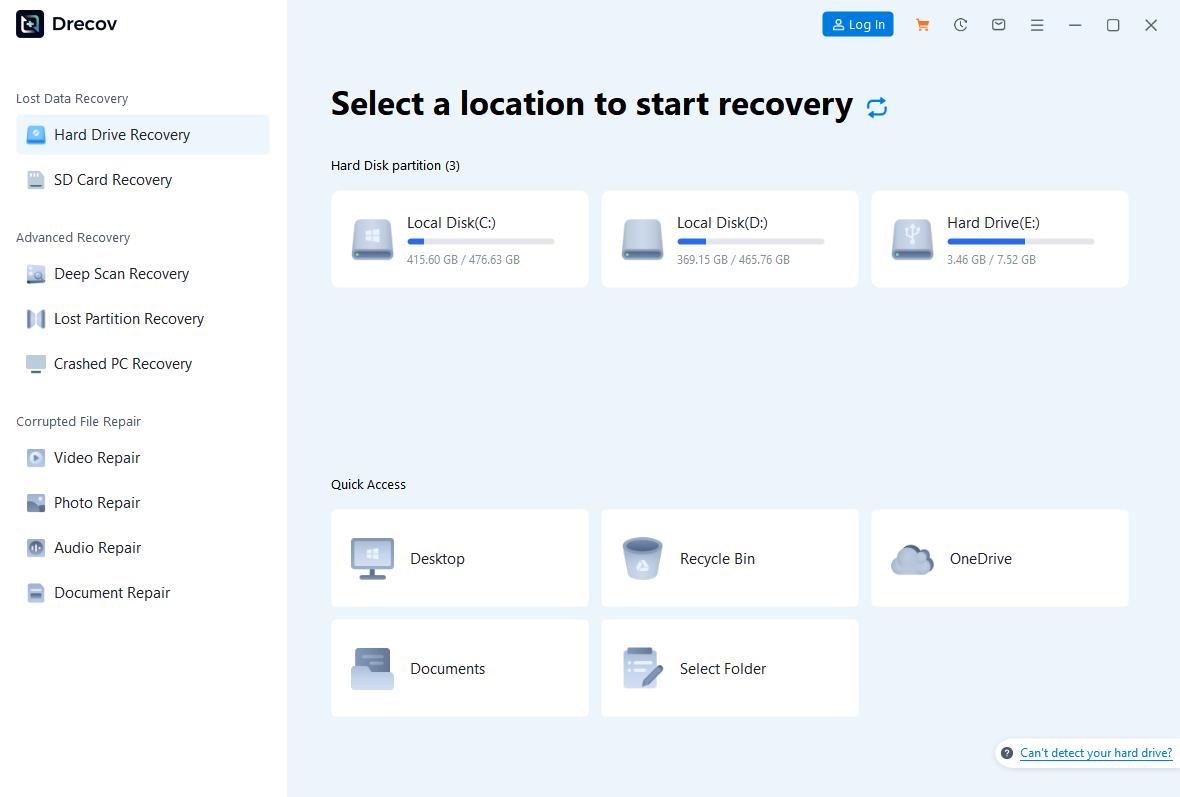
Open Drecov and choose the stable drive or partition where the clean PDF last existed. If the original folder was on a USB stick, select that device rather than the email download folder on another drive. Prepare a separate healthy destination with enough room for recovered files.
Step 2: Look for a clean earlier copy with Quick Scan
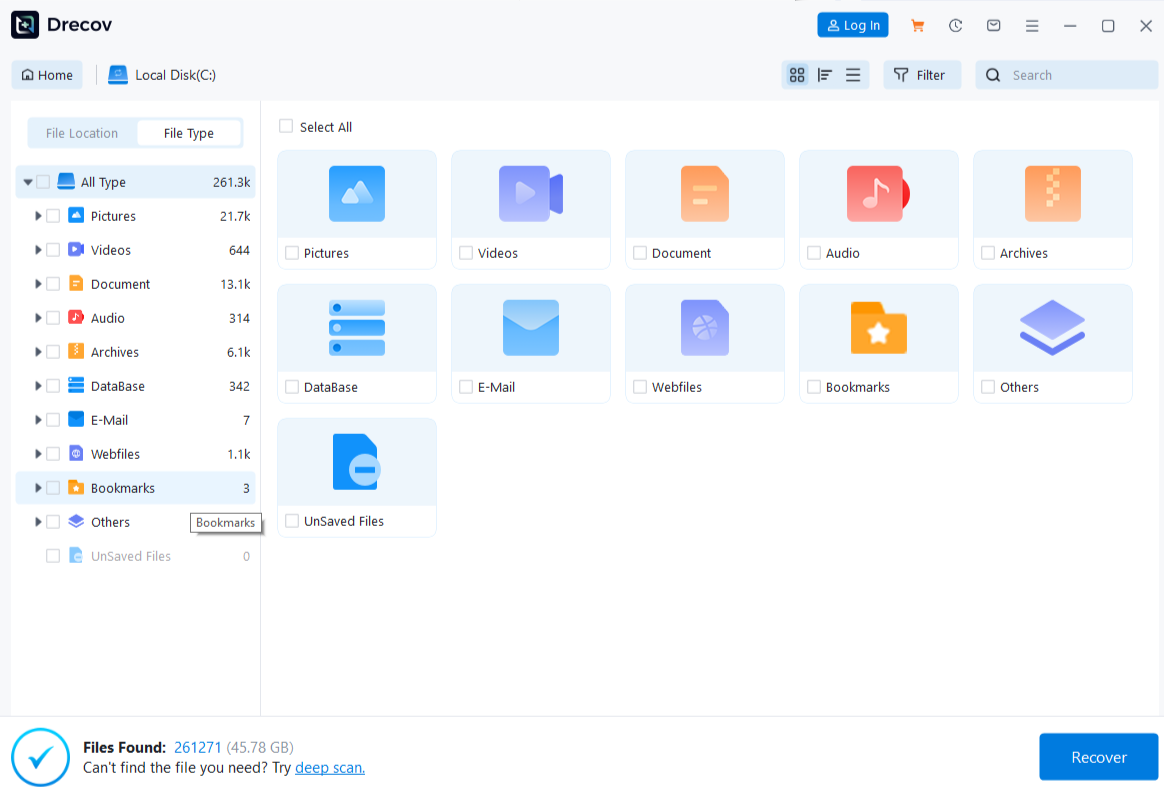
Run Quick Scan first. Compare the filename, former folder, date, and size with records you trust. A suspicious PDF and its older clean version may share a name; do not assume the newest result is the right one.
Step 3: Search more deeply only if the source stays stable
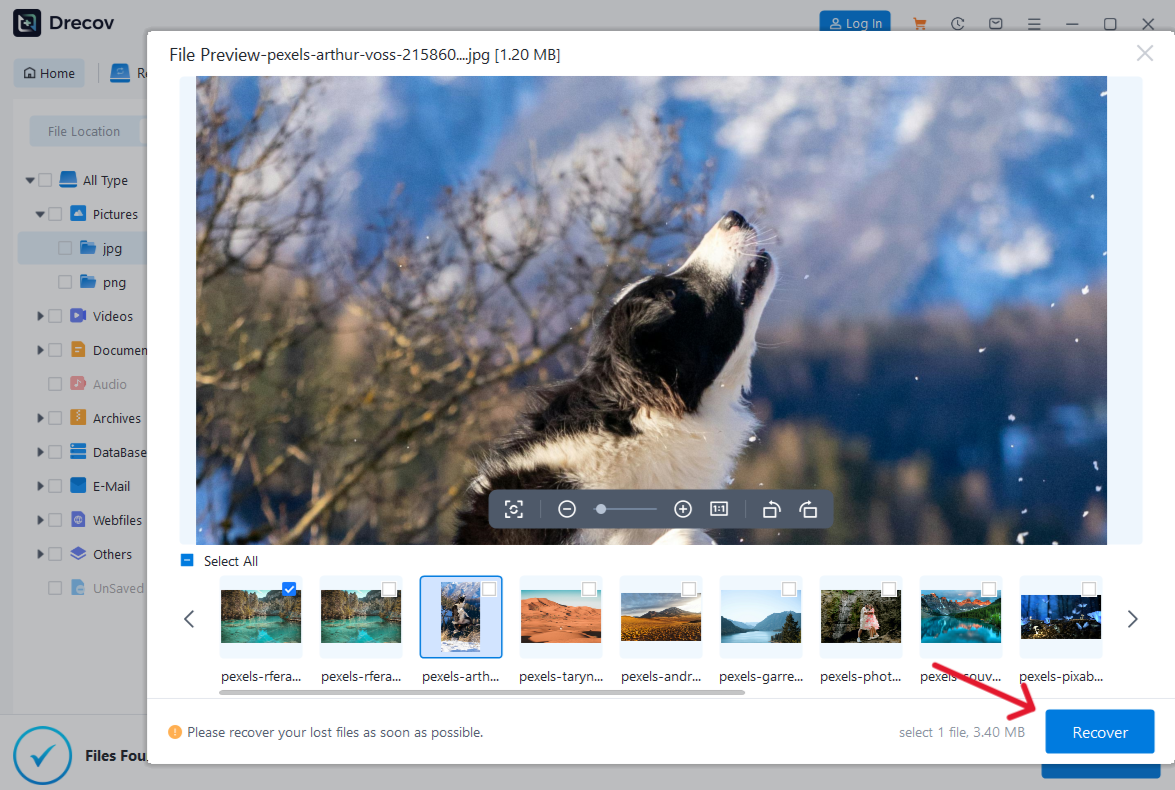
If Quick Scan misses the document and the device still reads normally, use Deep Scan. Stop when reads stall or the device disconnects. Use file type and path filters to narrow candidates, then preview representative pages where supported. Previewing a page does not certify that the file is malware-free or that every page is intact.
Step 4: Save elsewhere and verify the result
Recover plausible files to the separate healthy drive. If you do not see them at the expected destination, check Drecov Folder or Recovery Folder. Scan the recovered copy with current security software, then open only the candidate you can link to a trustworthy earlier source. Verify several pages, attachments, and expected content before deleting a backup or resuming cleanup. Recovery does not replace a security investigation.
⚠ Warning: Install it on a drive different from the one where your data was lost to prevent overwriting.
FAQs about suspicious PDFs
Can a PDF infect a PC just by being opened?
A vulnerable reader may expose a computer through a malicious document. Other attacks need a click, an attachment opened, or a password entered. Update the reader and Windows; assess your actual actions rather than assuming every opened PDF caused infection.
Is a PDF safe if antivirus finds nothing?
No scanner can verify the honesty of every link or message inside a file. A clean result is useful evidence, but confirm the sender and use a known website address for any account task.
Can I recover a quarantined PDF?
First check your security product’s quarantine record and confirm whether the file is genuinely needed. Do not restore a detected malicious copy simply to regain access. Ask the sender for a verified clean version or look for an older backup.
Will file recovery remove the virus?
No. File recovery retrieves available data from storage. It does not diagnose or disinfect content. If a recovered PDF is suspicious, scan and assess it before opening it. For broader missing-document cases, see the file recovery overview.
Conclusion
A PDF can carry a harmful attachment, unsafe link, or exploit, but the right response depends on the file’s source and what you did with it. Verify the sender before opening, keep your reader and security tools current, and distinguish simple viewing from a click or password entry. Protect clean documents before major cleanup. If an earlier trustworthy PDF has actually disappeared from stable Windows storage, Drecov can search the original location and save a candidate to another drive for verification. It cannot make a malicious document safe.
⚠ Warning: Install it on a drive different from the one where your data was lost to prevent overwriting.