







Imagine a traveler named Alex who just spent two weeks trekking through the vibrant rainforests of Costa Rica. He captured thousands of breathtaking shots of rare quetzals and cinematic drone footage of hidden waterfalls on a high-speed 128GB SDXC card. On his flight home, he inserts the card into his laptop to begin the backup process. Suddenly, a terrifying error message flashes: ‘Disk is not formatted. Do you want to format it now?’ His heart stops. His entire journey, documented in high-definition, feels like it has vanished into a digital abyss. In this moment of despair, his only hope is to find a powerful sd memory card recovery software that can bypass the file system error and bring his precious memories back to life.
This nightmare scenario is a reality for thousands of photographers and mobile users every day. However, Alex’s story does not have to end in tragedy. In the modern era, high-performance sd memory card recovery software acts as a powerful safety net, capable of pulling files back from the brink of permanent deletion. This guide will demystify the science of data storage and provide you with the exact steps to reclaim your digital life.
Part 1: The Invisible Library—Understanding the Logic of Data Loss
To use sd memory card recovery software effectively, you first need to understand why data is retrievable even after it “disappears.” Many people believe that deleting a file is like burning a piece of paper. In reality, it is much more like erasing an entry in a library’s table of contents.
The Warehouse Metaphor
Think of your SD card as a massive warehouse. Every photo or video is a crate stored on a specific shelf. The SD card uses a system called a File Allocation Table (FAT) or Master File Table (MFT), which acts as the warehouse’s ledger. When you delete a file or format the card, the computer does not physically remove the crates from the shelves. Instead, it takes a pencil and crosses out the entry in the ledger. It then marks that shelf space as “Available for New Inventory.”
The “crates” (your data) remain on the shelf, invisible to the operating system, until you bring in new crates to sit on those specific shelves—a process known as “overwriting.” This is the fundamental reason why sd memory card recovery software works. The software ignores the messy, crossed-out ledger and manually walks through every aisle (sector) to see what is actually sitting there.
Part 2: Critical “Safety First” Precautions
Before you run any sd memory card recovery software, you must adhere to three non-negotiable rules. Failure to do so is the most common cause of permanent data loss.
- Cease All Activity Immediately: Pull the SD card out of your camera or phone the moment you suspect data loss. If you continue taking photos, the device will write new binary data over the “empty” spaces where your lost files reside.
- No In-Place Installation: Never download or install sd memory card recovery software onto the SD card you are trying to rescue. Always install the software on your computer’s internal C: drive.
- The “Cancel” Rule: If Windows or macOS asks to format the drive, always click Cancel. Formatting can create a new file system that makes it harder for sd memory card recovery software to identify the old file headers.
Part 3: Step-by-Step Restoration Methods
We have categorized these methods from simple command-line fixes to advanced, professional-grade sd memory card recovery software suites.
Method 1: Using Windows File Recovery (CMD Tool)
Microsoft offers an official, command-line data recovery software called “Windows File Recovery.” This is a solid choice for users who are comfortable with a text-based interface and are running Windows 10 or 11.
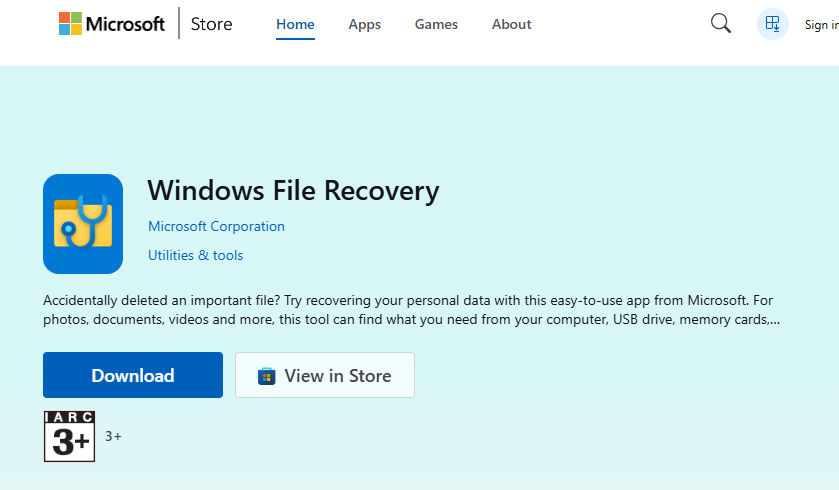
- Step 1: Download “Windows File Recovery” from the Microsoft Store.
- Step 2: Launch the application. A Command Prompt window will open.
- Step 3: Identify your SD card’s drive letter (e.g.,
E:) and choose a destination on your PC (e.g.,C:\RecoveryFolder).
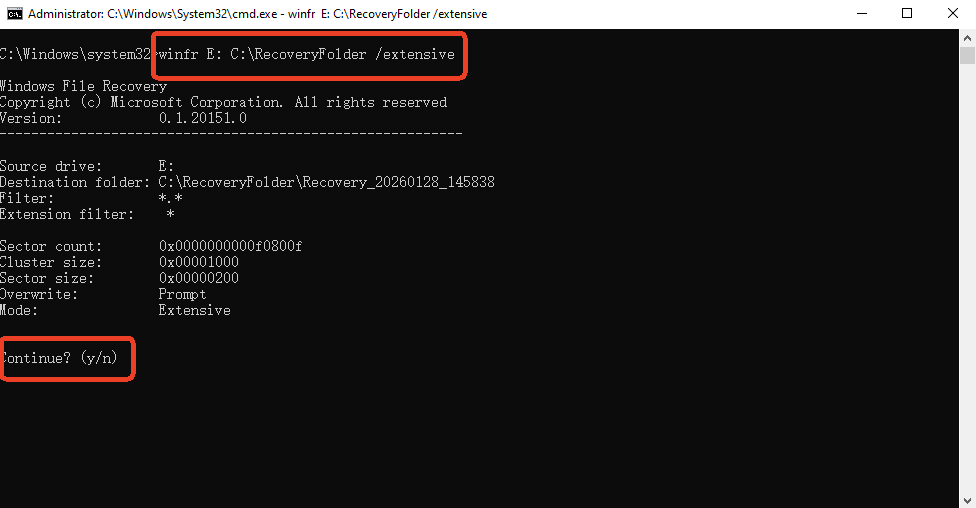
- Step 4: For SD cards, use the “Extensive” mode by typing:
winfr E: C:\RecoveryFolder /extensive. - Step 5: Press “Y” to start the scan. The tool will search for specific file signatures and reconstruct them in the destination folder.
Method 2: High-Success Restoration with PandaOffice Drecov
When you face complex corruption or a “RAW” partition error, you need a more intuitive and powerful sd memory card recovery software. PandaOffice Drecov has gained a reputation for its sophisticated scanning algorithms and its simplified Three-Step Operation.
Here is how you use it:
- Step 1: Target Identification
- Launch PandaOffice Drecov. The dashboard displays all connected storage devices. Look for your SD card under the “Removable Drives” section. Simply click on the drive icon to select it as the target for the recovery mission.

- Step 2: Intelligent Scanning
- Click the Scan button. First, it performs a “Quick Scan” for recently deleted items, followed immediately by an “Intelligent Deep Scan” that analyzes the raw sectors of the card. You can watch the files populate the interface in real-time, categorized by type (JPG, MP4, CR2, etc.).

- Step 3: Preview and Restore
- One of the best features of PandaOffice Drecov is its Free Preview. Double-click any photo or document to open a preview window. If you see the image clearly, it means the data is 100% intact. Check the boxes for the files you need and click Recover, saving them to your computer’s local hard drive.
Key Advantage: PandaOffice Drecov is optimized for modern high-capacity cards (SDXC) and can successfully reconstruct fragmented 4K video files that often break in other sd memory card recovery software.
- Versatility: It recovers photos, videos, audio, compressed files (ZIP/RAR), and even system files like EXEs.
- Accidental deletion from your computer desktop.
- Files lost after emptying the Recycle Bin.
- Data loss from disk formatting.
- Accidental deletion or formatting of SD cards/U disks.
- Sync error occurring with deleted OneDrive files
- Restore deleted Chrome bookmarked
- Privacy First: All recovery happens locally on your machine, so you don’t have to worry about your private data leaking to the web.
Method 3: Using PhotoRec (Open-Source Powerhouse)
If you require a completely free and open-source sd memory card recovery software, PhotoRec is the industry standard for digital forensics. It ignores the file system entirely and looks for raw data signatures.
- Step 1: Download the TestDisk & PhotoRec package. Extract the folder and run
photorec_win.exe.
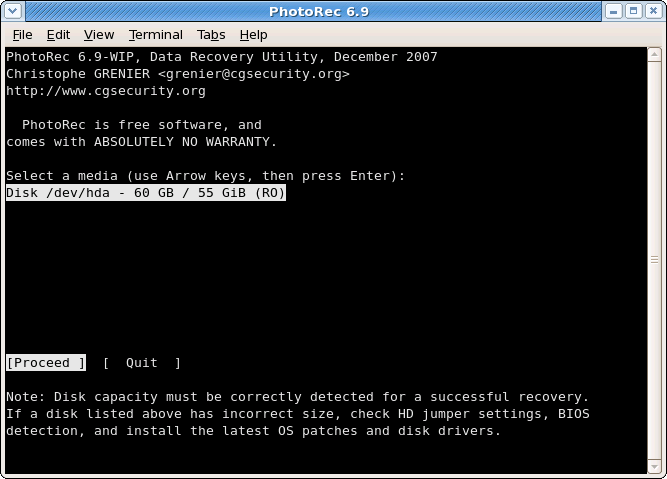
- Step 2: Use the arrow keys to select your SD card from the list and press Enter.
- Step 3: Select the
[Whole Disk]option and the[Other]file system type (for FAT/exFAT).
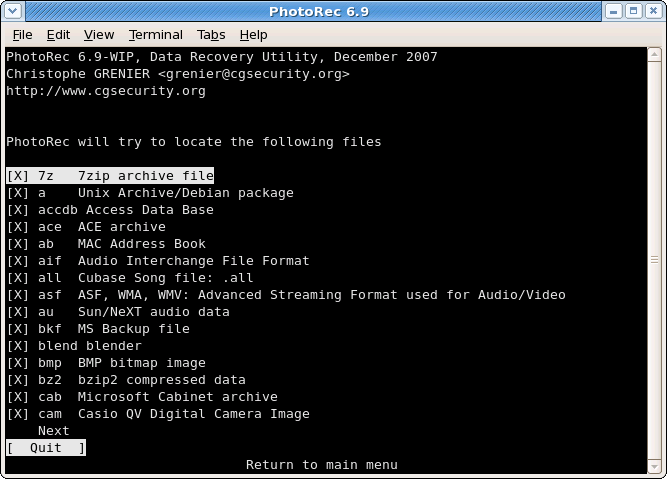
- Step 4: Choose a destination folder on your computer.
- Step 5: Press “C” to begin the extraction. Then it will dump found files into folders named
recup_dir.
Method 4: Fixing Logical Errors with CHKDSK
Sometimes you do not need full sd memory card recovery software to extract files; you just need to repair the “ledger” we discussed earlier.
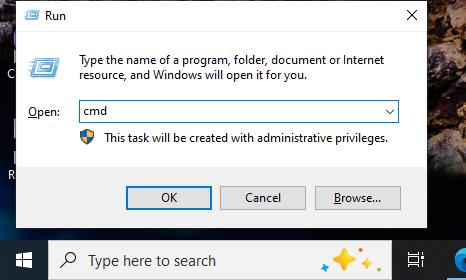
- Step 1: Press
Win + Sand type “cmd.” Right-click it and select “Run as Administrator.”
- Step 2: Type
chkdsk E: /f(ReplaceE:with your SD card’s actual drive letter).
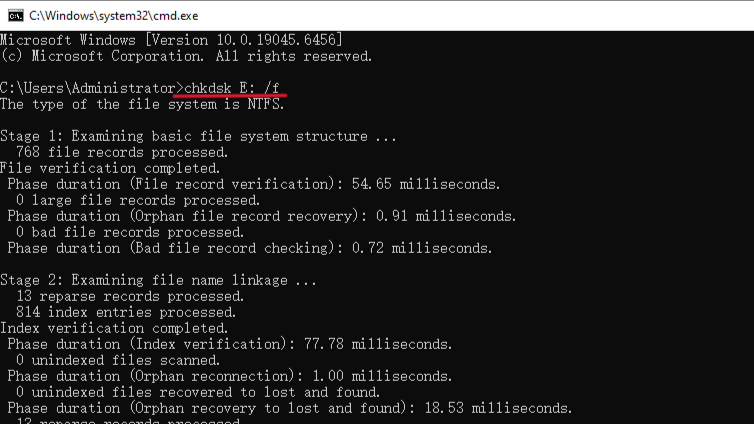
- Step 3: Windows will check for logical errors in the file system. If successful, your files will reappear in File Explorer instantly.
Part 4: Comparing Different Data Recovery Solutions
Selecting the right sd memory card recovery software depends on the severity of the corruption. Use the table below to evaluate your options.
| Feature | Windows File Recovery | PandaOffice Drecov | PhotoRec | CHKDSK |
| Best For | Casual deletions | RAW/Formatted Cards | Severe corruption | Minor index errors |
| Ease of Use | Moderate (CMD) | Very Easy (GUI) | Difficult (Text) | Easy (Command) |
| Preview Ability | None | Full Visual Preview | None | N/A |
| Scan Depth | Medium | High (Intelligent) | High (Raw) | Low |
| Success Rate | Medium | Very High | High | Low |
Part 5: Proactive Prevention—Shielding Your Memories
While high-quality sd memory card recovery software is a lifesaver, the best defense is never needing it in the first place. Use these habits to protect your media:
1. The 3-2-1 Backup Strategy
This is the gold standard of data protection. Keep 3 copies of your data, on 2 different types of media (e.g., SD card and External SSD), with 1 copy stored off-site in the cloud (like Google Drive or OneDrive).
2. Format in the Camera, Not the PC
Always format your SD card using your camera’s internal menu. This ensures the file system structure perfectly matches the device’s hardware requirements, significantly reducing the risk of the “RAW” error.
3. Safe Ejection Habits
Never pull an SD card out while the camera is on or while the computer is accessing it. Always click the “Safely Remove Hardware” icon in the Windows taskbar. This prevents “Bit Rot” and accidental file table corruption.
4. Replace Cards Regularly
Flash memory has a limited number of “write cycles.” If you use your SD card daily for professional work, replace it every 18 to 24 months. A $40 investment in a new card is much cheaper than professional forensic services.
Common Questions about SD Memory Card Recovery Software
1.Can sd memory card recovery software fix a physically snapped card?
No. If the memory chip inside the card is physically cracked, software cannot communicate with it. You must contact a professional hardware lab that has “cleanroom” facilities to manually read the NAND flash chips.
2.Why do some recovered files look like gibberish?
This usually occurs due to “overwriting.” If new data was saved to the card after the deletion, it might have overwritten the bottom half of your old photo. Even the best sd memory card recovery software cannot restore data that has been physically replaced by new bits.
3.Is it safe to use sd memory card recovery software?
Yes, as long as the software is “read-only.” Tools like PandaOffice Drecov do not modify the original data on your card; they only read it and copy it to a new location on your hard drive.
4.Does sd memory card recovery software work on encrypted cards?
If the card was encrypted (e.g., by an Android phone or BitLocker), you will need the original decryption key or password. Without it, the recovered data will remain an unreadable jumble of encrypted characters.
Conclusion
The panic of losing data is universal, but as we have explored, the solution is often just a few clicks away. By understanding the “library” logic of digital storage, you can approach the problem with a calm, technical mindset.
For most users, a modern and intuitive sd memory card recovery software like PandaOffice Drecov offers the highest probability of success, especially with its intelligent deep scanning and free preview features. However, for those who are more technically inclined, open-source tools like PhotoRec remain powerful allies. Regardless of the tool you choose, the key to success is acting quickly, avoiding further use of the card, and establishing a robust backup routine for the future.






