







1. The “Heart-Stop” Moments: When Your SD Card Fails
We have all been there. The digital world is convenient until, suddenly, it isn’t. Before we dive into the technical solutions, let’s look at three real-world scenarios where a free recovery software for sd card becomes the most important tool in your arsenal.
Scenario A: The Wedding Photographer’s Nightmare
Imagine you’ve just spent twelve hours capturing a couple’s once-in-a-lifetime moments. You get home, exhausted but happy, and plug your high-speed SD card into your laptop. Instead of a gallery of beautiful RAW files, a Windows pop-up appears: “You need to format the disk in drive G: before you can use it.” Your heart drops. Formatting means losing everything, but the computer won’t let you in. This is where professional-grade scanning is the only way to bypass the “gatekeeper” and pull those images directly from the storage cells.
Scenario B: The Final Year Thesis Disaster
You are a student who has kept all your research, drafts, and citations on a portable USB drive or MicroSD card for convenience. While rushing to the library, you pull the card out without clicking “Safely Remove Hardware.” When you plug it back in, the folder is empty. The Recycle Bin is empty. The panic is real. You need a free recovery software for sd card that specifically understands how to reconstruct file directories that were “broken” during an unsafe ejection.
Scenario C: The “Oops” in the Gallery
You’re scrolling through your smartphone or camera gallery, trying to delete one blurry photo. Your finger slips. Suddenly, you’ve hit “Delete All” or “Format Card.” In five seconds, three years of family vacations and videos of your toddler’s first steps vanish. In this moment, you don’t need a complex coding tool; you need a simple, visual interface that can “undelete” those files as if you had a time machine.
2. Why PandaOffice Drecov is the Gold Standard
When you are in the middle of one of the crises described above, you don’t have time to experiment with unreliable tools. You need a solution that is verified, safe, and powerful. PandaOffice Drecov Data Recovery Software has earned its reputation as a leader in the field, and for good reason. It isn’t just a basic utility; it is a sophisticated recovery engine wrapped in a user-friendly package.
Core Advantages & Features
- Universal Scenario Support: This software doesn’t care how you lost the data. Whether it was accidental deletion, a sudden “Disk needs formatting” error, a Recycle Bin emptying, or a complete partition loss on your PC desktop, PandaOffice DRecov handles it all.
- Massive File Compatibility: One of the biggest frustrations with basic tools is that they only find “some” files. PandaOffice DRecov supports over 100 different file formats. It recovers photos, videos, audio, compressed files (ZIP/RAR), and even system files like EXEs.
- Accidental deletion from your computer desktop.
- Files lost after emptying the Recycle Bin.
- Data loss from disk formatting.
- Accidental deletion or formatting of SD cards/U disks.
- Sync error occurring with deleted OneDrive files
- Restore deleted Chrome bookmarked
- Windows Ecosystem Optimization: The software is perfectly tailored for Windows users, ensuring that it runs smoothly without crashing, even when scanning massive 1TB SD cards or external hard drives.
- Repairing the “Unopenable”: Sometimes, other software “finds” a file, but when you click it, you see garbled text or a “File Corrupted” error. PandaOffice Drecov features advanced logic to fix these broken links, allowing you to open and read files that seemed permanently damaged.
- Zero Learning Curve: You do not need to be a computer scientist. There is no command line, no coding, and no complex configuration. It is built for “non-techies” who need results fast.
- Local Recovery for Total Privacy: In an era of data leaks, you might worry about uploading your private photos to a cloud recovery service. PandaOffice DRecov performs the entire operation locally on your machine. Your data never touches the internet, ensuring your privacy remains 100% intact.
A Brand You Can Trust
In the world of free recovery software for sd card, many programs are “bloatware” or, worse, malware. PandaOffice partners with giants like Microsoft Store, Trustpilot, Sourceforge, and TechBullion. These partnerships prove that the software is safe, verified, and high-performing.
3. The “Nanny-Style” Guide: The Three-Step Recovery Method
Now, let’s get down to business. If you are currently staring at an empty SD card, follow these steps exactly. This is the simplest way to use this free recovery software for sd card to bring your files back to life.
Step 1: Select the Target Location

Once you open PandaOffice DRecov, you will see a clean list of all storage areas. This includes your internal Hard Disk Drives (C:, D:), your Desktop, and your Recycle Bin.
- Action: Plug your SD card into your computer. It should appear under “External Devices.”
- Goal: Simply click on the icon representing your SD card. You are telling the software exactly where to start looking.
Step 2: Scan and Preview
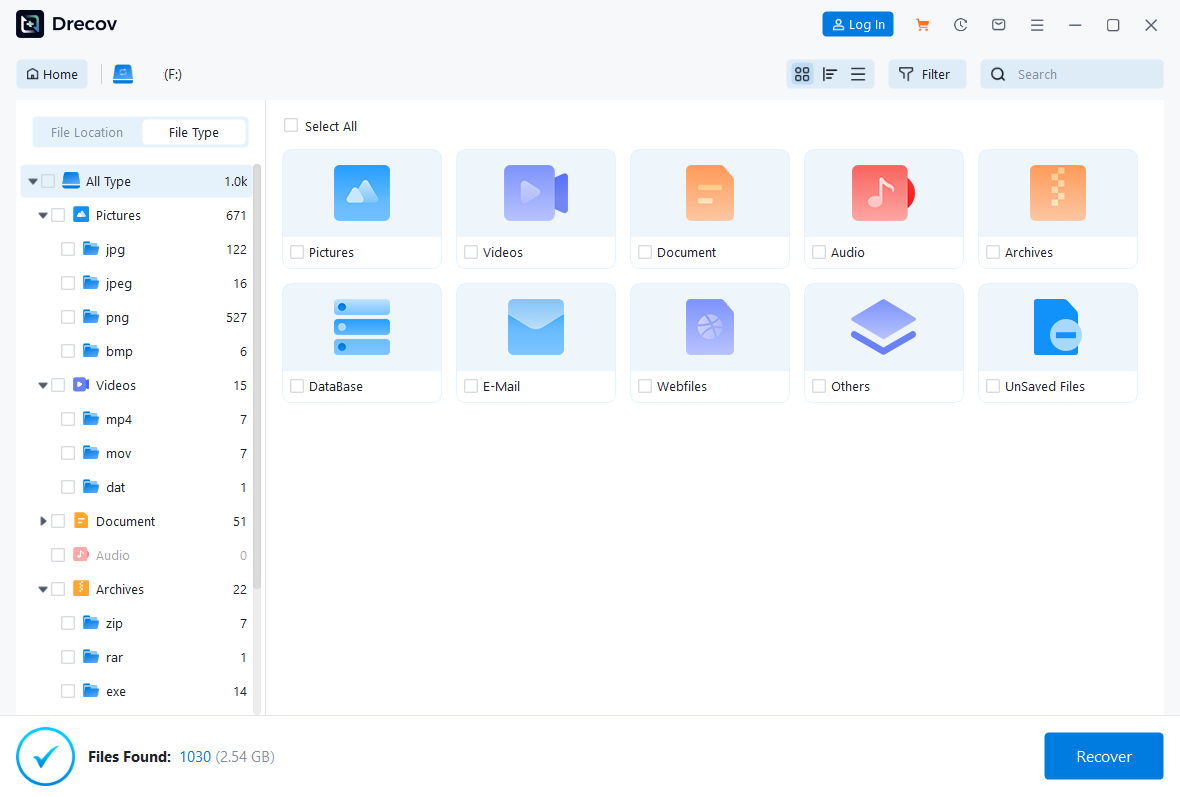
Click the “Scan” button. The software will begin two types of scans simultaneously: a Quick Scan for recent deletions and a Deep Scan for formatted or corrupted data.
- The Power of Preview: You don’t have to wait until the end! As the files appear, you can click on them. A preview window will pop up showing you the photo or the content of the document.
- Why this matters: If you see the preview, it means the data is healthy and can be 100% recovered. This eliminates the guesswork and the “hope and pray” method.
Step 3: Recover and Save

Once you have checked the boxes for the files you want back, click the large “Recover” button. This is where you must be very careful.
🚨 THE GOLDEN RULE OF RECOVERY: > When the software asks where to save your recovered files, NEVER save them back onto the same SD card you are scanning.
Why? If the software writes the “recovered” file onto the SD card, it might overwrite the “next” file it was about to find. Always save your files to a safe folder on your computer’s local C: drive or a different external hard drive. Once you are sure everything is recovered, only then should you move them back to the SD card.
4. The Science of Why This Works
You might wonder: “If I deleted it, how can the software still see it?” Think of your SD card like a giant book. When you delete a file, the computer doesn’t go through and erase every word on the page. Instead, it just goes to the Table of Contents and scratches out the name of the chapter. The “pages” (your data) are still there; the computer just doesn’t know how to find them anymore.
A high-quality free recovery software for sd card like PandaOffice DRecov ignores the Table of Contents entirely. It “reads” the physical storage cells one by one, identifying the unique “signatures” of a JPEG or an MP4 file. This is why it can find files even after a format or a “drive not recognized” error.
5. Pro-Tips to Increase Your Success Rate
While PandaOffice DRecov has a remarkably high success rate, your actions in the first few minutes of data loss are vital. To get the most out of your free recovery software for sd card, follow these pro-tips:
- Freeze! The moment you realize data is missing, stop using the device. If you take one more photo on that SD card, that new photo could land right on top of the old one you are trying to save.
- Check the Card Lock: Some SD cards have a tiny physical “Lock” switch on the side. If you flip this to the “Lock” position, it prevents the computer from writing anything new to the card, making the recovery process even safer.
- Use a Stable Connection: If you are using a laptop, plug it into a power outlet. If the computer dies in the middle of a Deep Scan, it could cause further errors on the SD card.
- Don’t Trust “Repair” Prompts: If Windows says, “This drive has errors, would you like to repair it?”, click Cancel. Windows’ built-in repair tools often try to “fix” the file system by deleting “orphaned” data—which is exactly the data you want to save!
6. Conclusion
Losing data feels like losing a piece of your history, but it doesn’t have to be permanent. Whether you are a professional photographer dealing with a corrupted card, a student with a broken USB, or a parent who accidentally deleted a video of a first birthday, there is a path back to safety.
By using a trusted free recovery software for sd card like PandaOffice DRecov, you are choosing a tool that balances power, simplicity, and security. Remember the three-step method: Select, Scan, and Recover (to a different drive!).
Don’t let a “Drive Not Recognized” message ruin your week. Take a deep breath, download the tool, and let the technology do the hard work for you. Your files are waiting to be found.






