






Why does Recycle Bin not show up in Windows Search? Often the Bin is still available, but Search is not showing its shortcut. Open the desktop and look for the Recycle Bin icon. If you cannot see it, use Windows’ desktop icon settings or File Explorer to reach the Bin. Do not reset Windows Search or install recovery software before confirming whether your deleted files are actually absent.
Open Recycle Bin without relying on Search
Press Windows + D to show the desktop. If the Recycle Bin icon is there, double-click it. Look for a file you recognize and check the account in which you are signed in. A missing search suggestion has not deleted the Bin; Search is simply not the only route to it. If you find the wanted item, right-click it and choose Restore. Windows returns it to its original location when that location still exists.
If the desktop has no icons at all, right-click an empty part of the desktop. Under View, make sure Show desktop icons is enabled. This setting hides or shows the whole group of desktop icons. It does not clear the Recycle Bin. Microsoft’s Recycle Bin instructions distinguish that case from an individually disabled Recycle Bin icon.
File Explorer offers another route. Open it with Windows + E and look for Recycle Bin in the navigation pane. If it is not shown there, click the address bar, type Recycle Bin, and press Enter. Windows versions and navigation settings vary, so do not conclude that the Bin has been erased simply because one shortcut is absent. The Recycle Bin recovery page explains the separate case of restoring deleted data.
Why a missing Search result is not a missing file
Search displays results using its own interface and index. The Recycle Bin is a special Windows location, not an ordinary folder that must appear like a document in every search view. A temporary Search problem, the wording you typed, or a changed desktop setting can make it seem absent. First ask a simple question: can you open the Bin through a route that does not use Search? If yes, your immediate access problem is solved.
Next, look for one or two ordinary results you know should appear, such as a local app or a document stored on the PC. If Search fails broadly, troubleshoot the Windows Search feature as its own problem. If Search works normally but only the Bin is missing from suggestions, restoring the desktop icon may be enough for everyday use. Do not delete search-index data or follow registry commands merely to make one icon appear in a result list.
Keep the three layers separate. An icon is a shortcut or shell view. The Recycle Bin holds eligible deleted items. Your original file is the thing you care about. Fixing an icon does not retrieve a file that was permanently removed, while scanning a disk will not fix a broken Search suggestion. The right next step depends on which layer is missing.
Open Settings, choose Personalization, then Themes. Find Desktop icon settings. Check Recycle Bin and select OK. Return to the desktop and look for the icon. This changes visibility, not the contents of the Bin. You can reverse the change through the same setting. If all desktop icons were hidden under View, switch that setting on as well.
If the icon appears but shows an unfamiliar image, open it before deciding it is the wrong folder. Theme changes can alter the icon without moving any files. If it opens normally, test Restore with a nonessential deleted item only when one is available. Do not delete a valuable file merely to conduct a test. You can instead inspect the list of existing items and note their original locations.
When the desktop icon still does not appear after these steps, sign out and back in once or restart once, then check the settings again. A managed work or school PC may apply policies that affect the desktop; ask the administrator before changing advanced settings. For alternative entry points, see the existing Recycle Bin access methods. Avoid installing third-party desktop cleaners to solve an icon problem.
Determine whether the wanted item ever reached the Bin
Open the Bin and search within it for a filename, type, or deletion date you recognize. Check the Original Location column when available. The Bin only helps if the file was eligible to go there and has not been emptied or removed by storage limits or a policy. A file deleted from a removable USB device, a network share, or inside a cloud app may follow a different deletion path. Look at the service’s own deleted-items area and the original PC before assuming the Windows Bin should contain it.
Also check that you are in the same Windows account that held the file. A family member’s account or another work profile can have a different view. If the file appears, use Restore and confirm it opens in its returned location. When the original folder no longer exists, note the message Windows shows and choose a safe location for a copy if the interface offers one. Do not empty the Bin while still searching for the file.
If the item was never in the Bin, consider other ordinary recovery routes first: the app’s recent-file list, OneDrive or another cloud service’s trash, File History, and an external backup. This is not busywork. A verified existing copy avoids scanning a disk, and it can preserve the newest version rather than an older deleted one. The file recovery overview addresses files that are genuinely missing from their original storage.
When a file is truly gone, protect its original storage
If the Bin and backups do not contain the file, the task changes from finding a shortcut to recovering data. Stop saving new files to the drive where the missing item last existed. Do not run cleanup tools or reinstall Windows to make Search behave. On an SSD, subsequent writes and storage cleanup behavior can sharply reduce what remains recoverable. An unstable disk or one reporting severe read errors calls for an image or professional assistance rather than repeated direct scans.
For a stable, recognized Windows volume, Drecov can search for lost files in read-only recovery mode. It offers Quick Scan, a deeper scan when needed, ways to locate and preview results, and recovery to another healthy device. If a partition has vanished, Lost Partition Recovery is a separate supported mode; it does not repair physical damage or rebuild every disk structure. Prepare a healthy destination with enough space and do not install the software on the source partition.
⚠ Warning: Install it on a drive different from the one where your data was lost to prevent overwriting.
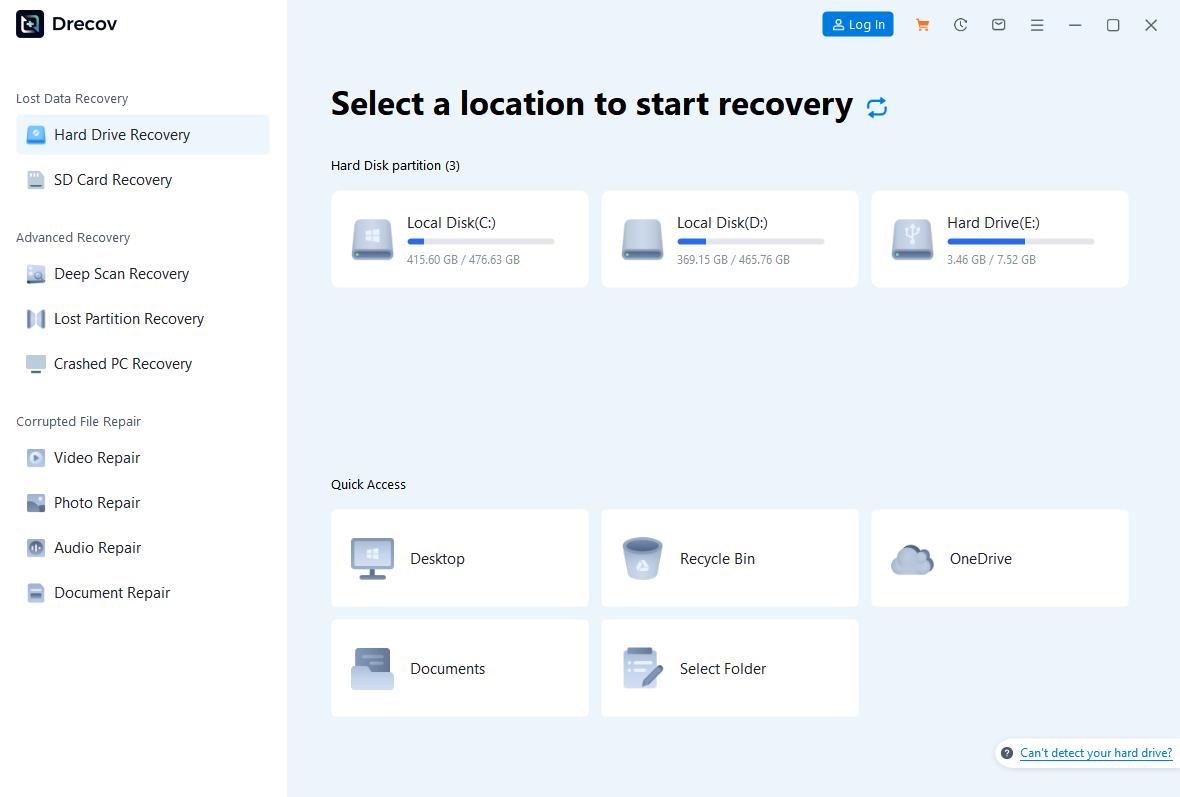
Step 1: Choose the original file location
Open Drecov and select the drive or partition that held the file before deletion. For a document from the Windows desktop, the original source is usually the Windows volume, not the Recycle Bin icon. Confirm the device by capacity and path, especially if several external drives are connected.
Step 2: Search with Quick Scan
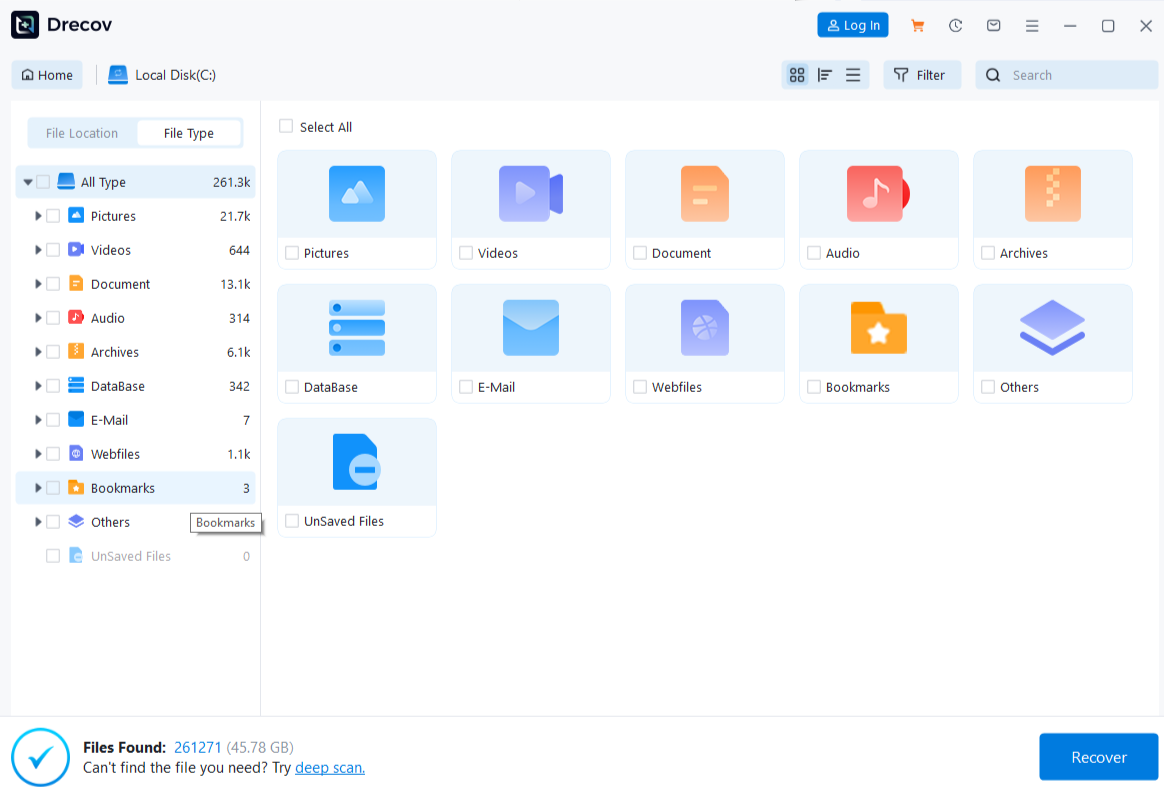
Run Quick Scan and inspect likely folders and familiar file types. If the target appears, check its path and move on to preview. A recovered filename alone does not prove the file is readable, so do not treat the result count as a success measure.
Step 3: Deep Scan only when the drive stays healthy
If Quick Scan misses the file and the source remains stable, use Deep Scan. Stop if the drive drops offline, makes unusual sounds, or returns serious read errors. A longer scan cannot repair hardware or bring back data that later writes have overwritten.
Step 4: Filter and inspect candidates
Narrow the results by name, type, or former location when those details are available. Preview several representative files. A preview can show that one sample opens, but it cannot guarantee every page, frame, or embedded object in all recovered items.
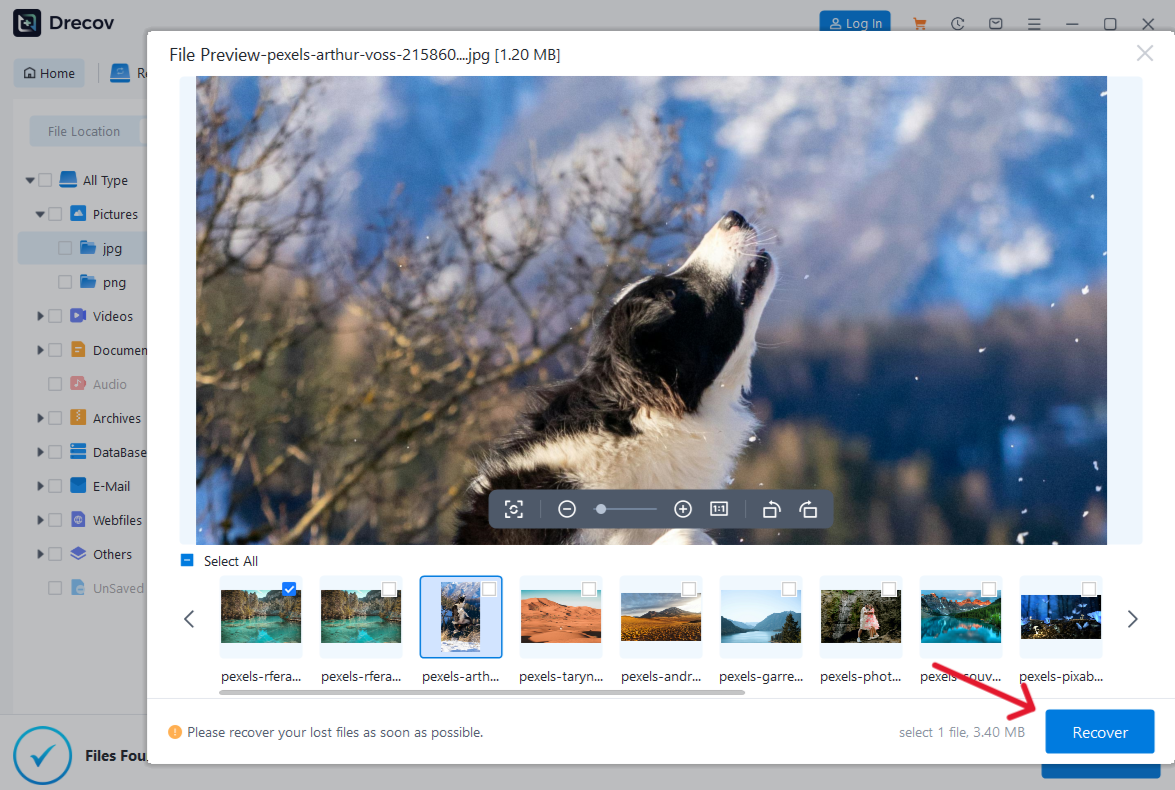
Step 5: Recover to a separate destination
Save the selected files to the healthy drive you prepared, never back to the source. If the recovered output is not where you expected, check the Drecov Folder or Recovery Folder before starting another scan.
Step 6: Verify the returned file
Open the recovered copy and check its content, not just its size. For an important document, inspect several pages or sections. Keep the original source unchanged until the verified copy and any backups meet your needs. Only then revisit any Windows Search repair you still need.
⚠ Warning: Install it on a drive different from the one where your data was lost to prevent overwriting.
Frequently asked questions
Can I open Recycle Bin if Search cannot find it?
Yes. Try its desktop icon or File Explorer. If the icon is hidden, enable it under Settings, Personalization, Themes, and Desktop icon settings. A missing Search result by itself does not remove the Bin.
Why is the Bin empty after I find it?
You may be in another Windows account, the item may have bypassed the Bin, or it may have been emptied. Check the original app, cloud trash, and backups. Do not assume that restoring the desktop icon will also restore deleted files.
Should I reset Windows Search first?
No. First open the Bin another way and determine whether other Search results also fail. Resetting Search can be a separate step when the feature is broadly broken, but it is not a file-recovery method.
Does Drecov repair a missing Recycle Bin icon?
No. Windows settings control the icon. Drecov is relevant only if the file itself is missing from a stable Windows storage location and no usable copy is available through the Bin or backups.
What if the file was on a USB drive?
Check the original USB and any backup. Removable storage may not follow the same Bin behavior as the internal Windows drive. If the USB is unstable, stop repeated scans; if it is stable and the file is missing, recover to another device.
Conclusion
A Recycle Bin that does not appear in Windows Search may still be fully available. Open it through the desktop or File Explorer, restore its icon if needed, and confirm whether the specific file is inside. Investigate Search only after you know the Bin itself works. If the file is genuinely gone, protect its original storage, check other copies, and use Drecov only on a stable source to recover candidates to a separate drive. Verify the returned file before changing the source or chasing a cosmetic Search result.
⚠ Warning: Install it on a drive different from the one where your data was lost to prevent overwriting.