







“Statistics show that more than 30% of photography enthusiasts worldwide experience some form of SD card data disaster every year.”
In the digital era, where every frame counts, following A Critical Guide to SD Card Data Recovery is essential because time is not money—it is data. According to the latest recovery report from the PandaOffice Lab, when intervention occurs within 24 hours of data loss and users avoid trial-and-error with unreliable software, the successful recovery rate can reach 98%. Faced with a crowded market of tools promising miracles, which one truly delivers fast, reliable results without risking secondary damage?
To answer this question, we conducted in‑depth, hands‑on testing of four mainstream, officially released SD card data recovery products, including PandaOffice Drecov. This guide does more than recommend a tool—it teaches you how to recover data from an SD card correctly, step by step, while clearly explaining risks, limitations, and real‑world performance.
Why Speed Determines Recovery Success
Before diving into tools, it is critical to understand how SD card data loss actually happens. Contrary to popular belief, deleting or formatting an SD card does not immediately erase files. Instead, the file system simply marks the space as “available.”
However, the moment you continue using the card—taking photos, recording videos, or even inserting it into unstable devices—new data may overwrite those invisible file fragments. Once overwritten, SD card data recovery becomes impossible, regardless of the software used.
Every professional workflow aligned with ‘A Critical Guide to SD Card Data Recovery’ follows three non-negotiable rules:
- Stop using the SD card immediately
- Do not format or repair repeatedly
- Use one trusted SD card recovery tool only
With this foundation in mind, let us evaluate the tools.
PandaOffice Drecov: The Core Solution in A Critical Guide to SD Card Data Recovery
PandaOffice Drecov is designed specifically for high‑success‑rate SD card data recovery scenarios, including accidental deletion, quick formatting, file system corruption, and RAW photo loss.
Supported SD Card Recovery Scenarios
- Recover deleted photos from SD card (JPG, PNG, RAW formats)
- Recover videos from formatted SD card (MP4, MOV, AVI)
- Recover data from corrupted SD card
- Recover files from SD card not showing or unreadable
Step‑by‑Step Guide: How to Recover Data from an SD Card with PandaOffice Drecov
Step 1: Safely Connect the SD Card
Remove the SD card from your camera or device and insert it into a computer using a dedicated card reader. Avoid USB cameras or hubs, as unstable connections reduce SD card recovery accuracy.
Step 2: Launch PandaOffice Drecov and Select the SD Card
Open PandaOffice Drecov. On the home screen, select the detected SD card under “Removable Devices.” Double‑check the capacity and label to avoid scanning the wrong drive.

Step 3: Choose the SD Card Data Recovery Mode
Select “SD Card Recovery” mode. This mode is optimized for FAT32, exFAT, and NTFS structures commonly used by SD and microSD cards.
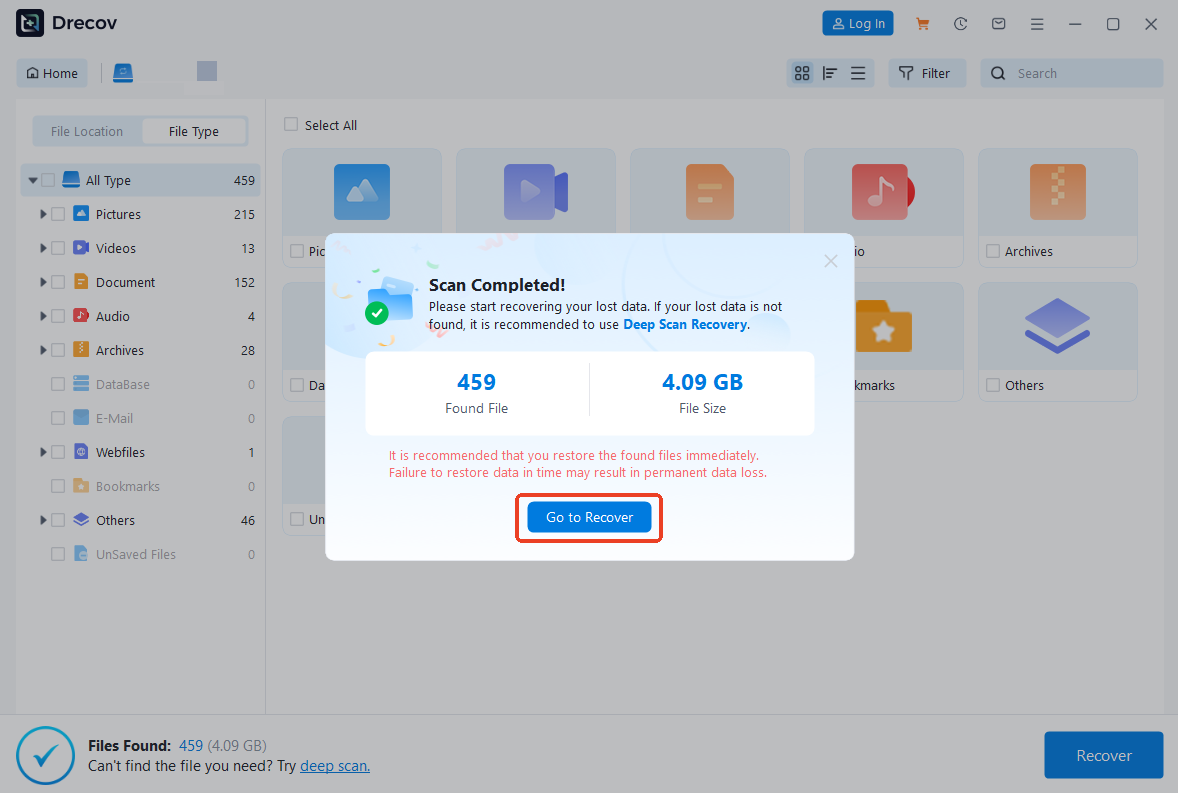
Step 4: Start Deep Scan for Lost SD Card Files
Click Scan. Drecov performs a two‑phase scan: a quick file table analysis followed by a deep sector‑level scan. Do not interrupt this process.
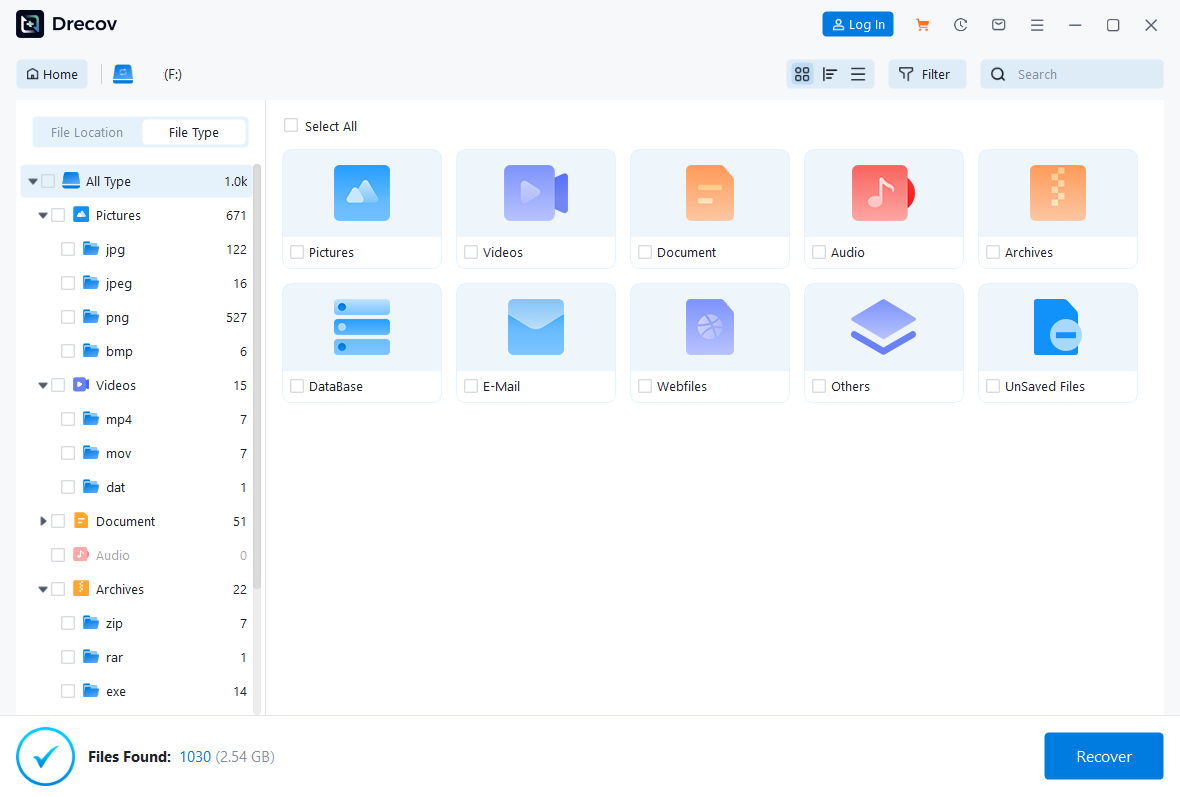
Step 5: Preview Recoverable Files
Once scanning completes, preview photos and videos directly. Previewing confirms file integrity before recovery—an essential professional step.

Step 6: Recover SD Card Data to a Safe Location
Select the files you want and click Recover. Never save recovered files back to the same SD card, as this can overwrite remaining data.
Key Advantages for SD Card Data Recovery
- Industry‑optimized scanning for removable media
- High success rate in formatted SD card recovery
- Clear preview system reduces false recovery
- Minimal learning curve, even for beginners
R-Studio: Advanced SD Card Data Recovery for Technical Users
R-Studio is a professional-grade data recovery solution widely used in IT maintenance and digital forensics. It is ideal for advanced SD card data recovery in critical scenarios involving severe file system damage.
How to Recover Data from an SD Card Using R-Studio
- Step 1: Insert the SD card into your computer via a stable card reader. Ensure the card is recognized at the hardware level.
- Step 2: Launch R-Studio and locate the SD card under the “Removable Media” section.
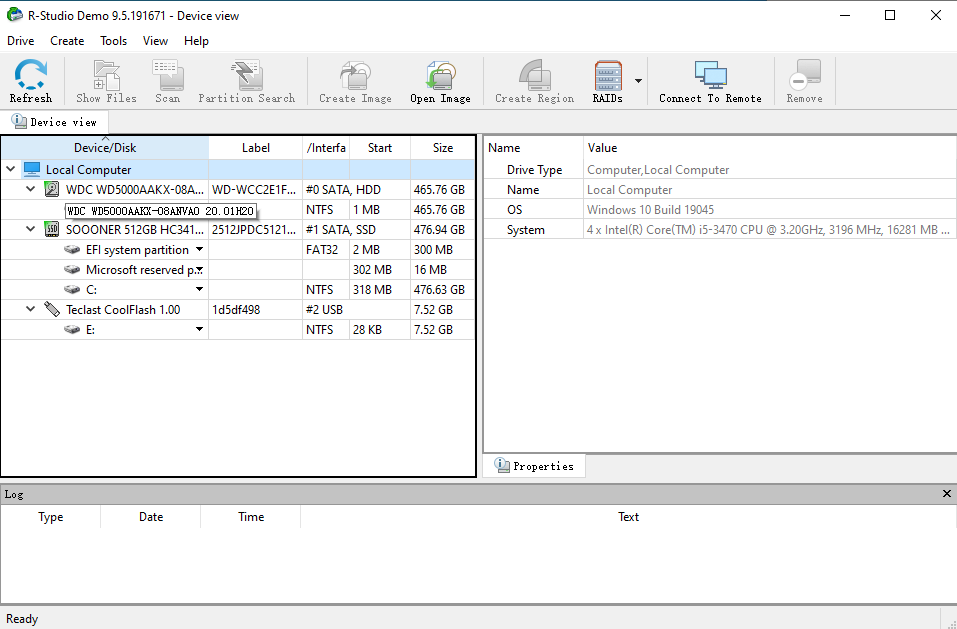
- Step 3: Right-click the SD card and select Scan. Configure scan parameters such as file systems (FAT32, exFAT) and known file types if needed.
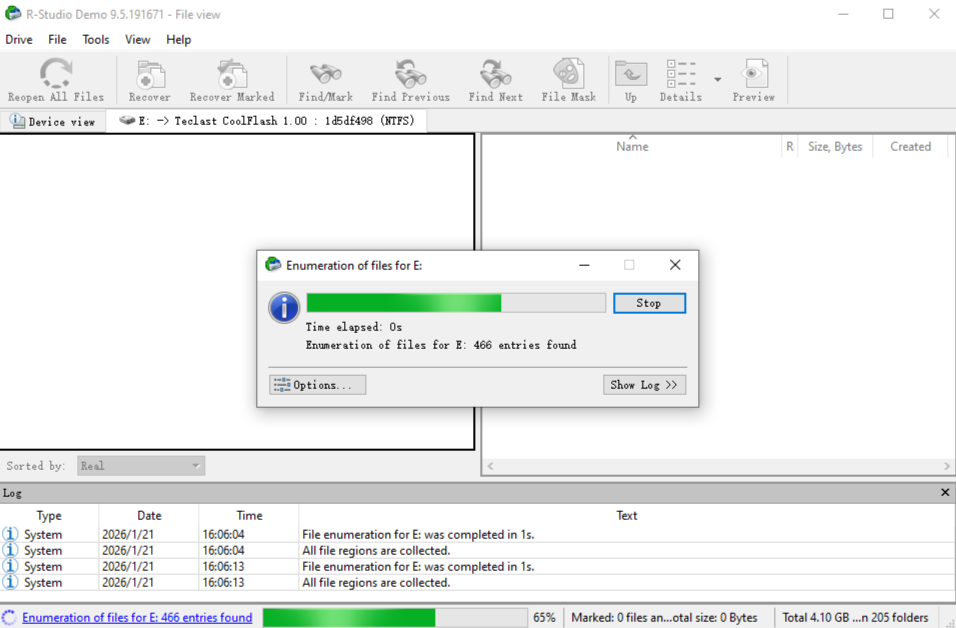
- Step 4: Start the scan. R-Studio will analyze file system structures and raw sectors simultaneously.
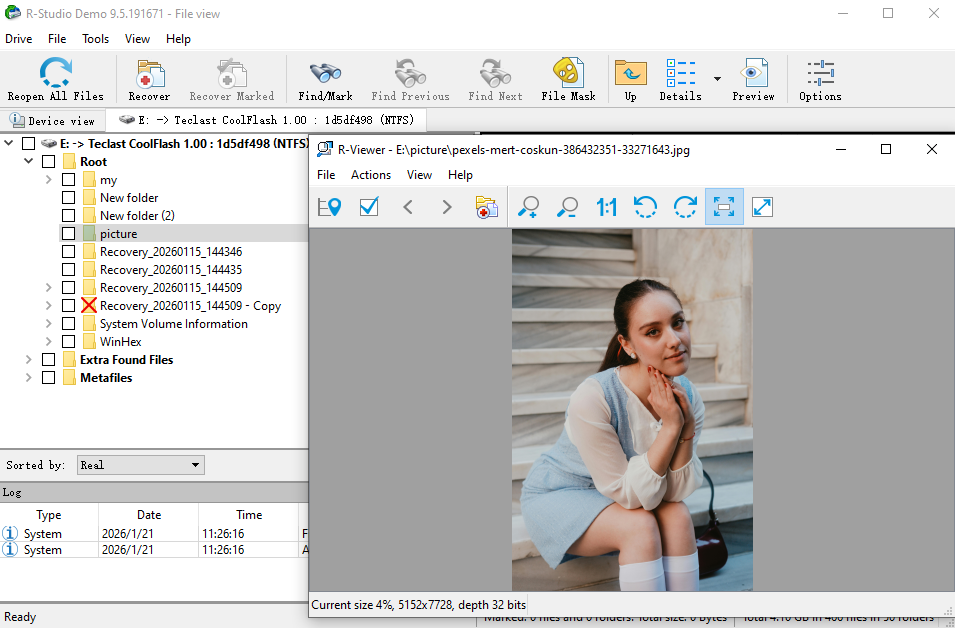
- Step 5: After scanning, browse the reconstructed directory tree or use file signatures to locate lost files.
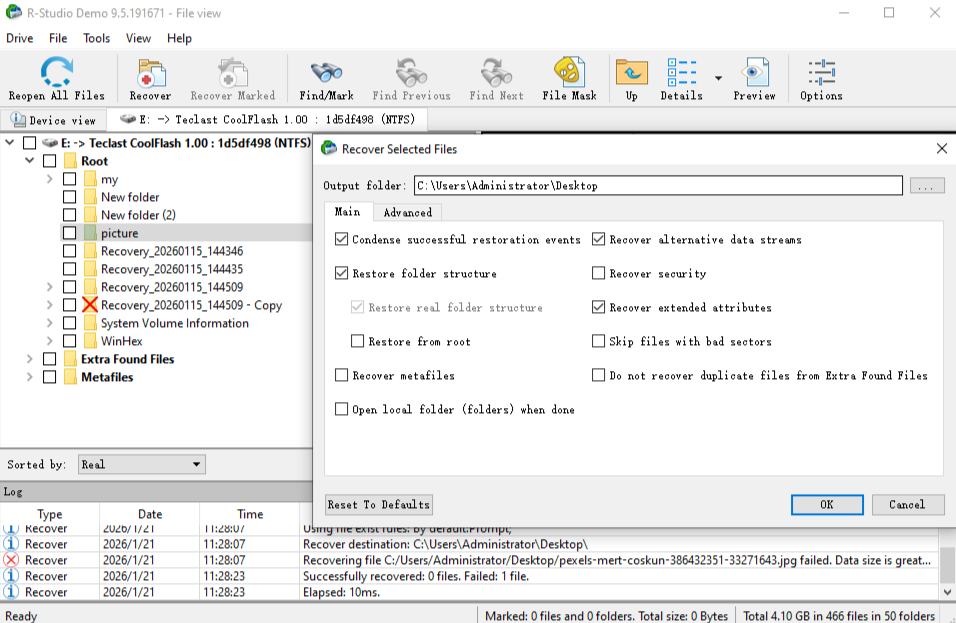
- Step 6: Preview supported files, then click Recover and save them to a different storage device.
Limitations:
- Complex interface with a steep learning curve
- High risk of misconfiguration for non-technical users
- Slower workflow for simple SD card data recovery cases
PhotoRec: Free Open-Source SD Card Data Recovery Tool
PhotoRec is an open-source utility designed for file-signature recovery. It remains functional even when file systems are destroyed, making it a crucial tool for ‘A Critical Guide to SD Card Data Recovery’ scenarios involving severe damage.
How to Recover Data from an SD Card with PhotoRec
- Step 1: Insert the SD card into your computer using a card reader.
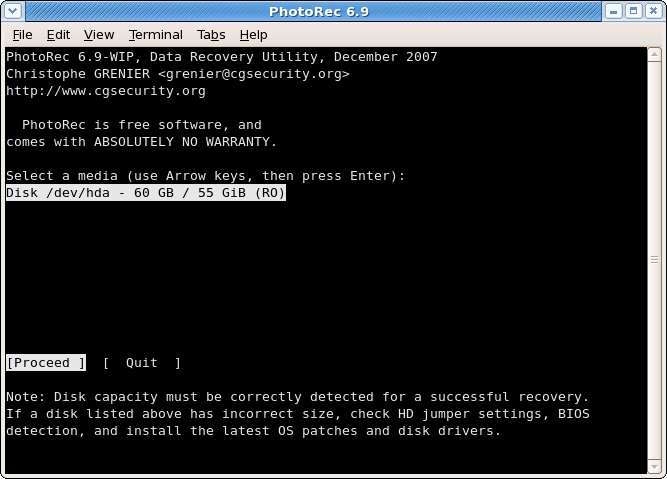
- Step 2: Launch PhotoRec from the command-line interface. Select the SD card from the device list.
- Step 3: Choose the partition type and specify the file system used by the SD card.
- Step 4: Select file formats to recover (photos, videos, or specific extensions).
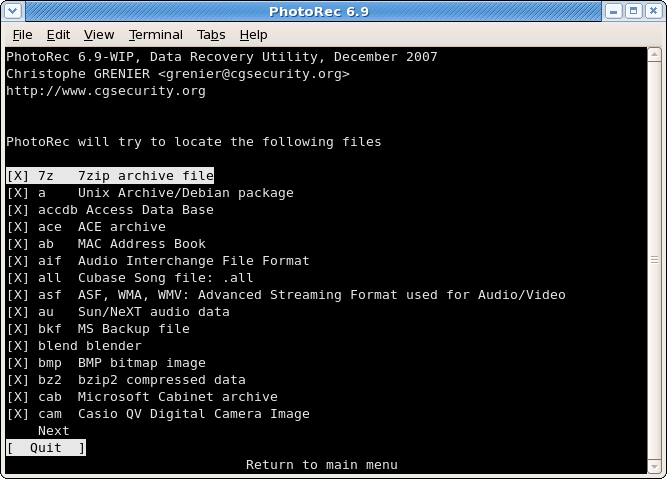
- Step 5: Start the recovery process. PhotoRec will extract files based on signatures and save them to a chosen directory.
- Step 6: Review recovered files, which are renamed generically due to the lack of original metadata.
Limitations:
- Completely free and open-source
- Effective for deeply corrupted or unmountable SD cards
- No preview before recovery
- Original file names and folder structures are not preserved
Recuva: Free SD Card Data Recovery with Basic Capabilities
Recuva is often the first tool users try when searching for free SD card data recovery software.
How to Recover Data from an SD Card Using Recuva
- Step 1: Insert the SD card into your computer.
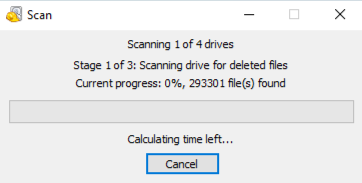
- Step 2: Launch Recuva and start the recovery wizard.
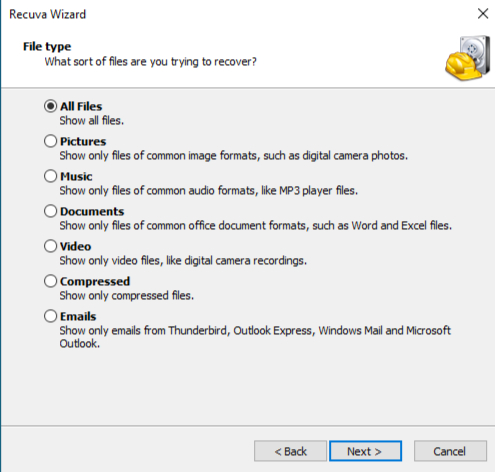
- Step 3: Select file types and choose the SD card location.
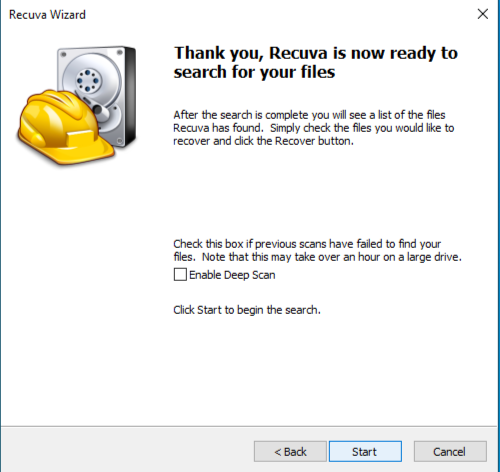
- Step 4: Enable Deep Scan for better results.
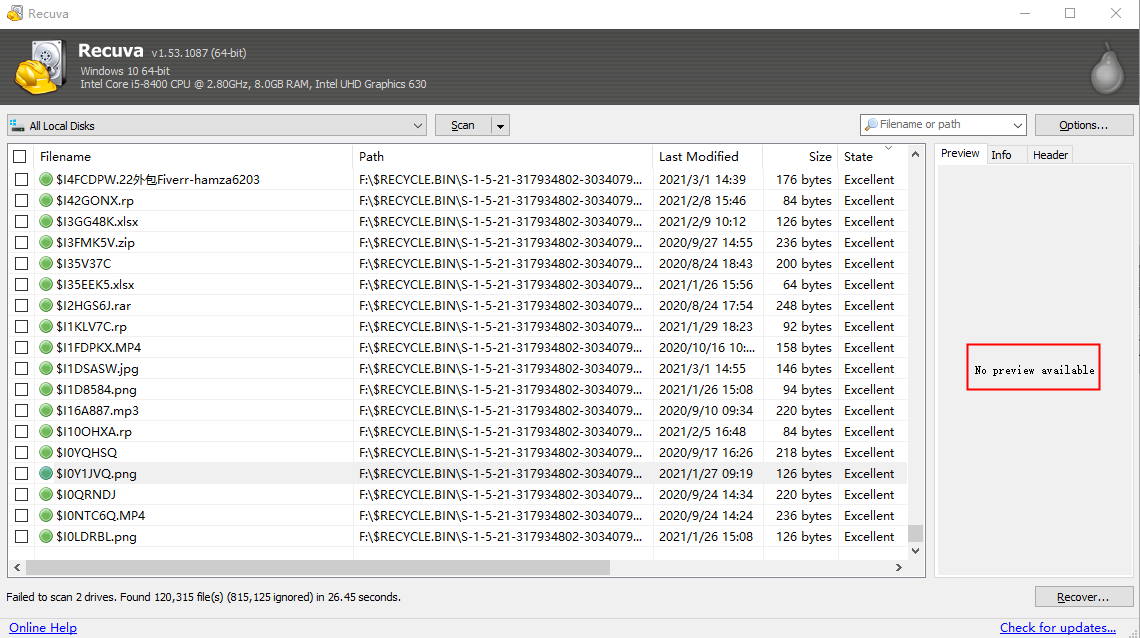
- Step 5: Review recoverable files and restore them to another drive.
Limitations:
- Deep scan is extremely slow on large SD cards
- Poor recovery performance for formatted SD cards
- Limited RAW photo and video reconstruction
SD Card Data Recovery Software Comparison Table
| Software | SD Card Recovery Accuracy | Formatted SD Card Recovery | Preview Before Recovery | Ease of Use | Best For |
|---|---|---|---|---|---|
| PandaOffice Drecov | Very High | Excellent | Yes | High | Professional & critical SD card data recovery |
| R-Studio | Very High | Very Good | Yes | Low | Complex or forensic-level SD card recovery |
| PhotoRec | Medium | Good | No | Low | Free recovery from severely damaged SD cards |
| Recuva | Low–Medium | Poor | Limited | Medium | Simple, free recovery |
Best Practices to Maximize SD Card Data Recovery Success
- Stop using the SD card immediately after data loss
- Avoid repeated scans with different tools
- Use one professional SD card recovery solution
- Recover data to an external or internal hard drive
Conclusion
When data loss becomes critical, choosing the right recovery tool matters more than technical experimentation. Based on recovery speed, accuracy, and operational safety, PandaOffice Drecov consistently proves to be the most reliable solution for A Critical Guide to SD Card Data Recovery in complex, real-world scenarios.
In critical SD card recovery, timing determines possibility—and the right tool determines success.






