







We’ve all been there: that sinking feeling in your chest when you click a folder and find it empty, or when your external hard drive makes a clicking sound and refuses to open. Whether it’s a nearly finished thesis, years of tax returns, or a critical business presentation, losing important files is more than a technical glitch—it’s an emotional and professional crisis. Data recovery from hard drive documents may seem daunting, but in most cases, the files are still retrievable.
While the situation seems dire, the data is rarely “gone” forever. In most cases, the files still reside on the disk’s platters or flash cells, waiting for a bridge to bring them back. This guide explores the most reliable strategies for data recovery from hard drive documents, featuring 👉 PandaOffice Drecov—a professional-grade solution designed to recover lost documents even in complex scenarios.
How Documents Get Lost from Hard Drives and How to Recover Them
To recover data effectively, we must first understand the “how” and “why” behind the loss. Hard drive failures generally fall into two categories:
The Technical Reality of Drive Failure
- 🚨Logical Corruption & Bad Sectors: Every hard drive has billions of sectors. Over time, some sectors lose their magnetic integrity (“bad sectors”). If a bad sector stores a document’s metadata—the “index” that tells the computer where the file starts—the operating system will not detect the file. This makes data recovery from hard drive documents more difficult but not impossible.
- ⚠️Head Crashes & Physical Wear: In traditional HDDs, the read/write head hovers nanometers above spinning platters. A sudden jar or power surge can cause the head to touch the platter, physically scratching the area where your documents are stored.
Virus Attacks and File Structure Destruction
Modern malware doesn’t just steal data; it often targets the File Allocation Table (FAT) or Master File Table (MFT). By corrupting these structural components, a virus can make your hard drive appear “Uninitialized” or “RAW,” effectively locking you out of your documents even if the hardware is healthy.
PandaOffice Drecov: The Best Tool for Document Recovery
When standard “Recycle Bin” checks fail, you need a tool that operates below the surface of the operating system. PandaOffice Drecov stands out because it doesn’t just look for file names; it looks for “File Signatures.”
Advanced Deep Analysis Technology
PandaOffice Drecov uses a proprietary Deep Scan algorithm. While most free tools only read the file index, Drecov performs a sector-by-sector scan. It identifies unique binary patterns belonging to specific document types:
- Office Suite: .docx, .xlsx, .pptx
- Adobe Formats: .pdf, .psd, .ai
- Creative Assets: .jpg, .png, .mp4
How to Recover Hard Drive Documents Using PandaOffice Drecov: Step-by-Step Guide
Step 1: Visit the PandaOffice Drecov Official Website and Download the Software
Go to the official PandaOffice Drecov website and download the latest version of the software for your operating system (Windows or macOS). Install the software and launch it.
Step 2: Select the Drive to Recover

Once the software is running, select the drive that contains the documents you want to recover. This could be either an internal hard drive or an external drive, which will be listed in the program’s interface.
Step 3: Preview and Filter Files After Scan

After the scan is complete, PandaOffice Drecov will list all recoverable files. Use the built-in preview function to check the documents and ensure they are not corrupted. You can filter the files by type (such as Word documents, PDFs, Excel files, etc.) to easily locate the lost files.
Step 4: Choose Files to Recover and Save Them

Select the files you wish to recover, then click the “Recover” button. Save the recovered files to a different drive or storage device to avoid overwriting lost data. It’s recommended to save the files to an external hard drive or cloud storage for additional safety.
💡If the quick scan doesn’t find the files you’re looking for, switch to the “Deep Scan” mode. This will perform a sector-by-sector scan of the drive to search for specific file signatures. The deep scan may take some time, depending on the size of the drive and the extent of the data damage.
Proven Success in Diverse Scenarios
Data recovery is not a one-size-fits-all process. Below is a breakdown of how PandaOffice Drecov performs across different document loss events:
| Scenario | Recovery Success Rate | Drecov’s Specific Solution |
|---|---|---|
| Accidental Deletion | 98% | Quick Scan retrieves files before they are overwritten. |
| Formatted Drive | 92% | Reconstructs the directory structure from raw data. |
| RAW/Inaccessible Drive | 89% | Bypasses OS restrictions to read the drive’s hardware. |
| Virus/Malware Infection | 85% | Reconstructs the directory structure from raw data. |
🚀With PandaOffice Drecov, data recovery from hard drive documents is streamlined and effective, even in the most challenging recovery scenarios.
Alternative Methods for Document Recovery
While professional recovery software offers the highest success rate, Windows also provides built-in tools that may help in limited data loss scenarios. These methods should only be considered as initial attempts.
Method 1: Recover Documents Using Windows File History
Best for:
- Accidental deletion
- File History enabled before data loss
- No physical hard drive damage
Step-by-Step Instructions
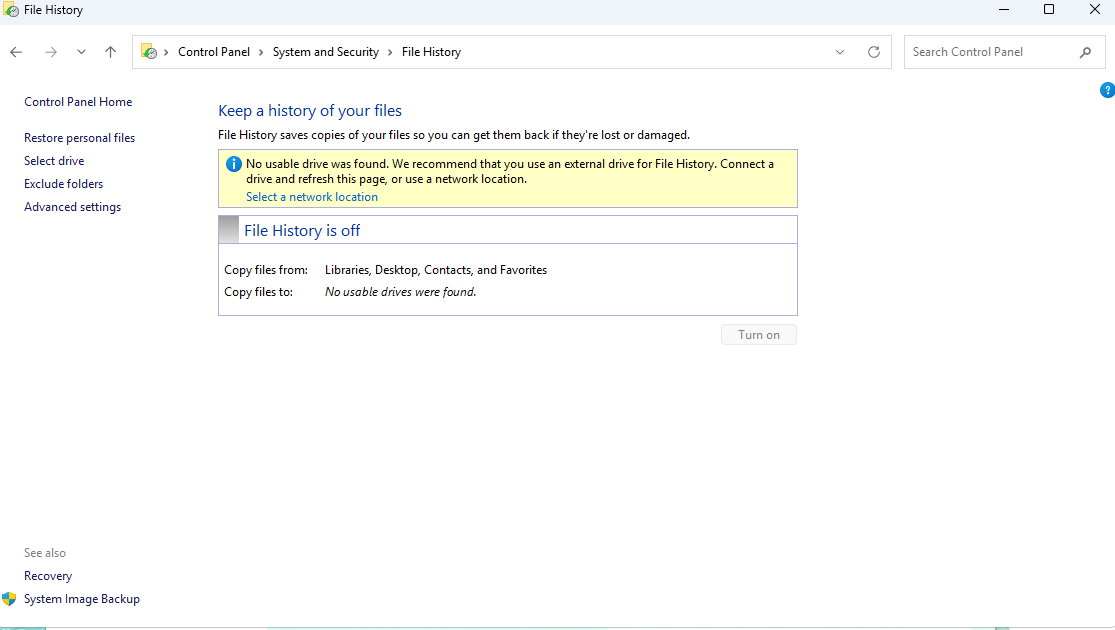
- Open Control Panel
- Go to System and Security
- Click File History
- Select Restore personal files
- Browse backup versions using the timeline
- Select the document or folder
- Click Restore
📌 Tip:
Files are restored to their original location by default.
Limitations👉
- File History must be enabled before data loss
- Requires an external or network backup drive
- Cannot recover files from formatted or RAW drives
Method 2: Recover Hidden Documents Using Command Prompt (CMD)
Best for:
- Virus-hidden files
- Drive still accessible with a drive letter
Step-by-Step Instructions👉
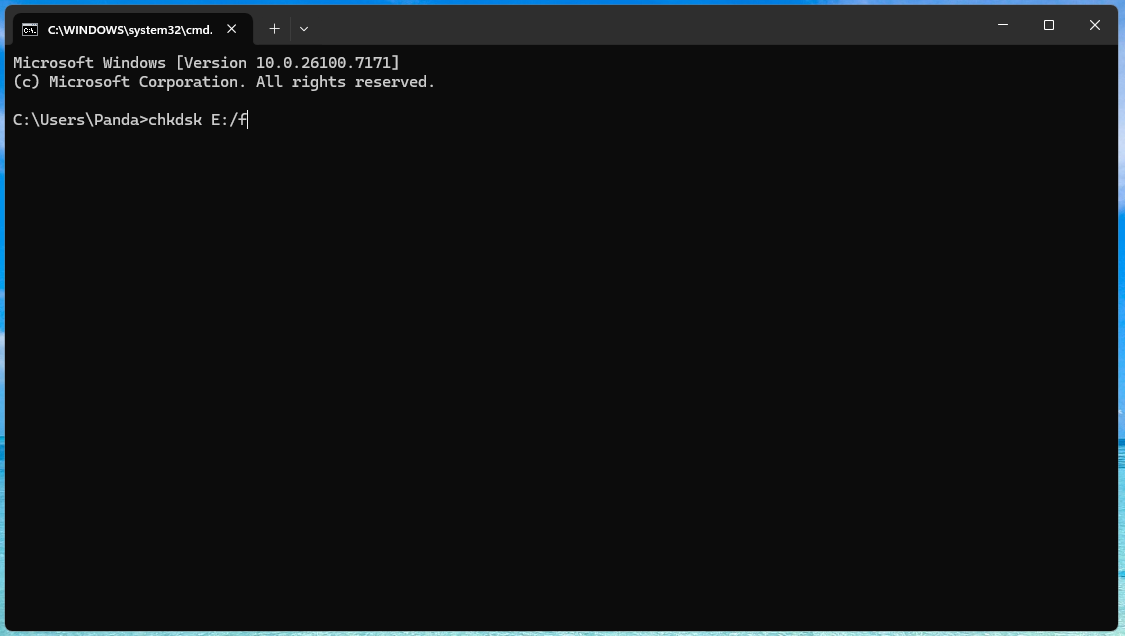
- Press Win + R, type
cmd - Run Command Prompt as Administrator
- Enter the drive letter (e.g.,
E:) and press Enter - Type the command below and press Enter:
attrib -h -r -s /s /d *.*
- Wait for the process to finish
- Check the drive for recovered files
What This Command Does
- Removes hidden, read-only, and system attributes
- Makes previously hidden files visible
Important Warnings ⚠️
- This method does not recover deleted data
- Only works for hidden files
- Avoid using
CHKDSKon failing drives — it may permanently destroy recoverable documents
Why These Methods Often Fail
| Method | Actual Data Recovery | Success Rate |
|---|---|---|
| File History | No (backup only) | Low |
| CMD attrib | No (visibility only) | Very Low |
| Professional Software | Yes | High |
FAQ: Common Questions About Data Recovery from Hard Drive Documents
Recovering documents from a damaged hard drive depends on the type of damage. If the drive physically damages (e.g., head crash), professional data recovery services like PandaOffice Drecov may be required. However, if it’s a logical failure (such as file system corruption or bad sectors), recovery tools can usually scan the drive, analyze the data, and restore the files.
Yes, formatting a hard drive does not immediately erase data; it simply marks the space as available for new data. As long as new data hasn’t overwritten the old files, it is possible to recover documents after formatting. The key is to avoid using the drive after formatting, as writing new data will overwrite the deleted files, making them unrecoverable.
When you delete files from an external hard drive, the system typically marks the deleted space as free and prepares it for overwriting instead of completely erasing the files. If you act quickly, using recovery software like PandaOffice Drecov can scan the drive and recover the deleted documents. The sooner you attempt recovery, the higher the chances of success.
A “RAW” drive usually indicates file system corruption or that the drive cannot be recognized by the operating system. In this case, you may need recovery software that can bypass the damaged file system and directly access the raw data. Avoid using file system repair tools as they may overwrite important data, reducing the chances of successful recovery.
Yes, you can often recover documents after a virus or malware attack. These attacks can corrupt or delete files, but if the malware hasn’t completely erased the files, recovery is still possible. Using data recovery tools, you can restore the corrupted files and fix any damage caused by the malware.

Best Practices for Preventing Data Loss in the Future
Recovery is the cure, but prevention is the health plan. Follow these expert tips to ensure you never lose a document again:
The 3-2-1 Backup Rule
- ✨Keep 3 copies of your data.
- 📌Store them on 2 different types of media (e.g., Hard Drive and Cloud).
- 🔥Keep 1 copy off-site (e.g., Google Drive or a physical drive at another location).
Regularly Check Hard Drive Health
Don’t wait for a crash to take action. Regularly checking the health of your hard drive is crucial for preventing data loss. You can use tools like Samsung Magician and other manufacturer-provided health monitoring software to check the S.M.A.R.T. (Self-Monitoring, Analysis, and Reporting Technology) data. If the “Reallocated Sectors Count” starts to rise, it indicates potential hard drive failure. It’s time to back up your data and replace the drive as soon as possible.
Meanwhile, PandaOffice Drecov can help recover data in the event of hard drive failure or data loss, making it a reliable tool for recovery when your hard drive fails.
Conclusion: Your Documents are Within Reach
Losing documents is stressful, but it doesn’t have to be permanent. By understanding the technical causes of data loss and avoiding risky DIY “fixes,” you significantly increase your chances of success in data recovery from hard drive documents.
For the most reliable results, PandaOffice Drecov provides a professional, easy-to-use interface that handles the heavy lifting of sector analysis for you. Whether it’s a formatted drive or a virus-stricken folder, Drecov is the “safety lock” your digital life deserves.







