







Q: “My external hard drive is not detected by Windows, how can I recover data from it?” Q: “I accidentally formatted my external HDD and lost all work files—any way to get them back?” If you’re facing these issues, don’t panic. How to recover data from external hard drive is a common problem, and most data can be retrieved with the right methods. This guide shares 6 practical solutions, including the reliable PandaOffice Drecov, to help you rescue data step by step.
Reasons for External Hard Drive Data Loss
Before recovering data, understanding the root cause helps choose the best method. Below are 5 common reasons for external hard drive data loss:
| Loss Cause | Brief Explanation |
|---|---|
| File System Corruption | Commonly caused by sudden disconnection or power outage, making the drive show “RAW” or “needs formatting”. |
| Physical Connection Failure | Loose USB cable, faulty card reader, or damaged USB port leads to undetectable drive. |
| Accidental Deletion/Formatting | Mistakenly deleting files or formatting the drive, which only erases file indexes, not actual data. |
| Virus/Malware Attack | Viruses encrypt or delete files, especially when the drive is used on public computers. |
| Physical Damage | Drops, water damage, or clicking noises indicate hardware failure, requiring professional help. |
💡 Data loss on an external hard drive can be divided into two categories: logical failures (file system corruption, accidental deletion, virus attacks) and physical malfunctions (connection failure, hardware damage).
Core Solutions: 6 Ways to Recover Data from External Hard Drive
The methods below are sorted from easiest to hardest. Choose based on your scenario for efficient recovery.
Method 1: Check Connection & Reconnect (Basic Troubleshooting)
Applicable Scenario: External hard drive not detected, no physical damage. This method fixes connection-related issues without technical skills.
Steps:
Step 1: Unplug the USB cable from both the drive and computer, then reinsert firmly. Try a different USB port (preferably a rear port on desktops, which is more stable).
Step 2: Replace the USB cable with a new one—faulty cables are a common cause of undetectable drives.
Step 3: Connect the drive to another computer. If it’s detected, the issue lies with your original computer’s USB port or settings.
💡 Tip: Avoid using USB hubs; connect the drive directly to the computer for a stable connection.
Method 2: Use Windows Disk Management to Detect the Drive
Applicable Scenario: Drive not showing in File Explorer but detected in Disk Management (e.g., unallocated space, RAW partition).
Steps:
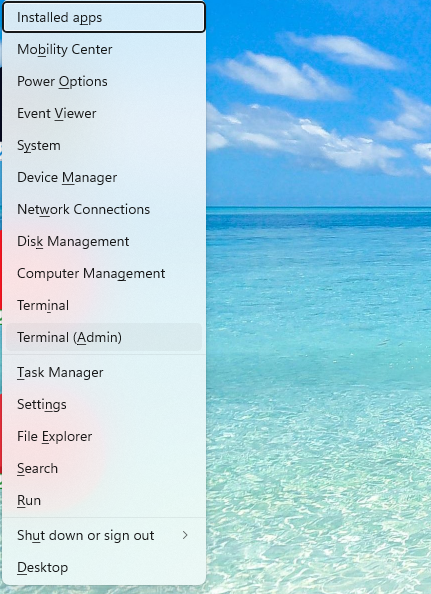
Step 1: Press “Win + X” and select “Disk Management” from the menu.
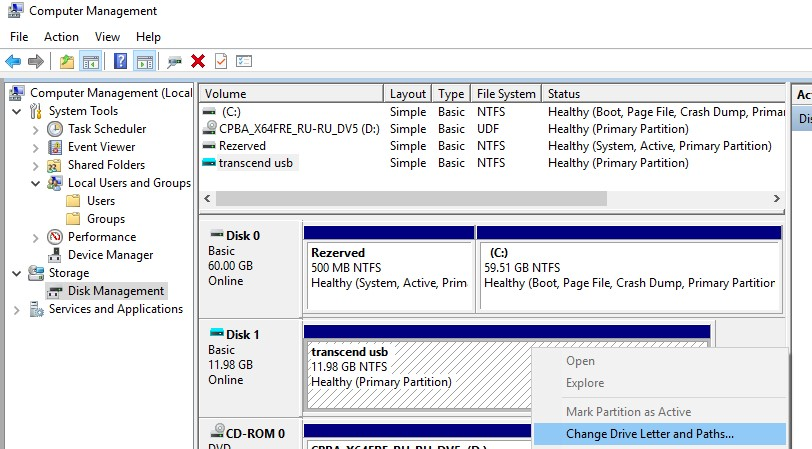
Step 2: Locate your external hard drive (identify by capacity, not drive letter). If it shows “Unallocated” or “RAW”, right-click and select “Change Drive Letter and Paths”.
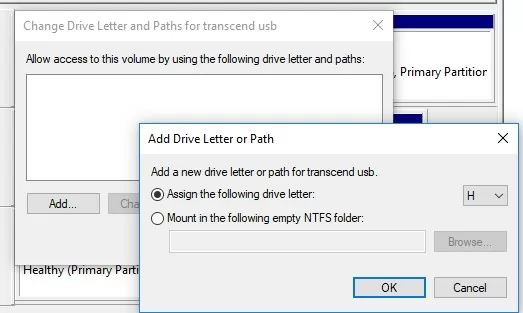
Step 3: Click “Add”, assign a new drive letter, and click “OK”. Check if the drive appears in File Explorer.
⚠️ Warning: Do not format the drive here—it will erase remaining recoverable data.
Method 3: PandaOffice Drecov Data Recovery Software (Recommended)
Applicable Scenario: Accidental deletion, formatting, file system corruption, or undetectable drive. This tool is beginner-friendly, supports Windows, and has high recovery success rate.
Core Advantages: Supports 100+ file formats (photos, videos, documents, compressed files, EXE, etc.); compatible with Windows systems; local recovery ensures no data leakage; Trustpilot certified; fixes garbled/unopenable files; works for desktop deletion, recycle bin emptying, formatting, and SD card/USB data loss.
Steps (6-Step Operation):
Step 1: Download & Install: Download PandaOffice Drecov from the official website. Install it on your computer’s internal drive (not the problematic external hard drive) to avoid overwriting data.
Step 2: Connect the External Hard Drive: Ensure the drive is connected to the computer (use a stable USB port and cable).
Step 3: Select the Drive: Launch the software, select your external hard drive from the device list, and click “Start Scan” to initiate deep scanning.

Step 4: Wait for Scanning: The software scans all sectors of the drive to find recoverable files. The process time depends on the drive’s capacity (30-60 minutes for a 1TB drive).

Step 5: Preview & Select Files: After scanning, filter files by type, size, or deletion time. Preview files to confirm integrity, then check the ones you need to recover.
Step 6: Recover & Save: Click “Recover”, choose a storage path (save to the computer’s internal drive or another external device, never back to the original external hard drive), and wait for the process to complete.

Method 4: CMD Command to Recover Hidden Files
Applicable Scenario: Files are hidden by viruses or accidental settings, not actually deleted.
Steps:
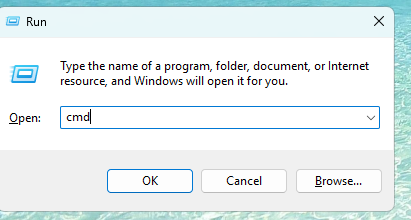
Step 1: Press “Win + R”, type “cmd”, and press “Enter” to open Command Prompt (run as administrator).
Step 2: Type “diskpart” and press Enter, then type “list volume” to find your external drive’s volume letter (e.g., E:).
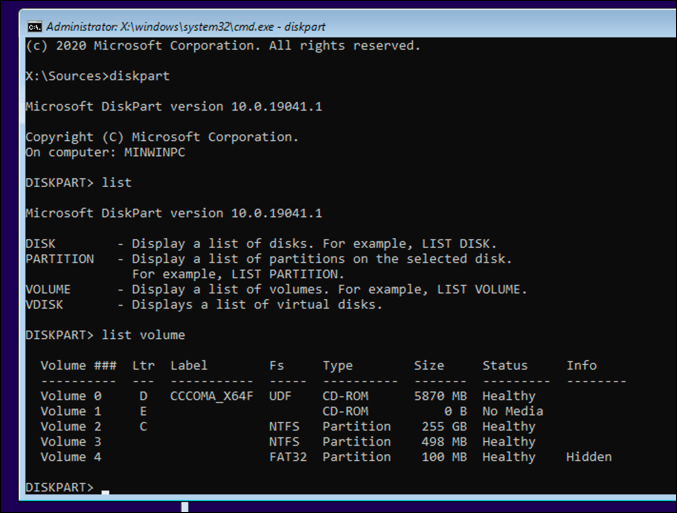
Step 3: Exit diskpart by typing “exit”, then type “E:” (replace E with your drive letter) and press Enter.
Step 4: Type “attrib -h -r -s /s /d *.*” and press Enter. Wait for the command to execute—it will unhide all files on the drive.
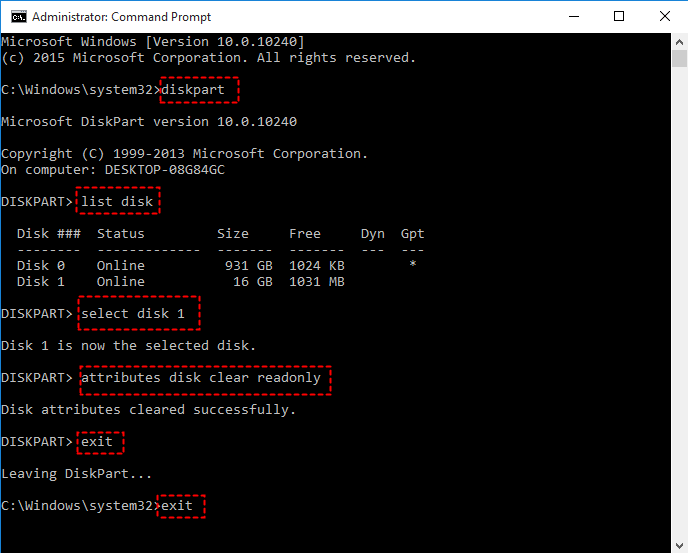
💡Tip: If the command fails, the files may be deleted, not hidden. Try PandaOffice Drecov instead.
Method 5: Restore from Backup (Zero-Risk Solution)
Applicable Scenario: You’ve backed up data to Windows File History, cloud storage (OneDrive, Google Drive), or another device.
Steps (Windows File History):
Step 1: Connect the external hard drive to your computer.
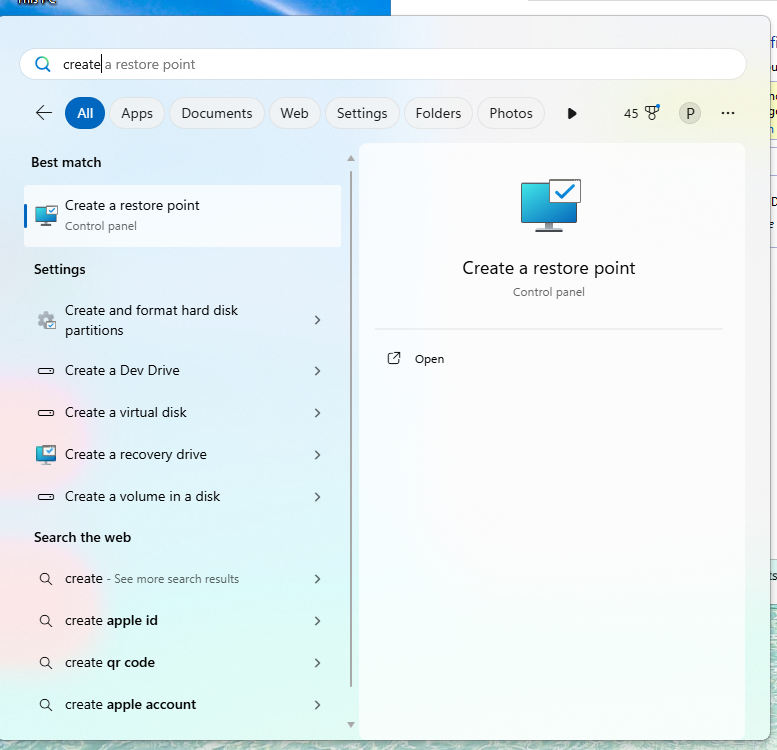
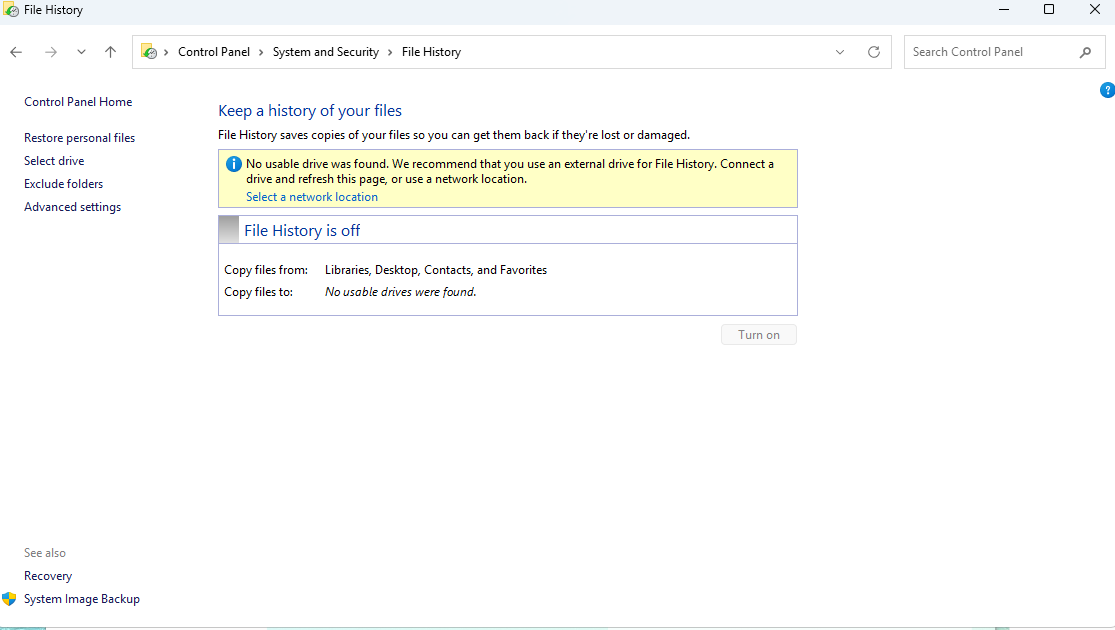
Step 2: Open “Control Panel” > “System and Security” > “File History”.
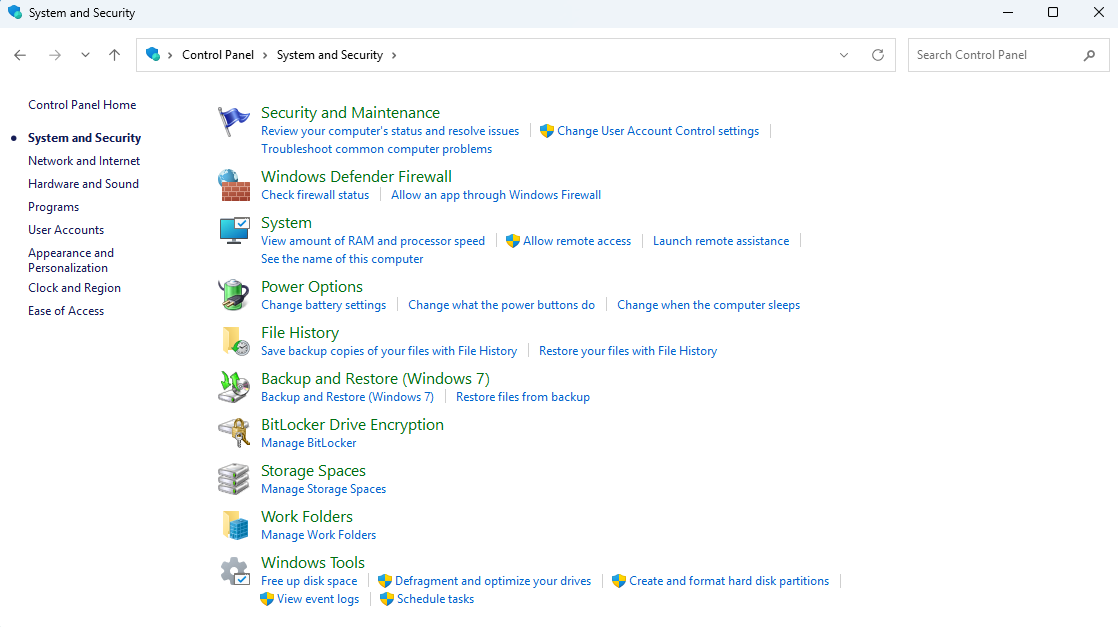
Step 3: Click “Restore personal files”, navigate to the backup version of your lost files, select them, and click “Restore”.
💡 Tip: Cloud backup users can log in to their account, find the “Recently Deleted” folder, and restore files to the external drive.
Method 6: Professional Data Recovery Services (Physical Damage)
Applicable Scenario: Drive makes clicking noises, is completely undetectable, or has physical damage (drops, water). Software can’t fix hardware issues.
Service Details & Price Reference:
| Damage Level | Service Price (USD) | Recovery Time |
|---|---|---|
| Minor Logical Failure | 100-300 | 1-2 Business Days |
| Severe Logical Failure (RAW/Format) | 300-600 | 2-5 Business Days |
| Physical Damage (Head/Circuit Issue) | 600-1500 | 5-10 Business Days |
💡 Tip: Choose services with free evaluation and “no recovery, no fee” policy.
Fault Repair Methods for External Hard Drives
After recovering data, repair the drive to avoid future loss. Methods are sorted from basic to advanced:
1. Reinstall USB Drivers
Step 1: Press “Win + X” > “Device Manager” > “Disk drives”.
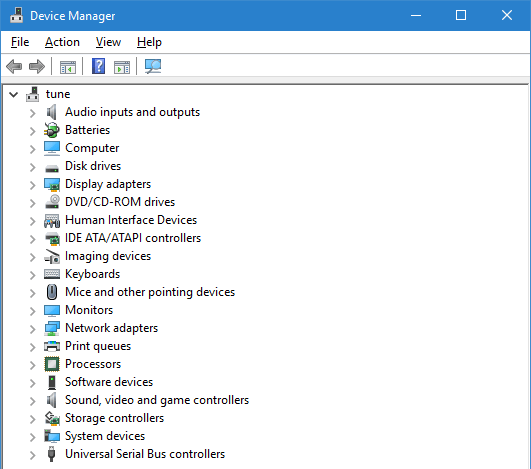
Step 2: Right-click the external drive, select “Uninstall device”, then restart the computer. Windows will reinstall the driver automatically.
2. Format the Drive (After Data Recovery)
Step 1: Open File Explorer, right-click the drive, select “Format”.
Step 2: Choose file system (NTFS for Windows, exFAT for cross-platform use), uncheck “Quick Format”, and click “Start”.
⚠️ Warning: Formatting erases all data—ensure data is recovered first.
3. Repair with TestDisk (Advanced)
Step 1: Download TestDisk, extract the files, and run “testdisk_win.exe”.
Step 2: Select “Create” to make a log file, choose the external drive, and select the partition table type (usually “Intel”).
Step 3: Select “Analyze” to scan for lost partitions, then “Quick Search” to find recoverable partitions. Follow on-screen prompts to repair.
Warning: Key Operation Notes
1. Stop writing new data to the external hard drive immediately—new files will overwrite lost data, reducing recovery chances.
2. Do not format the drive before recovery; formatting erases file indexes and makes recovery harder.
3. Avoid DIY for physical damage—disassembling the drive will cause permanent data loss; seek professional help.
FAQ About How to Recover Data from External Hard Drive
Yes. Logical corruption (RAW/format) can be fixed with PandaOffice Drecov; physical corruption requires professional services.
Software scanning takes 30-60 minutes for 1TB drives; professional physical recovery takes 5-10 business days.
Yes. It uses read-only mode, no data leakage, and is Trustpilot certified—safe for personal and work data.
Do not format. Use PandaOffice Drecov to scan and recover data first, then format the drive to fix the error.
It ranges from $100 to $1500, depending on damage level—minor logical issues cost less, physical damage costs more.
Yes, if not overwritten. Use PandaOffice Drecov’s deep scan to retrieve files deleted via Shift+Delete or empty recycle bin.
Conclusion & Action Guide
To solve how to recover data from external hard drive, prioritize PandaOffice Drecov for most scenarios—it’s easy to use and has high success rate. For physical damage, turn to professional services. Remember, prevention is better than recovery: regularly back up data to cloud storage and another external drive.Start scanning your external hard drive now—early recovery means higher chances of getting back your precious data.






