







Accidentally deleting bookmarks in Google Chrome can be a frustrating experience, especially when those bookmarks hold important links for work, school, or personal interests. If you’ve ever found yourself wondering how to recover deleted bookmarks in Chrome, you’re not alone. The good news is, recovering lost bookmarks is entirely possible, and there are several methods available to help you restore them. Whether you prefer to use Chrome’s built-in features or specialized recovery software like PandaOffice DRecov, this guide will walk you through the process step by step. By the end of this article, you’ll have the tools you need to bring back your lost bookmarks and make sure they stay safe in the future.
Why Bookmarks Matter in Chrome
Before diving into the recovery methods, it’s important to understand why bookmarks are so crucial to users. Bookmarks help streamline online navigation by saving URLs of websites users frequently visit. This not only saves time but also helps organize digital resources for work, school, or leisure activities.
However, bookmarks can be accidentally deleted for various reasons:
- Accidentally pressing “Delete” or “Remove”
- Sync errors when using multiple devices
- Browser crashes or updates that corrupt your data
Method 1: Recover Deleted Bookmarks Using Chrome’s Bookmark Manager
Before turning to external software, it’s worth checking Chrome’s Bookmark Manager. While it’s not always foolproof, the Bookmark Manager is a good place to start if your deleted bookmarks might have been moved or lost temporarily.
1. Open Chrome Bookmark Manager
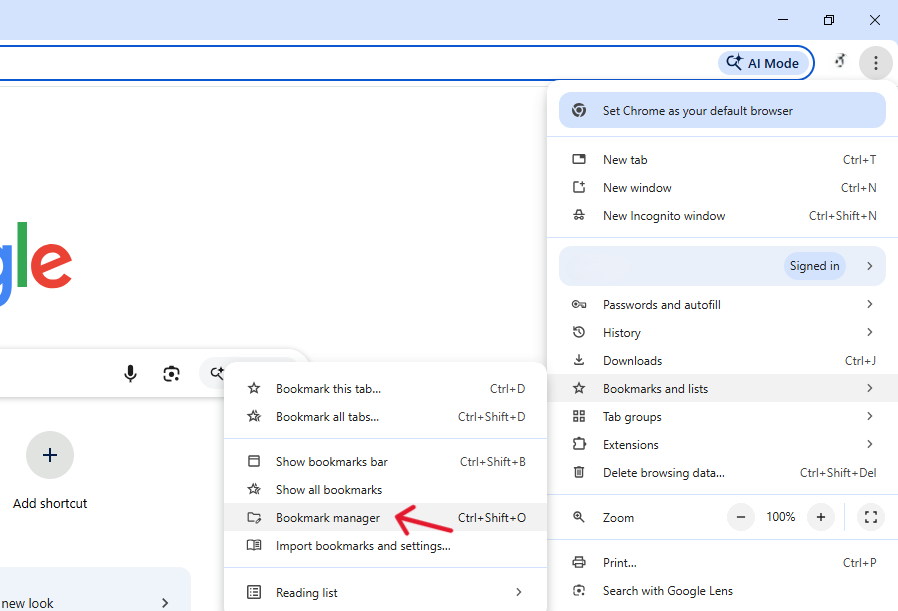
- Open Google Chrome.
- Click on the three vertical dots in the top-right corner of the browser.
- Hover over Bookmarks, and then click on Bookmark Manager.
2. Check the Bookmark Folders
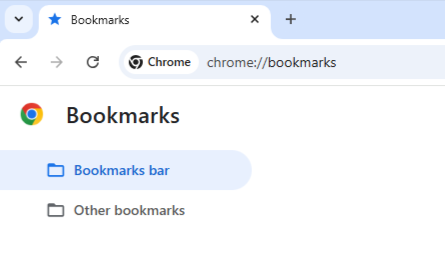
- In the Bookmark Manager, take a look through the folders. Sometimes, bookmarks accidentally get moved into other folders or hidden subfolders.
Tip: Use the search bar at the top of the Bookmark Manager to quickly find the deleted bookmark by typing the website name.
3. Restore Missing Bookmarks
- If you find the deleted bookmark in another folder, simply drag it back to your Bookmarks Bar or your desired folder. If you can’t find it, proceed to the next method.
Method 2: Restore Bookmarks from Chrome’s Backup File
Chrome creates automatic backups of your bookmarks, so even if you’ve accidentally deleted them, there’s a good chance they can be recovered from the backup file.
1. Close Chrome Completely
- Before you begin, ensure that Chrome is closed.
Warning: If Chrome is running during this process, the changes may not take effect.
2. Navigate to Chrome’s User Data Folder
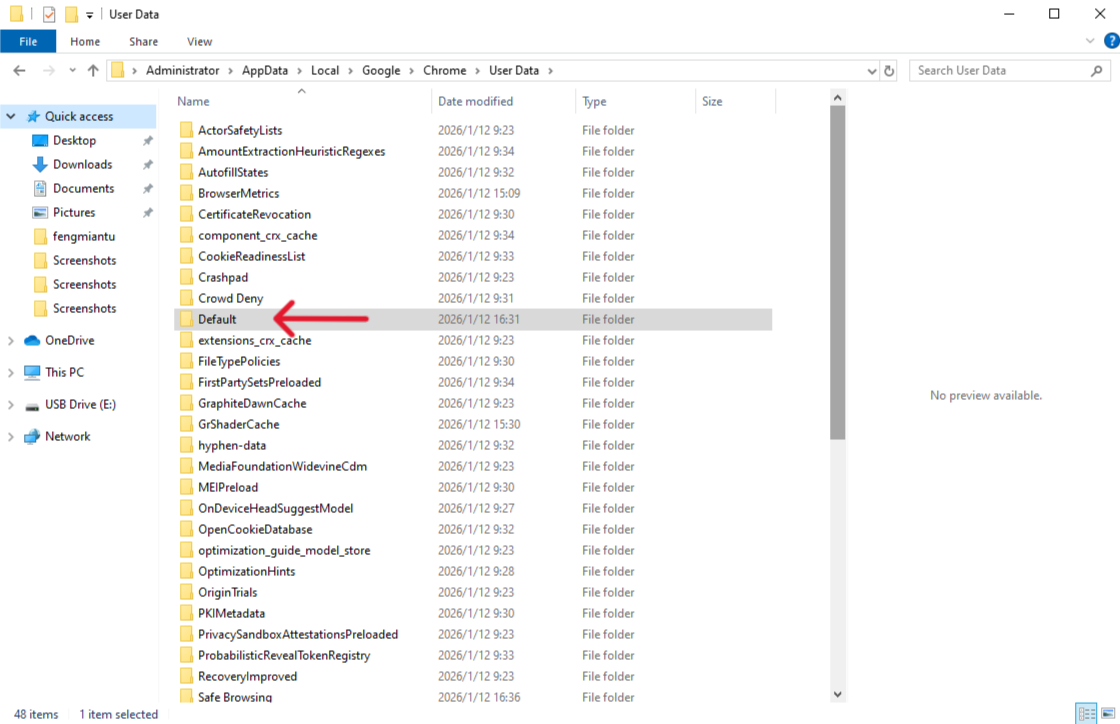
- On Windows: Go to
C:\Users\[Your Username]\AppData\Local\Google\Chrome\User Data\Default. - On Mac: Go to
~/Library/Application Support/Google/Chrome/Default. - On Linux: Go to
~/.config/google-chrome/Default.
3. Replace the Bookmarks File
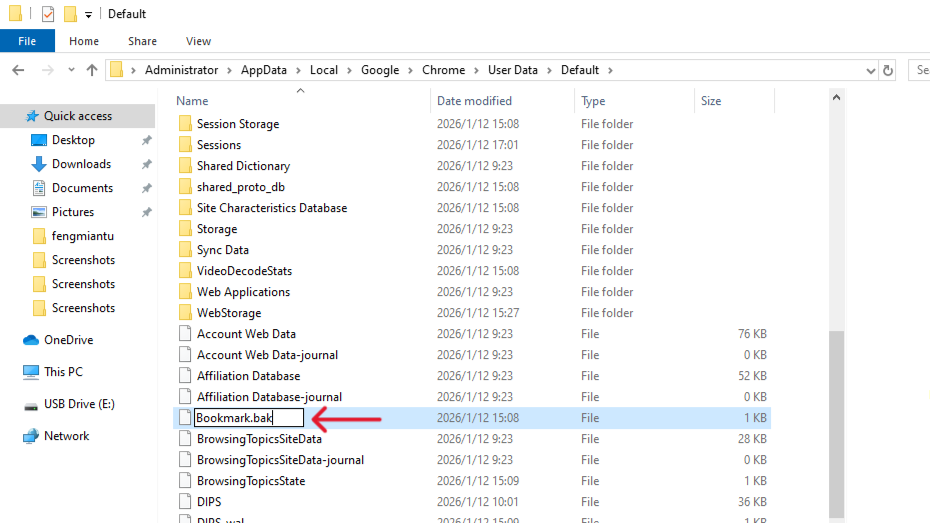
- In the folder, you’ll see two files named Bookmarks and Bookmarks.bak.
- Rename Bookmarks to Bookmarks.old.
- Rename Bookmarks.bak to Bookmarks.
Tip: Keep a backup of the original files in case something goes wrong.
Step 4: Reopen Chrome
- Open Chrome, and your bookmarks should be restored from the backup.
Method 3: Use PandaOffice Drecov for Data Recovery
If the previous methods didn’t work or if you can’t find your bookmarks in Chrome’s backup, the next option is using data recovery software like PandaOffice DRecov. This software can scan your hard drive for deleted files and attempt to restore them, including your Chrome bookmarks.
Why is PandaOffice Drecov Highly Recommended?
This software is a favorite among IT professionals, maintaining strong reputations on Trustpilot and collaborating with industry leaders like the Microsoft Store, TechBullion, and Sourceforge. It serves as a comprehensive “safety net,” capable of retrieving everything from accidentally deleted desktop files to formatted SD cards.
- Versatility: It recovers photos, videos, audio, compressed files (ZIP/RAR), and even system files like EXEs.
- Accidental deletion from your computer desktop.
- Files lost after emptying the Recycle Bin.
- Data loss from disk formatting.
- Accidental deletion or formatting of SD cards/U disks.
- Sync error occurring with deleted OneDrive files
- Simple for Beginners: You don’t need to know a single line of code. It’s a “point-and-click” experience.
- File Repair: It can often fix files that are “corrupted” or “unreadable” during the recovery process.
- Privacy First: All recovery happens locally on your machine, so you don’t have to worry about your private data leaking to the web.
1.Download and Install PandaOffice Drecov
🚨 Important Warning: Do not install this on the same drive where the lost files were. Use an external USB drive to keep the data safe from being overwritten.
2. Start a Scan
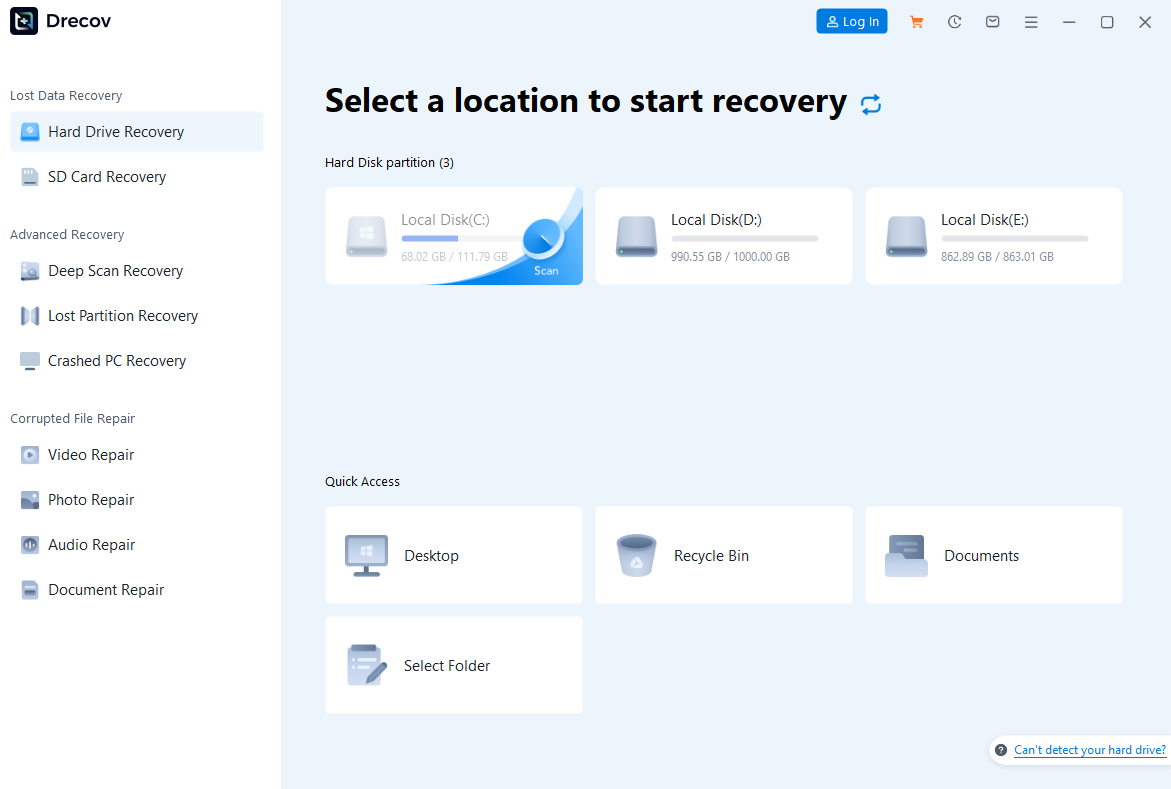
- Open PandaOffice DRecov, and select the drive where your Chrome data is stored (usually the C: drive on Windows).
- Click on Scan Now to begin the recovery process. DRecov will search for deleted files, including the Chrome bookmarks.
3. Filter and Recover Bookmarks

- After the scan is complete, use the filtering options to narrow down the search to the Chrome bookmark files.
- Select the Bookmarks and Bookmarks.bak files if they appear, and click on Recover.
4. Save the Recovered Files

- Once the recovery process is complete, you can save the restored bookmarks to a folder of your choice.
Tip: Remember to replace the recovered bookmarks files in the Chrome user data folder as shown in Method 2.
Method 4: Use Google Account Sync to Recover Bookmarks
If you have your Chrome account linked to a Google account and have sync enabled, it’s possible that your bookmarks are synced to the cloud. You can quickly restore them by syncing your Chrome browser with your Google account.
1. Check Google Sync Settings
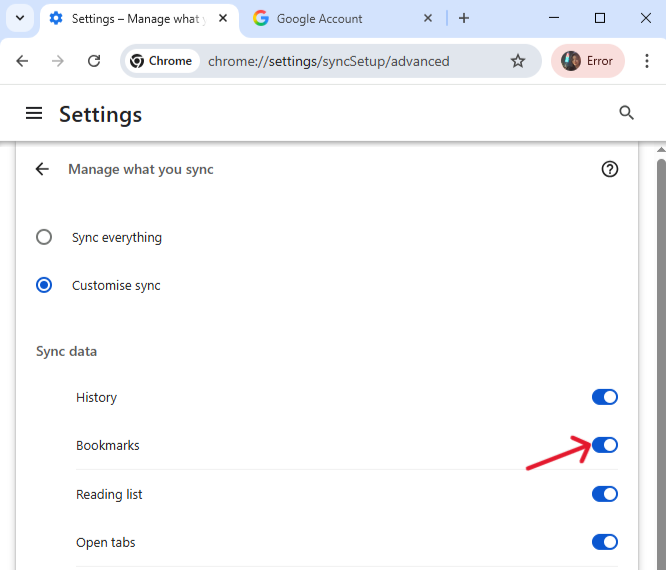
- Open Chrome, and click the three vertical dots in the top-right corner.
- Go to Settings > You and Google > Sync.
- Ensure that Bookmarks are selected for sync.
2. Sync on Another Device
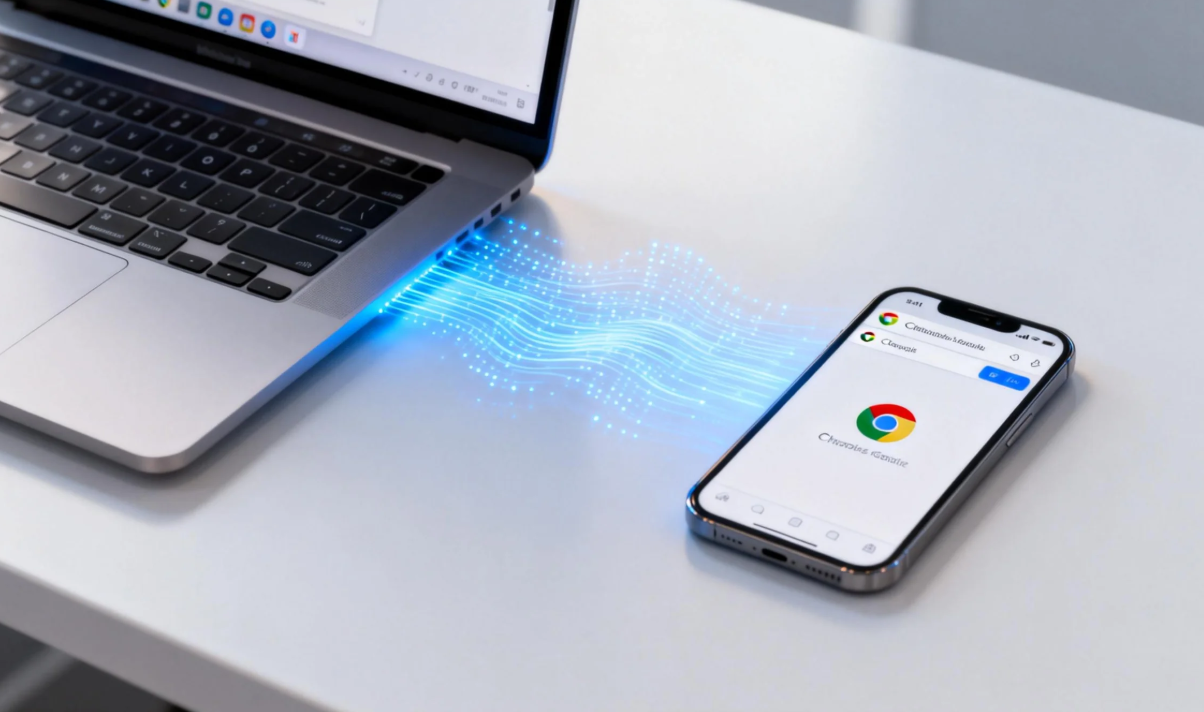
- If the bookmarks are still available on another device (like a phone or tablet), sign in to Chrome on that device and sync the bookmarks back to your computer.
- Your lost bookmarks should reappear on your desktop.
Tips to Prevent Bookmark Loss in the Future
While it’s always possible to recover deleted bookmarks in Chrome, it’s better to prevent the issue in the first place. Here are a few tips:
- Enable Bookmark Sync: Always ensure that your bookmarks are synced across devices using your Google account.
- Export Your Bookmarks Regularly: Periodically export your Chrome bookmarks by going to Bookmark Manager > Organize > Export Bookmarks. Store this backup file in a safe location.
- Use a Third-Party Bookmark Manager: Consider using tools like Raindrop.io or Pocket, which provide automatic backups and syncing features for your bookmarks.
How to Recover Deleted Bookmarks in Chrome FAQs
1. Can I recover deleted bookmarks in Chrome after I restart the browser?
Yes, you still can.
Chrome saves a local bookmark backup file (Bookmarks.bak). As long as Chrome has not overwritten this file, you can restore deleted bookmarks by replacing the current bookmark file with the backup version.
2. What if I can’t find my bookmarks in Chrome’s Bookmark Manager?
First, use the search bar in Bookmark Manager to check all folders.
If Chrome didn’t just move the bookmarks, switch to the backup-file method or use PandaOffice DRecov to scan your system for deleted Chrome bookmark files.
3. Will Chrome Sync help recover deleted bookmarks?
Yes—if you enabled sync before deletion.
When bookmarks still exist on another synced device, signing in to the same Google account can restore them automatically. However, once Chrome syncs the deletion across devices, recovery becomes harder.
4. Can I recover Chrome bookmarks if the backup file is missing?
Yes.
When Chrome backups fail or disappear, data recovery software like PandaOffice Drecov can scan your local drive and recover deleted bookmark files directly from storage, even after system crashes or browser errors.
Conclusion
Losing your bookmarks in Chrome doesn’t have to be a permanent issue. By following the steps in this guide, you can recover your deleted bookmarks using Chrome’s built-in tools or more advanced solutions like PandaOffice Drecov. Remember to back up your bookmarks regularly and enable sync to ensure that your important links are always safe. Now that you know how to recover deleted bookmarks in Chrome, you can easily restore your lost data and prevent future mishaps.






