







You just returned from a vacation, eager to view your photos… and suddenly, they are gone. Don’t panic! Losing pictures from an SD card can happen to anyone—whether through accidental deletion, formatting, or unexpected storage errors. Fortunately, most pictures remain recoverable if you act quickly and follow the right steps. This comprehensive tutorial explains How to Recover Pictures from SD Card with PandaOffice Drecov, backup methods, cached copies, and practical prevention tips, providing clear step-by-step instructions suitable for beginners and advanced users alike.
Can You Really Recover Pictures from SD Card?
When pictures are deleted or a card is formatted, the files are not erased immediately. The system simply marks the space as available. Until new data overwrites that space, recovery is possible.
Key points:
- Accidental deletion, formatting, or system errors do not always destroy the photos.
- Temporary or cached copies may still exist on your device or computer.
- Acting fast significantly improves your chance to restore pictures.
Important: Stop using the SD card immediately to prevent overwriting recoverable data.
Common Reasons Pictures Get Lost
- Accidental deletion while reviewing photos
- Formatting the SD card by mistake
- File system corruption after improper removal
- SD card not recognized or unreadable
- Virus or malware interference
Understanding why pictures disappear helps you choose the best recovery method.
4 Proven Ways to Recover Pictures from SD Card
| Method | Best For | Success Notes |
|---|---|---|
| PandaOffice Drecov | Accidental deletion, formatting, minor corruption | High success rate, supports FAT32, exFAT, NTFS |
| Backup Recovery | Cloud or local backups exist | Very reliable, fastest if backup exists |
| Cached / Imported Copies | Photos imported, edited, or temporarily stored | No risk to SD card, quick recovery |
| Hidden Files Check | SD card files hidden by system | Useful for minor system errors |
Method 1 – PandaOffice Drecov
Benefits of the Graphical Approach:
- Cross-Platform Support: While WinFR is limited to Windows-native formats, Drecov handles SD cards from Sony, Canon, and GoPro cameras which often use specialized FAT32 or exFAT configurations.
- Versatility: It recovers photos, videos, audio, compressed files (ZIP/RAR), and even system files like EXEs.
- Accidental deletion from your computer desktop.
- Files lost after emptying the Recycle Bin.
- Data loss from disk formatting.
- Accidental deletion or formatting of SD cards/U disks.
- Sync error occurring with deleted OneDrive files
- Privacy First: All recovery happens locally on your machine, so you don’t have to worry about your private data leaking to the web.
🚨 Important Warning: Do not install this on the same drive where the lost files were. Use an external USB drive to keep the data safe from being overwritten.
- Step 1: Remove SD card from device and connect to computer.
- Step 2: Launch PandaOffice Drecov; ensure SD card is detected.

- Step 3: Select SD card, choose deep scan, start scanning.

- Step 4: Preview recoverable pictures.

- Step 5: Recover to computer or external drive. Do not save to the same SD card.
Tip: Deep scan finds more files but takes longer.
Method 2 – Backup Recovery
- Step 1: Identify backup location (cloud, computer, external drive).
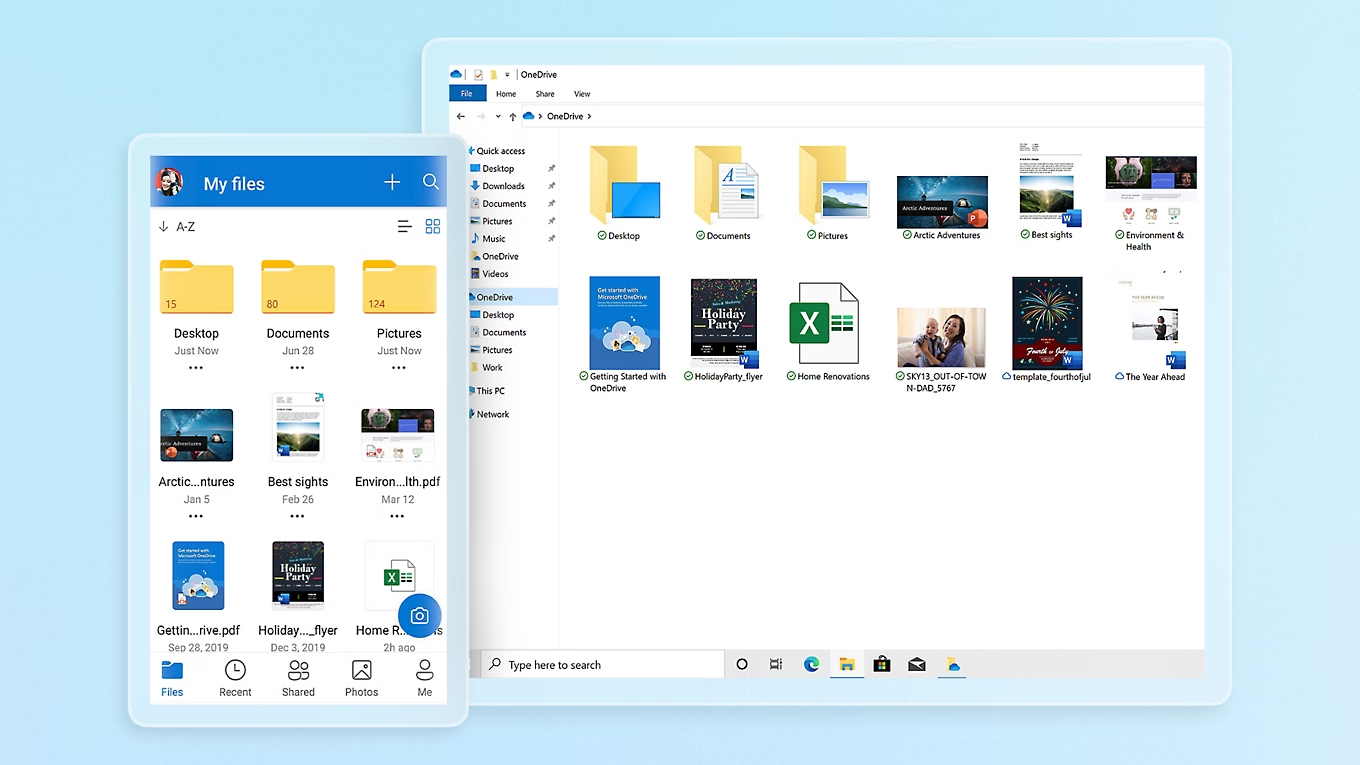
- Step 2: Access backup storage; sign in if cloud.

- Step 3: Locate photos by folder, date, or album.
- Step 4: Restore to safe location on computer or external drive.
- Step 5: Verify image quality.
Pro Tip: Always verify backups before formatting the SD card.
Method 3 – Cached / Imported Copies
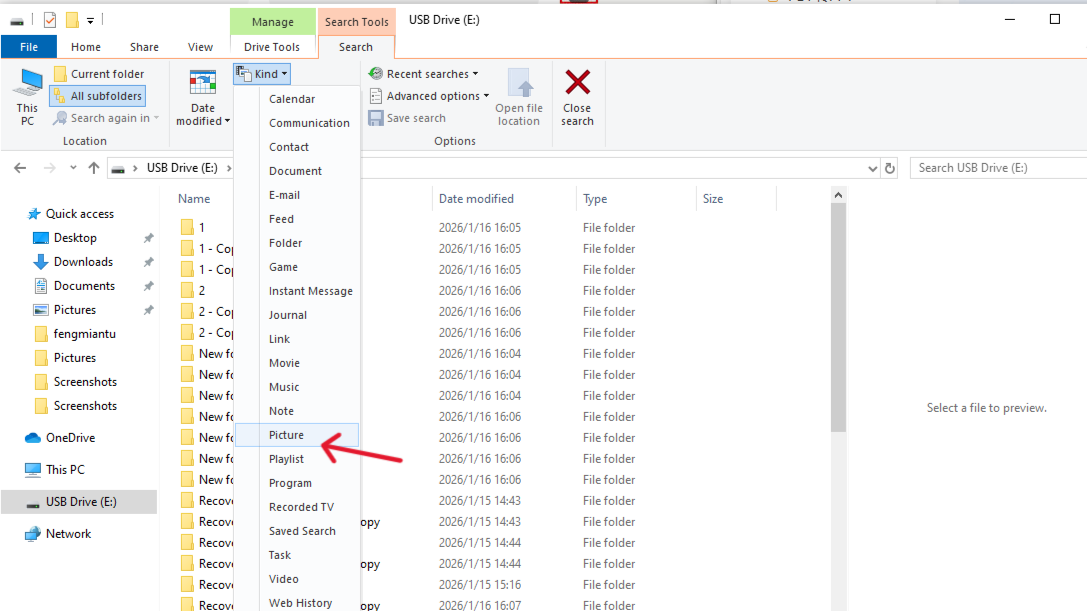
- Step 1: Check computer import folders and photo library.
- Step 2: Search for JPG, PNG, or RAW files.
- Step 3: Check photo editing app caches.
- Step 4: Review messaging or media app folders.
- Step 5: Copy found pictures to safe location; do not move them.
Pro Tip: This method avoids risk of overwriting the SD card.
Method 4 – Hidden Files Check
- Step 1: Insert SD card into computer.
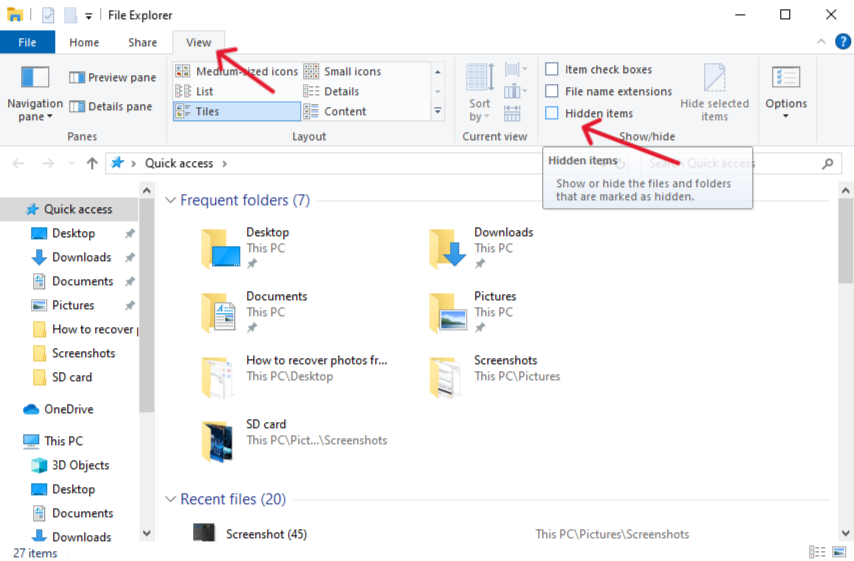
- Step 2: Enable “Show Hidden Files” (Windows: View → Options → Show Hidden Files; Mac: Cmd + Shift + .).
- Step 3: Browse SD card for hidden photos and copy them to a safe location.
How to Prevent Picture Loss on an SD Card?
Regular Backups
- Copy photos from SD card to computer after each session.
- Create a second copy on an external drive or cloud storage.
- Verify backups before formatting or reusing the SD card.
Avoid Deleting Photos Directly on the Camera
- Transfer photos to a computer first.
- Delete only after confirming backups exist.
Safely Remove SD Cards
- Complete all transfers before removal.
- Use the “eject” or “safely remove” option on Windows or Mac.
Use One SD Card per Device
- Assign specific cards to each device.
- Format inside the original device only.
Replace Aging Cards
- Watch for slow performance or errors.
- Replace unreliable cards before critical shoots.
Keep Recovery Software Ready
- Install PandaOffice Drecov before problems occur.
- Avoid installing recovery software after data loss.
Common Mistakes to Avoid
- Continuing to use the SD card after data loss
- Running repair utilities before recovery
- Saving recovered images back to the same SD card
Avoiding these mistakes preserves your chance to successfully recover pictures.
How to Recover Pictures from SD Card with PandaOffice Drecov FAQs
When it comes to learning how to recover pictures from SD card storage, many users run into technical hurdles or confusing terminology. Based on real-world data recovery cases, here are five of the most common questions answered with a focus on success and safety.
1. Why can’t I see my SD card drive letter after connecting it to my PC?
This is a major roadblock when trying to recover deleted photo from SD card assets. If the drive letter doesn’t appear in File Explorer, it usually means the card is “unallocated” or the card reader is faulty.
- The Fix: Right-click the Start button and select Disk Management. Check if the card appears there. If it shows as “Removable” but has no drive letter, right-click the partition and select Change Drive Letter and Paths to assign one (e.g.,
G:). If it doesn’t show up at all, try a different USB port or a different card reader.
2. Why are the recovered photos only “half-grey” or distorted?
Finding the files is only half the battle. If a photo appears with grey blocks or horizontal lines, it means the file was partially overwritten or is heavily fragmented.
- The Fix: This happens when new data was written to the card after the deletion occurred. To maximize success in the Recover Deleted Photo from SD Card: The 2026 Practical Guide workflow, you should use the Deep Scan feature in PandaOffice Drecov. This mode attempts to reconstruct the image from raw clusters even if the main file index is damaged.
3. Is it safe to use the “Chkdsk” command on a corrupted SD card?
Many online tutorials suggest using chkdsk G: /f to fix card errors. While this can fix the card’s file system, it is often destructive to deleted data.
- The Fix: Do not run Chkdsk until after you have finished the How to Recover Pictures from SD Card with PandaOffice Drecov process. Chkdsk “fixes” errors by deleting unlinked file fragments—which are exactly what your deleted photos are. Always extract the data first, then repair the card later.
4. Can I recover photos from an SD card that was “Low-Level Formatted”?
Most cameras offer two formatting options: “Quick Format” and “Low-Level Format.”
- The Fix: If you performed a Quick Format, recovery is highly likely because only the index was cleared. However, a Low-Level Format (often a checkbox in the camera menu) overwrites the entire card with zeros. In this specific case, software-based recovery is unfortunately impossible, as the physical binary data has been erased from the NAND flash chips.
5. Can I recover photos from a microSD card that is physically cracked?
If the card has a physical crack across the black plastic casing, it often means the internal silicon die is snapped.
- The Fix: No software can fix physical damage. If you must recover deleted photo from SD card data from a broken card, do not keep plugging it in, as this can cause a short circuit. Your only option is a professional data recovery lab that uses specialized hardware to read the NAND chips directly, though this is very expensive.
Conclusion
Learning how to recover pictures from SD card is crucial, but prevention is equally important. By following the step-by-step recovery methods—PandaOffice Drecov, backup restoration, cached copies, and hidden file checks—combined with good preventive habits, you can maximize your chances of restoring lost photos safely.
Call to Action: Download PandaOffice Drecov today and secure your memories before they are lost!






