






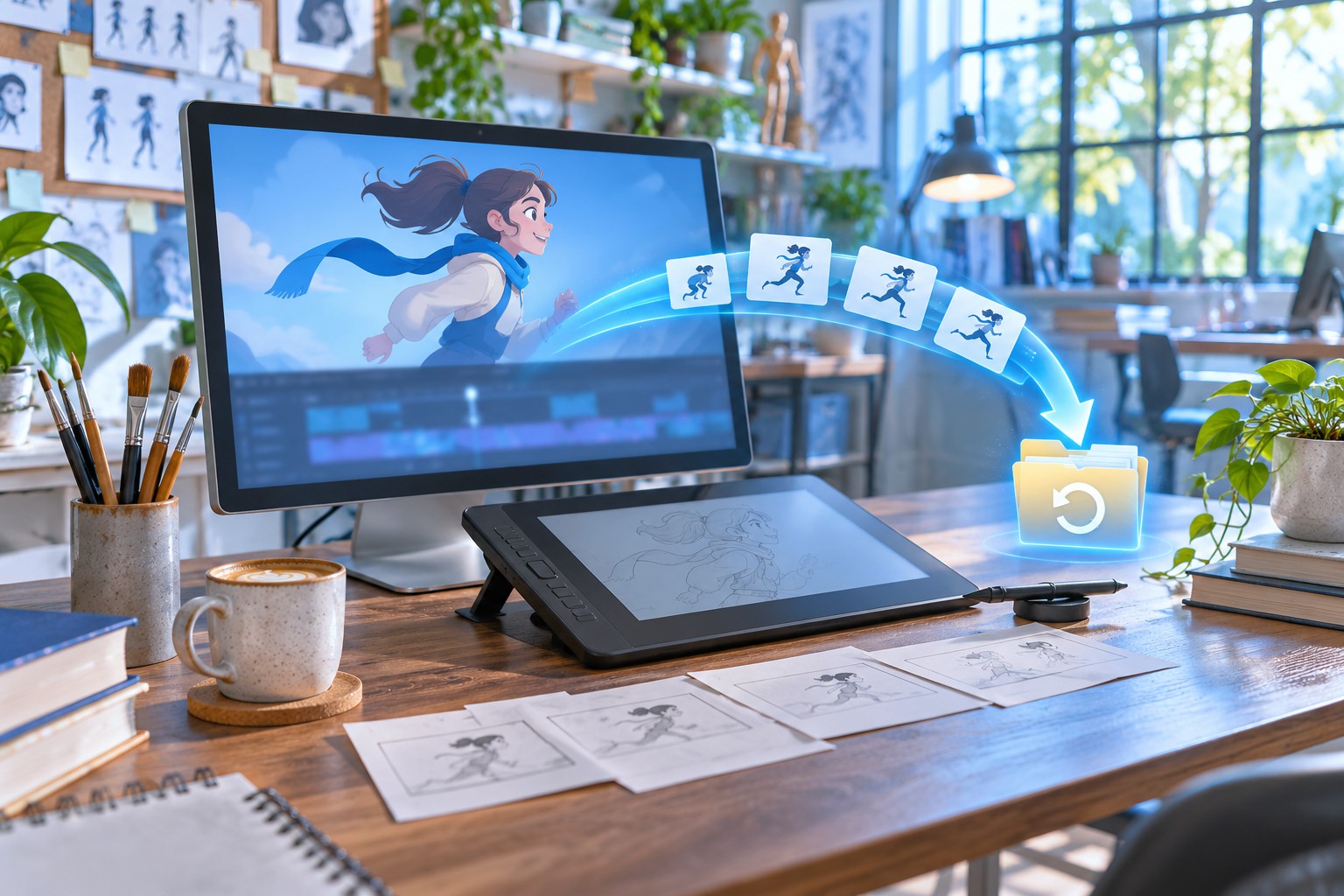
Recover Synfig Source before Rebuilding the Render
To recover Synfig animations, identify whether you need the editable native project, an imported asset, or only the rendered result. A SIF or SIFZ candidate can preserve layers and animated values. A packaged SFG project can preserve a project with bundled resources. A rendered movie or frame sequence can preserve useful output without restoring the original animation controls.
Record the project name, Synfig version, expected canvas size, time range, and a distinctive animated pose. Also note the last useful layer or waypoint change. A project that opens with a missing image differs from a project whose animation source disappeared. Start with the actual symptom instead of treating every blank preview as a deleted document.
Preserve the Native Project and Its Context
Copy the surviving project and its original supporting files to a separate recovery directory. Keep an untouched set and use working copies for inspection. Preserve directory relationships for imported assets. A project can load while relying on images or audio outside its own folder, so copying the native file alone may not produce an independent recovery source.
If the animation remains open, save a separate native milestone before closing it. Preserve a short reference render when practical. The native file supports editing, while the render helps compare timing and appearance. Keep their roles distinct so a playable export does not become the assumed replacement for the missing source structure.
Native Route 1: Accept an Available Automatic Backup
- Preserve the current project and any surviving recovery information.
- Start the appropriate Synfig installation and inspect an offered recovery.
- Compare the candidate’s distinctive pose and recent layer change.
- Save the accepted animation under a new native filename.
Synfig’s automatic backup behavior depends on its preferences and surviving data. A recovery candidate can help after an interrupted session, but it may predate the final edits. Inspect the actual content. Changing the backup interval after the incident cannot recreate work that no available candidate preserved.
Compare Animation Rather Than a Single Thumbnail
Check a frame where the last useful change matters and another where the object moves. An earlier candidate can display the correct character while lacking the final interpolation or layer setting. Keep alternatives until you understand the difference. A native recovery should support the animation behavior you need, not merely resemble its first frame.
After saving the candidate separately, reopen a copy and repeat the same comparison. This checks persistence outside the recovery session. Preserve the original candidate until the ordinary saved project proves usable with its required resources. A successful preview does not establish that every imported asset or animated relationship survived.
Native Route 2: Open an Existing Native Milestone
- Locate a preserved SIF, SIFZ, or SFG candidate from the project.
- Copy it to a separate working location.
- Open it through Synfig and inspect layers and animated values.
- Save the accepted result under a distinct recovery name.
SIF and SIFZ represent native source in different storage forms, while SFG packages source and resources. Renaming a compressed file does not automatically convert or repair it. Use the supported application workflow to open a copied candidate and preserve its original format information. Compare content before choosing the milestone you want to continue editing.
Inspect a Packaged Project’s Actual Contents through the Application
A package can provide a more complete source set, but its existence alone does not prove every required external file is present. Open the working package and inspect imported images, audio, and representative animation. An earlier package may preserve useful resources while omitting later source changes. Keep its milestone clear in your recovery notes.
If the package fails, retain it unchanged and record the exact error. Do not manually merge archive internals with another project’s source while guessing. Preserve coherent candidates first. A controlled application-level comparison provides a clearer basis for recovery than a collection of individually plausible files taken from unrelated versions.
Native Route 3: Reconnect Surviving Imported Assets
- Identify the layer or reference whose source is unavailable.
- Locate the original image or audio asset in preserved storage.
- Correct the path in a working project through supported controls.
- Compare the asset’s appearance, scale, position, and timing.
A folder move can break an imported reference while the editable animation remains intact. Reconnecting the correct original can restore useful behavior without replacing the native project. Match content and technical properties rather than using another file with a similar name. The wrong image can load successfully while changing the animation’s meaning or alignment.
Preserve Relative Paths Where They Matter
Compare the original and current directory structure before editing many references. Restoring a known folder relationship may resolve several missing sources consistently. Then test the copied project from its planned long-term location. A path that works only while a temporary recovery folder exists leaves the project dependent on that folder.
If an original asset is truly missing, keep its reference as evidence and investigate another legitimate source. A rendered preview may show what the image looked like but not contain the full original resolution or transparency. Label any replacement or reconstruction explicitly instead of describing it as exact restoration of the imported resource.
Native Route 4: Salvage Rendered Frames with Clear Limits
- Preserve original rendered frames, movies, and any reference exports.
- Identify their actual time range, dimensions, and available channels.
- Create a separate reconstruction project when native source is unavailable.
- Record which editable layers, values, and relationships remain missing.
A rendered sequence can preserve useful visual output even when the source project is gone. It does not automatically recreate vector paths, waypoints, bones, or interpolation settings. Use the output according to what it actually contains: a deliverable, a visual reference, or a replacement input. Keep that result separate from a directly recovered native animation.
Inspect the Required Range Completely
An interrupted render may leave valid early frames and missing later frames. Compare filenames and inspect representative images independently. A folder containing many files does not prove the intended range is complete. Record gaps rather than silently repeating frames to make the sequence appear whole.
If a movie is the only surviving reference, compare its frame rate and quality before inferring exact timing or pixels. Compression and scaling can alter details. A useful reconstruction can still support continued production, but its inferred timing and rebuilt shapes should remain visible in the recovery record.
Diagnose a Blank or Unexpected Preview
Check the current time, layer visibility, canvas view, and relevant rendering state. An object can exist outside the current view or appear only during another time interval. Search the layer structure and inspect a known valid frame before replacing the project with an older candidate. A display context problem is different from deletion of the source.
Inspect Layer Relationships
A layer can be present but affected by grouping, transforms, blending, or masks. Compare the path through those relationships in a working copy. A visible layer name does not prove it contributes to the final image. Test one understood setting at a time and preserve the original candidate before making broad structural changes.
If the content appears after correcting a view or relationship, record that as an access or display repair. It does not establish that a deleted animation was recovered from storage. Keeping the diagnosis precise helps you avoid an unnecessary rollback and makes the accepted source easier to understand later.
Compare Waypoints and Interpolation
A recovered animation can contain the expected objects while moving differently between key moments. Inspect the relevant animated values and their interpolation. Compare an early pose, a transition, and the final pose. A single matching frame cannot establish that the motion and timing survived across the whole shot.
Use a Distinctive Motion Event
Choose an intentional pause, turn, or change in direction as the acceptance example. Compare both the visible result and the source values that control it. If you recreate motion from a reference render, record the approximation. Similar playback does not prove that the original control points and interpolation decisions returned exactly.
Also compare timing assumptions when reconnecting audio or imported images. A source offset or frame-rate mismatch can make intact animation appear wrong. Establish the correct temporal relationship before rebuilding waypoints. This can preserve useful original work that a rushed reconstruction might otherwise replace unnecessarily.
Inspect Vector Shapes and Deformation Context
For character animation, compare a shape or deformation where the project uses important controls. A recovered pose can look familiar while a control relationship is missing. Inspect the native structure needed for further editing, not only the rendered outline. Preserve the candidate before adjusting control points or replacing a grouped element.
Keep Appearance and Editing Flexibility Separate
A flattened replacement image may reproduce a pose well but offer different editing possibilities from the original vector source. That can be useful for an emergency output, yet it is not equivalent to recovering the native animated shape. Record which components remain editable and which now depend on a rendered substitute.
If you manually rebuild a shape, keep the reference used and mark uncertain details. A screenshot rarely proves hidden control geometry or off-canvas content. Reconstruct only what the evidence supports and save that work as a new milestone, separate from any directly recovered native layers.
Verify Images and Audio Independently
Open important imported assets in appropriate local applications and compare their contents. A file can have the expected name while being truncated or representing another revision. Reconnecting that file inside Synfig does not repair its missing bytes. Preserve the candidate and inspect another source if the original itself is unusable.
Compare Transparency and Technical Properties
For images, inspect dimensions and alpha behavior. For audio, compare duration and a distinctive passage. Those properties influence how a recovered animation behaves even when the path resolves successfully. Test the relevant asset inside the project after the independent file check, because placement and timing create another set of relationships.
If you substitute an available legitimate asset, record the replacement and its effect. A similar image can have different bounds or transparency, while a different audio edit can shift timing. Keep the original recovered candidate for reference rather than deleting it once a substitute makes the preview look better.
Work through a Crash During Character Animation
Suppose Synfig closes after you adjust an arm pose and its transition. Preserve the saved native file and surviving automatic backup information. Compare available candidates at the modified pose and during the transition. Save the best candidate separately, then inspect its layer and animated value relationships before continuing creative work.
Retain Useful Differences Between Milestones
An older native file may contain a stable shape structure while the recovered candidate contains newer timing. Preserve both and transfer only understood material into a working animation. Compare the resulting motion and resource references. A hybrid result can meet the production need while still requiring a record of its source differences.
Reopen the accepted project and render a short sample to a new output directory. Compare that sample independently against the intended motion. This checks the actual render path and persistence, which can reveal a problem that an interactive preview did not expose.
Work through Missing Assets after a Move
If a project opens with empty imported layers after a folder relocation, inspect the stored paths and locate the original resources. Restore a coherent folder relationship or correct a verified reference in the copied project. Then compare scale, alignment, and the relevant time range. Do not rebuild the whole animation when a path repair restores its existing source.
Test from the Planned Destination
Save the accepted project where you intend to keep it and reopen a copy with the old temporary path understood. Check the imported asset and a distinct animated section. This reveals dependencies that the original machine may hide while the old folder remains available. Resolve those dependencies before treating the recovery as ready for handoff.
Inventory a Synfig Project by Editable and Derived Components
List the native animation, imported images, audio, packaged copies, and rendered outputs separately. Record which candidate contains each component and the milestone it represents. This inventory prevents a successful render from being mistaken for recovery of all editable source. It also helps identify a useful package whose source is older but whose bundled assets are otherwise missing.
Choose a Motion-Based Acceptance Sample
Select an initial pose, a distinctive transition, and an ending pose. Add a layer or animated value that changed near the incident. Compare the same sample across candidates. A native file can contain the expected character while lacking the motion relationship that made the animation useful, so one matching still should not decide the recovery.
Include a frame where imported imagery or audio matters. This tests dependencies alongside the native graph. A candidate can preserve the animated values while failing to display an unavailable source, or it can preserve a visible image without the editable animation. Record those outcomes independently rather than using a single label such as recovered for both.
Distinguish SIF, SIFZ, and SFG by Their Roles
SIF is native source, SIFZ stores native source in compressed form, and SFG packages source with resources. Use the application to inspect copied candidates and keep the original formats intact. A suffix change alone does not convert or repair the underlying data. This distinction matters when a file search produces several similarly named but differently structured candidates.
Compare a Package as a Coherent Milestone
Open a copied package and inspect its source and resources together. Do not extract random components from several packages and assume the combination represents a valid project. A coherent earlier milestone provides a stronger starting point. You can then transfer verified later changes deliberately and record their origin in the accepted working animation.
Also inspect the resources the actual package contains. An archive’s existence does not prove that every custom source needed by the task is available. Test an important imported asset and a distinctive animation segment. Preserve the original package until the accepted native copy passes those checks from its planned storage location.
Check Automatic Backup Preconditions before Reopening Repeatedly
Review the relevant backup preference and the original application environment. Preserve surviving recovery information before resetting the profile. A newly installed instance can have different settings or an empty recovery context while the older environment still contains useful data. The presence of a checkbox in the new installation is not evidence that the lost session was saved.
Compare Candidate Timing with the Last Edit
An automatic backup can preserve most of an animation while omitting its final adjustment. Identify the specific value or layer change and inspect it in the candidate. If the earlier state is still useful, save it separately and record the missing detail. This gives you a clear base for controlled reconstruction without pretending every last change returned.
After saving the accepted candidate, reopen a copy and render a small sample. This checks persistent source and output behavior together. Keep the original recovery material untouched until the test succeeds. An interactive preview can look correct while a dependency still points to a temporary or unavailable location.
Reconnect Imported Images through Their Actual Content
Use the stored reference and a distinctive visual detail to identify the original image. Compare dimensions, transparency, and intended placement. Another file with the same basename can have different bounds or represent another revision. Loading it successfully does not establish that the animation now uses the correct source.
Verify Position and Scale after Reconnection
A valid replacement path can expose a mismatch in image dimensions or anchor assumptions. Inspect the asset in the relevant animation context, including a frame where it moves or interacts with another layer. Preserve the original candidate before changing transforms. A path error should not lead to unnecessary rebuilding of animation values that were already correct.
If only a rendered image from another stage survives, label its use as partial salvage or substitution. It can support continued work while losing original transparency or resolution. Record the source and limits so another animator does not assume the replacement preserves the exact editable asset that the native project originally referenced.
Compare Animated Values and Interpolation Together
A recovered value at one time can match while interpolation between times differs. Inspect a movement with an intentional hold or direction change. Compare the visible result and the corresponding native controls. This establishes whether the candidate supports the intended behavior rather than merely reproducing a familiar pose at one selected frame.
Review Timing before Redrawing Motion
A source offset, frame-rate context, or different playback range can make intact animation appear wrong. Compare those relationships first. If the motion becomes correct after restoring the intended temporal context, record that repair. Rebuilding every control point would waste useful source information and could introduce new differences without solving the original cause.
When you do reconstruct motion from a reference, keep the original reference and record inferred values. A close visual match can meet the practical goal while leaving the historical control structure unknown. Save reconstruction as a distinct milestone rather than overwriting the best directly recovered native state.
Inspect Grouping, Masks, and Deformation Dependencies
A layer can survive while another relationship prevents it from contributing correctly. Trace its group, mask, transform, or deformation context in a working copy. A visible layer name alone does not establish that the complete relationship survived. Use the incident’s distinctive visual event to identify where the result first differs from the expected animation.
Change One Understood Relationship at a Time
Preserve the native candidate and make a small controlled repair in a working version. Compare the same frame range afterward. This lets you connect the observed improvement with a specific cause. A broad rearrangement of layers can make the preview look better while hiding a structural mismatch that returns elsewhere in the shot.
Record any manually rebuilt relationship and its evidence. A rendered reference can show the result without revealing the original internal structure. The reconstructed relationship may be correct for continued production, but that is different from proving that the original mask or deformation source returned directly from a backup.
Evaluate Rendered Sequences as Limited Recovery Sources
Inspect the first and last required frames and any gaps in between. Compare resolution, transparency, and the actual visual milestone. A large directory can contain duplicates or incomplete ranges. Preserve the original filenames and source context so you can distinguish surviving output from new test renders produced during recovery.
Keep New Renders in a Separate Directory
Mixing recovered frames with newly generated frames can obscure what survived the incident. Use a distinct output location for tests and record which project produced them. This makes it possible to compare the recovered source with the historical output without accidentally treating a new reconstruction as evidence of a complete original render.
If output-only salvage meets the immediate delivery need, state that scope clearly. Keep searching for native source only when continued editing requires it. The acceptance goal should follow the actual task, while the recovery record preserves the important distinction between usable pixels and restored animation controls.
Prepare an Independent Animation Restore
Copy the accepted project and required resources to the planned storage location, then reopen a working version and render the acceptance sample. Check that no dependency relies on an old temporary path. This practical test is more informative than a project that opens only on the machine where all earlier source folders remain available.
Keep the Handoff Traceable
Record native milestone, imported source locations, reconstructed motion, substituted assets, and unresolved gaps. Retain a reference render with the accepted project. Another animator can then continue from a clear baseline and distinguish exact recovered information from later creative repairs, instead of assuming every polished frame came from one intact historical source.
When Storage Recovery Can Help Synfig Sources
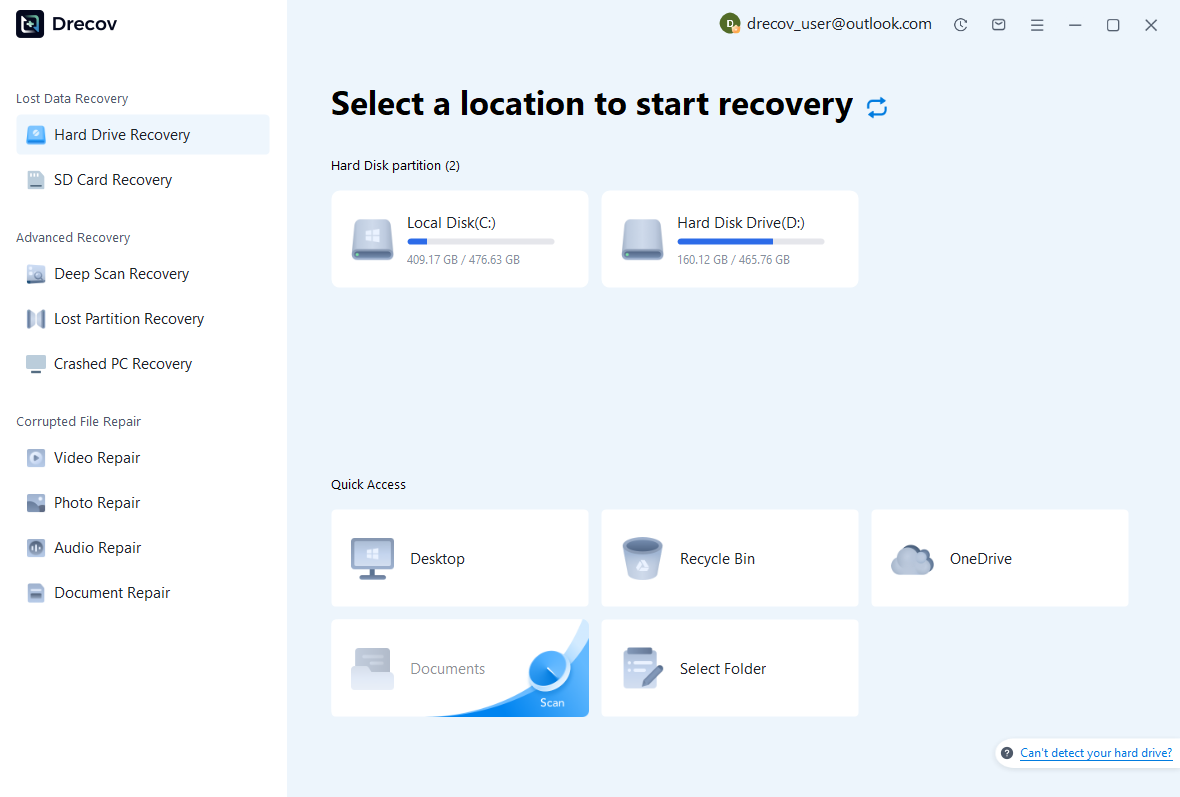
PandaOffice Drecov may help retrieve deleted native projects, existing backups, imported images, audio, or rendered frames from readable storage. It cannot infer every animation control from final pixels or recreate unsaved values that never reached disk. Prefer surviving native candidates and source reconnection first, and reduce writes where deleted files may remain.
Step 1: Identify Project and Asset Storage
Choose the drive or partition that held the native animation, automatic backup data, or original imported sources. Record which component each search targets. Keep recovered output on separate healthy storage. Assess repeated disconnections or hardware read errors before proceeding with a routine software recovery scan.
Step 2: Compare Native and Render Candidates
Review available paths, names, dates, sizes, and supported previews. Preserve plausible native milestones and resource sets without combining unrelated versions. A recognizable rendered pose does not establish that editable layers and animated values survived. Keep alternatives until Synfig can inspect the working candidate’s actual source structure.
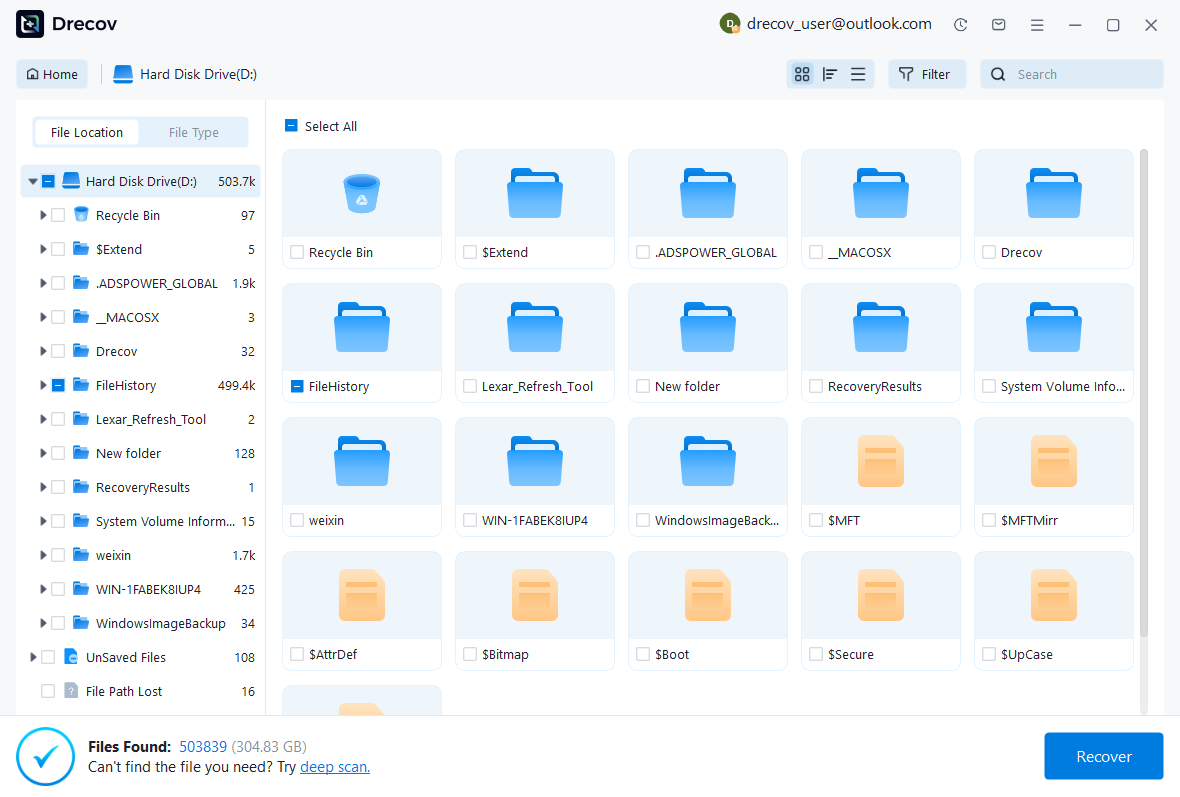
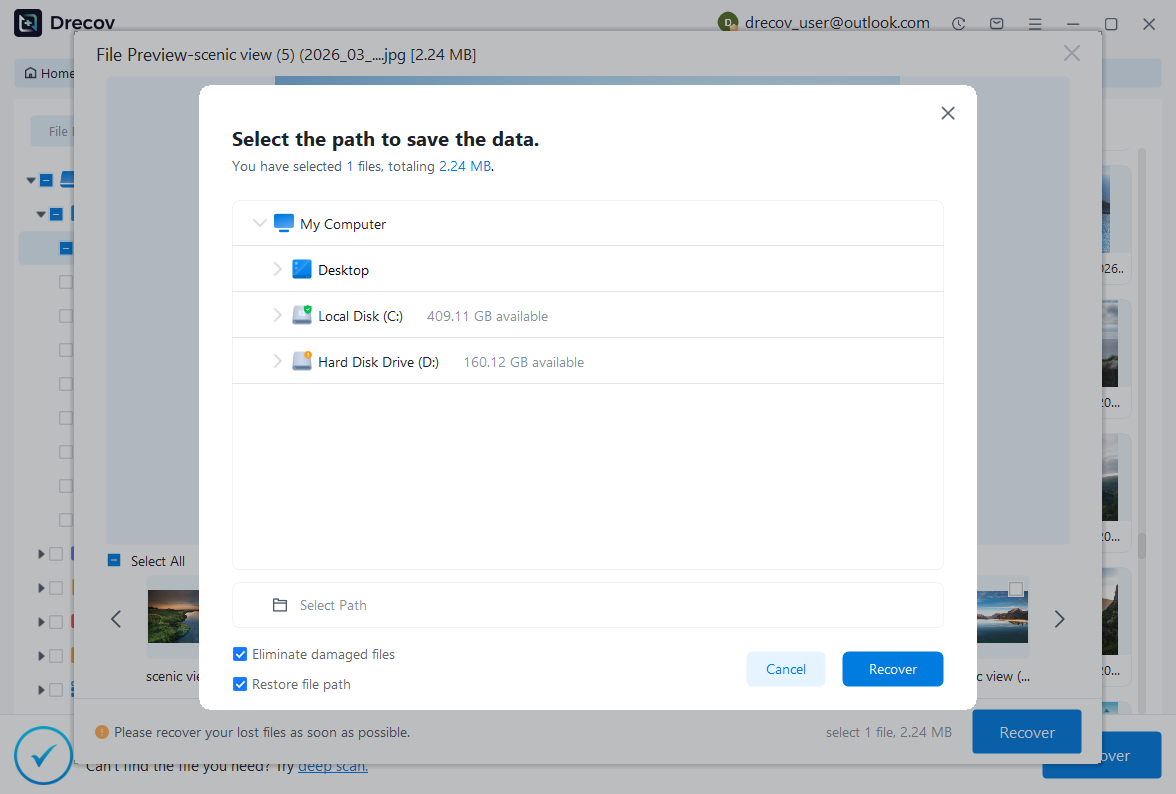
Step 3: Restore Elsewhere and Render a Sample
Recover selected files to a separate destination and retain untouched originals. Open a working native candidate, reconnect verified resources, and inspect layers, values, timing, and the intended motion. Render a representative range and review it independently. Record reconstructed controls and missing frames before accepting the animation for continued work.
Preserve a Reproducible Native Animation
Keep the accepted project, its required resources, a reference render, and a short recovery record. Test a copied restore from its planned location. This preserves a practical route back to editable animation rather than depending only on output that cannot reveal how the original motion was constructed.
Related Recovery Resources
Explore the relevant recovery options: Hard drive recovery, External hard drive recovery.
For another recovery case and its practical checks, read the related recovery guide.
Check the vendor guidance for the installed version: official recovery documentation 1, official recovery documentation 2, official recovery documentation 3, official recovery documentation 4.