







Stellar Data Recovery is a serious recovery suite with a broad edition lineup, useful previews, and professional options, but it is not always the simplest first choice for everyday local file loss. If you need to recover deleted files, formatted removable storage, or readable external drive data, start by protecting the source, checking backups, and testing whether a scan can preview the files you need. For a simpler local workflow, PandaOffice Drecov is a practical alternative when the source drive, SD card, USB drive, or folder is still readable.
This Stellar Data Recovery review focuses on what a buyer actually needs to decide: safety, pricing, scan workflow, strengths, limits, and when an easier recovery tool makes more sense. It follows the style of a practical software review, but it avoids fake recovery percentages. No review can promise a universal recovery rate because results depend on overwriting, storage health, file system damage, and the file types involved.
Stellar Data Recovery Review: Quick Verdict
Stellar is worth considering when you want a long-running recovery brand with multiple editions and a feature-rich Windows or Mac workflow. It can help with deleted files, formatted drives, lost partitions, photos, videos, documents, and several more advanced cases. The tradeoff is complexity. Many ordinary users do not need every edition or every repair feature. They need to scan one readable device, preview target files, and recover them safely.
| Best Fit | Use Stellar When | Consider Drecov When |
|---|---|---|
| Everyday deleted files | You already use Stellar or need its broader edition options. | You want a direct scan, preview, filter, and recover workflow. |
| Formatted card or USB drive | You want to compare several recovery modes in one suite. | The card or USB device is readable and you want a simpler path. |
| Professional workflow | You need specialist features beyond a basic home recovery job. | You only need local recovery from supported storage. |
| Budget decision | You accept higher pricing for a larger feature set. | You want a focused tool for common local file loss. |
For broader product context, see our Data Recovery Software Review Hub. This page stays narrower and uses Stellar as the main review subject, then compares Drecov only where a simpler local workflow helps the reader choose safely.
What Is Stellar Data Recovery?
Stellar Data Recovery is commercial recovery software for Windows and Mac users. The product family includes consumer and professional editions, and its official pages position it for deleted data, lost partitions, photos, videos, and other common file recovery needs. It also offers higher editions for more specialized workflows. That wide structure is useful for users who want a larger toolbox, but it can also make the buying decision feel heavier than the recovery problem itself.
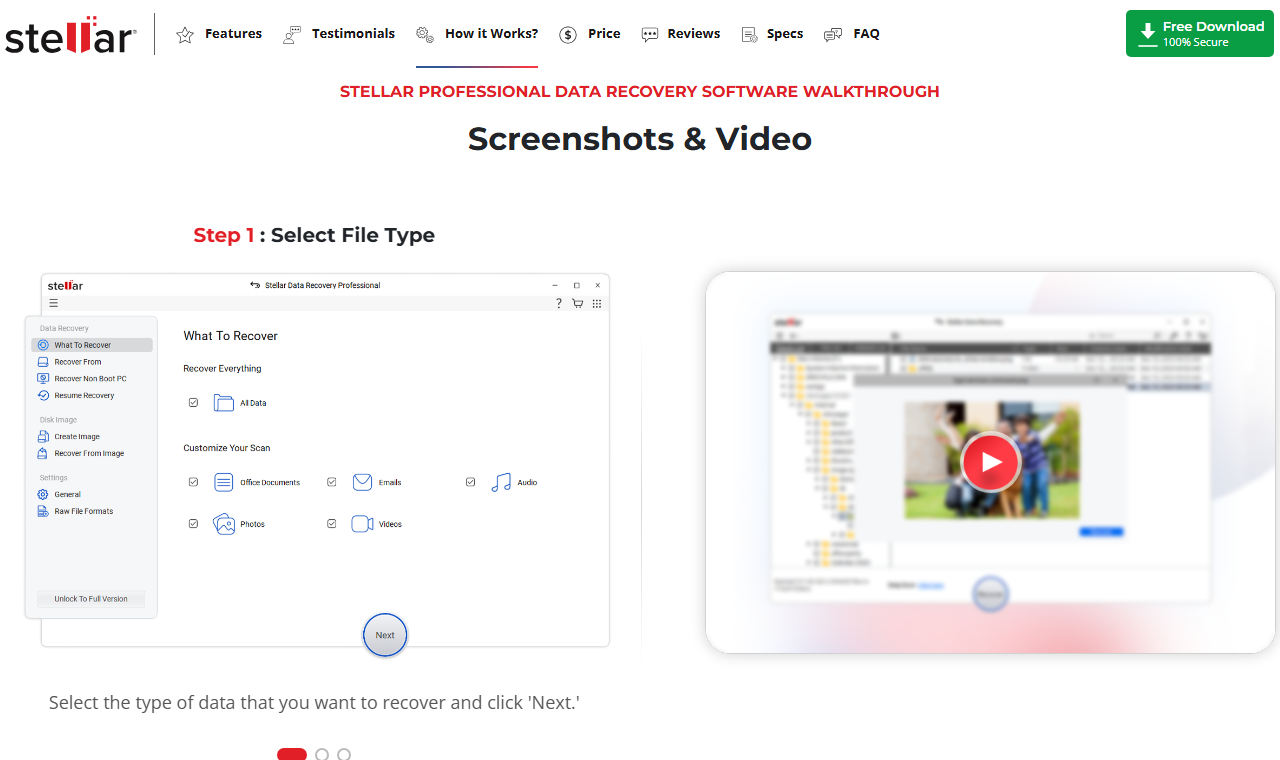
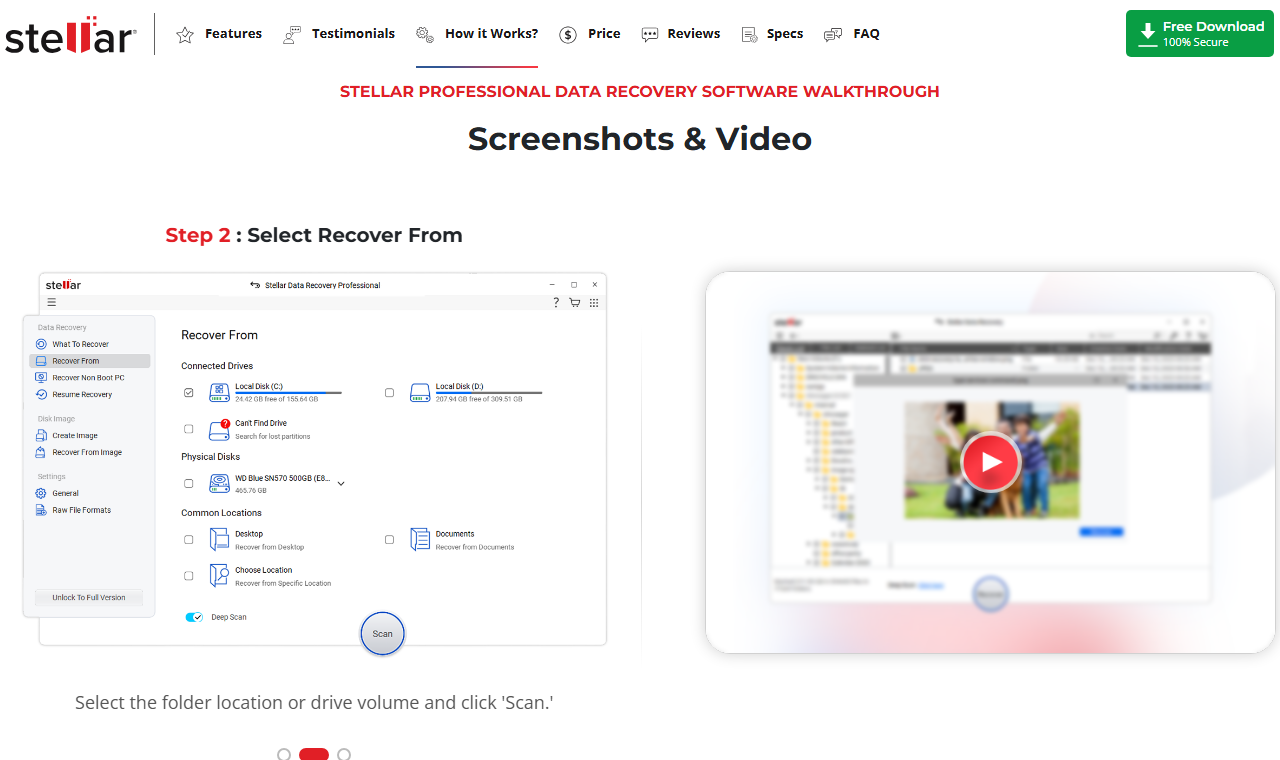
A typical Stellar workflow starts with selecting file types, choosing a drive or location, running a quick or deep scan, previewing results, and saving recoverable files to another location. That sequence is familiar across data recovery tools because it protects the original source while giving the user a way to judge recoverability before export.
The safest review conclusion is balanced. Stellar is not a scam tool and should not be dismissed as a generic undelete app. It has a long market presence and a polished product family. At the same time, a user with one normal local deletion case may prefer a simpler option if they do not need the wider suite.
Stellar Pricing And Edition Notes
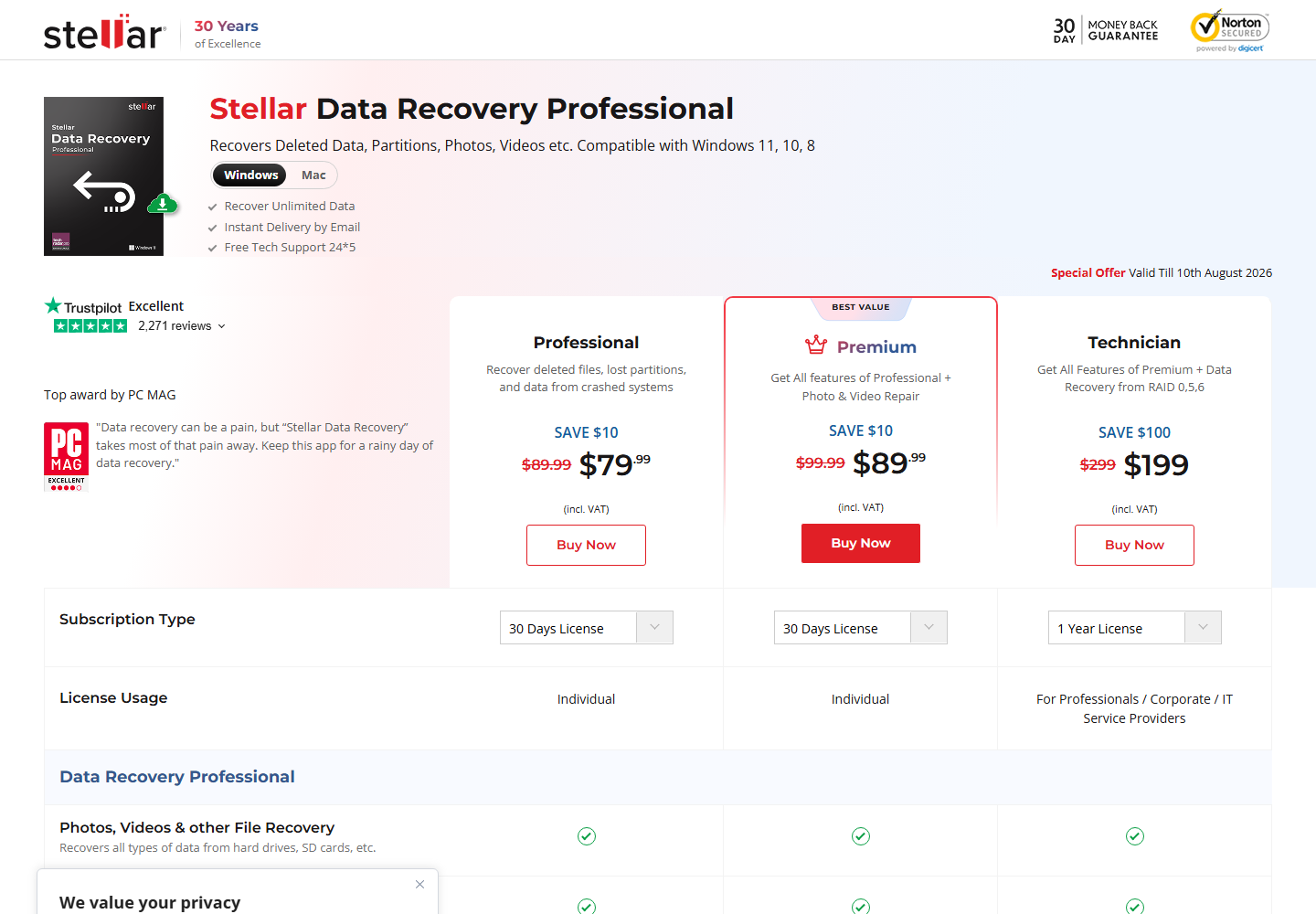
Pricing changes by region, promotion, operating system, and edition, so users should confirm the current plan on Stellar’s official checkout page before buying. The screenshot below was captured from Stellar’s official buy page during this review preparation. It shows Professional, Premium, and Technician options with different license terms and feature scopes.
| Edition Area | What To Check | Why It Matters |
|---|---|---|
| Professional | Deleted files, lost partitions, and common recovery features. | Often enough for many personal recovery jobs. |
| Premium | Extra photo and video repair features. | Useful when recovered media opens with damage. |
| Technician | Business-oriented licensing and advanced workflows. | More than most home users need. |
| License term | 30-day or longer options depending on page settings. | The visible price may change when the term changes. |
Do not buy based only on the lowest visible number. Check whether the plan matches the operating system, license duration, recovery need, and number of devices. A cheaper plan can become expensive if it lacks the feature you expected. A larger plan can also be wasteful when a simple scan and preview is enough.
Pros And Cons Of Stellar Data Recovery
| Pros | Cons |
|---|---|
| Mature product family with Windows and Mac options. | Edition choices can confuse urgent users. |
| Quick scan and deep scan workflow is familiar. | Deep scans on large drives can take a long time. |
| Preview can help confirm files before saving. | Some results may lose original names or folder paths. |
| Higher editions cover more specialist needs. | Pricing can feel high for a one-time home recovery case. |
| Good fit for users comparing multiple recovery scenarios. | Ordinary users may prefer a cleaner, narrower workflow. |
The positive side is depth. Stellar gives users a recognized recovery environment with a range of plans and features. The negative side is decision load. During data loss, users often need calm instructions more than a large feature grid. That is why the best tool depends less on brand reputation and more on the exact loss scenario.
Safety, Performance, And User Experience
The safe rule for any recovery software is the same: scan the affected source without writing new data to it, preview before export, and save recovered files to a different healthy drive. Installing software on the same drive that lost files can overwrite file records. Saving recovered files back to the source can damage the remaining traces.
Performance depends on the drive size, connection speed, file system condition, storage health, and scan mode. A quick scan may finish fast when deletion records remain. A deep scan can take much longer because it searches more broadly for file signatures and fragments. Long scans are normal on large storage, but repeated disconnects, freezing, clicking sounds, or wrong capacity reports are warning signs.
Built-in recovery paths should come first when they can preserve names and structure. Windows restore points and File History may help in some system cases; see How To Restore Computer To An Earlier Date On Windows. Office files also deserve app-specific checks before a raw scan, especially AutoRecover and temporary files; see How To Recover An Unsaved Excel File Complete Guide.
How To Use Stellar Data Recovery Safely
A safe Stellar test should start before the software opens. Stop using the affected source, choose a separate download location, and prepare another drive for recovery output. Then use the tool to test recoverability rather than assuming the first scan result is the final answer.
- Install the software on a healthy system drive or another unaffected drive.
- Choose the file types or select all data only when you are not sure what is missing.
- Select the exact drive, folder, card, or partition that contained the files.
- Run quick scan first, then deep scan if the first result does not show the needed files.
- Preview important files and compare names, sizes, dates, and thumbnails.
- Recover selected files to a separate healthy drive, then verify samples before deleting the source.
If the source is unstable, stop. Data recovery software is useful for readable storage. It is not the right first move for physically failing hardware. A long scan can stress a damaged drive and reduce options.
Stellar Recovery Workflow Vs Drecov Recovery Workflow
A Stellar Data Recovery review should compare the actual recovery path, not only pricing and feature names. Stellar and PandaOffice Drecov both follow the safe recovery principle of scanning first and saving recovered files somewhere else, but they feel different in practice. Stellar is broader and more edition-driven. Drecov is more direct for everyday local recovery from readable storage.
| Workflow Point | Stellar Data Recovery | PandaOffice Drecov |
|---|---|---|
| Starting point | Choose file types or scan a selected location depending on the case. | Choose the readable drive, card, USB device, folder, or partition directly. |
| Scan style | Quick scan first, then deep scan when needed. | Scan the selected local source and review recoverable results. |
| Review step | Use preview, names, dates, and paths to judge recoverability. | Use file type filters, folder view, search, and preview to reduce noise. |
| Best everyday fit | Users who want a larger recovery suite and several edition choices. | Users who want a focused local recovery workflow with fewer decisions. |
| Safe output rule | Recover to another healthy drive. | Recover to another healthy drive. |
How Stellar Data Recovery Works
A normal Stellar recovery flow begins by selecting the data types or choosing the affected location. After that, the user scans the drive, waits for quick scan and deep scan results, previews important files, and exports selected results to another destination. This workflow is sensible when the source is readable and the user needs to test whether the target files still appear.
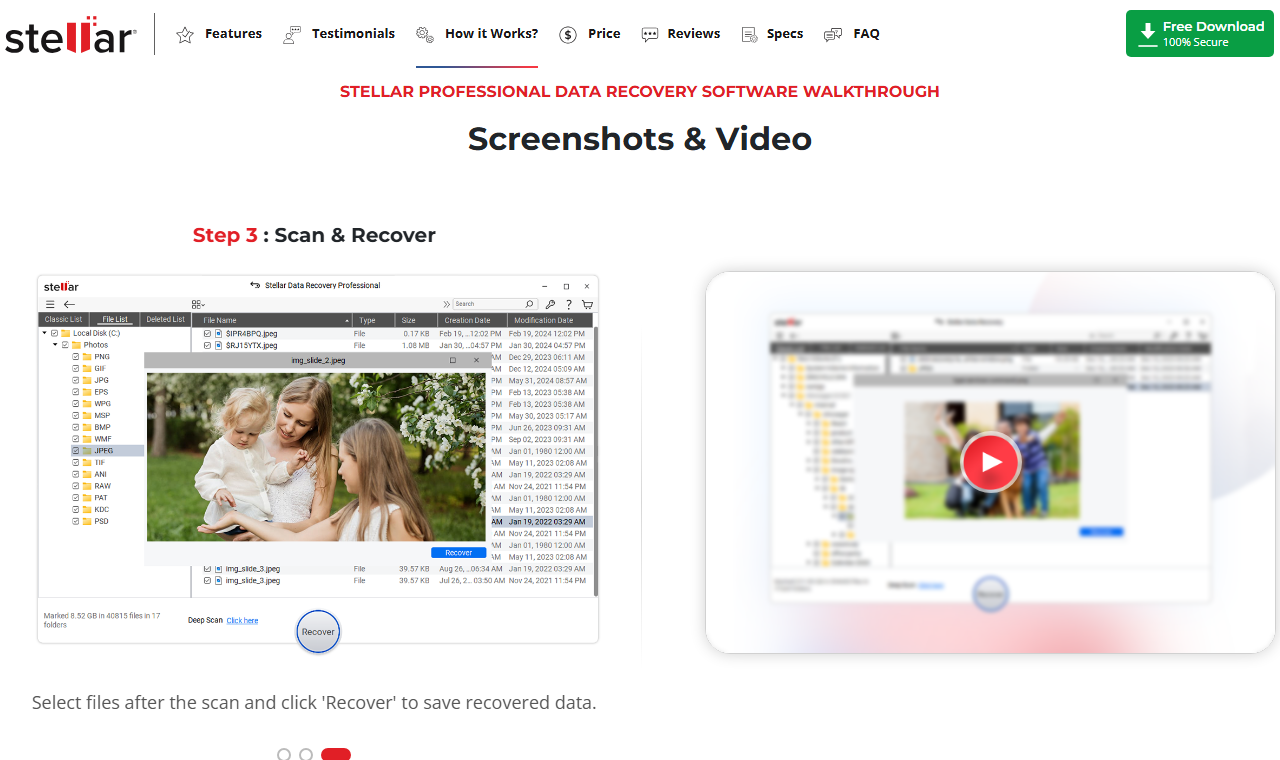
The larger Stellar product family can help users who want more options, especially when comparing Professional, Premium, and higher editions. That extra choice is useful for some buyers. It can also slow down a simple recovery decision when the user only needs deleted documents, photos, or files from one readable device.
How PandaOffice Drecov Works
PandaOffice Drecov fits users who want a more direct local recovery path. The workflow is simple: select a readable source, scan it, filter results, preview important files, and recover to another healthy drive. It is not a password bypass tool, not a cloud account recovery tool, and not a NAS recovery product. That narrower scope makes the recommendation clearer for common local file loss.


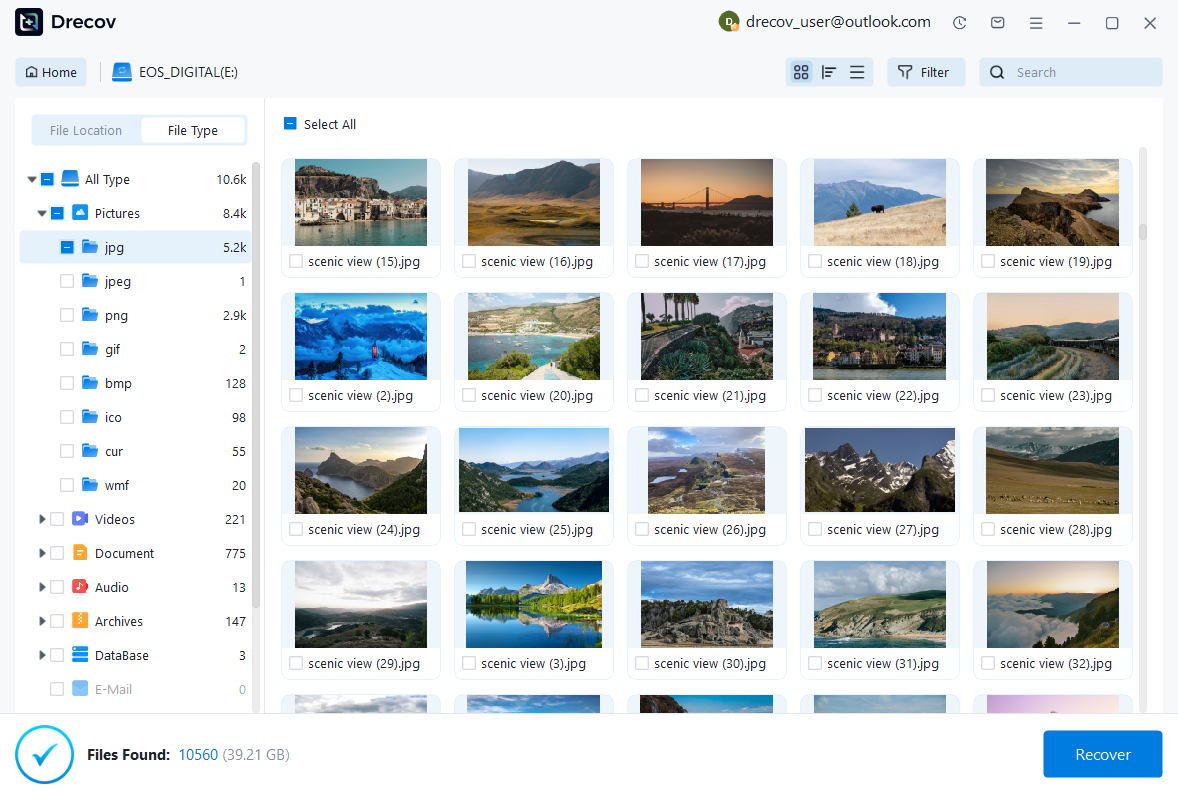
Drecov is especially relevant after basic checks fail. If an SD card does not appear, solve detection first with SD Card Not Detected Fix. If an external Mac drive does not mount, diagnose the connection and file system before scanning with LaCie Hard Drive Not Showing Up On Mac Guide. Once the source is readable, Drecov gives the user a focused way to inspect recoverable files.
Review Method: What We Look For
A useful recovery review should not depend only on a feature list. It should ask whether the software helps a stressed user make the correct first move. In real data loss, the wrong first move can matter more than the tool name. Formatting a card, installing software onto the source drive, running repair commands, or saving recovered files back to the damaged device can reduce recovery chances before a scan even begins.
For that reason, this review weighs five practical criteria. The first is source protection. The software should encourage the user to keep the affected drive quiet. The second is source selection. A good interface helps the user choose the exact card, partition, folder, or external drive instead of scanning everything. The third is preview quality. A visible photo, readable document, or playable media sample is more useful than a raw count of found files.
The fourth criterion is result control. Filters by file type, path, date, size, and name help users avoid exporting thousands of irrelevant fragments. The fifth is output safety. The tool should make it clear that recovered files belong on a different healthy destination. Stellar and Drecov both follow the broad scan-preview-recover model, but they appeal to different users. Stellar offers a wider suite. Drecov is easier to explain for straightforward local recovery.
When A Free Or Trial Scan Is Enough
A free scan or trial mode is often enough to answer the first question: are the needed files visible? Users should not treat a trial scan as a guarantee. They should use it as evidence. If the exact documents, photos, videos, or folders appear with useful previews, a paid recovery export may be reasonable. If the results contain only fragments, duplicates, thumbnails, or unrelated files, the user should pause and check whether the correct source was scanned.
This approach also protects budget. A person who only needs one missing spreadsheet may not need a broad recovery suite. A person recovering a camera card with hundreds of images may value preview and filtering more than advanced edition names. A small office comparing multiple drives may prefer a longer license term. The right purchase depends on the evidence shown by the scan.
Common Mistakes To Avoid During A Stellar Or Drecov Scan
The most common mistake is continuing to use the affected device. New downloads, browser cache, software updates, photo captures, and copied files can overwrite deleted data. The second mistake is scanning the wrong source. A computer may show several partitions, cards, or removable drives. Choose the exact location that held the files.
The third mistake is judging by file count alone. Recovery tools can find many items that are not useful: cache files, thumbnails, old duplicates, partial fragments, and system files. A smaller set of verified files is better than a large folder of untested results. The fourth mistake is recovering to the source. Always use another healthy destination and keep the original storage unchanged until the final check is complete.
Who Should Choose Stellar
Choose Stellar when you want a more established suite with several edition levels, a broader feature set, and options that may support more specialized workflows. It can also make sense when the user already knows the Stellar interface or needs to compare Professional, Premium, and Technician plans for a specific organization. In that situation, the larger edition lineup is an advantage rather than a burden.
Stellar can also fit users who recover mixed media and may need repair features for damaged photos or videos. The Premium edition is positioned around that kind of extra capability. The key is to buy based on the actual damage pattern, not because a larger plan looks safer. If files preview normally in a simpler workflow, a larger plan may not add practical value.
Who Should Choose PandaOffice Drecov
Choose PandaOffice Drecov when the case is local, readable, and direct. Deleted folders, emptied Recycle Bin files, formatted USB drives, missing SD card photos, and readable external drives are the types of cases where a focused workflow helps. Drecov is also easier for readers who want fewer edition decisions and clearer recovery steps.
Drecov should be presented honestly. It is not a tool for unlocking encrypted data without the proper key, recovering online-only account content, or repairing physically failing hardware. This limit is not a weakness in an everyday review. It helps readers avoid the wrong path and keeps the recommendation aligned with real recovery safety.
Final Verdict And FAQ
Is Stellar Data Recovery Safe?
Stellar can be safe when used correctly. The user must avoid writing to the affected source and must recover files to another drive. The same rule applies to every recovery tool.
Is Stellar Better Than Drecov?
It depends on the case. Stellar offers a broader suite and more edition choices. Drecov is better suited to users who want a straightforward local recovery workflow for supported readable storage.
Should I Buy Before Previewing Files?
No. Preview first whenever possible. A preview gives stronger evidence than a marketing claim because it shows whether the needed files are visible and usable.
Conclusion
Stellar Data Recovery is a capable and established recovery suite, especially for users who want multiple editions and broader features. For many everyday local recovery cases, PandaOffice Drecov offers a simpler path: choose the source, scan, preview, filter, and recover to another drive. The best first move is not to buy the largest tool. It is to protect the source, confirm recoverability, and choose the software that matches the real case.






