







Losing important files can feel like a nightmare. Imagine working on an important project for weeks, only to realize that critical files have been accidentally deleted from your cloud storage. OneDrive, a popular cloud storage solution, is no stranger to such accidents. If you’ve ever found yourself in a situation where you need to recover deleted files on OneDrive, you’re not alone. The good news is that there are several ways to recover those files, and in this article, we’ll explore these methods in-depth.
This guide will not only explain the principles behind file recovery but will also walk you through different recovery methods, including a powerful tool—PandaOffice Drecov. You’ll also find a comparison of various recovery methods to help you make the best choice based on your needs.
Data Recovery Principles: How Deleted Files Are Recovered
Before diving into the recovery methods, it’s important to understand how file deletion works in the context of cloud storage. When you delete a file from OneDrive, it doesn’t disappear immediately. Instead, OneDrive places the file in the “Recycle Bin,” which serves as temporary storage for deleted files. This works similarly to the trash bin on your computer. The files stay there for a period of time (usually 30 days) before OneDrive permanently removes them.
The Underlying Principle of Data Recovery
When you delete a file from OneDrive, the cloud storage doesn’t actually erase it from its physical storage system immediately. Instead, the system marks the file’s entry as “deleted” and frees up the space it occupied for new data. Until new data overwrites that space, you can still recover the file.
Think of it like a bookshelf: when you remove a book, it doesn’t disappear instantly. The library simply removes the book from the shelf and leaves it on the floor, where it waits for someone to pick it up. As long as you don’t add new books to that same shelf space, you can still recover the original volume. In the OneDrive ecosystem, the data stays on the server until new information overwrites it. This makes recovery possible as long as the system hasn’t permanently purged the file.
Core Considerations and Step-by-Step Recovery Methods
When recovering deleted files from OneDrive, it’s crucial to follow certain steps carefully. Rushing through the process or skipping steps could result in permanent data loss. Below, we will go over several recovery methods in detail, starting with the simplest and moving to more complex solutions.
Method 1: Restore Files from OneDrive’s Recycle Bin
The most straightforward method to recover deleted files on OneDrive is by using its built-in Recycle Bin feature. This method is effective if the file was recently deleted.
Step-by-Step Guide to Using the Recycle Bin:
- 1.Login to Your OneDrive Account:
Open your browser and go to onedrive.com. Log in with your Microsoft account. - 2.Access the Recycle Bin:
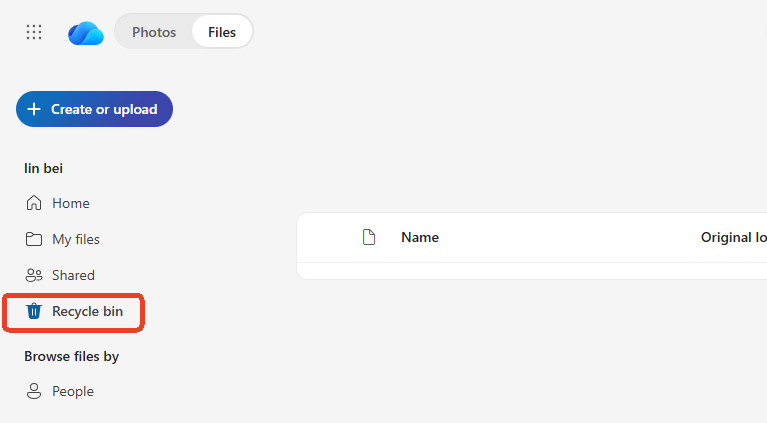
On the left-hand side of the interface, you will find the “Recycle Bin” option. Click on it to view all recently deleted files.
- 3.Select Files to Recover:
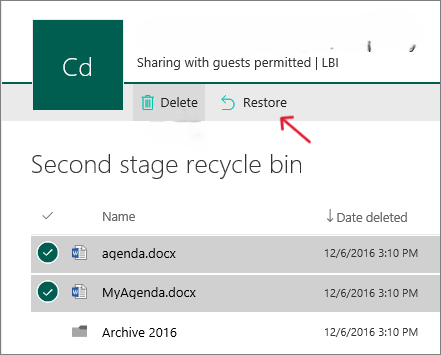
Browse through the list of deleted files. If you find the file you’re looking for, click on the checkbox next to it. You can select multiple files if needed.
- 4.Restore the Files:
Once selected, click the “Restore” button at the top of the page. The file will be returned to its original location in your OneDrive.
🔍 Important Tip: Files in the Recycle Bin are only stored for 30 days. If you don’t recover your files within this period, they will be permanently deleted.
Method 2: Use PandaOffice Drecov for Advanced Recovery
If the files are no longer in the Recycle Bin, or if you need to recover files that were deleted a long time ago, PandaOffice Drecov is an excellent tool for deeper recovery. This software can scan your OneDrive account for deleted files that are no longer visible in the Recycle Bin.It’s also supports over 100 different file formats. It recovers photos, videos, audio, compressed files (ZIP/RAR), and even system files like EXEs.
- Accidental deletion from your computer desktop.
- Files lost after emptying the Recycle Bin.
- Data loss from disk formatting.
- Accidental deletion or formatting of SD cards/U disks.
- Sync error occurring with deleted OneDrive files
- Restore deleted Chrome bookmarked
How to Use PandaOffice Drecov:
- 1.Select the Drive or Folder to Scan:
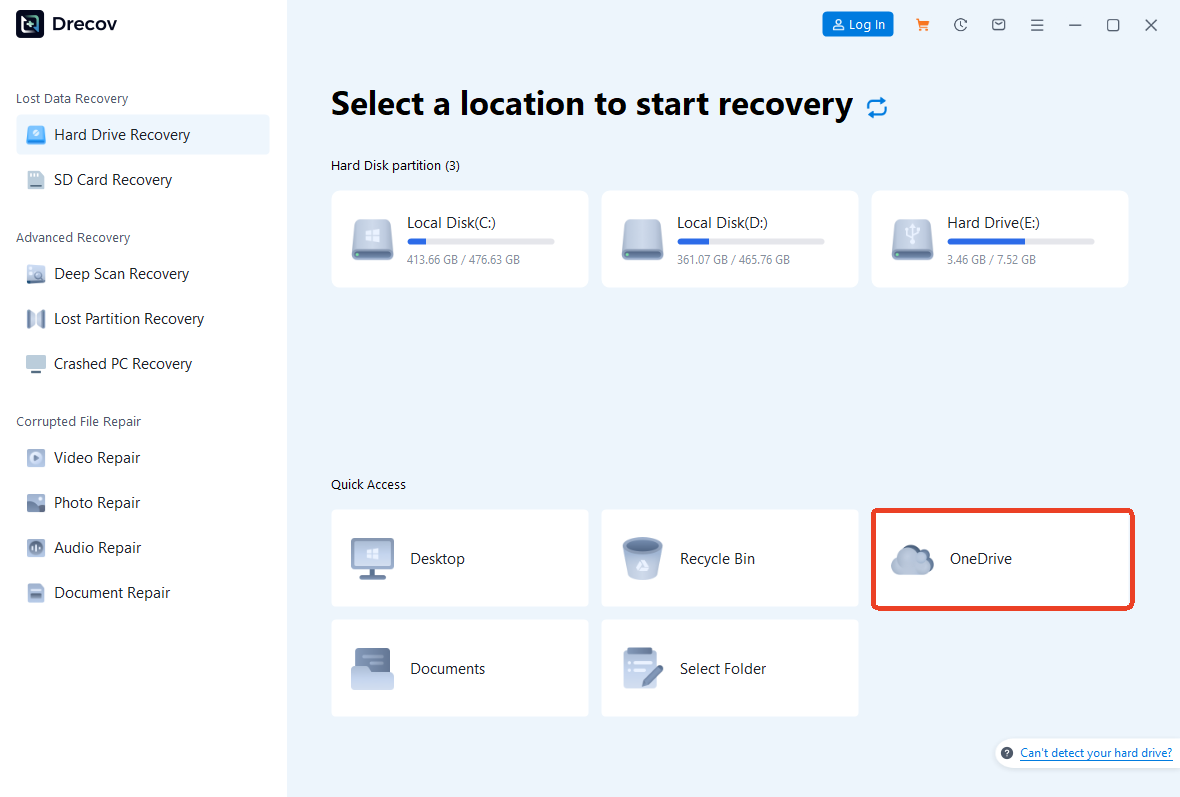
Choose the OneDrive account or specific folder where the deleted files were originally located.
- 2.Run a Deep Scan:
Click on “Scan” to initiate a deep scan of your OneDrive account. PandaOffice Drecov will search through all deleted files, even those that are not in the Recycle Bin.

- 3.Preview and Recover Files:
After the scan is complete, PandaOffice Drecov will display a list of recoverable files. Preview these files to ensure they are the ones you need. Select the files you want to recover and click on “Restore” to save them to your computer.
🚨 Warning: PandaOffice Drecov can take some time to scan large amounts of data. Be patient and ensure you have a stable internet connection during the process.
Method 3: Restore Previous Versions of Files
Another effective method to recover deleted or corrupted files in OneDrive is by restoring previous versions. OneDrive automatically keeps track of file versions, allowing you to revert to an earlier version of a file.
How to Restore Previous Versions:
- 1.Login to OneDrive:
Go to onedrive.com and log in to your account. - 2.Navigate to the Folder Containing the File:
Locate the file you wish to restore in OneDrive.
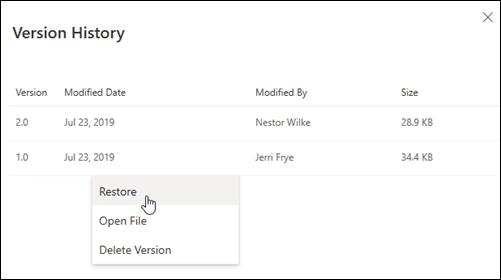
- 3.Right-click and Select “Version History”:
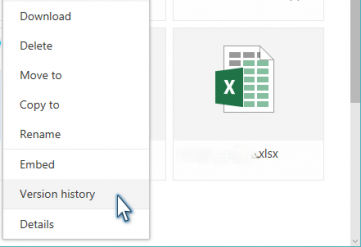
Right-click the file and select “Version History” from the context menu.
- 4.Choose a Previous Version:
A list of previous versions of the file will appear. Choose the version you wish to restore and click “Restore.” - 5.Save the File:
The file will be reverted to the selected version, and any changes made after that version will be undone.
🔍 Tip: This method works only for files that have had versioning enabled in OneDrive.
Method 4: Contact OneDrive Support for Professional Help
If none of the above methods work, you may need to reach out to Microsoft’s OneDrive support team. Your OneDrive for Business subscription may allow them to assist you in recovering files you thought were gone forever.
How to Contact OneDrive Support:
- 1.Go to OneDrive Help Center:
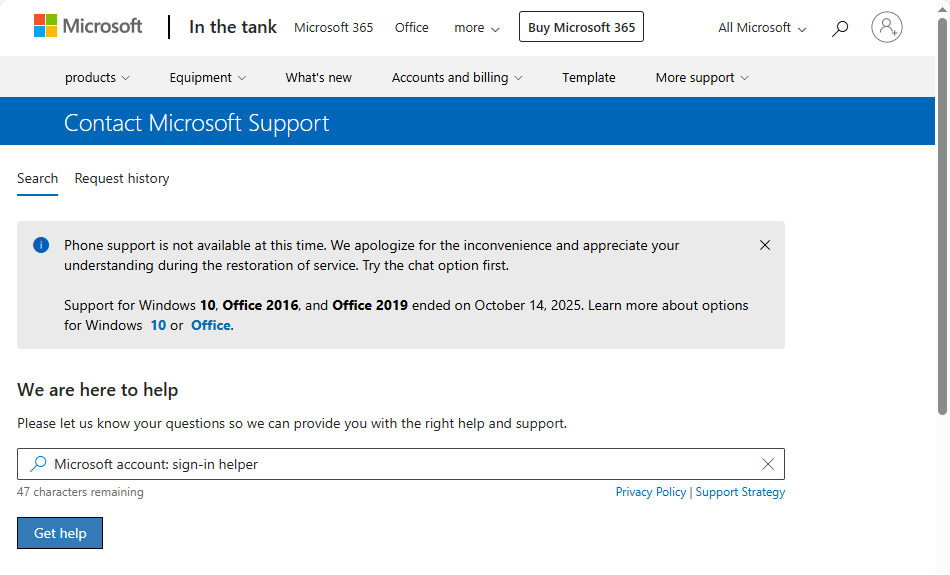
Navigate to the OneDrive Help Center. - 2.Select “Contact Support”:
Scroll down to the bottom and select “Contact Support.” You will be guided through a series of troubleshooting steps.
- 3.Submit a Support Request:
If the automated steps don’t resolve your issue, you’ll be given the option to submit a support request. A Microsoft support representative will then contact you.
Comparison of Data Recovery Methods
To help you decide which method is best for you, here is a comparison table that outlines the pros and cons of each recovery method:
| Method | Pros | Cons |
|---|---|---|
| Recycle Bin Recovery | Quick and easy; No need for third-party software. | Only available for recently deleted files. |
| PandaOffice Drecov | Can recover files even after they are removed from the Recycle Bin; Deep scanning. | Requires installation of the software. |
| Previous Version Restoration | Can recover older versions of files; No need for third-party tools. | Only works for files that have versioning enabled. |
| OneDrive Support | Potential to recover files that are permanently lost. | May take time for support to resolve your issue. |
Preventive Measures: How to Protect Your Files
While recovering deleted files is possible, it’s far better to prevent data loss from happening in the first place. Here are some key preventive measures to keep your files safe on OneDrive:
- Enable Version History: OneDrive automatically saves versions of your files; however, always verify that you have active settings for this feature on all important documents.
- Use Two-Factor Authentication (2FA): Protect your account from unauthorized access by enabling 2FA.
- Back Up Important Files: Consider backing up your important files to another cloud service or external hard drive.
- Regularly Empty the Recycle Bin: Regularly empty your OneDrive Recycle Bin to ensure no accidental deletions are left behind.
Recover Deleted Files on OneDrive FAQs
1. Can I recover files deleted from OneDrive after 30 days?
Once the 30-day window passes and the file leaves the Recycle Bin, you will find recovery difficult unless you use third-party tools like PandaOffice Drecov.
2. How long do files stay in the Recycle Bin?
Files stay in the OneDrive Recycle Bin for 30 days before they are permanently deleted.
3. Can PandaOffice Drecov recover files from OneDrive for Business?
Yes, PandaOffice Drecov can recover files from both personal and business OneDrive accounts, as long as you have access to the account.
4. What if the file is overwritten?
Once the space occupied by a deleted file is overwritten with new data, recovery becomes impossible.If new data overwrites the space that the deleted file once occupied, recovery becomes impossible.
Conclusion
Recovering deleted files from OneDrive doesn’t have to be a stressful experience. Whether the files are in the Recycle Bin or permanently deleted, there are several ways to recover them. By using the methods outlined in this guide—especially PandaOffice Drecov—you can maximize your chances of restoring lost files. And remember, prevention is key: take steps to back up important files and regularly monitor your OneDrive settings to avoid accidental deletion.






