







I’ve been working on a critical quarterly report for weeks, and it was stored safely in my OneDrive cloud—or so I thought. Then, in a moment of accidental clumsiness during a frantic cleanup session, I hit delete. I checked my local Recycle Bin, but it was completely empty. My heart sank as I thought, “Is it gone forever?” Fortunately, the short answer is: No. I discovered that even in these stressful moments, you can easily recover OneDrive deleted files and get back to work without losing your mind.
In this deep dive, we will explore the science of data retrieval and provide a roadmap to help you recover OneDrive deleted files regardless of how they vanished.
1. The Science of the Digital Ghost: How Data Recovery Works
Before we jump into the steps to recover OneDrive deleted files, we need to understand what happens when you click “Delete.” Most people think deleting a file is like burning a letter in a fireplace. In reality, it is more like removing the entry for a book in a library’s card catalog.
The Library Metaphor
Imagine OneDrive as a massive library. Every file is a book, and the file system is the librarian’s index. When you delete a file, the librarian doesn’t rush to the shelf to shred the book. Instead, the librarian simply erases the index card. The book stays on the shelf, but the space is now marked as “available.”
As long as you don’t bring in a new book and place it on that exact spot on the shelf, the old book remains. This is why you can recover deleted data if you act quickly. If you keep saving new data, you risk overwriting the old data, making recovery impossible.
2. Essential Methods to Recover OneDrive Deleted Files
When you need to recover OneDrive deleted files, you should follow a logical progression from the simplest cloud features to professional-grade recovery software.
Method 1: The First Response — Using the Online Recycle Bin
OneDrive features a built-in safety net that stores your deleted items before they vanish permanently. This should always be your first stop to recover OneDrive deleted files.
- Step 1: Open your web browser and navigate to the OneDrive login page.
- Step 2: Enter your credentials to access your dashboard.
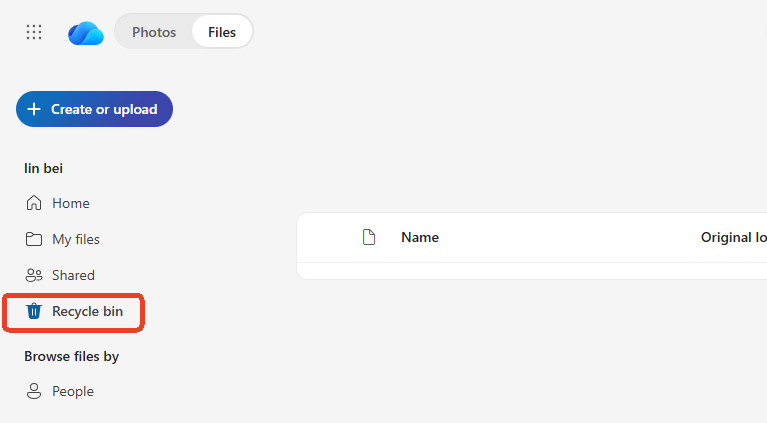
- Step 3: Look at the left-hand navigation pane and click on Recycle bin.
- Step 4: Scroll through the list or use the search bar to find your missing documents.
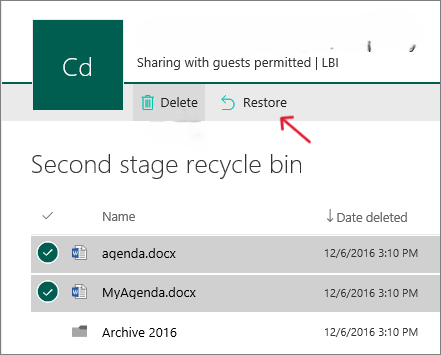
- Step 5: Click the circle next to the file name to select it, then click Restore at the top of the screen.
Pro Tip: For personal accounts, OneDrive keeps files for 30 days. For work or school accounts, the limit is usually 93 days. If you don’t see your file here, don’t panic; we have other ways to recover OneDrive deleted files.
Method 2: Advanced Retrieval — Using PandaOffice Drecov
If your files aren’t in the Recycle Bin—perhaps you emptied it or the 30-day window expired—you need a more powerful engine. This is where PandaOffice Drecov comes in. Since OneDrive often keeps a local cached version of your files on your hard drive (located at C:\Users\[YourUsername]\OneDrive), a deep-scan tool can find the ghost data the cloud interface ignores.
PandaOffice Drecov excels because it scans the raw sectors of your disk to recover OneDrive deleted files that the operating system no longer recognizes.
- Accidental deletion from your computer desktop.
- Files lost after emptying the Recycle Bin.
- Data loss from disk formatting.
- Accidental deletion or formatting of SD cards/U disks.
- Sync error occurring with deleted OneDrive files
- Restore deleted Chrome bookmarked
Crucial: Install it on a different drive to avoid overwriting the files you want to save.
- Step 1: Launch the program and select the C: Drive (or the drive hosting your OneDrive folder).
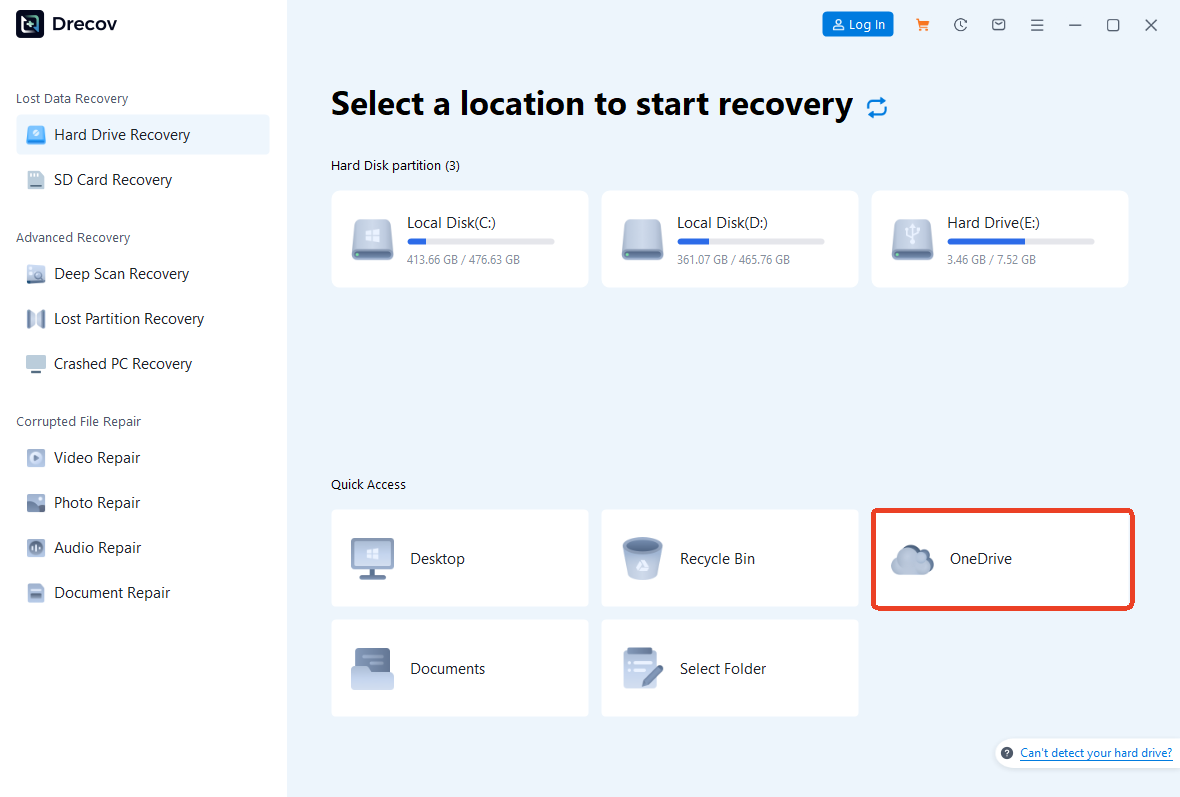
- Step 2: Click Scan. The software will initiate a Quick Scan followed by a Deep Scan to find fragmented data.

- Step 3: Use the File Type filter to search for specific extensions like
.xlsxor.pdf.

- Step 4: Preview the file content within the Drecov interface to ensure it is intact.
- Step 5: Select the files and click Recover. Choose a destination outside of your OneDrive folder to save the recovered data.
PandaOffice Drecov offers a higher success rate than standard cloud restores because it bypasses the index and looks at the actual bits on the disk platter.
Method 3: The Time Machine Fix — Restoring Your Entire OneDrive
If a virus or a mass-deletion event occurs, you might want to roll back your entire account to a previous state. This is a powerful way to recover OneDrive deleted files in bulk.
- Step 1: On the OneDrive web interface, click the Settings gear icon in the upper right.
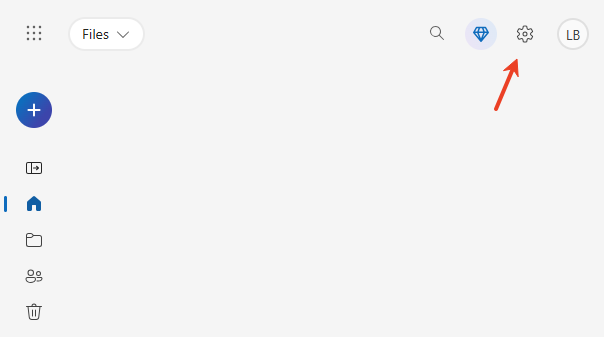
- Step 2: Select Options and then click Restore your OneDrive from the side menu.
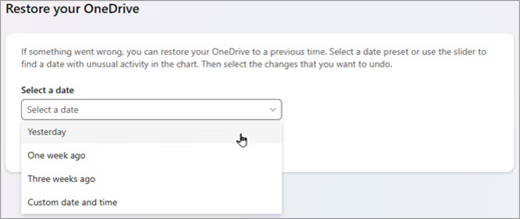
- Step 3: Choose a time frame from the dropdown menu.
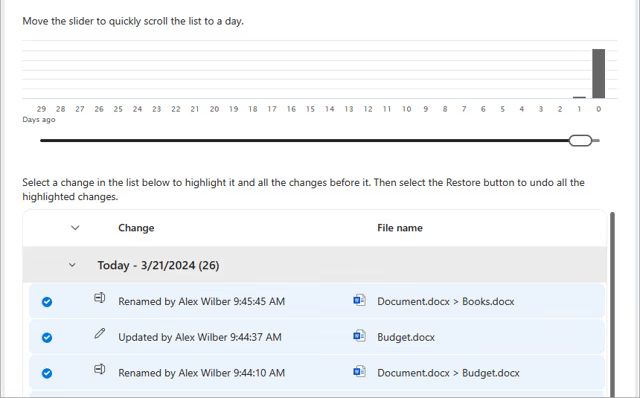
- Step 4: Use the activity chart to find the exact moment before the files vanished.
- Step 5: Click Restore. This will undo every action taken after that point in time.
Method 4: The Hidden Safety Net — Second-Stage Recycle Bin
For business and school users, there is a secret folder. If you emptied the main Recycle Bin, you can still recover OneDrive deleted files from the basement of the server.
- Step 1: Go to the standard OneDrive Recycle bin and scroll all the way to the bottom.

- Step 2: Click the link labeled Second-stage recycle bin.
- Step 3: Select your items and click Restore. This provides an extra layer of protection for professional environments.
3. Comparison of Data Recovery Solutions
To help you decide how to recover OneDrive deleted files effectively, I have summarized the methods below:
| Method | Success Rate | Time Limit | Best For |
| Recycle Bin | High | 30/93 Days | Simple accidental clicks |
| PandaOffice Drecov | Highest | No Fixed Limit | Expired bins or local sync errors |
| OneDrive Restore | High | 30 Days | Ransomware or mass loss |
| Second-Stage Bin | Moderate | 93 Days | Enterprise/Business users |
4. Prevention: How to Never Lose a File Again
While knowing how to recover OneDrive deleted files is vital, preventing the loss is even better. Follow these concrete steps:
- Enable Always keep on this device: Right-click your important OneDrive folders and select this option. This ensures a local physical copy exists.
- Configure PC Folder Backup: Go to OneDrive Settings > Backup > Manage Backup. Ensure your Desktop and Documents folders sync automatically.
- Use Version History: If you overwrite a file, don’t delete it. Right-click the file and select Version History to see older iterations.
- The 3-2-1 Rule: Keep 3 copies of your data, on 2 different types of media, with 1 copy off-site.
5. Frequently Asked Questions
1.Can I recover OneDrive deleted files if I don’t have a Microsoft 365 subscription?
Yes, you can use the Recycle Bin. However, the Restore your OneDrive feature is a premium benefit. If you are a free user and the bin is empty, PandaOffice Drecov is your most reliable path forward.
2.If I delete a file on my phone, does it disappear everywhere?
Yes. OneDrive is a synchronization service. A deletion on one device triggers a deletion everywhere. To recover OneDrive deleted files in this case, follow Method 1 immediately.
3.What if the files vanished during a sync conflict?
This usually happens when two devices edit a file at once. To recover OneDrive deleted files lost this way, check your Version History first to find the missing data.
Conclusion
Losing important data is terrifying, but the tools available today make it easier than ever to recover OneDrive deleted files. Start by checking your Online Recycle Bin. If that fails or the files have expired, leverage the deep-scanning power of PandaOffice Drecov to find the local remnants of your data. For massive data loss, use the Restore Your OneDrive feature. By combining these methods with a solid backup strategy, you can ensure your digital library remains intact forever.






