






When the HP USB format tool does not detect your drive, the first question is whether Windows can see that USB at all. Open File Explorer and Disk Management without formatting anything. If Windows lists the drive with the expected capacity but the utility’s list is empty, the tool may be the limiting factor. If Windows also cannot identify the drive, investigate the connection or hardware first. Either way, do not run a destructive command to make a device appear. Copy any accessible files to another healthy location before changing partitions or file systems.
First separate an empty tool list from an invisible USB
Connect the USB directly to a computer port, not through a questionable hub. In File Explorer, look for its volume label and capacity. Then right-click Start and open Disk Management. Find the removable device by its size and layout, not only a drive letter. A USB can be visible in Disk Management even when File Explorer does not show a usable volume. Record whether Windows calls it online, unallocated, RAW, or shows a healthy volume. Do not click Initialize, Delete Volume, or Format as part of this observation.
Microsoft’s Disk Management troubleshooting guidance recommends a direct USB port when a disk is missing. That is a useful low-risk check. If the drive disappears repeatedly, reports a capacity that makes no sense, or becomes unusually hot, stop testing it. Formatting tools cannot repair failed electronics, and repeated reads or writes can make a data-loss situation worse.
If Windows recognizes the USB consistently and you can still open its files, copy them before any more formatting attempts. Open several copied files from the destination. The question “Why does the HP tool omit my device?” is not a reason to expose the only copy of a file. For a USB absent across Windows, the USB detection guide addresses the earlier recognition problem.
Follow the Windows result, not the HP tool’s label
Windows shows a healthy volume and opens the files
This is the safest case. Back up the files, then decide whether you need to format at all. If the goal is simply to move files between computers, changing the file system may be unnecessary. If a TV or console rejects the USB, check that device’s supported file systems and media types first. A utility’s failure to list the drive tells you little about those requirements. Use a spare USB for compatibility tests whenever possible.
Windows sees the USB, but not a readable volume
Record the displayed capacity and layout. If files matter, do not create a new volume, initialize, or format yet. Those actions write storage metadata and can complicate recovery. Check backups and consider a stable-media recovery route before repairing the original. A RAW label is a symptom, not proof that the right first step is formatting. The USB recovery topic covers the file-loss decision.
Windows cannot see a reliable device
Try one known-good direct port and confirm that another USB works in that port. If the suspect USB is still absent, intermittently present, or shows implausible size, stop repeating format attempts. An electrical or controller problem may need specialist assessment. A format utility cannot target a storage device that the system does not present reliably, and it cannot recover data from a physically unstable source.
Why a third-party formatter can disagree with Windows
A formatting utility’s drive picker is only that program’s view of eligible devices. It may filter devices by how Windows presents them, by permissions, or by the tool’s own support limits. An empty list does not prove the USB is dead. Conversely, a USB that appears in the list is not guaranteed to be healthy. The reliable comparison is the same drive in Windows’ own storage views and, when safe, another known-good port or computer.
Be cautious with old copies of utilities found on download mirrors. A familiar product name in a search result is not proof that the binary is current or authentic. Installing an unofficial copy just to populate a drive list adds a security risk. If you already have the utility, note its exact name and source; do not assume it is an HP-supported version for your current Windows installation. Use the device maker’s current support channel or Windows’ built-in storage tools for a supported path.
Permissions can also affect how a program interacts with disks. On a managed work or school computer, security policy may prevent formatting removable media. Do not bypass that policy. Ask the administrator whether the drive is intentionally blocked. On your own PC, compare the outcome under an authorized administrator account only when you understand the tool’s source and trust it. Running unknown software with elevated privileges just to populate a list creates a different risk.
Recover files before a format changes the source
Drecov is Windows data-recovery software for stable, recognizable sources such as USB flash drives, external drives, and PC storage. It offers Quick Scan, Deep Scan, filters or locating, preview, and recovery to another healthy destination. Lost Partition Recovery can search a lost-partition data situation; it is not a partition-table repair. Drecov does not make an HP utility recognize a USB, remove a workplace policy, or repair hardware. Its role here is conditional: files are missing, or a USB appears RAW, yet Windows still detects the device reliably.
Stop writing to the USB and check existing backups. A drive that disconnects, heats up, or reports severe errors is not suitable for repeated direct software scans; imaging or professional recovery may be safer. If it remains stable, prepare another healthy storage device for the output. Do not install Drecov on the source USB, and do not save recovered files back to it.
⚠ Warning: Install it on a drive different from the one where your data was lost to prevent overwriting.
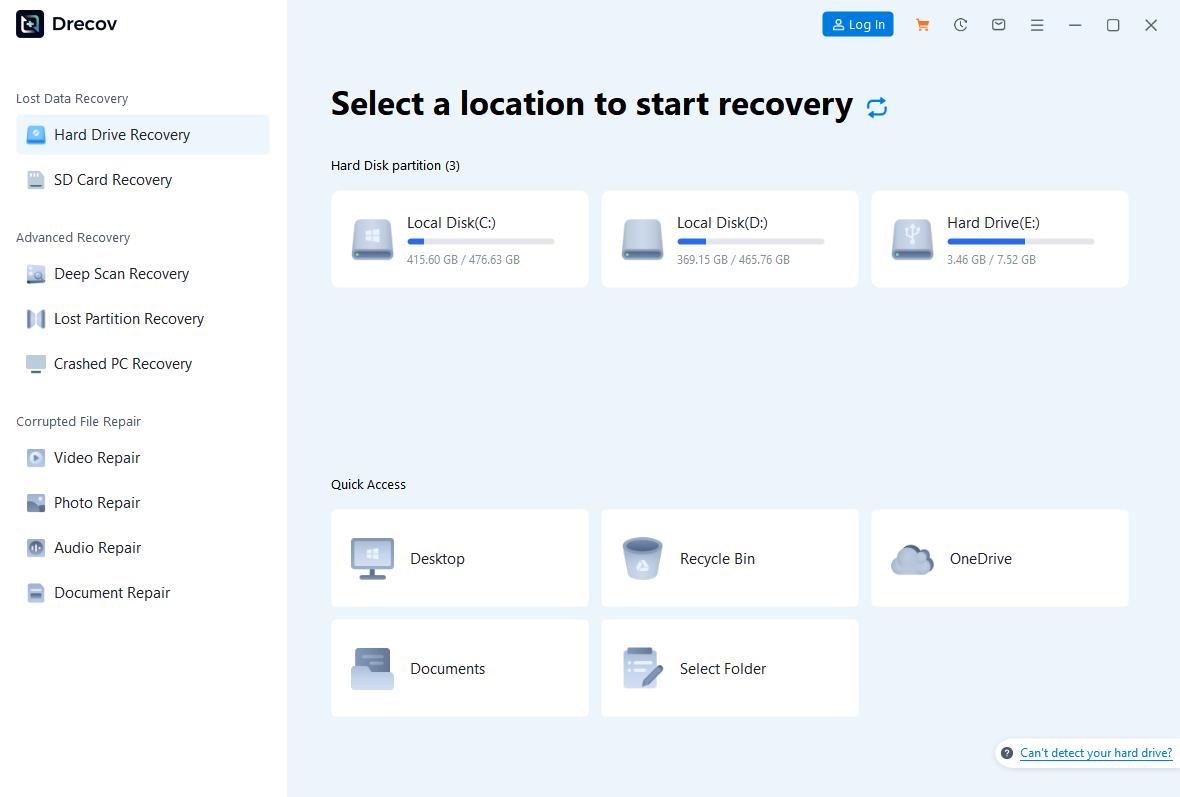
Step 1: Open Drecov and choose the original USB
On a working Windows PC, open Drecov and select the USB that originally held the files. Compare its capacity and current drive letter with Disk Management. If the original partition is missing, use the relevant Lost Partition Recovery path. Do not select an empty spare USB or the healthy output drive.
Step 2: Run Quick Scan
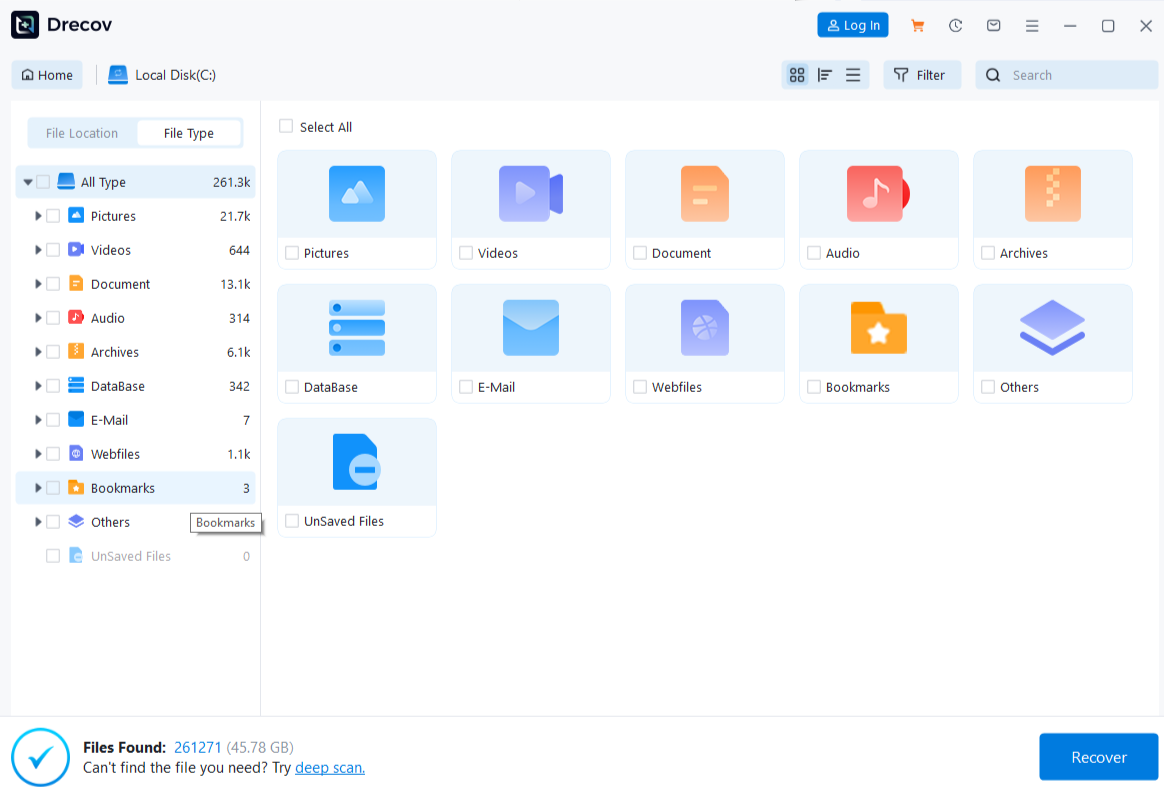
Start Quick Scan and look for the missing documents, photos, or archives. Compare surviving paths and names with what you remember. Preview representative supported files before selecting a large set. If the needed data appears, do not assume that more scanning will improve an already useful result.
Step 3: Try Deep Scan only if the source stays stable
When Quick Scan misses needed files and the USB continues to read normally, run Deep Scan. Stop if the drive disappears or returns serious I/O errors. More software retries cannot mend a failing controller. Preserve the source and ask about imaging or specialist help if stability changes.
Step 4: Filter, preview, save elsewhere, and validate
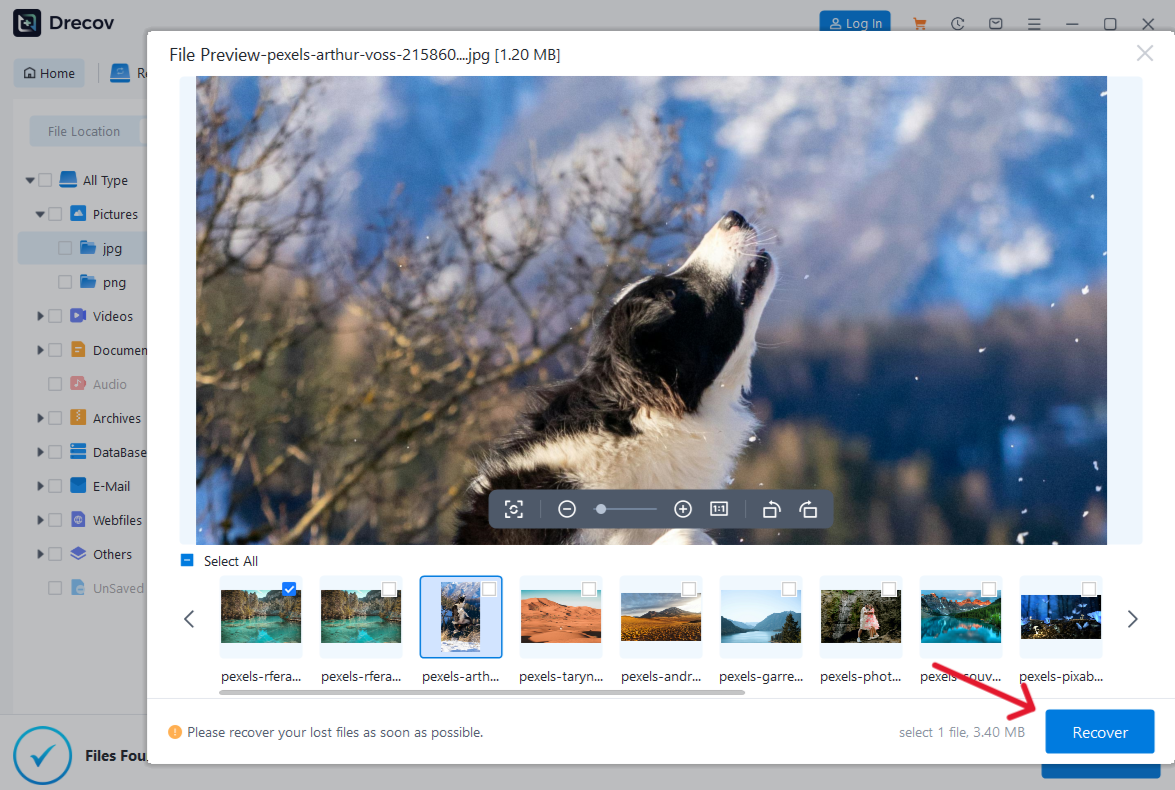
Use file type, old folder, or name filters where available. Preview several important results, recover selected files to the separate healthy device, and open the output there. If files are not in the expected folder, check the Drecov folder or Recovery folder at that destination. Only after validating the files should you format or rebuild the original USB. The Drecov homepage is the entry point for this limited recovery route.
⚠ Warning: Install it on a drive different from the one where your data was lost to prevent overwriting.
If you genuinely need to format, use a supported path
After backing up and opening a sample of the copy, identify the exact USB in Disk Management. Windows can create and format a volume there when the device is supported and healthy. Read every target label and capacity before confirming. Formatting creates a new file system; it does not extract missing files. The file recovery methods are for a separate loss event, not a formatting prerequisite when all files are safely backed up. Choose a file system that matches the destination devices and file sizes you actually use, not one recommended by a random error message. If the Windows tool also fails, note its exact error instead of escalating immediately to destructive DiskPart commands.
Do not use clean merely to make a missing USB appear in the HP utility. That command removes partition metadata from the selected disk and is dangerous when the wrong disk is in focus. It is not a universal fix for an empty program list. If Windows reports write protection, check whether the device has a physical lock or an organizational policy before changing settings. A USB that no longer accepts reliable writes may need replacement rather than further formatting.
Verify the outcome after a completed format by copying a non-sensitive test file to the USB, safely ejecting it, reconnecting it, and opening the file. This checks basic read and write behavior. It does not certify long-term health or recover old contents. If the USB fails the simple test, do not entrust it with your only backup. If Windows formatted it successfully but the HP utility remains empty, the utility’s list is no longer the relevant success measure.
Questions before you try another utility
Does an empty list mean the USB is broken?
No. Compare File Explorer and Disk Management. A drive visible there but omitted by one utility calls for a different diagnosis from a drive absent everywhere.
Should I download an old HP formatter from a mirror?
Do not make an unverified download your first fix. Check the publisher and current support information, and prefer Windows’ built-in tools for supported formatting tasks.
Can I format a RAW USB to make it visible?
Formatting may create a new file system, but it can put old data at risk. If files matter, check backups and recovery options before changing the source.
Why does Windows see the USB but the tool does not?
The program may limit which devices it lists or lack the access it expects. The exact cause depends on the tool and system; the observation alone does not establish a hardware failure.
Will Drecov repair the utility’s drive list?
No. Drecov can search for missing files on a stable, recognized USB. It does not modify a formatter’s detection behavior or fix the USB controller.
Conclusion
When the HP USB format tool does not detect a drive, compare that empty list with Windows’ own view before doing anything destructive. A visible, readable USB may need no format at all; an unstable or absent one needs a connection or hardware diagnosis. Back up accessible files and verify the copy before formatting through a supported path. If data is already missing from a stable USB, Drecov can search the original location and recover selected files elsewhere, but it cannot make the HP tool recognize the device.
⚠ Warning: Install it on a drive different from the one where your data was lost to prevent overwriting.