








Separate SQL Text Recovery from Database Recovery
A missing DBeaver script is not the same as missing database data. The editor stores SQL text, while the database server stores tables and records. Recovering a query can help you resume analysis, but it does not undo a destructive statement or restore deleted rows. Identify which problem you have before taking action, and keep recovered SQL text separate from any decision to execute it.
For example, an empty script list after switching workspaces may mean that the original project remains elsewhere. A crash with an open unsaved editor may leave a different kind of evidence. A query that already ran may appear in available execution history, but that history may omit comments or statements you never executed. Define whether you need a complete script, a useful fragment, or a database restoration.
Preserve Open Editors without Executing Them
If the missing SQL remains visible in any editor, save it as a separate script immediately. Do not press a run shortcut while trying to save or copy text. Record the associated connection, schema, and intended database dialect in your notes, but keep passwords and other secrets out of recovery inventories. The connection context can help explain the SQL without becoming part of a shared document.
Preserve the accessible workspace before switching, cleaning history, or reinstalling DBeaver. Record the edition and version because some history behavior differs between editions and releases. Keep your preserved copy distinct from a trial workspace. Do not assume that a newly created connection restores old scripts: a connection definition and the text you wrote are separate pieces of work with different storage and recovery paths.
Check the Current Workspace and Project
DBeaver stores scripts and other local project information within a workspace, which can use a default or custom location. Inspect the active workspace and project before searching for deleted files. A recently changed shortcut, environment setting, or launch option can open a different workspace. An empty view in that workspace does not prove that the earlier script folder was removed from storage.
Use the normal project and script views to inspect what exists. Check the full path of a known saved script and compare it with the missing one. If an old workspace remains available, preserve it before opening or migrating it. A copied workspace can help you recover existing script files without changing the original environment or replacing current connection settings unnecessarily.
Distinguish a Script from a Result Export
A CSV or spreadsheet export may preserve query results, but it normally does not contain the complete SQL that produced them. It can help identify expected columns, filters, and output values. Treat it as supporting evidence rather than a substitute for the original script. Reconstructing a query from results is new analysis and needs its own validation, especially when several different queries could produce similar output.
Likewise, a connection configuration does not contain every script associated with that connection. A familiar database name in the navigator is not evidence that the missing SQL text survived. Inventory saved scripts, available open editors, execution history, exported results, and project archives separately. This makes the next step clear and prevents you from confusing a restored connection with recovery of your actual analysis work.
Free Method 1: Find Existing Saved Script Files
Inspect the Scripts folder in the relevant project and the actual filesystem location used by that workspace. Use a distinctive filename or a phrase from the SQL to identify candidates. Keep copies of plausible files before opening them. A script may have been saved under another project, exported to a separate folder, or renamed during cleanup without being deleted.
Open a copied candidate as text and confirm its purpose before assigning it to a connection. Compare table names, parameters, comments, and recognizable logic. Do not execute the candidate merely to identify it. A historical script can contain data-changing statements, old server-specific syntax, or assumptions that no longer hold. Text inspection should establish what you recovered before any live database interaction occurs.
- Confirm the active workspace and inspect the relevant project Scripts folder.
- Search preserved existing workspace copies for the missing filename or distinctive SQL text.
- Copy plausible script files to a separate recovery folder and inspect them without execution.
- Record each candidate’s source, dialect, and completeness before choosing the accepted version.
Compare Similar Script Versions Carefully
Two files can share a title while containing different filters or target schemas. Compare the complete query and any surrounding setup statements. A small difference in a date boundary, join, or exclusion rule can change the analysis substantially. Keep the current version and the older candidate side by side until you understand which parts belong in the recovered script.
If you merge versions, preserve the original candidates and save the merged result under a new name. Mark any section that you reconstructed from memory or output evidence. This helps separate recovered original text from new assumptions. For analysis that informs a report or operational decision, that distinction matters as much as recovering a file with the expected extension.
Free Method 2: Save Surviving Editor Content
Check all open DBeaver windows and editor tabs for the missing text. A tab can be detached, hidden among many editors, or associated with another project. If useful text survives, save a separate copy through the script-saving workflow. Confirm the destination and inspect the resulting file in a new read-only comparison or separate text view before closing the original editor.
For a partial editor buffer, copy the whole available text, including comments and parameter declarations. Those surrounding details can explain how the query was intended to run. Avoid formatting or replacing placeholders until you have preserved the original state. A fragment can still be valuable, but its context determines whether it represents a complete executable script or only one part of a larger sequence.
Protect Unsaved Analysis Notes
SQL editors often contain explanatory comments, alternative queries, and intermediate reasoning that never ran. Execution history may not preserve those parts. If the editor remains open, prioritize saving them before investigating a more elaborate recovery route. The value of a script can lie in why a filter was chosen, not just in the final SELECT statement.
If no surviving buffer exists, do not assume that every unsaved tab has a permanent disk copy. Look for actual retained files or supported recovery behavior in your installed version. Preserve the workspace first, and avoid speculative editing of internal workbench data. A normal script file is easier to inspect and validate than an uncertain fragment extracted from application state, so use direct surviving sources whenever possible.
Free Method 3: Inspect Available Query History
DBeaver’s Query Manager can show executed queries and associated execution information, subject to edition, settings, retention, and version. Check the history that actually exists in the current session and environment. Do not assume that Community Edition retains the same cross-restart history as a paid edition. A useful query may be available now even if it will not remain after a restart.
Filter the available history by connection, time, or other supported fields to narrow the search. Copy relevant SQL text into a separate recovery script without executing it. Preserve the original order and note the source. Execution history can supply a missing statement, but it may not include unexecuted text, comments outside the executed selection, or all the context needed to reproduce the original analysis.
Do Not Replay History Automatically
A historical list can contain failed experiments, repeated statements, and destructive operations. Do not select the entire list and run it as a recovery shortcut. Read each statement and classify its purpose first. Even a query that was safe yesterday may target a different default schema today. Saving the text is the recovery step; deciding whether to run it is a separate reviewed action.
Also distinguish the SQL as written from any parameters or values supplied during execution. A recovered statement with placeholders may not contain the values that produced a particular report. Use legitimate existing notes or recorded execution context where available. If the values are missing, document that uncertainty instead of inventing them. A plausible query is not enough to establish a reproducible historical result.
Use Existing Project Archives or Version Control
If you exported a project or already versioned scripts, inspect the relevant archive or repository revision in a separate location. Check that it contains actual SQL files rather than only connection definitions. Compare its script contents with current needs and any surviving history fragments. A coherent project snapshot can restore useful organization, but it may still omit recent unsaved editor work.
Avoid replacing the entire active workspace just to recover one script. That can change unrelated preferences and connections. Extract the needed files first, then import them through the normal workflow if necessary. Keep credentials and secure storage separate from any article, report, or shared recovery package. The recovery objective is the script text and its documented context, not exposing private connection material.
Understand Local-History Possibilities without Assuming Them
Some DBeaver workflows inherit resource-management features from the underlying platform, but their visibility and behavior can depend on the installed version and view. If a supported local-history action appears for your saved script, inspect its retained states on a preserved copy. Do not promise that every script or unsaved editor has such history merely because another platform-based application does.
Use only actual available states and compare their contents. If no history is offered or no relevant state survives, record that result and use the other sources. Avoid transplanting arbitrary metadata files between workspaces. Internal state is not a portable script archive, and a speculative metadata repair can make the workspace harder to interpret without recovering the missing SQL itself.
Validate the Recovered SQL as Text First
Read the complete script from beginning to end. Check comments, statement boundaries, quoted identifiers, parameters, and transaction commands. A file can contain the desired query but lack an important setup statement at the beginning. Another candidate may end halfway through a string or block. Mark incomplete sections and preserve them as partial recovery rather than treating the script as ready to execute.
Identify the intended database dialect and version. Similar SQL can have different meaning across systems, especially around date arithmetic, temporary objects, quoting, and pagination. A syntax check or formatting preview can help with structure, but it does not prove analytical correctness. Compare the logic with the purpose you recorded, including the population, time window, and expected granularity of the result.
Review Data-Changing Statements Separately
If the recovered script includes INSERT, UPDATE, DELETE, schema changes, or administrative commands, isolate those sections for review. Do not run them against production as a completeness test. Use an appropriate disposable environment or approved test copy when execution is necessary. A rollback strategy can be useful, but not every operation behaves identically inside a transaction across database systems.
Check the selected connection and default schema before any permitted execution. A visually familiar editor tab can be associated with a different connection after a workspace change or import. Confirm the destination explicitly, and use read-only access where appropriate for analysis. Recovering the exact original text does not establish that its former execution target remains correct today.
Reproduce an Analysis with Controlled Evidence
For a recovered reporting query, compare its intended result structure with a known earlier export. Check column names, grouping, date boundaries, and row counts where meaningful. Differences can reflect changed underlying data rather than incorrect recovery, so record the snapshot or data period used for the comparison. Avoid claiming historical equivalence when you only tested against a newly changed live dataset.
If only the result export survives, reconstruct the query in a new file and label it as reconstruction. Use the export to infer requirements, but verify assumptions with legitimate schema knowledge and existing documentation. Several queries can produce the same visible sample while differing on edge cases. Test null values, duplicate joins, and boundary dates before accepting the new analysis as a substitute for the original.
Keep an Audit Trail of Merged Fragments
When a script comes from several sources, record which section came from a saved file, an open editor, or execution history. Keep unresolved placeholders visible. This makes review practical and prevents a later reader from mistaking an inferred value for recovered evidence. A short note alongside the script can explain both what survived and what still needs confirmation.
After review, save a clean accepted script and keep the raw candidates separately. Include a non-secret description of the intended connection role and required parameters. Do not embed passwords merely to make the recovery package self-contained. The goal is reproducible analysis within the normal access controls, with enough context to run the right text against the right approved data when appropriate.
Recover a Report Query with Missing Parameters
A recovered query can look complete while lacking the parameter values that defined its original result. Identify date ranges, organization filters, currency assumptions, and other inputs before validation. Use legitimate existing report notes or saved execution context where available. If a value is unknown, leave it explicitly unresolved in the recovery copy. Guessing a plausible date can produce a convincing report that does not reproduce the original analysis.
Compare boundary behavior carefully. A query that includes the first moment of the following day can differ from one that stops at the previous day’s end, even when most rows match. Record the intended time zone and data period when those affect meaning. This is analysis validation rather than file-integrity checking, but it is necessary if the recovered text will support a decision or published result.
Review Temporary Objects and Session Dependencies
Some scripts depend on temporary tables, session variables, or setup statements created earlier in the editor. Execution history may recover the final query without those prerequisites. Read the complete sequence and identify what must exist before each statement runs. Preserve the recovered fragments in their observed order, but do not assume that every earlier statement in the history belongs to the same analysis session.
If you rebuild missing setup logic, save it as a new reviewed section and explain the assumption. Test it on an appropriate controlled dataset. A script that runs only because your current database session already contains an old temporary object is not yet reproducible. Start a clean test context when practical so the accepted script demonstrates its actual dependencies rather than relying on invisible leftovers.
Validate Joins and Granularity after Merging Versions
Combining fragments from different candidates can accidentally change the level of detail. A join that duplicates rows may leave totals looking plausible for a small sample while producing incorrect aggregates overall. Check key uniqueness, expected row counts, and representative edge cases. Compare the result’s intended unit, such as one row per order or one row per customer, before accepting a merged query.
Keep a small validation note with the accepted script describing those expectations. It need not expose private data; it can state the structural checks and controlled sample used. This gives future reviewers a reason to trust the recovered analysis beyond the fact that the file opens. It also helps distinguish later changes in underlying data from an error introduced while reconstructing the SQL.
Archive Raw Candidates Separately from Approved Scripts
Execution-history fragments can include failed attempts and obsolete destructive statements. Keep them in a clearly separate recovery archive after extracting the accepted script. Do not place every candidate in the normal production script folder without labels. A future user should be able to identify the reviewed analysis without reading a long recovery conversation or guessing which timestamp represents approval.
For the accepted script, include a concise non-secret note about purpose, dialect, required parameters, and validation. Preserve the original candidates until the result has passed its relevant review. If the database itself suffered data loss, keep that incident’s restoration record separate. A clean boundary between recovered text, approved execution, and server-data recovery prevents one successful step from being mistaken for completion of all three.
When Deleted-File Recovery Is Worth Evaluating
PandaOffice Drecov may help search for a SQL script or existing workspace copy that was deleted from readable storage. It does not restore server-side records merely by recovering query text. It also cannot guarantee reconstruction of an unsaved editor that never reached retained storage. Use this route when you have evidence that a real local file existed and native sources no longer supply it.
Before scanning, stop unnecessary writes to the affected volume and preserve accessible workspace files. Keep recovered outputs on another healthy destination. If the device shows read failures or disconnects, prioritize a suitable preservation approach instead of repeated application experiments. For an SSD whose deleted blocks have already been discarded, a familiar SQL filename may not lead to readable original content.
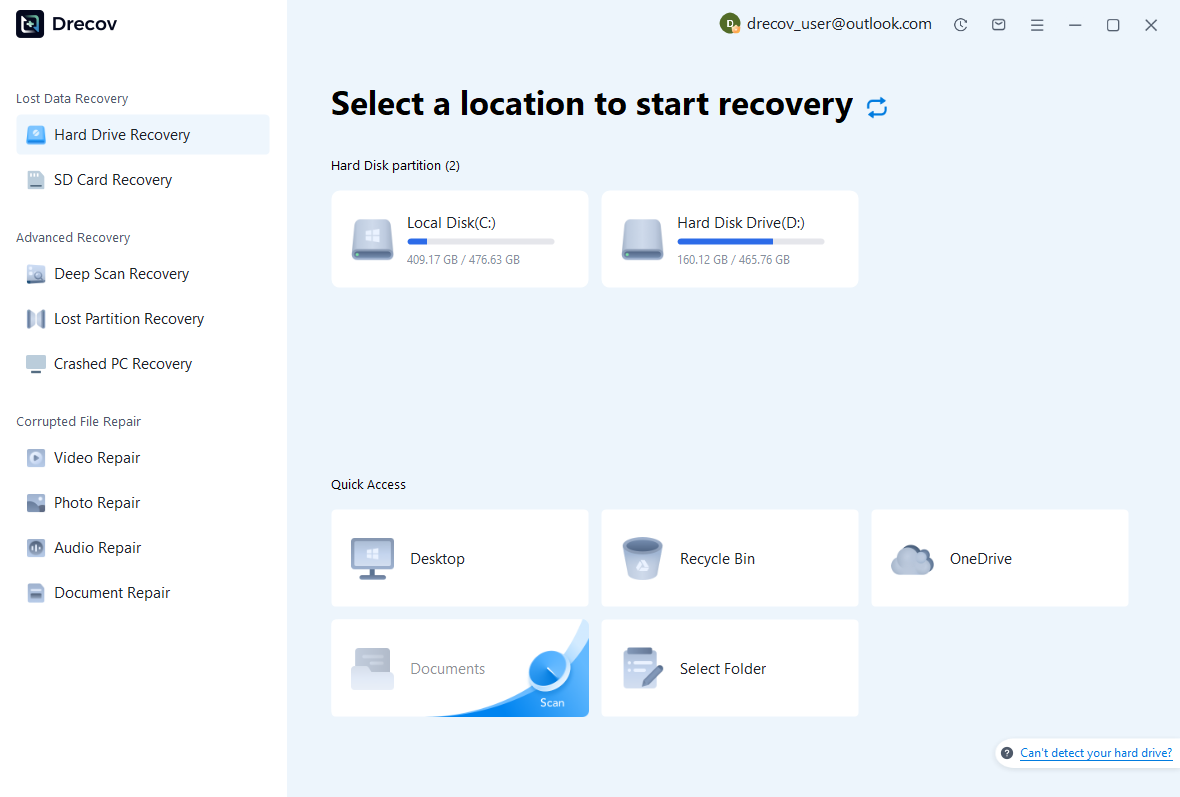
Step 1: Select the Volume That Held the Script
Choose the storage containing the actual saved script or old workspace, not the database server simply because the script connected to it. Confirm the original local path and identify any custom workspace location. Avoid installing recovery software onto that volume. Reserve a separate healthy destination for candidates and keep your notes about file locations free of passwords or sensitive connection details.
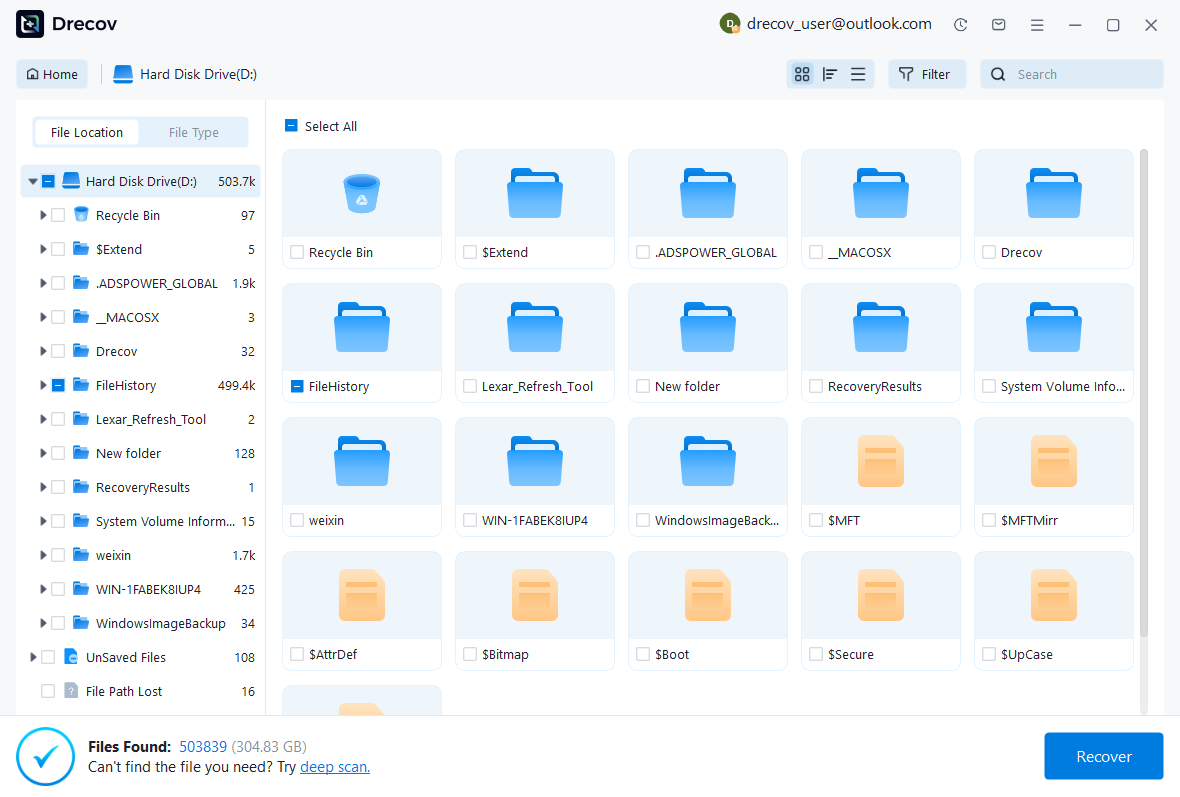
Step 2: Review Text Candidates without Running Them
Inspect available paths, names, dates, sizes, and supported previews. Search for recognizable table names or comments when possible. Retain plausible competing versions rather than choosing the newest timestamp automatically. A candidate may contain an incomplete experiment or only one executed fragment. Preserve it as evidence, and postpone all execution decisions until after you have recovered and reviewed the text.
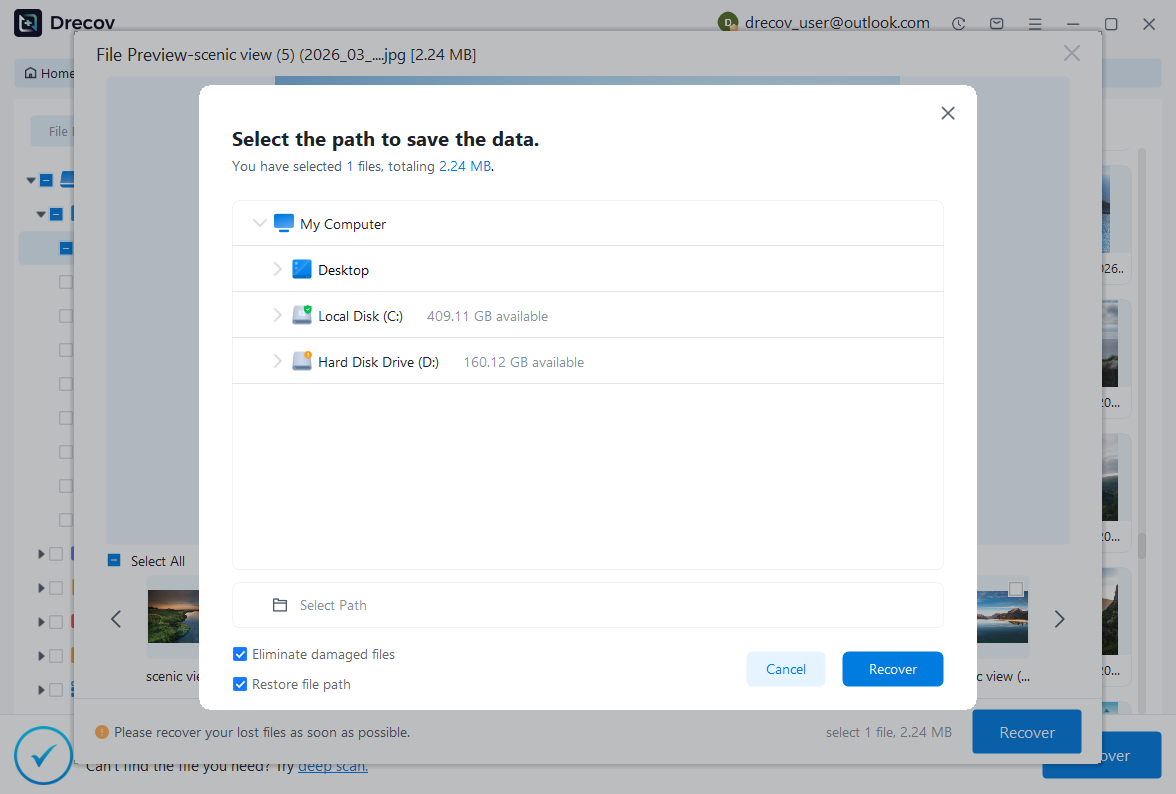
Step 3: Recover Elsewhere and Validate a Separate Script
Save candidates to the separate destination and inspect copies in a text editor or DBeaver without running them. Check the beginning, end, parameters, and transaction statements. Compare the accepted logic with a known purpose or output. If execution is needed, use the correct controlled environment and connection. A successful file copy does not prove that the recovered SQL is complete, current, or safe to run.
Complete the Recovery with Clear Boundaries
Your final record should distinguish restored script text, reconstructed sections, and any separate database incident. If a query caused data loss, recovering that query does not solve the database problem. Keep the accepted SQL and non-secret context together, and preserve raw candidates until the analysis passes review. This makes the result useful without overstating what a local script recovery accomplished.
- Confirm the accepted script’s source, dialect, completeness, and intended purpose.
- Review parameters, destination assumptions, and data-changing statements before execution.
- Validate the relevant logic in a controlled environment using appropriate evidence.
- Save the reviewed script and an independent project copy with no exposed credentials.
Protect Future SQL Work Deliberately
Save valuable SQL as named files and version it through an appropriate existing project workflow. Treat query history as a convenience whose retention you have verified, not a permanent archive. Preserve analysis comments and parameter notes with the script. Back up the actual workspace or exported project files according to your needs, and keep database backups as a distinct protection layer for server-side data.
Finally, test recovery of one harmless saved script from your independent copy. Confirm that it opens as text and retains its comments and placeholders without requiring a live production connection. This small test verifies that your protection captures the work you write, rather than only connection names or result exports. It also gives you a calm, repeatable recovery procedure for the next incident.
Related Recovery Resources
Explore the relevant recovery options: Hard drive recovery, External hard drive recovery.
For another recovery case and its practical checks, read the related recovery guide.
Check the vendor guidance for the installed version: official recovery documentation 1, official recovery documentation 2, official recovery documentation 3, official recovery documentation 4.