







If a TS to MP4 conversion finished without audio, keep the original .ts file and do not run another conversion over it. First play the source in a capable player and confirm that it actually has sound. Next inspect the audio tracks in both files. If the TS contains audio but the MP4 does not, the conversion likely omitted or rejected a track. If both files have an audio stream but only one player is silent, test playback compatibility before converting again. These observations prevent unnecessary recompression and protect your only working copy.
Find out whether the sound exists in the source
A transport-stream file can contain video, one or more audio streams, subtitles, and other data. The .ts extension alone does not tell you which tracks are present or whether a particular player can decode them. Open the source on a working computer and listen at several points rather than only the first few seconds. Some broadcast recordings contain a silent lead-in, multiple programs, or an alternate-language audio track that the player does not select automatically.
Try a second trustworthy player if the first produces no sound. Check the player’s audio-track menu and volume, then compare with another known-good video. If the original TS is silent in every player, the MP4 converter may not have had any usable audio to carry forward. Do not assume that a larger file size proves an audio stream exists. For a damaged or partly downloaded source, obtain another intact copy from the original provider when possible.
Use a media-inspection tool to see the actual streams. The official ffprobe documentation describes how to list audio streams with -select_streams a -show_streams. You do not need to understand every technical field; the key observation is whether the TS and MP4 each report an audio stream and which codec each uses. A graphical media-information view can serve the same purpose for readers who prefer not to use a command line.
Compare the original and output before changing settings
The TS has audio; the MP4 has no audio stream
This points to stream selection or conversion settings, not a speaker problem. The converter may have exported only video, selected the wrong program, or skipped an unsupported audio format. Look for settings such as “include audio,” “audio track,” or “stream mapping.” If the file has multiple audio tracks, select the one you heard in the original. Convert a short copy first and confirm its audio stream exists before processing the full recording.
Both files have an audio stream, but the MP4 is silent
Open the MP4 in another player. If one plays sound and another does not, the output may use an audio codec unsupported by the silent player. Compare the codec information and the target device’s supported formats. Do not fix this by renaming the extension. A real conversion may be needed, but it should be performed on a copy of the source and verified in the target player.
Neither file has a usable audio stream
The problem may have existed at recording, capture, or download time. Repeatedly exporting the same silent source cannot invent the missing sound. Check whether another TS segment, recording channel, or original download contains the audio. If an earlier version was deleted, that is a data-recovery question rather than a conversion-setting question. The video recovery topic is relevant to a missing source video; the audio recovery topic addresses a separately saved recording that vanished.
Avoid common fixes that make the diagnosis worse
Do not delete the TS after a conversion reports “complete.” First prove the MP4 has the desired picture, sound, and duration. Do not overwrite the source with an output of the same name. Keep both files until the output has been tested in the final playback environment. If the TS lives on a removable drive, copy it to stable local storage before repeated processing, and preserve the removable original if it shows read errors.
Do not increase volume or install a codec pack blindly when the MP4 contains no audio stream. There is nothing for the player to amplify. Conversely, if the stream exists and plays in one application, a different export may be more useful than changing system-wide codecs. Use the target device’s format documentation to choose the audio codec and container combination. Avoid presenting one codec as universal across TVs, phones, browsers, and editing tools.
A command-line remux or transcode can be appropriate for an experienced user, but commands are not interchangeable. An option that maps only video, or disables audio, will reproduce the problem. If you use a CLI, inspect the source streams first and read the tool’s current documentation for the exact stream-selection syntax. For readers who only need a reliable result, a graphical converter with an explicit audio-track selector may be easier to verify.
When the original TS was deleted or became inaccessible
Drecov is Windows data-recovery software for stable storage devices and missing files, including video files on a PC drive, USB device, or memory card. It provides Quick Scan, Deep Scan, file locating and preview, and recovery to another healthy location. Lost Partition Recovery can be useful when the storage partition vanished. It does not add audio to a silent video, repair a missing track in an existing MP4, or guarantee recovery of overwritten source footage. Use it only when the original TS or a better earlier copy is genuinely missing.
Stop writing to the device where the TS was stored. Check cloud, editor, recording-app, and external-drive backups first. If the source drive disconnects, gets hot, or returns severe read errors, avoid repeated direct scans and seek imaging or professional recovery. For a stable, recognizable device, prepare a separate healthy destination large enough for the recovered video. Do not install Drecov on the loss location or save the output back there.
⚠ Warning: Install it on a drive different from the one where your data was lost to prevent overwriting.
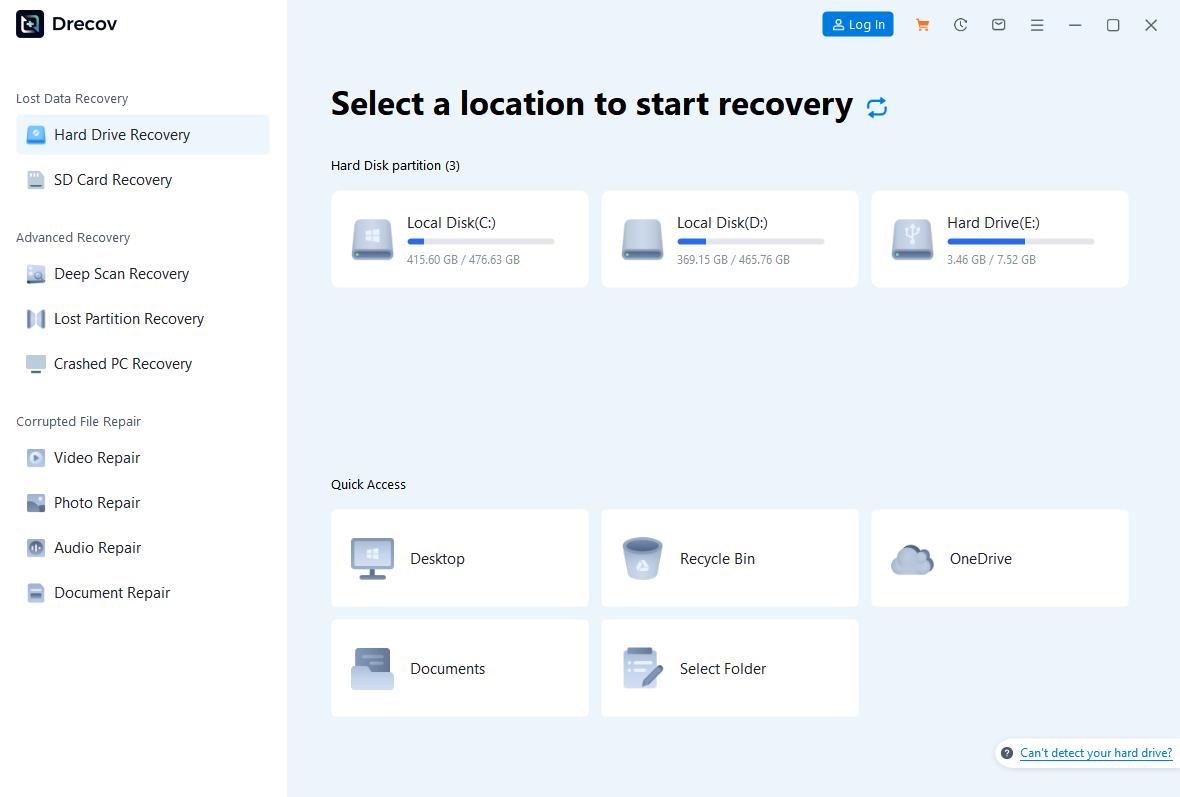
Step 1: Open Drecov and choose the original video location
On a working Windows computer, open Drecov and select the partition or removable device that held the TS before deletion. Use the old folder and device label as clues. Do not scan the folder where you saved the new silent MP4 unless the original also lived there. If the original partition vanished, consider Lost Partition Recovery instead of treating the MP4 as the source.
Step 2: Start Quick Scan
Run Quick Scan and look for the missing TS or earlier video copies. Use filename, old path, and video type filters where available. Preview representative results, while remembering that a preview does not certify every minute or audio segment. If a candidate has the expected duration and sound, mark it for recovery.
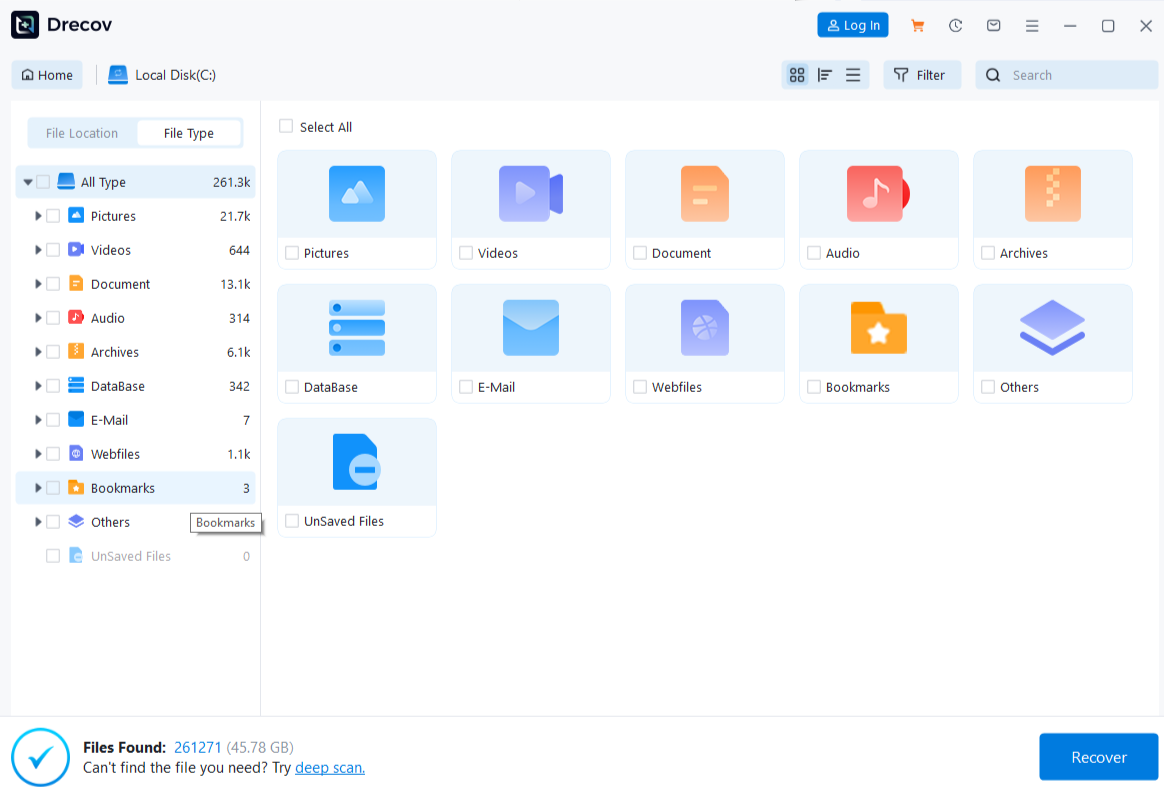
Step 3: Try Deep Scan only on stable media
If Quick Scan misses the source and the device reads consistently, run Deep Scan. Video files can be large; incomplete or overwritten files may appear but fail later playback. Stop if the drive becomes unstable. A professional image may be safer than forcing more reads from a failing source.
Step 4: Recover elsewhere and test sound throughout
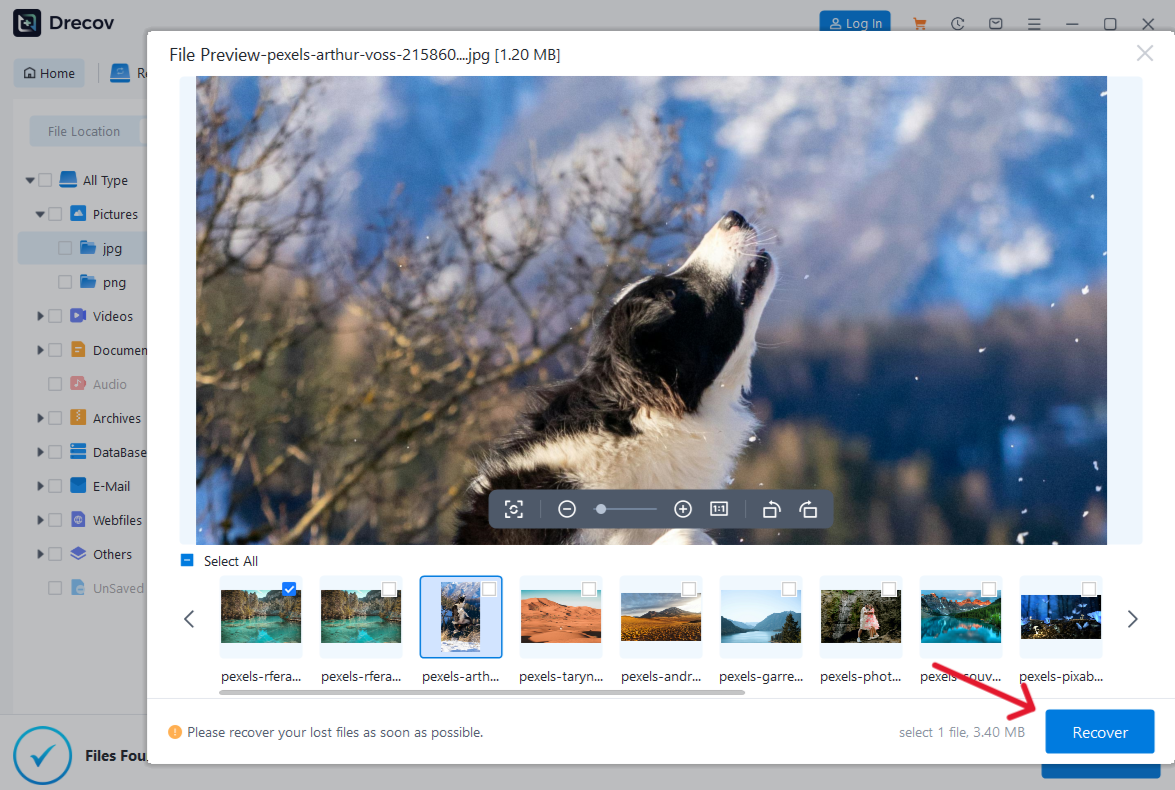
Recover selected candidates to the separate healthy drive. Check the Drecov folder or Recovery folder if the result is not at the expected destination. Play each important recovered video at the start, middle, and end; compare picture, audio, and duration with any known copy. Only then consider converting a recovered source. If the original TS is genuinely missing, open Drecov on a healthy Windows PC; the file recovery overview covers deletion more broadly.
⚠ Warning: Install it on a drive different from the one where your data was lost to prevent overwriting.
Make a small conversion test that proves the result
Duplicate the original TS to a healthy destination and keep the original unchanged. In your converter, choose the copied file, confirm the desired audio stream, and select an MP4-compatible output. Avoid a preset labeled “video only.” If the program shows separate video and audio options, make sure the audio setting is enabled. A short sample from a section that definitely has sound is more useful than a full-length attempt that takes time and hides the same error until the end.
After creating the sample, inspect its streams and play it in the device or app where the final MP4 must work. Check both sound and synchronization at the start and later in the sample. If the converter reports an error, save its log or exact wording. Do not jump from “output has no audio” to “the source is corrupt” without comparing the tracks. Some tools select the first audio stream automatically; that may be the wrong language or a silent channel.
When the test works, repeat the same settings for the full copy. Verify several points in the completed file, including the middle and end. File creation alone is not success. If the full output loses sound only after a certain point, inspect the original around that point and check whether the recording contains discontinuities. A partially damaged TS may require a different repair decision from a simple missing-track selection.
Frequently asked questions about silent MP4 output
Can renaming a TS to MP4 restore missing sound?
No. A name change does not select an audio stream or convert its codec. Inspect the tracks and make a tested output from a copy.
Why does the TS sound fine but the MP4 has no audio track?
The conversion may have omitted the audio stream or chosen a different program. Review stream selection and the converter’s log before another export.
Could my player be the problem?
Yes, when the MP4 contains an audio stream that another player can decode. If no audio stream exists, changing players will not create one.
Should I delete the TS after a successful conversion message?
No. Verify picture, sound, duration, and synchronization in the output first. Keep the original until your final playback device passes those checks.
Will Drecov fix a silent MP4?
No. Drecov can help retrieve a missing original TS or prior version from stable storage. It does not synthesize or repair an absent audio track in an existing file.
Conclusion
When TS-to-MP4 conversion produces a silent file, compare audio streams in the source and output before changing conversion settings. A missing output track, unsupported codec, and silent original call for different actions. Keep the TS, test a short copied sample, and verify the full MP4 before discarding anything. If the original footage was deleted, Drecov can search a stable source and recover surviving copies elsewhere; it cannot add audio that was never recorded.
⚠ Warning: Install it on a drive different from the one where your data was lost to prevent overwriting.