







Separate Missing Ink from a Missing PDF Background
Xournal++ notes can combine editable handwriting, typed text, images, and pages from a separate PDF background. If a journal opens with blank or incorrect backgrounds, your annotations may still exist. If the handwriting itself disappeared, the recovery target is different. Identify which layer of information is missing before replacing files or assuming that the complete notebook was deleted.
For example, moving a journal without its referenced lecture PDF can leave your handwritten arrows intact but make the page context disappear. Reconnecting the exact original PDF may solve that problem without any undelete operation. By contrast, an older journal that lacks yesterday’s equations may need a surviving autosave or earlier copy. Preserve both journal and background evidence before testing either route.
Save a Useful Open Journal Separately
If the desired notes remain visible in an open session, save a separate native copy before closing or changing background files. Export a reference PDF as well when practical. The native copy preserves editability, while the export records the visible result. Keep both in a healthy recovery location and confirm that saving did not overwrite your only earlier journal or its associated PDF.
Next, record the Xournal++ version, full journal path, and original background path if known. Preserve the accessible journal folder and relevant autosave candidates before cleanup. Hidden filenames can matter, so enable the appropriate file-manager display rather than assuming an ordinary folder listing shows everything. Avoid deleting cache data while you still need to check whether an unsaved journal left a recovery copy there.
Confirm the Journal and Its Page Context
Check that you opened the intended .xopp file rather than a similarly named older copy or a PDF export. Compare page count, a recognizable handwritten phrase, and the date of the last known edit. A recent PDF may show the desired notes even when the native journal is older. Keep that distinction clear, because the export and journal can represent different stages of work.
If the journal reports a missing PDF, locate the original document before substituting another edition. Compare page count, title, and recognizable page contents. Two versions of a handout can share a filename while adding or removing pages. A mismatched background can place correct annotations over the wrong content, creating a result that looks superficially restored but is misleading when you study or share it.
Understand Native Editability and Exported Appearance
The XOPP journal stores editable note information, while an exported PDF represents a different kind of deliverable. You may be able to annotate an existing PDF again, but that does not generally restore the original journal’s editable strokes and object structure. Preserve exports as useful references or partial substitutes, and label any newly annotated reconstruction separately from the recovered native document.
Also inspect any added images or other dependencies that your particular journal uses. A notebook can contain more than handwriting over a background. Keep its related files and folder structure together until you know what the native file includes and references. This inventory helps you avoid declaring recovery complete after fixing the background while leaving an inserted diagram or another important piece of context missing.
Free Method 1: Inspect the Hidden Autosave Beside a Saved Journal
For a journal that was saved previously, Xournal++ documentation describes autosave files in the same folder with a leading dot and an autosave.xopp ending. For example, a journal named foo.xopp can have a corresponding .foo.autosave.xopp candidate. This depends on an actual autosave having been produced. Copy any candidate before opening it, and keep the original journal unchanged.
Open a copied candidate through Xournal++ and compare its contents with the saved journal. Check the specific missing page or annotation rather than choosing by timestamp alone. An autosave may capture a later mistake as well as useful new notes. Save an accepted result under a separate descriptive name, then retain both the original journal and the autosave evidence until final validation.
- Show hidden files and inspect the saved journal’s original folder.
- Copy any relevant autosave candidate and preserve the existing native journal.
- Open the candidate copy and compare the missing notes and page context.
- Save the accepted result separately and verify it with the correct background PDF.
Compare Several Pages before Accepting the Candidate
A candidate can contain the desired last page while missing earlier work or using a different background. Inspect the beginning, an important middle page, and the end. Look for a distinctive equation, diagram, or annotation on each. This comparison is more reliable than judging completeness from a thumbnail or from one familiar heading that appears in several versions of the notebook.
Check page order and orientation too. If you inserted or rearranged pages, an earlier autosave can preserve the ink but not the latest organization. Record any difference and decide whether to recover the complete candidate or merge selected content into another copy. Preserve raw candidates before making those edits so you can revisit the choice if a later page reveals a mismatch.
Free Method 2: Check Cache Autosaves for Never-Saved Work
A journal that never received a normal filename may have autosave data in the application’s cache location, depending on the version and actual settings. Consult the file-location guidance for your installation and preserve the relevant cache before cleanup. Do not assume that every unsaved document has a recoverable copy. The useful evidence is a real candidate whose contents match the lost session.
Copy plausible autosaves into a separate folder before opening them. Compare recognizable handwriting, page count, and timing with the missing work. If several unnamed sessions are present, keep them separate and build a small inventory. Generic internal names provide little assurance by themselves. Saving accepted notes as an ordinary named journal gives you a clear recovery baseline and avoids continued dependence on working cache files.
Do Not Treat the Cache as Permanent Storage
Cache data can be removed by normal cleanup, application behavior, or system maintenance. Increasing an autosave setting after the incident does not recreate an earlier journal that never reached storage. If no relevant candidate survives, record that limit and check actual saved copies or exports. Repeated restarts do not create a missing historical note state and can make the remaining evidence harder to interpret.
Avoid putting your recovered working journal back into the cache as its permanent home. Save it in a normal document folder with a deliberate backup policy. Keep the cache candidate unchanged as evidence until you have verified the new saved copy. This separates the recovery source from the final document and makes future restoration easier to explain and test.
Free Method 3: Reconnect the Exact Existing PDF Background
If annotations survive but the PDF background is missing, use the application’s prompt or supported workflow to identify the correct existing PDF. Start with the original path and any complete project copy. Compare the actual document contents before accepting it. A file with the same name can still be the wrong edition, so use page count and recognizable material to verify identity.
After reconnecting, inspect annotation alignment on several pages. Arrows should point to the intended lines, highlights should cover the expected text, and handwritten solutions should match the surrounding questions. If the notes appear shifted to unrelated content, do not immediately move all the ink. First check whether the background has changed pagination, page dimensions, or ordering compared with the original document.
Understand Attach Mode without Assuming One-File Storage
Xournal++ can use an attach mode that helps manage the background relationship, but you should not assume the PDF becomes a self-contained part of the XOPP file. The documented workflow can copy the PDF beside the journal and use a relative relationship. Preserve the resulting related files together, and use the supported Save As workflow when moving the journal in that mode.
Test the actual result of your installed version by opening a copied journal from a separate folder. Confirm whether it finds the intended PDF without relying on the original location. This practical check is more useful than assuming that a successful save means all dependencies moved. If the copy still references the old location, preserve the PDF and repair that relationship deliberately before archiving the notebook.
Use Existing Exports as a Partial Recovery Source
If no editable journal survives but a complete exported PDF does, preserve that output. It can remain useful for reading, sharing, and continuing annotation in a new journal. However, new notes over the export do not recreate the original editable object structure. Label the new document as a reconstruction or continuation so you do not confuse it with the recovered native notebook.
Check that the export includes all needed pages and annotations. A partial export can omit later pages or selected layers of content. Compare it with your study outline, handout, or any known reference images. If some pages are missing, identify the ranges explicitly. A partial readable notebook is valuable, but its usefulness depends on knowing which material still needs to be recovered or rewritten.
Keep Handwritten Meaning Intact During Reconstruction
When rebuilding a note from an export or image, inspect mathematical symbols, units, arrows, and color conventions carefully. A visually small missing mark can change the meaning of an equation or diagram. Do not rely on automatic text recognition alone for technical handwriting. Compare the reconstructed content with legitimate course material or your own surviving references where possible, and mark uncertain readings for review.
Keep the original export unchanged while adding new annotations in a separate journal. This preserves the evidence and lets you distinguish old notes from newly reconstructed explanations. If you correct an error during the process, note that it is a new correction rather than recovered historical content. That distinction can matter when notes document an experiment, meeting decision, or derivation whose original sequence is important.
Inspect Page Structure and Background Alignment
A recovered notebook needs a page-by-page relationship between annotations and their context. Check inserted blank pages, duplicated pages, rotated pages, and any changes to the background PDF. If the PDF was edited externally, the journal may still refer to its original page positions. Reconnecting a file successfully does not establish that those references remain semantically correct after page additions or removals.
Use several distinctive checkpoints across the document rather than only the first page. Compare page dimensions and orientation as well as content. A correct-looking title page can hide a mismatch later in the PDF. If you find misalignment, preserve the recovered state and identify the cause before moving objects. Broad manual shifts can make one page look better while damaging alignment on others.
Verify Images, Typed Text, and Handwriting Separately
A notebook may contain typed labels and inserted figures alongside pen strokes. Inspect those categories separately after recovery. A page can look nearly complete while a small label or reference figure is absent. If the document uses special fonts or mathematical rendering, check the relevant output too. The presence of most handwriting does not prove that every element survived with its intended appearance.
For important diagrams, zoom in and compare connections, endpoints, and legends. A clipped arrow or missing label can change the interpretation even when the overall page resembles the original. Record any uncertain element before you continue editing. This gives you a concrete partial-recovery checklist and prevents a later reader from treating a visually familiar but incomplete diagram as authoritative.
Test the Native Save and Export Workflow
After choosing the best candidate, save it under a new normal document name and reopen that saved copy. Verify the same critical pages and background relationship. This tests whether the recovered journal is dependable beyond the initial recovery session. Keep the source candidates unchanged until the fresh save-and-open cycle passes, because a useful live view alone is not a durable result.
Then export a verification PDF and inspect it in a separate viewer. Check page count, annotation visibility, cropping, and important symbols. The native journal and exported PDF serve different purposes, so test both. A successful export can provide a useful reference, while the native file remains the editable master. Preserve both with the correct background document and a short note explaining their relationship.
Handle Storage Problems before Application Experiments
If unrelated documents also fail to read or the drive disconnects, consider a storage problem beyond Xournal++. Avoid repeated saves and large exports to that volume. Preserve readable files and choose a recovery approach appropriate to the device condition. An application error may be the first visible symptom of unreadable storage, so do not assume that changing journal preferences will solve it.
For a healthy device with a recent deletion, a file scan may offer additional candidates. On an SSD whose deleted blocks have already been discarded, recovery can be limited. Keep expectations tied to actual saved files and surviving autosaves. Neither a native recovery feature nor a scanning interface can guarantee restoration of notes that never reached any readable retained storage.
Recover Notes That Refer to a Revised Handout
A handout can change between versions without changing its familiar filename. If a recovered journal places annotations over the wrong questions, compare the PDF editions before moving the ink. Check inserted pages, changed margins, and replaced figures. The handwriting may be intact while the context differs. Preserve both background candidates and identify which one matches the original note positions across several distinctive pages.
If you intentionally want to use the newer handout, treat transferring the notes as a new editing task. Keep the recovered original journal and matching PDF unchanged. Move or rewrite annotations only in a separate copy, and review each affected page for meaning. An arrow that points to the wrong formula can be more misleading than an obviously missing annotation, so alignment deserves explicit validation.
Inspect Technical Notation with a Meaning Check
For mathematics and science notes, a small stroke can distinguish a minus sign from a fraction bar or a subscript from a separate variable. Review important derivations at a useful zoom and compare them with surviving reference material. Do not assume that a visually dense page is complete because most ink survived. Identify the key expressions and verify their symbols, units, and relationships deliberately.
If part of a derivation remains uncertain, mark it rather than filling the gap from memory without a note. You can create a corrected reconstruction beside the recovered original, but keep the distinction visible. This preserves the historical evidence and gives you useful study material without pretending that the recovery proved every step. The same approach applies to meeting diagrams whose arrows and labels record a specific decision.
Check Attachments When Moving the Accepted Notebook
After saving the accepted journal to its final folder, inspect the related PDF and any other required files there. Open the copied notebook from a separate location or test context so it cannot silently rely on the original path. A successful local reopen can otherwise hide a dependency that remains on the damaged or temporary source. Record the actual related-file arrangement in a short note.
For sharing, package the necessary files according to the workflow you tested. Do not assume that sending only the XOPP file preserves its background. Also inspect the exported PDF separately if that is the recipient’s intended reading format. A verified native package and a verified reading export solve different needs, and keeping both clear prevents a recipient from receiving a seemingly empty or context-free notebook.
Preserve Recovery Evidence without Cluttering Active Notes
Keep raw autosaves, alternate backgrounds, and incomplete candidates in a separate recovery archive. Give the accepted journal a clear ordinary name and retain its source note nearby. This reduces the chance that you later annotate an older candidate by mistake. It also lets you revisit a missing page without mixing uncertain material into the notebook you currently use for study or work.
If you recover only part of the notebook, create a concise page-range inventory of what remains absent. Prioritize irreplaceable handwritten material and complex diagrams before rewriting routine text. Use surviving exports as references, and record new reconstruction separately. This turns partial recovery into a practical continuation plan and helps you stop repeating searches once the available sources have been assessed honestly.
When Deleted-File Recovery Is Relevant
PandaOffice Drecov may help search for a deleted XOPP journal, actual autosave file, or original background PDF on readable storage. It does not infer handwritten notes from an empty journal or automatically choose the correct PDF edition. Use it after checking existing native candidates and related files. The recovered result still needs alignment and completeness checks in Xournal++.
Stop unnecessary writes to the affected volume before scanning, and keep recovered outputs on another healthy destination. Check the file support available in your installed edition, especially for native journal formats that may not offer a visual preview. Retain plausible candidates for later application testing. A filename and a recent date provide clues, but the actual notes and their page context determine usefulness.
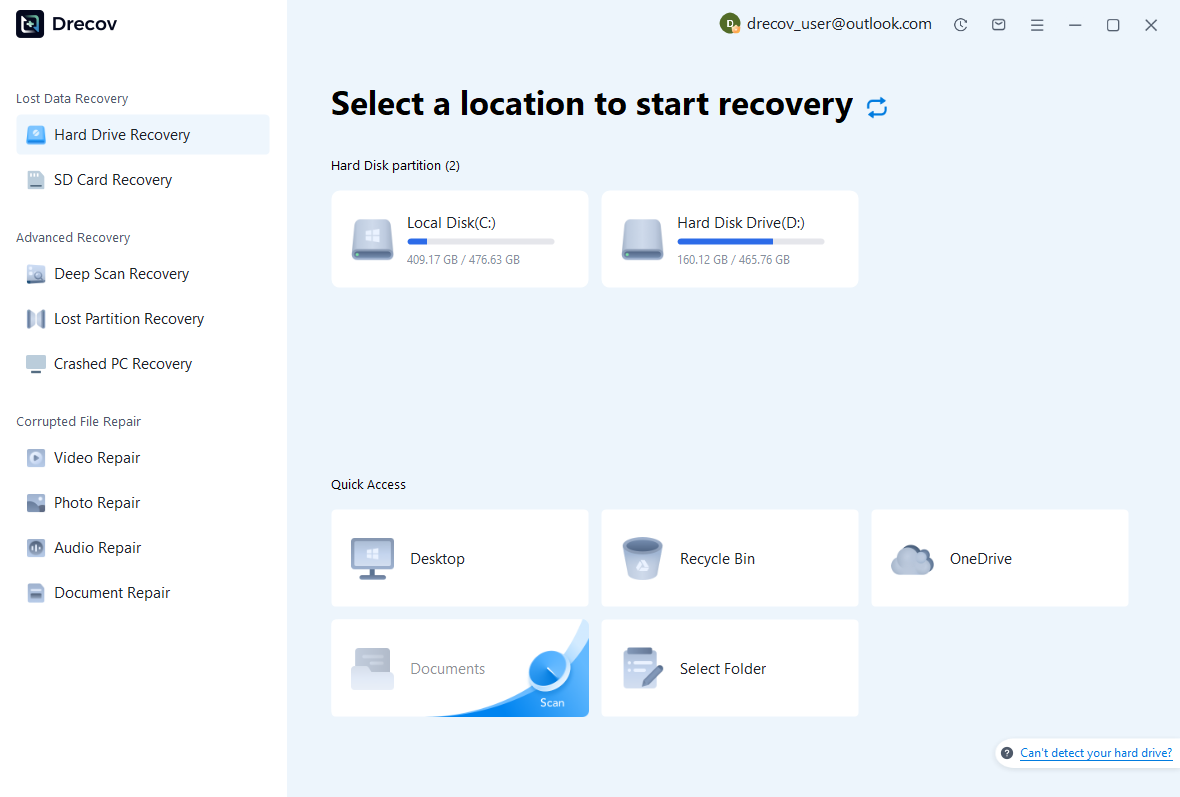
Step 1: Select the Volume Holding the Missing Notes
Choose the storage that held the journal or autosave. If the background PDF lived elsewhere, record it as another target rather than assuming both were together. Confirm the original paths and device identity. Avoid installing recovery software or saving new note exports to the affected volume, and reserve a separate healthy destination for recovered candidates and your comparison notes.
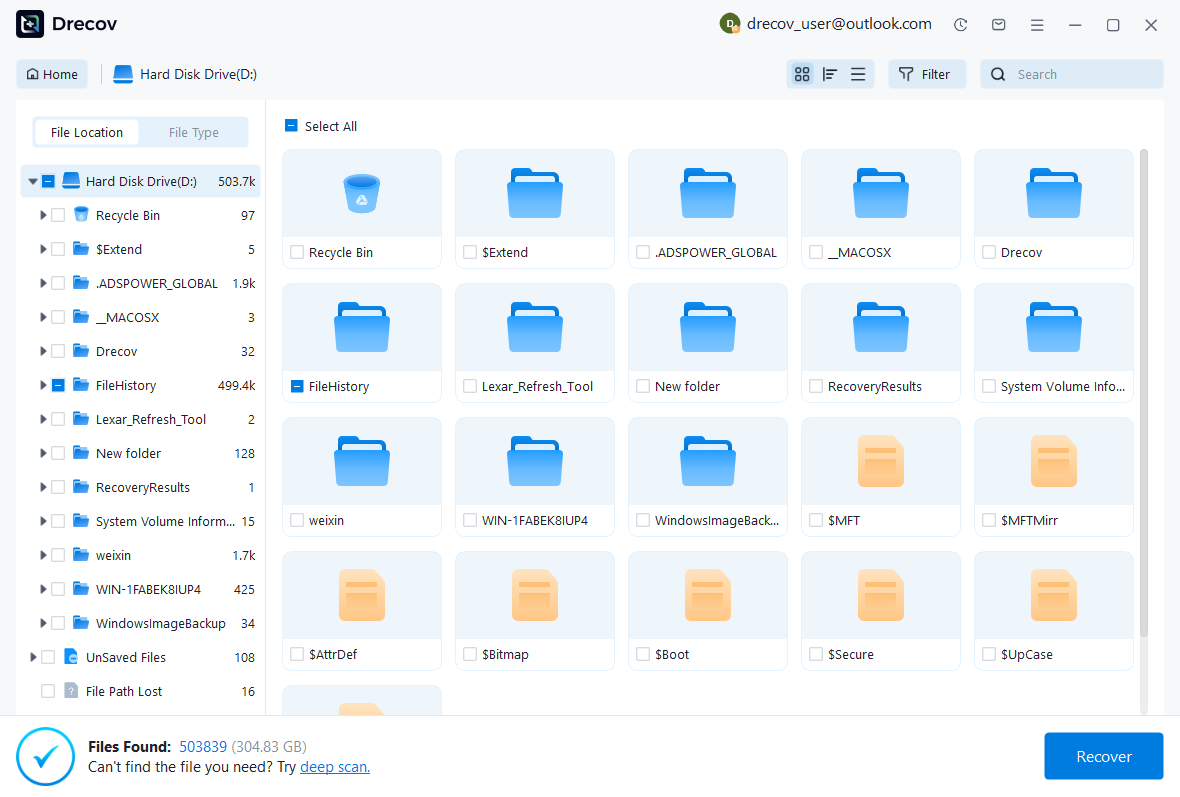
Step 2: Compare Journals and Background Candidates
Review available paths, names, sizes, dates, and supported previews. Keep competing journal versions and PDF editions separately. A newer journal can contain the wrong edit, while an older one may preserve the needed annotation. For PDFs, compare actual page content after recovery. Do not accept a familiar filename as proof that annotations will align with the background you found.
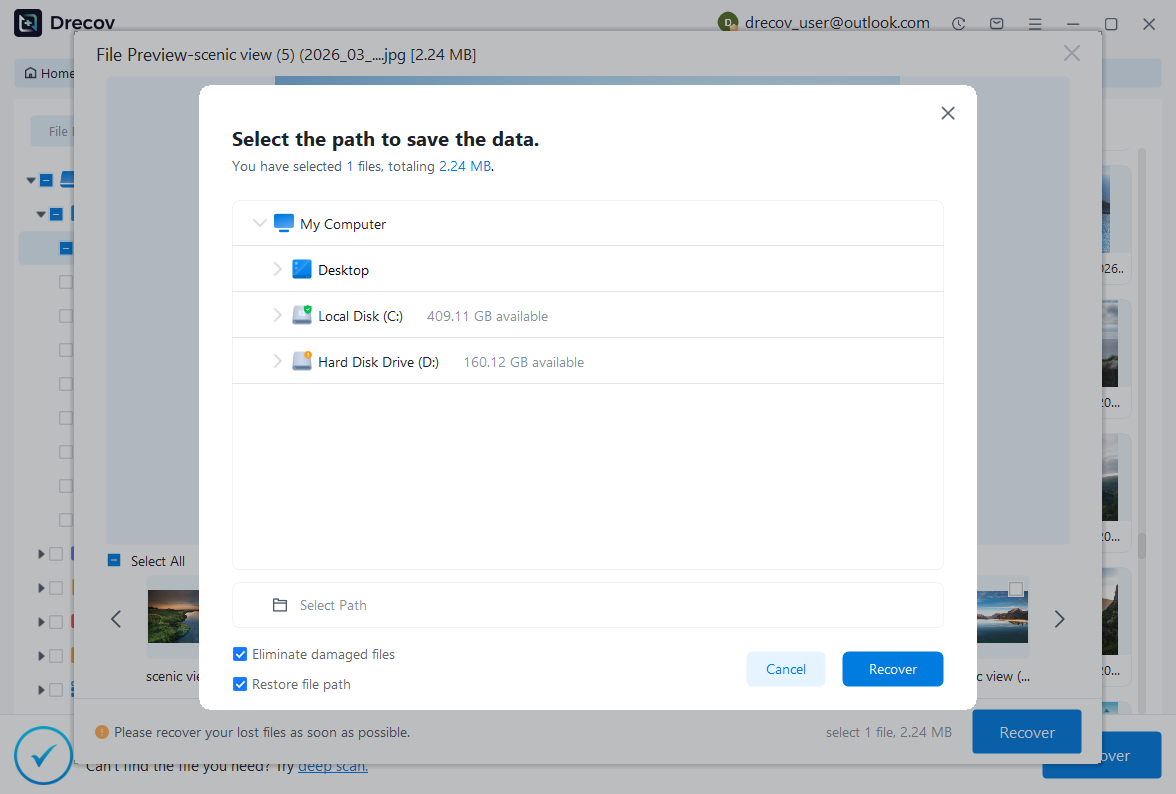
Step 3: Recover Elsewhere and Verify Complete Pages
Save candidates to the separate destination, then open copies in Xournal++. Reconnect the correct background through the supported workflow and inspect several critical pages. Save a new native copy, reopen it, and export a verification PDF. Keep the raw recovered candidates unchanged until the notes, page order, and background alignment all pass the checks relevant to your notebook.
Document a Usable Notebook Recovery
Record which native journal, autosave, and background PDF formed the accepted result. Note any missing pages or reconstructed content explicitly. Include the version used and the save-and-reopen test outcome. A precise record helps you trust the notebook later and makes it easier to repair another copy without repeating the same uncertain comparisons. Preserve the accepted set independently before resuming ordinary annotation.
- Confirm the accepted journal’s identity, page count, and important handwritten content.
- Verify the exact background PDF and alignment across the affected document.
- Reopen a freshly saved native copy and inspect a separate verification export.
- Back up the complete related set and record any remaining gaps or reconstruction.
Protect Notes and Their Context Together
Save important work as named journals in a normal backed-up location. Include the background PDFs and other related material according to the actual storage relationships. Test autosave behavior with disposable notes rather than assuming it retains every historical state. Keep exports for convenient reading, but retain native journals when editability matters. These sources offer complementary protection and have different limits.
Finally, test one complete notebook copy from a separate location. Open it without relying on the original background path, inspect a handwritten diagram, and export a page. This reveals missing dependencies and alignment assumptions before a real incident. A verified notebook backup preserves not just the ink, but the document context that gives that ink its meaning.
Related Recovery Resources
Explore the relevant recovery options: Hard drive recovery, External hard drive recovery.
For another recovery case and its practical checks, read the related recovery guide.
Check the vendor guidance for the installed version: official recovery documentation 1, official recovery documentation 2, official recovery documentation 3.