






When an exFAT USB works on Windows but not your TV, the drive is not necessarily broken. The television may not support exFAT on that model, may require a different USB port, or may see the drive but reject its video codec. A console can also treat an ordinary media USB differently from a drive assigned to game storage. Before formatting anything, copy the files you need to a separate healthy drive. Then check the exact TV or console model and make one small, reversible test. Formatting first can erase the only copy without solving the real compatibility issue.
Start with the three observations that separate the causes
Open the USB drive on Windows and note three things: its file system in Properties, its capacity in File Explorer, and whether you can open a representative file. If the drive is present with the expected capacity and its files play on the PC, you have useful evidence that the storage is readable there. That does not prove every file is intact or that another device supports the same format. If Windows also loses access, protect the source before considering the USB data recovery options; the problem is no longer limited to TV compatibility.
Now watch what the other device actually does. Does its USB menu show no drive, show a drive with empty folders, or list the files but refuse to play them? Those outcomes point in different directions. No drive suggests a port, power, file-system, or capacity compatibility problem. Empty folders may reflect a menu that searches only certain folder types. Listed files that will not play more often suggest a media-container or codec limitation. Treat a prompt to “format this drive” as a destructive proposal, not a diagnostic result.
Write down the device’s exact model number and firmware version from its settings screen or label. “Sony TV” or “PlayStation” is too broad. Different generations and functions can have different USB requirements. A compatibility chart for another model is not permission to reformat your only copy.
Why exFAT support is not the whole compatibility story
exFAT is a file system: it tells a device how to locate files on the drive. A TV also needs to understand the USB connection, the partition layout it expects, the file type, and the encoding inside a video or audio file. A file named .mp4 can still contain a codec the TV does not decode. That is why a TV may recognize a USB and still refuse one movie. Renaming the extension does not convert the underlying media.
Some televisions support exFAT, but support is model-dependent. Sony’s USB storage guidance lists exFAT among supported file systems for newer BRAVIA models while telling readers to check their particular TV. Do not transfer that statement to every Sony model or another brand. Search the official manual for your exact model and the words “USB file system,” “photo,” “video,” and “maximum capacity.” Confirm whether the USB port you used is for media playback rather than service-only use.
Console behavior has another layer. A USB configured as extended game storage is not the same as an ordinary removable drive for media files. PlayStation’s support material distinguishes these functions and warns that formatting extended storage erases its data. A console can reject a drive in the wrong mode even though Windows reads its exFAT files. Decide whether you want to play a video, import a save, or store installed games before changing the USB. Each task uses a different menu and may have different requirements.
Test a copy instead of experimenting on the original
If the drive does not appear at all
First confirm that the same USB port reads another known-good drive that the device’s manual says is compatible. Avoid repeatedly inserting a drive that gets hot or disconnects. If the TV uses a USB port with different power ratings or labels, choose the media port identified in its manual. A portable hard drive may need more power than a small flash drive. Do not assume a larger power supply or adapter is safe without device guidance.
For a low-risk format test, copy a small non-sensitive media file onto a spare USB drive. Keep the original exFAT drive untouched. If the manual says the device accepts FAT32 and a spare drive is available, format only that expendable test drive after confirming its contents can be erased. Reopen it on Windows, copy the sample, eject it normally, and test it on the TV. A successful spare-drive test narrows the question; it does not prove the original is corrupt.
If the drive appears but a file will not play
Test a different file of the same type that already plays on the device. Compare the file’s actual video or audio codec, not just its extension. Use the television’s official supported-media list for your model. A computer’s media-information tool can show the container, codec, resolution, and audio track without modifying the file. Keep the source untouched and make any conversion from a copy. If a converted sample works, the issue was likely media compatibility, not exFAT. For a file that is missing rather than merely unplayable, see the video recovery topic instead.
If the console asks to prepare the USB for games
Stop and check the purpose of the drive. Game extended storage preparation can erase ordinary files. Use the console’s media instructions if you want to view photos or videos; use its extended-storage instructions only when you intend to dedicate the drive to that function. Do not accept a format prompt on a drive holding family photos, work documents, or another console’s data. Copy and open those files on a healthy location first. A backup you have never checked is not yet a safe reason to erase the source.
If the original files vanished during the attempt
Drecov is Windows data-recovery software for accessible, stable USB drives and other storage. Its Quick Scan, Deep Scan, file filters, preview, and recovery to another healthy location can help when files were deleted or a drive was accidentally formatted. Lost Partition Recovery is available when a partition has gone missing. It does not add exFAT support to a television, convert video codecs, repair physical damage, or restore data that has been fully overwritten. If a compatibility change accidentally erased files, protect the USB and look for those files before changing its format again.
Stop copying to the original USB immediately. Each new file may overwrite data you hope to recover. Check whether the lost material already exists on a computer, cloud account, or another drive. If the USB repeatedly disconnects, reports the wrong capacity, or becomes hot, stop direct software scans and seek imaging or professional help. Otherwise, prepare another healthy destination with enough free space. Install and run recovery software from a different drive, not from the affected USB.
⚠ Warning: Install it on a drive different from the one where your data was lost to prevent overwriting.
Step 1: Select the original USB in Drecov
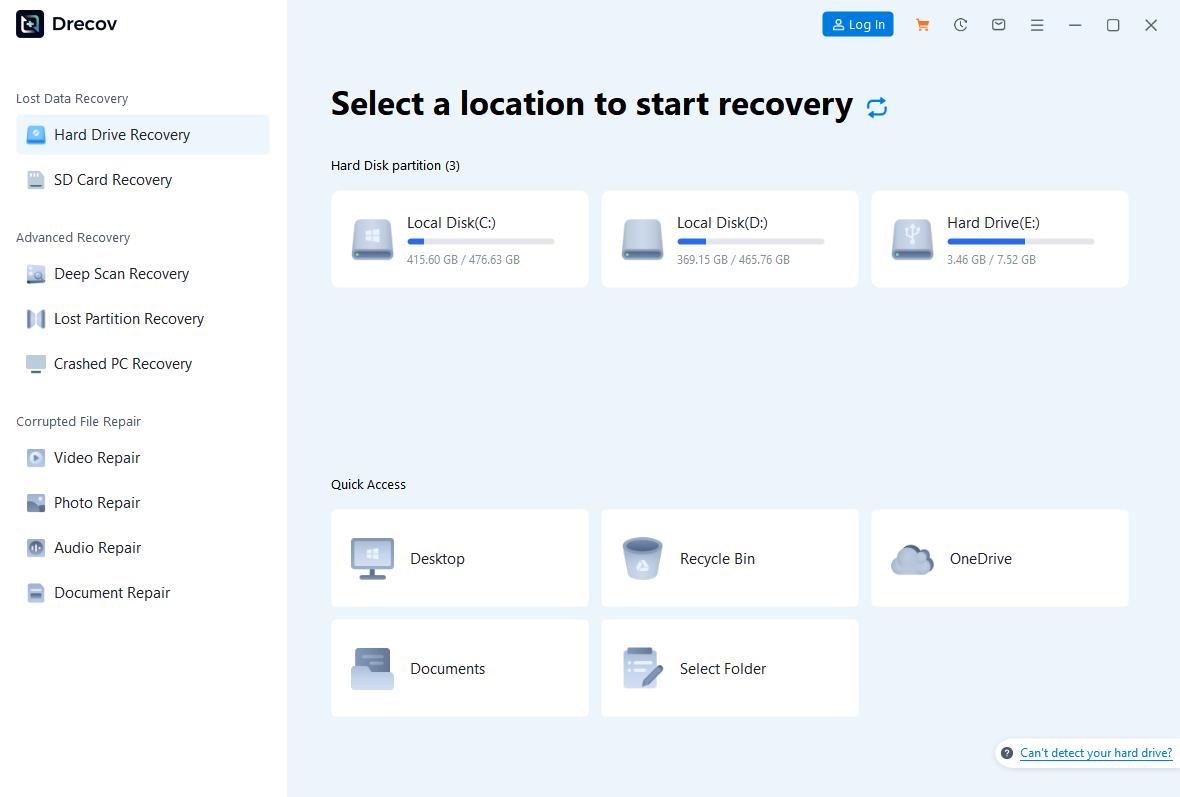
On a working Windows PC, open Drecov and choose the USB drive that held the missing files. Verify its capacity and drive letter against your notes. If the entire partition disappeared, use Lost Partition Recovery as appropriate; do not confuse finding files with repairing a partition table. Do not select a spare test drive or the healthy recovery destination by mistake.
Step 2: Run Quick Scan and inspect the first results
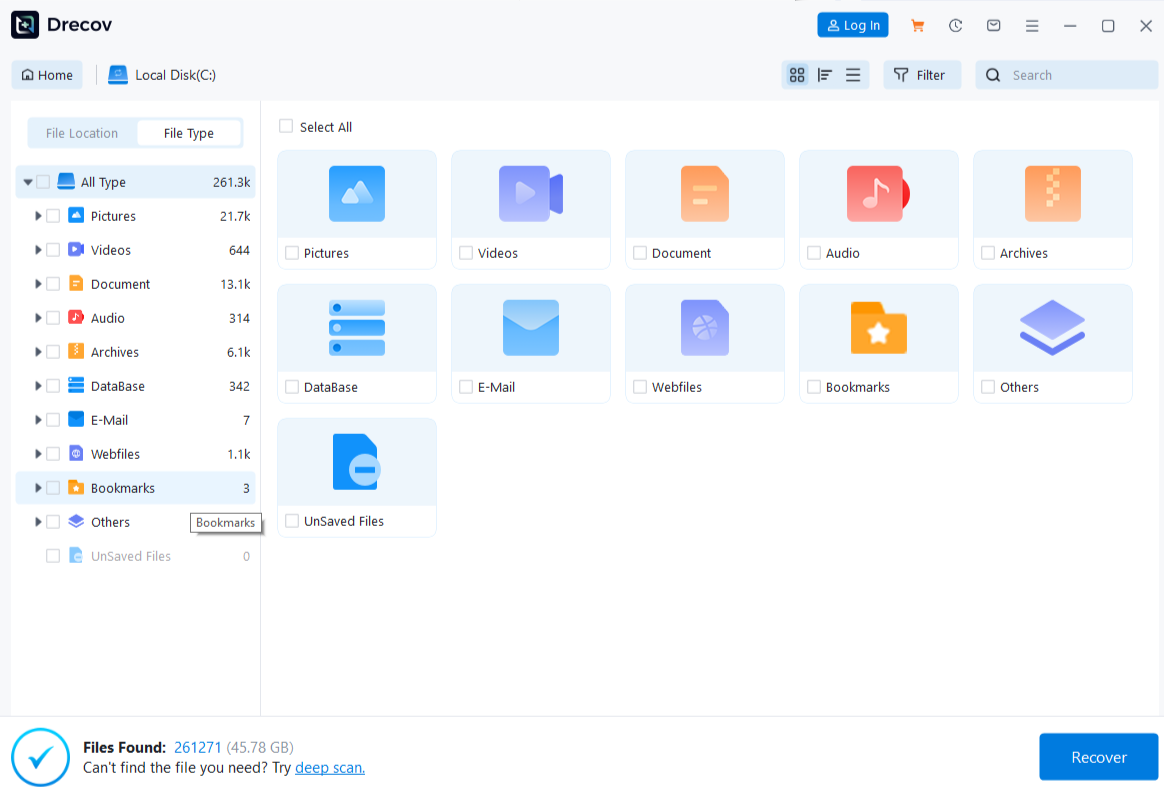
Start Quick Scan and look for your missing photos, videos, or documents. Compare names, folder paths, and file types where that information survives. If you find the needed files, preview a few representative examples before choosing the full set. A preview confirms that a sample opens; it cannot guarantee every frame or page will be intact.
Step 3: Try Deep Scan only on a stable USB
If Quick Scan misses the files and the device reads steadily, run Deep Scan. An unstable drive may deteriorate under prolonged reads. Do not keep retrying when it disconnects or reports serious errors. At that point, ask about imaging or professional recovery instead of forcing a software search.
Step 4: Filter, save elsewhere, and verify
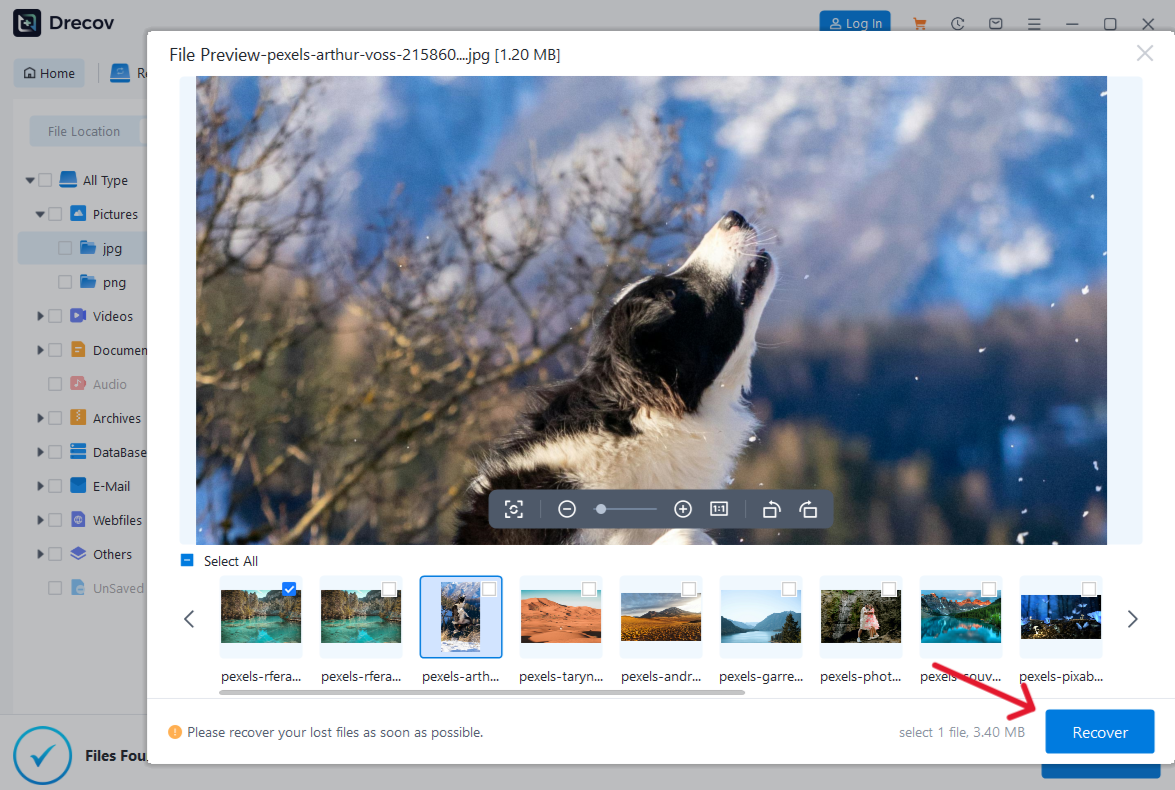
Use type, path, or filename filters to narrow the results. Preview more than one important file, then recover the selected files to the separate healthy drive. Never write them back to the source USB. If the output seems missing, check the Drecov folder or Recovery folder on your chosen destination. Open several recovered files and verify their contents before any new format or large copy operation. For files lost during a mistaken format on a stable drive, use Drecov on a healthy Windows PC.
⚠ Warning: Install it on a drive different from the one where your data was lost to prevent overwriting.
When a file-system change makes sense—and when it does not
Reformatting may be reasonable if the device’s manual explicitly requires another file system, you have a verified copy of every needed file, and you are working on the correct USB drive. The Windows Format dialog writes a new file system; it is not a recovery tool. Check the drive letter and capacity before proceeding. Use a new or spare drive when possible so the original remains available for comparison.
FAT32 has a per-file size limit that can make it unsuitable for large videos. NTFS or exFAT may support the file size but not the target device’s playback requirements. The right choice depends on the exact destination, not on a universal “best USB format.” If the TV manual does not list exFAT, changing the original without a backup is an avoidable gamble. If the manual does list exFAT, changing the file system may do nothing; revisit the USB port, folder location, and codec instead.
After a deliberate format on a spare device, copy back only a few sample files and test them on both Windows and the target device. This isolates compatibility before you transfer a full library. If the spare passes, repeat the copy process for the rest. If it fails, preserve your original and return to the model-specific documentation rather than cycling through more formats. The file recovery guide is relevant only if files are lost during such an experiment, not as a substitute for this compatibility test.
Common questions from TV and console owners
Does exFAT always work on a new TV?
No. Support varies by model, software, USB function, and sometimes drive size. Check the specific manufacturer’s manual before changing a drive that contains valuable files.
Why does the TV show the USB but no movies?
The media browser may hide unsupported files, expect a different folder, or reject their codecs. Test a known-good sample and compare its actual encoding with the TV’s supported list.
Can I fix playback by renaming .mkv to .mp4?
No. A filename extension does not change the media container or codecs. Make a copy and convert it using a suitable tool only after checking which formats the device accepts.
Should I use a console’s “format as extended storage” option?
Only if you want to dedicate that drive to the console’s game-storage function and have verified copies of anything already on it. That option is not a harmless playback setting.
Will Drecov make the USB compatible with my TV?
No. Drecov is for recovering missing files from stable, readable storage. It does not change a TV’s supported file systems or media formats.
Conclusion
An exFAT USB that works on Windows but not on a TV or console calls for a model-specific compatibility check, not an immediate format. Identify whether the drive is absent, its folders are hidden, or only its media will not play. Test a spare USB or a copied file before altering the original. If an experiment already deleted files, stop writing to the drive and use Drecov only when the source remains stable and recognized; recover to another location and verify the results before trying a different format.
⚠ Warning: Install it on a drive different from the one where your data was lost to prevent overwriting.