







Identify the Missing Unreal Engine State
Unreal Engine recovery can involve a saved map, a content asset, recorded editor transactions, or source code. These are related but distinct kinds of work. A surviving level does not necessarily include every asset it references, and a compiled game does not automatically provide a complete editable project. Begin by naming the missing item and the last moment when you know it worked.
For example, a crash during level editing may leave a useful autosave or supported Recovery Hub session. A deleted material may instead need a real asset copy from source control. A project that opens with missing plugins may have an environment problem rather than deleted content. Preserve the accessible project before applying fixes so you can separate those possibilities without changing the only surviving evidence.
Preserve Live Work and Existing Recovery Data
If the editor remains responsive and useful content is still visible, save a separate copy through the appropriate project workflow. Avoid overwriting the sole damaged map while testing. Preserve the accessible project folders, including existing Saved recovery material and logs, before cleanup. Record the engine version and relevant plugin versions. Those details affect how candidates open and which recovery features can apply.
Keep the preserved original and the trial project in separate locations. Do not launch repeated experiments against the original Saved folder, because working recovery data can change during normal editor activity. Note whether the incident followed a crash, an intentional deletion, a failed save, or a version upgrade. Each event points to different evidence and changes what you can reasonably expect to recover.
Check the Project, Map, and Content Paths
Confirm the full project path and open the intended map. A new default level or a similarly named project copy can make saved work appear absent. Inspect the Content Browser and relevant project folders without moving files. If the expected asset exists, record the error shown when you try to load it in a copied project. A dependency failure may explain the symptom more directly than deletion.
Also check whether the content lives in a plugin or another mounted content location. An unavailable plugin can hide assets or prevent their classes from loading. Use the preserved project configuration to identify the expected environment. Do not replace missing plugins with unrelated downloads or change engine versions blindly. Restoring the correct environment may reveal existing work while preserving the original project content.
Distinguish Native Content from Supporting Artifacts
A screenshot, rendered sequence, or packaged build can help identify what the level should look like. It is not the same as the original editable map and source assets. Keep these artifacts as references for validation or reconstruction. Search for genuine project files and coherent backups before attempting to rebuild work from final output, because the native state may retain much richer editing information.
Likewise, caches and generated data should not be assumed to replace missing source. A large directory can be generated from a small set of important inputs, and its size says little about recoverability. Inventory the surviving project descriptor, Content, Config, Source when present, plugins, and recovery data separately. This makes it easier to see whether you have a complete project or only selected artifacts.
Free Method 1: Evaluate Existing Autosave Recovery
Unreal Engine offers autosave behavior whose scope depends on the editor settings and version. Check what was enabled before the incident, including whether maps and content packages were included. If the editor offers a recovery prompt after a crash, inspect the available candidates in a preserved trial workflow. Save any useful recovered result under a distinct name before continuing ordinary edits.
An autosave can be older than the last visible change, and it may not cover every asset involved in the scene. Compare the recovered map with known screenshots or a task note. Check important object transforms, component values, and recent additions. Keep competing candidates rather than assuming that the newest timestamp necessarily represents the most complete or useful project state.
- Preserve the accessible project and existing recovery data before repeated launches or cleanup.
- Identify the autosave scope and candidates available in the installed engine version.
- Open a suitable candidate through the supported recovery workflow on a trial copy.
- Save the result separately and verify the map together with its dependent assets.
Avoid Blind Autosave File Replacement
Do not copy arbitrary recovery packages over live content while the editor is running. A map and its related assets may have different identities or save states, and careless replacement can create a mixed project. Follow the workflow documented for your installed version, keep originals unchanged, and test one controlled recovery at a time. If a candidate cannot load, preserve its error rather than repeatedly renaming it.
If no useful autosave exists, record that limit. Enabling autosave after the crash does not create a record of earlier work. A file that never reached a save or recorded recovery state may require reconstruction from surviving assets and references. Keep that reconstruction distinct from recovery of an actual saved package, especially when estimating how much original editing work remains missing.
Free Method 2: Use Previously Recorded Recovery Hub Transactions
Recovery Hub is an engine plugin designed to assist recovery after an abnormal editor exit. It must have been enabled and recording relevant work beforehand. It is not a retroactive recorder. Its supported scope is limited, including level editing and Sequencer work, so do not present it as a universal recovery system for every asset editor or source-code change.
If a recorded session is available, review the offered recovery process on a preserved project copy. Select the relevant session and inspect the result before accepting it as your new baseline. Save the recovered map or sequence separately. Transaction replay can help restore supported edits, but you still need to verify asset dependencies, project configuration, and any work outside the plugin’s supported recording scope.
Keep Recovery Hub and Autosave Complementary
A recorded transaction history and an autosaved package represent different recovery evidence. One may preserve useful edits that the other does not. Compare the actual results rather than choosing a feature by reputation. If a transaction replay restores object placement but a material remains missing, investigate that asset separately. A partly successful recovery does not establish that the entire project returned to its last state.
The plugin’s name and behavior can differ across engine generations, and its documented status may include limitations. Consult the guidance for your installed version. Preserve recorded sessions before experimenting and avoid changing the project merely to expose a feature name from another release. The key question is whether a real compatible recording exists for the work you lost, not whether the plugin can be enabled today.
Free Method 3: Restore a Coherent Source-Control Revision
If the project already uses source control, inspect a known-good revision containing the affected map and its dependencies. Create a separate workspace or checkout rather than resetting the active project. Include the actual binary asset content, not only large-file pointers or an incomplete sync. A coherent historical state can provide a reliable baseline even when it lacks the latest local edits.
Compare that baseline with surviving local assets and recovery candidates. A newer map can refer to a newer material or Blueprint that the historical baseline lacks. Restore the related set deliberately or merge reviewed changes at the appropriate level. Do not assume that source control can merge every binary asset safely. Preserve alternate versions until a controlled editor test confirms the accepted relationships.
Review Dependencies before Mixing Versions
A level may depend on Blueprints, meshes, materials, textures, data assets, and sequences. Some projects also use external actor data or other version-specific world structures. Restore the complete relevant set from the same project context rather than treating one map package as self-contained. Inspect the project’s actual organization and the errors reported by the matching engine version.
When a dependency is missing, choose a trustworthy existing copy before making a placeholder. A placeholder can make the map load while concealing the fact that original behavior is absent. If you must reconstruct something, name and document it as new work. This keeps your recovery inventory honest and helps identify which remaining tasks require artistic review, code review, or asset replacement.
Handle Engine and Plugin Compatibility Carefully
Start recovery with the engine version that last opened the project successfully when that installation remains available legitimately. Preserve an unchanged project before any conversion. A newer engine can modify project data, and a successful conversion may make comparison with older candidates harder. Save converted trials separately and record the environment used to open each one.
Plugins can introduce custom asset classes that are necessary for loading content. Check the preserved project configuration and legitimate plugin source. A missing-class error may reflect an unavailable plugin rather than a corrupt asset. Avoid resaving affected content with important dependencies absent, because the trial can produce additional changes. Restore the expected environment first, then evaluate whether the package itself is damaged.
Separate Source-Code Recovery from Asset Recovery
C++ source files and build configuration have their own history and dependencies. If code disappeared, check existing repository revisions and saved source copies rather than assuming map autosaves contain it. Recovered code may need to match the assets that depend on its classes. Keep the accepted source and content versions coherent before compiling or loading a full project trial.
Inspect build and startup behavior before running recovered code. An older project may contact services, write output, or expect paths that are no longer appropriate. Use a controlled configuration for validation. Recovering authentic source is useful evidence, but it does not mean every historical operation remains safe or correct in the current environment. Review destinations and external effects separately from file integrity.
Compare Candidate Levels with Concrete Checkpoints
Choose recognizable scene details before opening candidates. For instance, note a recent prop placement, a lighting change, a camera path, and one gameplay interaction. Compare those checkpoints across the available map versions. This is more reliable than relying on a general impression that the level looks familiar. A map can appear nearly correct while missing the specific work that mattered most.
Record each candidate’s origin and what it contains. If an older autosave has correct geometry but lacks later sequence edits, keep that distinction in the comparison. Avoid repeatedly saving candidates under one common recovery filename. Separate names and a short inventory prevent accidental replacement and let you return to an earlier trial if a dependency issue changes your assessment.
Validate Sequencer and Referenced Objects
A recovered sequence can contain tracks whose object bindings no longer resolve as expected. Inspect important bindings, camera cuts, keyframes, and playback range. Scrub through the affected section and compare it with a known output when available. A timeline that opens without an error may still target the wrong actor or omit a late keyframe, so visual inspection should follow the actual sequence purpose.
Also check whether the sequence depends on assets or actors recovered from another state. If the level and sequence came from different moments, their relationship may need review. Preserve the original candidates and make any repaired binding changes in a new trial. That way, you can distinguish what the recovery source contained from what you adjusted afterward to create a usable result.
Test the Project Beyond a Successful Load
Loading the project is an early checkpoint, not the final result. Inspect warnings and errors, open important assets, and exercise the affected level in a controlled test. Confirm that materials, collision, animation, and key interactions behave as intended. If the incident involved a particular asset, include that asset in the test instead of relying on an unrelated default level that happens to run.
For larger projects, validate the relevant feature path before attempting a full production build. A targeted test can reveal missing dependencies without spending time on unrelated output. Once the focused checks pass, run the normal relevant project checks. Keep the accepted recovery set and its environment information together so another person can reproduce the result rather than relying only on your local editor state.
Recognize a Storage Failure Early
Repeated read errors, disappearing unrelated files, or a drive that disconnects suggest a storage issue beyond Unreal Engine. Avoid repeated compilation, imports, and large writes on that volume. Preserve accessible data and choose a recovery approach appropriate to the device condition. An editor crash can be a symptom of unreadable storage, so treating every incident as an autosave problem can delay the more important preservation step.
For a healthy drive with a recent logical deletion, a targeted scan may be reasonable after native sources have been checked. On storage that has overwritten or discarded deleted data, results may be limited. Keep expectations tied to actual evidence: an existing saved package, a recorded session, a coherent repository revision, or readable file remnants. None of these sources guarantees recovery of every last unsaved change.
A material or Blueprint restored for one map can affect other maps that share it. Before replacing a shared asset, identify its important uses and preserve the current version. Compare the recovered candidate in a trial project and test more than the first affected scene. A local visual improvement can conceal a regression elsewhere, especially when the candidate belongs to an earlier stage of the project’s design.
If the shared asset changed intentionally after the map backup, consider whether the map should adapt to the current asset or whether a historical coherent set is required for recovery. Keep those alternatives separate and test them against the recovery goal. Do not merge unrelated binary candidates simply because their filenames match. A deliberate project-level choice is more reliable than a collection of individually plausible packages.
Check External Actor and World Data Relationships
Large-world workflows can involve data beyond one obvious map file. Inspect the actual project organization and the engine-version guidance for the structure in use. Preserve related directories and source-control content together. If an autosaved map opens with missing actors, investigate whether their associated data survived before deciding the map package itself is empty or permanently damaged.
Use recognizable actor placements and world regions as checkpoints. An overview can look correct while one area is absent or unloaded. Confirm the loading state and inspect the affected region deliberately. Keep notes about which data came from which candidate. This helps distinguish a loading configuration issue from genuinely missing actor content and prevents you from rebuilding an area that already survives in the correct project structure.
Evaluate a Recovered Blueprint Beyond Compilation
A Blueprint can compile while holding the wrong default values, missing references, or incomplete graph logic. Inspect the specific behavior that was lost and compare important settings with a known reference. Test the relevant interaction in a controlled level rather than relying only on the compile indicator. If the Blueprint depends on another recovered asset, include that dependency in the same validation path.
When you reconstruct a missing node or reference manually, preserve the unmodified recovered candidate first. Record the new repair and the evidence that guided it. This keeps the recovery history understandable and makes it easier to review a result that combines authentic recovered data with new work. It also avoids claiming that a package was fully intact when a meaningful portion had to be rebuilt.
Preserve a Minimal Reproduction of Remaining Problems
If one candidate still fails, keep its exact error and a small description of the action that triggers it. Avoid repeatedly resaving the file in different environments without recording changes. A controlled reproduction can reveal whether the issue belongs to a missing dependency, incompatible version, or damaged package. It also makes a later support investigation more useful without requiring you to alter the preserved evidence.
Once the accepted project passes the intended checks, archive unsuccessful candidates separately with concise labels. Do not leave them mixed with active Content folders where they can be imported accidentally. Preserve the accepted engine and plugin context with the recovery note. That organization gives you a stable working baseline while retaining enough evidence to revisit any remaining missing asset or sequence detail later.
When File Recovery Software Is Relevant
PandaOffice Drecov may provide a search route for deleted maps, assets, or saved project copies on readable storage. It cannot guarantee repair of an internally damaged Unreal package or infer all dependencies from a recovered filename. Use it as one source of candidates after checking actual project paths and native recovery data. A coherent existing project copy usually gives you more context than isolated files.
Before scanning, stop unnecessary writes to the affected volume and select a separate healthy destination. Check file support in the installed edition, especially for uncommon native formats. Preserve plausible packages even if a visual preview is unavailable, then test copies with the matching engine environment. The result needs project-level validation, because successful file recovery does not automatically establish valid asset relationships.
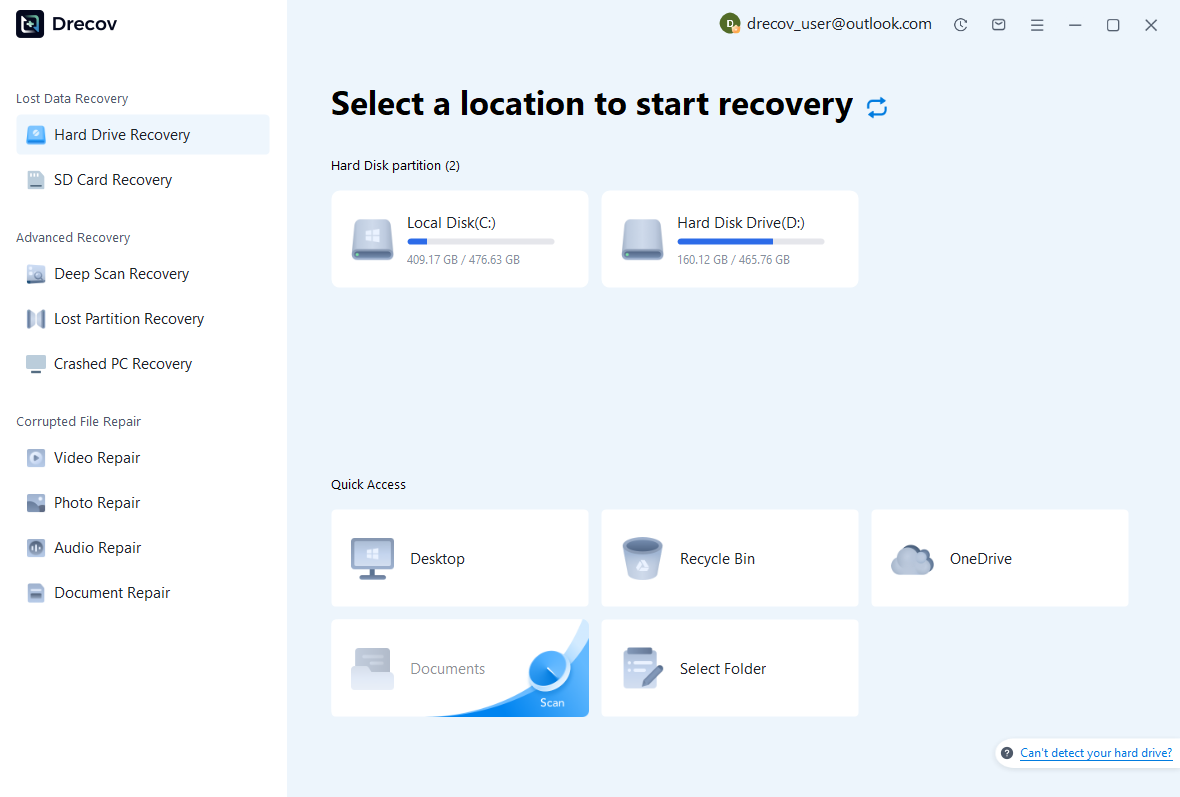
Step 1: Select the Storage Holding the Missing Project Files
Choose the volume that held the actual map, Content folder, or saved project copy. If the project used content in another location, record it as a separate target. Confirm the original path and device identity before scanning. Avoid installing recovery software or writing trial projects to the affected volume, and keep your recovery notes and outputs on the separate healthy destination.
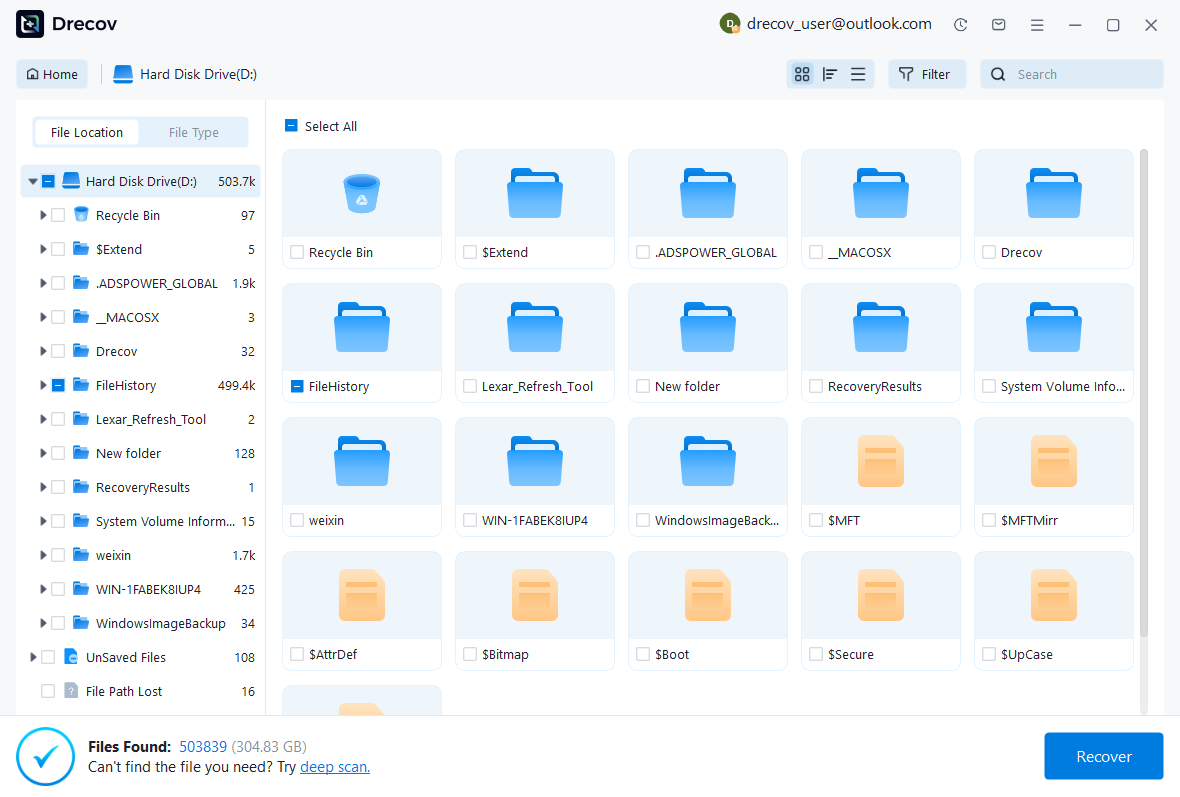
Step 2: Review Packages and Supporting Candidates
Inspect available names, paths, sizes, dates, and supported previews. Keep competing map versions and related assets separately. A recent file may come from an interrupted save, while an older candidate may provide a coherent baseline. Compare recovered source and configuration too when relevant. Do not equate a familiar map name with a complete working level before checking its dependencies.
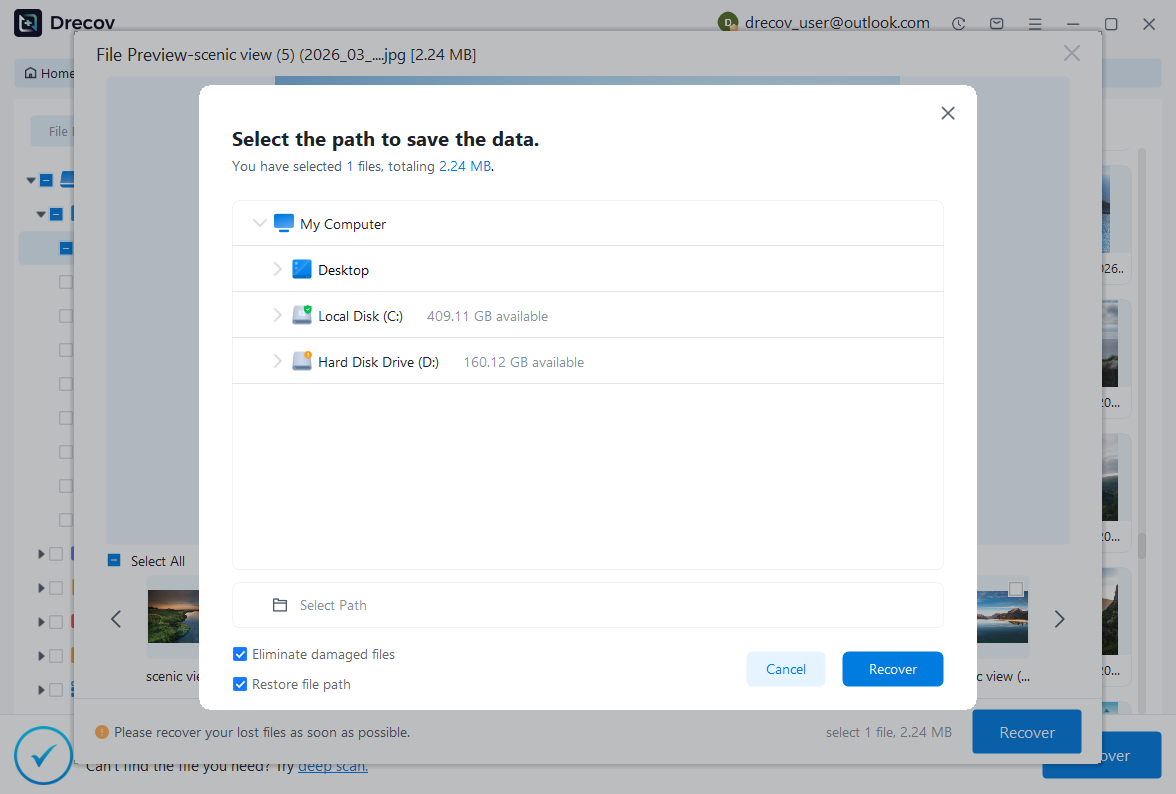
Step 3: Recover Elsewhere and Open a Controlled Trial
Save selected candidates to the separate destination, then assemble a copied project with the appropriate engine and plugins. Inspect logs and asset-loading errors before resaving. Test the scene checkpoints and affected interactions, and preserve original recovered files unchanged. If you must reconstruct a missing asset or binding, record that new work separately from the native state you actually recovered.
Save an Accepted Project State with Clear Limits
Your accepted result should identify the recovered map, dependent content, source configuration, and any remaining reconstruction. Include the engine and plugin versions used for validation. Save that coherent state independently before resuming production. A precise description such as level layout restored but final sequence camera adjustment missing is more useful than a blanket claim that the project is fully recovered.
- Confirm the correct project, engine version, and required plugins.
- Verify recovered maps and sequences together with their important dependencies.
- Test representative visual checkpoints and the affected interactive behavior.
- Preserve a complete accepted baseline and document any missing or reconstructed work.
Build Protection Around Real Project States
Use deliberate source-control checkpoints and independent project backups alongside autosave. If Recovery Hub suits your work, enable and test it before an incident rather than assuming it can act retroactively. Include content and configuration in protection plans, and verify that large binary assets are actually present. A project descriptor or repository pointer alone is not a complete recovery source.
Finally, rehearse restoration of a small disposable project copy. Open its map, inspect a dependent asset, and play the relevant sequence or interaction. This reveals missing plugins, incomplete asset transfers, and environment assumptions before they matter. The goal is a recoverable editable project with tested relationships, not merely a collection of folders that looks reassuring in a file manager.
Related Recovery Resources
Explore the relevant recovery options: Hard drive recovery, External hard drive recovery.
For another recovery case and its practical checks, read the related recovery guide.
Check the vendor guidance for the installed version: official recovery documentation 1, official recovery documentation 2, official recovery documentation 3.