







I’ve been working on a critical quarterly report for weeks, and it was stored safely in my OneDrive cloud—or so I thought. Then, in a moment of accidental clumsiness during a frantic “cleanup” session, I hit delete. I checked my local Recycle Bin, but it was completely empty. My heart sank as I thought, “Is it gone forever?”
The short answer is: No.
Whether you accidentally purged a folder or a sync error caused your files to vanish, learning how to OneDrive recover deleted files is a skill that can save your digital life. In this comprehensive guide, we will dive deep into the mechanics of data recovery, explore professional tools like PandaOffice Drecov, and ensure you never lose a byte of data again.
1. The “Ghost” in the Machine: Understanding Data Recovery Principles
Before we jump into the “how-to,” let’s talk about the “why it works.” Many users believe that clicking “Delete” is like burning a piece of paper. In reality, it’s more like removing the entry from a library’s table of contents.
The Library Metaphor
Think of your OneDrive storage as a massive library. Every file is a book on a shelf. When you delete a file, the system doesn’t immediately rush to the shelf and shred the book. Instead, it simply erases the index entry that tells the computer where that book is located. The book (your data) stays on the shelf, but the space is now marked as “available for new books.”
As long as you don’t write new data over that specific “shelf space,” the original file is still there, waiting to be “found” again. This is why the golden rule of data recovery is: Stop using the device immediately once you realize data is missing to avoid overwriting the “ghost” files.
2. Proven Methods to OneDrive Recover Deleted Files
When you need to OneDrive recover deleted files, your approach should move from the simplest built-in features to more advanced professional software.
Method 1: The OneDrive Recycle Bin
OneDrive has its own internal safety net that operates independently of your computer’s local Recycle Bin.
- Step 1: Log in to the OneDrive with your Microsoft account.
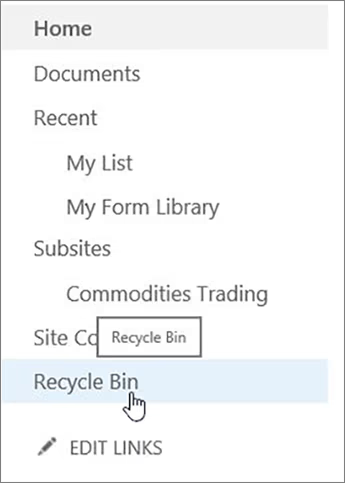
- Step 2: In the navigation pane on the left side, select Recycle bin.
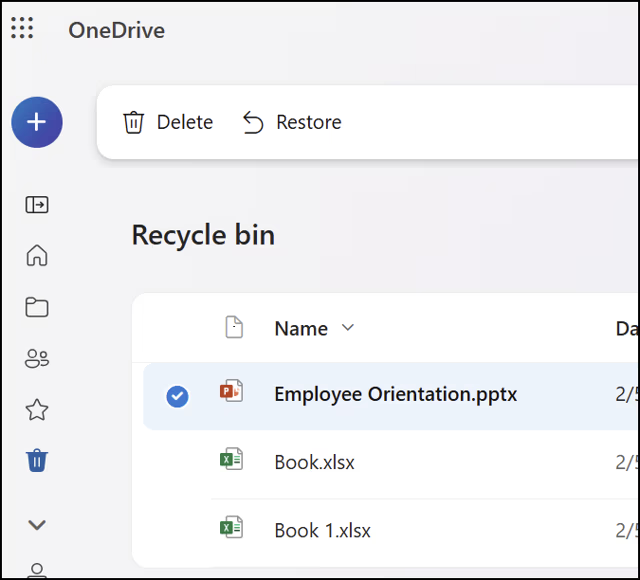
- Step 3: Browse the list for your missing files. Select the ones you need by clicking the checkbox next to them.
- Step 4: Click Restore at the top of the page.
🚨 Note: If you are using a personal account, items are automatically deleted after 30 days. For work or school accounts, they are deleted after 93 days unless the administrator has changed the settings.
Method 2: Professional Recovery with PandaOffice Drecov
If the Recycle Bin is empty or the retention period has expired, you need a specialized tool. PandaOffice Drecov is a premier data recovery solution designed to handle complex logical errors and deep-scan scenarios that standard cloud tools might miss.
Why choose PandaOffice Drecov?
Unlike basic undelete tools, Drecov uses advanced algorithms to reconstruct file fragments. It is particularly effective if your OneDrive files were deleted locally and the deletion synced to the cloud, leaving “traces” on your hard drive.
- Universal Scenario Support: This software doesn’t care how you lost the data. Whether it was accidental deletion, a sudden “Disk needs formatting” error, a Recycle Bin emptying, or a complete partition loss on your PC desktop, PandaOffice DRecov handles it all.
- Massive File Compatibility: PandaOffice DRecov supports over 100 different file formats. It recovers photos, videos, audio, compressed files (ZIP/RAR), and even system files like EXEs.
- Accidental deletion from your computer desktop.
- Files lost after emptying the Recycle Bin.
- Data loss from disk formatting.
- Accidental deletion or formatting of SD cards/U disks.
- Sync error occurring with deleted OneDrive files
- Restore deleted Chrome bookmarked
Step-by-step recovery process:
- Step 1: Launch the application. On the main dashboard, select “OneDrive” or the drive associated with your OneDrive folder (usually the
C:drive).
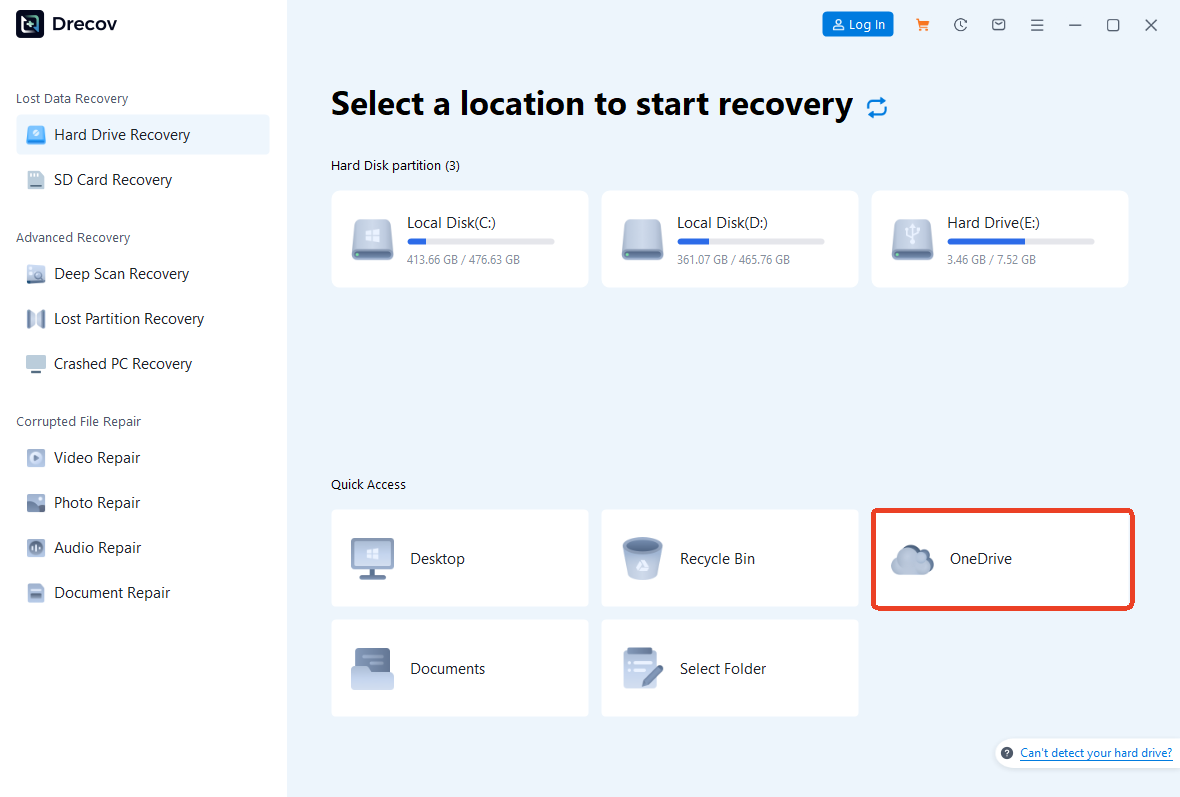
- Step 2: Click Scan. The software will perform a Quick Scan followed by a Deep Scan to identify “orphan” files.

- Step 3: Use the filter feature to search for specific file types (e.g.,
.docx,.pdf).

- Step 4: Preview the files to ensure they are intact. Then, select your files and click Recover, saving them to an external drive or a different partition.
Method 3: Restoring OneDrive to a Previous Time
If a large-scale event occurred—like a ransomware attack or a mass accidental deletion—you can roll back your entire OneDrive to a specific point in time within the last 30 days.
- Step 1: Go to the OneDrive website and click on Settings (the gear icon) at the top right.

- Step 2: Select Options and then click Restore your OneDrive from the sidebar.
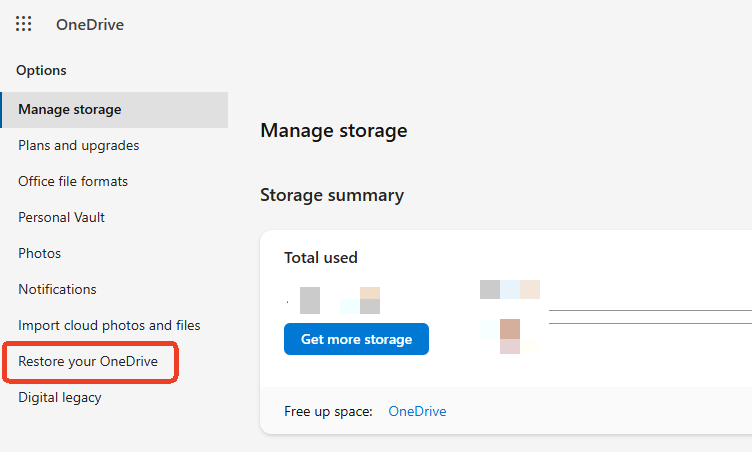
- Step 3: On the restoration page, verify your identity if prompted.
- Step 4: Choose a date from the dropdown menu (e.g., “Yesterday” or “Custom date and time”).
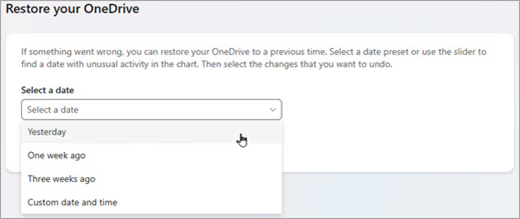
- Step 5: Use the activity chart to see exactly when the deletions happened.
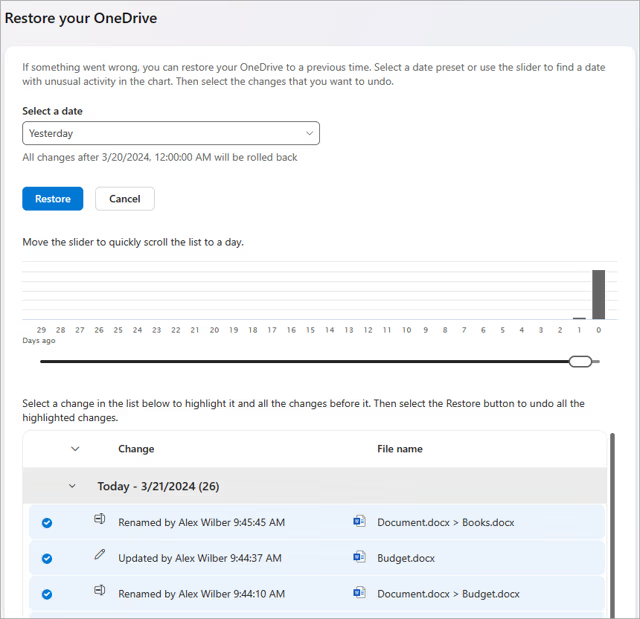
- Step 6: Click Restore to revert your entire library to that state.
Method 4: Checking the Second-Stage Recycle Bin (For Business/School Accounts)
If you use OneDrive for Business, there is a hidden “safety basement” known as the Second-Stage Recycle Bin.
- Step 1: Navigate to your OneDrive Recycle Bin and scroll to the bottom of the page.

- Step 2: Look for the link that says “Can’t find what you’re looking for? Check the Second-stage recycle bin.”
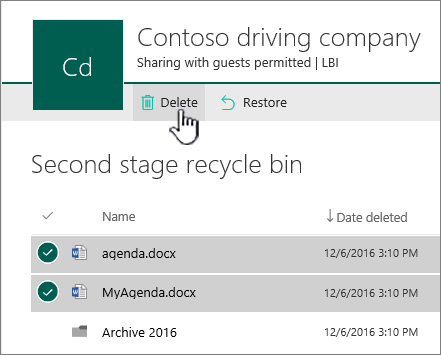
- Step 3: Select your items and click Restore. This acts as a final holding area after the primary bin is emptied.
3. Comparison of Recovery Methods
To help you choose the best strategy to OneDrive recover deleted files, refer to the table below:
| Method | Success Rate | Difficulty | Best For… | Key Advantage |
| OneDrive Recycle Bin | High (if <30 days) | Low | Recent accidental deletes | Instant and free |
| PandaOffice Drecov | Excellent | Low | Expired bins, formatted drives, or local sync issues | Deep recovery of fragmented data |
| OneDrive Restore | High | Moderate | Ransomware or mass loss | Reverts the whole account |
| Second-Stage Bin | Moderate | Low | Enterprise/Work accounts | Extra 93-day safety net |
4. Proactive Protection: How to Prevent Future Data Loss
Recovery is great, but prevention is better. Follow these steps to fortify your data:
- Enable Personal Vault: For sensitive files, use the OneDrive Personal Vault. It requires extra authentication and has stricter deletion triggers.
- Adjust Retention Policies: If you are an admin, increase the retention period in the Microsoft 365 Admin Center.
- Local Backup Strategy: Use the 3-2-1 Backup Rule: 3 copies of data, 2 different media types, 1 copy off-site.
- Version History: Periodically check the “Version History” by right-clicking files in your local folder to ensure you can revert to older versions without needing a full recovery.
5. How to OneDrive Recover Deleted Files FAQs
1.Can I recover OneDrive files deleted years ago?
Generally, no. Once the 30-day (personal) or 93-day (business) window closes and the file is overwritten on the physical server, it’s gone. However, if the file was ever synced to a PC, PandaOffice Drecov might still find traces on the local hard drive.
2.Does “Delete” on my phone remove it from the cloud?
Yes. Since OneDrive is a synchronization service, deleting a file on the mobile app will trigger a deletion across all devices and the cloud. You must use the “Restore” steps mentioned above.
3.Why can’t I see the “Restore your OneDrive” option?
This feature requires a Microsoft 365 subscription. Free accounts may have limited access to the full “Time Machine” restoration feature.
4.I used “Free up space” on my PC and now files are missing. Can I still perform a OneDrive recover deleted files action?
This is a common point of confusion. The “Free up space” feature removes the local copy but keeps the file in the cloud. However, if you manually deleted those files thinking they were just “extra copies,” they will move to the Recycle Bin. You can still OneDrive recover deleted files by checking the online Recycle Bin first. If you emptied that as well, using PandaOffice Drecov to scan your local hard drive is your best bet, as the metadata of those “online-only” files might still leave recoverable traces in your system’s cache.
5.What should I do if my files disappeared due to a sync conflict?
Sync conflicts occur when changes are made to the same file on two different devices simultaneously. Sometimes, OneDrive “decides” one version is redundant and moves it to the hidden .ODSU folders or the Recycle Bin. To OneDrive recover deleted files lost during a sync error, first check the Version History by right-clicking the file in your browser. If the entire file is missing, the Restore your OneDrive feature (Method 3) is the most effective way to “undo” the synchronization glitch and return your folder structure to its state before the conflict happened.
Conclusion
To OneDrive recover deleted files effectively, you must act quickly. Start with the Recycle Bin, consider a Site Restoration for mass losses, and turn to professional tools like PandaOffice Drecov when the built-in options fail. By understanding the underlying principles of how data is stored and indexed, you can approach data loss with a calm, methodical mindset rather than panic.






