







Formatting an SD card can feel like a disaster—especially when it contains irreplaceable photos, videos, work documents, or project files. Fortunately, in most real-world scenarios, you can still recover data from a formatted SD card, as long as the data hasn’t been overwritten.
In this in-depth guide, you’ll learn why formatted SD card data is often recoverable, what to do immediately after formatting, and the most reliable methods to recover data from a formatted SD card—from beginner-friendly software solutions to built-in system tools and professional recovery services.
What Really Happens When an SD Card Is Formatted?
Before diving into recovery methods, it helps to understand what “formatting” actually does.
When you format an SD card, the system does not instantly erase all stored data. Instead, it removes the file system’s index—the map that tells your device where files are located. The data blocks themselves usually remain intact until new information overwrites them.
Quick Format vs. Full Format
- Quick Format
Removes file references only.
👉 Data remains physically present and is highly recoverable. - Full Format / Secure Format
Writes zeros or random data across storage sectors.
👉 Recovery becomes extremely difficult or impossible.
📌 Key takeaway: If your SD card was quick-formatted (which is the default on most cameras, phones, and computers), your chances to recover data from a formatted SD card remain very high.
Can You Recover Data From a Formatted SD Card?
Yes—in the majority of cases, SD card data recovery is possible.
You have a strong chance of success if:
- The SD card was formatted recently
- No new files were written afterward
- The card has no severe physical damage
- You use a reliable SD card recovery solution
⚠️ Critical warning:
Once formatting happens, stop using the SD card immediately. Even a single photo, video, or cache file can overwrite lost data and reduce recovery success.
Method 1: Recover Data From Formatted SD Card Using PandaOffice Drecov
For most users, data recovery software offers the highest success rate with the least risk. Among available options, PandaOffice Drecov stands out as a stable, beginner-friendly solution designed specifically for real-world data loss scenarios.
Why Choose PandaOffice Drecov?
PandaOffice Drecov is a professional data recovery tool built for Windows users who need fast, safe, and accurate results—without technical complexity.
Core advantages include:
- ✅ Supports recovery from formatted SD cards, USB drives, HDDs, SSDs
- ✅ Recovers data lost due to:
- ✅ Compatible with Windows systems
- ✅ Supports hundreds of file types, including:
- Photos (JPG, PNG, RAW, HEIC)
- Videos (MP4, MOV, AVI, MKV)
- Audio files
- Documents
- ZIP / RAR archives
- Executable files (EXE)
- ✅ Repairs corrupted, unreadable, or garbled files
- ✅ Local scanning & recovery — no data uploads, no privacy risk
- ✅ No command lines, no scripts — perfect for beginners
- ✅ Trusted through collaborations with:
- Trustpilot
- Microsoft Store
- TechBullion
- SourceForge
Three-Step Recovery Method With PandaOffice Drecov
This three-step recovery workflow is optimized for formatted SD cards and minimizes user error.
Step 1: Select the Location (Choose the Formatted SD Card)

- Insert the formatted SD card into your computer using a card reader.
- Launch PandaOffice Drecov.
- On the home screen, select the SD card from the list of detected storage devices.
👉 This step tells the software exactly where to recover data from the formatted SD card.
Step 2: Scan and Preview Lost Files
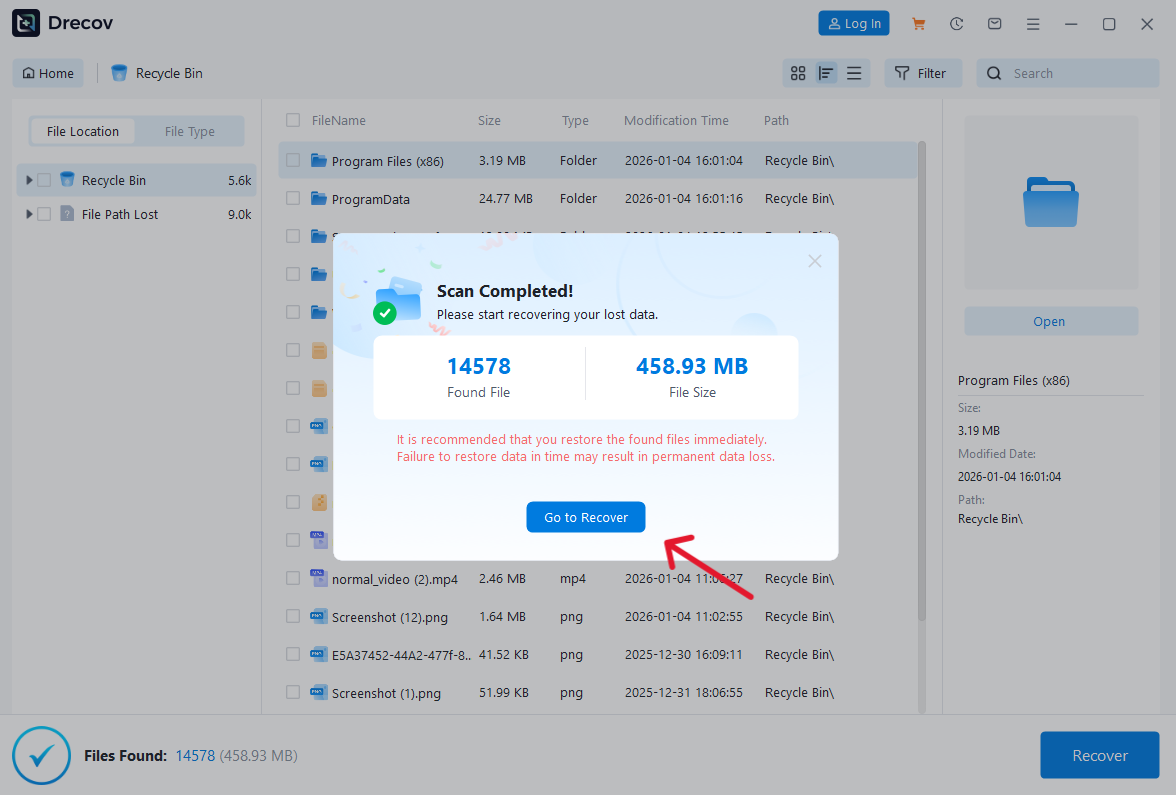
- Click Scan to start the recovery process.
- PandaOffice Drecov automatically performs a deep scan, searching for:
- Deleted file records
- File signatures
- Fragmented data blocks
- Use filters by file type, size, or name to narrow results.
- Preview photos, videos, and documents before recovery.
💡 Why preview matters:
Previewing confirms file integrity before you recover data from a formatted SD card.
Step 3: Recover and Save

- Select the files you want to restore.
- Click Recover.
- Choose a different drive or external device as the save location.
🚨 Important reminder:
Never save recovered files back to the formatted SD card or original partition. Doing so can overwrite remaining recoverable data and permanently destroy other files.
Why PandaOffice Drecov Delivers a High Recovery Success Rate
- Uses deep signature-based scanning
- Rebuilds damaged file structures
- Handles fragmented video and RAW photo files
- Repairs unreadable or corrupted files automatically
- Designed for common user mistakes, not lab environments
For users searching how to recover data from formatted SD card quickly and safely, this three-step approach offers one of the highest success rates available.
Method 2: Recover Data From Formatted SD Card Using Built-In Tools
If you prefer system-level solutions, built-in utilities may help in specific situations—especially if backups exist or formatting caused file system errors rather than full data loss.
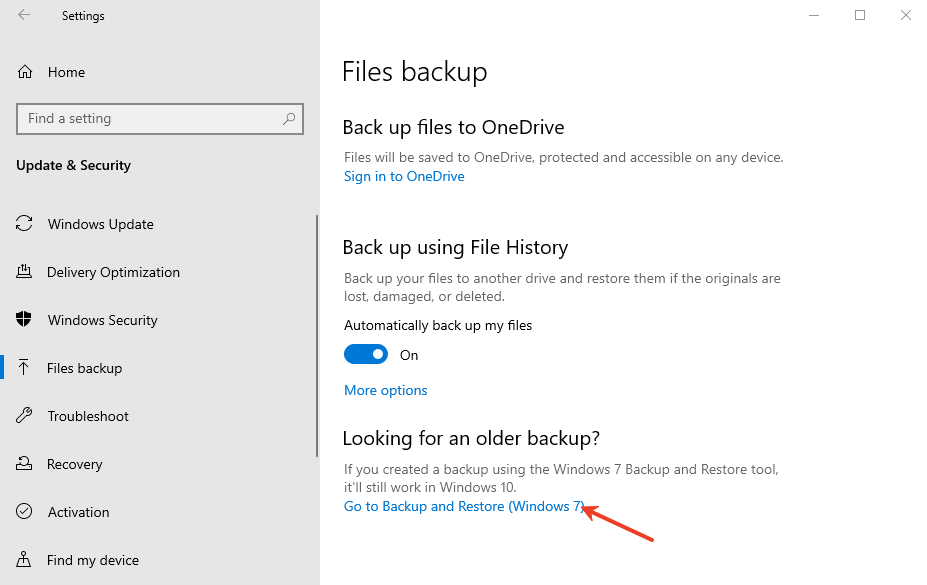
Option 1: Windows Backup and Restore
Step 1
Open Control Panel → Backup and Restore (Windows 7).
Step 2
Select Restore my files and follow the on-screen wizard.
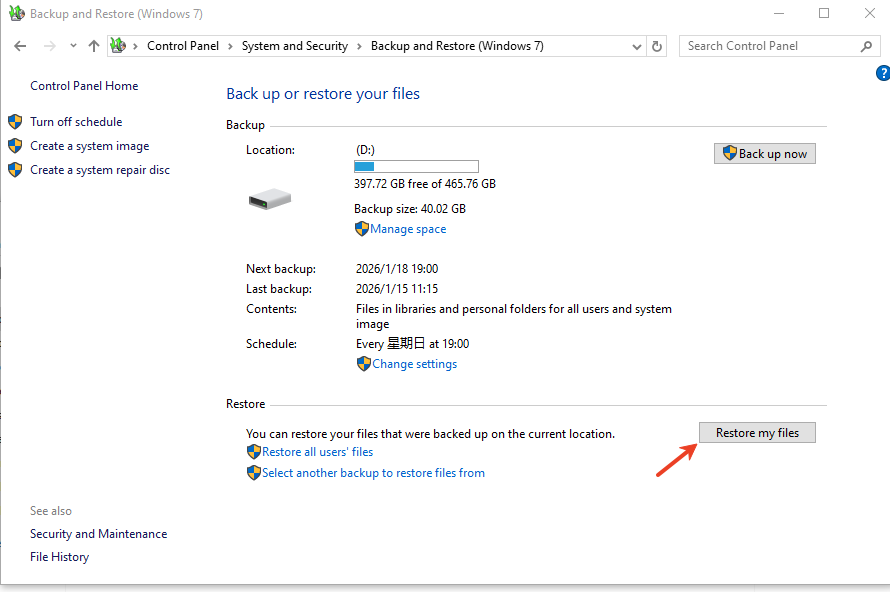
📌 Works only if backups were created before formatting.
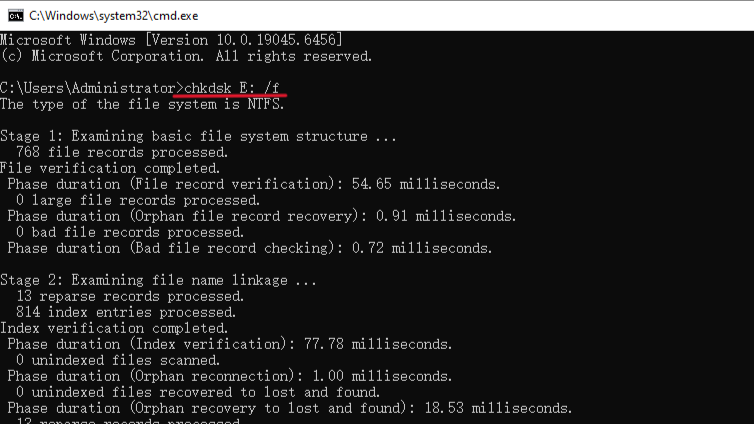
Option 2: CHKDSK Command (For File System Errors)
CHKDSK does not truly recover formatted data, but it may reveal hidden or damaged file entries.
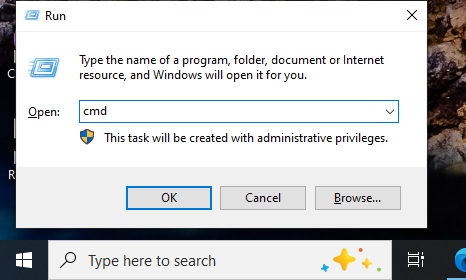
Step 1
Press Win + S, type cmd, then right-click and choose Run as administrator.
Step 2
Enter the command: chkdsk X: /f (Replace X with your SD card drive letter.)
⚠️ Warning:
Do not use CHKDSK if you plan to use recovery software afterward—it may modify disk structure.
Option 3: ATTRIB Command (Hidden Files Recovery)
Step 1
Open Command Prompt as administrator.
Step 2
Run: attrib -h -r -s /s /d X:\*.*
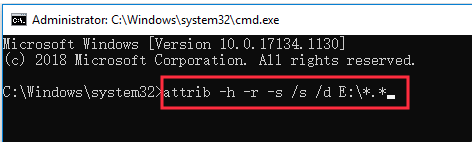
📌 Useful only if files were hidden rather than erased.
Method 3: Professional SD Card Data Recovery Services
If software fails and the data is mission-critical, professional labs can help in cases involving:
- Physical SD card damage
- Controller failure
- Secure full formatting
- Severe NAND degradation
These services extract raw data directly from memory chips using specialized hardware.
⚠️ This method costs more but sometimes represents the only way to recover data from a formatted SD card when all else fails.
Common Mistakes That Reduce SD Card Recovery Success
- Writing new files after formatting
- Installing recovery software on the SD card
- Saving recovered data to the same partition
- Assuming formatting equals permanent deletion
- Ignoring deep scan options
Avoiding these mistakes dramatically improves your chance to recover data from a formatted SD card.
Best Practices to Maximize Recovery Success
- Stop using the SD card immediately
- Use professional recovery software first
- Always recover to a separate storage device
- Preview files before restoring
- Act quickly before data gets overwritten
Conclusion
Formatting an SD card doesn’t mean your data is gone forever. In reality, most formatted SD card data remains recoverable if you act quickly and choose the right approach.
For everyday users, PandaOffice Drecov’s three-step recovery method offers the best balance of simplicity, safety, and recovery success—even for beginners with no technical background.
If you’re searching for a reliable way to recover data from formatted SD card, start smart, avoid risky commands, and always protect your data during recovery.






