







Recover Deleted Photo from SD Card: The 2026 Practical Guide is the most sought-after resource for photographers who have suddenly faced the “empty folder” nightmare. Whether a “Card Error” message pops up or you accidentally hit “Delete All” on your DSLR, the panic is immediate. However, the digital world rarely destroys data instantly. If you are asking how can I recover deleted photos from SD card, the answer lies in the sophisticated way flash memory handles data storage. This expansive guide provides a comprehensive, step-by-step roadmap to reclaiming your lost images by addressing real-world scenarios that users frequently encounter.
Understanding the “Shadow Data” Logic
Before diving into specific solutions, we must address the science behind the process. To successfully Recover Deleted Photos from SD Card assets, you must understand that “deleted” is a relative term. On an SD card using the exFAT or FAT32 file system, deleting a file merely removes the pointer in the directory index. The actual clusters containing your pixels remain on the NAND flash chips until the camera needs that space for a new shot.
⚠️ The Universal Warning: The moment you realize photos are missing, you must stop using the card. Every new shutter click or file transfer carries the risk of overwriting the “shadow data” of your deleted photos, making them unrecoverable forever.
Scenario 1: The “Accidental Batch Deletion” Panic
🧓: I was reviewing my shots from a newborn session on my Sony A7IV. I meant to delete one blurry photo, but I accidentally hit ‘Delete All’ in the playback menu. My heart dropped. How can I recover deleted photos from SD card when they were all wiped in an instant?
This is the most common “human error” scenario. Because the camera executes a command to clear the index quickly, the actual image data is usually 100% intact.
Solution: Professional Signature Reconstruction with PandaOffice Drecov
When you need to Recover Deleted Photos from SD Card folders after a mass deletion, PandaOffice Drecov is the most reliable choice because it scans for the unique headers of high-end RAW files.
Benefits of the Graphical Approach:
- Cross-Platform Support: While WinFR is limited to Windows-native formats, Drecov handles SD cards from Sony, Canon, and GoPro cameras which often use specialized FAT32 or exFAT configurations.
- Versatility: It recovers photos, videos, audio, compressed files (ZIP/RAR), and even system files like EXEs.
- Accidental deletion from your computer desktop.
- Files lost after emptying the Recycle Bin.
- Data loss from disk formatting.
- Accidental deletion or formatting of SD cards/U disks.
- Sync error occurring with deleted OneDrive files
- Privacy First: All recovery happens locally on your machine, so you don’t have to worry about your private data leaking to the web.
🚨 Important Warning: Do not install this on the same drive where the lost files were. Use an external USB drive to keep the data safe from being overwritten.
- Step 1: Physical Protection. Immediately remove the card from the camera. Slide the physical Lock switch on the side of the SD card to the downward position to ensure “Read-Only” status.
- Step 2: Hardware Connection. Insert the card into a dedicated USB 3.0 card reader. Avoid connecting the camera directly via a USB cable, as cameras often use MTP mode which can interfere with deep scanning.

- Step 3: Scan Initialization. Launch PandaOffice Drecov. Select the “SD Card Recovery” module. Identify your drive letter (e.g.,
G:\) and click Scan.

- Step 4: The Filtering Process. Once the scan progresses, use the sidebar to filter by File Type (e.g., .jpg, .arw, .cr3). This saves you from sifting through thousands of system fragments.

- Step 5: Verification and Saving. Preview the found images to check for corruption. Select the healthy files and click Recover, saving them to your computer’s secondary hard drive.
Scenario 2: The “Ghost Files” Mystery (Hidden Data)
🧑 : I just got back from a trip to Iceland. When I plug my SD card into my Windows laptop, it says the card is 90% full, but when I open the DCIM folder, it says ‘This folder is empty.’ I haven’t deleted anything! Is there a way to recover deleted photos from SD card that I can’t even see?
In this case, the photos aren’t actually deleted. Instead, a file system glitch—often caused by a virus or improper ejection—has altered the file attributes, making them invisible to the Windows File Explorer.
Solution: The “Attrib” Command Prompt Force-Reveal
This method allows you to Recover Deleted Photos from SD Card storage without downloading any third-party software. It is a “power user” trick that forces the system to ignore hidden attributes.
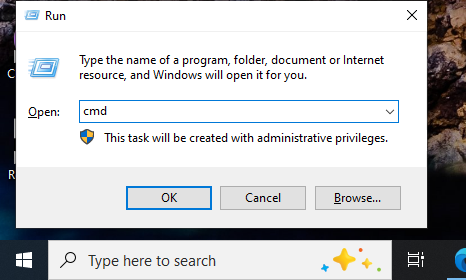
- Step 1: Launch the Terminal. Click the Start menu, type cmd, right-click it, and select Run as Administrator.
- Step 2: Identify the Target. Note the drive letter of your SD card (e.g., E:).
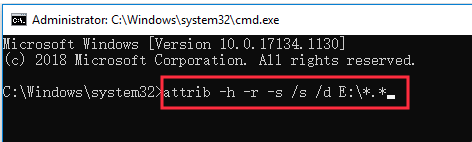
- Step 3: Input the Repair Command. Type the following command exactly: attrib -h -r -s /s /d E:*.* (Replace E with your actual drive letter).
- Step 4: The Reveal. Press Enter. Wait for the blinking cursor to return to a new line. Open your SD card in File Explorer; your photos should reappear, often inside a newly created, unnamed folder.
Scenario 3: The “Card Must Be Formatted” Error
👰: Every time I insert my SD card, Windows pops up a message saying ‘You need to format the disk in drive G: before you can use it.’ If I click format, I lose my wedding photos. If I don’t, I can’t open the card. How can I recover deleted photos from SD card when the computer won’t even let me inside?
This error usually means the “Partition Table” or the “Boot Sector” of the SD card is corrupted. The data is there, but the “map” to find it is broken.
Solution: Microsoft Windows File Recovery (WinFR)
Since the file system is unrecognized (RAW), you need a tool that ignores the “map” and looks at the “terrain” (the raw sectors). Microsoft’s official WinFR tool is perfect here.
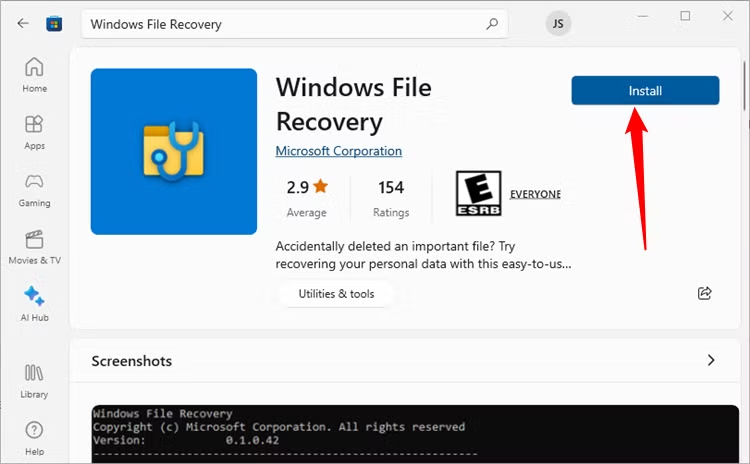
- Step 1: Installation. Download Windows File Recovery from the Microsoft Store.
- Step 2: Open the Elevated Tool. Launch the app. A command window will appear.
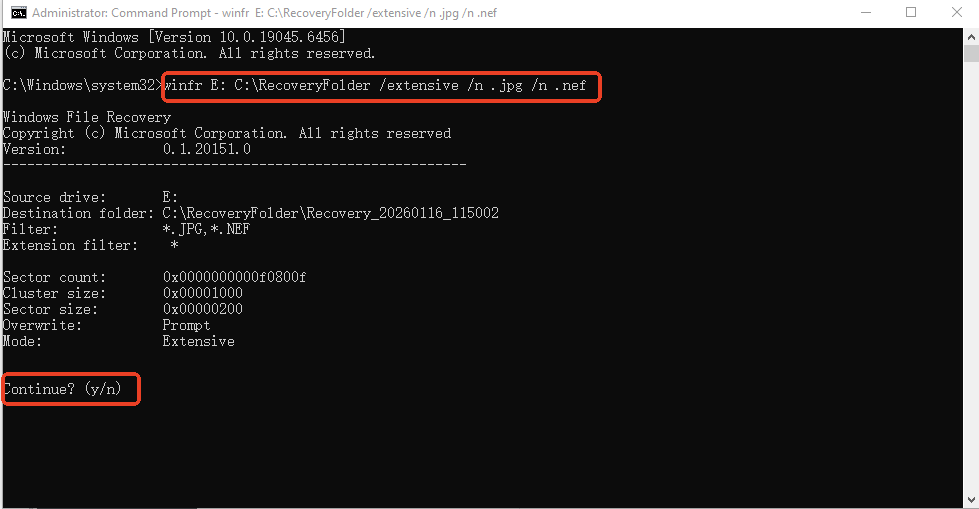
- Step 3: Extensive Signature Scanning. Type: **winfr E: C:\RecoveryFolder /extensive /n .jpg /n .nef (Assuming E: is the SD card). This tells the tool to move everything to a folder on C:.
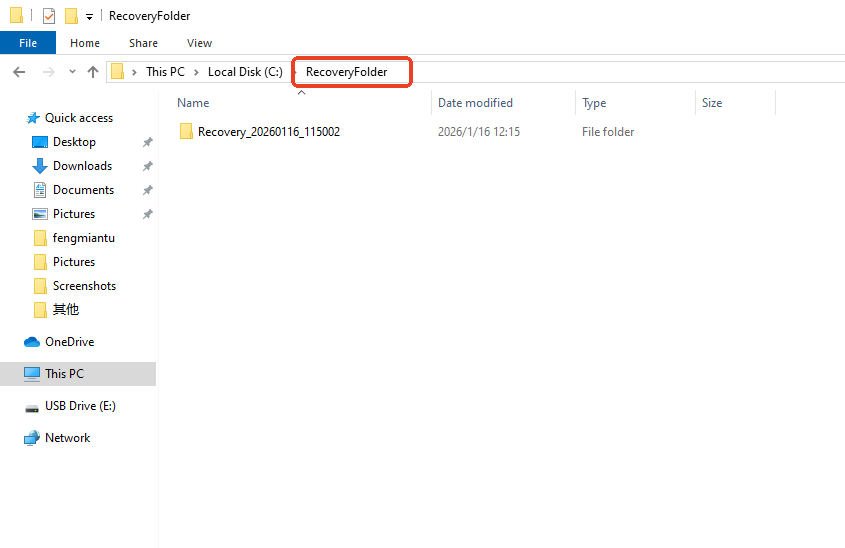
- Step 4: Analyze the Results. WinFR will create a “Recovery” folder. You will need to sort through the images by date or size as original filenames may be lost.
Scenario 4: The “Interrupted Transfer” Corruption
🧑 : I was moving photos from my SD card to my external SSD when the cable got bumped and disconnected. Now, half the photos are missing from the card and didn’t make it to the SSD. I feel like they vanished in the transfer ‘void.’ Can I still recover deleted photos from SD card after a failed move?
A “Move” command is actually a “Copy + Delete” sequence. The source files were deleted the moment the OS thought the copy was successful. Because the process was interrupted, the directory index is now a mess.
Solution: Sector-Level Reconstruction
To Recover Deleted Photos from SD Card after a failed transfer, you need to ignore the corrupted directory and perform a deep scan for “orphaned” file fragments.
- Step 1: Avoid “Repair” Tools. Do not use the Windows “Error Checking” (chkdsk) tool yet. Chkdsk tries to fix the index by deleting “unlinked” fragments—which are exactly what your photos are right now.
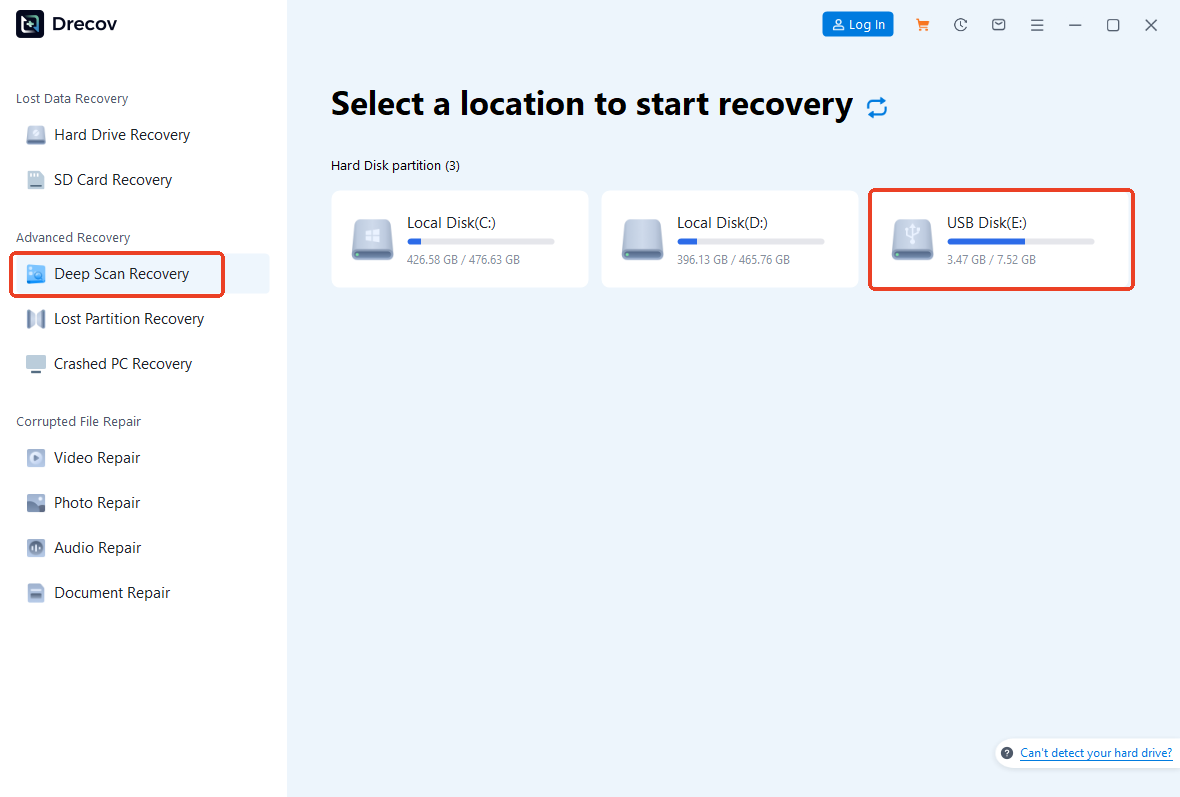
- Step 2: Deep Scan Selection. Use the Deep Scan feature in PandaOffice Drecov. This mode bypasses the corrupted index and reads the raw NAND flash sectors.
- Step 3: Search for Fragments. During the scan, look for “reconstructed”.

- Step 4: Verification. Interrupted transfers often result in partial files (half-grey images). Use the preview function to ensure the “Recover Deleted Photos from SD Card” process yields healthy, full-resolution files.
Scenario 5: The “In-Camera” Database Failure
👩 : My Nikon Z6 shows a ‘Card Error’ on the top LCD. When I go to playback, it says ‘Folder contains no images.’ However, the ‘Remaining Shots’ counter shows that the card is almost full. I’m terrified to format it. Please tell me how can I recover deleted photos from SD card directly from the camera.”
This is often a “logical lock” caused by the camera’s internal database files (.DAT or .XML files) becoming desynchronized with the actual images on the card.
Solution: Native Database Repair & Image Verification
Most modern mirrorless cameras (Sony, Canon, Nikon) have a built-in utility to fix this specific issue without touching the actual image data.
- Step 1: The Menu Dive. Keep the card in the camera. Navigate to the Setup Menu (wrench icon).
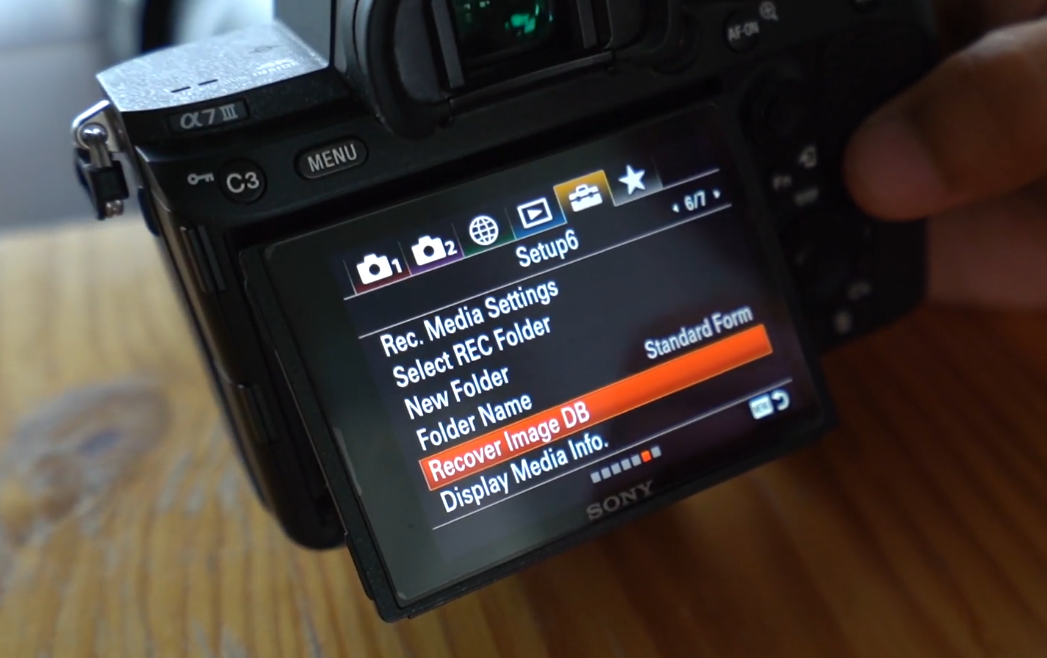
- Step 2: Find the Repair Tool. Look for “Recover Image DB” or “Repair Image Database.”
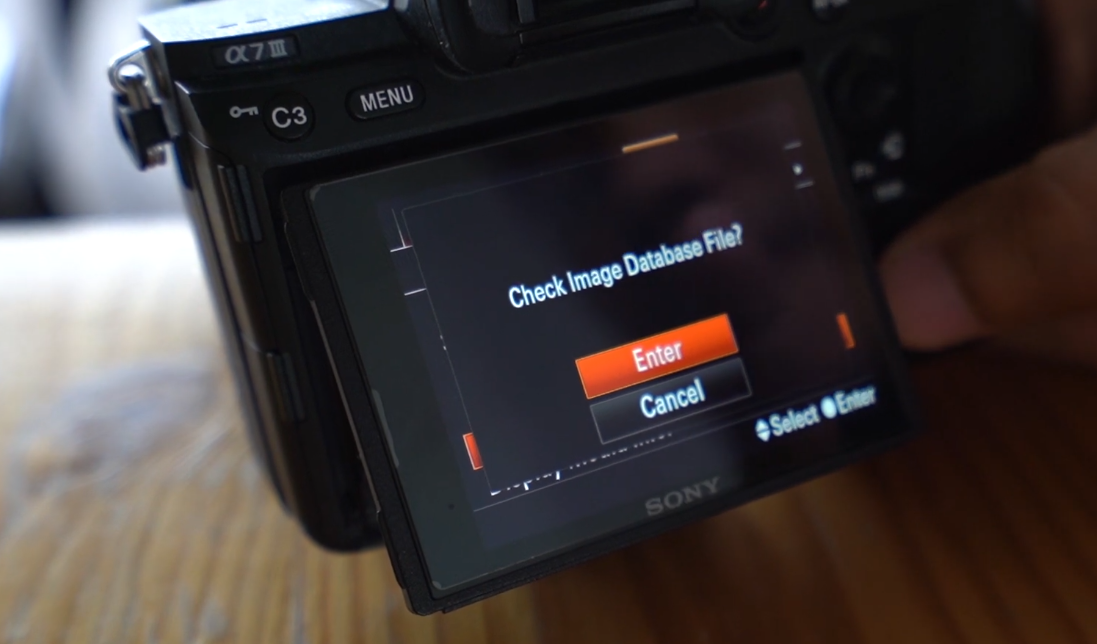
- Step 3: Execution. Run the utility. The camera will scan the DCIM folders and recreate the index.
- Step 4: The Backup. If the photos reappear, immediately back them up to two different locations. If they don’t reappear, the database was too damaged, and you should revert to the Method 1 software approach.
Prevent Loss and Recover Deleted Photo from SD Card: The 2026 Practical Guide
To truly master how can I recover deleted photos from SD card, you should follow these professional forensic protocols:
The Stability Factor
USB ports on the front of a PC tower or unpowered USB hubs often provide inconsistent voltage. This can cause an SD card to “drop” during a long deep scan. Always plug your card reader into the motherboard USB ports located at the back of the PC.
The Temperature Warning
Flash memory is sensitive to heat. If you are running a 4,000-word-level deep scan on a 512GB card, the card might get hot. If it feels burning to the touch, pause the scan and let it cool. Heat is often a precursor to a physical controller failure.
Signature Matching
If you are a professional using a specific camera (like a Fujifilm X-T5), ensure your recovery software supports the specific .RAF signature. Generic software might recover a “broken” file because it doesn’t understand the unique structure of that specific RAW format.
Why You Should Never “Fix” an SD Card Before Recovery
A common mistake users make is trying to “fix” the card so it works again before getting their photos back. Tools like “Disk Management” to “Change Drive Letter” or “Format” are destructive. When you seek to Recover Deleted Photos from SD Card, your goal is data extraction, not device repair. Once your photos are safely on your computer, you can then format the SD card to restore its functionality.
Professional Prevention Strategies
Learning how can I recover deleted photos from SD card is a reactive skill. To be proactive, consider these 2026 industry standards:
- Dual Slot Recording: If your camera has two SD card slots, set it to “Backup Mode” so every photo is written to two cards simultaneously.
- Frequent Rotation: Don’t use a single 1TB card for a whole year. Use smaller 128GB cards and rotate them. If one fails, you only lose a portion of your work.
- Retire Early: SD cards have a finite number of “write cycles.” If a card starts acting slow or gives you a single error, retire it. A $30 card is not worth a $3,000 photo shoot.
Conclusion
To successfully recover deleted photos from SD card storage, you must match the method to the symptoms. CMD works best for hidden files, while PandaOffice Drecov excels at rebuilding formatted data. Windows File Recovery provides a powerful command-line alternative for corrupted partitions. Regardless of the tool, speed remains your greatest ally.
By following the strategies in this Recover Deleted Photo from SD Card: The 2026 Practical Guide, you can confidently navigate the recovery process. Stop shooting immediately, lock your card, and use these structured steps to bring your digital memories back to life safely.






