







Accidentally or deliberately formatting your hard drive can trigger immediate panic over lost data. But take a deep breath! This comprehensive guide answers the critical question, “Can I really Recover Formatted Hard Drive data?” We will provide three powerful methods, emphasizing the use of the professional recovery tool.
I. Can Data Really Be Recovered After Formatting a Hard Drive?
The short answer is: Yes, in most cases, recovery is highly possible!
A common misconception is that formatting completely erases everything. In reality, the success rate of a Recover Formatted Hard Drive operation depends on the type of format performed and the drive type (HDD vs. SSD).
- Quick Format: This is the most frequent scenario and yields the highest recovery rates. It merely clears the file system’s “index” information (like the Master File Table or MFT), marking the storage space as “available” for new data. The actual data bits remain on the physical sectors.
- Full Format: While older versions of full format involved a data-wiping “write zero” pass, modern operating systems (e.g., Windows 7+) often perform a Quick Format followed by a disk surface check. Unless a specific “secure erase” or “write zero” option was explicitly selected, the chance to Recover Formatted Hard Drive data remains high.
💡As long as new data hasn’t been written over the original storage locations, the integrity of your lost files remains intact.
II. Method 1: Using Professional Formatting Recovery Software
This is the simplest, most cost-effective, and highly recommended approach to successfully Recover Formatted Hard Drive files. Professional data recovery software uses advanced algorithms like Deep Scan and File Signature Search to bypass the damaged file system table and reconstruct lost files directly from the raw data.
Featured Solution: PandaOffice Drecov
Your software, PandaOffice Drecov, is specifically designed to handle complex data loss scenarios, including drive formatting. It offers powerful, deep-level interaction with the storage media, making it an excellent tool for reliable Recover Formatted Hard Drive operations.
Steps to Recover Data with PandaOffice Drecov:
- Download and Isolate: Download and install PandaOffice Drecov onto a separate, healthy drive or partition. (Crucial Step: Never install the software onto the formatted drive itself, as this risks data overwriting.)
- Launch and Select: Run PandaOffice Drecov and select the recently formatted drive or partition. The software will often recognize the drive’s file system as RAW or unallocated.
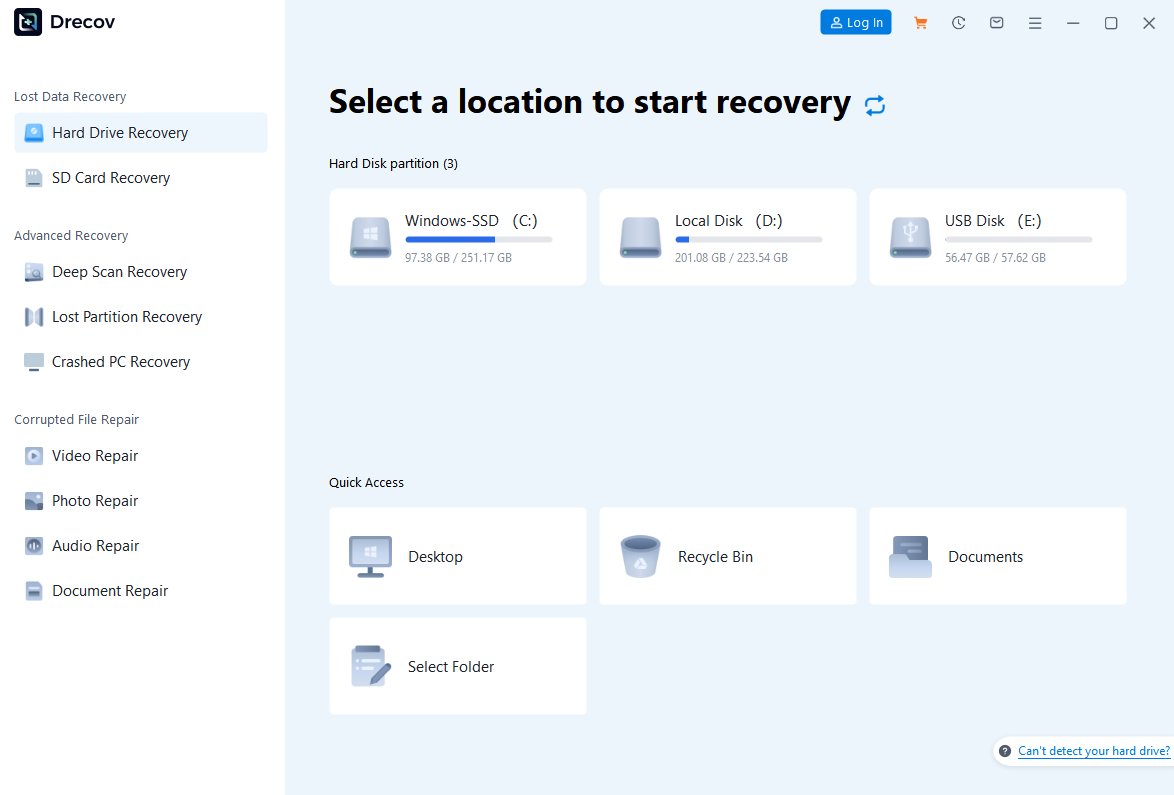
- Perform Deep Scan: Initiate a Deep Scan. The software will scan sector by sector, matching file signatures (e.g., $0xFFD8$ for JPEG,
%PDFfor PDF) to reconstruct the lost files and directories.

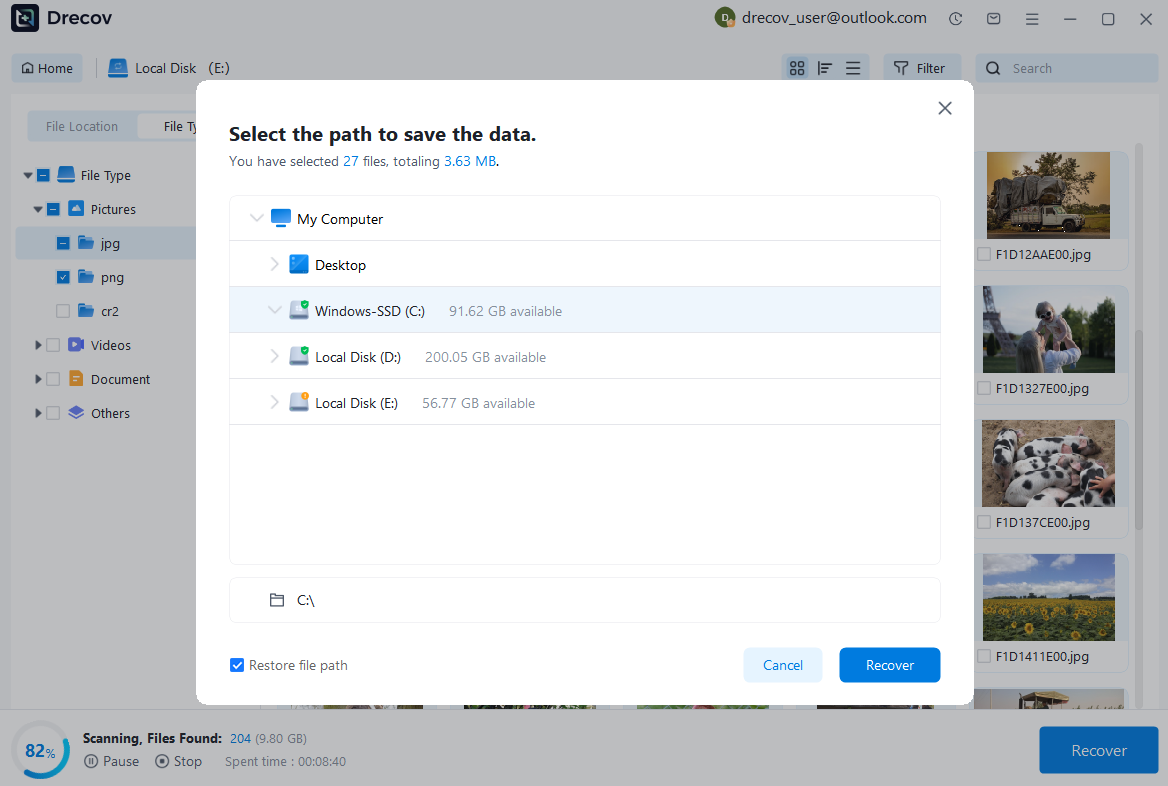
- Preview and Restore: After the scan completes, use the preview function to verify file integrity. Select the files you need, and save them to a new, secure storage location to finalize the Recover Formatted Hard Drive process.
III. Method 2: Restoring from File History or System Backups
If you maintained good backup habits before the formatting incident, utilizing system-level backup features (like Windows File History or macOS Time Machine) offers a fast path to recovery.
- Applicability: Only viable if these features were active or if external backups were regularly performed.
- Restoration Principle: Backup systems store file replicas on external media, meaning the formatting operation on the source drive does not affect these copies.
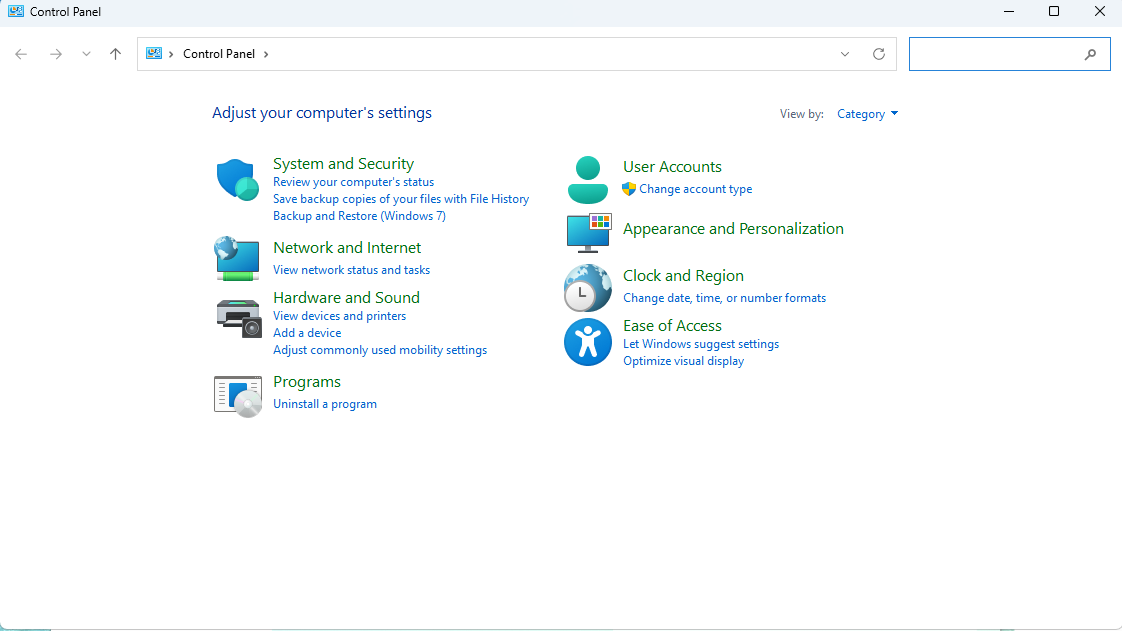
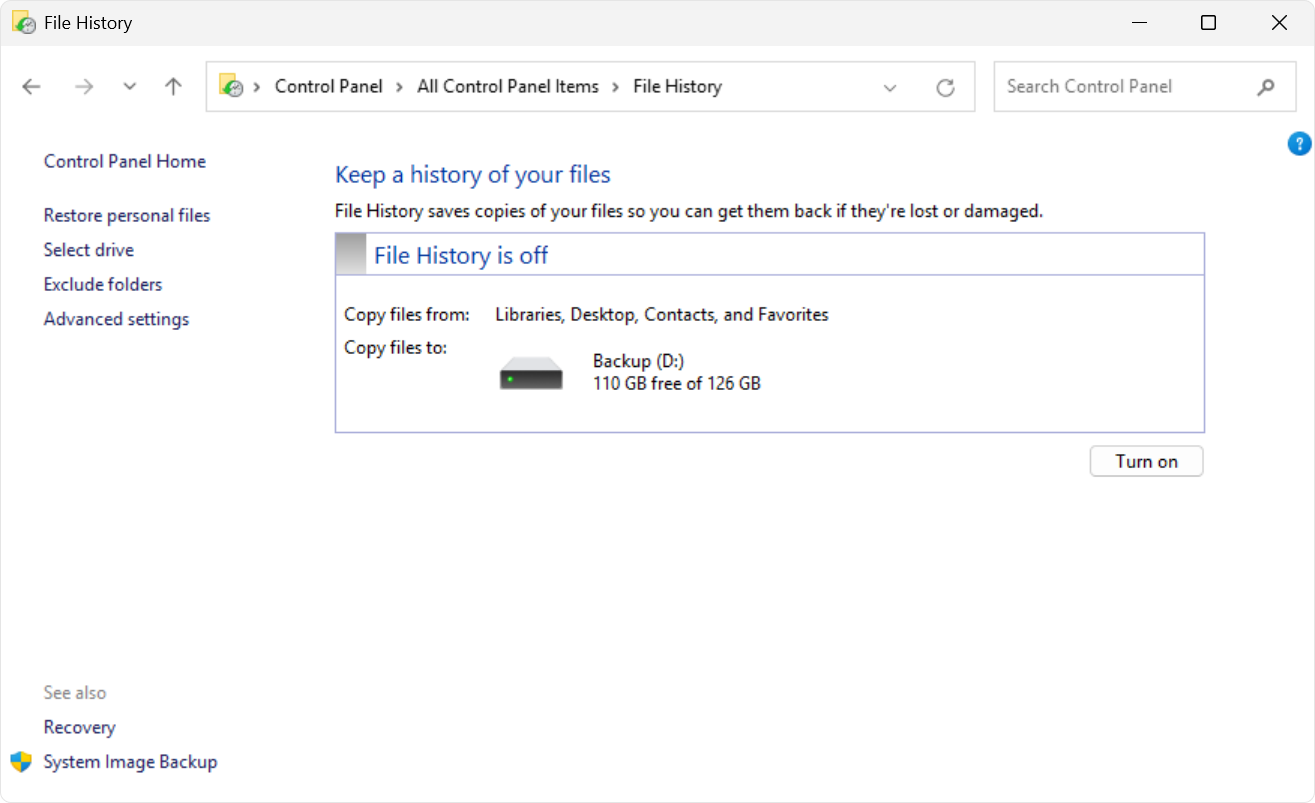
- Example (Windows File History): Connect the external drive containing the backup > Navigate to Control Panel > System and Security > File History > Click “Restore personal files” and locate the desired files based on the timestamp.
IV. Method 3: Seeking Professional Data Recovery Services
If your hard drive is suffering from a severe physical failure—such as making an unusual clicking sound (“Clicking of Death”), being undetectable by the computer (not showing in BIOS/UEFI), or if software recovery attempts were unsuccessful—and the data is absolutely irreplaceable, professional data recovery services are the final resort.
The Necessity and Process of Professional Recovery:
- Physical Damage Remediation: Professional labs operate in Clean Rooms (meeting ISO Class 100 standards), which is essential for handling physical damage like damaged magnetic heads or scratched platters. Engineers can safely open the drive enclosure and replace faulty internal components.
- Imaging and Cloning: To prevent further damage, engineers use specialized data recovery hardware (e.g., PC-3000) to create a read-only, sector-by-sector clone of the failed drive onto a healthy “target drive.” All subsequent recovery work is performed on this secure clone.
- Firmware-Level Repair: For complex logical issues like corrupted drive firmware, experts can access the drive’s Service Area to repair the firmware, making the drive functional enough to allow data extraction.
| Category | Logical Failure (Can Attempt Software Recovery) | Physical Failure (Requires Lab/Clean Room) | Service & Security Essentials |
| Failure Type & Examples | Accidental Format, File Deletion, Simple File System Corruption, Virus Damage. | Head Crash (Clicking), Motor Failure, Drive Undetectable in BIOS/OS, Firmware corruption. | Enterprise/RAID: Multiple disks, complex volume structure (highest cost). |
| Typical Price Range (USD) | $100 – $700 | $800 – $2,500+ (Significantly higher for complex SSDs or platter damage). | Expedite Fee: Typically +50% to +100% of the final recovery cost. |
| Service Timeline | Diagnostics: 1-3 Business Days. Standard Recovery: 5-10 Business Days. | Diagnostics: 1-3 Business Days. Emergency Service: 24-72 Hours. | Pricing Principle: Most labs operate on a “No Data, No Fee” basis. |
| Critical Action (Post-Failure) | IMMEDIATELY POWER OFF. Do not reboot, run CHKDSK, or install any software on the affected drive. | DO NOT ATTEMPT TO OPEN THE DRIVE. Any dust contamination will lead to irreversible damage. | Security: Must sign a Non-Disclosure Agreement (NDA) for confidentiality. |
| Vendor Requirements | If software fails, stop immediately and escalate to professional help. | Vendor must operate an ISO Class 100 or better Clean Room facility. | Delivery: Recovered data must be returned on a New or Healthy external drive. |
While professional recovery is expensive, it offers the highest success rate, especially when dealing with mechanical issues that prevent any software from completing the Recover Formatted Hard Drive task.

Post-Formatting Precautions
To maximize your success rate when you Recover Formatted Hard Drive data, strictly follow these data protection rules immediately:
- ✅Stop All Usage and Writing: Do not write any new data to the formatted partition. Any write operation risks permanently overwriting your old data blocks. If it was your system drive, power down the computer immediately and connect the drive as a secondary drive to another PC.
- ❌Avoid Further Manipulation: Do not attempt to reformat the drive, resize the partition, or use system repair tools (like CHKDSK). These actions can further scramble the original file structure information.
- 👉Isolation Principle: Always install recovery software, such as PandaOffice Drecov, on a partition or drive separate from the one you are trying to recover.
Frequently Asked Questions & Expert Answers
For a quick format with no new data written, the success rate can reach 80%-90%. For a full format or slight overwriting, the success rate is 50%-70%. If a large amount of new data has been written, the success rate is less than 30%. PandaOffice Drecov’s deep scan function can maximize the success rate of recovering a formatted hard drive.
It is highly unlikely. If the files have not been overwritten, they can be opened normally after recovery. If partially overwritten, corruption may occur. In this case, you can use the software’s “File Repair” function to fix them, or contact customer service for technical support.
Some free software can recover a small number of simple files, but they have limitations: insufficient scan depth, support for only a few file types, potential watermarks on recovered files, and some free tools may come with bundled ads or steal privacy. It is recommended to prioritize legitimate paid software such as PandaOffice Drecov.
There is still a chance. TRIM accelerates data erasure but does not complete it immediately.
Yes. It supports data recovery from various external storage devices including external hard drives, USB flash drives, and memory cards.
Summary
To sum up, whether you’ve encountered an accidental format or had to perform an intentional drive erasure, the key to successful formatted hard drive recovery lies in three non-negotiable principles:
✅ Act swiftly to prevent data overwriting
✅ Refrain from any new writes to the affected drive (no saving files, installing software, or modifying content)
✅ Opt for a professional, reliable recovery tool tailored to deep data retrieval
The moment you realize the format has occurred, stop using the drive immediately. By choosing a trusted solution like PandaOffice Drecov—designed to excavate lost data fragments and restore them efficiently—you’ll significantly boost your chances of reclaiming precious files, documents, photos, and videos that seemed irretrievable. Don’t let a formatted drive become a permanent loss—prioritize these core steps and leverage the right tool to turn the tide.







